

Key Takeaways
- Choose between Nvidia Game Ready and Studio drivers based on whether you are a gamer or a creative professional.
- Nvidia makes it easy to switch between Game Ready and Studio drivers using the GeForce Experience utility.
- AMD does not offer separate drivers for games and creative applications like Nvidia.
Updating the graphics drivers is one of the best things you can do for your PC as it not only keeps your system fed with all the latest features, but it will also help fix graphical issues and performance hits due to other factors. Updating the graphics drivers of your PC is fairly simple and only takes a few minutes, but there are a few things you need to keep in mind. Nvidia, for instance, gives you two main options — Studio and Game Ready drivers — letting you pick the one that suits your needs. They both serve different purposes, and it’s crucial to understand all the differences to ensure you’re getting the best performance out of your Nvidia graphics card.
How to update the graphics driver on your PC
Keeping your GPU drivers up to date is essential to get the best performance in the latest games. Here’s how to do it.
Nvidia’s Game Ready vs Studio drivers
Understanding the differences
Nvidia’s Game Ready and Studio Drivers both cater to different users and are optimized to match specific applications. The Game Ready drivers, as the name implies, are made for gamers who primarily use their GPUs for gaming, and these drivers are tailored to deliver the best gaming performance. They also bring the latest optimizations for new games, patches, and DLCs, which is also why you’ll see new Game Ready drivers pop-up for your system more frequently.
Nvidia’s Studio drivers, on the other hand, are made for systems running creative workloads. They’re great for PCs that are constantly tasked with video editing, animation, graphics design, and more. Naturally, they’re more optimized for various creative workload applications than games, to ensure smooth performance and reliability. One thing to note about Nvidia’s Studio Drivers is that they don’t get updated as frequently as the Game Ready drivers, so you won’t find yourself running driver updates all the time.
Which driver is right for your PC?
Pick the right driver

Now that you know what each of these drivers are meant for, it’s time to pick the right one for your PC. If you are a gamer primarily playing on your PC, then you should use Nvidia’s Game Ready drivers. Creative professionals spending their time running creative workload applications on their PC should lean more towards the Studio drivers. That’s not to say you can’t play games or run creative applications outside the designated drivers, though.
Both Game Ready and Studio drivers are based on the same core architecture, and they’re generally interchangeable. That means, gamers using Nvidia’s Game Ready drivers can run creative applications for things like photo and video editing. Similarly, even creative professionals using Nvidia’s Studio drivers can run games on their PC just fine without any issues. You are less likely to run into any major issues on either of these drivers while, say, running applications or games they’re not optimized for, but expect to see some minor performance and stability issues.
How to switch between Nvidia Game Ready and Studio drivers?
A fairly simple process
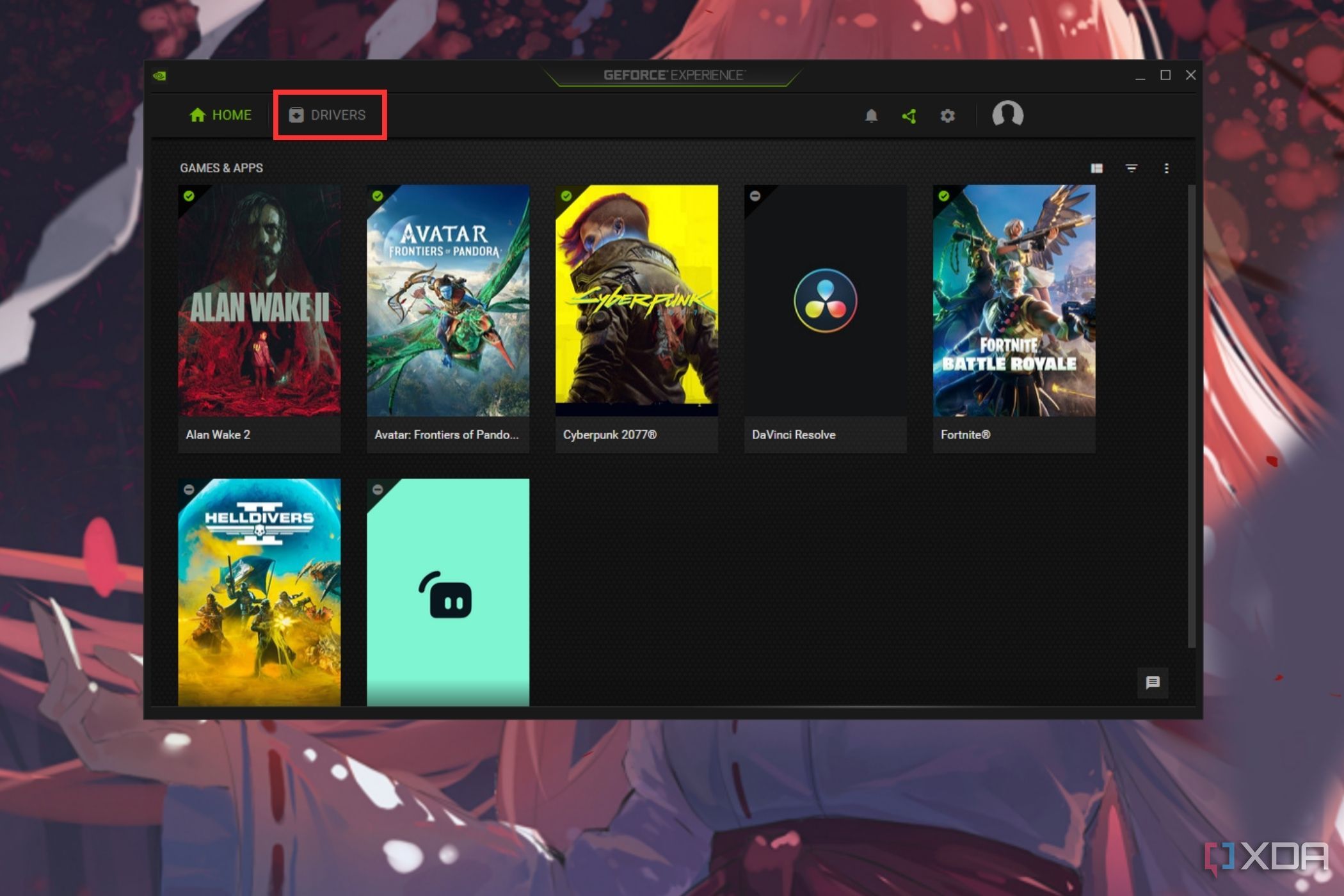
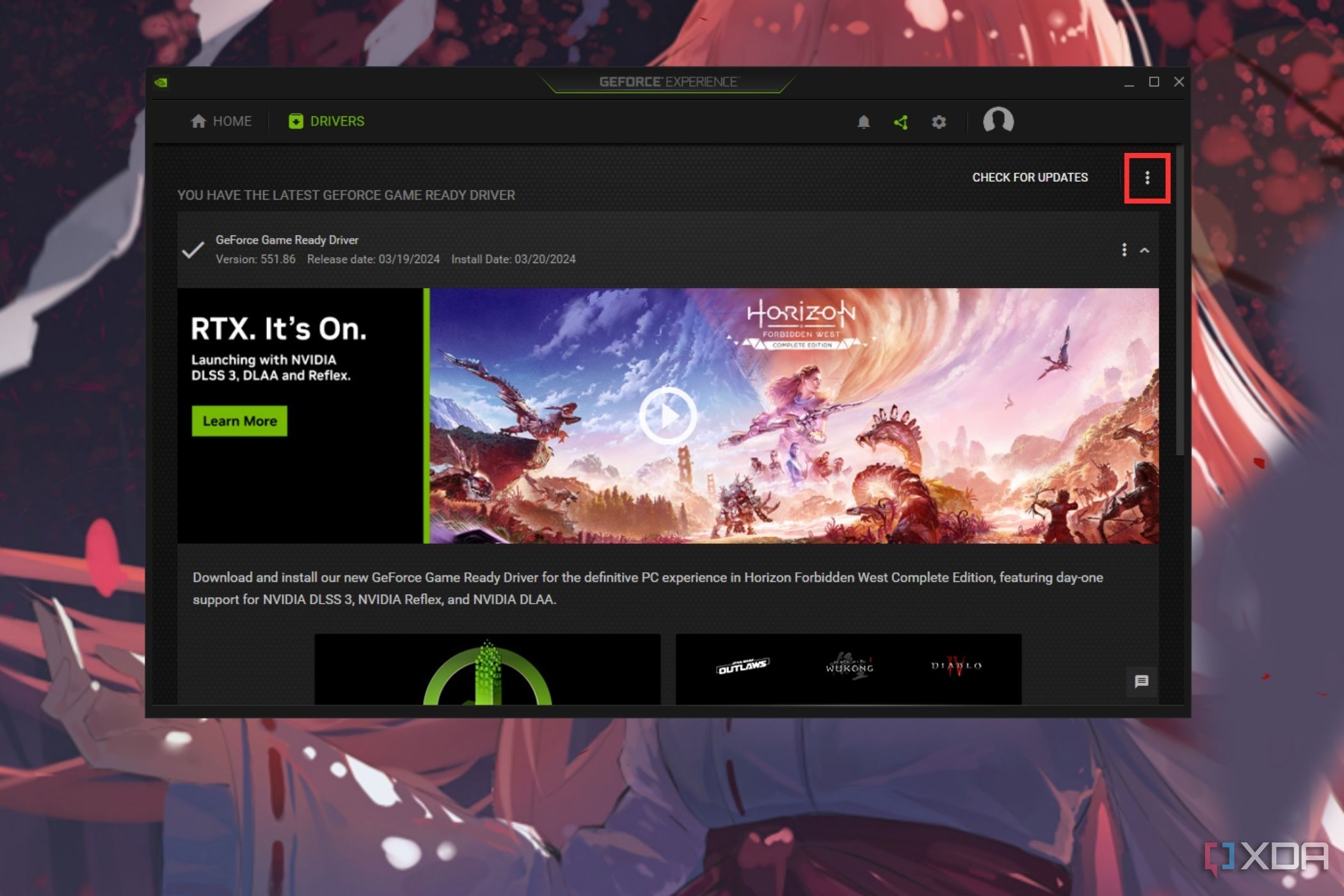
While you don’t have to switch between the Game Ready and Studio drivers on Windows PC all the time, it’s worth noting that Nvidia makes it fairly simple to do it via its GeForce Experience utility. That’s right, you can switch between Game Ready and Studio drivers on your PC with just a toggle. To switch:
- Open Nvidia GeForce Experience utility. You can download and install it on your PC from Nvidia’s website.
- Click the Drivers tab.
- Click the three-dot icon that’s located next to Check for updates button.
- Select the driver of your choice.
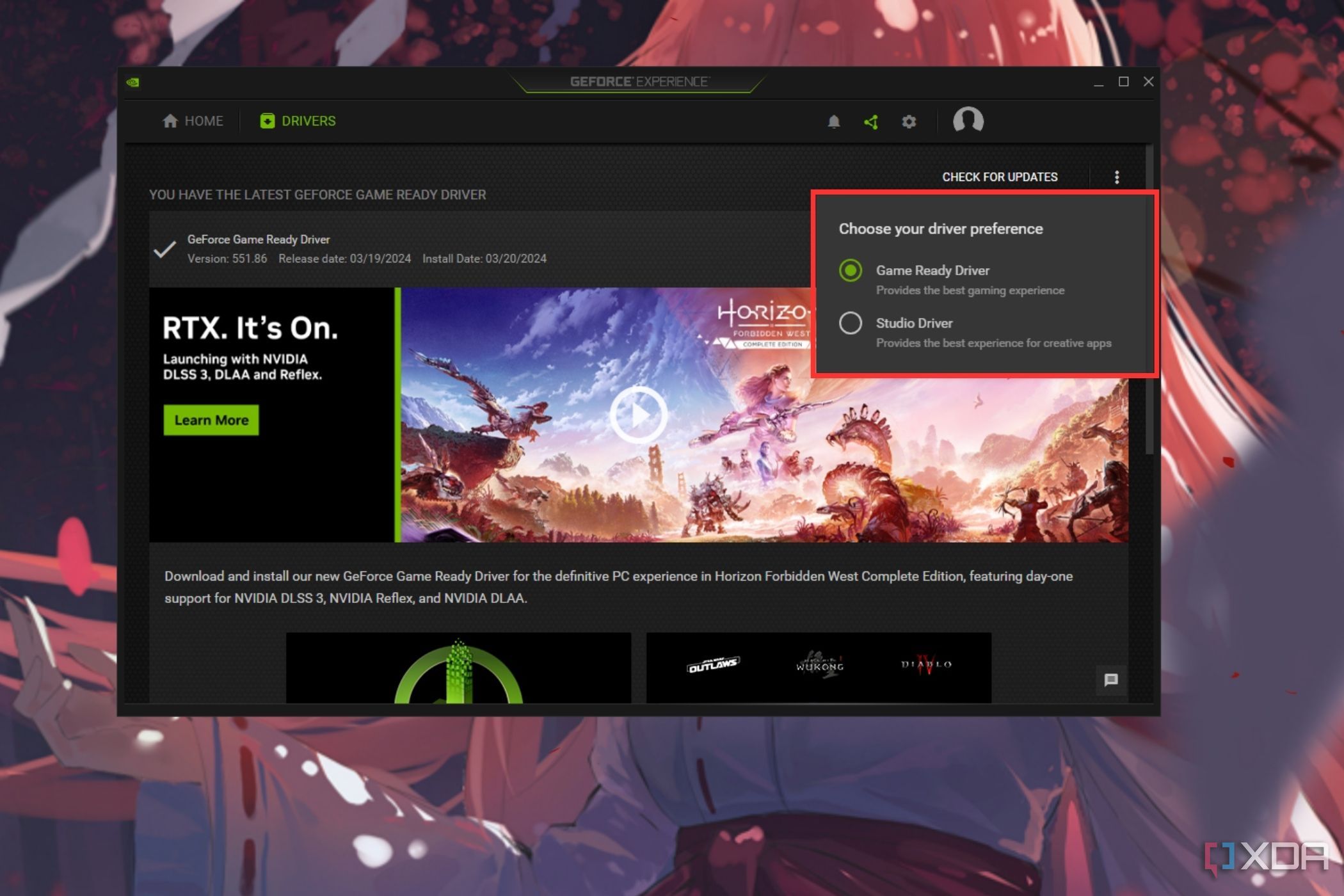


You may see a pop-up notifying you about a driver update if this is your first time switching to a different driver. Simply follow the on-screen instructions to install the updated drivers and use them on your PC. Alternatively, you can also head to Nvidia’s driver download page and manually select and download the driver that you want to install on your PC.
No such options for AMD GPU users
Having dedicated drivers for games and creative applications is great as it allows you to get the best optimized driver that’s specific to your usage. It’s particularly good for creative professionals, who don’t need new drivers with optimizations for every single game that’s released, so they don’t have to worry about updating their drivers as frequently. Unlike Nvidia, AMD doesn’t make you install separate drivers for games and creative applications. The lack of dedicated drivers for games and creative workloads isn’t necessarily a deal-breaker, but it’s just something to keep in mind while picking the best GPU for your PC.
#Nvidias #Game #Ready #Studio #drivers
source: https://www.xda-developers.com/nvidia-game-ready-vs-studio-drivers/


