

I don’t really know any operating systems other than Windows. I got started with it as a small kid with Windows 3.1, and from then on, I’ve been stuck on Microsoft’s operating systems. Windows 95, 98, XP, Vista, 7, 8, 10, 11—you name it, I’ve used it. But I’ve never owned a Mac, and I’ve never properly used Linux before.
I say “properly” use Linux because I gave it a try around 2010. I can’t remember what distro I used, but all I can remember is trying to brute-force all the stuff I used on Windows onto Linux via WINE and failing pretty spectacularly. I shelved Linux as a weird, obtuse OS and shelved it for 15 years.
But now, things are changing. Not only has Linux come a long way since then, but the interest in the operating system is growing as Windows 10 approaches its end-of-service date. And then PewDiePie gave Linux Mint a try and said he really liked it. So, curiosity got the better of me, and I ventured into the brave unknown with only Microsoft-related experience under my belt.
Linux Mint actually comes with a demo
A demo! For an operating system!
So, when you want to install Windows on a system, you create a bootable media. When you run it, you’re pretty much forced to install the OS on your PC without any way of “sampling” it. There are ways you can get Windows installed on a USB using tools like Rufus, but otherwise, you can’t give it a trial run without installing it and reverting the install if you don’t like it.
Linux Mint’s installation media is a little different. When you boot off of it, you actually load up Linux Mint in a demo mode. It’s not exactly fast (because it’s running off of your USB), but you can give it a try without installing it. And if you do like it, there’s a shortcut on the desktop that lets you install it right there and then.

Related
Want to get started with using Linux Mint? You’ll need an ISO image and a few other tools to install
Getting started with Linux Mint is really smooth and effortless
I expected far worse
When I got into Linux Mint, I expected everything that requires drivers to break down on me. I vaguely remember having to do the same when I tried Linux back in 2010, but when Linux Mint booted up, I didn’t have to do all of that. Everything just seemed to work just fine without me needing to tinker with stuff.
Not only that, but there’s a handy-dandy welcome panel that pops up when you first boot up the operating system. You can tell it to go away forever if you know what you’re doing, but if you’re a newbie like me, you can tell it to pop up every time you boot, which is great.
This handy welcome panel lets you get everything updated and shows you how to set your PC up just the way you like it. It also includes a link to the Software Manager featuring common apps you might want to download on a new system. I wondered why Microsoft didn’t have something akin to the Software Manager on Windows, but then I remembered that the Microsoft Store is a thing that exists. I’m not sure why Linux Mint’s software downloader tool was innovative and useful to me, while I find the Microsoft Store an annoying addition to Windows. Maybe it’s a “grass is greener” mentality? Not sure.

Related
5 reasons why Linux Mint is the best distro for Windows converts
Linux Mint is the friendliest distro for Windows veterans.
A lot of my favorite software just works without issue
I didn’t have to sacrifice much at all

Then came the moment of truth: getting my apps to work on Linux Mint. I foresaw that I would have to do all kinds of workarounds to get my favorite programs working, either through WINE or some other method. So, imagine my surprise when I discovered that pretty much all of my day-to-day apps worked just fine.
Google Chrome installed fine. Steam installed itself without issue. Even apps like Discord and Slack had Linux options that were as easy to install as their Windows versions. Before I knew it, my Linux Mint setup looked nearly identical to my Windows one, and I could work and play just like I would on Windows. I was really impressed in just how little finagling I had to do to get my fave apps working.

Related
The End of 10 group aims to save Windows 10 PCs from landfills using Linux
What’s black and white and supported all over? Linux, of course.
You have to type your password in a lot
And I mean, a lot

The last time I tried Linux, I thought it was pretty much an invincible bastion against malware and viruses. Maybe it wasn’t, and it was just a myth, but it felt like it was a big selling point for Linux at the time. Fast-forward to today, and there’s a security measure on Linux Mint where you have to type in your password when you want to install something or do something important. And I mean every time.
Googling to see if it’s possible to disable these notifications brings up a lot of posts from concerned community members who say that, while you can disable them, you really, really shouldn’t. It made me realise that operating systems like Linux don’t have the luxury of stuff like Windows Defender, which can keep things safe even if you disable UAC. With Linux Mint, your security is very much in your hands, for better or for worse.

The terminal is not scary
I promise it’s not
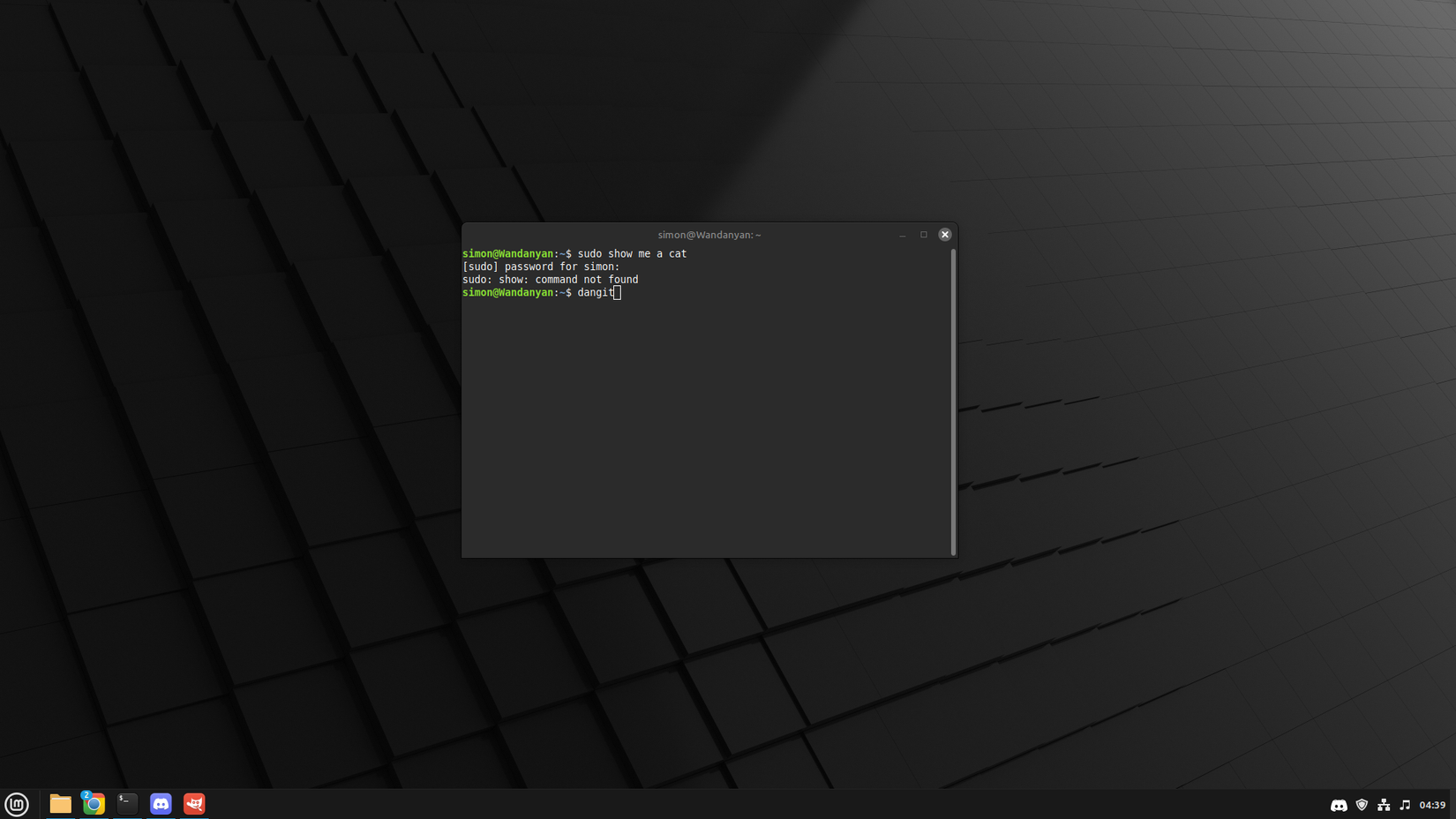
So there’s this thing on Linux called the terminal. Sometimes, when you want to install an app, the website you want to get it from will ask you to install it through the terminal. If you’ve ever heard a Linux fan make a joke like “sudo make me a sandwich,” they’re referencing the terminal.
So, of course, I had to install some apps with it. It was scary, there were no icons you could double click, and one typo could bring everything crashing down. Except, if you have to use the terminal to install something, there’s a good chance the person who made the app also lists out all the commands you need to perform to get it running. You only need to copy and paste the commands and pretend you know what they mean.
I should at least get a basic understanding of these commands. There are scams on Windows where criminals trick people into copy-pasting PowerShell commands that expose them to malware, and I don’t know if Linux has the same bad actors. Even if there were no terminal-based scams, it makes sense to learn what it is you’re plugging into the terminal for the sake of learning how to use Linux. And it’s really not scary. It’s really not.

Related
How to update Ubuntu from the terminal
Though you can update Ubuntu by using the graphical user interface and the software updater, the terminal can do that for you, too
Linux Mint is more fun than I thought
If you clicked on this article hoping to see a Windows fanboy have a meltdown because he couldn’t install Copilot on a Linux operating system, I’m very sorry. But, in all honesty, I really enjoyed my time with Linux Mint. Sure, some things were weird and different, but when I got comfy with it, I could honestly see it as my daily driver. When Windows 10 falls out of support, I think I’ll use this instead of trying to crowbar Windows 11 onto it.
#Linux #Mint #Windows #fanboy #here039s
source: https://www.xda-developers.com/tried-linux-mint-windows-fanboy/


