

Self-hosted applications come in multiple shapes and forms, and you’re bound to have some favorites depending on your specific needs. For instance, lovers of multiplayer titles might prefer game server management tools like Pterodactyl, while bibliophiles would probably be more interested in bookmark managers LikeAce and ebook libraries like Calibre.
Then there are tools such as note-taking applications, which are useful for every type of user, and TrilliumNext Notes is easily one of the FOSS options for those worried about the privacy aspect of their precious notes. In this article, we’ll go over everything you need to know to turn TriliumNext into a powerful personal knowledge base.
Related
5 ways Proxmox simplifies home lab management
If setting up your own home server seems like a daunting task, you can make the ordeal a lot less painful by installing Proxmox
Unfortunately, the developer of the original Trilium Notes has set the app in maintenance mode, meaning the project would only feature bug fixes rather than major functionality updates for the time being. Nevertheless, the community-managed TriliumNext Notes remains a fantastic tool for your note-taking needs.
Setting up TriliumNext Notes
Like every other self-hosted tool, you’re free to choose between multiple routes to install TriliumNext. Thanks to ace developer tteck’s ultra-useful Proxmox VE-Helper Script, Proxmox users can run a single command to set up the app inside an LXC container:
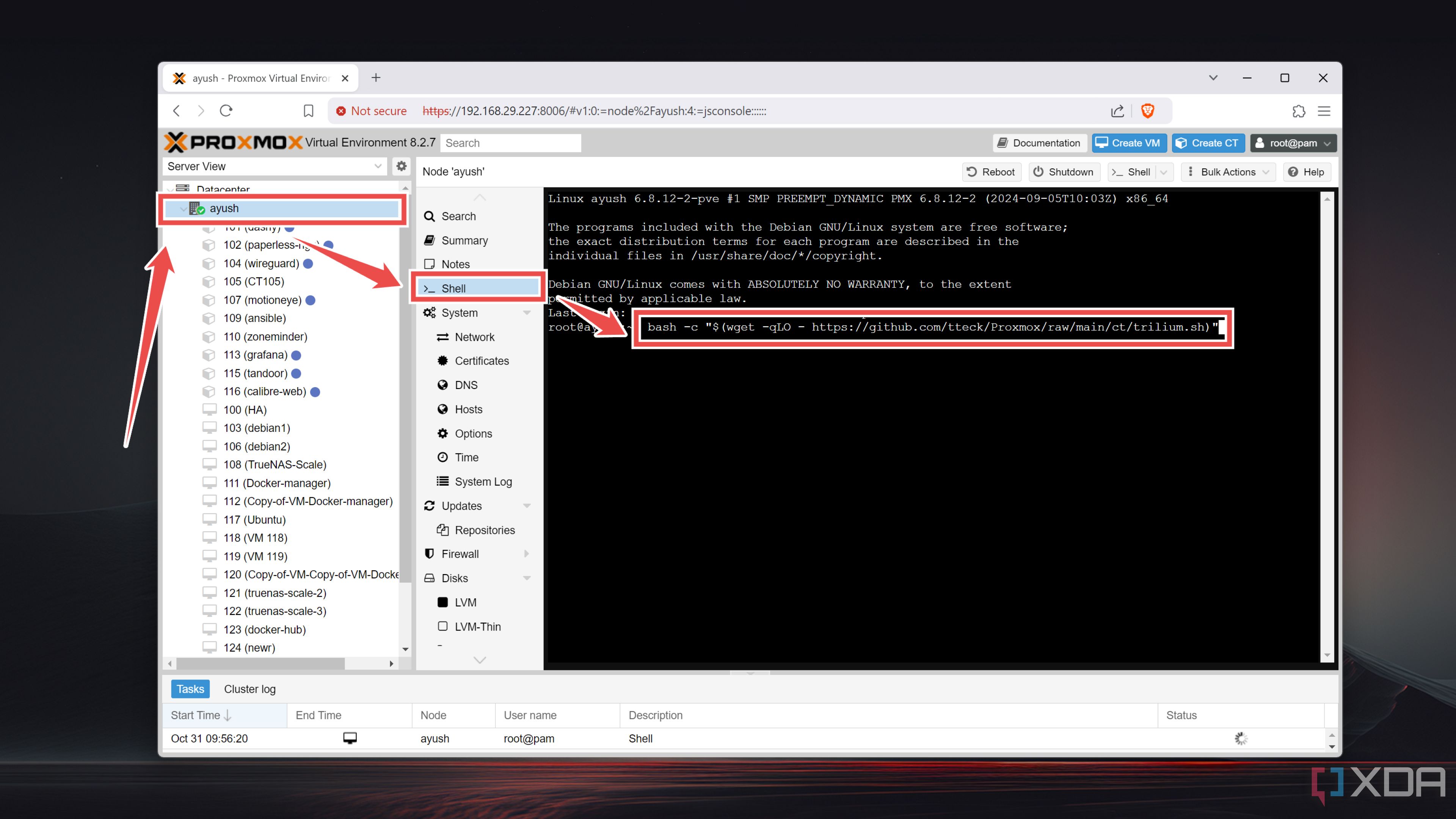
- Head to the Shell tab of your Proxmox node and enter the following command:
bash -c "$(wget -qLO - https://github.com/tteck/Proxmox/raw/main/ct/trilium.sh)"
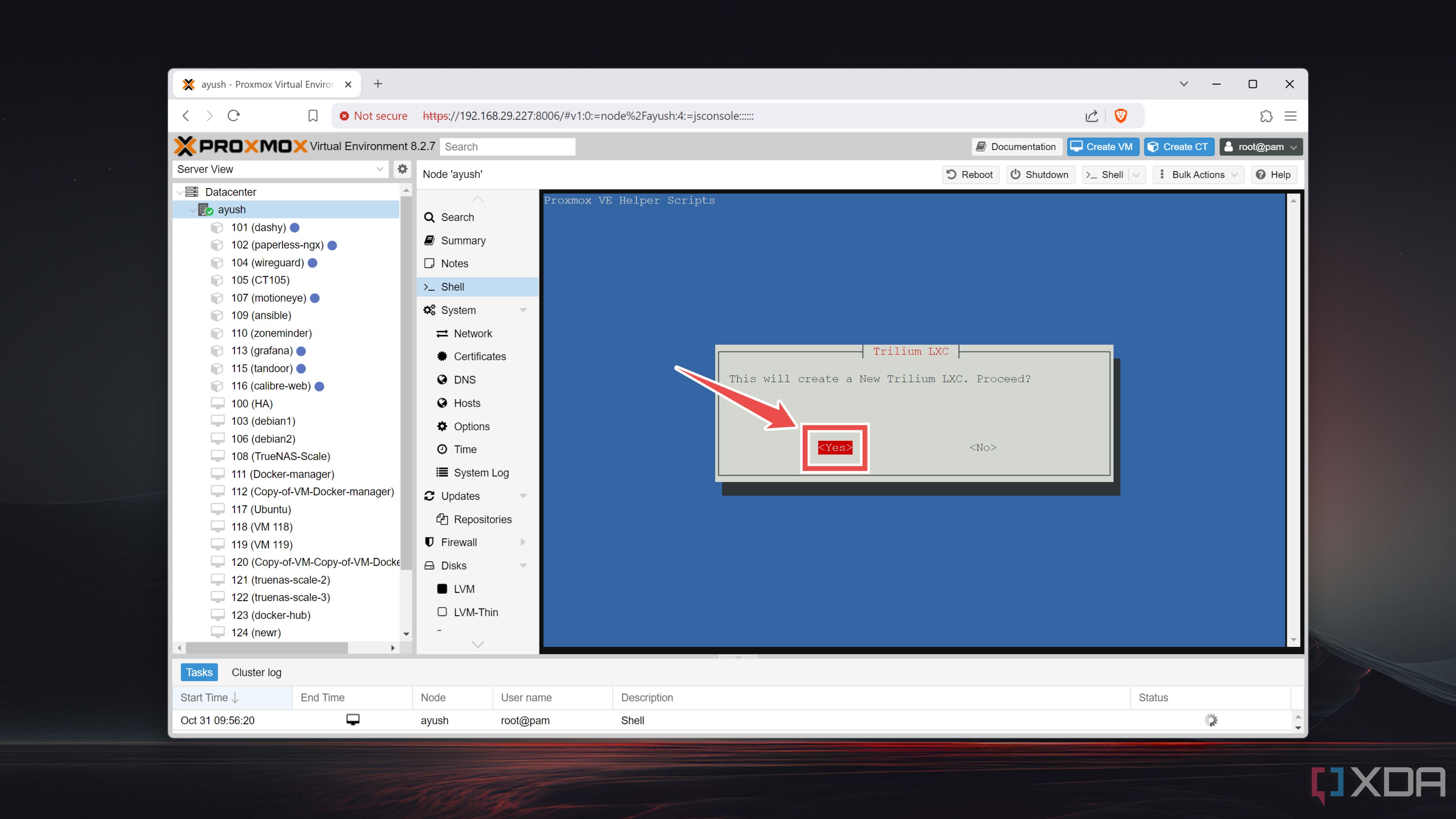
- Press Yes twice and watch the script work its magic.
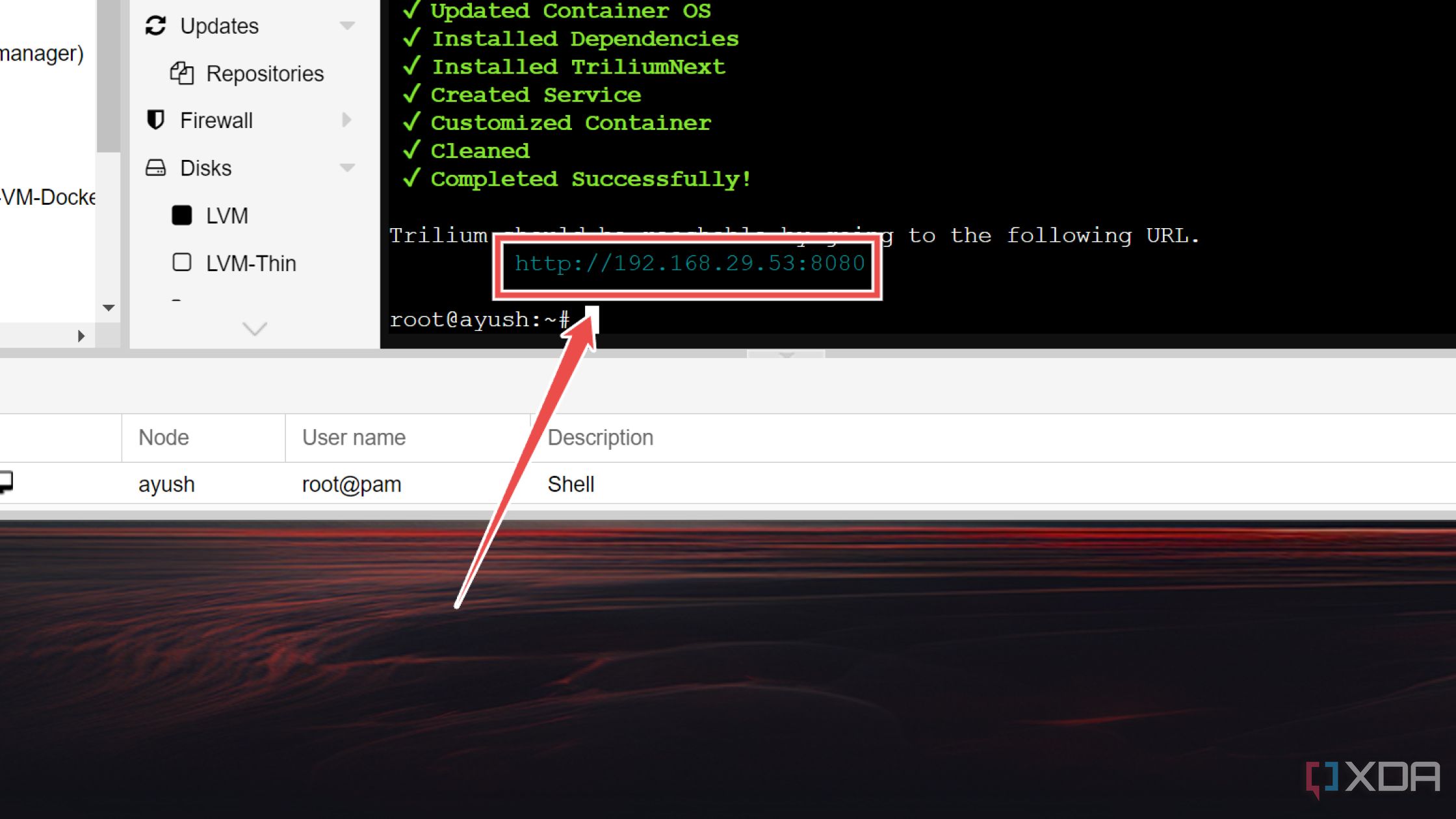
- Launch the Trilium web UI using the IP address shown on the Shell.


Alternatively, you can set it up on a Linux distro with the help of Docker. This method works regardless of whether you’re running the distro as the primary OS or have installed it inside a hypervisor.
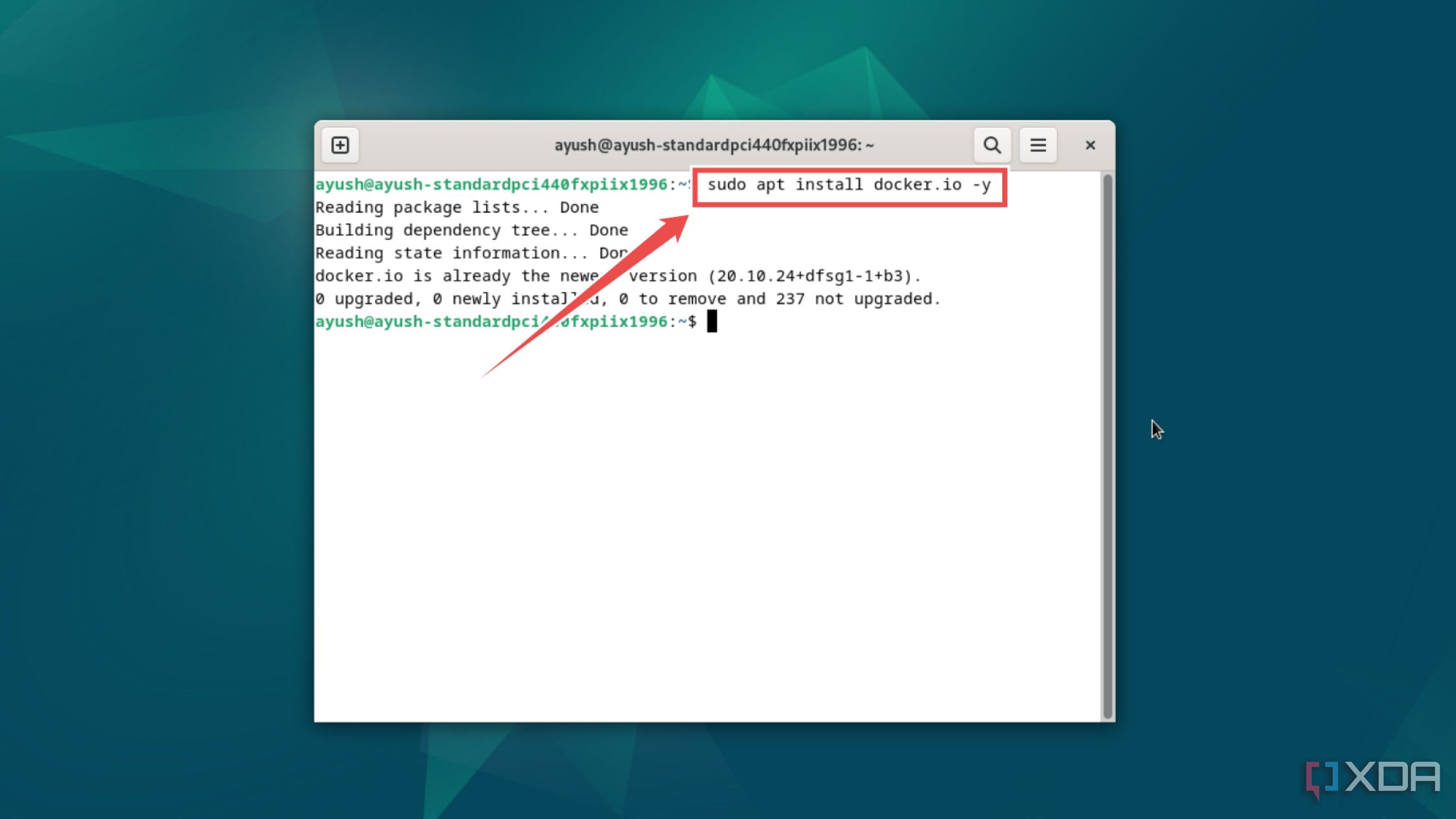
- Install Docker with this command:
sudo apt install docker.io -y
- Execute the docker pull command to grab the TriliumNext image from the Docker Hub.
docker pull triliumnext/notes
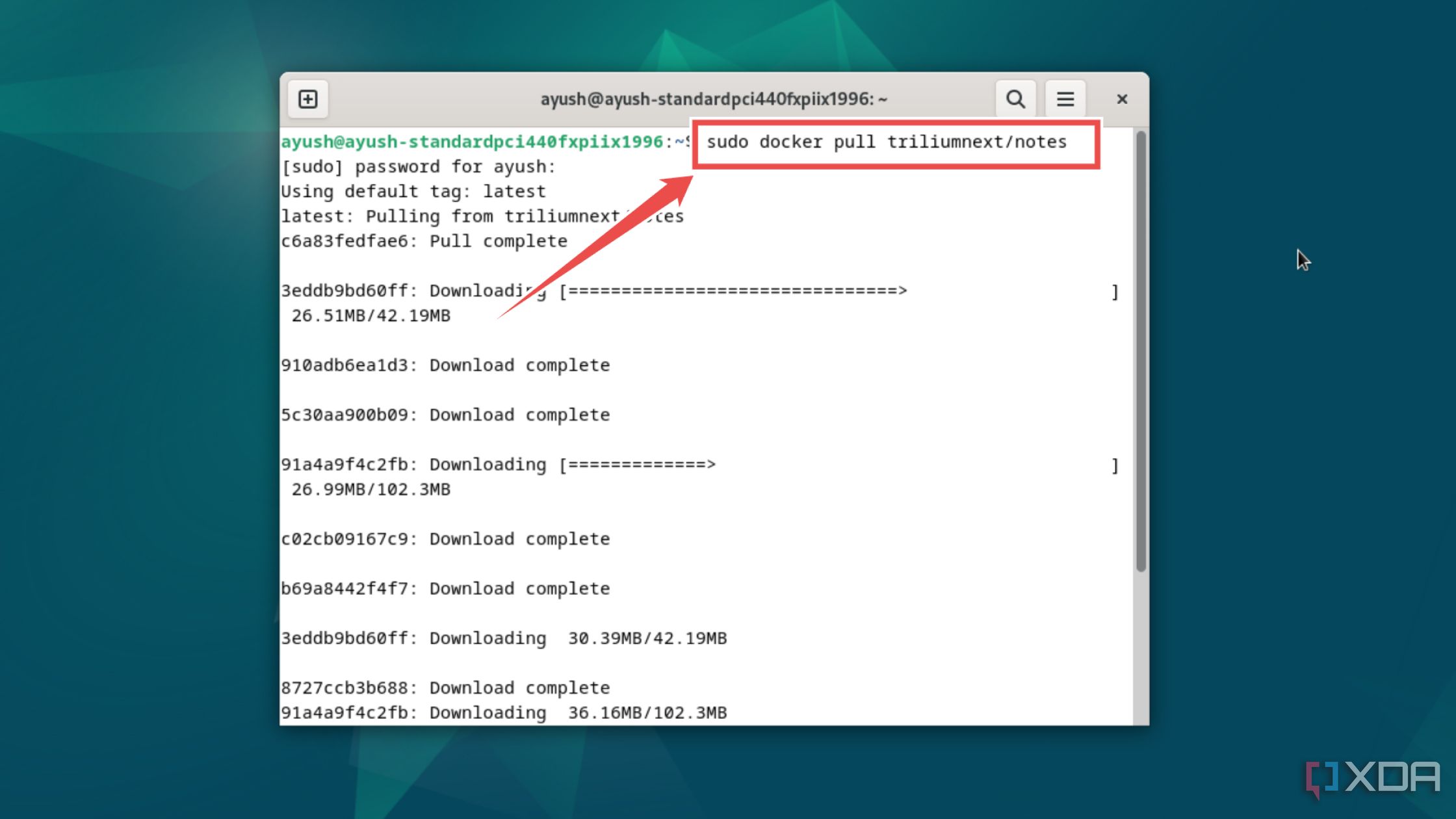
- Use the docker run command to deploy your TriliumNext container with the following settings:
sudo docker run -t -i -p IP_addr:8080:8080 -v ~/trilium-data:/home/node/trilium-data triliumnext/notes
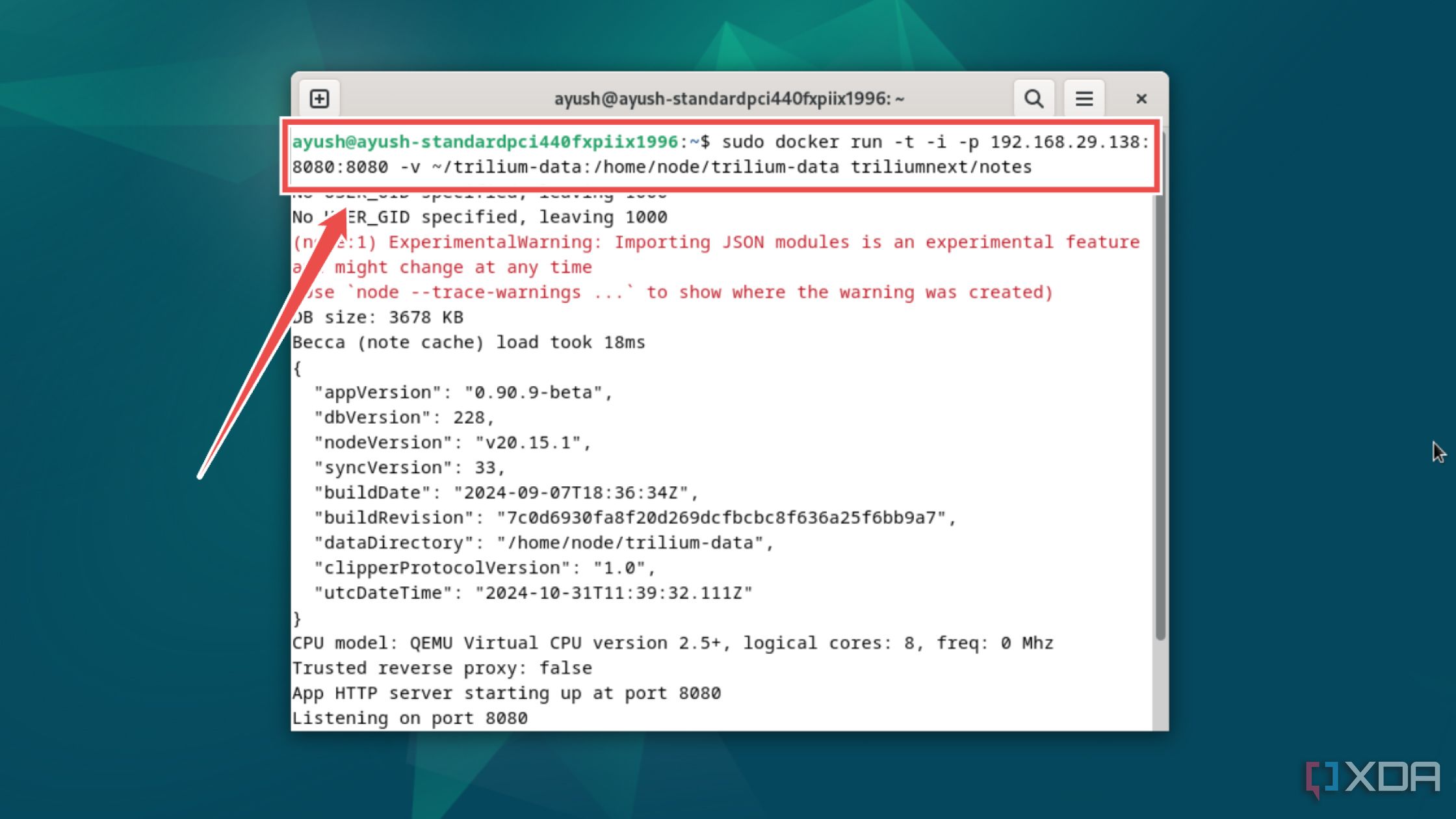
Be sure to replace IP_addr parameter with the IP address of your system.
- Access the web UI by typing the IP address followed by a colon (:) and the port number 8080 into a web browser.


Related
25 essential commands every Docker user should know
Docker’s command-line interface may seem intimidating, but these commands can help you master it in no time!
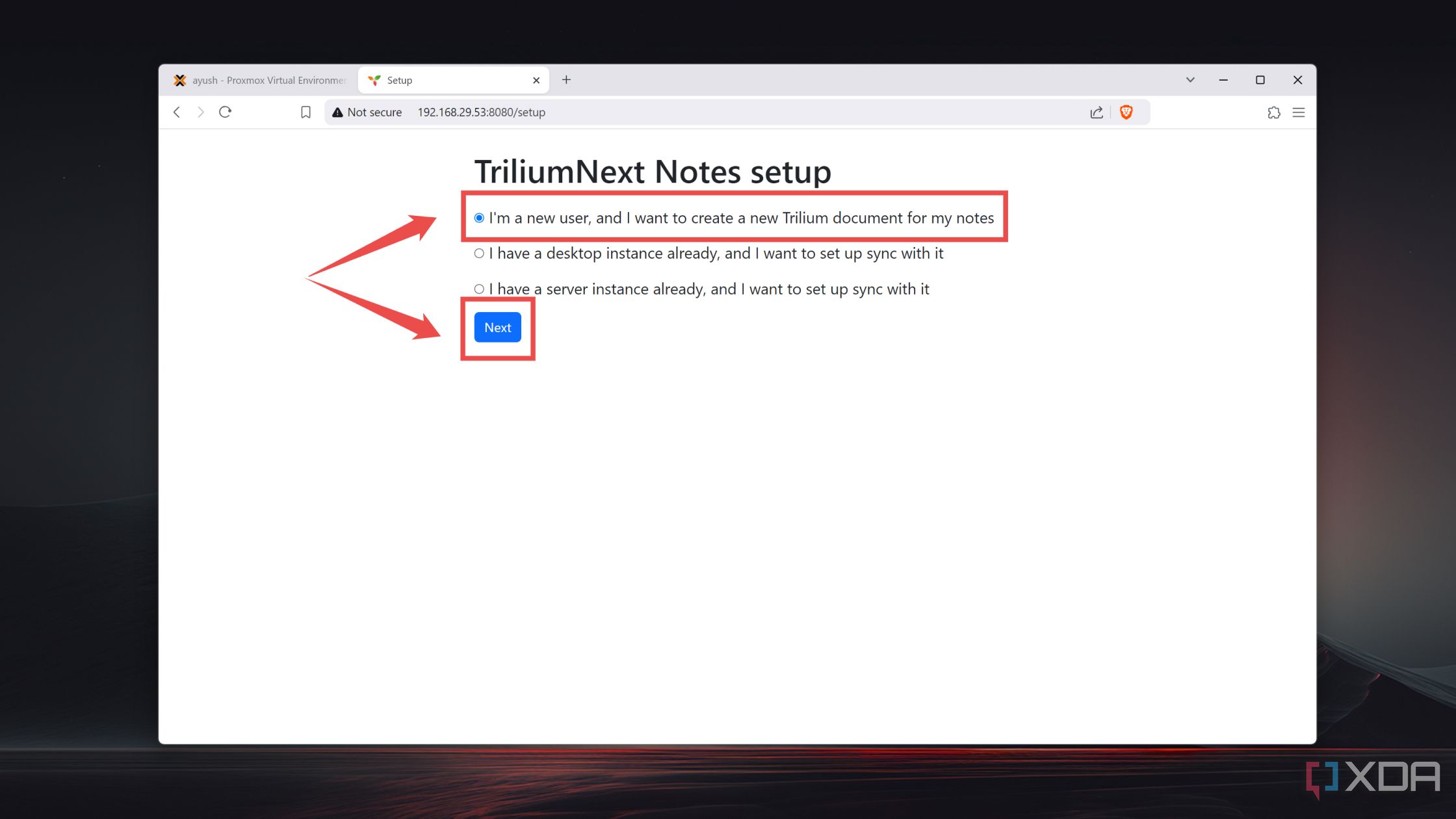
Regardless of how you install it, the next step involves configuring the web UI:
- Pick the I’m a new user… option and tap Next.
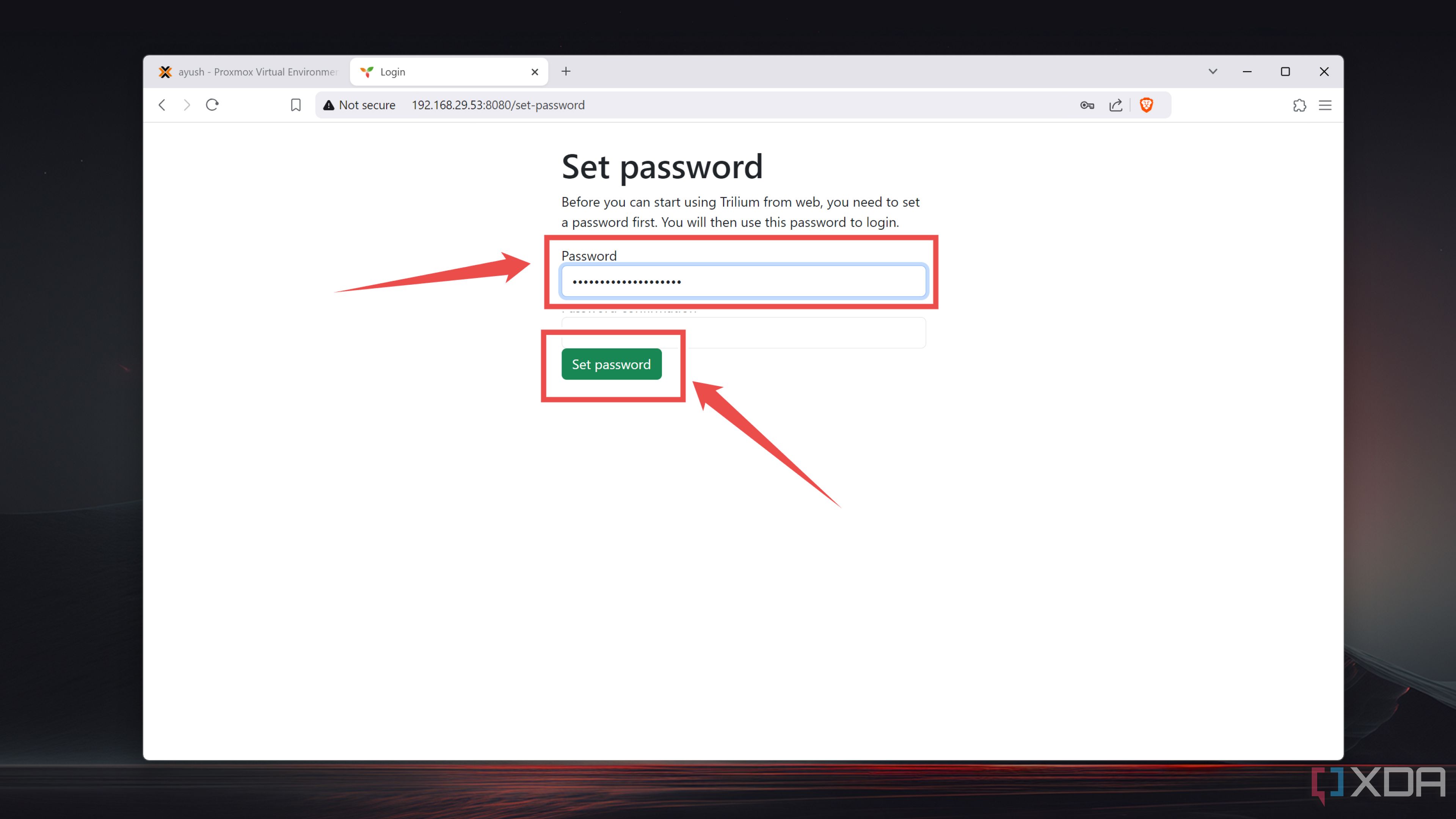
- Enter the Password for your TriliumNext server and use it to log into your locally-hosted TriliumNext environment.


Constructing the PKM system
Once you’ve entered the password, you should arrive at the main dashboard. By default, Trilium has several neatly-formatted example files that can help you get a grasp of things. But here are a couple of pointers for newcomers:
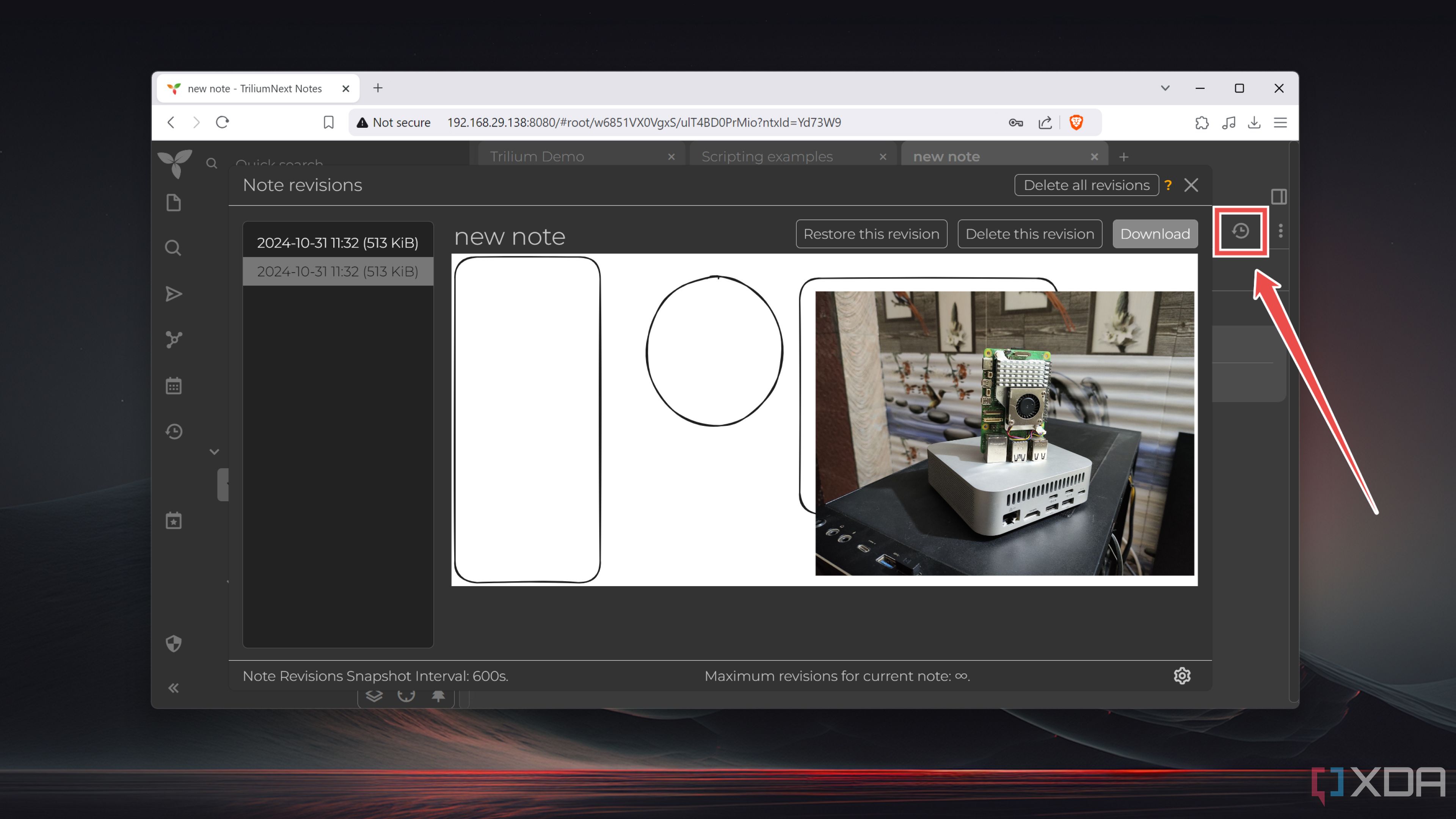
- In contrast, the similar-looking Note Revisions button within your note files stores a record of all your edits, allowing you to revert any accidental or unwanted changes.
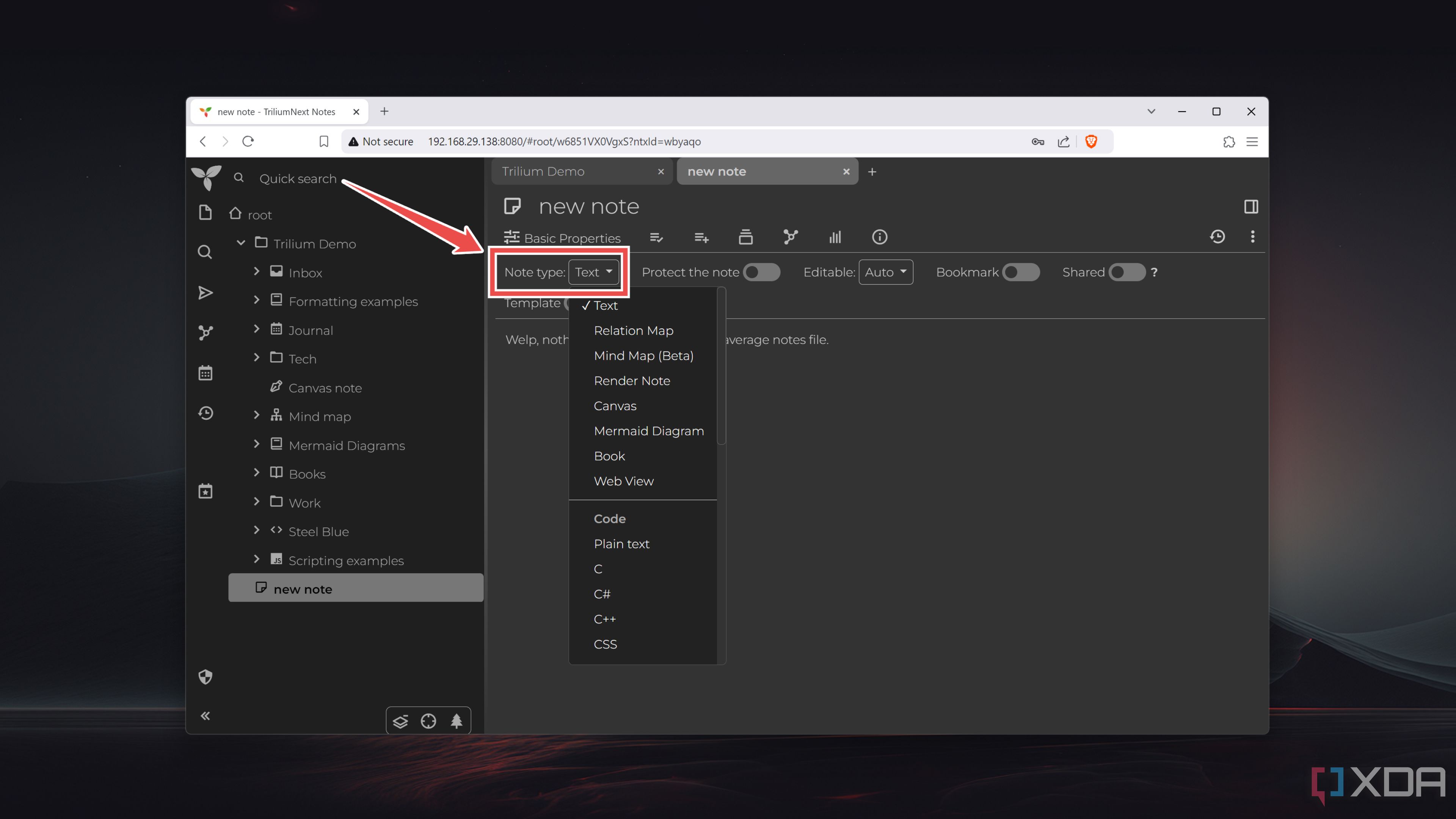
- The Toggle option under the Notes file lets you switch between different Note types, and that’s where Trilium goes from a decent app to an amazing note-taking solution.
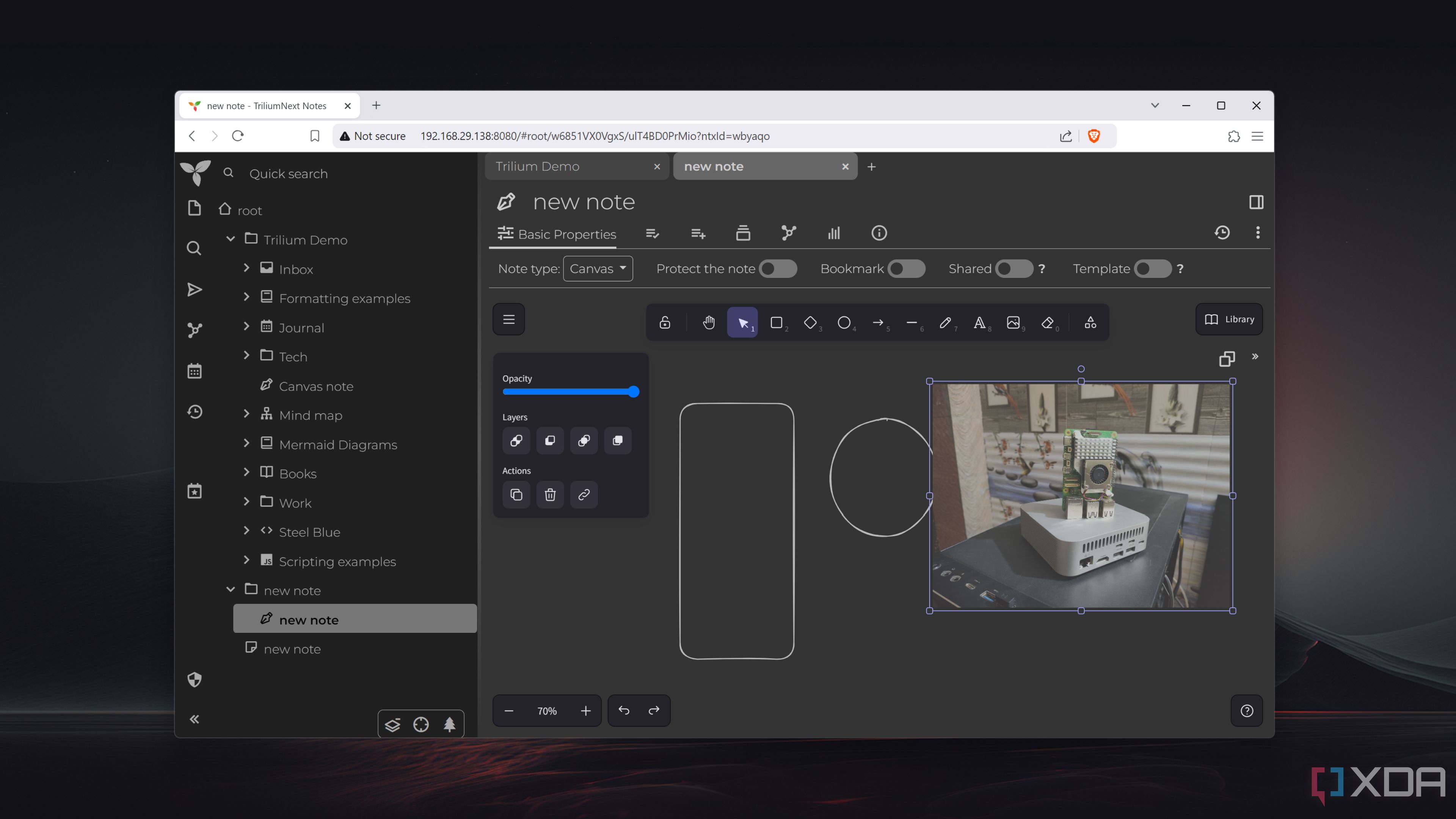
- The Canvas type, for instance, lets you leverage the built-in Excalidraw library integration to add shapes, photos, and other graphical elements to your files.
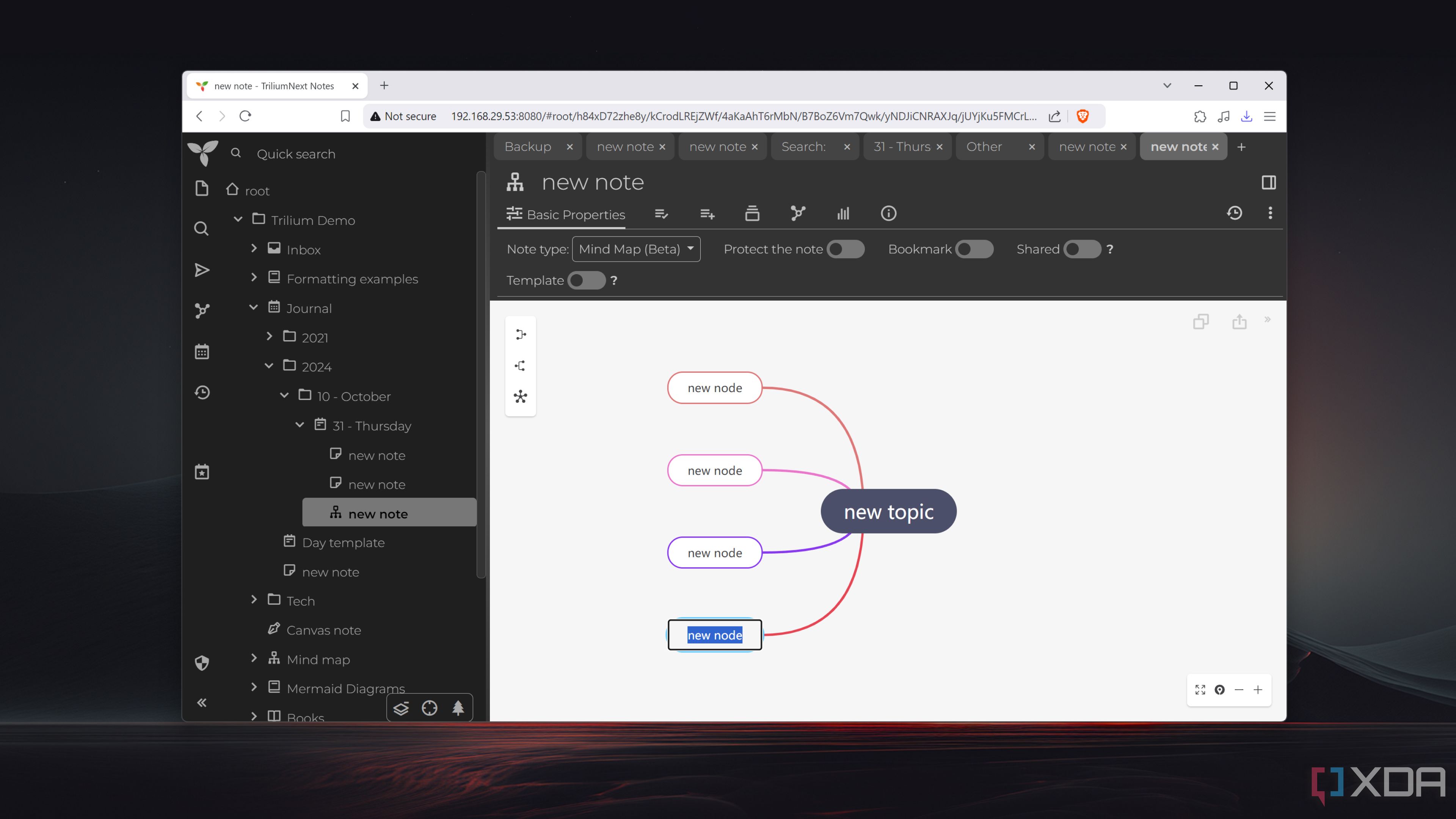
- The Relation Map format helps you create a graphical representation of parent and child nodes, and Mind Maps are perfect when you want to brainstorm new ideas.
- Mermaid Diagrams can render flowcharts, diagrams, tables, and whatnot using codes, while Render Notes help you render HTML content.
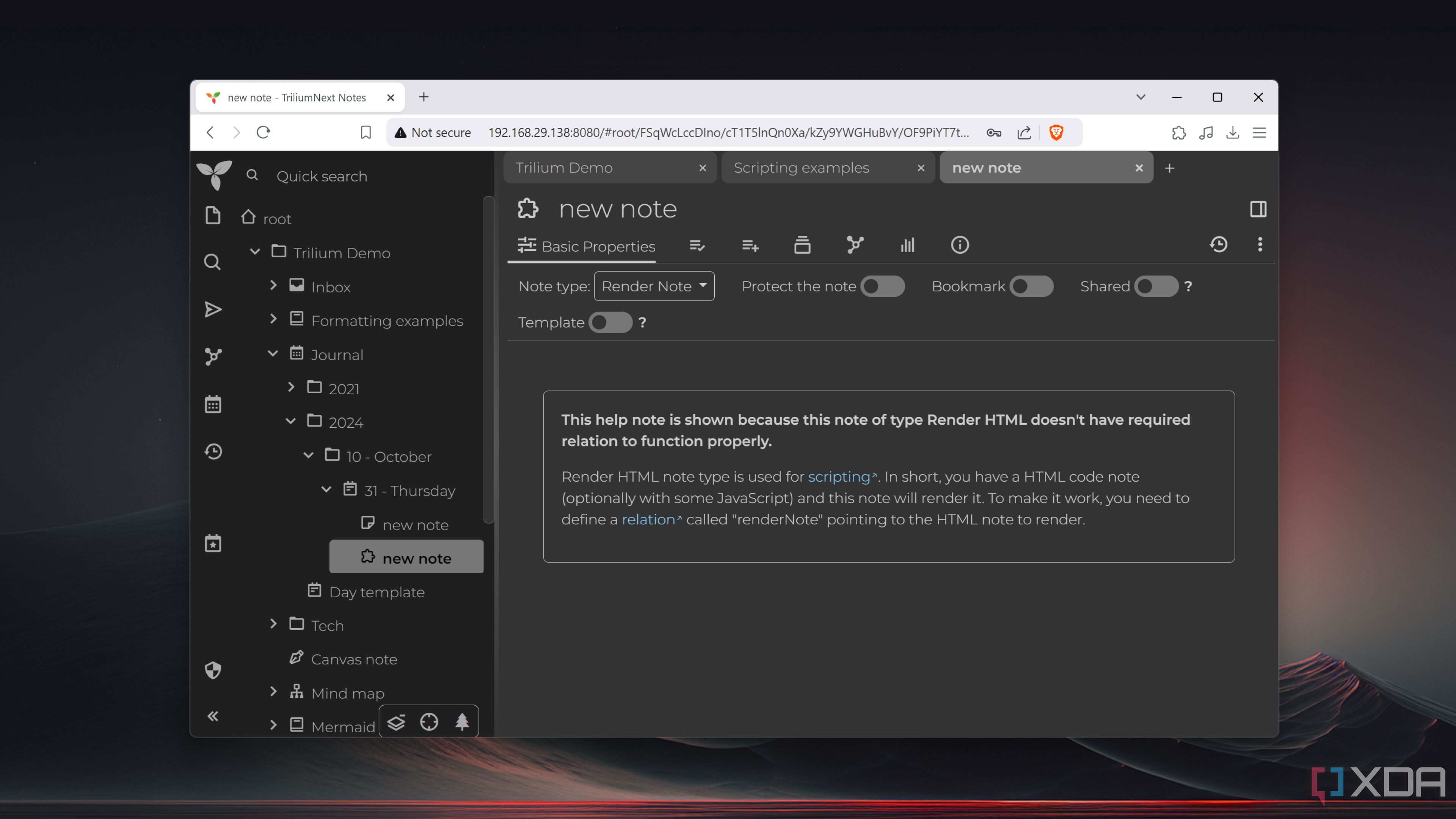
- Speaking of programming, Trillium also supports a Code category, where you can store notes containing code written using computer languages.
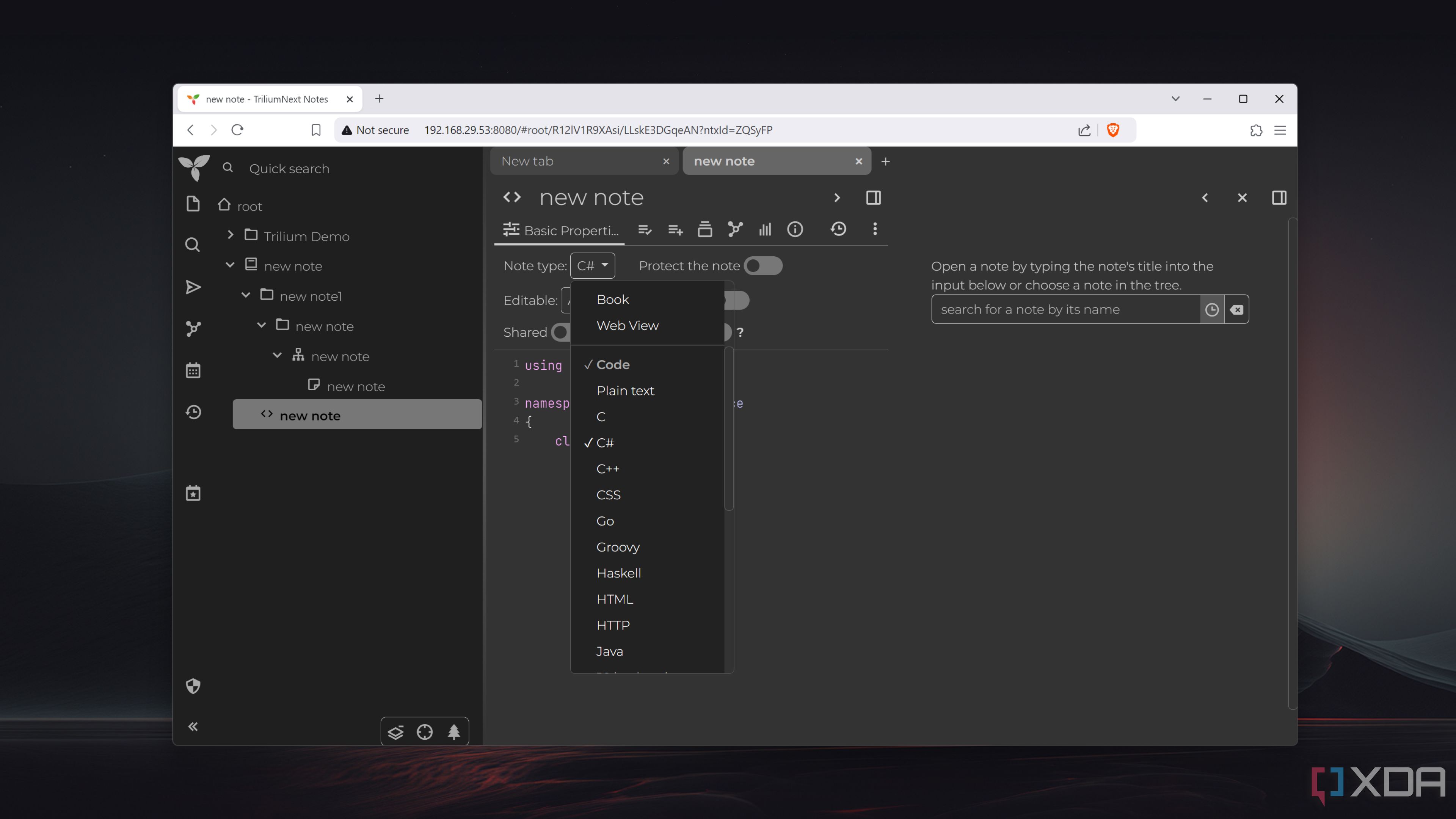
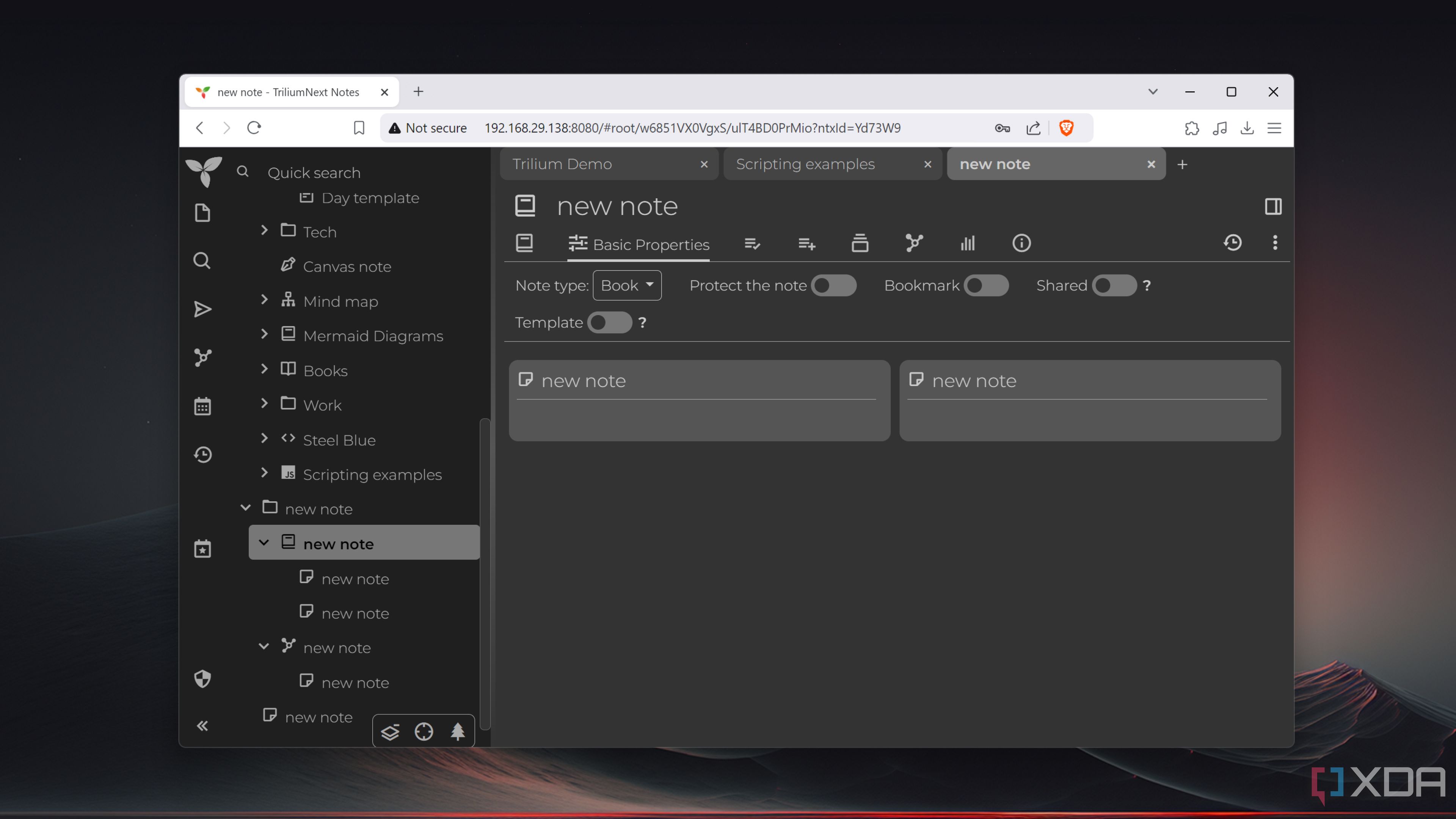
- There’s also Book View, which lets you take a glance at the children nodes of a parent node, and the Web View type that’s ideal for situations where you wish to integrate web pages into your notes.
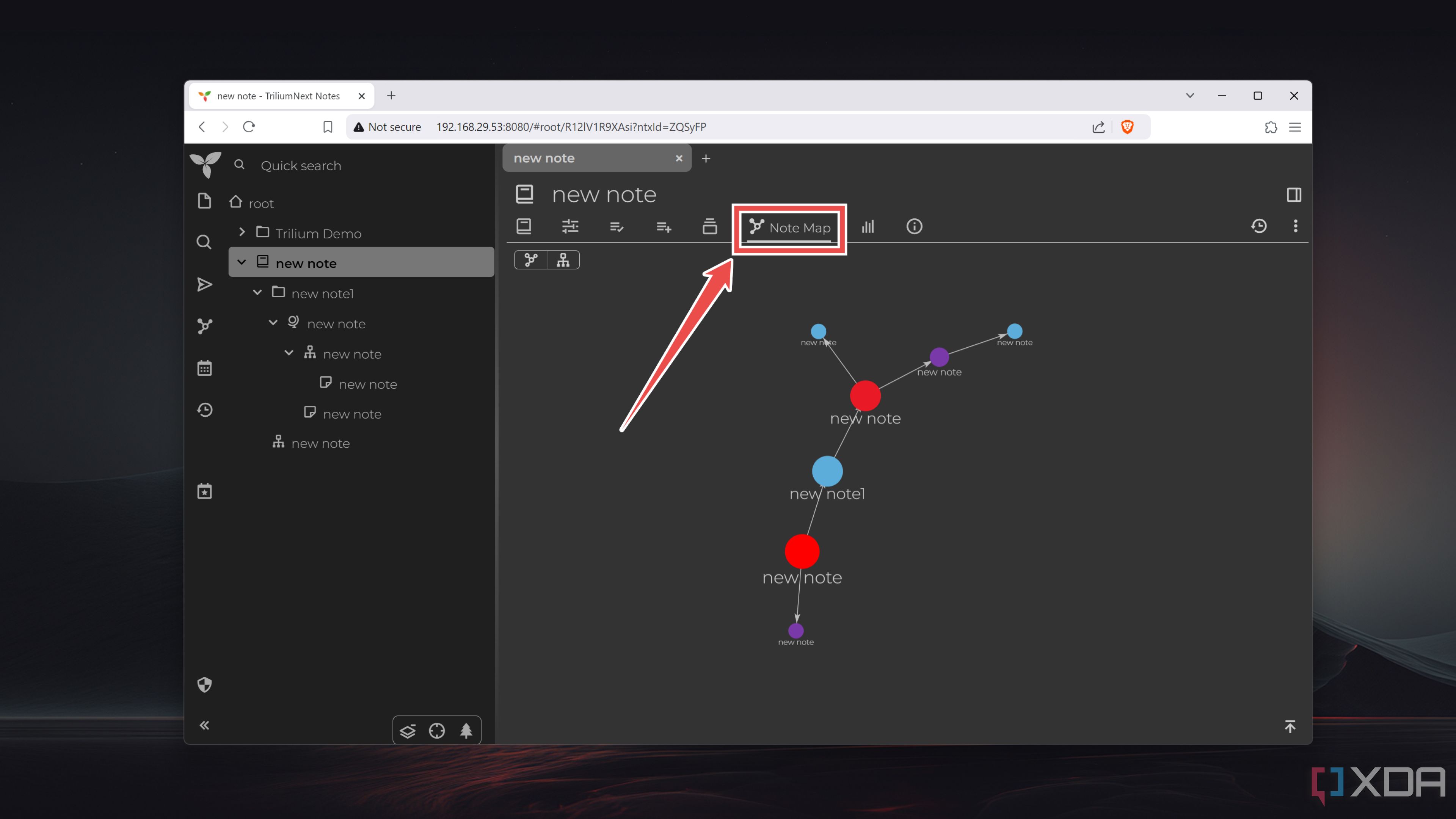
- On a different note (pun intended), the Note Maps section lets you glance at all the parent-child node combinations as well as the links between them.


Some more tidbits to help you manage your notes in style with TriliumNext

If you’re having trouble creating a PKM from scratch, the default templates available under the Scripting Examples section of the Trilium Demo folder should help you get accustomed to the app. Alternatively, for those using TriliumNext for their coding projects, you can add even more MIME types to the app by selecting them inside the Code Nodes tab.
Having used TriliumNext extensively over the last couple of weeks, I can confirm that it’s a powerful tool for privacy-loving home lab enthusiasts. While it’s technically in its maintenance state, the TriliumNext version of the app is more than enough to cater to your needs, regardless of whether you’re a programmer encumbered with your code files or a professional looking for a robust way to jot down the important aspects of your meetings.

Related
How I use Docker with Proxmox for the perfect home lab duo
Although Proxmox provides built-in support for LXC containerization, it’s possible to run Docker containers on the virtualization platform
#built #personal #knowledge #management #hub #TriliumNext #Notes #heres
source: https://www.xda-developers.com/triliumnext-notes-guide/
/cdn.vox-cdn.com/uploads/chorus_asset/file/25652213/Chromebook_Quick_Insert__1_.jpg?w=1068&resize=1068,0&ssl=1 "ChromeOS gets a big update with Quick Insert, Focus mode, and new AI features")

