

Windows 11 File Explorer offers many features that allow you to manage data more easily, including a new UI, duplicating tabs, and using Gallery view for photos. Another feature you may want to consider modifying is the home page, which, if you’re not a fan, can be removed by tweaking the Windows Registry.
What is the Home button in File Explorer?
The Home button represents the first landing page you see after launching File Explorer in Windows 11. It provides essential access to frequently used files and folders and displays recently pinned items. You know when you’re in the home location by the presence of the Home button at the top of the left panel. So, when you remove the button, you effectively remove the entire home page.
While the average user welcomes the File Explorer home page, you might prefer to remove it if you are more of a technical user. However, removing it isn’t as basic as toggling a switch on or off in settings. Instead, you must hack the Registry, which can be risky if you are not an experienced user and are unsure what you’re doing.

Related
11 Registry Editor tweaks every Windows 11 user needs to know
Despite the risks associated with using it, the Registry Editor has many options that you can modify to improve your Windows 11 experience
Remove the Home Tab from File Explorer
If you are familiar with tweaking the Registry, removing the home button and having it open to “This PC” is straightforward.
Hacking or tweaking the Windows Registry isn’t for the faint of heart. Modifying a wrong value can cause your system to become unstable or worse. Before proceeding,
back up your PC
or, at a minimum,
create a system restore point
so you can restore your data if something goes awry.
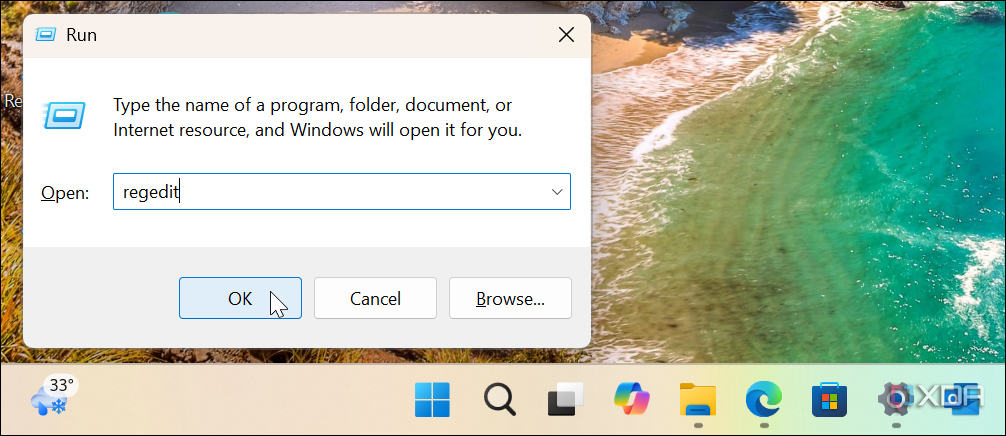
- Press Windows key + R to open the Run dialog, type regedit, and click OK.
- Navigate to HKEY_LOCAL_MACHINE\SOFTWARE\Microsoft\Windows\CurrentVersion\Explorer
- Right-click the Explorer key and select New > DWORD (32-bit) Value from the context menu.

- Type HubMode for the new value’s name and press Enter to confirm.
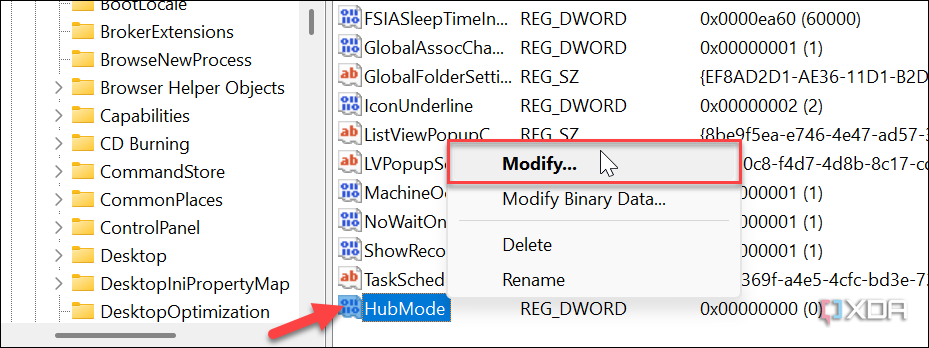
- Right-click the new HubMode key and select Modify.
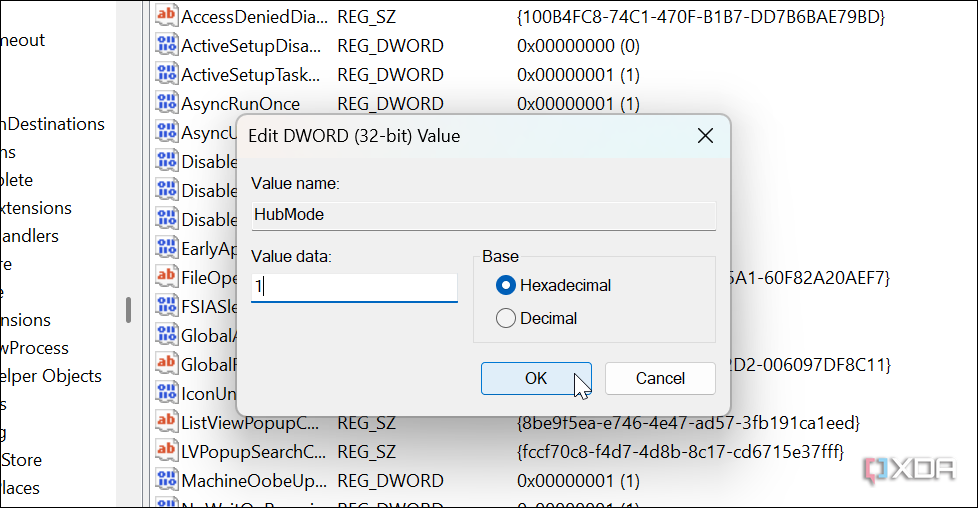
- Change the Value data field for the HubMode key from 0 to 1 and click OK.
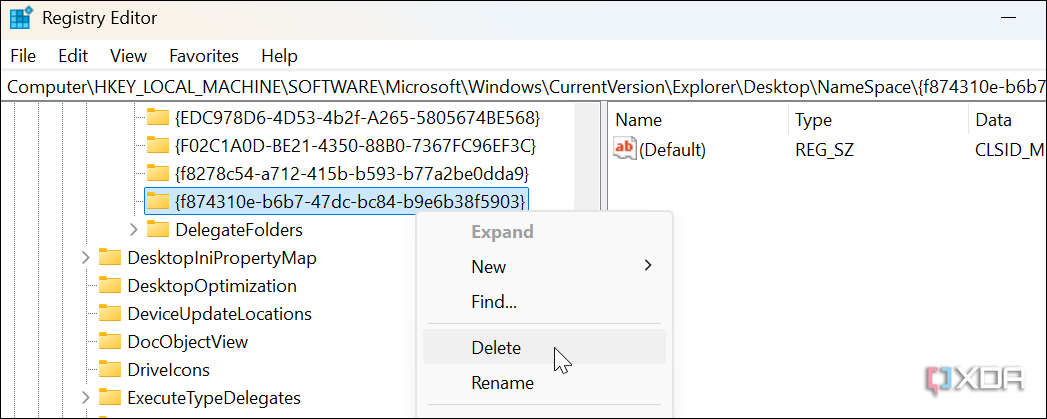
- Head to HKEY_LOCAL_MACHINE\SOFTWARE\Microsoft\Windows\CurrentVersion\Explorer\Desktop\NameSpace
- Locate and right-click the {f874310e-b6b7-47dc-bc84-b9e6b38f5903} key and click Delete from the menu that appears.
- Restart File Explorer to confirm and complete the process.


File Explorer free of a home button
Once you finish the steps, when you open File Explorer, the home button and page will no longer appear and default to the “This PC” view. If you still see it, go through the steps again to verify that they are being executed properly. It’s also worth mentioning that you might need to restart your PC to confirm that the Registry changes have been properly synced.

It’s also important to mention that you’ll still find the Home entry in the Folder Options setting. However, it will be unavailable until you restore the Registry settings you removed, as outlined in the above steps.
#remove #Home #button #File #Explorer
source: https://www.xda-developers.com/remove-home-button-file-explorer/
/cdn.vox-cdn.com/uploads/chorus_asset/file/25782667/ss_6cf9f98dcf74e2c228b1cdae3bbd38ca754398d3.jpg?w=1068&resize=1068,0&ssl=1 "The Suicide Squad game’s final season is coming less than a year after launch")

