

Did you get the dreaded “To play this video, you need a new codec” popup for HEVC files? Here’s how you can do it for free.
Key Takeaways
- Windows 10 and 11 need paid packages to play some media formats.
- Graphics card may have a license to use HEVC, check in the Microsoft Store.
- VLC is free and open-source for playing various media formats on Windows.
Microsoft has included video and audio players with Windows for decades, but Windows 10 and 11 can’t play some media formats without extra (paid) packages. Some audio and video codecs require a paid license to use in commercial products (such as Microsoft Windows), so instead of lumping all those costs into every copy of Windows, you might see a link to a Microsoft Store page for a media codec when playing certain files. Fortunately, at least some codec packages might be free for you.

What is the AV1 codec? How does it make files smaller?
AV1 is an important codec that’s taking the internet by storm, but what is it, and how does it work? Here’s everything you need to know.
Get the HEVC codec for free
You may have hardware that supports this
High-Efficiency Video Coding, also known as HEVC or H.265, is one common media codec that is not free to use in commercial products. However, as pointed out by Froggypwns on Reddit, many graphics cards ship with a license to use HEVC, meaning you might not have to buy it again on your PC. To find out, just open the Windows Run dialog, paste the URL below, then press Enter on your keyboard. Here are the steps:
- Open the Windows Run dialog with Windows/super key and R or by right-clicking the Start Menu and selecting Run.
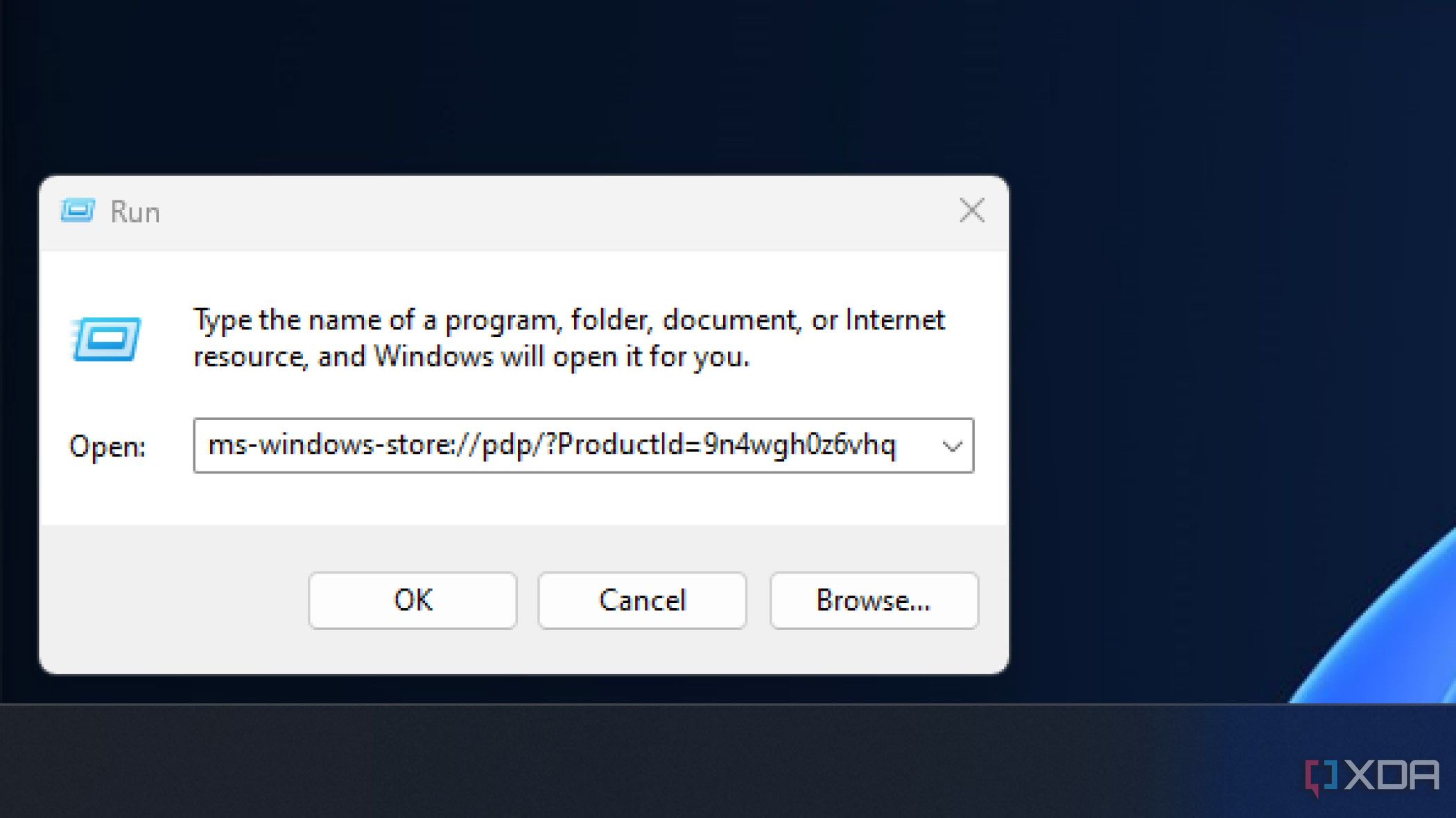
- Paste the following into the dialog box, then click OK.
ms-windows-store://pdp/?ProductId=9n4wgh0z6vhq
- The Microsoft Store should open with a page for “HEVC Video Extensions from Device Manufacturer.” If your PC hardware comes with a license, you will be able to simply click Install to download the codec.

Now you should be able to play HEVC video files on your computer. It’s possible that you might need to reboot your computer before it will play the files properly.
You can also play HEVC files with compatible media players
If your PC doesn’t include an HEVC license, there are plenty of other ways to play media with that codec (and other proprietary media formats) on your Windows PC. The most popular option might be VLC Media Player, which is a free and open-source media player that can handle just about any video or audio format imaginable. You can download the Windows version from the official website. While VLC is also available on the Microsoft Store, the Store version is a UWP application with fewer features. You’re probably better off with the normal desktop VLC app.

Why you should use VLC Media Player on your PC
VLC is the most popular cross-platform media player for a reason (or a few).
Thanks Mishaal Rahman for the tip!
#play #HEVCencoded #media #Windows #Media #Player #free
source: https://www.xda-developers.com/play-hevc-encoded-media-windows-media-player/


