

You may already know this, but batteries tend to wear down over time. As you use them and charge them back up, batteries will lose their original designed capacity. You might think, then, that keeping your laptop fully charged all the time is a good thing — but you’d be wrong.
While charging and discharging a battery is the fastest way to wear it down, keeping a battery fully charged at 100% constantly will also cause faster wear. Thankfully, PC manufacturers have come up with a feature that lets you limit the battery charge on your laptop to 80% (sometimes even less), so if you use your laptop plugged in most of the time, you can prolong its longevity by keeping it below that threshold. Unfortunately, this feature isn’t in Windows 11 itself yet, but most laptops offer some version of it.
How to limit the battery charge on HP laptops
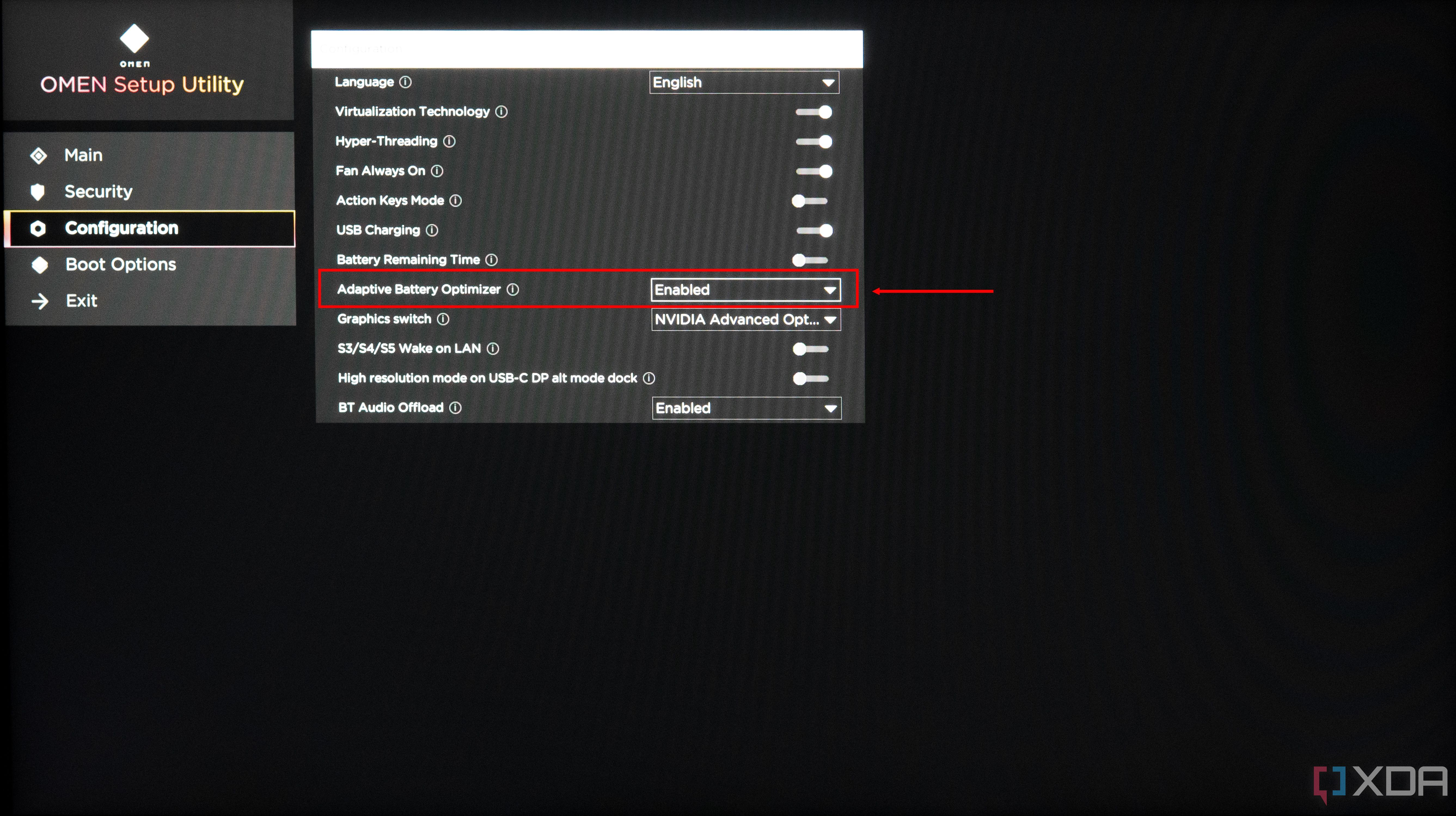
HP has two methods for limiting the battery charge on its laptops: Adaptive Battery Optimizer and Battery Care Function. Both of these are found in the BIOS, and they’re mutually exclusive. Adaptive Battery Optimizer automatically adapts the battery charging behavior based on your usage patterns, while Battery Care Function gives you more of a hard limiter. Keep in mind that your BIOS may look different, but the general functionality is usually similar. Also, Adaptive Battery Optimizer is usually enabled by default.
- Open the Start menu.
- While holding Shift on your keyboard, click the Power button and then Restart.
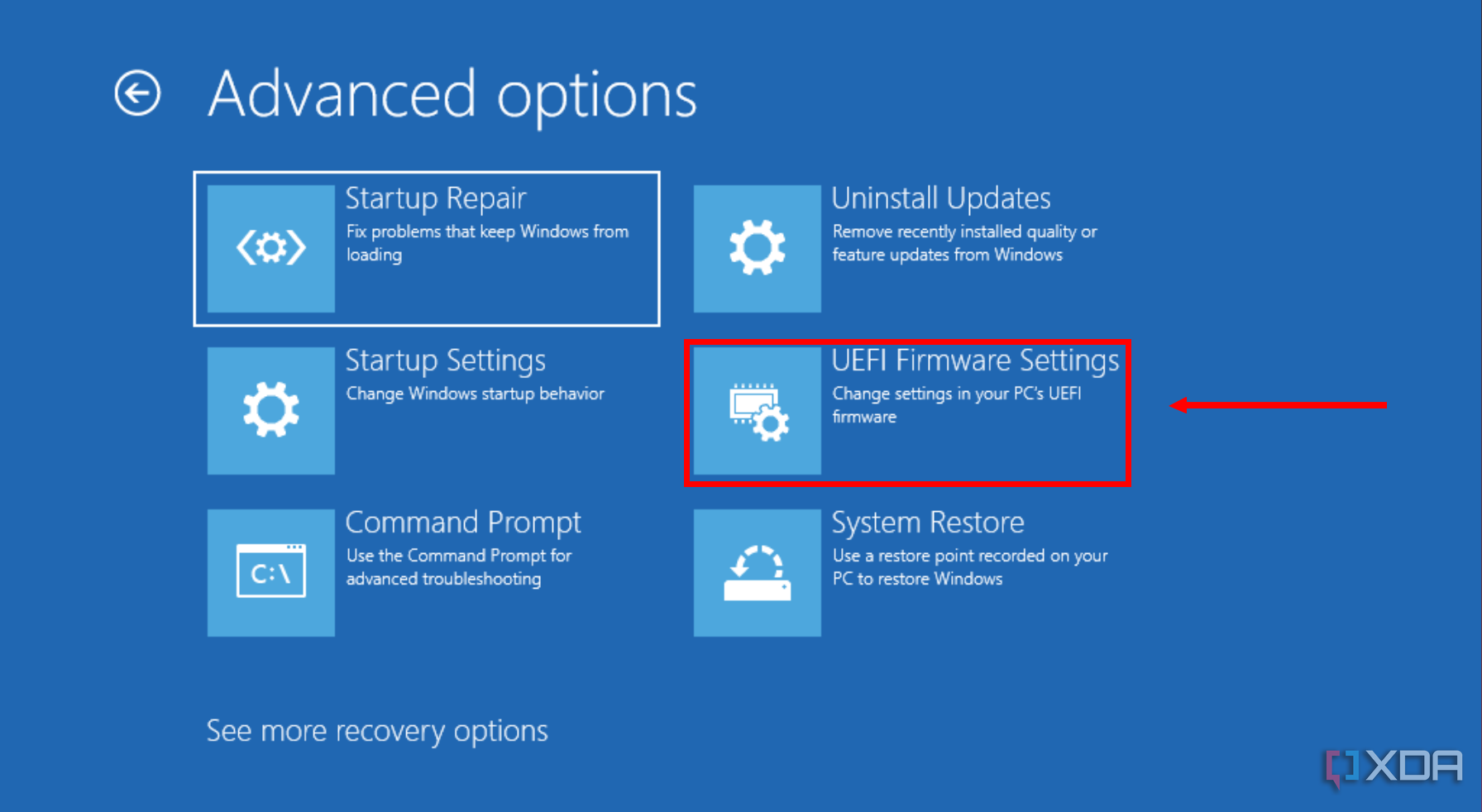
- Click Troubleshoot, then Advanced options.
- Choose UEFI Firmware settings to access the BIOS.
- Navigate to the Configuration tab (on some laptops, you may need to choose BIOS Setup first).
- Option 1: Select Adaptive Battery Optimizer and set it to Enabled.
- Option 2: Select Battery Care Function and set it to 80%.


How to limit the battery charge on Lenovo laptops
Lenovo laptops make it a little easier to set your battery charging limit, since it uses the Lenovo Vantage app inside Windows. The Vantage app can look a bit different on different devices, plus it’s undergone some updates recently, so things may vary.
- Open the Lenovo Vantage app (you can install it from the Microsoft Store).
- In the latest version of the Lenovo Vantage app, follow these steps:
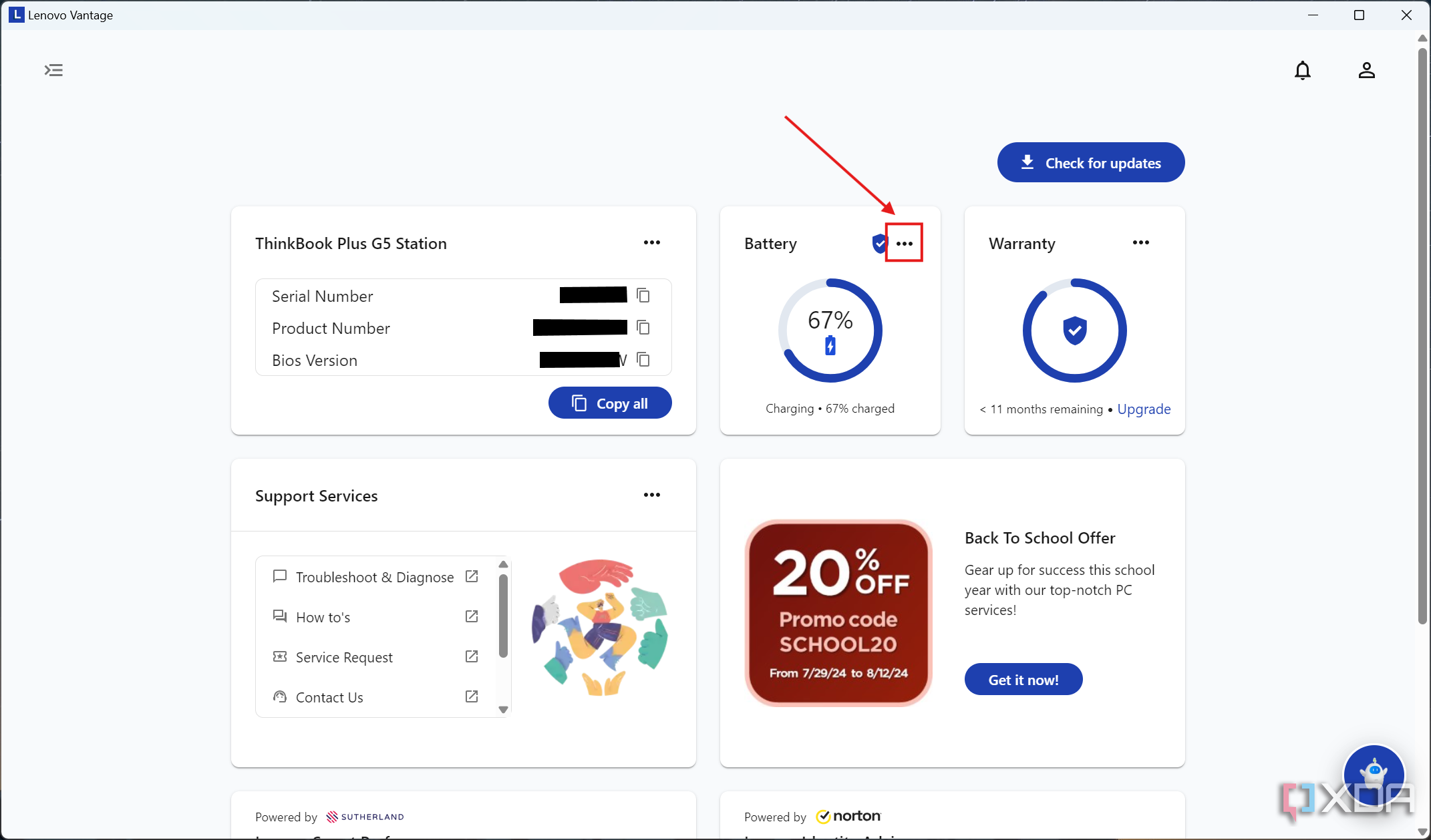
- Click the ellipsis button next to Battery and choose Battery settings.
- Scroll down and enable Conservation mode.
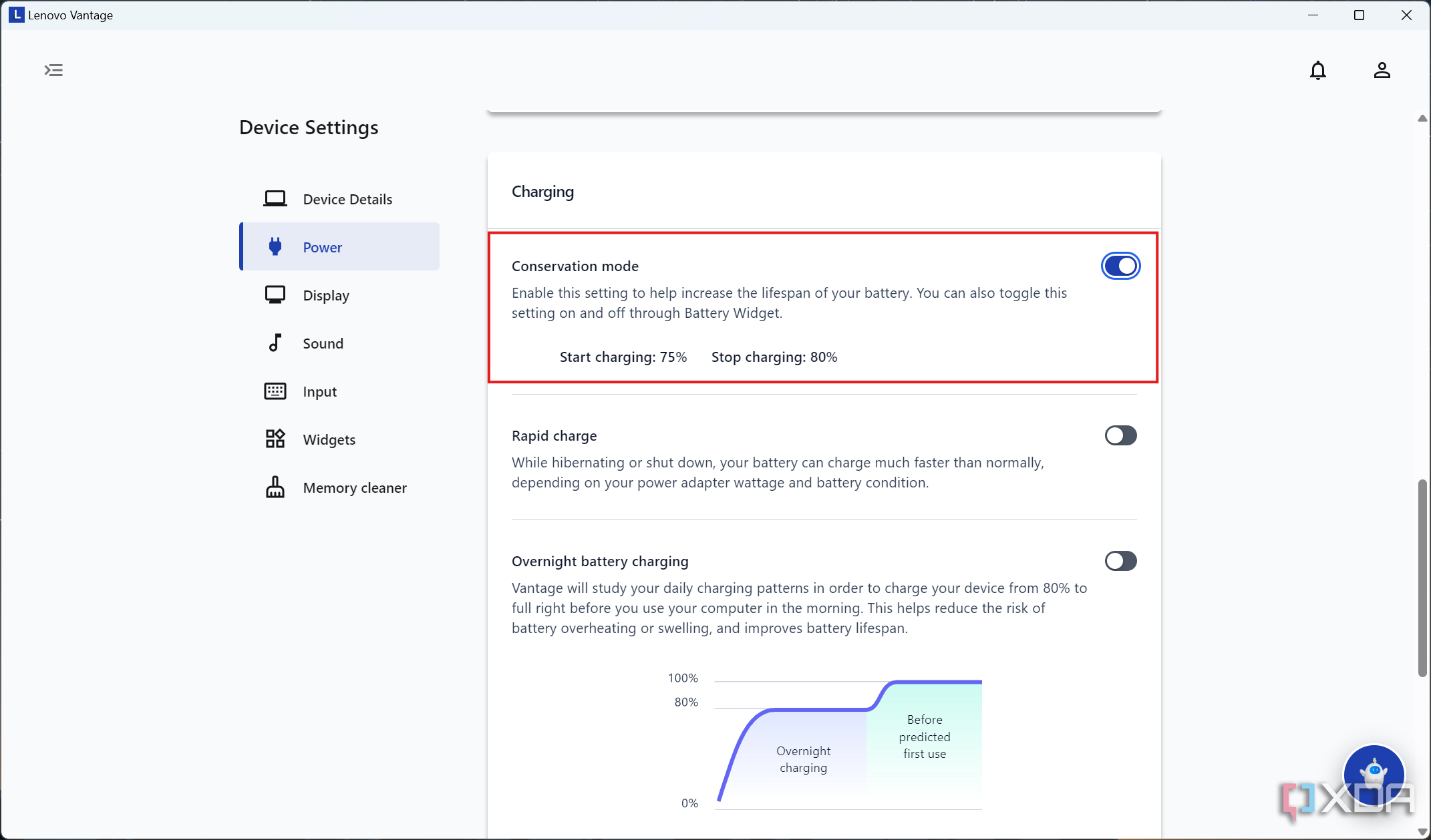
By default, it will start charging the laptop when the battery falls under 75% and stop charging at 80%, but you can change these values to your liking.
- Click the ellipsis button next to Battery and choose Battery settings.
- If you have an older version of the Vantage app, these steps may be more relevant:
- Click Device and then Power.
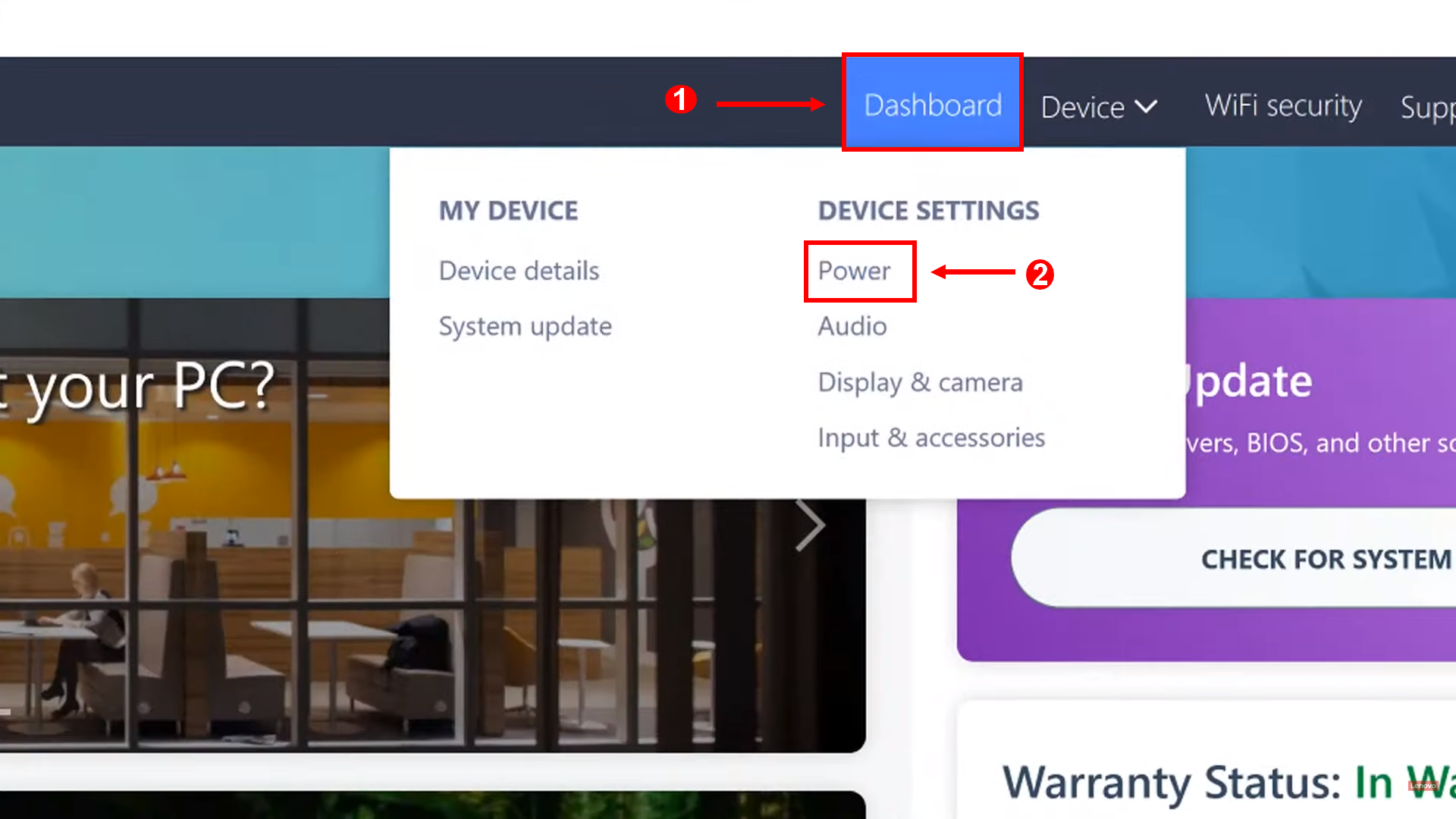
- Scroll down to the Battery settings section.
- Under Battery charging threshold, set the Stop charging at field to 80%.
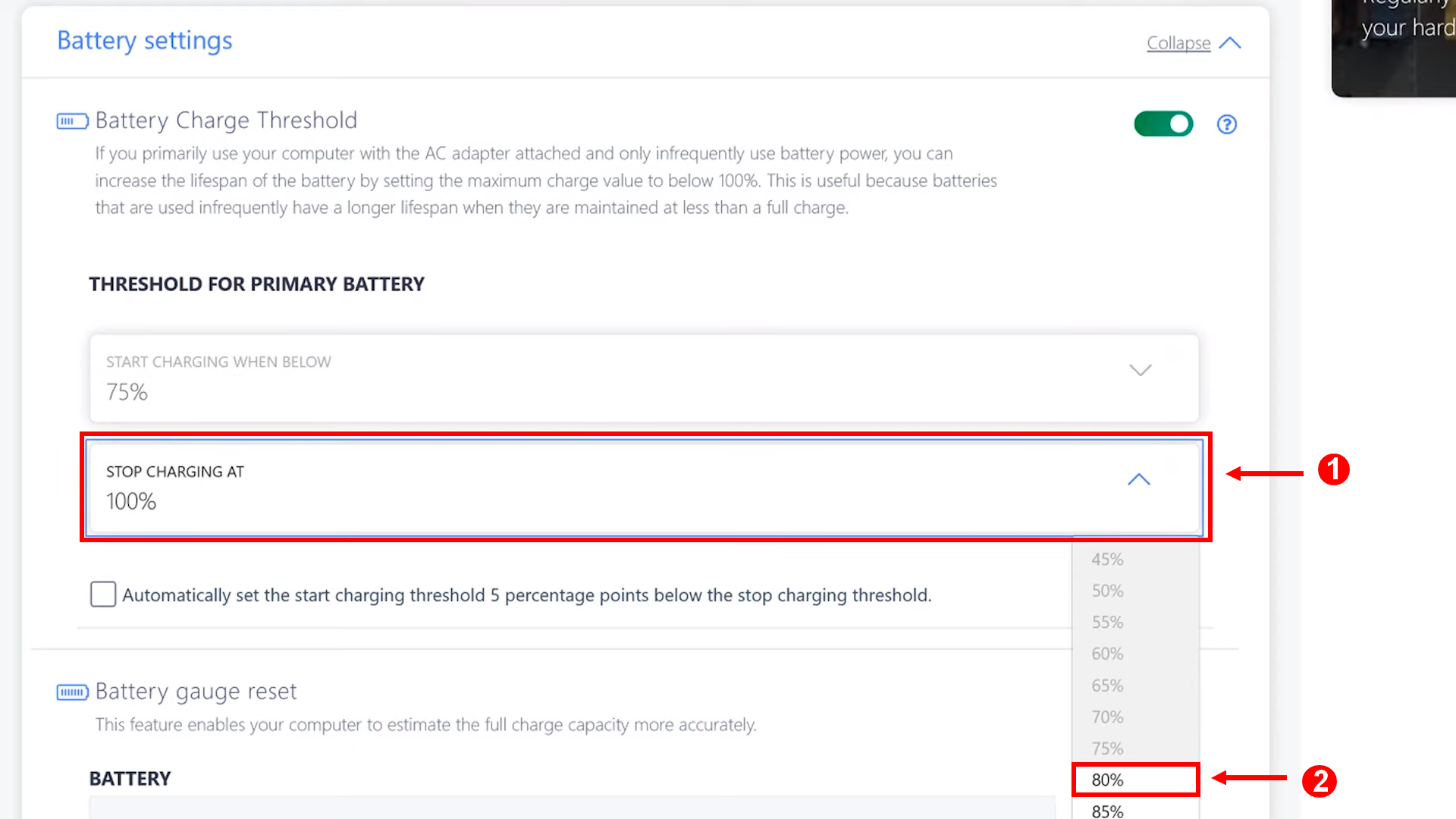
Image credit: Lenovo (YouTube)
- Click Device and then Power.


Note that the Lenovo Vantage logo and app may look different depending on your laptop model.
How to limit the battery charge on Dell laptops
Dell laptops also use Windows software to manage battery charging limits with the Dell Power Manager app. It works similarly to Lenovo’s solution:
- Open Dell Power Manager (you may need to install it from the Microsoft Store).
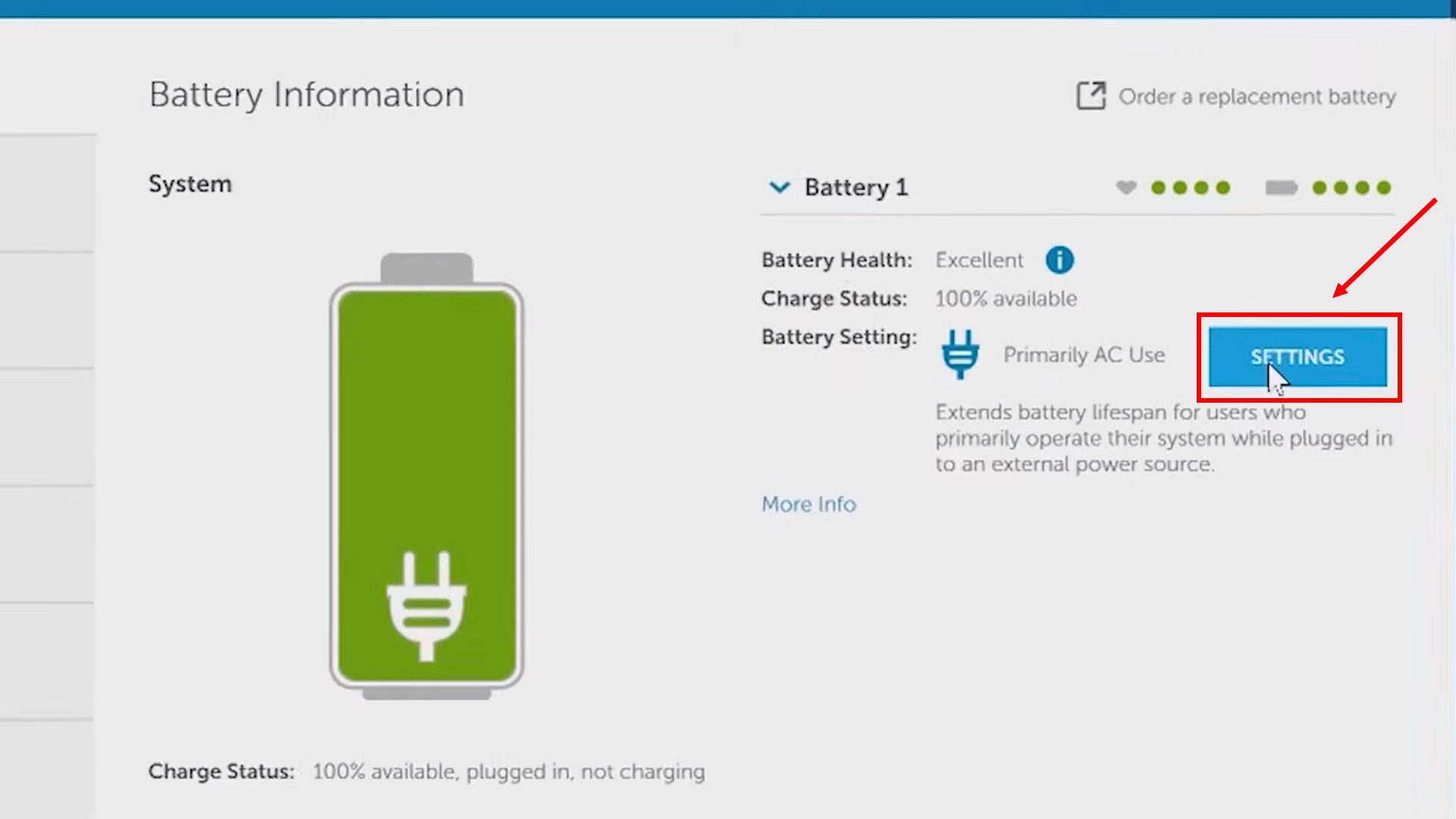
- In the Battery information tab, click Settings.
- Click Primarily AC Use to automatically limit the maximum charge.
- Alternatively, click Custom and set the Stop charging field to 80%.
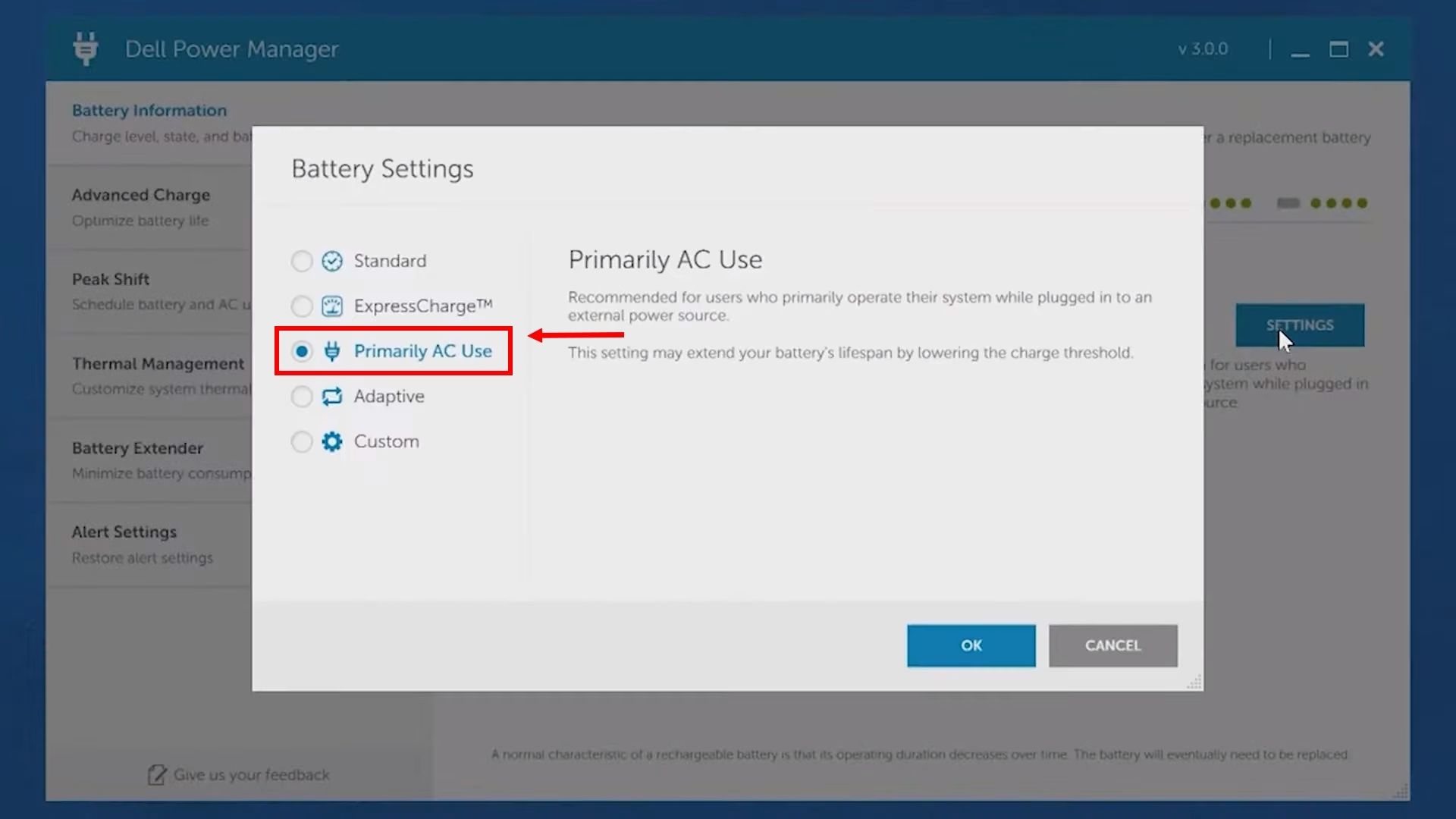
- Alternatively, click Custom and set the Stop charging field to 80%.
- Click OK.


How to limit the battery charge on Surface laptops (and tablets)
Microsoft lets you limit the battery charge using the Surface app on its devices. It’s usually enabled by default, but here’s how to make sure:
- Launch the Surface app. You can install it from the Microsoft Store.
- Check that the Smart charging field says Currently on.
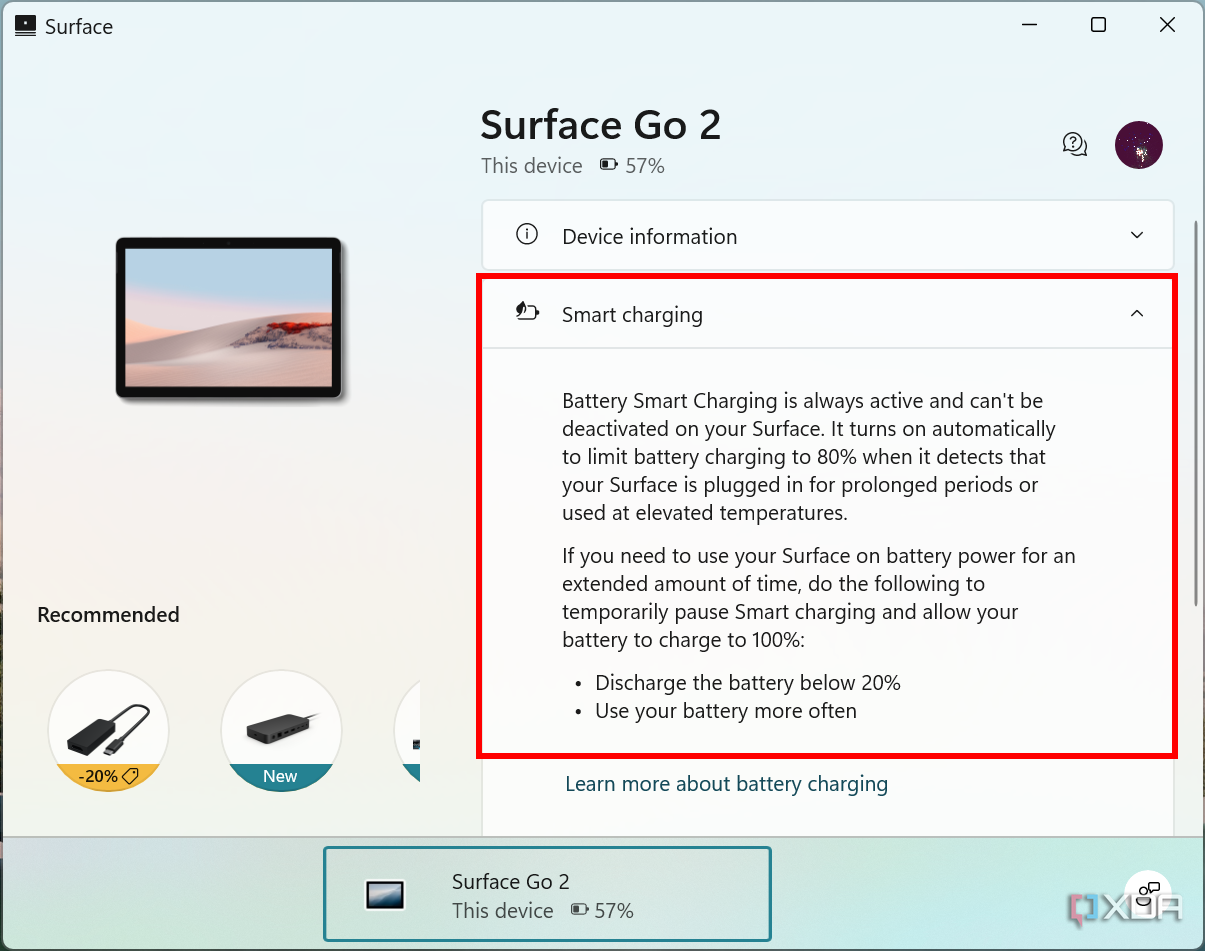
On some devices, smart charging may always be on and not show this indicator.
- If not, expand the field by clicking it.
- Click the button to enable smart charging.

Smart charging will limit the maximum battery charge to 80% in most cases, but it will be paused if you frequently drain the battery below 20%.
Alternatively, most Surface devices also have an option in the BIOS settings called Enable Battery Limit Mode. This limits the battery charge to just 50%, which is less than ideal since it will take away a big chunk of the battery capacity when you do need it. Most modern laptops have set this to 80% so you get a good balance of battery life per use, but also more longevity in the long term.
How to limit the battery charge on Asus laptops
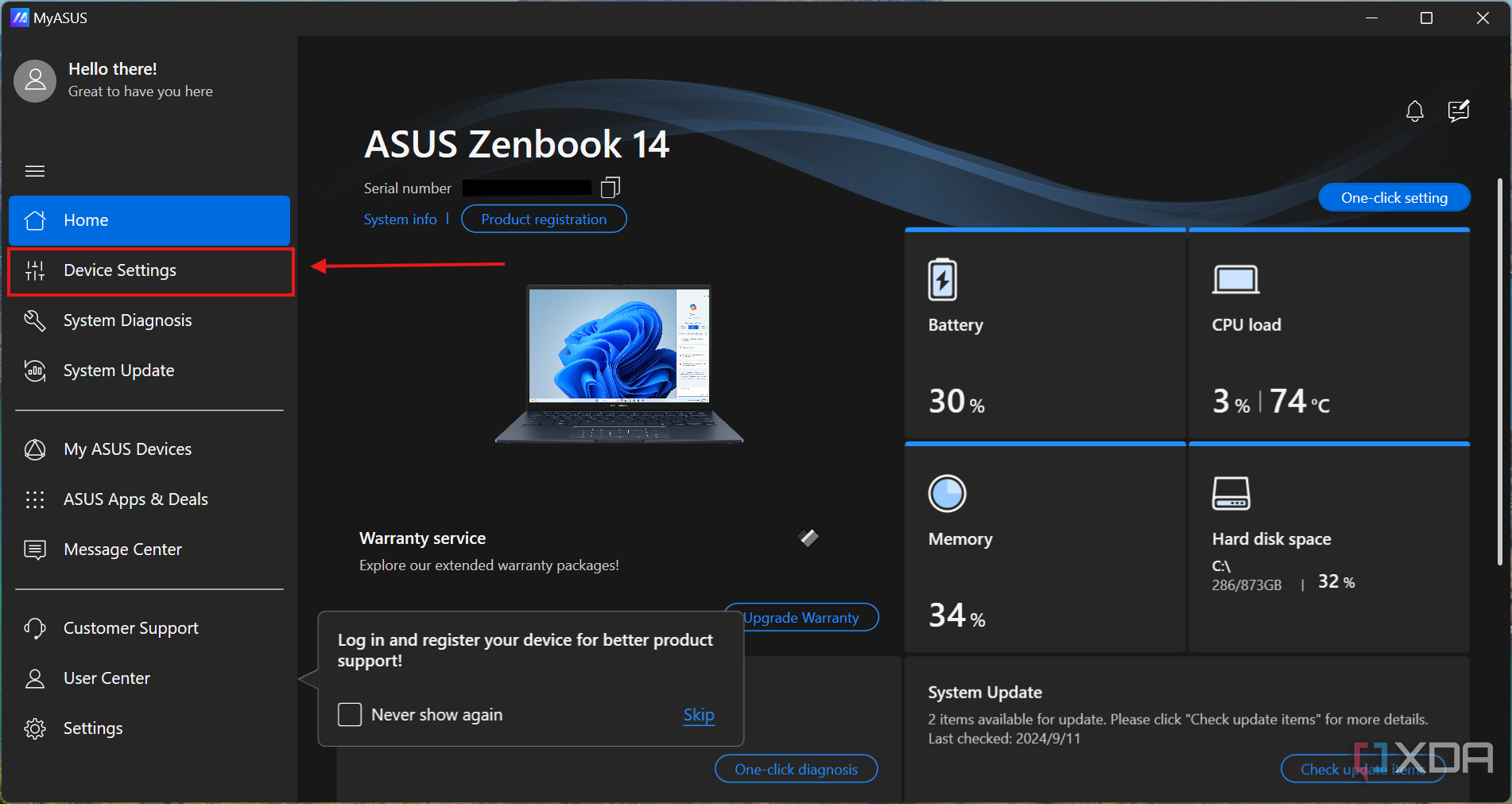
Asus laptops come with the MyAsus app, which also provides a way to limit the battery charge. Depending on your version of the MyAsus app, this option may be slightly different, but here’s how to use it in the latest version:
- Launch the MyASUS app (you can download it from the Microsoft Store).
- Click Device settings on the left-side menu
- Enable Battery Care Mode to limit the battery charge to 80%
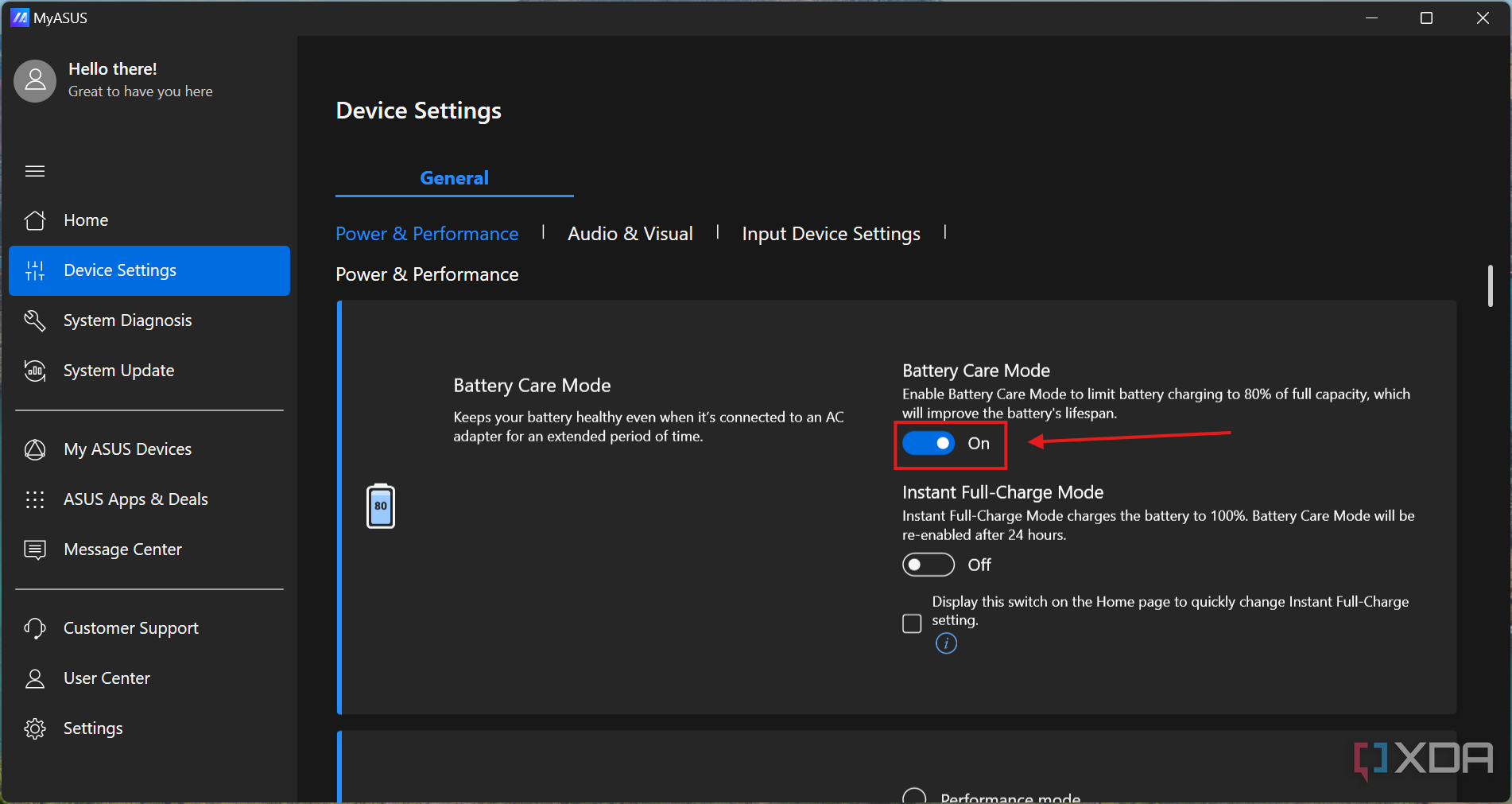


You can also use the Instant full-charge mode if you know you’re going to have a day where you need the full capacity of the battery. This will bypass the charging limit for that day, but revert it automatically later.
How to limit the battery charge on Acer laptops
Acer also includes the Acer Care Center on its laptops and it provides a similar feature. Here’s how to use it:
- Launch Acer Care Center (it may be labeled as just Care Center). You can download the app from Acer’s support website.
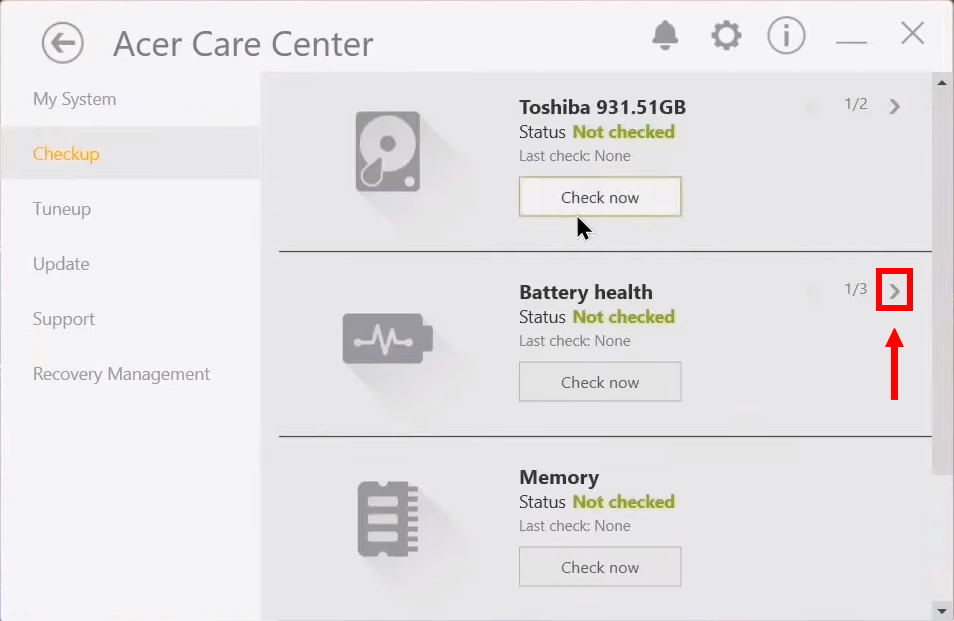
- Click Checkup (the yellow area).
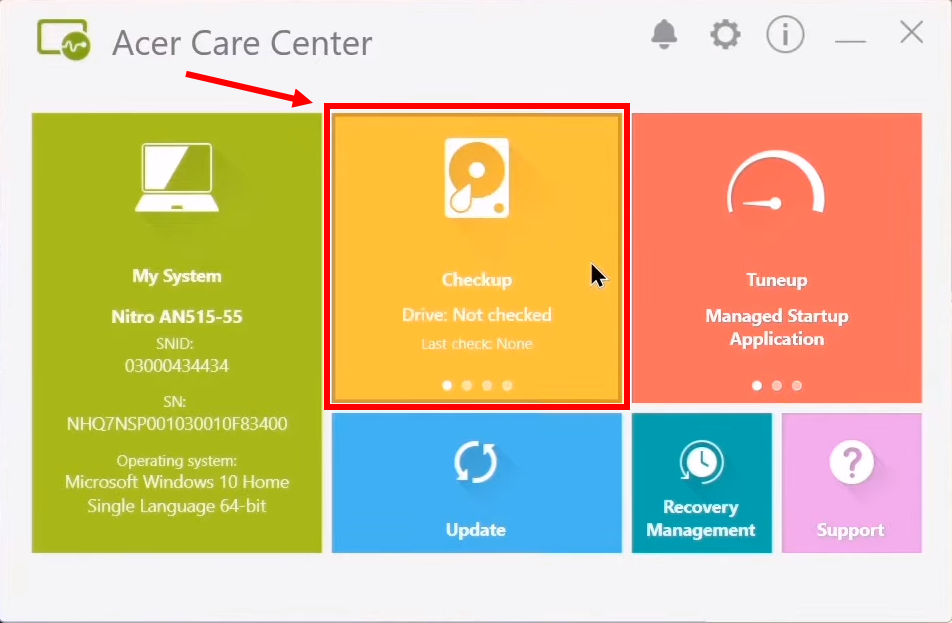
- Click the right arrow next to the Battery health area.
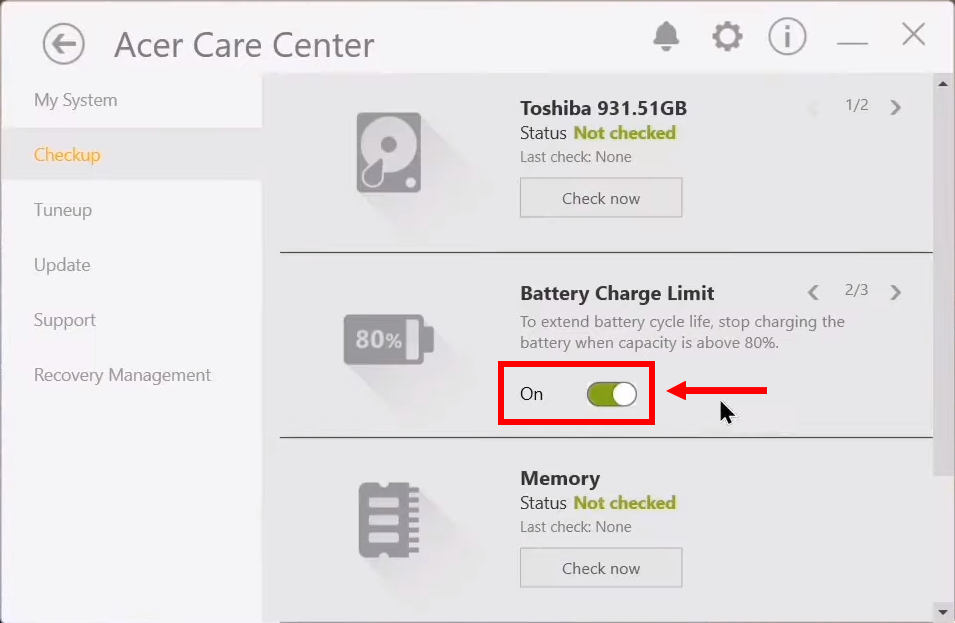
- Set the Battery Charge Limit toggle to On.
- Click OK to confirm your choice.


How to limit the battery charge on MSI laptops
MSI laptops let you limit the battery charge through the Dragon Center app. Here’s how:
- Launch the Dragon Center app. You can download it from MSI’s website.
- Click the toolbox icon, then choose Battery Master.
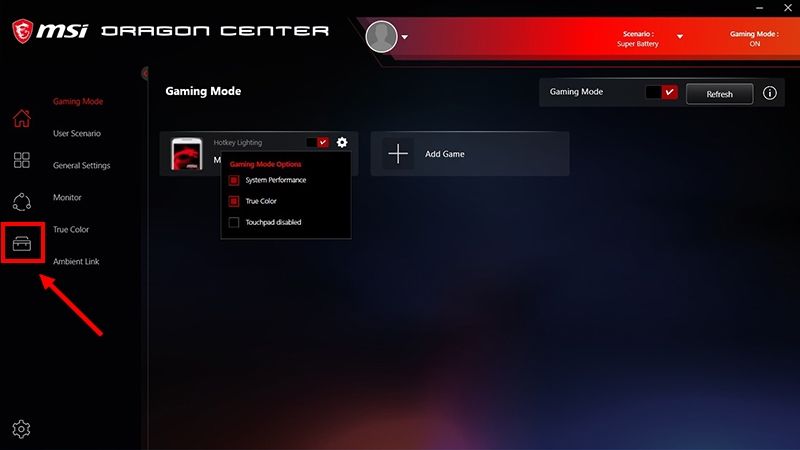
Image credit: MSI
- Set the Battery health option to Balanced. You can also set this option to Best for battery to limit the charge to 60%.
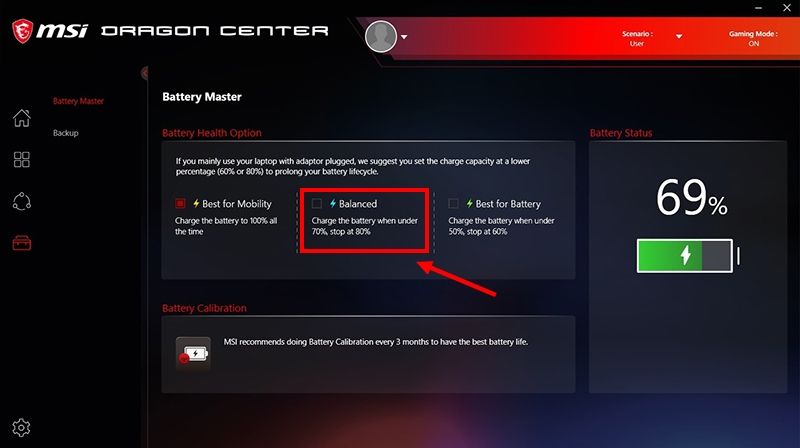
Image credit: MSI


How to limit the battery charge on LG laptops
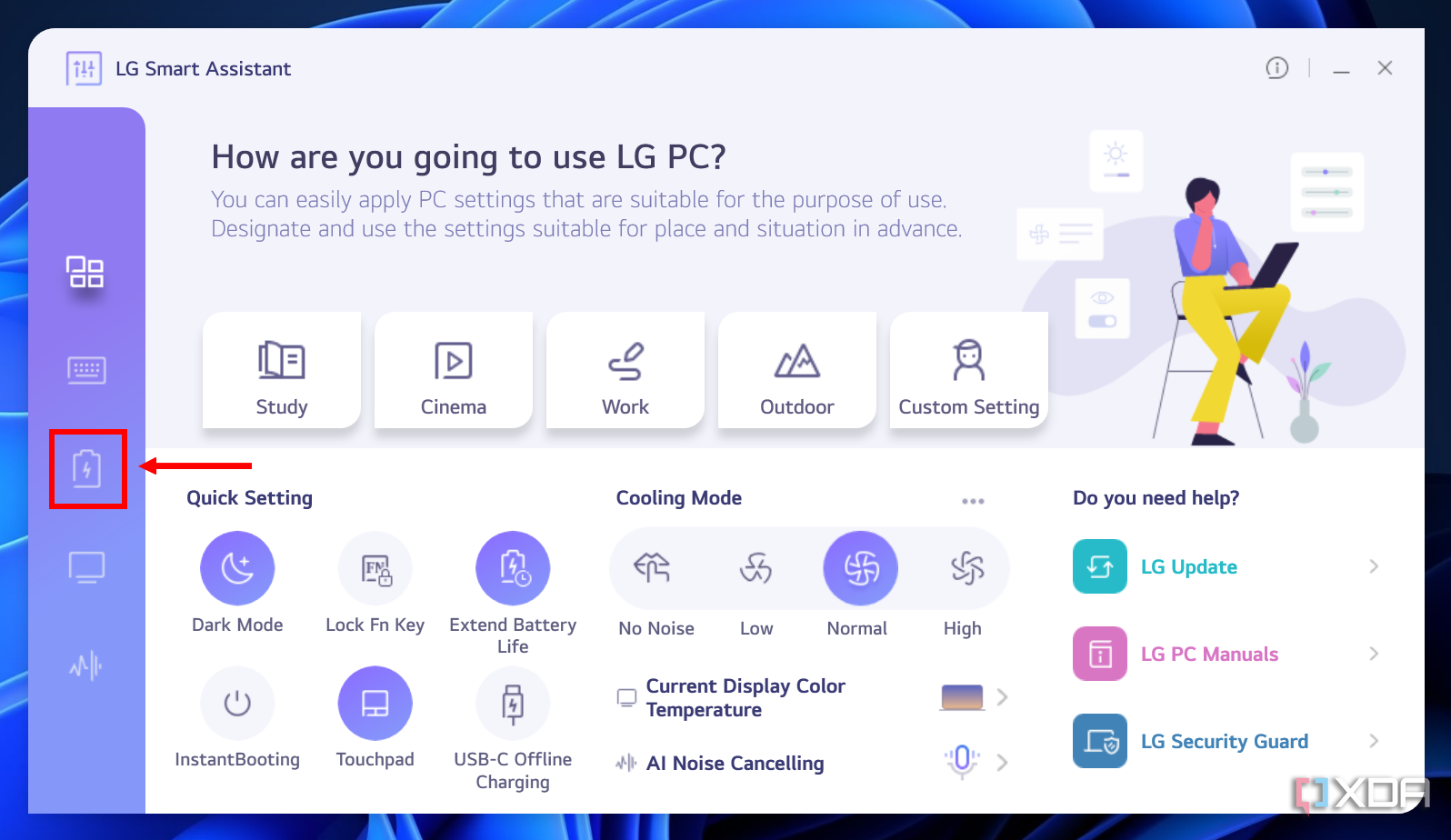
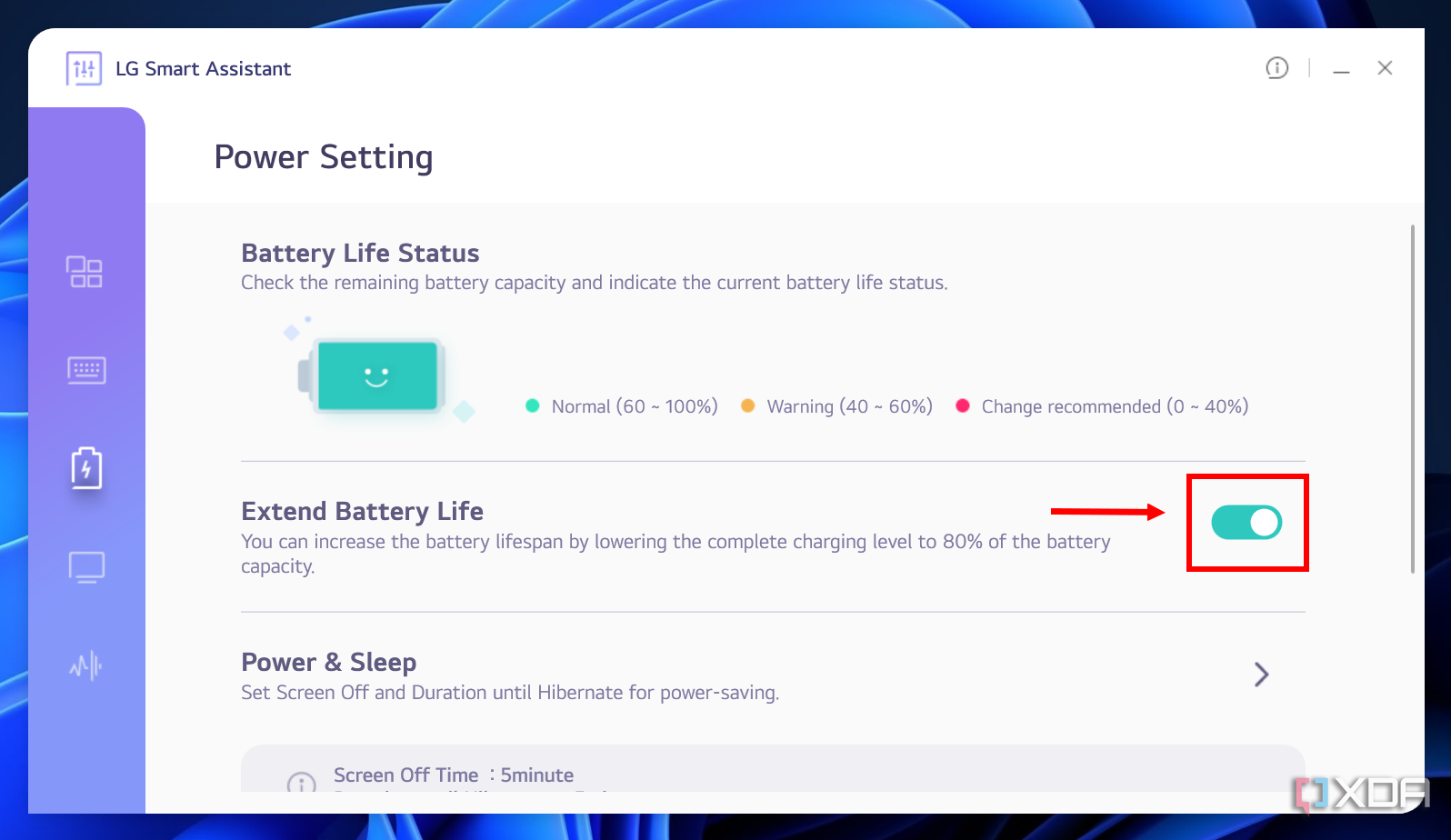
LG bundles its laptops with the LG Smart Assistant app, which also lets you limit the battery charge to 80%:
- Launch the LG Smart Assistant app.
- If you’ve removed the app, you can download LG Update from the company’s support website, then use LG Update to install Smart Assistant.
- Click the Power setting icon on the left side (it looks like a battery).
- Set the Extend Battery Life toggle to On.


Battery warnings for other laptops
Because the solutions above are exclusive to the respective laptop manufacturers, there’s a chance your laptop isn’t listed here. However, if you’d like to prevent charging beyond a certain battery level, there are apps that can warn you when you reach 80% battery, or any other level, so you can unplug the laptop. They can’t limit the charging capacity per se, but they might be useful if you want to at least be more aware of your battery usage. One great option is Battery Limiter.

Once you’ve installed the app, simply drag the slider to set the maximum battery charge so you’ll hear an alarm when that number is reached.
Keep your battery healthy
Hopefully, in the near future, Windows 11 will add a feature like this that works natively on all laptops so you don’t have to navigate all kinds of different settings. Regardless, all these methods work and cover most of the laptop brands you can find, so whatever your laptop is, you can help extend its lifespan by preserving its battery capacity. Laptops are powerful enough to last you many years these days, so preserving the battery is a great way to ensure you don’t need a new one anytime soon.
#limit #battery #charge #Windows
source: https://www.xda-developers.com/how-limit-battery-charge-80-percent-windows-11/


