

With a powerful AMD processor, HD haptics, full-HD 120Hz display and respectable battery life, the Asus ROG Ally has been a breath of fresh air in the PC gaming handheld market. The high-end ROG Ally comes with 512GB of storage to download and play your favorite games. While it’s sufficient for most, heavy users with a vast game collection may desire more. If you are among them, you can install games to an SD card on the ROG Ally.
Although the ROG Ally has a replaceable SSD, the entire process can be too complex for casual gamers. Instead, you can take advantage of the UHS-II microSD card slot and install your preferred games on it. If you are in the market for a new microSD card for your ROG Ally, make sure to pick one with fast read and write speeds to avoid slow loading times.
Asus ROG Ally review: Windows makes this difficult to recommend
Plagued by Windows-related problems and quality control issues, the ROG Ally is a fantastic device that’s hard to recommend currently.
Format an SD card on the Asus ROG Ally
Before we start, format your SD card in NTFS format to avoid any errors during the game installation process. You can use the File Explorer app to format your SD card. The instructions below will delete all the data on your microSD card. If there are any important files on it, back them up first.
- Insert your microSD card in the ROG Ally. Launch File Explorer.
- Find your drive. Press and hold to find the Format option from the dropdown list.
- Give it a relevant name. Select NTFS under File system and tap Start.
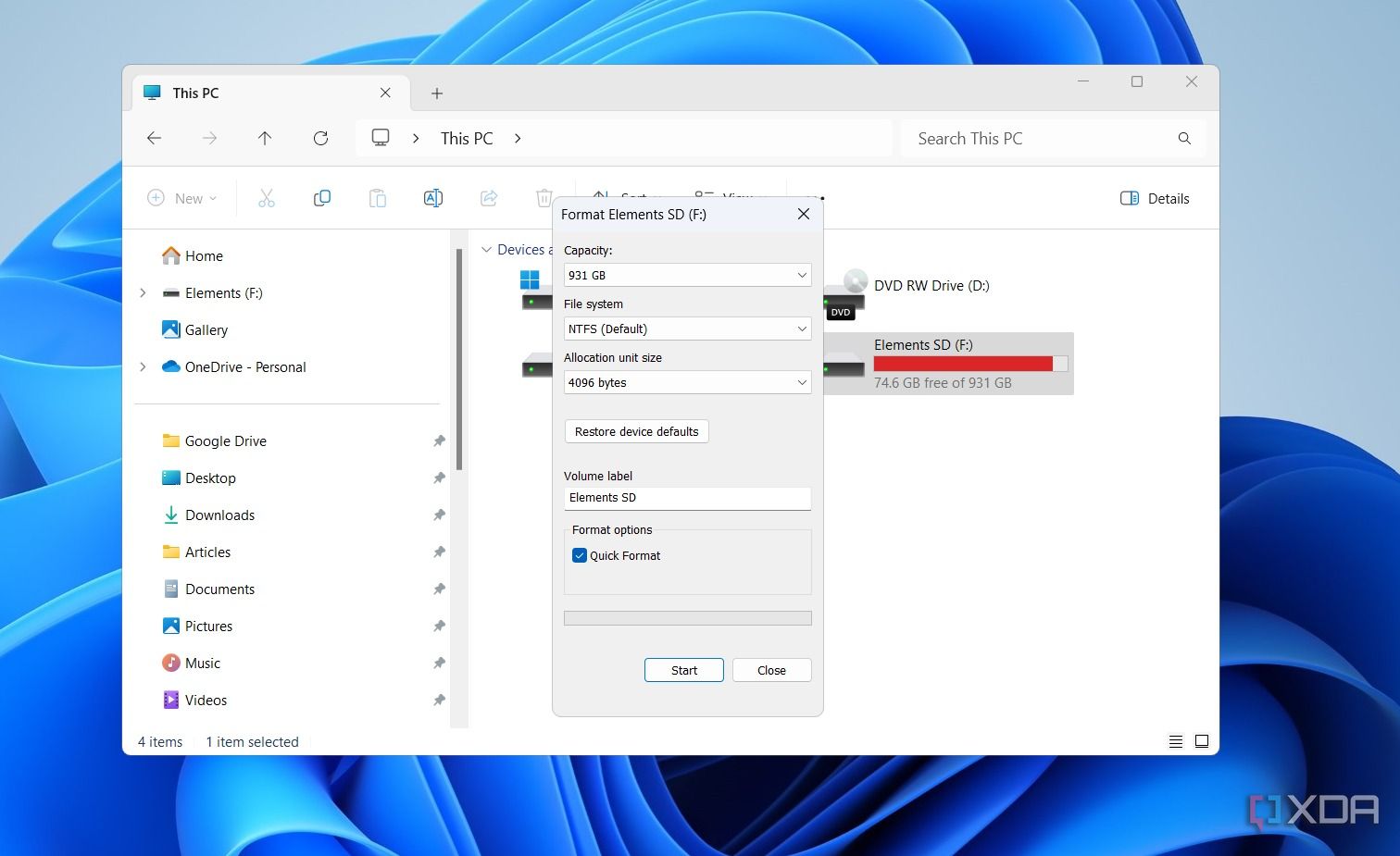
- Windows should format your SD card in no time.

Now, it’s time to install games to your SD card on the ROG Ally.
Use Steam to install games to an SD card
Since the ROG Ally runs on Windows 11 Home, downloading a game on it is similar to a regular Windows PC. Whether you use Xbox, Steam, Epic Games, EA App, or Ubisoft Connect, you simply need to change the download location on your preferred game launcher.
The steps to change the download location vary from one launcher to another. Let’s start with Steam.
- Launch Steam and head to Settings.
- Scroll to Storage and select Add drive.
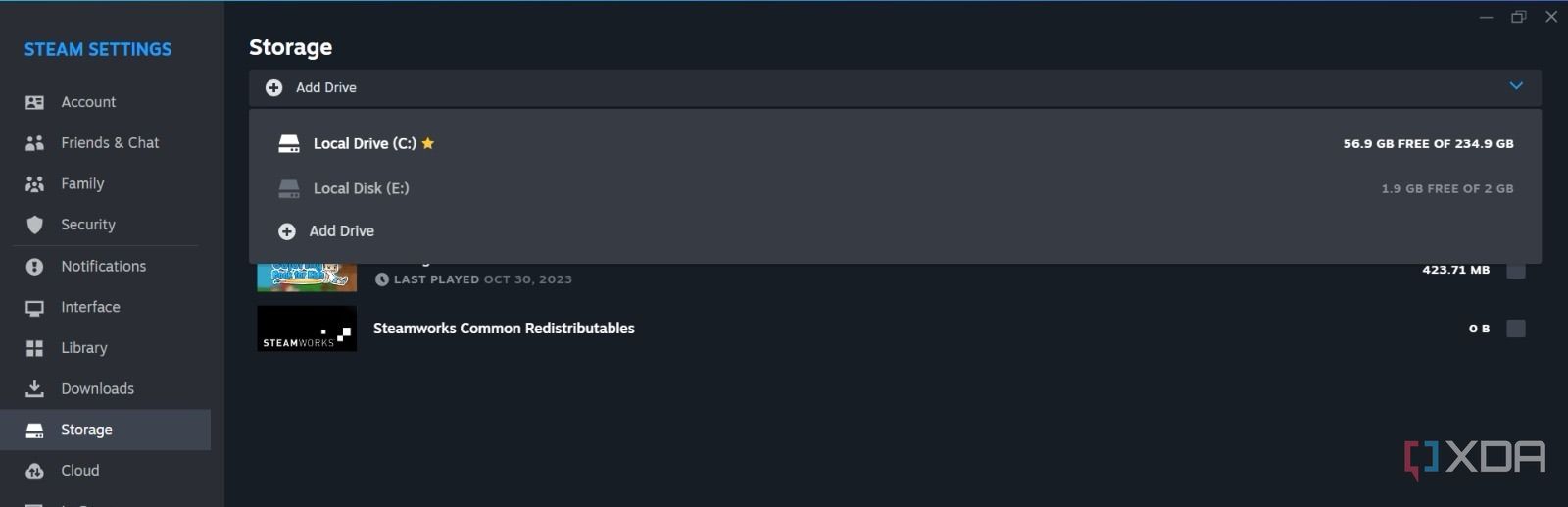
- Select your microSD card from the list.
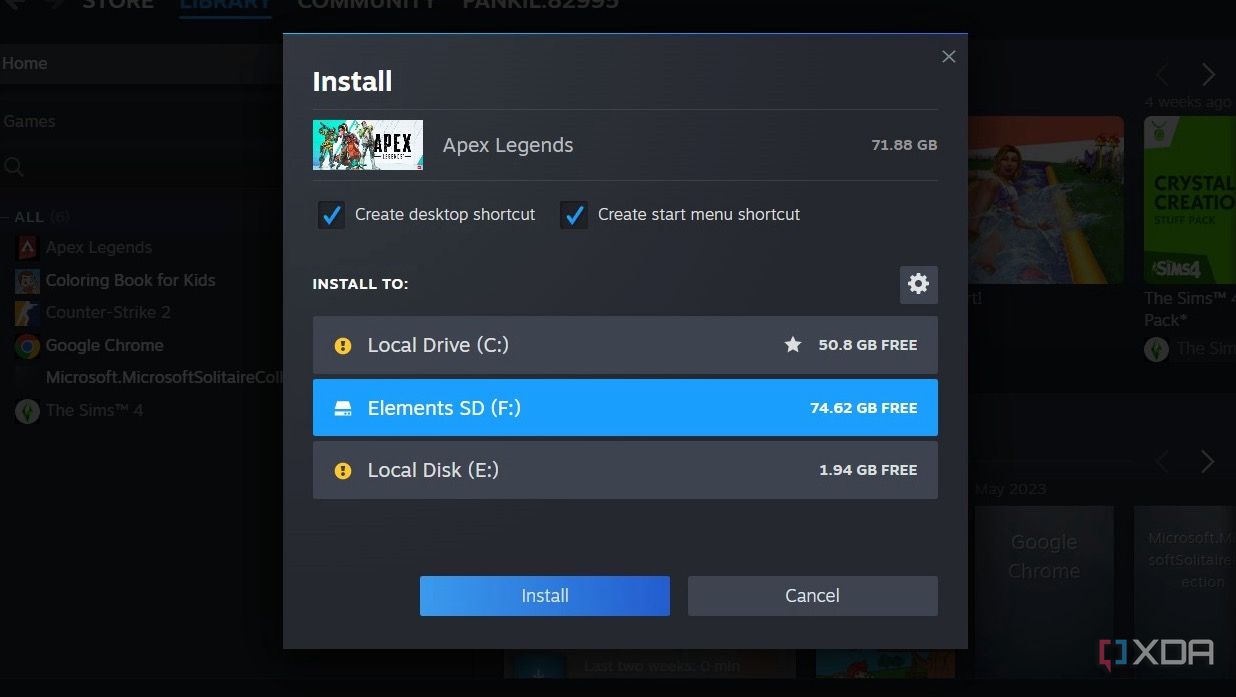
- Head to your Steam library and select a game you want to install. Select your microSD card and tap Install.


Use Xbox to download games to an SD card
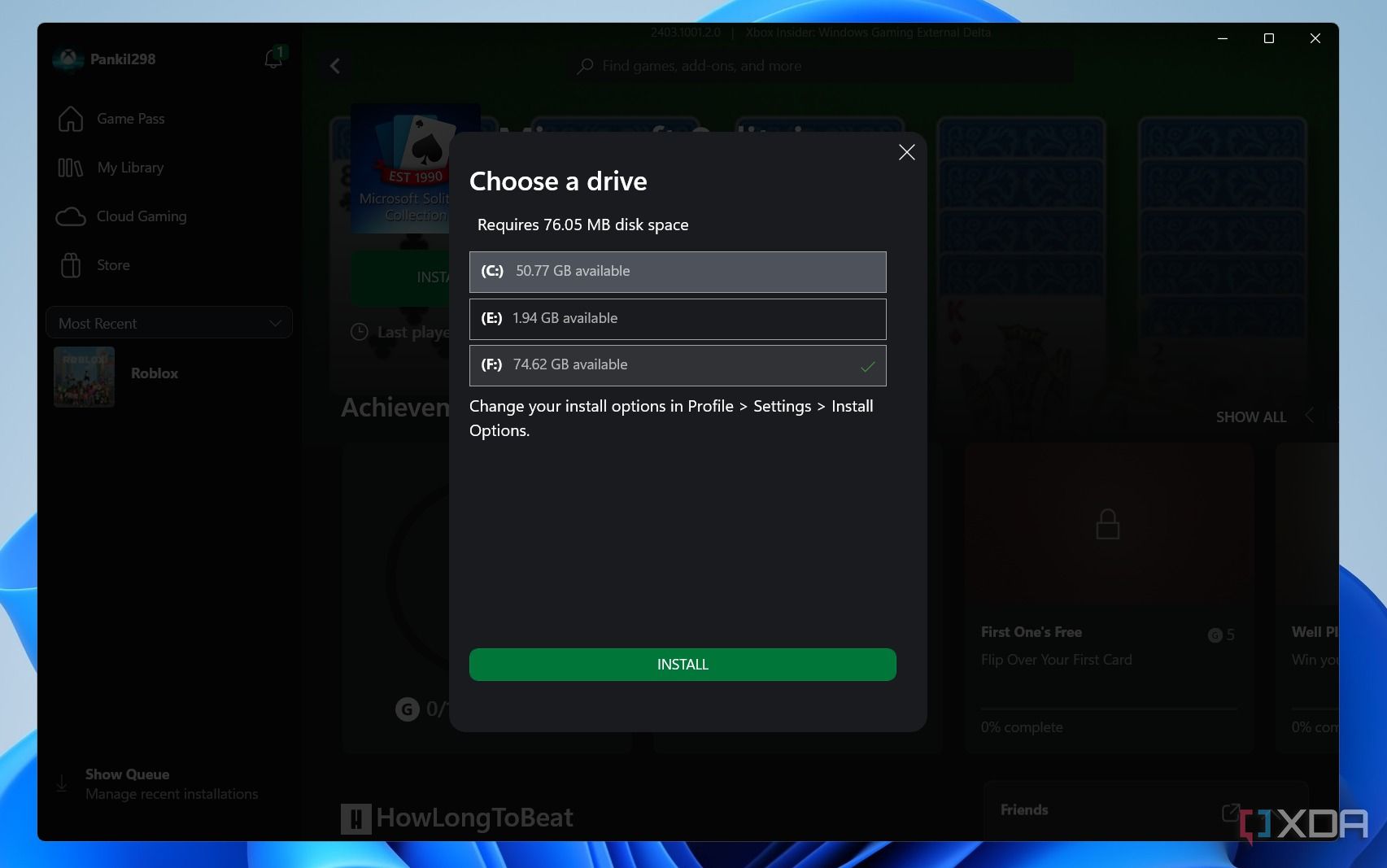
If you prefer to run Xbox games on ROG Ally, use the steps below to change the installation location.
- Launch Xbox and select a game you want to install.
- Tap change beside the default location.
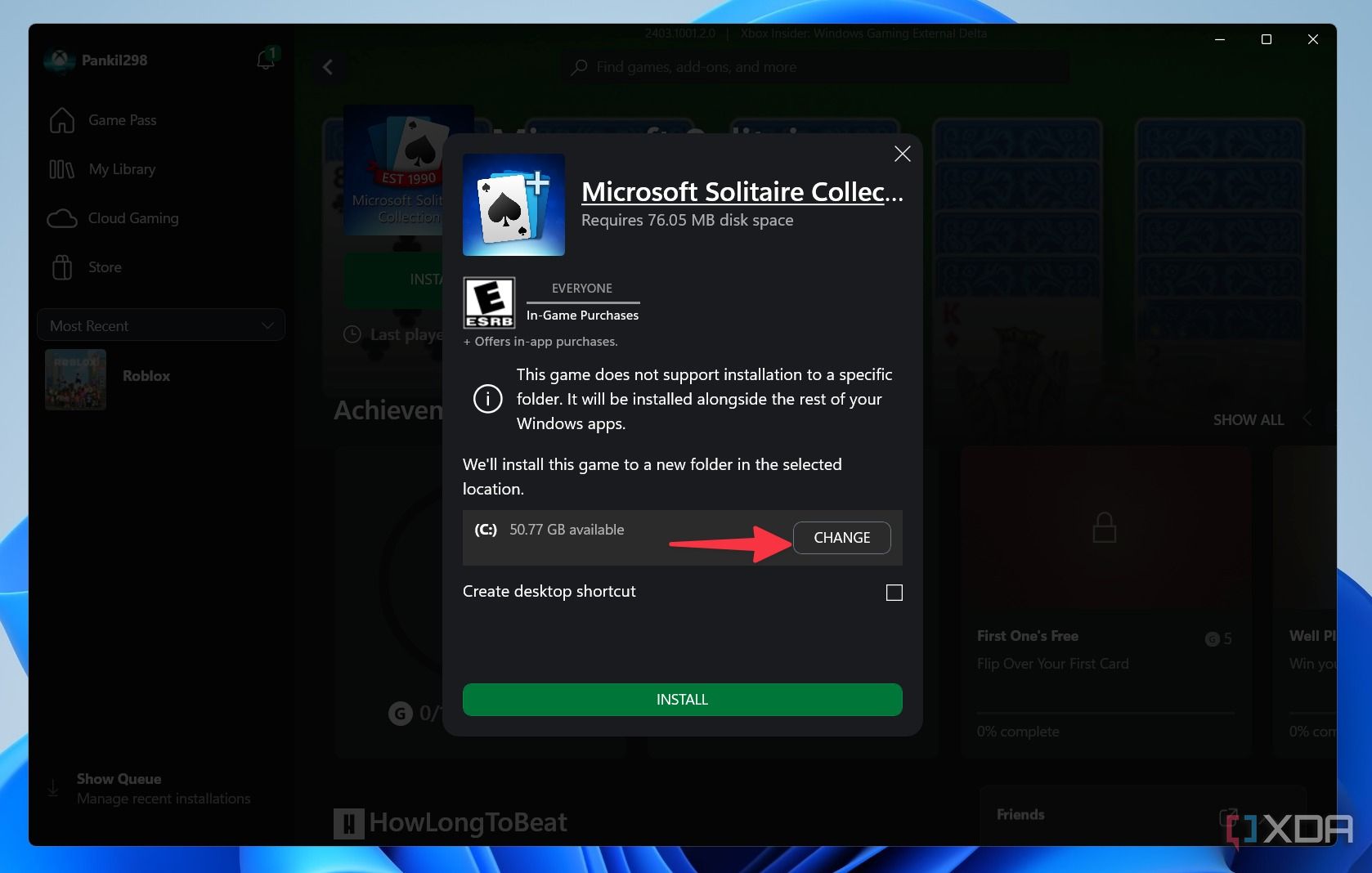
- Select your microSD card from the following menu and tap Install.


Use Epic Games to install games to an SD card
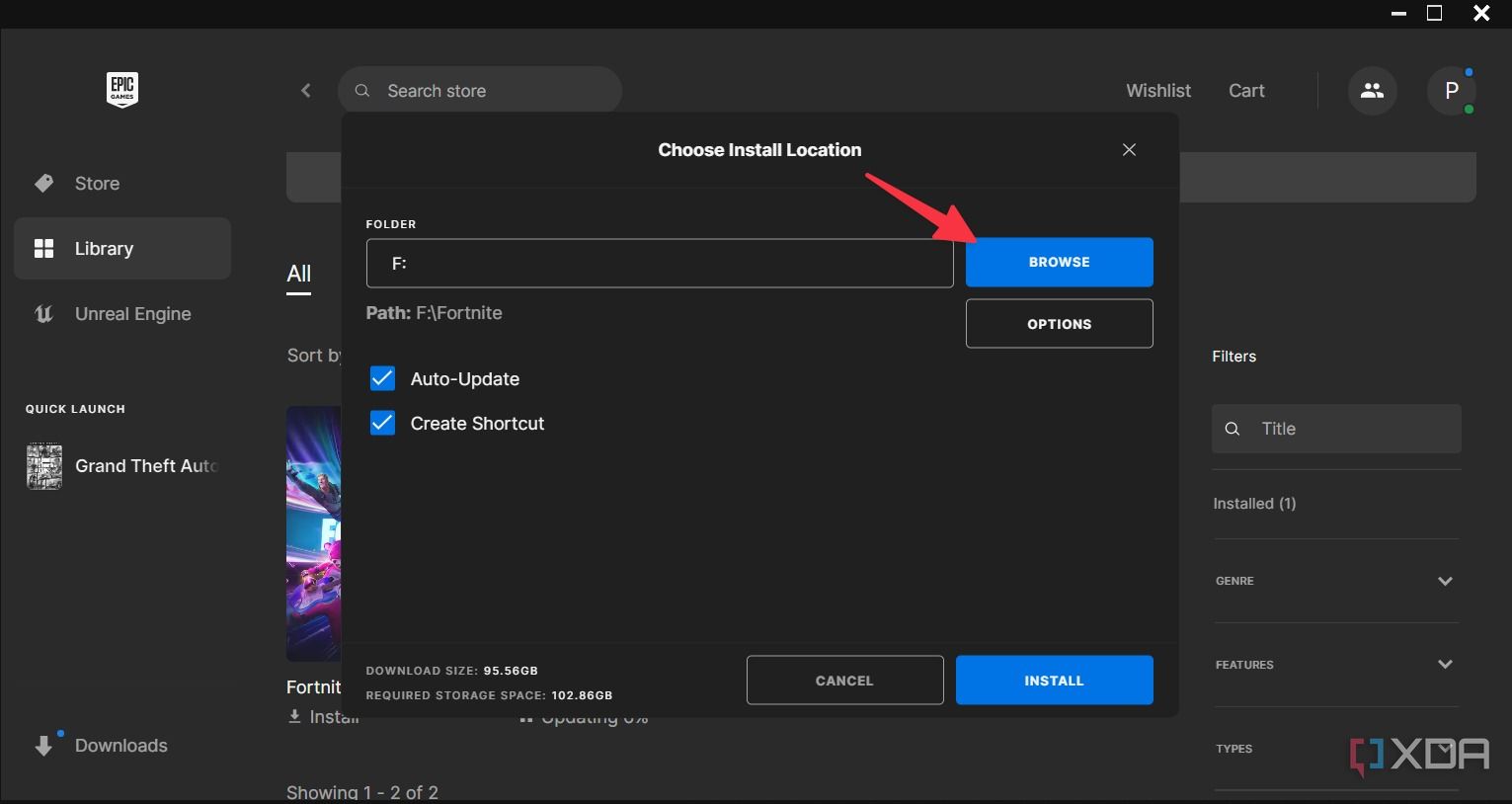
The steps to install games on an SD card are quite straightforward on Epic Games.
- Launch Epic Games and tap on a game.
- Tap Browse and select your SD card. Tap Install and you are good to go.

Use the EA app to install games to an SD card
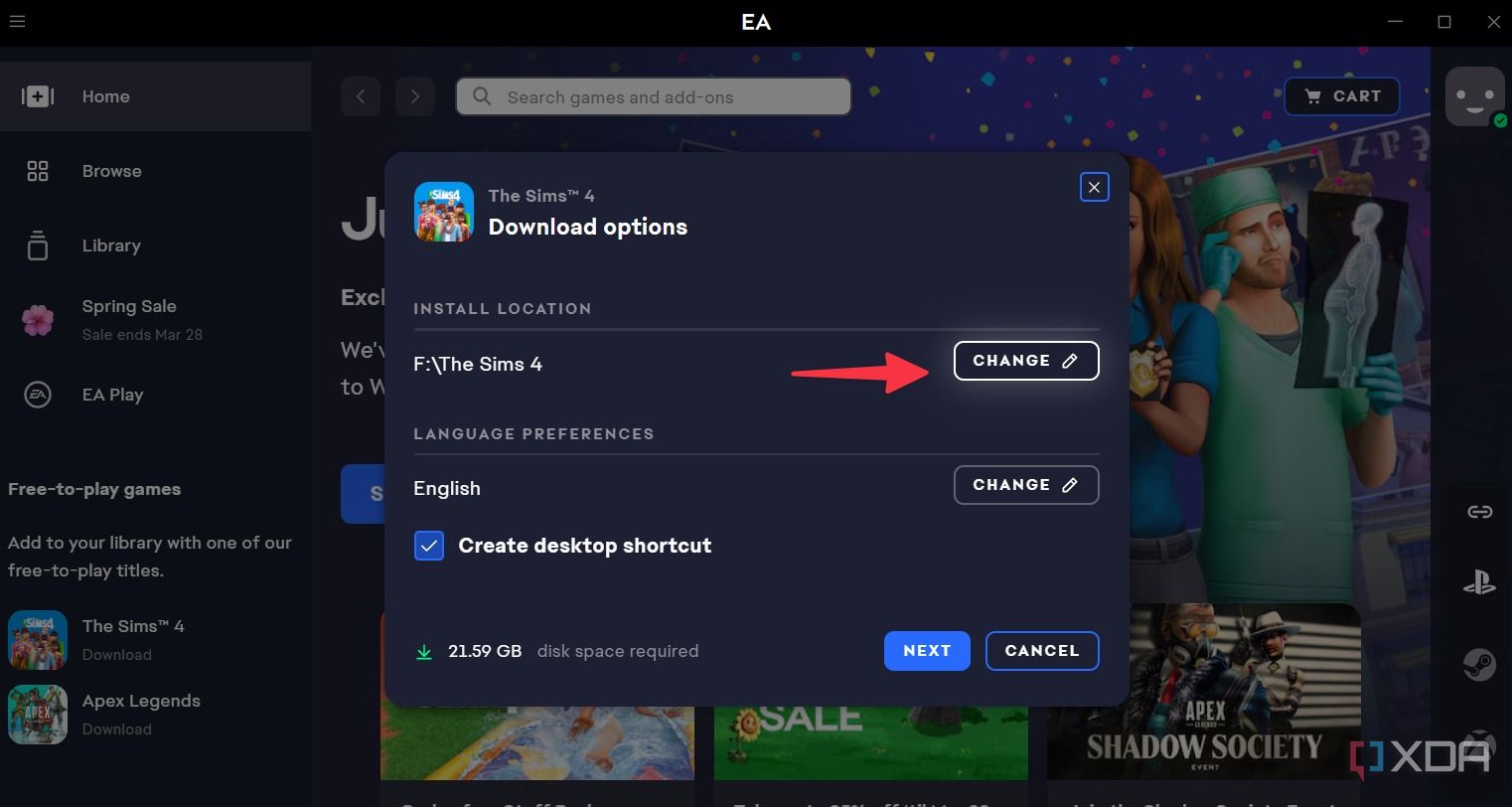
If you prefer EA, use the steps below to install games on an SD card.
- Open EA app and select a game you want to install.
- Tap Change under Install location and select your inserted microSD card from the following menu. Tap Next to install a game.

Download games to an SD card on Ubisoft Connect
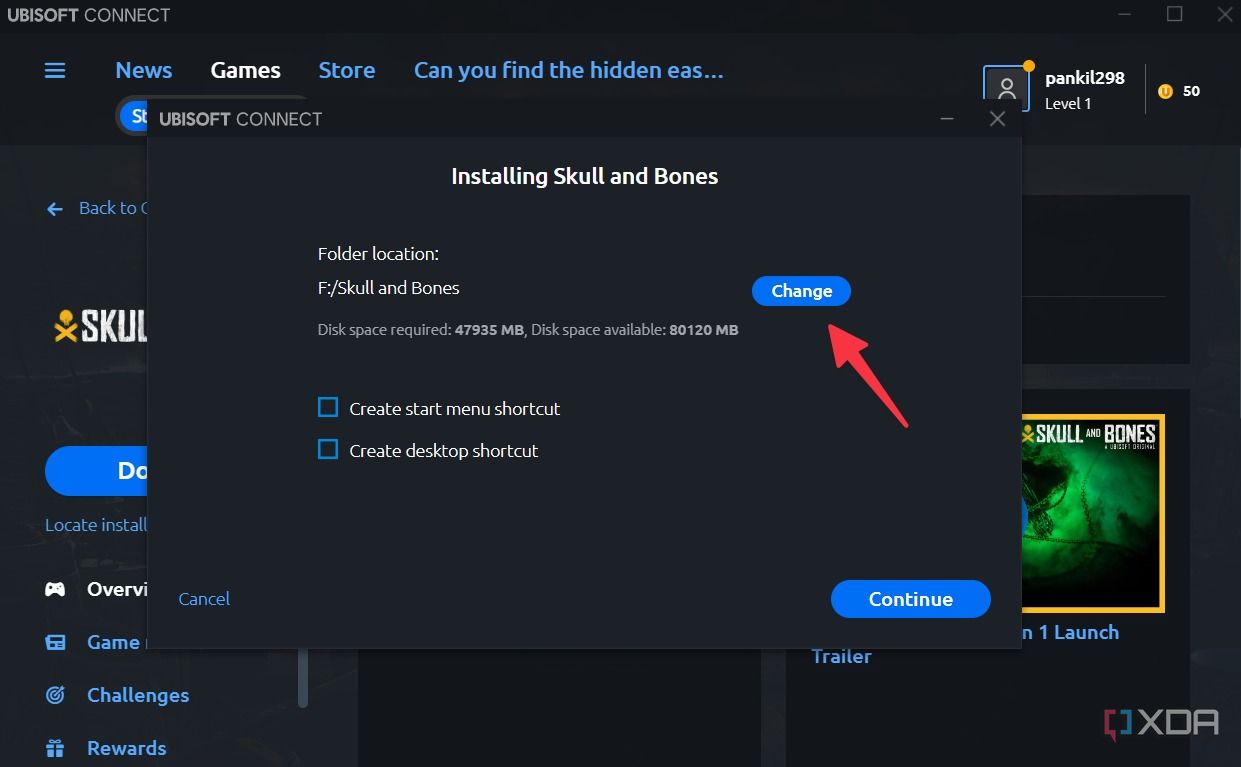
Ubisoft Connect users can go through the steps below to change the download location to microSD.
- Launch Ubisoft Connect and install a game as usual.
- Tap Change and select your microSD instead of a C: drive.

Change download location to SD card on GOG Galaxy
Do you prefer to install games from GOG Galaxy? Let’s change the download location on it.
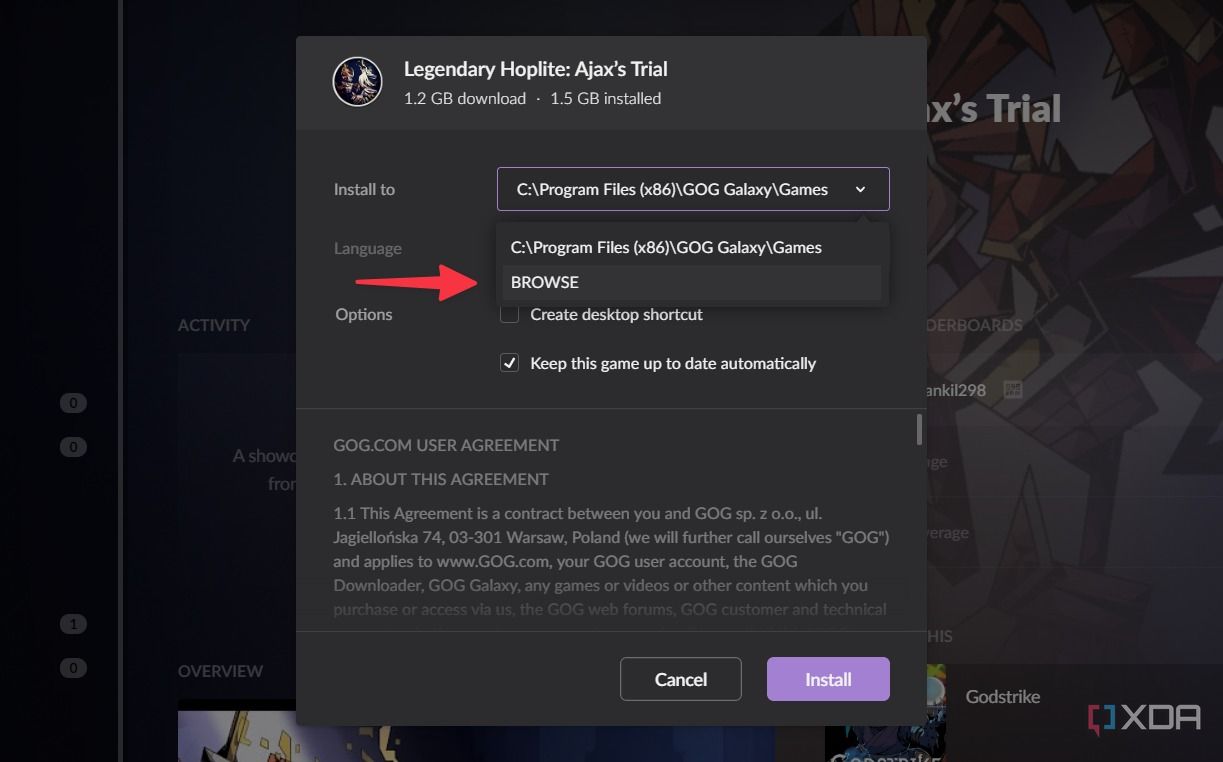
- When you install a game using GOG Galaxy on ROG Ally, it displays a pop-up to change the installation location.
- Tap Browse and select your microSD card. Select Install.

Expand your game collection on ROG Ally
There is no shortage of high-capacity microSD cards out there. That said, you shouldn’t install large games like Forza Motorsport, Lords of the Fallen, Counter Strike 2, etc., on your SD card on the ROG Ally. You may notice unexpected lag and delay during gameplay. If you want to play AAA titles without any performance glitches, consider upgrading SSD on your Asus ROG Ally.

8 things I want to see from the Asus ROG Ally 2
The Asus ROG Ally is already a solid PC gaming handheld, but it could be made even better with these eight upgrades.
#install #games #card #Asus #ROG #Ally
source: https://www.xda-developers.com/how-install-games-sd-card-asus-rog-ally/

/cdn.vox-cdn.com/uploads/chorus_asset/file/25230416/DSC06307_processed.jpg?w=1068&resize=1068,0&ssl=1 "Samsung says Bixby’s still not dead")
