

If you have recently experienced a slow Wi-Fi speed on all your connected devices for no apparent reason, it’s possible that someone is piggybacking on your Wi-Fi network and taking up the juice. This can be really frustrating, especially when you are on a limited internet data plan or require high-speed internet for your work. Not only that, if someone is sneaking through your Wi-Fi network, there’s always a privacy risk.
Fortunately, there are several ways to check if someone is stealing your Wi-Fi on Windows OS.
How to check if your Wi-Fi is being used without your permission
Log in to your router
The best way to check for extra devices connected to your Wi-Fi is to access your router settings and check for connected devices. You need to know the router’s local IP address and login credentials to do so. Here’s how to do this.
- To find the IP address, type the Command Prompt on the Windows search box, right-click its icon, and select Run as Administrator.
- On the command line, type ipconfig command and hit enter.
- Look for the Default Gateway under the Wireless LAN Adapter Wi-Fi section. Next to it is your router’s IP address. Copy this address. It should be in 192.168.xx.x format.
- Now, launch your web browser, paste the copied IP address into the address bar, and hit enter. Ignore the “not secure” warning, if any.
- Now, use the router’s login credentials to access its settings. If you have never configured the router settings before, use admin as username and admin or password as password. You can also search on the internet for the default credentials.
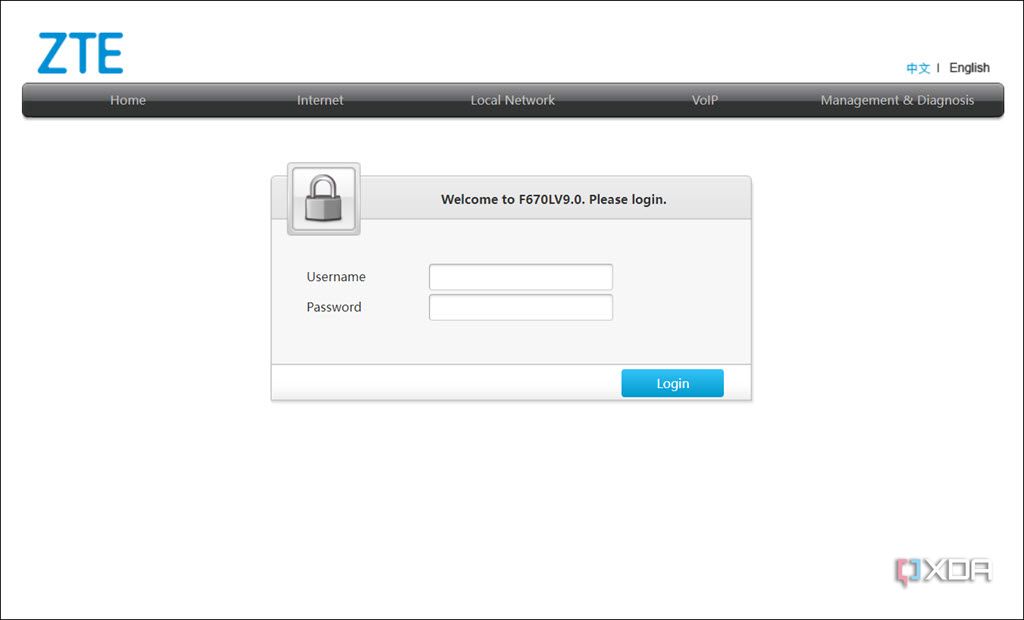
The following are the general steps, but may look different for various brands. Look for similar options under your router settings.
- Once you enter the router settings, look for options like Connected Devices, Devices List, or similar.
- Review the list of IP addresses, MAC addresses, and device names. If you notice unfamiliar devices, it’s a red flag.
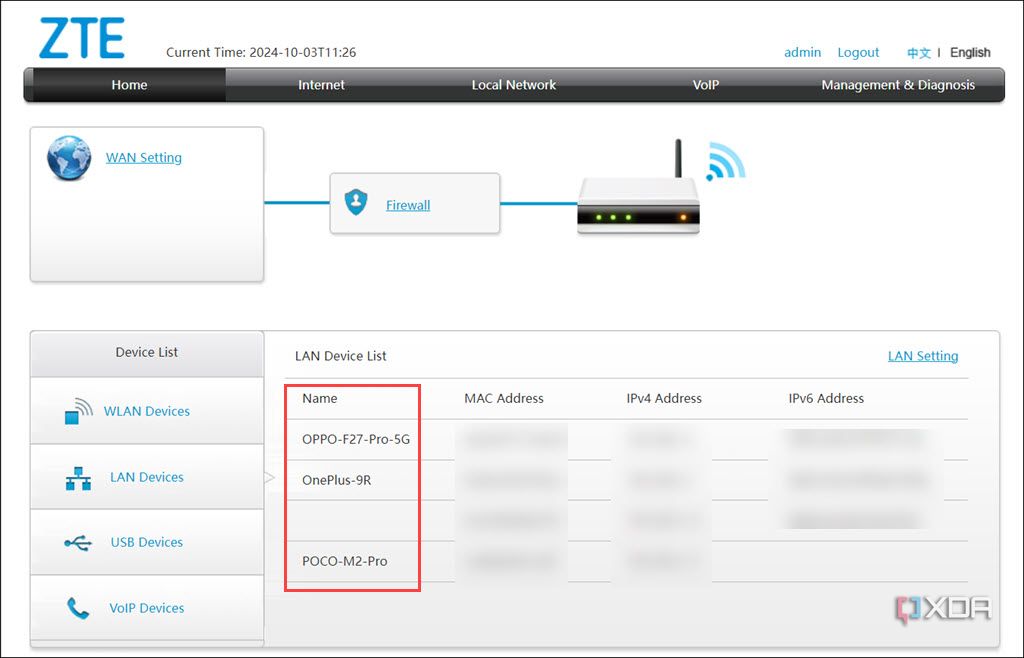


Check the router lights

Another straightforward way to check if someone is piggybacking on your Wi-Fi is to disconnect all your devices from the network and observe the router lights. Most routers have indicator lights that show network activity and connected devices. You can spot any unusual activity by monitoring these lights when all your known devices are disconnected or inactive. This method will work especially well if you have only a few devices connected to the Wi-Fi router.
- Start by disconnecting all your devices, including your smartphone, laptop, smart TV, and other smart gadgets.
- Now, look at the lights on your router. Generally, when there’s no network activity going on, there won’t be any light blinking under the router’s WLAN or LAN tags. If lights are still blinking though, it indicates network activity, meaning someone might still be connected and using your Wi-Fi.
- Next, reconnect just one device to the Wi-Fi and recheck the router’s light. If the light went from no blinking to active blinking light, then no unknown devices are connected to it.
Use a third-party tool
Apart from the built-in methods, there are a few dedicated third-party programs that can list all the devices connected to a network. One of the most popular and simple to use is the free Wireless Network Watcher application from NirSoft.
Follow these steps to download, install, and use it.
- Visit the official download page of the Wireless Network Watcher and scroll down to download its installer.
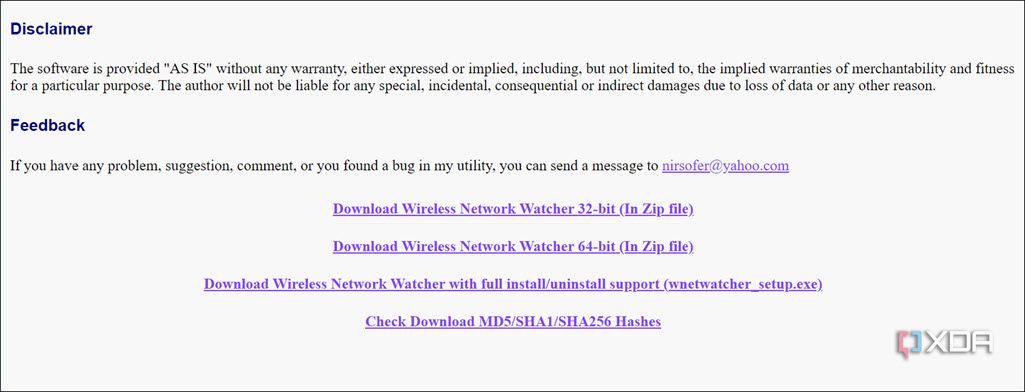
- After the installer is downloaded, run it and follow the on-screen instructions to install it properly.
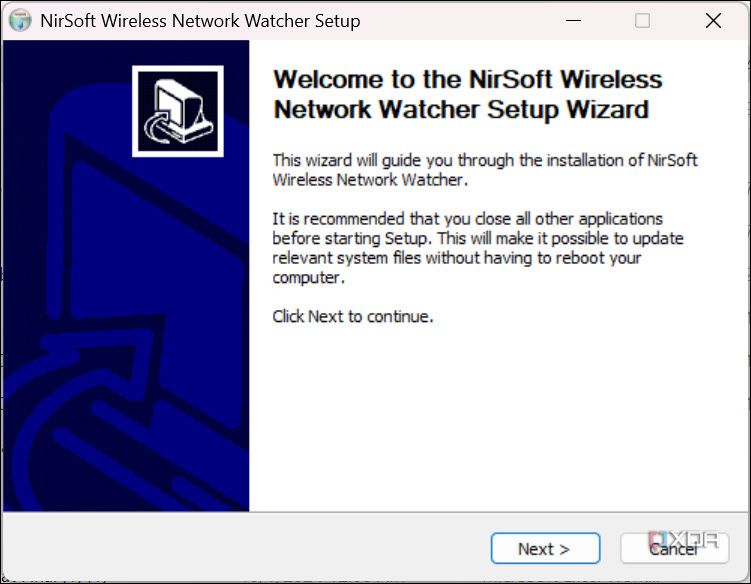
- When the installation is completed, select the option to run the application and click Finish.
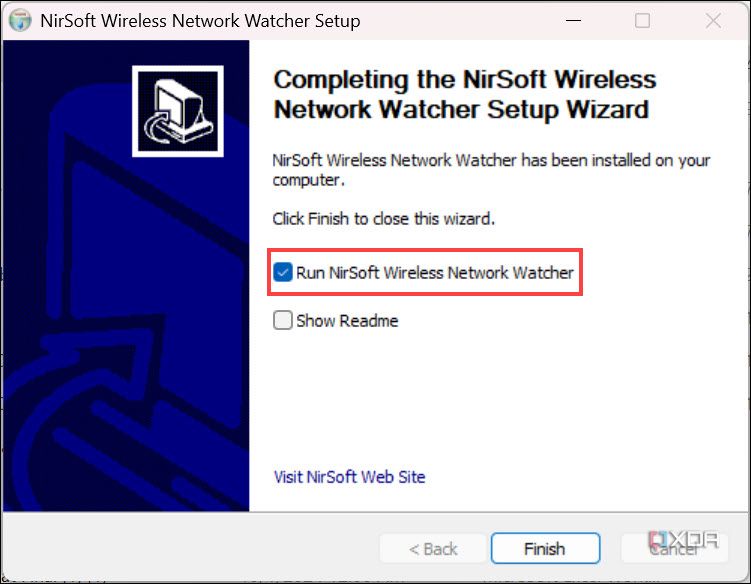
- As soon as the application is launched, it will automatically start searching for all the devices connected to the Wi-Fi network through which your current device is connected.
- After the scan is completed, check for unknown devices among the listed devices. For that, check the device name under the Device Name column.
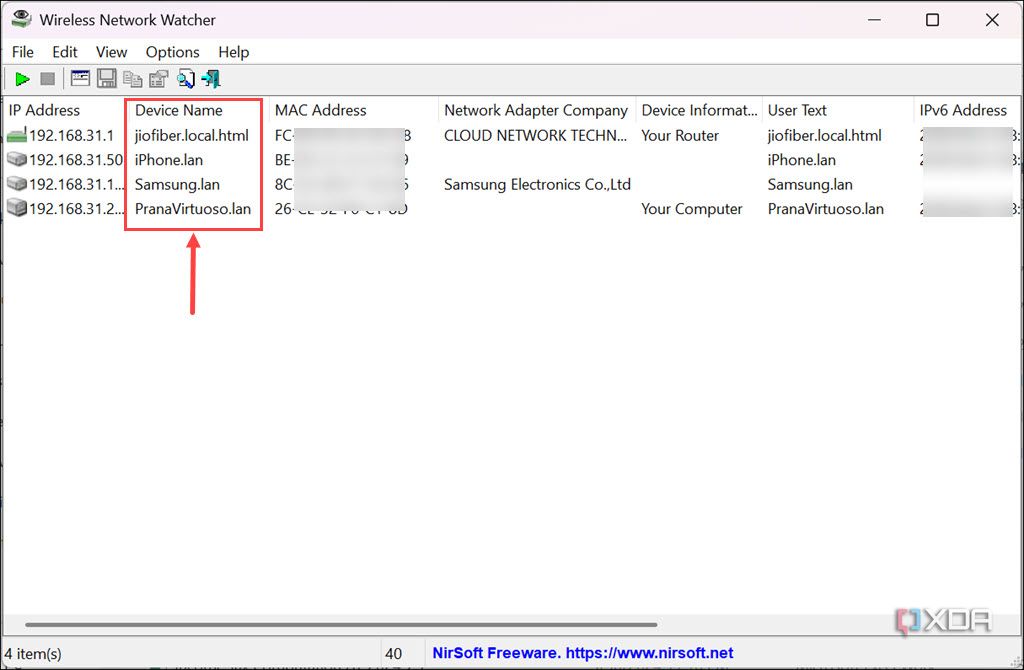


That’s it. The unknown devices’ names will be clearly listed, and you can take action to kick them out of the network.
How to kick out unknown devices from the Wi-Fi network
Now that you have found the unknown devices connected to your Wi-Fi network, you might want to remove them to secure your network and speed up your slow Wi-Fi. There are several ways to do that.
Change the Wi-Fi password
The simplest way to remove unauthorized devices from your Wi-Fi network is to change the network password. This will disconnect all devices, including unknown ones. So, only those who have the new password can connect to the Wi-Fi network. Here’s how to change the Wi-Fi password.
- Launch your browser and navigate to the router’s IP address.
- Log in with your credentials to access router settings.
- Look for WLAN settings and expand the WLAN SSID configuration section.
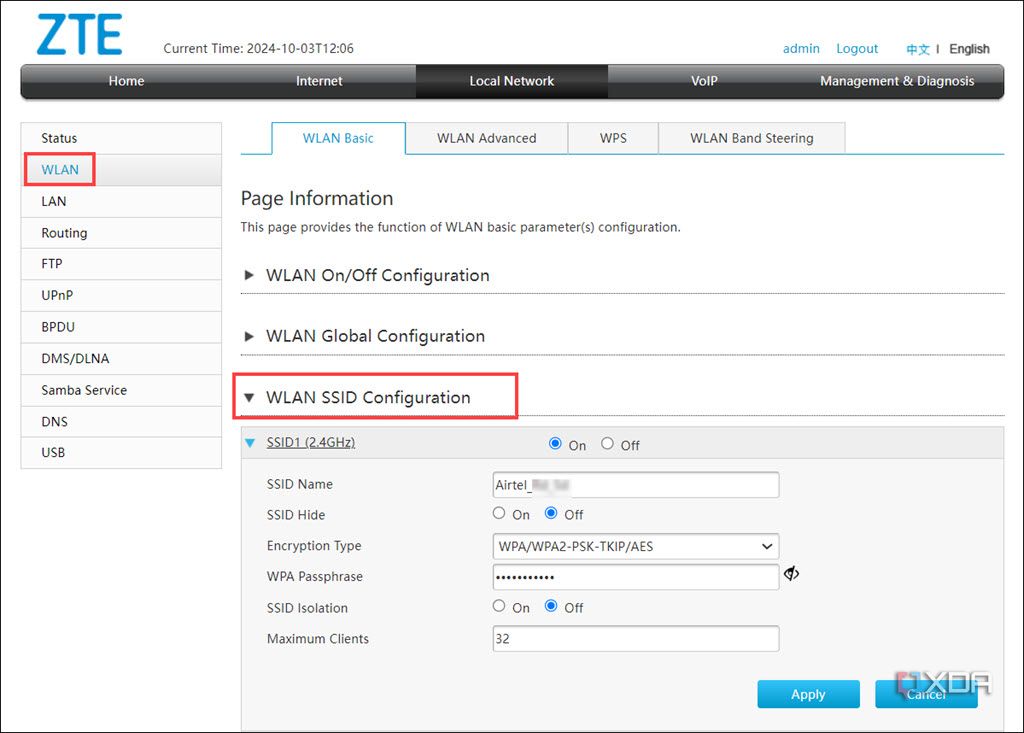
- Now, look for the SSID (your Wi-Fi name) for which you want to change the password.
- Under it, change the WPA passphrase and click Apply.
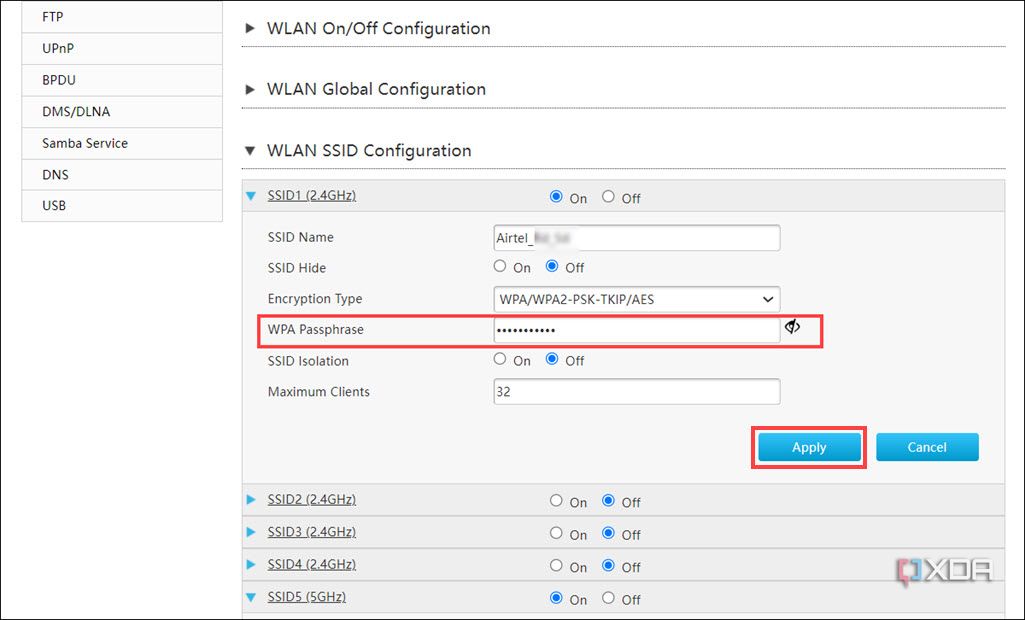


Your Wi-Fi password will be changed. Now, use this new password on all your known devices to connect them to the network.
Remember to change passwords of all the active SSIDs, including both
2.4 GHz and 5 GHz
bands.
Use MAC address filtering
Another way to block a device from a Wi-Fi network is through MAC address filtering. From router settings, you can add MAC addresses of unknown devices to the banned list so that they can’t connect to your network. However, this method is not truly secure because intruders can change the MAC address of their device using the MAC address spoofing tool.

You can make this method work by creating an allowed list of the MAC addresses of all known devices and only allowing these to connect. However, this is a tedious task, as every time you add a new device to the network, you need to add its MAC address to the allowed list.
How to keep intruders away from your Wi-Fi network
Nobody wants an intruder to intercept their Wi-Fi network, so to prevent that, here are some simple tips you can follow.
- Create a strong and unique password. Never be lazy about creating a password for anything, including your Wi-Fi.
- Change the default router login as soon as Wi-Fi is installed. Almost every router’s default username and password are admin and admin. Anyone with your router’s login credentials connected to your Wi-Fi network can control everything related to it, like whitelisting/blacklisting IP addresses, URLs, MAC addresses, and more.
- Disable Wi-Fi protected setup (WPS). This handy feature lets you connect devices to your Wi-Fi network by pressing a button or entering a PIN. However, it’s vulnerable to cyber-attacks and should be disabled. You can disable it from the router’s settings.
- Create a guest SSID for visitors. If you frequently have guests, a guest Wi-Fi network with its own password will keep visitors on a different network from your main devices. This will reduce the risk of unauthorized access to your main network.
- Disable SSID broadcasting. Some routers or ISPs provide the facility to hide the SSID. If your router has this feature, utilize it for privacy.
Safeguard your Wi-Fi network from cyber thieves
Unauthorized access to your Wi-Fi isn’t just about slow internet speed. It can expose your connected devices to privacy threats, leading to data theft and more. Regularly checking your network and using strong security practices can protect your Wi-Fi from unwanted guests. With these listed methods, you’ll be able to spot any intruders and take immediate action to put them out.
#check #stealing #WiFi
source: https://www.xda-developers.com/check-if-someone-stealing-wifi/


