

Only a handful of errors on Windows are as frustrating as the dreaded “Windows cannot access the specified device” error that keeps you from opening an important file or running a critical application. This particular error pops-up on Windows desktops and laptops for a lot of reasons, ranging from simple permission problems to more complex file corruption or driver conflicts. The good thing, however, is that you can easily troubleshoot your way out of it without any major issues.
You’ve come to the right place if you are facing this issue and are wondering how to get rid of it. Read on to find some tried-and-tested ways to solve this error on your PC.
Related
How to repair Windows 11
The operating system is the most important software on your PC, so it’s important to fix any OS-related errors as soon as you detect them.
Try running the app as an Admin
A simple solution to a more complex problem
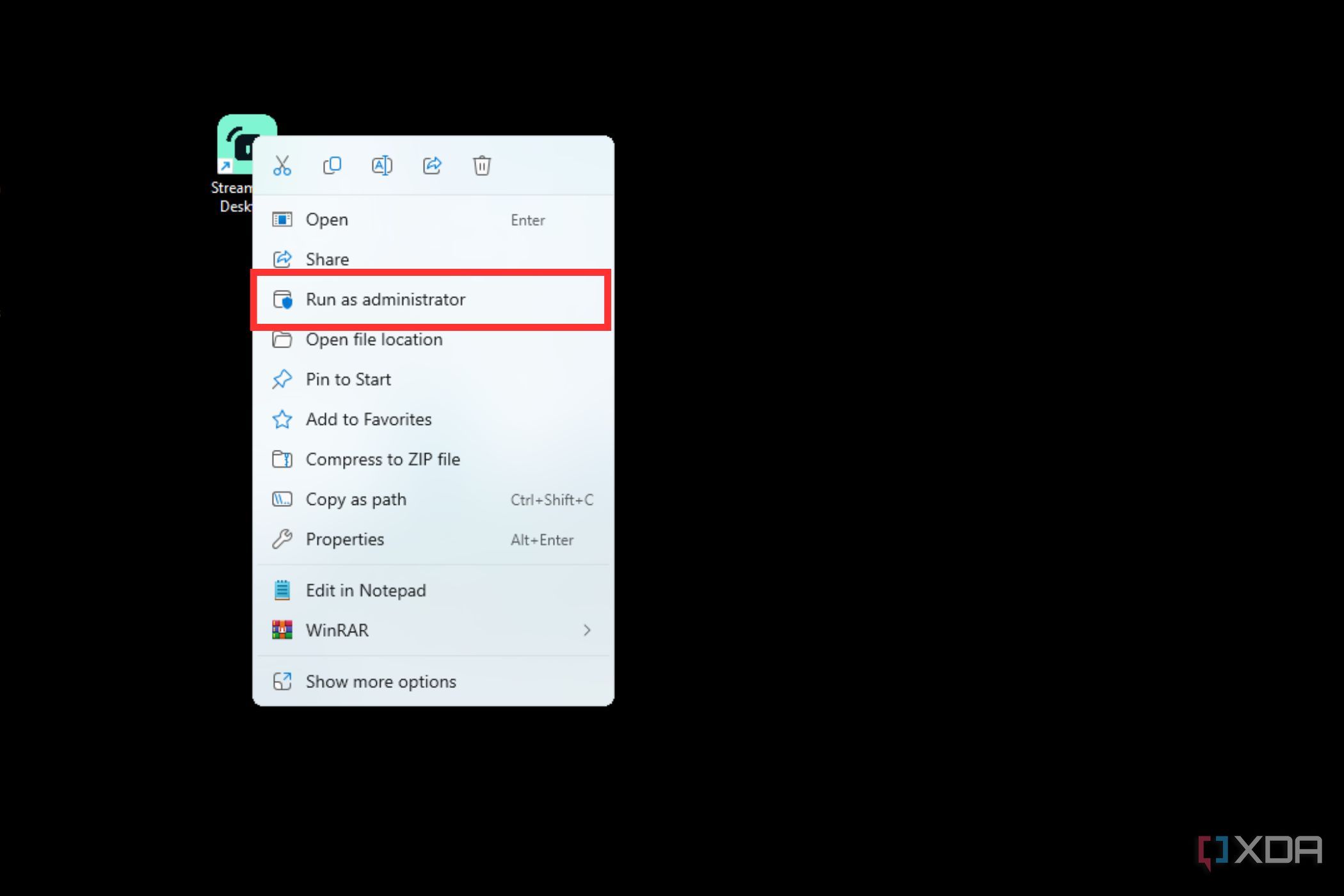
If you run into this particular problem while trying to run an executable file or some other program, then try running it as an administrator. A lot of programs need administrator privileges to run properly, and running them as an Admin will help you bypass this issue. To do so:
- Right-click on the app you’re trying to run.
- Select Run as administrator from the context menu.

Disable unwanted app blocking
A Windows Security feature could be causing the problem
A Windows Security feature that blocks unwanted apps on your PC could also cause the “cannot access the specified device” error. You can check if it is enabled, and try disabling it to see if that fixes the issue.
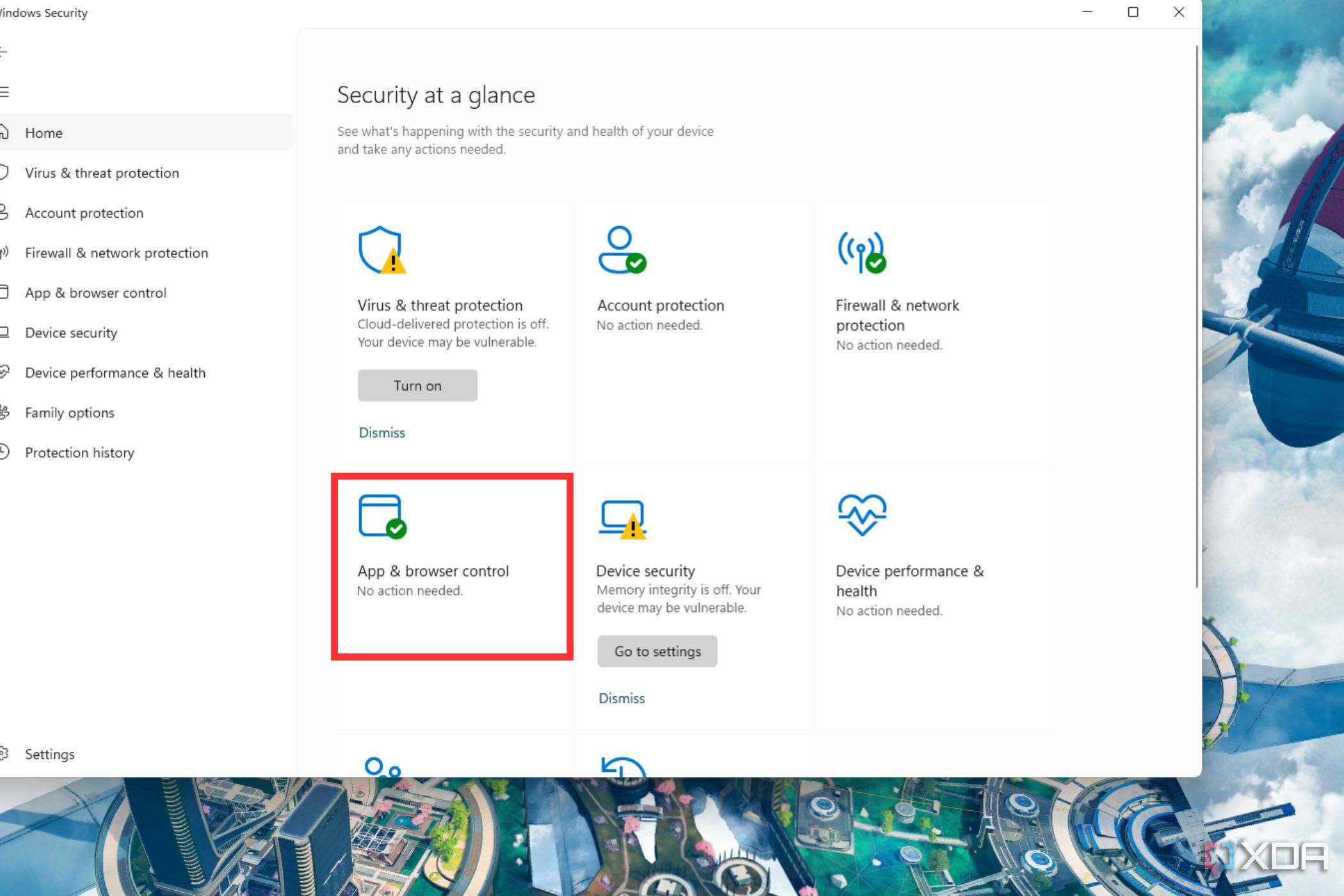
- Locate the shield icon (Windows Security) inside the system tray, and double-click on it to open.
- Select the App & browser control tab.
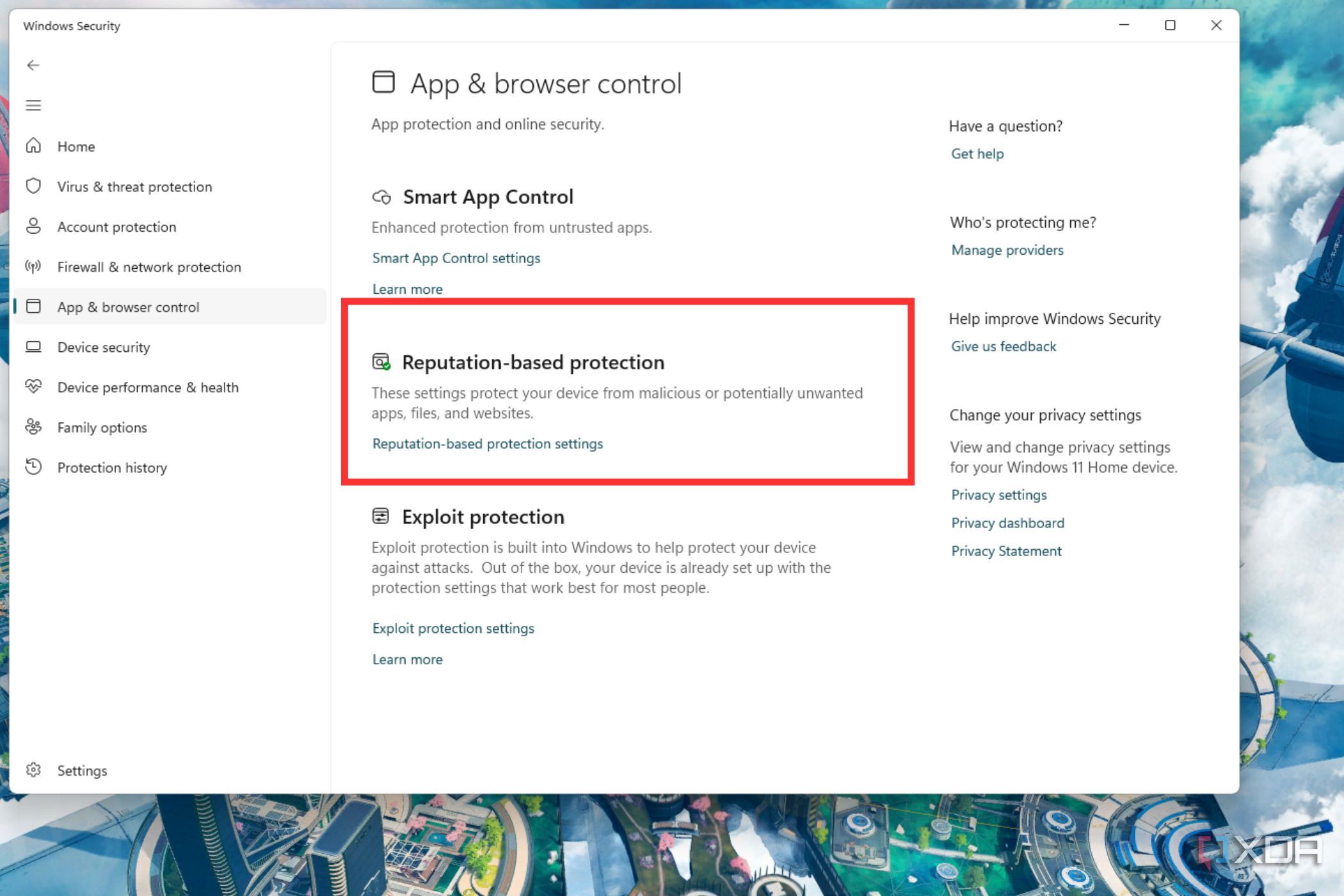
- Click the Reputation-based protection settings link to view more settings.
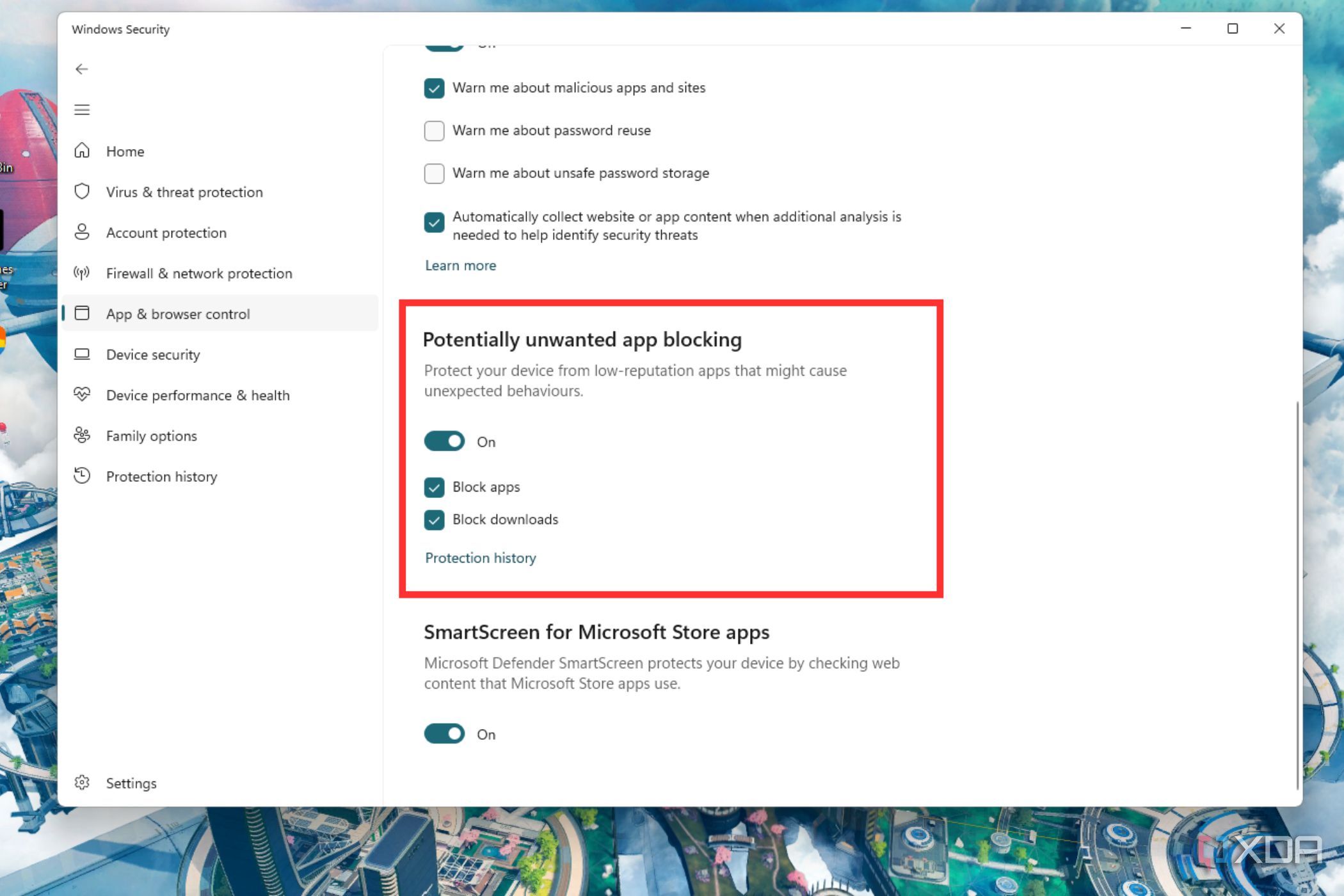
- Uncheck the Block apps checkbox, if it is enabled.


Ensure you have necessary permissions
Just edit the permission if you don’t
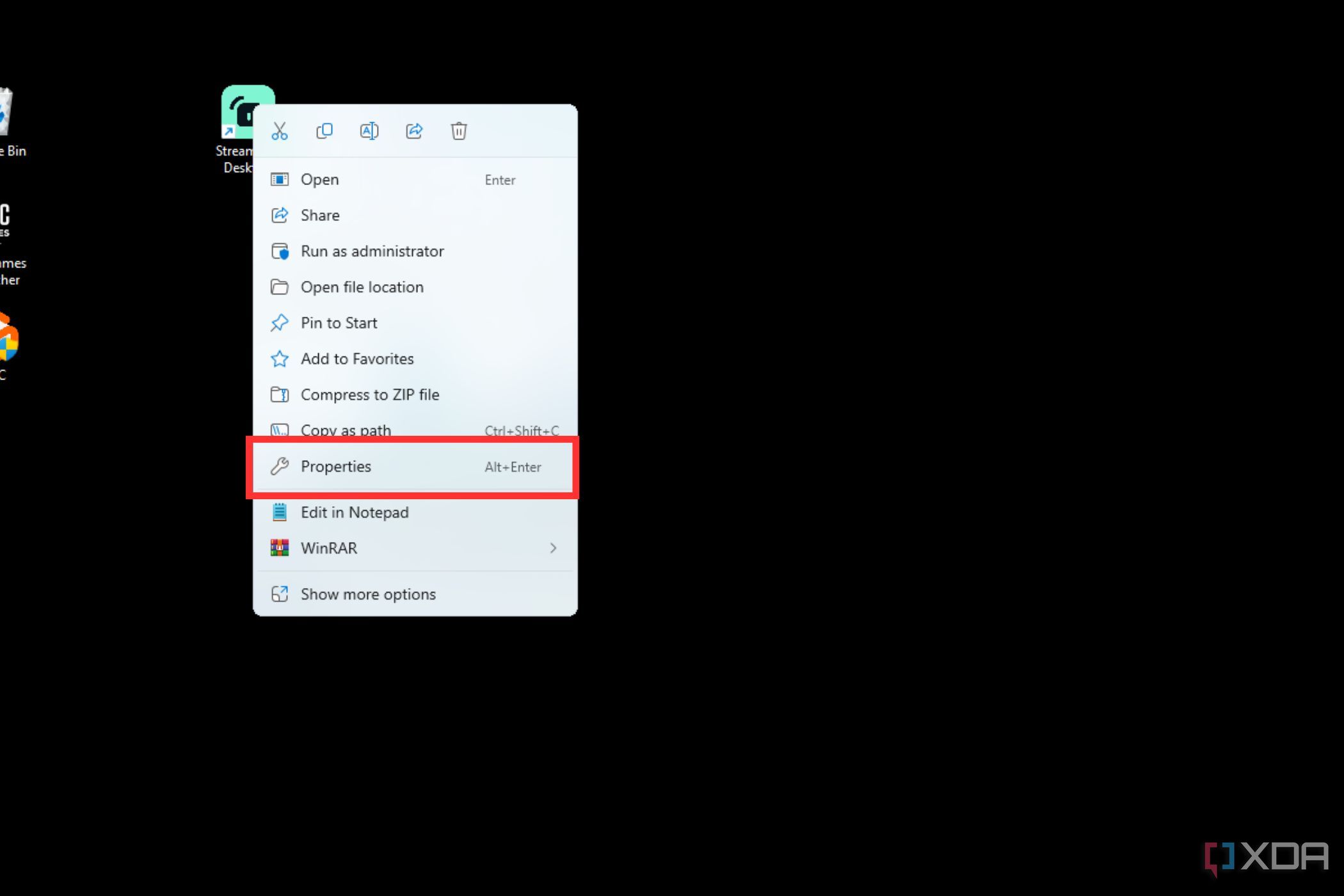
Another reason why you may see the “cannot access the specified device” error is because of insufficient file permissions. This is also something you can easily fix, though, and all you really have to do is edit the permissions for affected files. To do that:
- Right-click on the affected file and select its Properties.
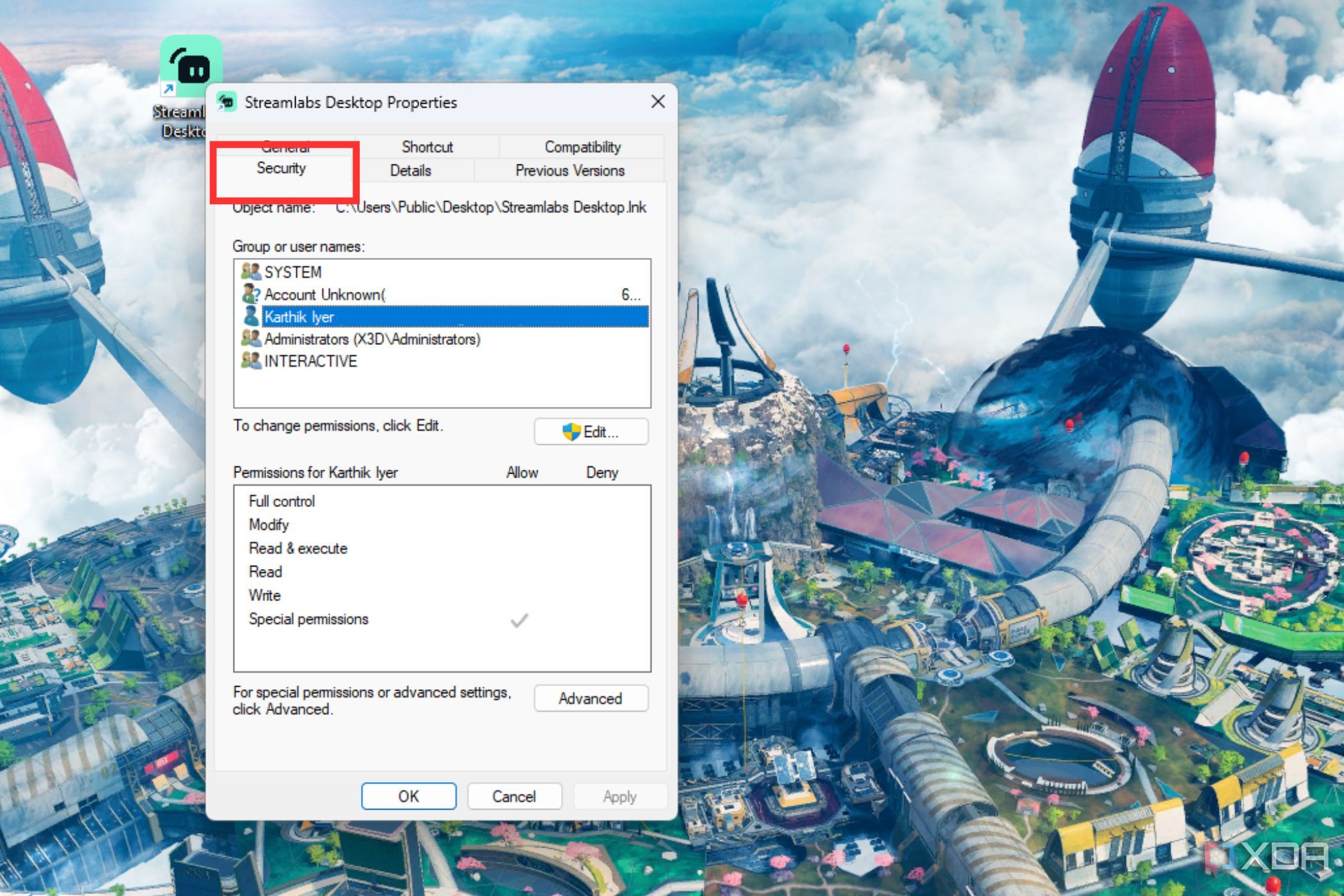
- Head to the Security tab, and select the Windows user account you signed into.
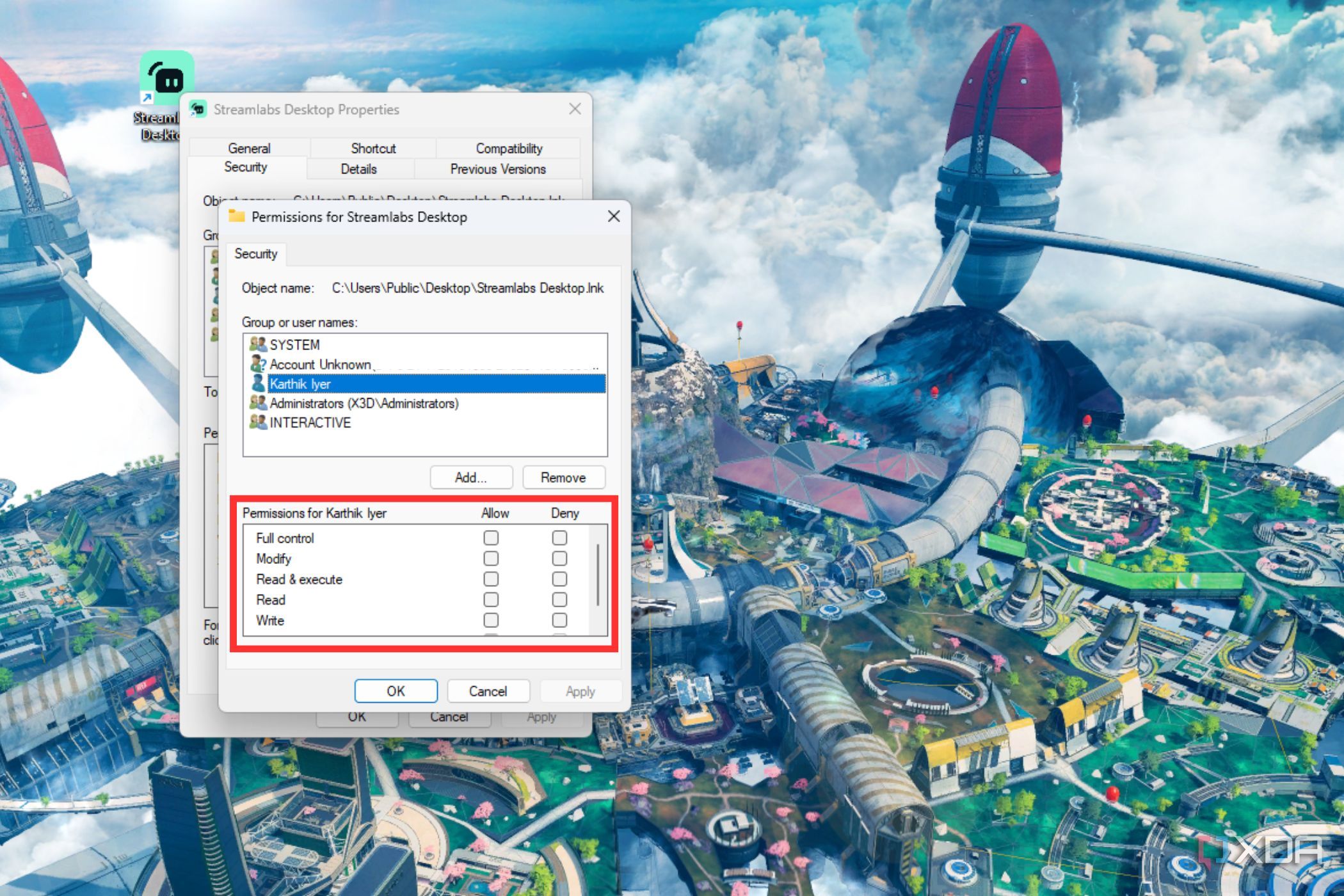
- Click the Edit button.

- Select your Windows user account in the new window.
- Uncheck all the Deny permission checkboxes.
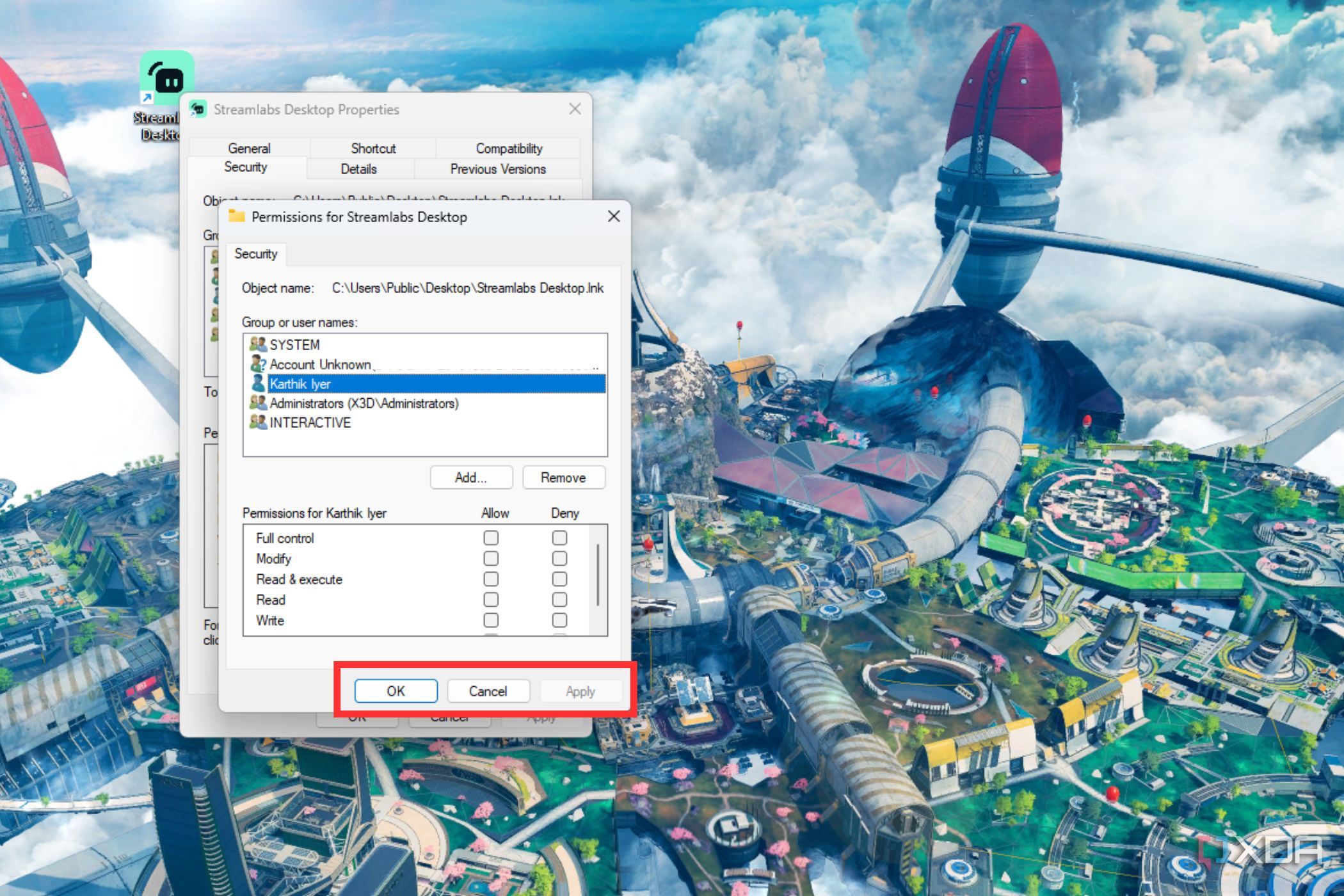
- Select Apply, followed by OK on all windows to save the updated persmissions.


Set up a security exclusion
Whitelist the affected file or the program
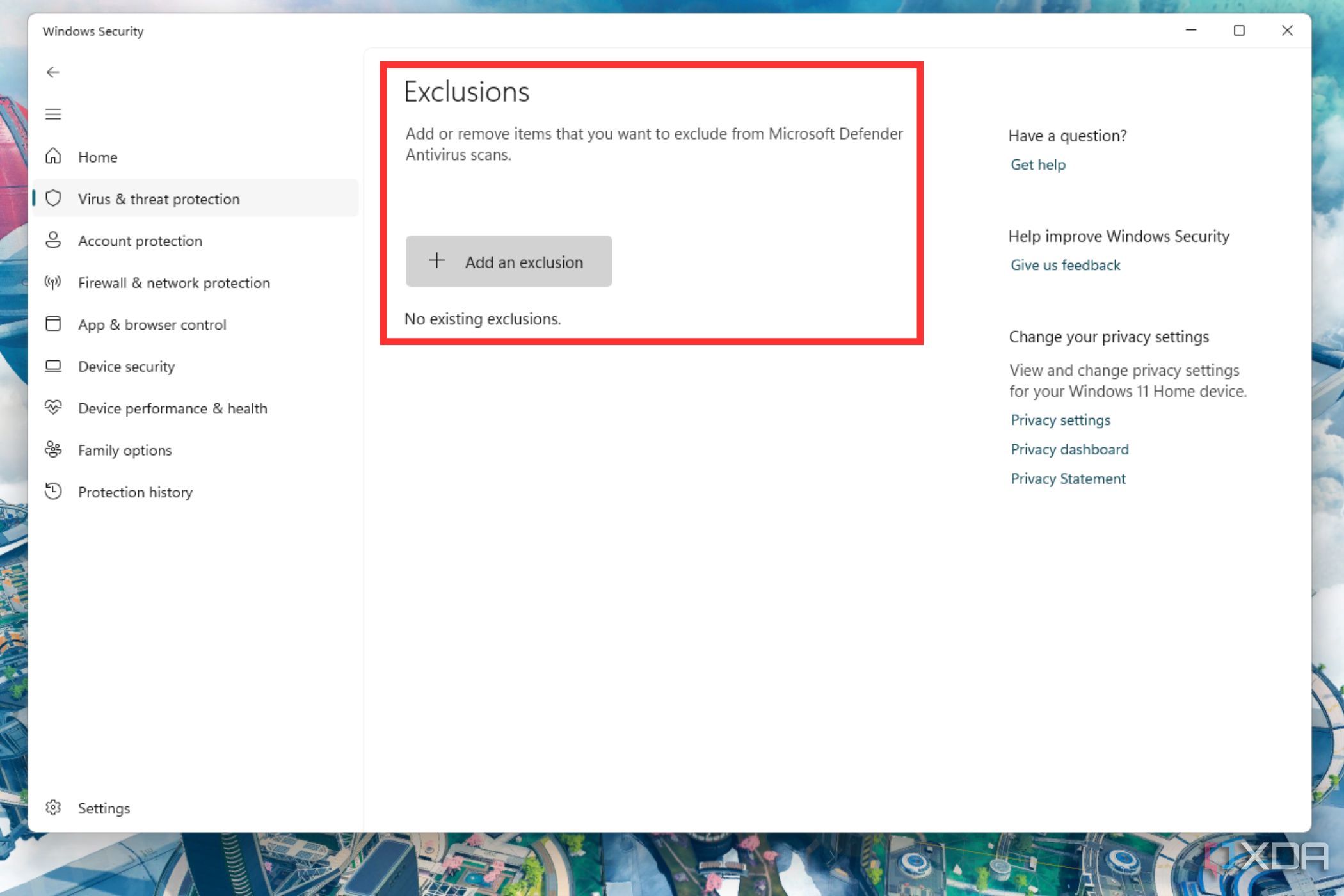
Adding a security exclusion to the affected files and excluding them from the Defender’s antivirus protection can also help you avoid trigging this error. Adding an exclusion is quite simple, and here’s how:
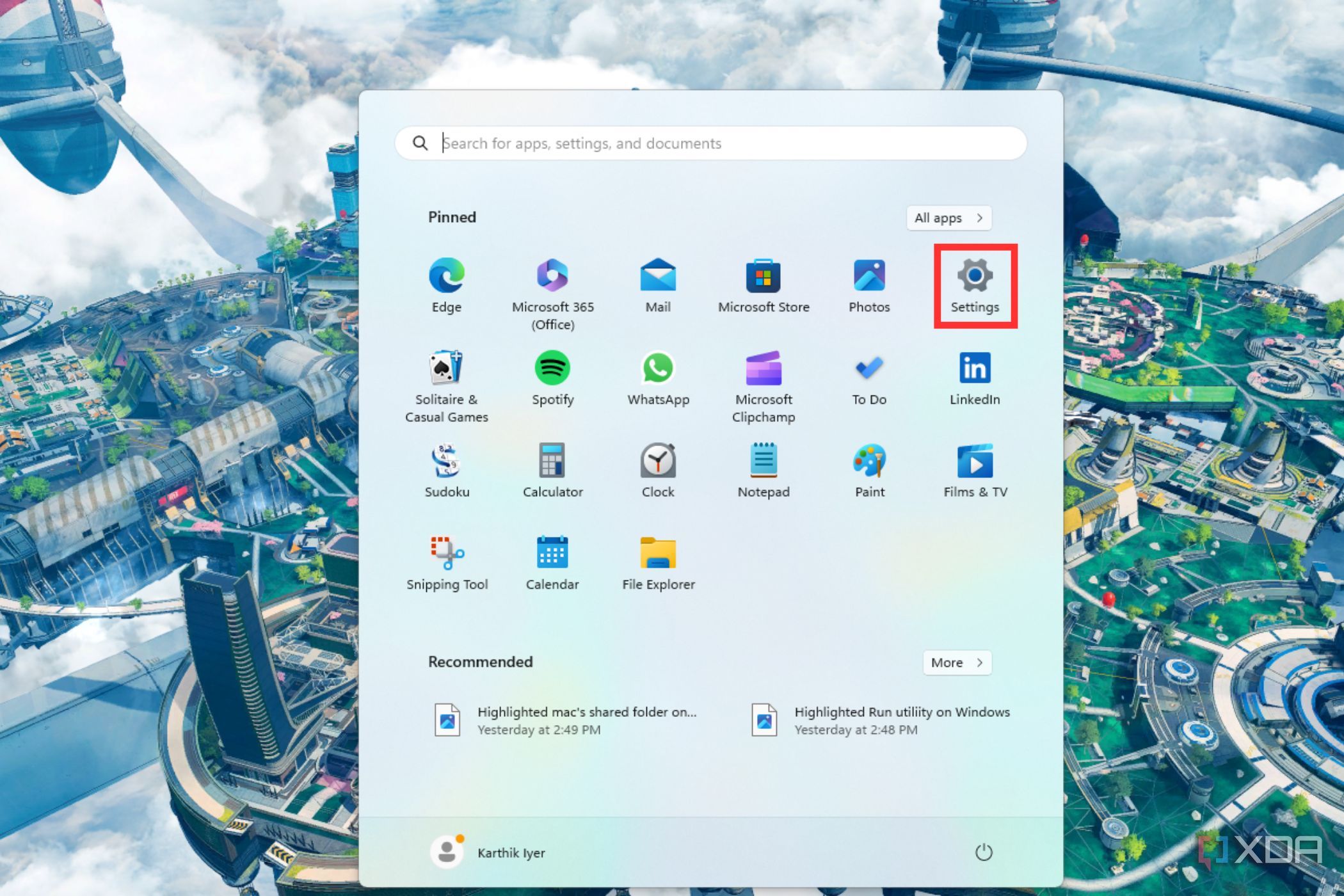
- Open the Start menu and click on Settings.
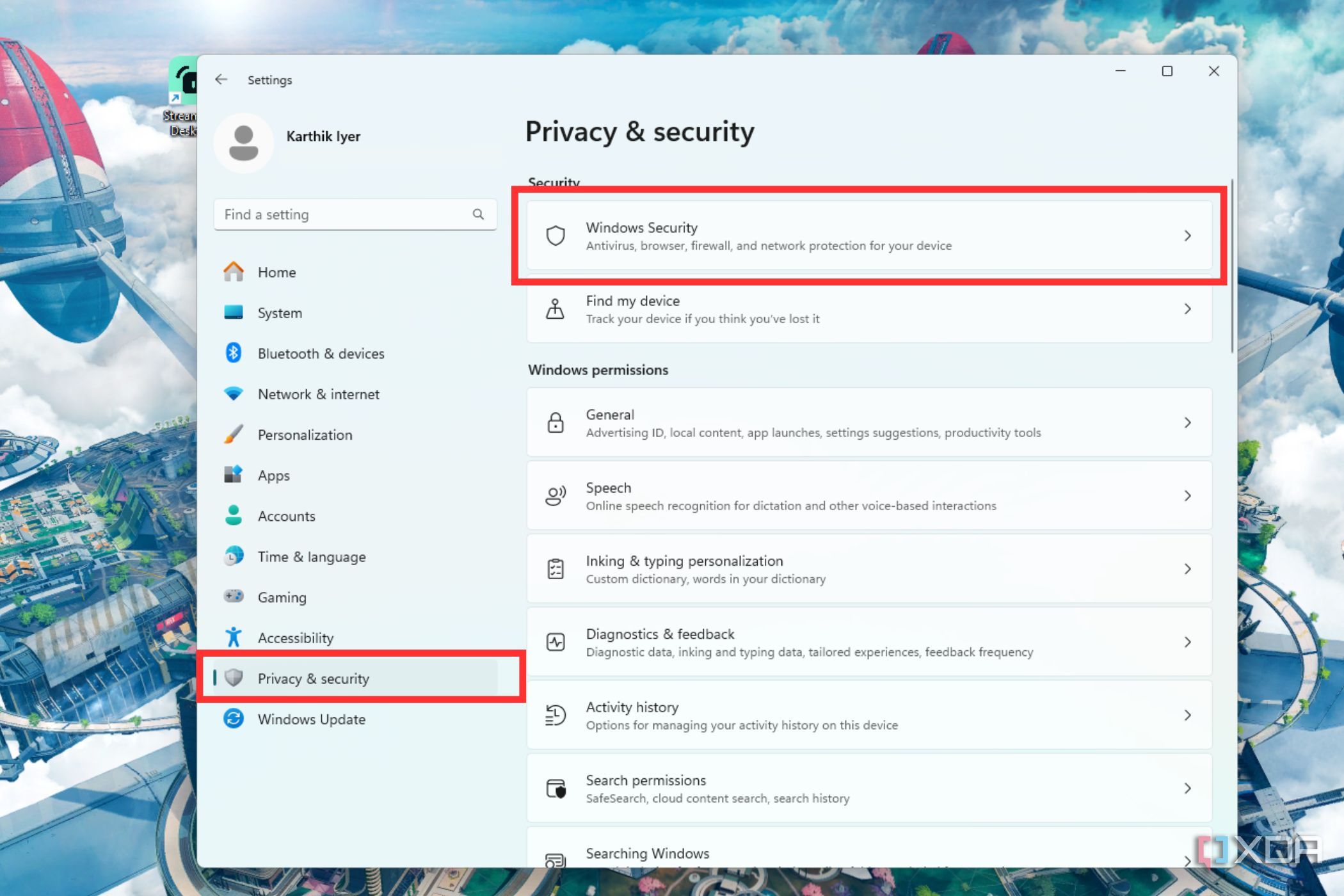
- Go to Privacy & Security and select Windows Security.
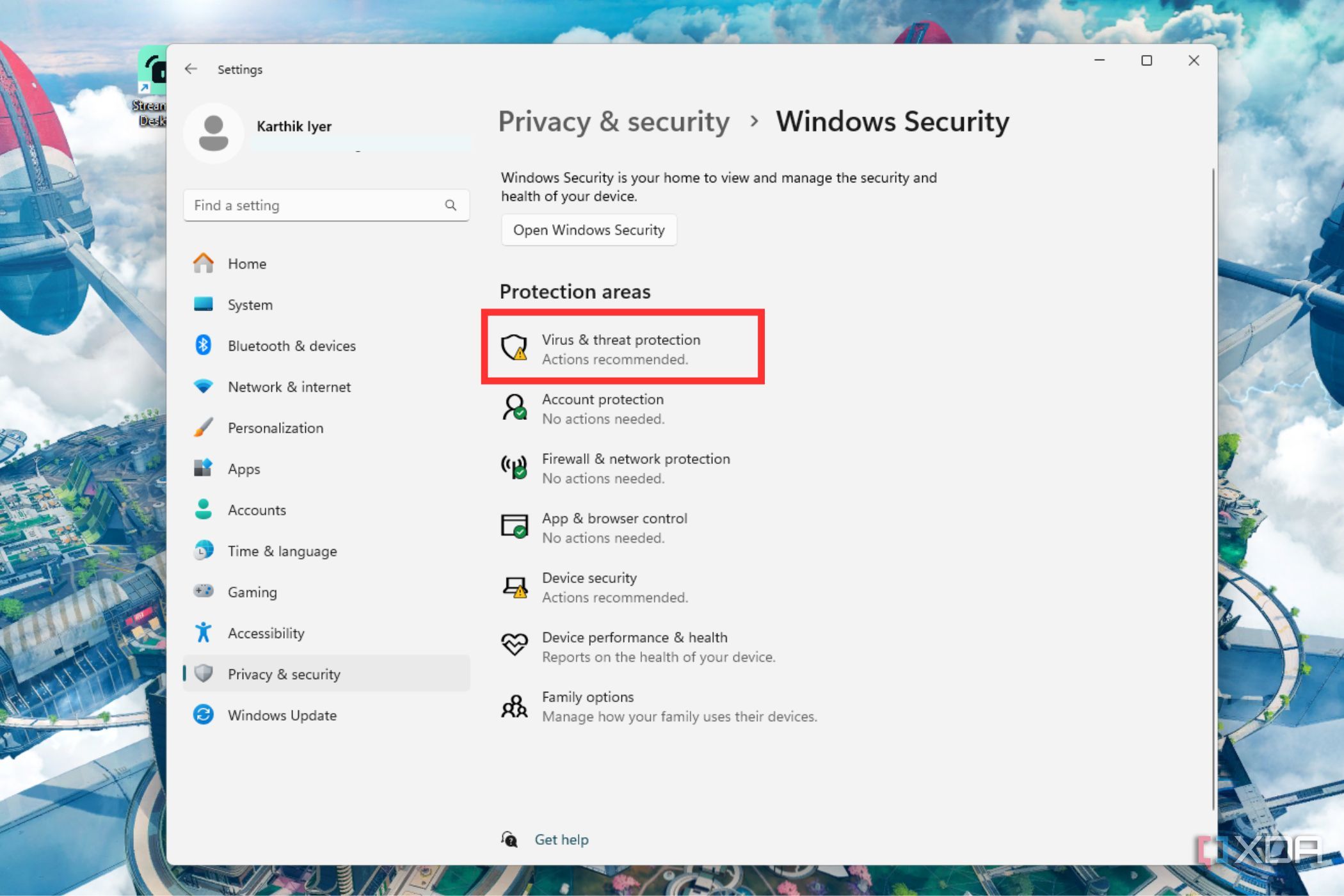
- Select Virus & threat protection under Protection areas.
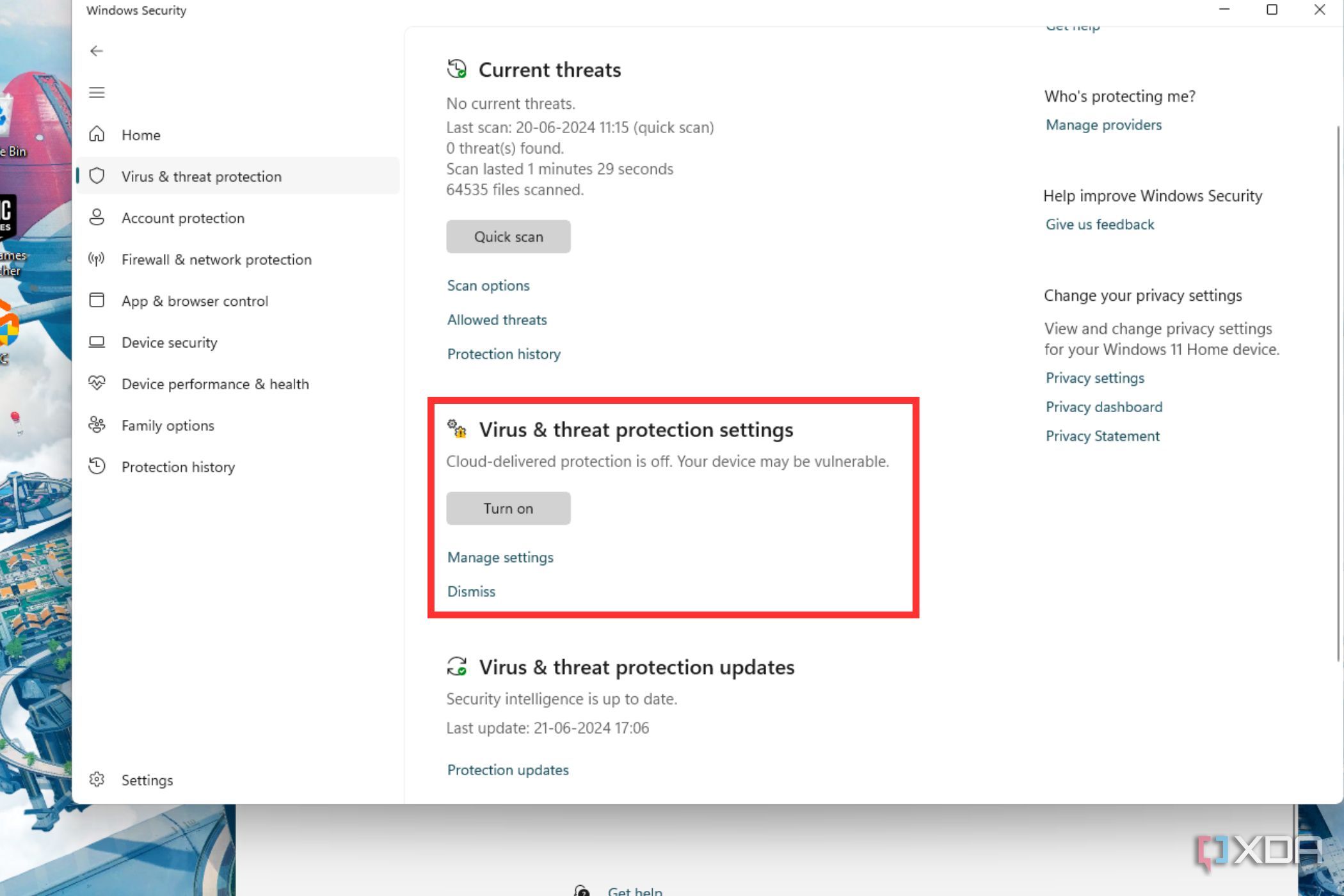
- Head to Virus & threat protection settings and select Manage settings.
- Scroll down to Exclusions and click Add or remove exclusions.

- Click on Add an exclusion and choose the file, folder, file type, or process to exclude.


Try repairing and or simply reinstalling the file
It’s not your system, it’s the file itself
If nothing else has worked for you, then simply try to repair the file that’s probably corrupted. Alternatively, you can even try to reinstall the program that’s facing the issue. Both of these troubleshooting methods are known t have worked for many, so you might want to give these a try before moving to find an alternate program itself.
- Press the Start button and type ‘control panel.’ Click on Control Panel to open it.
- Click on Programs, and then select Programs and Features.

- Simply right-click on a particular app that you want to uninstall or repair, and select Uninstall/Change.
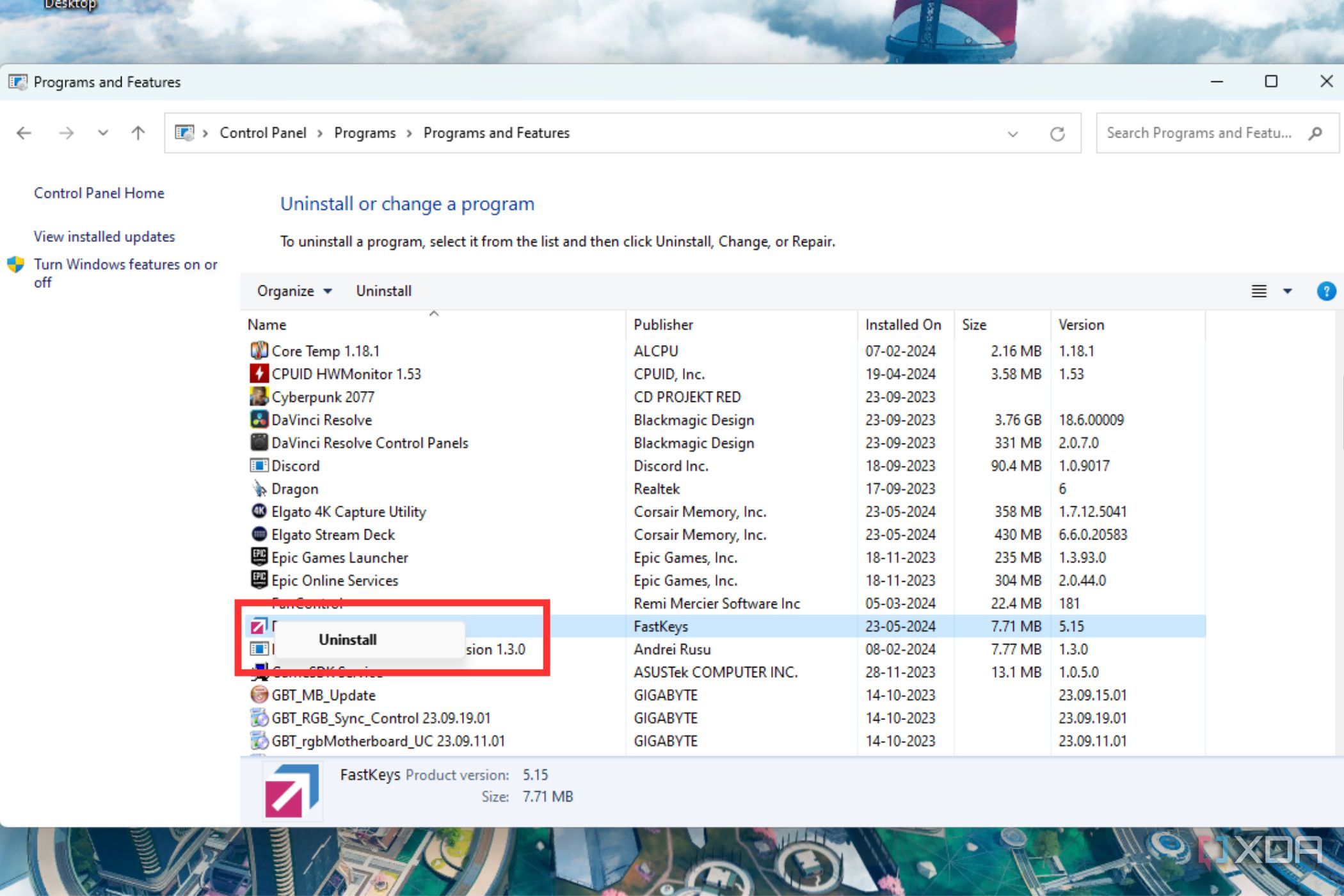
- You may see an option to either uninstall or simply change settings depending on the type of application.
- Simply follow the on-screen instructions to either uninstall or change settings.


No shortage of troubleshooting methods
Those are some tried-and-tested ways to fix the annoying “Windows cannot access the specified device” error on your PC. It’s a fairly common issue that’s known to pop-up for a lot of users, but there are plenty of ways to fix it. It’s likely due to lack of permissions to run the file, or it could also be a result of a Windows Security feature that’s blocking the file. Troubleshooting your way of this error, as I previously mentioned, is fairly simple, though. Notably, you can also try reinstalling and repairing the app if none of the troubleshooting methods have worked for you.
2:58

Related
10 essential apps you should install on your new PC
Just got a new Windows PC? Here are 10 apps you should install to help you make the most of it.
#triedandtested #ways #fix #Windows #access #device #path #file #error
source: https://www.xda-developers.com/how-to-fix-windows-cannot-access-the-specified-device/


