

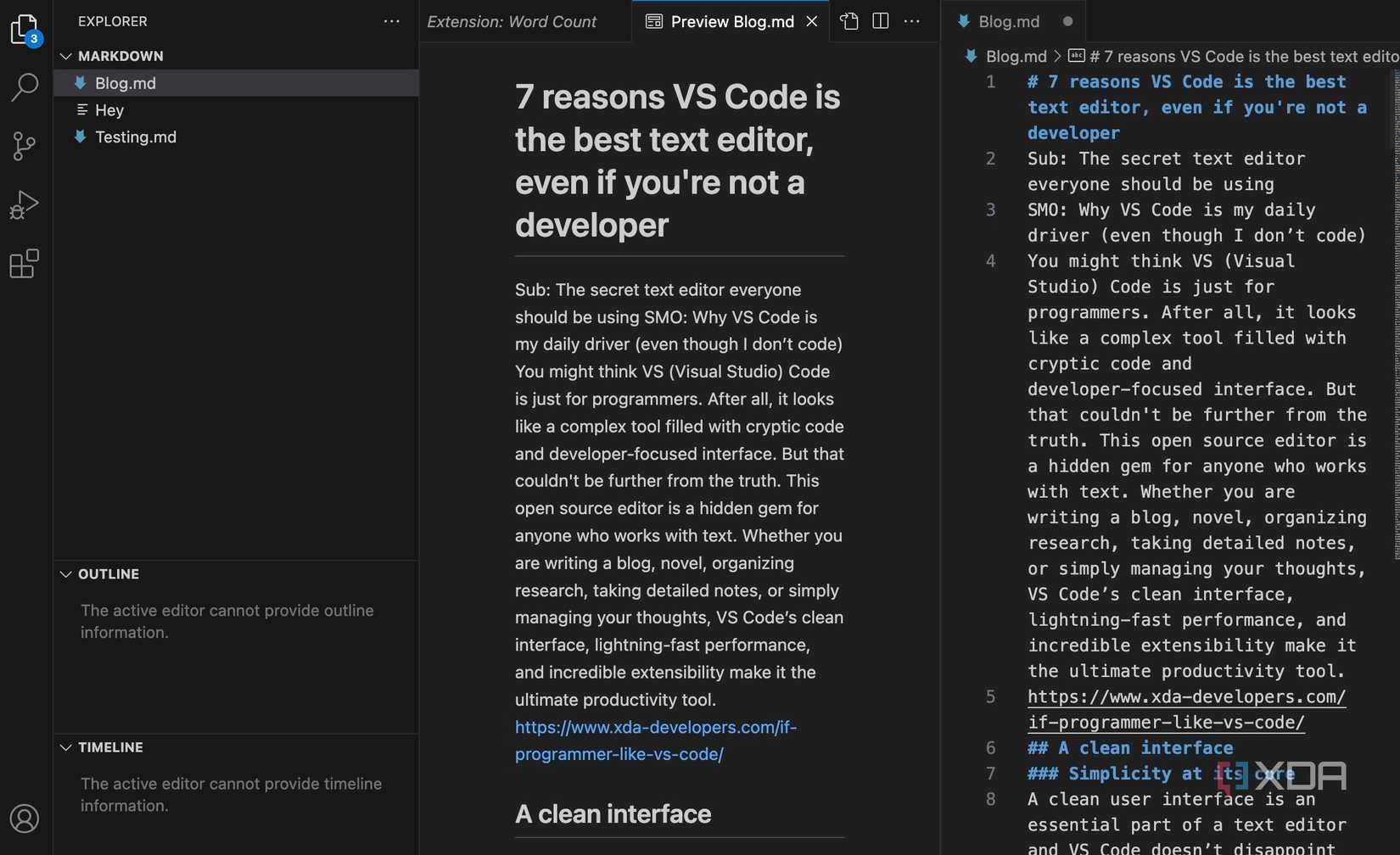
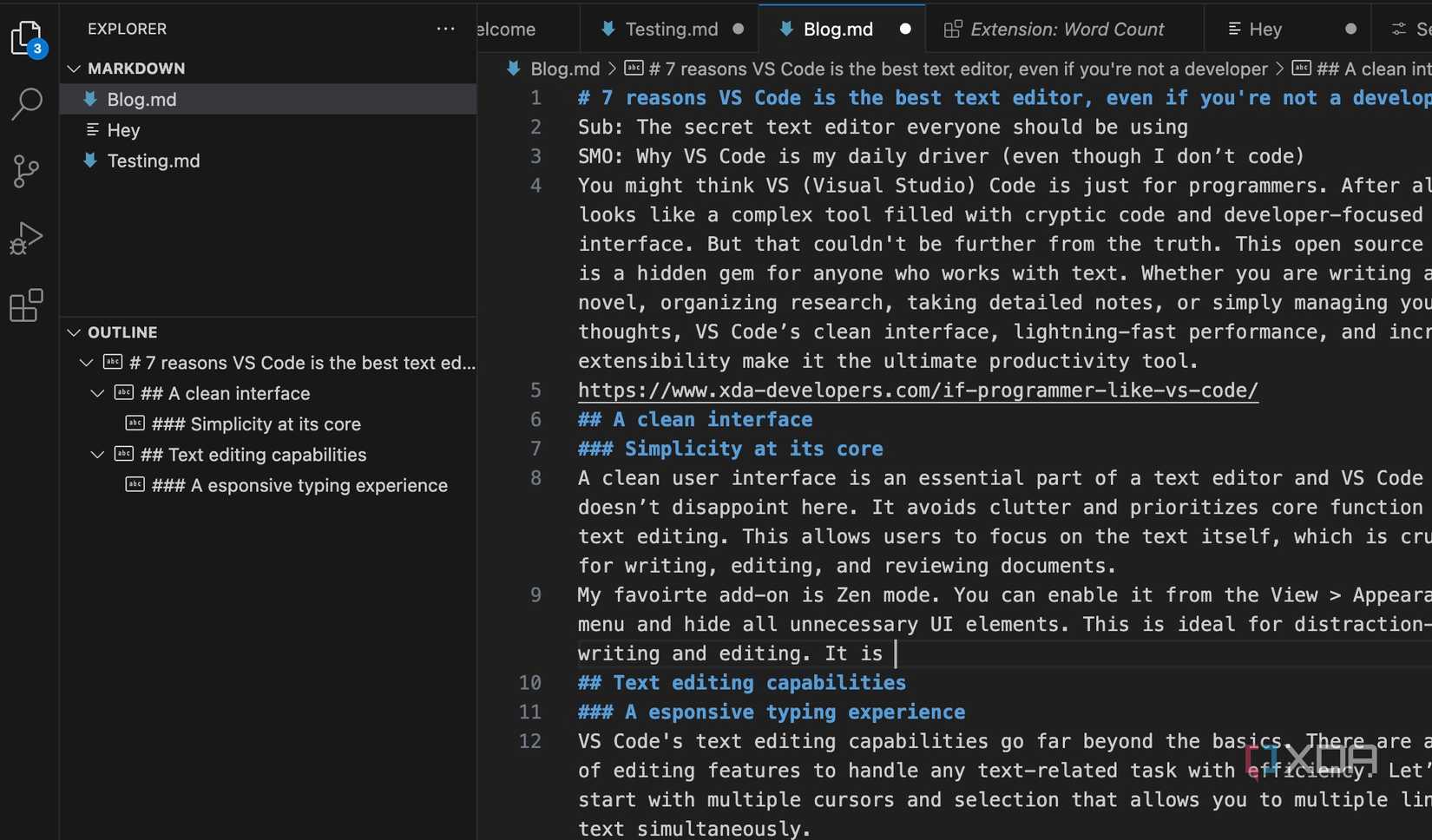
You might think VS (Visual Studio) Code is just for programmers. After all, it looks like a complex tool filled with cryptic code and a developer-focused interface. But that couldn’t be further from the truth. This open source editor is a hidden gem for anyone who works with text. Whether you are writing a blog or novel, organizing research, taking detailed notes, or simply managing your thoughts, VS Code’s clean interface, lightning-fast performance, and incredible extensibility make it the ultimate productivity tool.
Related
If you’re a programmer, VS Code is still the best IDE by far
VS Code may technically not be an IDE, but for all intents and purposes, it absolutely is.
7
A clean interface
Simplicity at its core

A clean user interface is an essential part of a text editor, and VS Code doesn’t disappoint here. It avoids clutter and prioritizes the core function of text editing. This allows users to focus on the text itself, which is crucial for writing, editing, and reviewing documents.
My favorite add-on is Zen mode. You can enable it from the View > Appearance menu and hide all unnecessary UI elements. This is ideal for distraction-free writing and editing.
6
Text editing capabilities
And responsive typing experience

VS Code’s text editing capabilities go far beyond the basics. There are a bunch of editing features to handle any text-related task efficiently. For example, it allows multiple cursors and selections that allow you to read multiple lines of text simultaneously.
IntelliSense (Intelligent Code Completion) is another neat feature. Although it’s aimed at coding, IntelliSense also enhances general text editing. It provides suggestions for text and phrases, reduces typing errors, and speeds up writing workflow. Other goodies include an advanced Find and Replace tool, line operations, multi-tab support, and a split view. Microsoft currently offers Copilot for free with VS Code. You can use it to summarize long documents and draft new ones with ease.
5
Customization options
Tweak the text editor per your preferences

Here is where VS Code truly shines. You can customize the editor precisely the way you want. This flexibility is a major factor in its popularity among both developers and general users. You can start with several built-in color themes and even explore the VS Code Marketplace to find more. You can customize icons and head to Settings to tweak font styles and text editor. Most text editors offer similar customizability, but VS Code is clearly a step ahead in this regard.
4
Markdown support
Future-proof your files

Anyone who frequently works with text understands the importance of Markdown support in a text editor. Thankfully, VS Code supports this lightweight markup language out of the box. You can simply create a new folder, add a new file with a .md extension, and start writing paragraphs with special characters. Once your text file is ready, right-click on the tab and open it in Preview.
As always, VS Code provides syntax highlighting for Markdown that makes it easy to differentiate between different elements like headings, lists, and links. There is also an outline view on the sidebar that displays the header hierarchy of your Markdown document. It’s very handy when you deal with long-form writing. If you are still of two minds about using Markdown, check out our separate post to learn its advantages. If you are new to Markdown, head to the official VS Code page to learn all the tricks.
3
Rich extension support
Extend VS Code’s functionality
VS Code’s rich extension support is crucial for anyone who wants to turn this simple text editor into a powerful tool. Extensions can add support for new languages, provide advanced debugging tools, enhance text (and code) formatting, and unlock a wide range of productivity features.
VS Code is also smart enough to recommend extensions based on the kind of file you have opened. For example, if you have a Markdown file, it suggests the markdownlint extension to improve consistency for your files. There are also several grammar checking tools to fix annoying typos in your documents. Overall, it’s a rich community-driven extension store, and I highly recommend spending some time finding useful tools for your workflow.
2
Free and open-source
Who doesn’t like a free, capable text editor?
Let me clarify one thing here. VS Code itself is not open-source, but its core, Code – OSS, is. It’s available on GitHub and anyone can access, modify, and distribute it. It remains completely free to download and use for both personal and commercial purposes. This is one of the reasons behind its ever-growing popularity among developers.

Related
I don’t pay for productivity apps on Mac, I use these open source tools instead
Boost your Mac productivity without spending a dime
1
Performance and cross-platform compatibility
Available on Windows, Mac, and Linux
Despite its rich feature set, VS Code feels lightweight and efficient (granting you haven’t packed it with dozens of extensions). The startup times are fast, and the overall typing experience is fluid even when working with large files and complex projects. Accessibility isn’t an issue since it’s available on all the major desktop platforms, including Linux.
The versatile text editor
VS Code isn’t just a playground for programmers. It’s a powerful text editor if you use it with the right configurations. Of course, VS Code isn’t the first thing that comes to mind when you shop for a text editor for your complex projects. But you can always get creative, leverage VS Code’s features, and unlock a level of efficiency that’s hard to beat.
When you push the VS Code to its limit, you may want to ensure your GPU is accelerating the application properly. Here’s how to enable and use your GPU in Visual Studio Code.

#reasons #Code #text #editor #youre #developer
source: https://www.xda-developers.com/reasons-vs-code-is-the-best-text-editor-even-if-youre-not-a-developer/


