

Key Takeaways
- Use Microsoft Designer’s AI tools with prompts and hashtags to effortlessly create compelling designs in no time.
- Experiment with image and design creator, sticker creator, and AI editing tools to elevate your creative work.
- Save time with templates, create a brand kit for consistency, and download designs directly to your phone for easy sharing.
Microsoft Designer is the latest graphic design tool to bring your imagination to life. Currently available in Preview, Designer aims to stand out with its advanced generative AI tools in a saturated market. Microsoft uses OpenAI’s DALL-E 3 model, where you can use prompts and hashtags to create compelling designs in no time at all.
Whether you want to create a flyer, greeting card, sale banner, feature image for your blog, or a restaurant menu, Microsoft Designer should get the job done without requiring any prior design experience. Check out the top features to master Microsoft’s latest versatile tool on your laptop.
Best AI applications: Tools that you can run on Windows, macOS, or Linux
If you want to play with some AI tools on your computer, then you can use some of these AI tools to do just that.
1 Image and design creator
Image and design creator tools are the heart and soul of Microsoft Designer. The first option lets you generate a ready-to-use image based on a text description. Do note that you need to be creative and as detailed as possible with your image description to get the desired results. Here’s what we got from a few prompts.
- An orange fox with expressive eyes and a large head plays with a yellow toy mouse. The fox wears a blue collar and is in a 3D illustrated animation style on a pale lilac background.
- Illustration of a character sitting at a writing desk in the style of a neo-noir graphic novel. The linework is black and the art includes purple and yellow colors.
You can select an image to download, copy, or tweak using the default editor. We tried several such prompts, and Designer delivered quite satisfactory results.
Design creator is more geared towards flyers and social media posts. You can give it a shot with text prompts.
- An Instagram post about a 50% off seasonal sale this summer.
- Instagram story about an ice cream parlor opening in July.
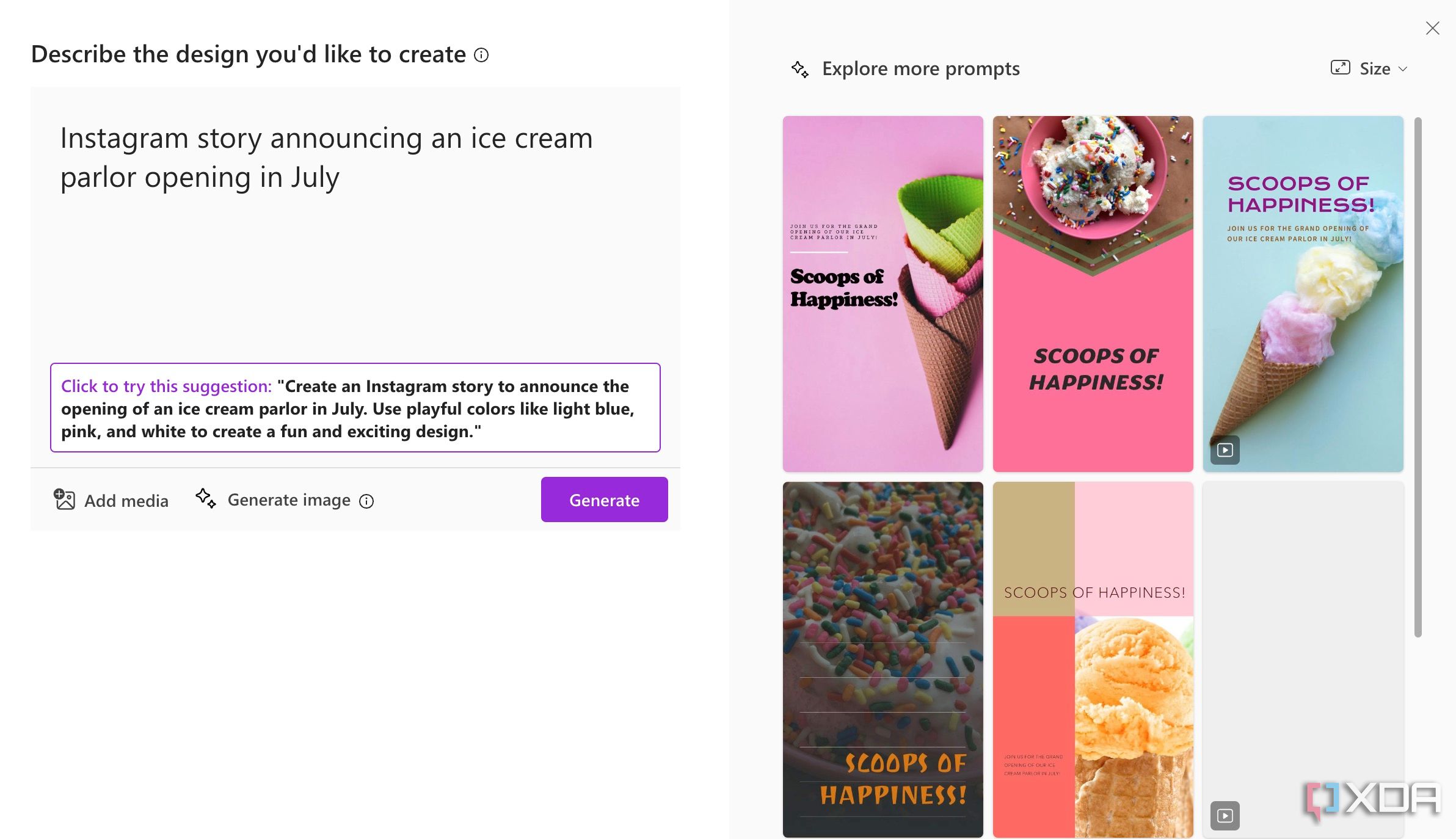

Check out the results in the screenshots above. Designer is also smart enough to suggest a detailed image description to get better results. Pick a design you prefer, then download or customize it to your preference.
2 Sticker creator

Sticker creator is another fun tool worth exploring. You can create personalized stickers that you can use on social media, messaging apps, and other projects. The trick remains the same as above. Simply open the tool and describe the sticker you would like to create and generate.
- A red backpack leaning against a larger rolling suitcase on a cloud-shaped pastel background.
- An excited pilot flies a small blue plane.
You can even download your stickers with a transparent background in PNG format.

Microsoft Designer comes with a bunch of useful AI tools to speed up your editing work. You can use generative erase to remove unwanted objects from the background of your image, remove a background completely, and even apply a cool blur effect to emphasize the main subject.
When you work with the Designer editor, click Image tools at the top to check out all the filters, AI tools, and other functions.
4 Explore design ideas

Design ideas have been a part of Microsoft 365 apps like PowerPoint and Word, and it’s good to see their inclusion in Designer. As the name suggests, it shows several design ideas based on your inserted image and text. Microsoft Designer even shows multiple options with animation, too. You can pick the one you prefer and start making edits from there.
In our experience, the design ideas are exceptionally useful. You will be surprised to see the kind of results it generates to turn your average design into an attention-worthy one.
5 Save time with templates

Sometimes, describing an image or design you want to create gets challenging. Here is where the built-in templates come into play. Microsoft Designer has a rich template library to help you get started by providing the creative inspiration.
You can find ready-to-use templates for your sales, recipes, birthday invitations, product launches, and more. There are thousands of options to choose from. You can search for a specific template, or pick a color to filter out irrelevant ones. Once you pick a template, you can customize it using built-in tools and design ideas, then save it on your device.
6 Create a brand kit
If you are a professional designer, run a design agency, or want to create several banners and posts for your brand, you would want to ensure consistency across all your creations.
Here is where the Designer’s brand kit comes into play. You can craft stunning visuals for your brand with AI-powered suggestions. Simply enter your brand name, write down a description, and hit Generate.
Glance over several brand kits, pick one, customize it to your preferences, and then easily use the same fonts, logo, and colors across all your designs for a uniform vibe that represents the brand overall.
7 Download your designs directly to your phone

If you want to download your design directly on your phone, click Download > Send to phone. Scan the QR code using your phone, and it should open your design in the default browser. Now, tap Download to save the image to your device so that you can easily share it on social media.
Wow your audience
Designer is still available in Preview. Before it hits the stable release stage, Microsoft plans to offer more features such as a collage creator, frame image, and restyle image. The company also integrated it with the default Photos app and has a native Windows app in the pipeline. Designer is free to use for now, but eventually it will require a paid Microsoft 365 subscription.
What are you waiting for? Use these Designer features and dazzle your friends, family, and followers with your creativity. Adobe also has a similar tool called Firefly. We recently took it for a spin and came back impressed.
#Youre #missing #lot #havent #features #Microsoft #Designer
source: https://www.xda-developers.com/youre-missing-a-lot-if-you-havent-tried-these-microsoft-designer-features/


