

Readers help support Windows Report. We may get a commission if you buy through our links.
Read our disclosure page to find out how can you help Windows Report sustain the editorial team Read more
Wondering how to use the magnifier in Windows 10? The steps are simple.
Windows 10 has accessibility tools that make computing easier for everyone. The Magnifier allows you to zoom in on different parts of the screen. This feature benefits users with low vision, the blind, and anyone who needs to look closely at something on the screen, such as tiny text or detailed images.
But before we begin, where is the tool located?
You can find this feature in three ways:
- Using keyboard shortcuts: The quickest way to launch the Magnifier is by pressing the Windows key and the + key together.
- Using the Start menu: Type “Magnifier” in the Start menu search bar and open it from the results.
- Through the Settings menu: Press Windows + I to open Windows settings > Ease of Access > Magnifier > Turn on magnifier.
How To Use the Magnifier in Windows 10
Here’s how to use it:
Reading
Follow the below steps:
- Ensure you have access to the magnifier.
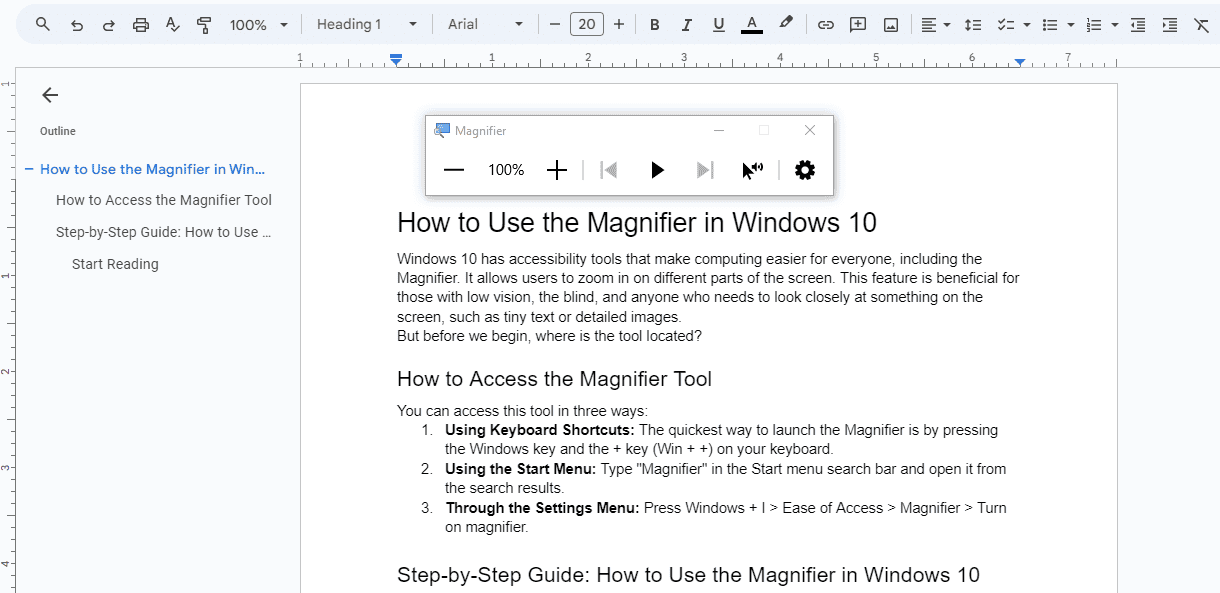
- To start reading from the cursor, press Ctrl + Alt + Enter.
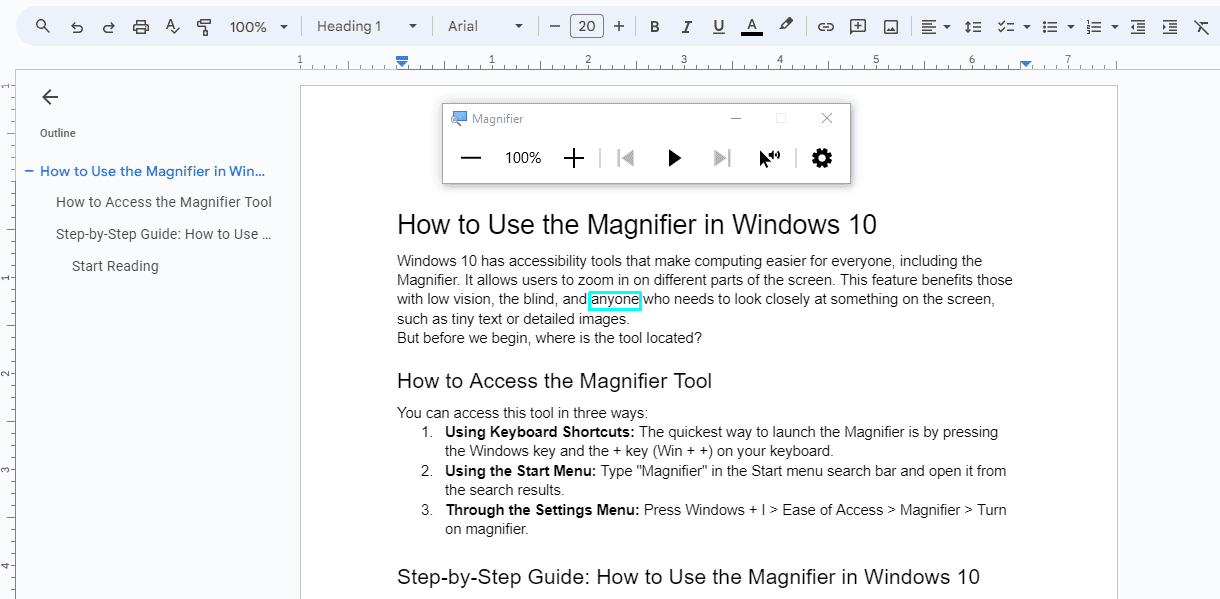
- Alternatively, press and hold Ctrl + Alt and left-click where you want to start using your mouse.
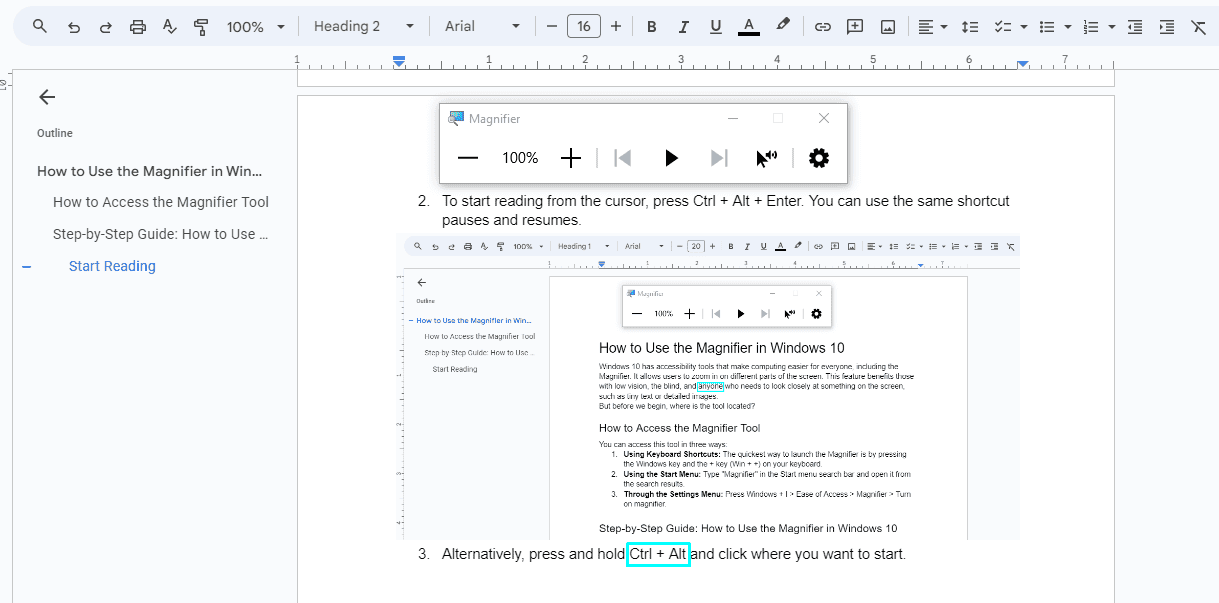
- Press Ctrl + Alt + K to read the next sentence only.
- Press Ctrl + Alt + H to read the previous sentence only.
- Press any key to stop reading.
- Press the Windows Icon + plus sign to increase the Zoom level, or tap the “+” icon on the magnifier. The magnifier can zoom up to 1600%.
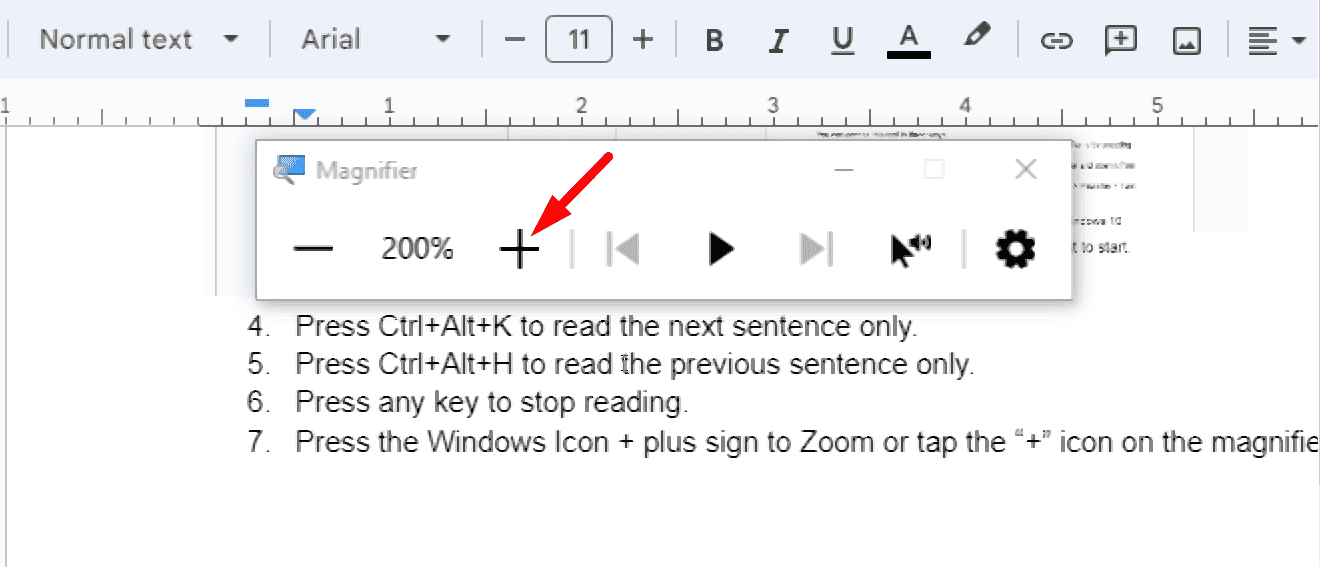
- To reduce the zoom level, press the Windows icon + – or tap the “-” icon on the magnifier.
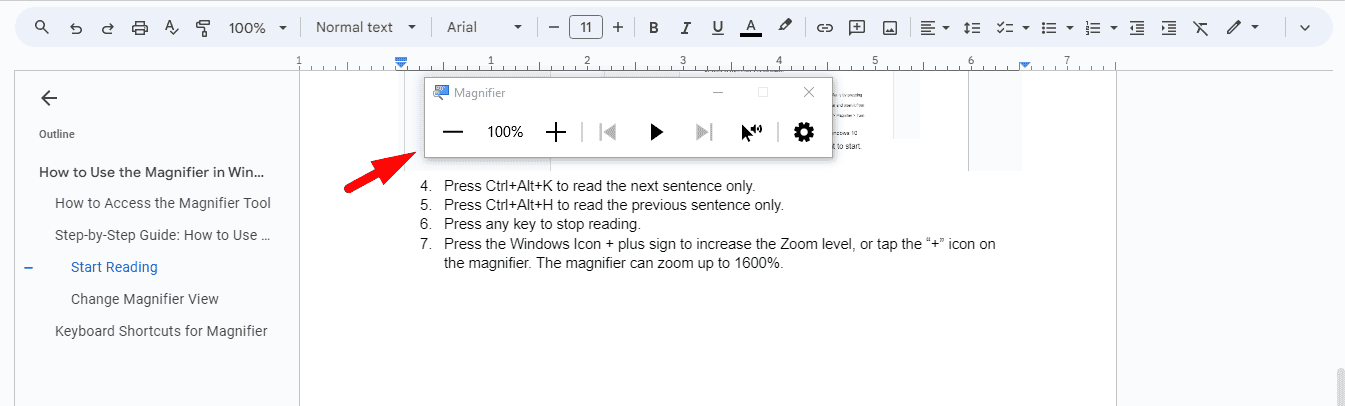
Choose the Reading Modifier Key
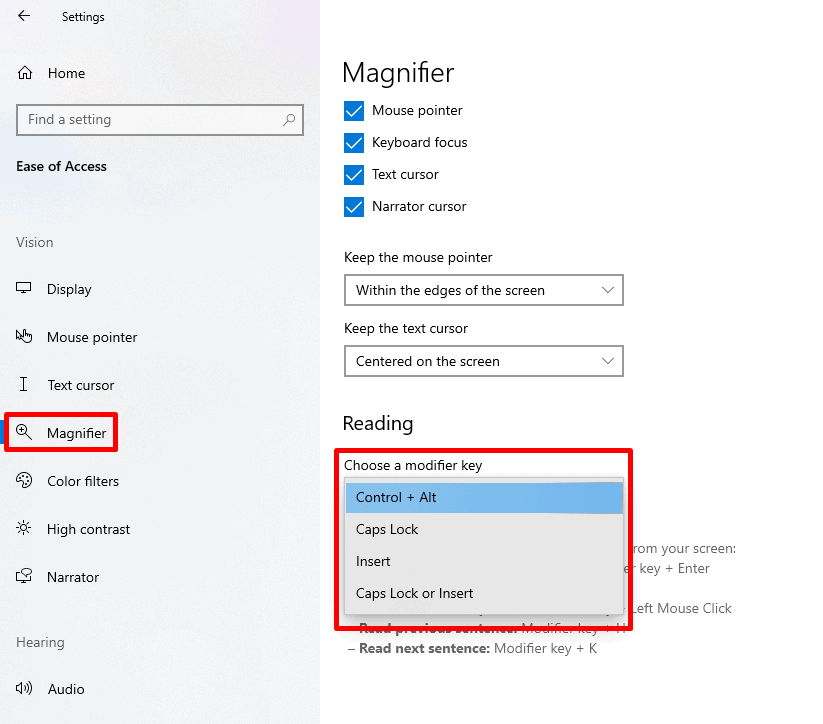
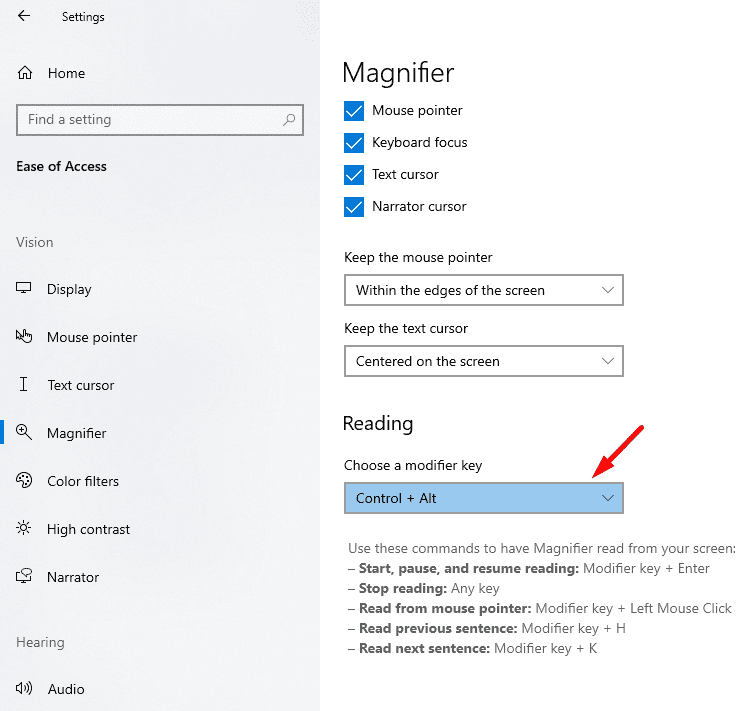
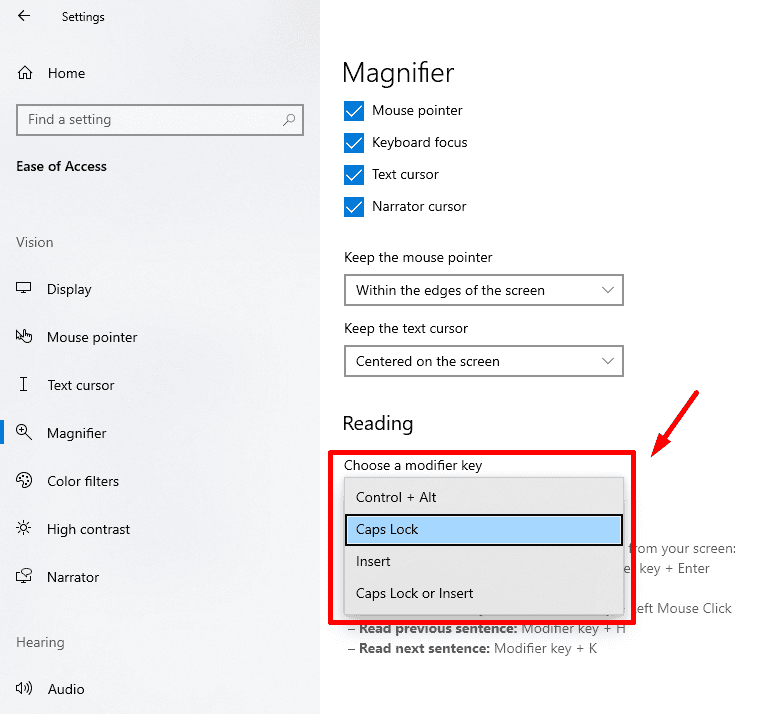
By default, this key combination is set to Ctrl + Alt, but you can customize it in the Magnifier settings if you prefer a different combination. You can use a Mouse or keyboard and a narrator.
Using a Mouse
Follow the below steps:
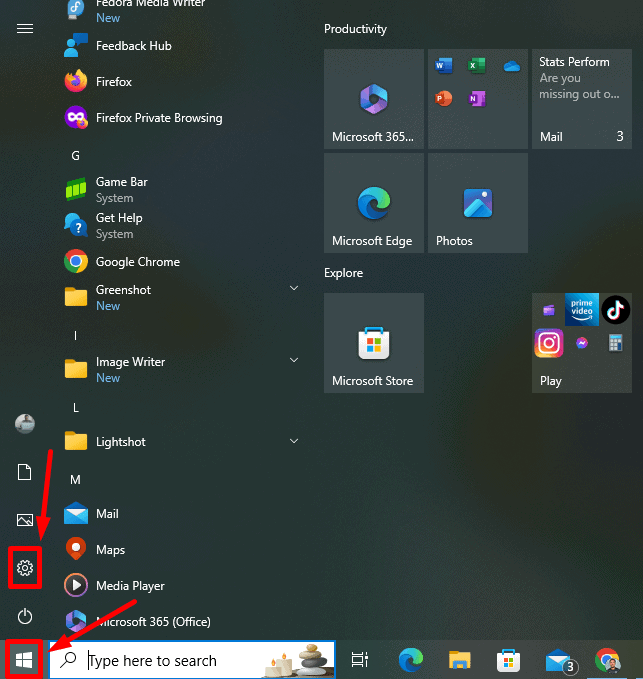
- Tap the Start button then click the Settings gear.
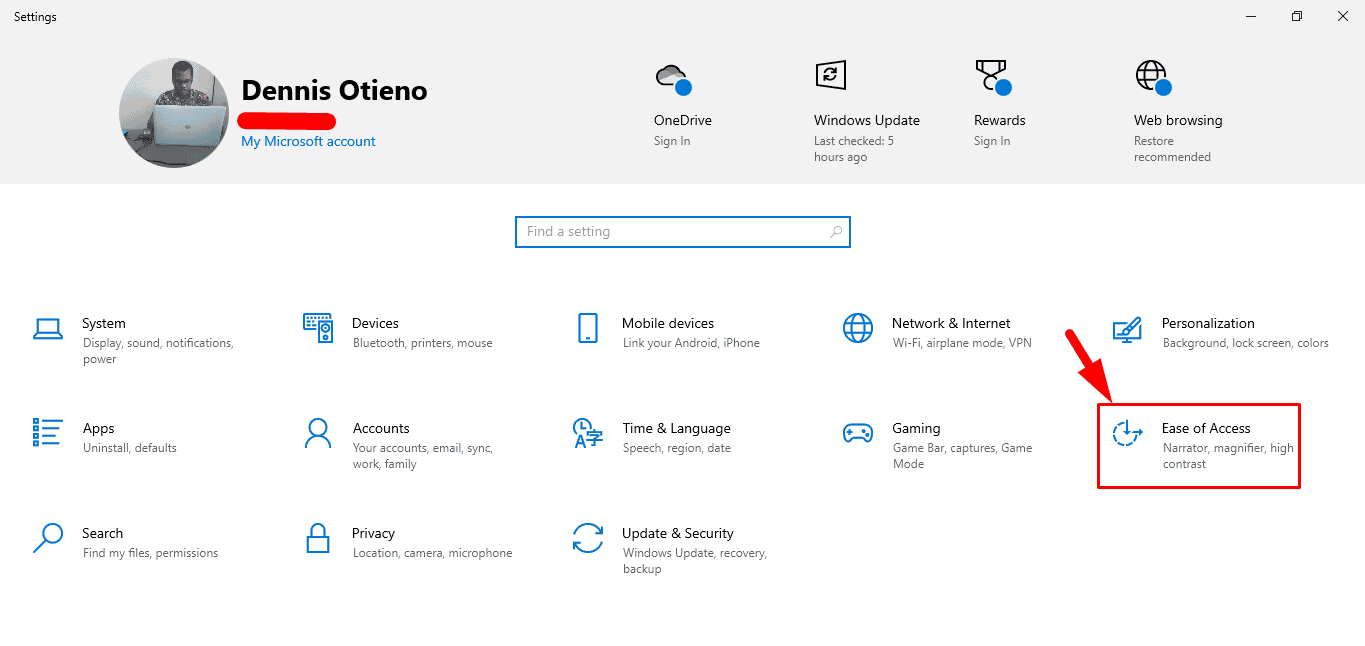
- Tap Ease of Access.
- Select Magnifier, scroll down to Reading, click the drop-down menu, then choose a modifier key.
Using Keyboard and Narrator
Follow these instructions:
- Press the Windows key + Ctrl + M. The magnifier setting will open.
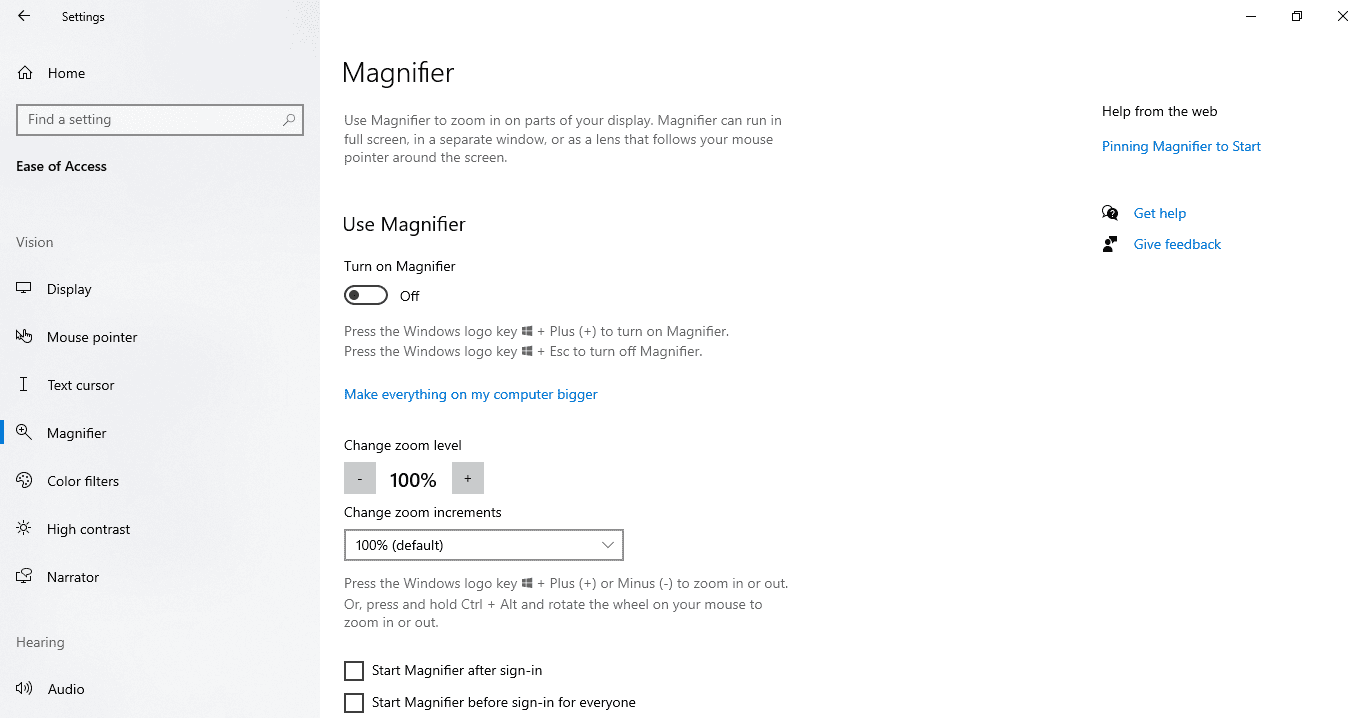
- Press the Tab key repeatedly until you hear “Reading, choose a modifier key” and the option that’s currently selected.
- Press Enter to open the menu, use the Up and Down arrow keys to pick your desired key, and then hit Enter.
Change Magnifier View
The Magnifier in Windows 10 offers several viewing options to enhance your screen experience.
Press:
- Ctrl + Alt + I to invert colors.
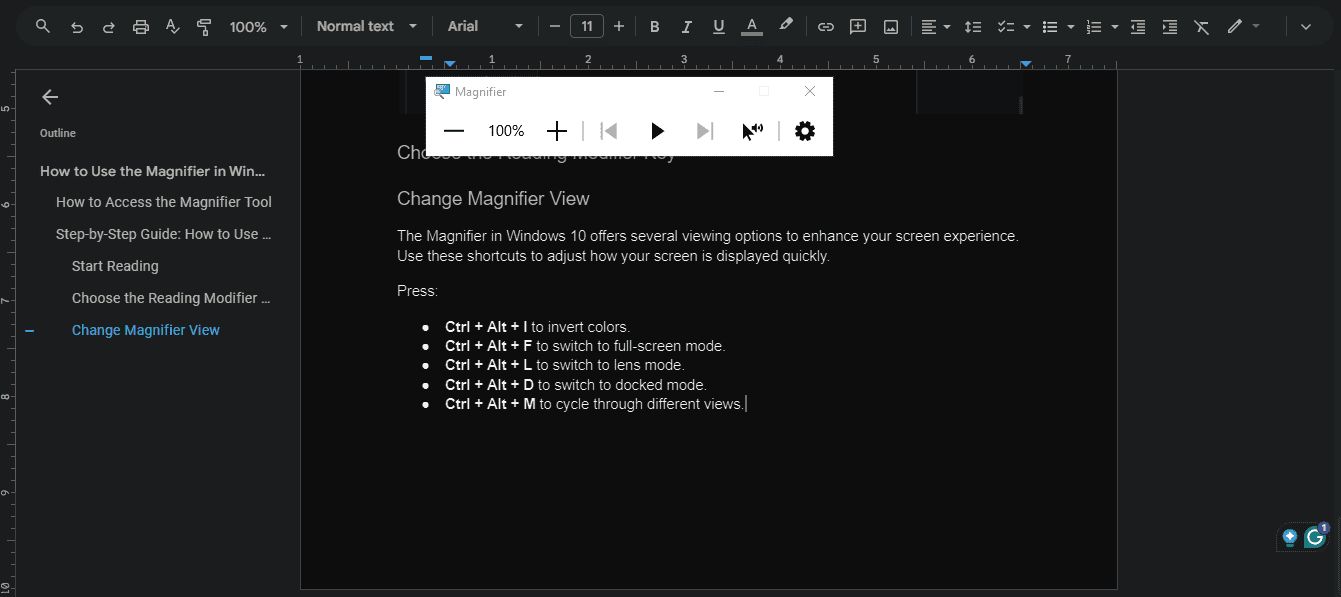
- Ctrl + Alt + F to switch to full-screen mode. However, the magnifier has this mode by default.
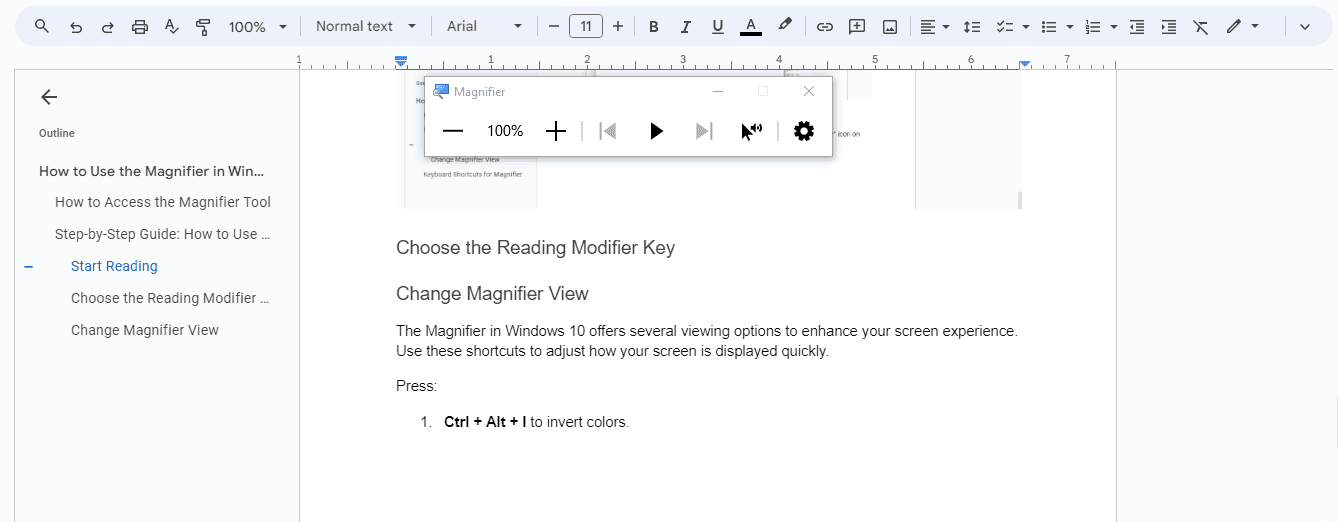
- Ctrl + Alt + L to switch to lens mode.
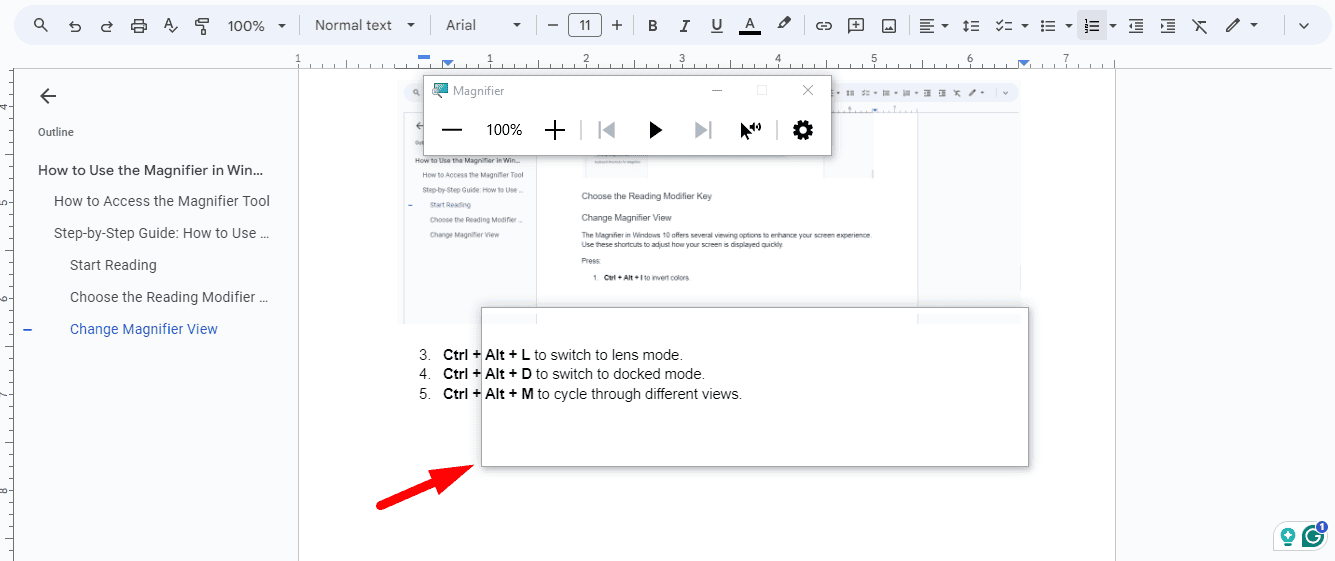
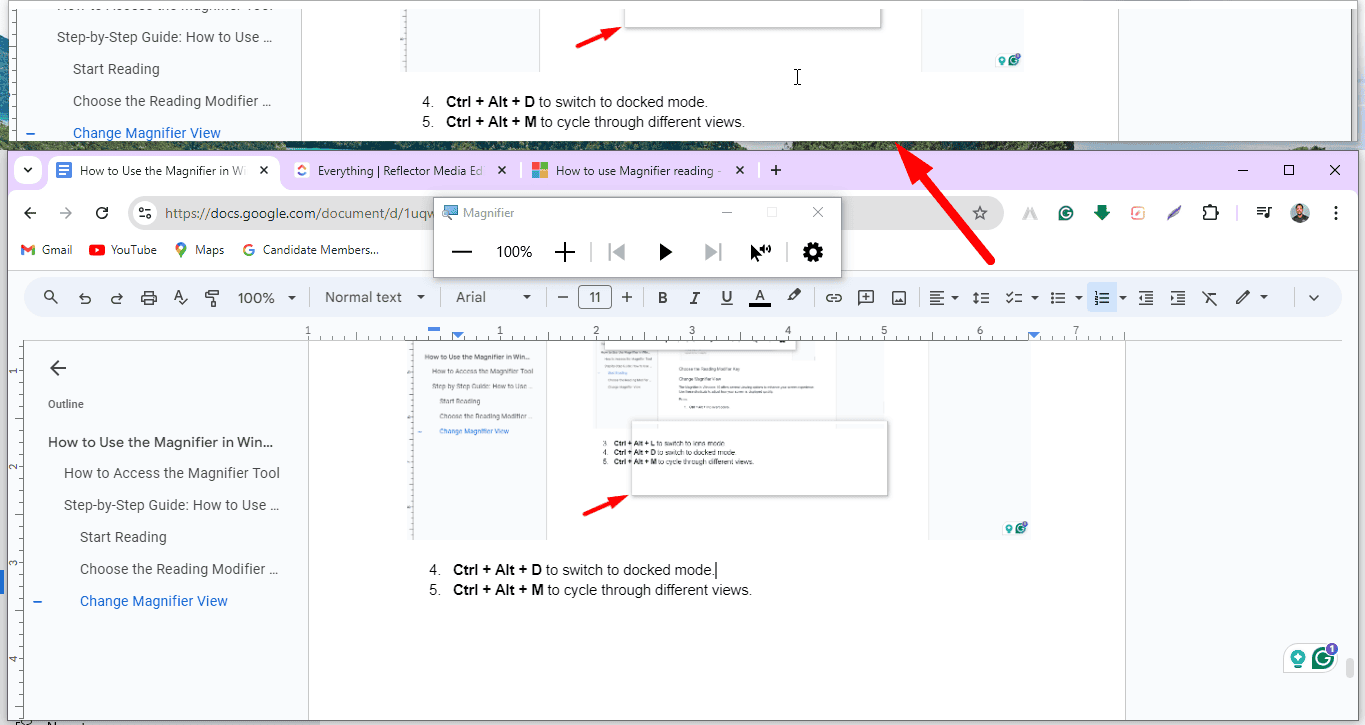
- Ctrl + Alt + D to switch to docked mode.
So, now you know how to use the Magnifier tool in Windows 10. You can zoom in on small details, adjust your view, or customize reading options. These functions and shortcuts can help you tailor the Magnifier to suit your needs.


#Magnifier #Windows #Quick #Guide
source: https://windowsreport.com/how-to-use-the-magnifier-in-windows-10/


