

Asus makes it extremely simple to download and update the BIOS of its motherboards.
You’ll have to update your motherboard BIOS occasionally, as it is crucial to maintaining your PC to ensure it works as intended. Updating the motherboard BIOS is often viewed as a chore, but it is a fairly straightforward process that’ll only take a few minutes if you know what you are doing. In fact, some motherboard manufacturers like Asus have dedicated utilities that let you update the motherboard BIOS without even accessing the BIOS menu.

Best Asus motherboards in 2024
Asus has a wide variety of motherboards on the market for both Intel and AMD CPUs. Here’s a list of the best Asus motherboard you can buy in 2024.
Before you update BIOS
Asus makes it incredibly easy to update the BIOS of its motherboard using a utility, but you’ll have to download the necessary BIOS file manually to proceed. So, the first thing you need to do is check the current BIOS version of your motherboard and compare it with the latest BIOS available to download. To do that:
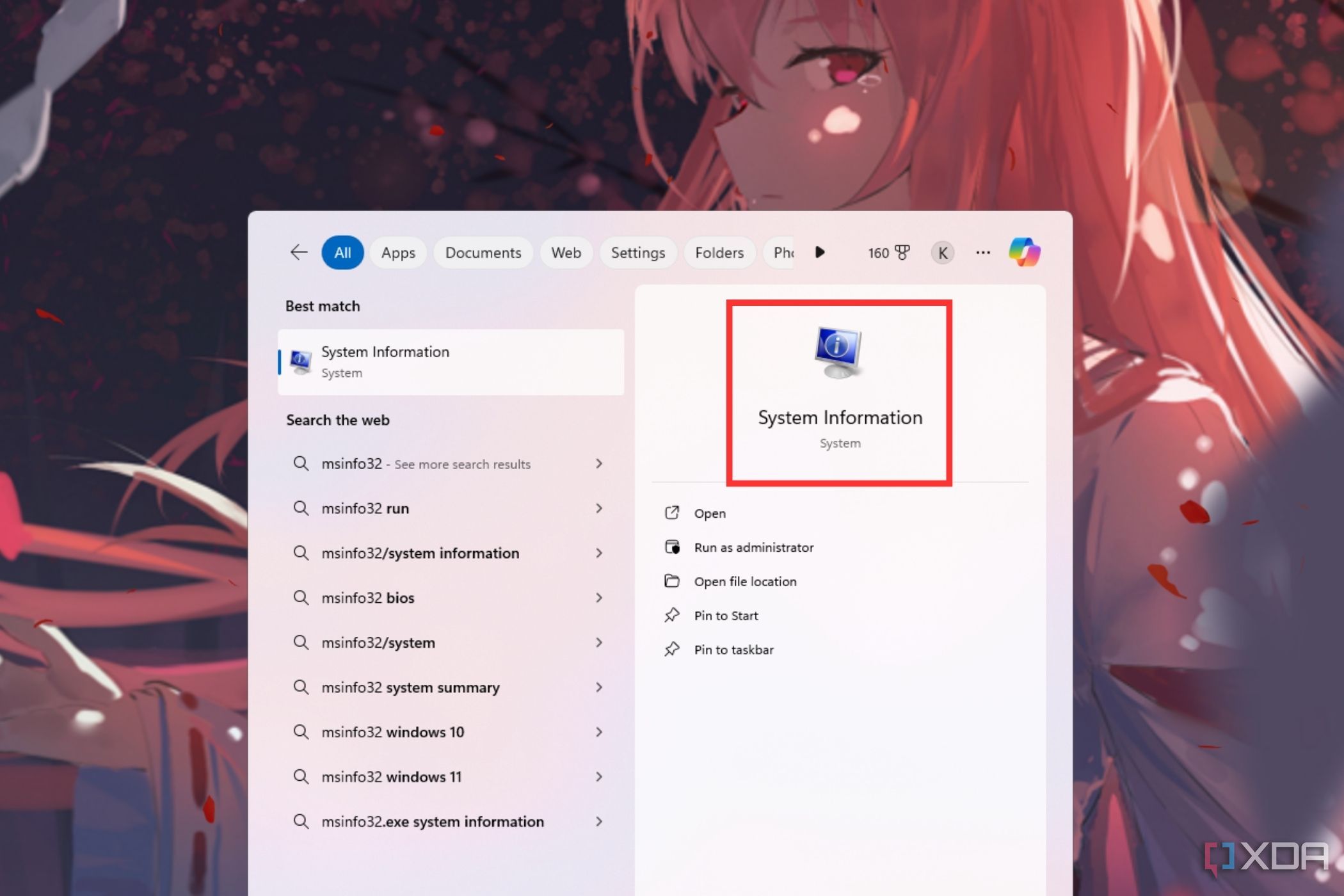
- Press the Start button on your Windows PC, type msinfo32, and click on System Information from the results.
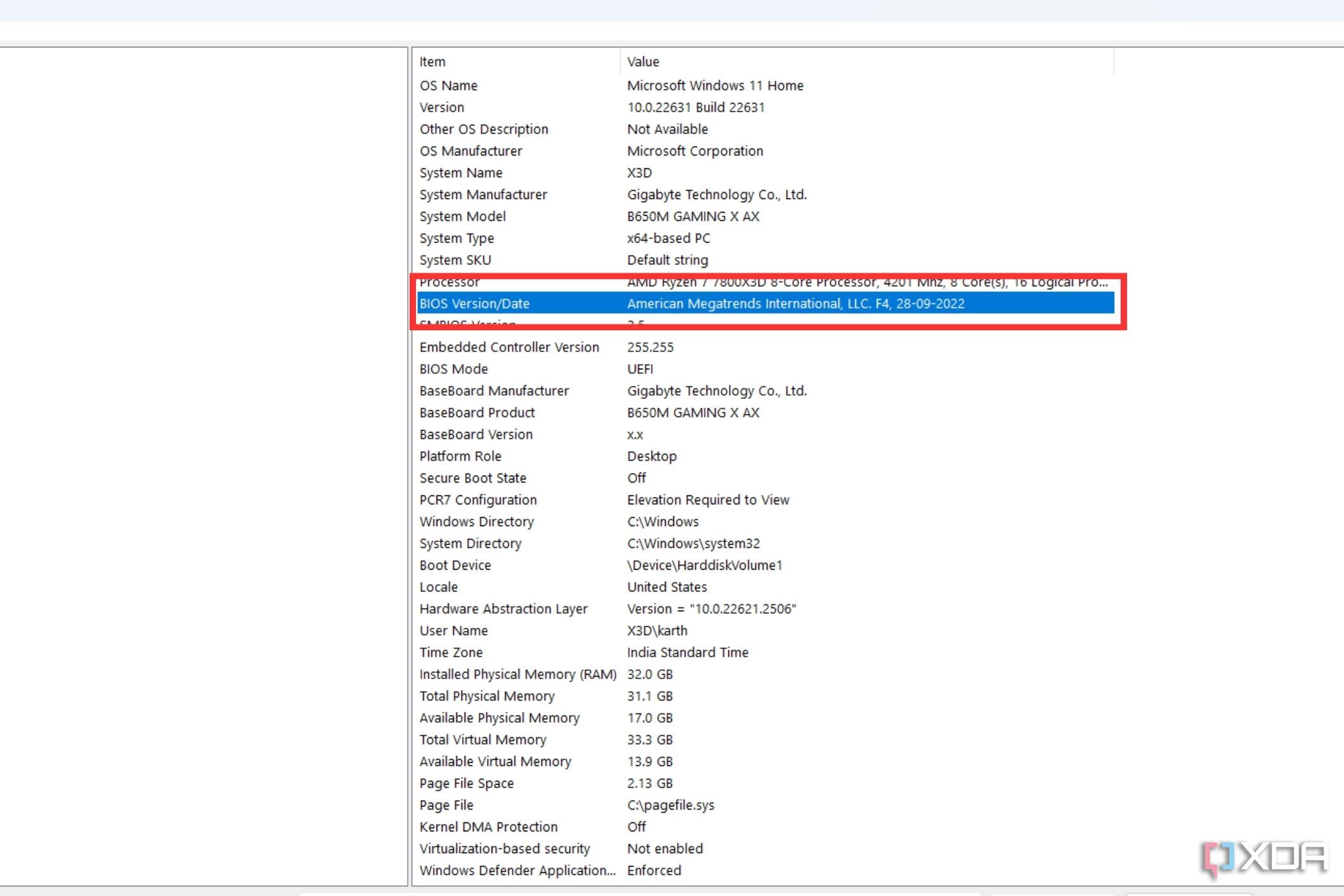
- Locate the BIOS version number in the System Summary pane to know what BIOS version you are using.
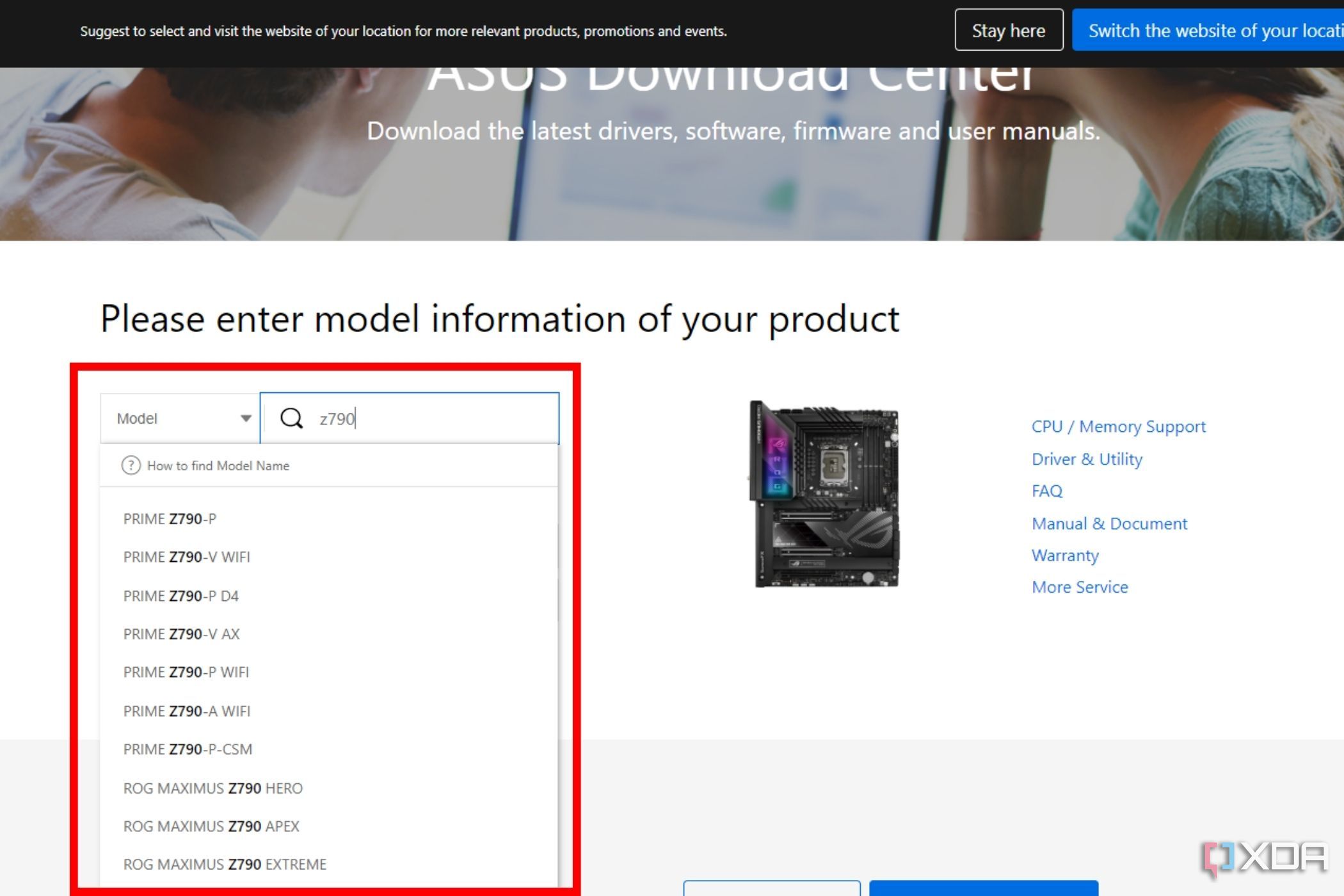
- Now head to the Asus download center on its official website and enter your motherboard’s model name.
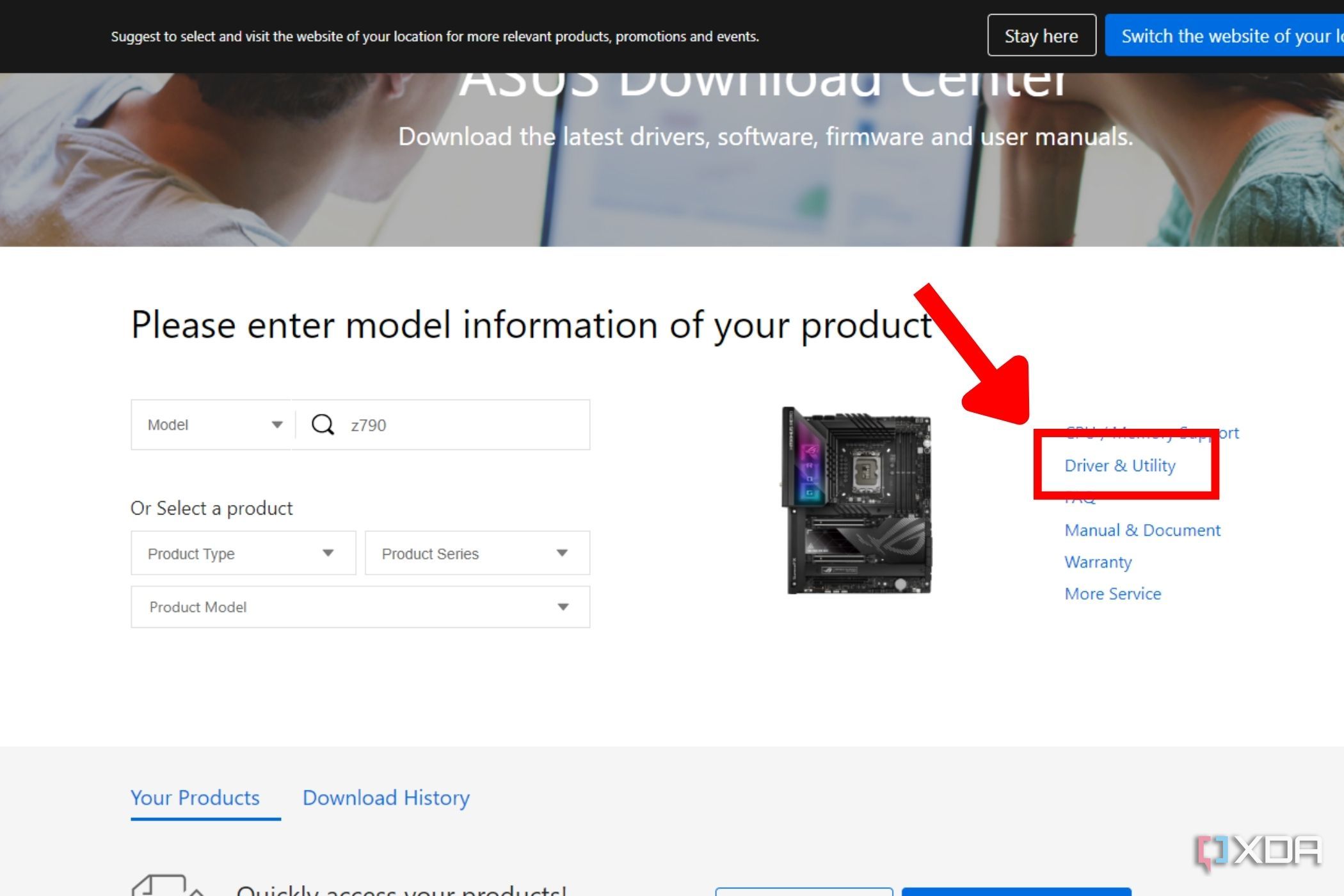
- Click on Driver & Utility from the menu on the right.
- Select BIOS and firmware on the new page.
- Click on the Download button that’s located next to the BIOS description to download it.
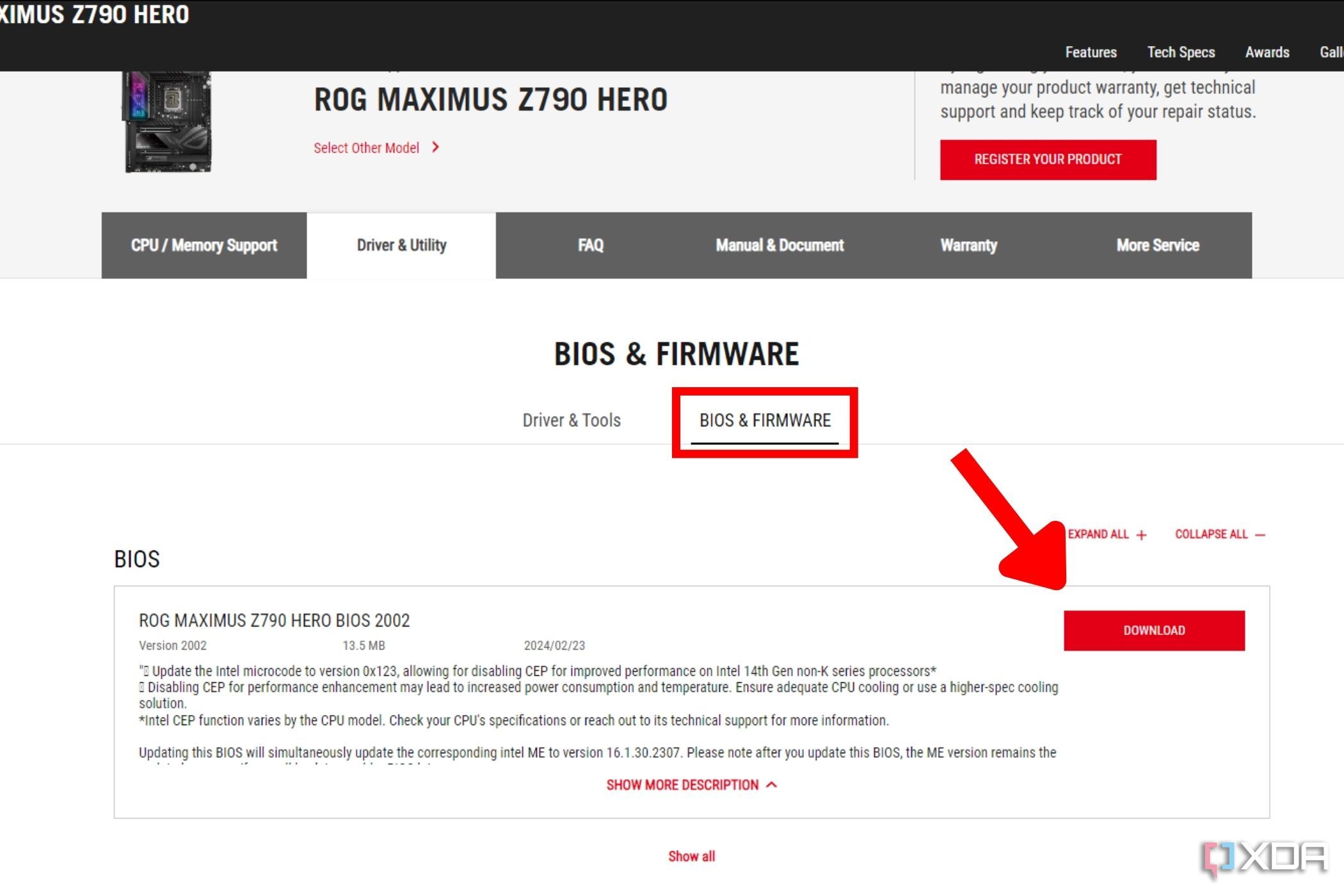
- Extract the downloaded compressed file and keep it ready for installation.


With the latest BIOS file downloaded, you can now follow one of the two methods highlighted below to update the BIOS of your Asus motherboard.
Precautions to take before updating your Asus motherboard BIOS
- Back up your data: It’s always a good idea to create a backup of all your data before you are about to, say, update its firmware or make any big changes like swapping out the components.
- Make sure your computer has a power backup: It’s important to ensure that your PC doesn’t turn off during the BIOS update, so please plug your PC into a power backup source like a UPS.
Updating the Asus motherboard BIOS using the AI Suite 3 utility
This method involves downloading a utility that lets you install the latest BIOS for your motherboard without entering the BIOS menu. To update BIOS using this method:
- Head to the Asus download center on its official website and enter your motherboard’s model name.
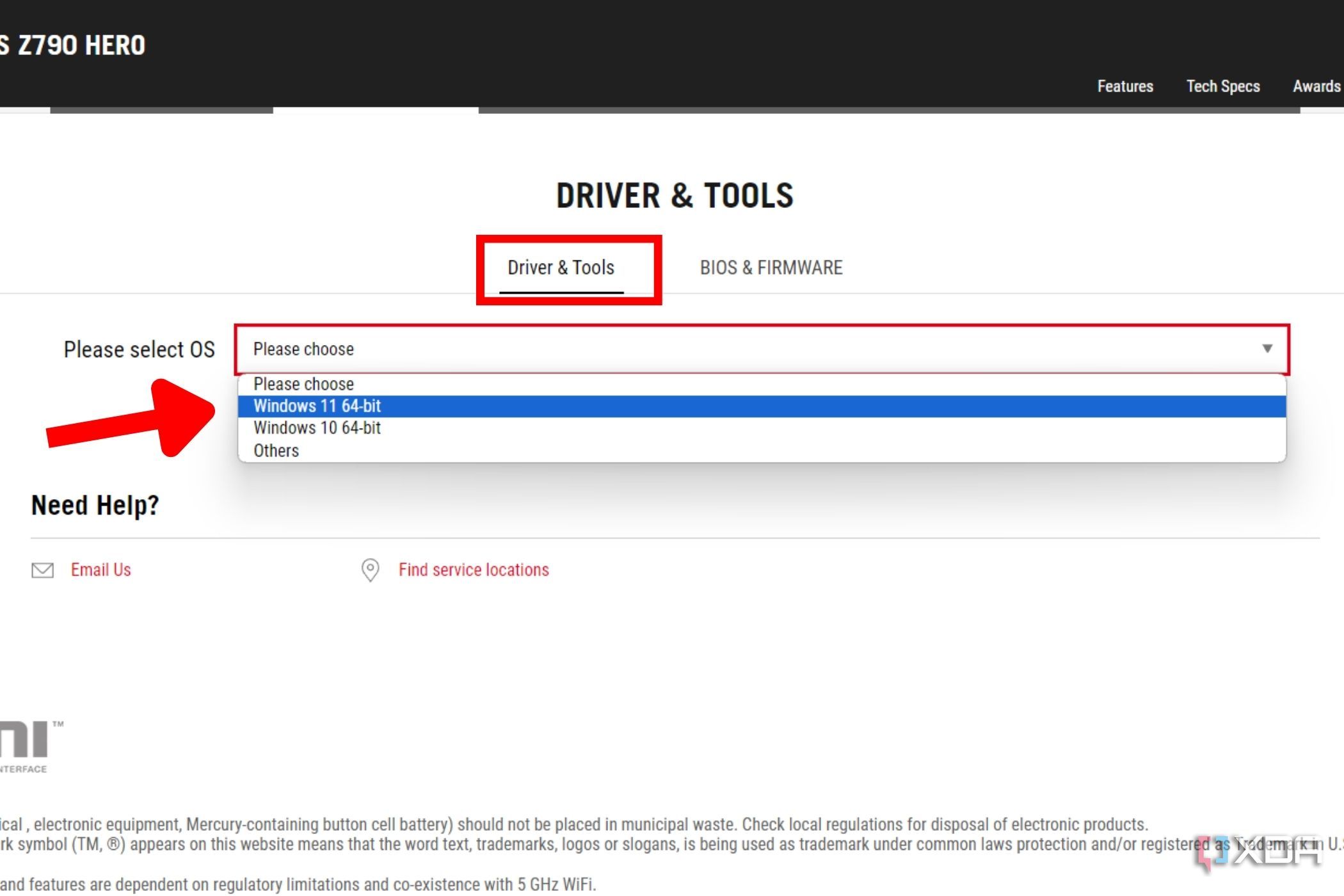
- Click on Driver & Utility from the menu on the right.
- Under the Driver & Tools tab, select the OS of your choice and scroll down till you find the Asus AI Suite 3 utility.
- Simply click on the Download button that’s located next to the utility’s description to download it.
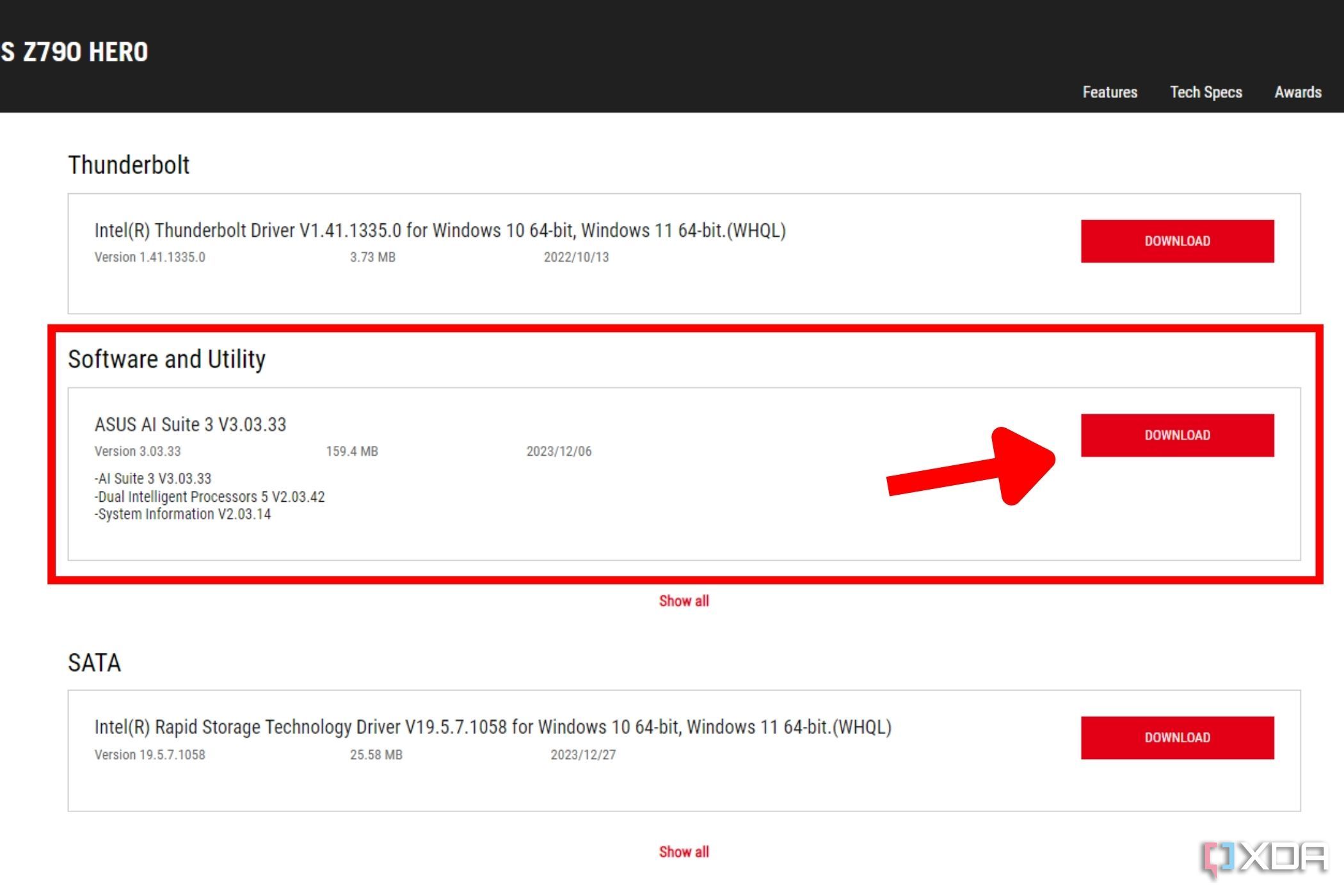
- Extract the contents of the downloaded compressed file and run the setup by double-clicking the AsusSetup.exe file.


- Wait for the installation to complete and your PC to reboot before proceeding.
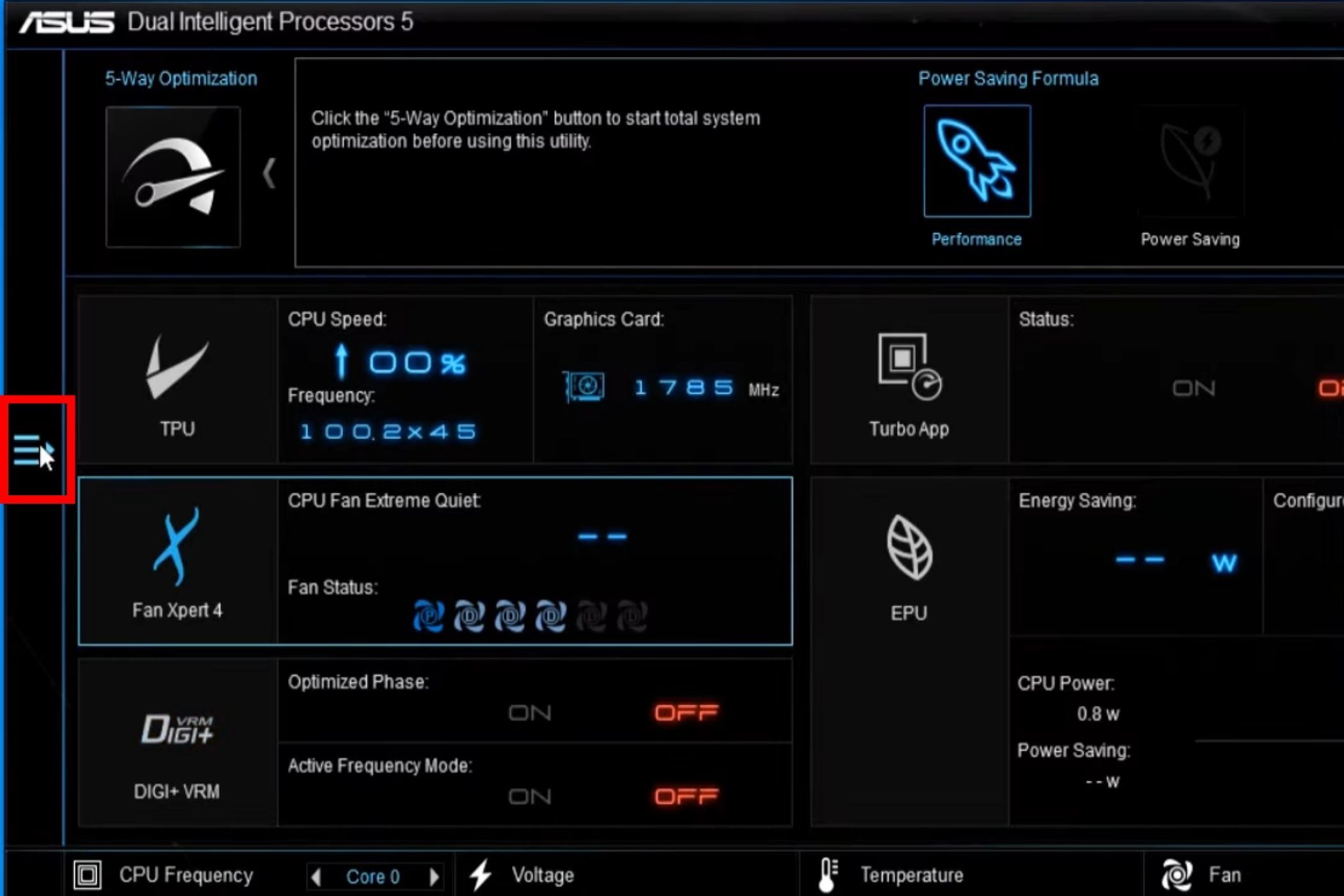
- Open the Asus AI Suite 3 utility and click the expand button on the left to reveal more options.
- Select EZ Update.
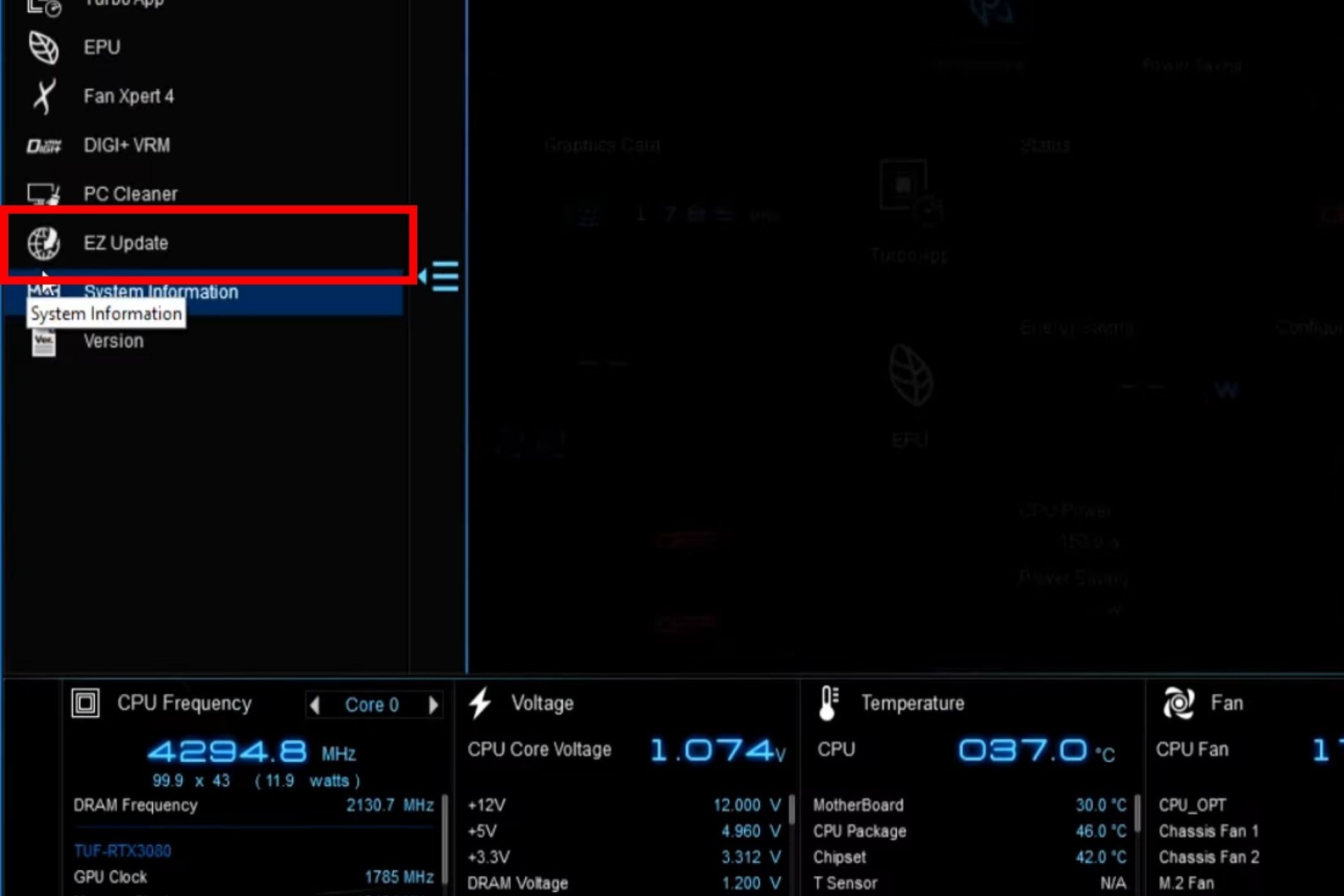
- Click the three dot button to select the downloaded BIOS file, then click Update.
- Click Flash, and confirm your action by clicking OK twice to reboot your system and start the update process.


Your system will reboot again after successfully patching the BIOS, so don’t panic or interrupt the process.
Updating the Asus motherboard BIOS is fairly simple
And that’s how easy it is to use the AI Suite 3 utility to update the BIOS of Asus motherboard. You only need to make sure you download the right BIOS file to flash, and the utility will handle the patching process for you. This is much easier than downloading the BIOS file and transferring it to a flash drive for the setup. Not all motherboards have a utility that lets you update their BIOS this easily, so keep that in mind.

How to update BIOS: A step-by-step guide to get your motherboard on the latest BIOS
Risky, but not very difficult
#update #BIOS #Asus #motherboard #stepbystep #guide
source: https://www.xda-developers.com/how-to-update-asus-motherboard-bios/


