

Buying a new Mac is certainly exciting. You’re ready to download your favorite macOS apps and put Apple’s refined ecosystem to good use. After all, macOS Sonoma packs plenty of features that can boost your productivity and simplify your workflow. One of the lesser known macOS features that can help you organize your digital life is multiple desktops. This means you can configure different desktop experiences unique to the setting and needs you have. Some have multiple desktops with apps and files arranged in a curated view for work, personal, or research purposes. It’s true, you don’t have to depend on a single desktop experience on your Mac, and we’ve detailed how to create and use multiple in the steps below.
Creating and using multiple desktops on a Mac
Your Mac has a built-in feature called Mission Control that gives an overview of all your open windows. This allows you to switch between apps and windows seamlessly. Fortunately, it also helps you create and switch between multiple desktops.
- Swipe up with three fingers on your Mac’s trackpad to open Mission Control. If you’re not using a trackpad, then you can press the Mission Control (F3) button on your keyboard instead.
- Towards the top middle, you will find the word Desktop. Move the cursor towards this word to expand the Desktop view.
- To the side, you will find a plus (+) button. Tap it. This will create a second desktop.
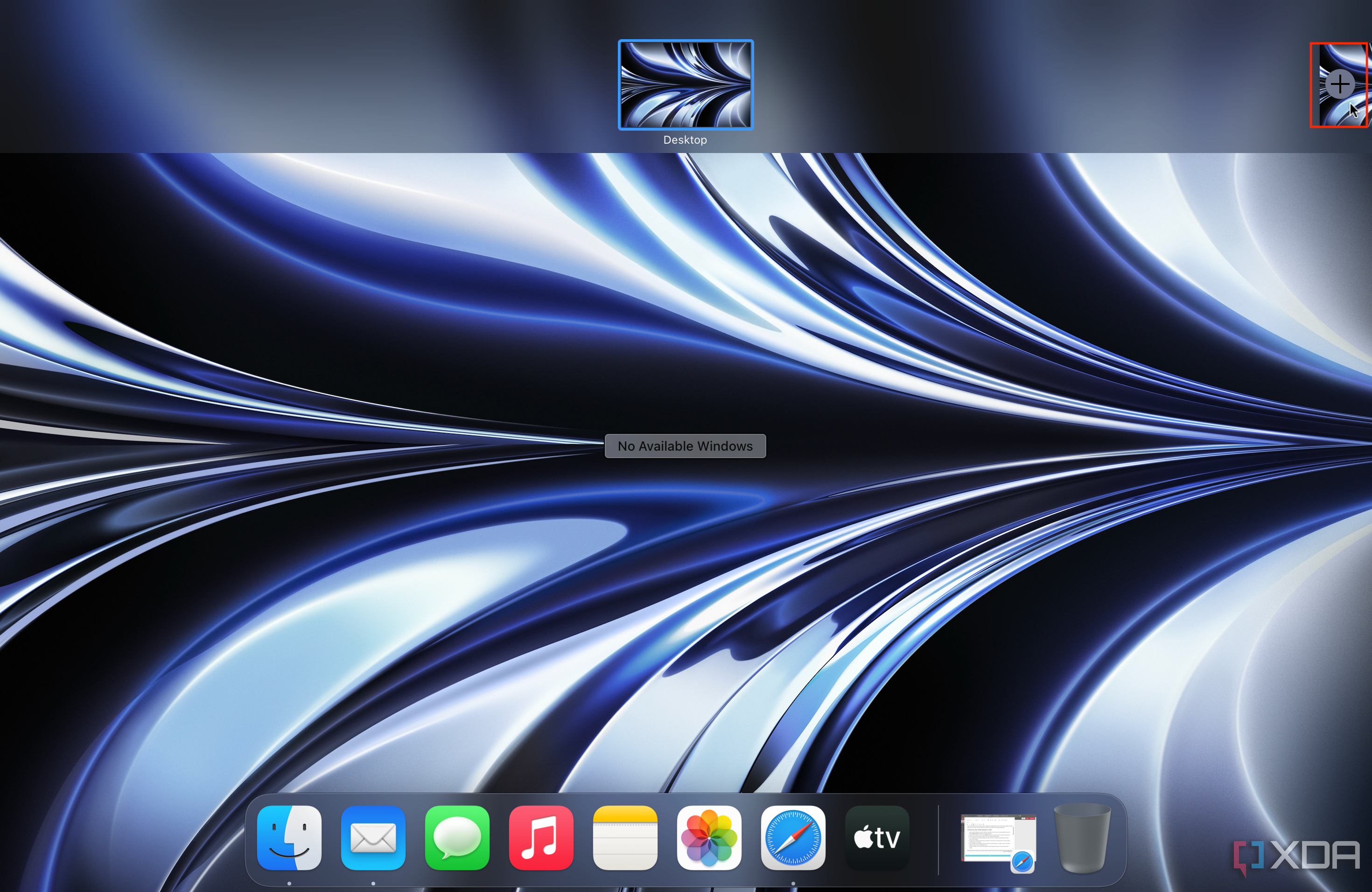
- You can change the second desktop’s wallpaper, icon shortcut layout, and more. You also get to set up different sets of apps in each of the two desktops.
- To switch from one desktop to another, either open Mission Control and tap on the desired desktop or swipe horizontally with three fingers on the trackpad.
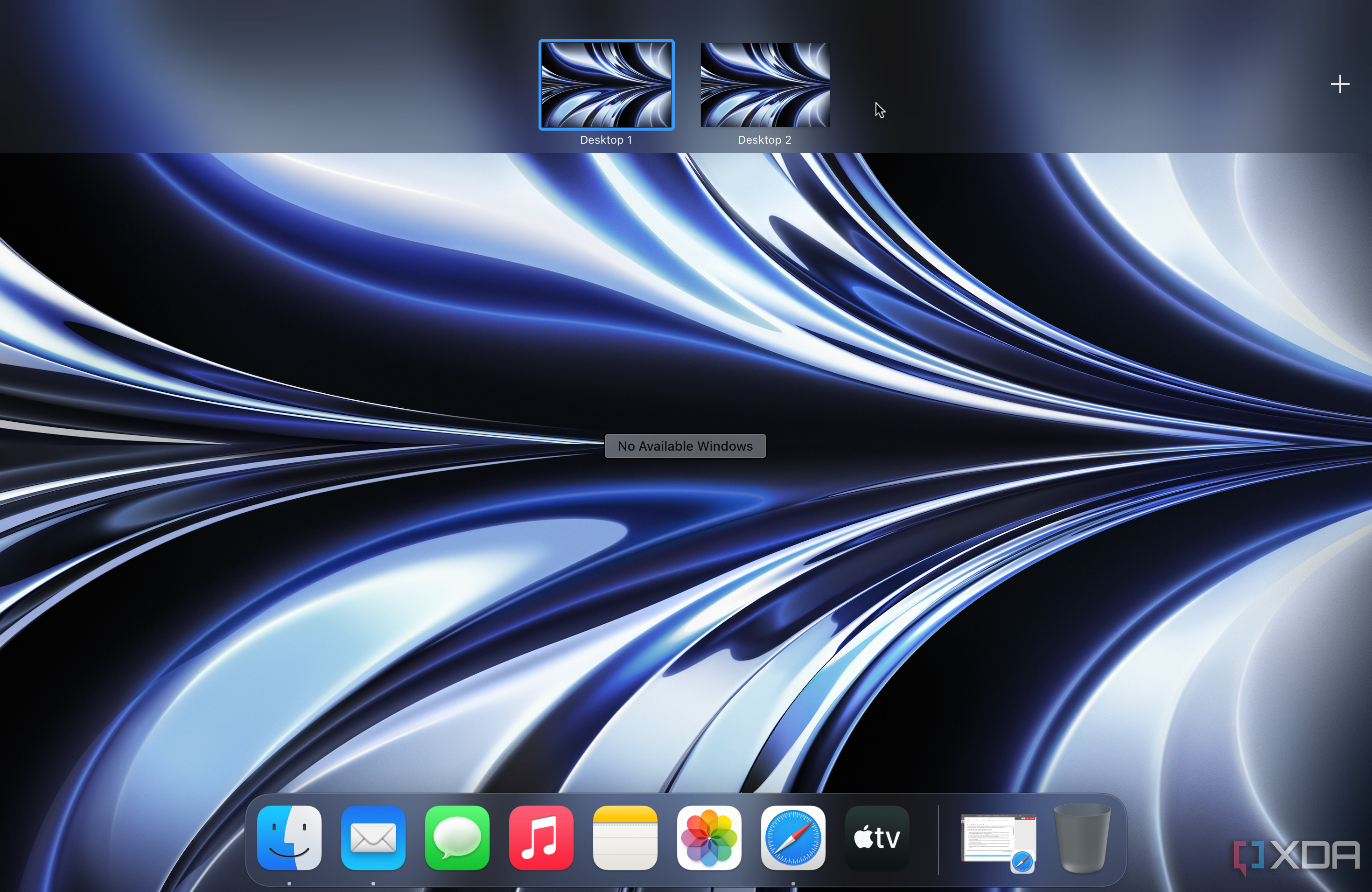
- You’re not limited to just two desktops, though. To create more, simply follow steps 1-3 again to create a new desktop. Repeat the process until your expectations are met.
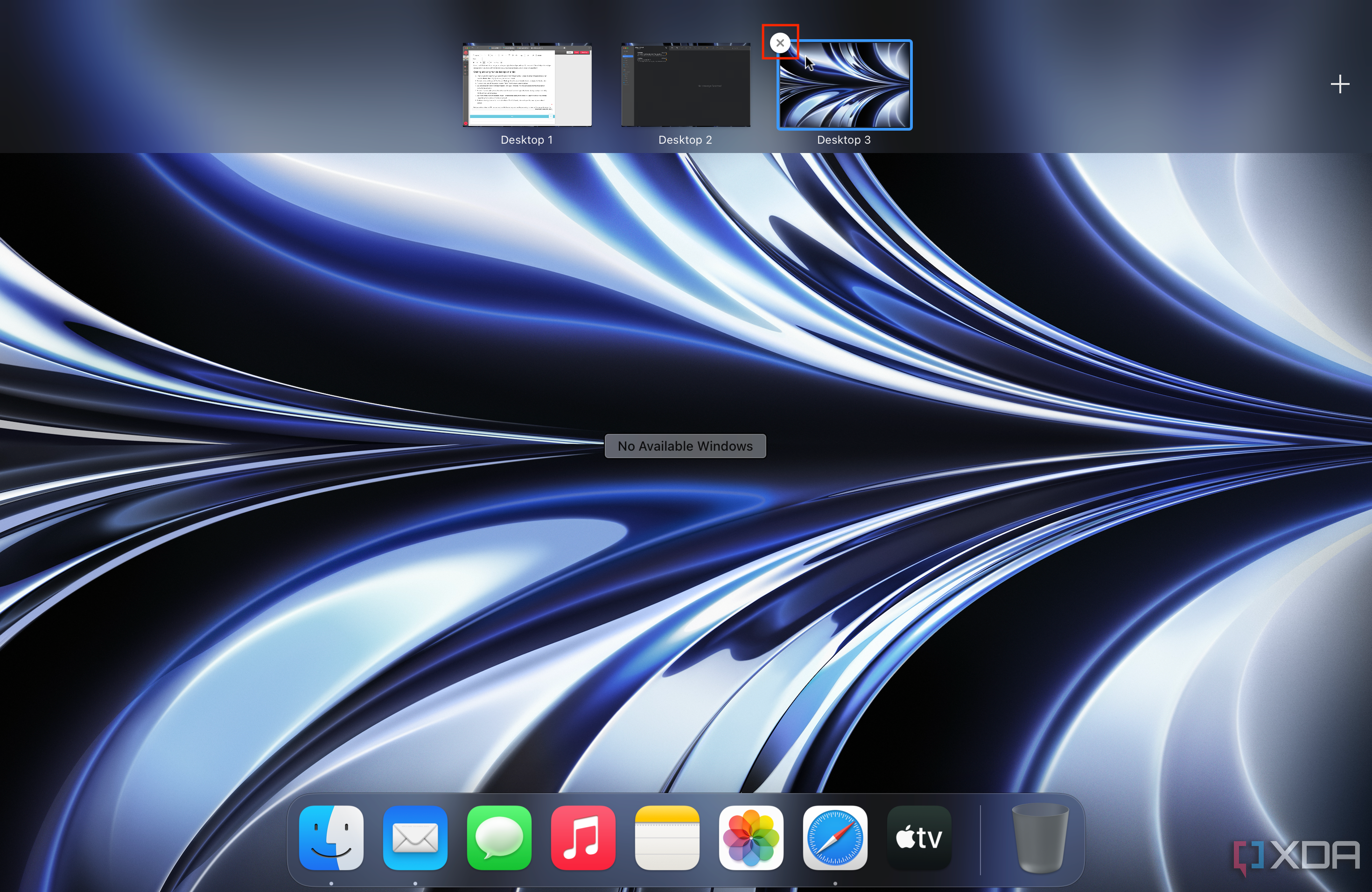
- To delete a desktop, hover on its thumbnail in Mission Control’s Desktop view and tap on the cross (x) button when it appears.


Not everyone needs a secondary monitor
There are a lot of great monitors for Macs that serve well as secondary or even primary displays. However, you don’t necessarily need to buy one just to be able to categorize your files and app windows. Instead, you can create a professional desktop where you launch work-related apps and files, while having another desktop view for your gaming sessions. The possibilities are endless, and you should definitely try this built-in feature a couple of times before you think of getting an external display.

MacBook Pro M3 14-Inch
The MacBook Pro M3 14-inch provides a powerful package for users who don’t need the largest display. It comes with up to 36GB of unified memory alongside the M3 8-core processor for an efficient multitasking experience.
#create #multiple #desktops #macOS
source: https://www.xda-developers.com/how-multiple-desktops-macos/


