

Obsidian has exploded in popularity as a powerful knowledge base and note-taking tool. But let’s be honest, the out-of-the-box settings aren’t everyone’s cup of tea. Obsidian can feel a bit bland and underwhelming with the default settings. Instead of settling with it, go through these simple tweaks to instantly elevate your Obsidian experience.
These changes unlock Obsidian’s true potential, streamline my workflow, and transform my vaults into a truly personalized productivity powerhouse.
Related
11 Obsidian tips and tricks for boosting productivity
Tame your thoughts and craft yourself a digital mind palace with Obsidian
8
Change the default theme
The out-of-the-box look is boring
While the default Obsidian UI has come a long way since its introduction, it still leaves a lot to desire. Needless to say, I’m not really a fan of it. Thankfully, Obsidian has no shortage of third-party themes. Being a fan of Things 3 aesthetics on my Mac, I have applied the same theme to my Obsidian vault. Here’s how.
-
Launch Obsidian and head to Settings.
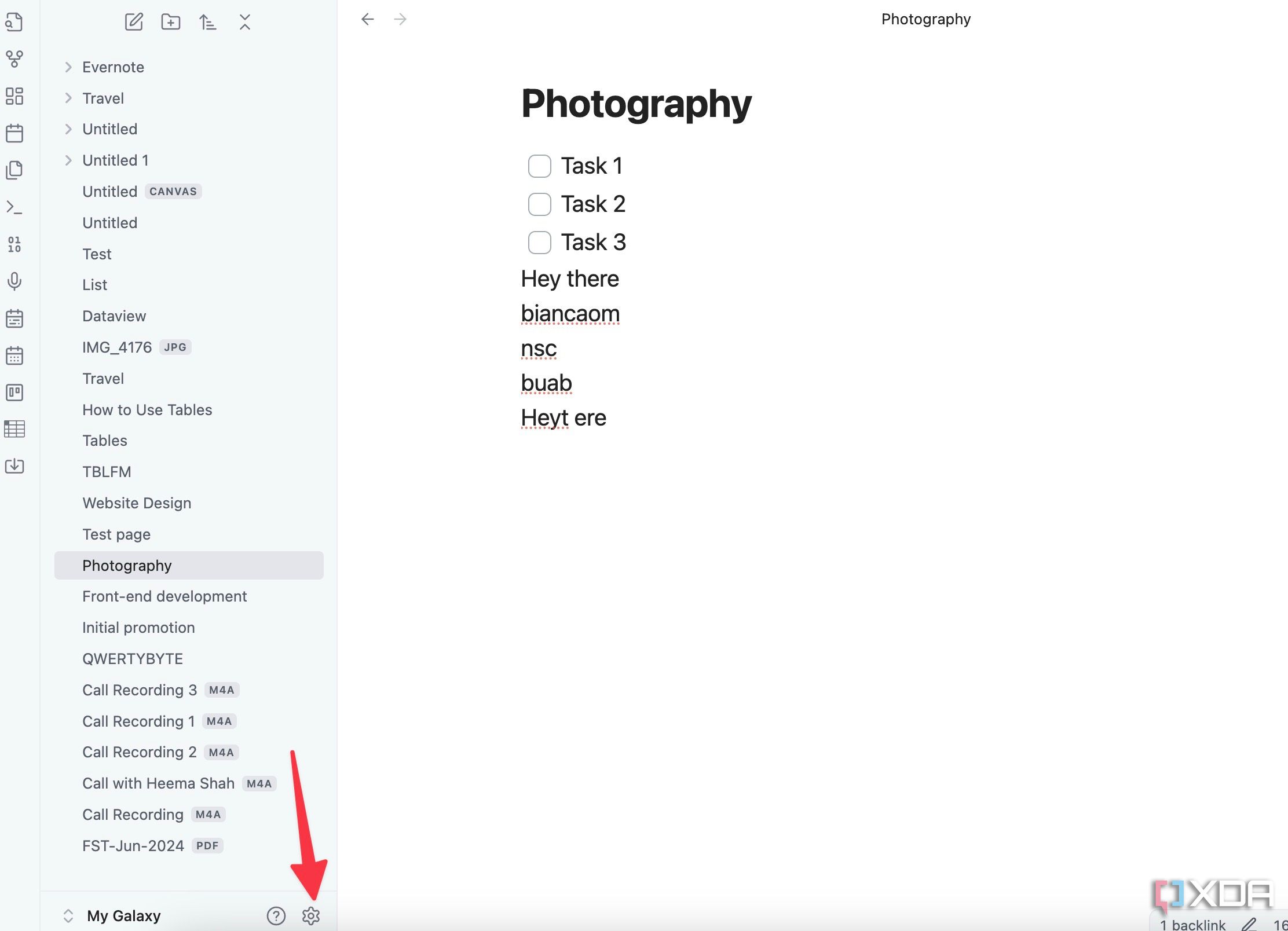
-
Select Appearance from the sidebar and click Manage beside Themes.
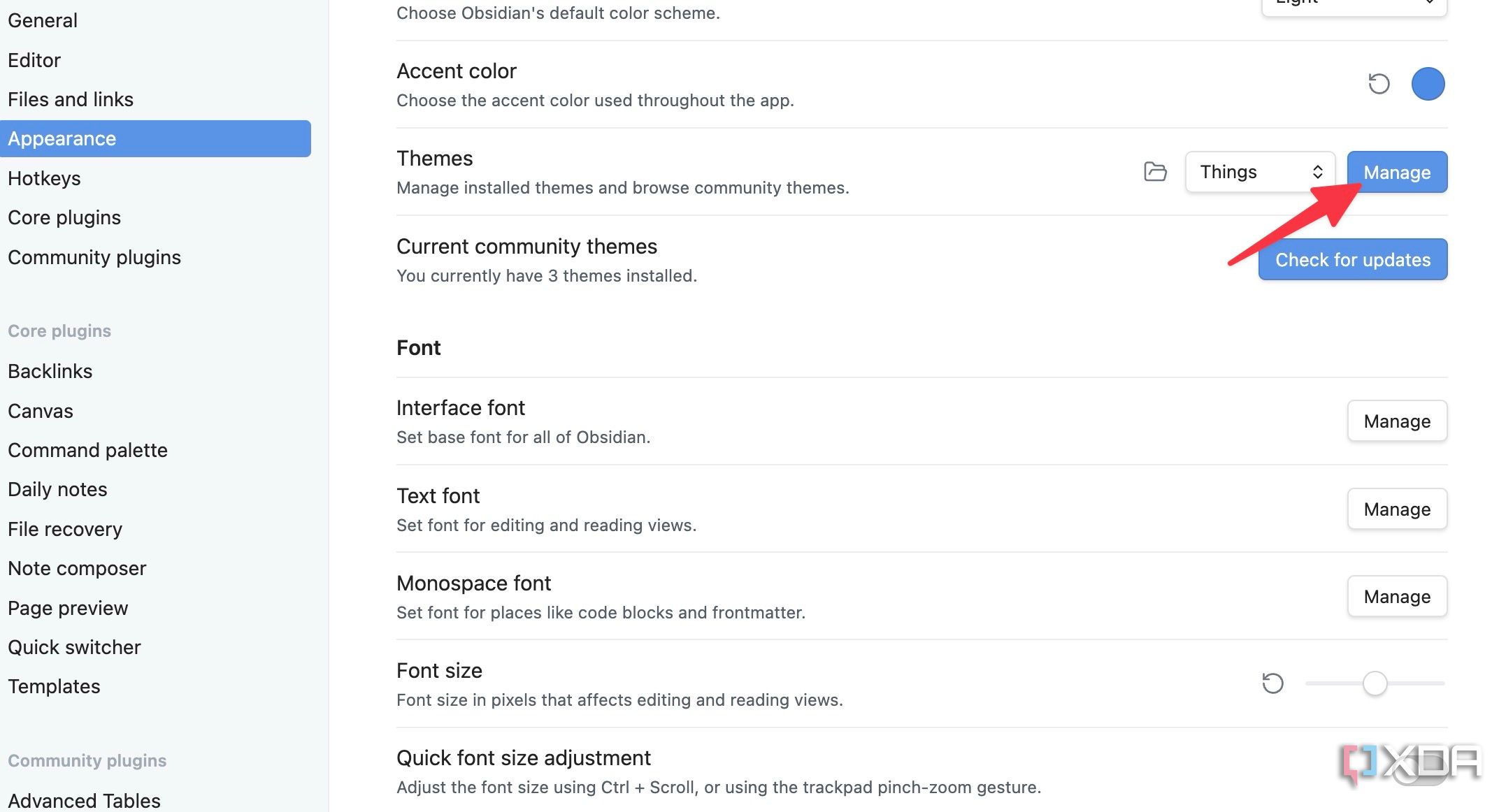
-
Select Things and click Install and use.

-
Restart Obsidian and experience a modern avatar.



Things theme is my personal favorite. You can check other themes on offer as well.
7
Tweak the default font size
I prefer bigger fonts
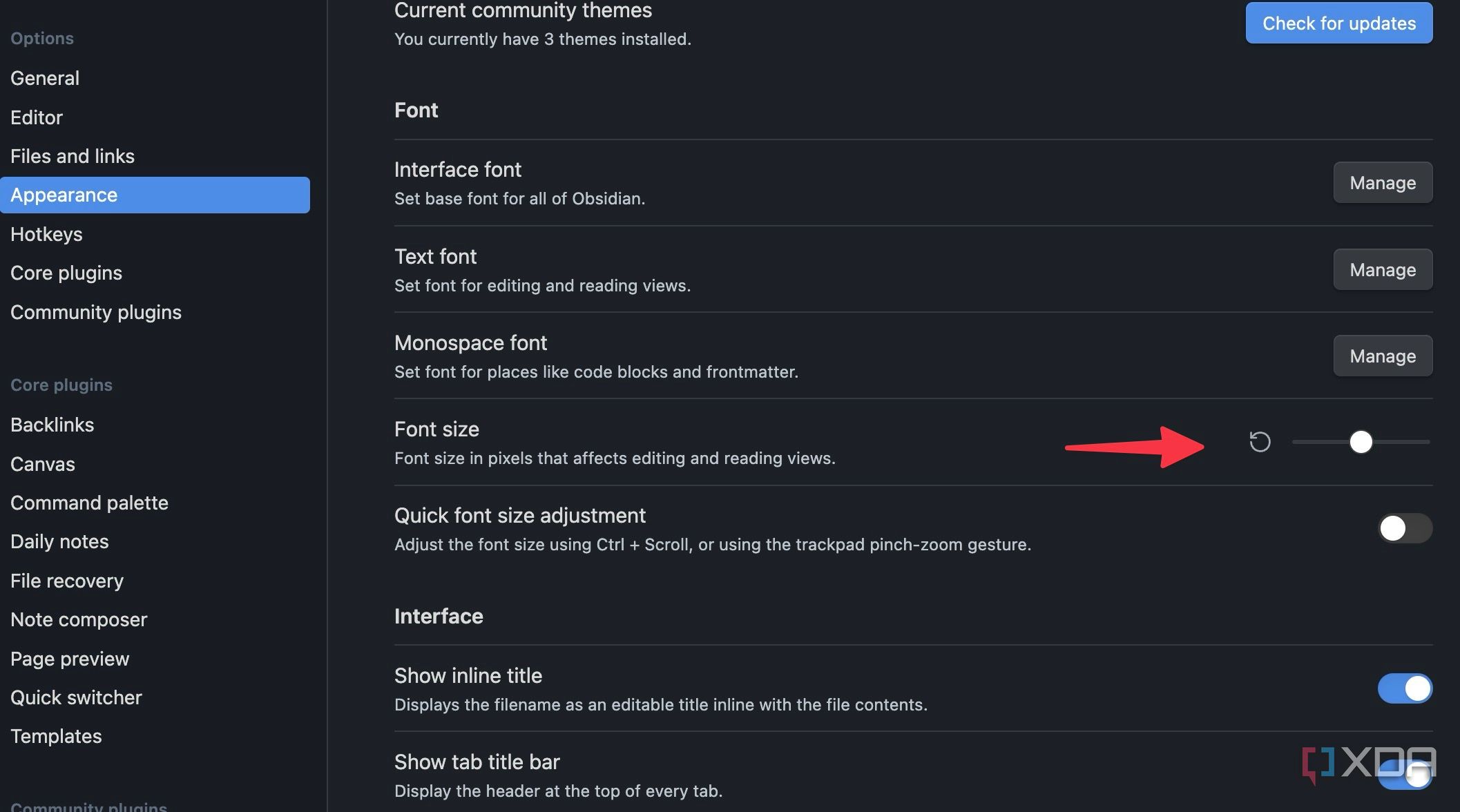
The default font size is too small for my liking in Obsidian. There is a universal setting in Obsidian to increase or decrease the default font size. Here’s how.
- Open Obsidian settings (refer to the steps above).
- Select Appearance and scroll to the Font
-
Use the slider to increase font size and close the menu.

6
Enable translucent window
Looks cool with the dark theme
Obsidian supports a cool translucent effect. It matches perfectly with macOS and Windows aesthetics. However, to take full advantage of it, you need to use Obsidian in a dark theme. I use a black theme at night to avoid eye strain.
- Head to Obsidian Settings.
- Navigate to Appearance > Advanced
-
Enable the Translucent window.
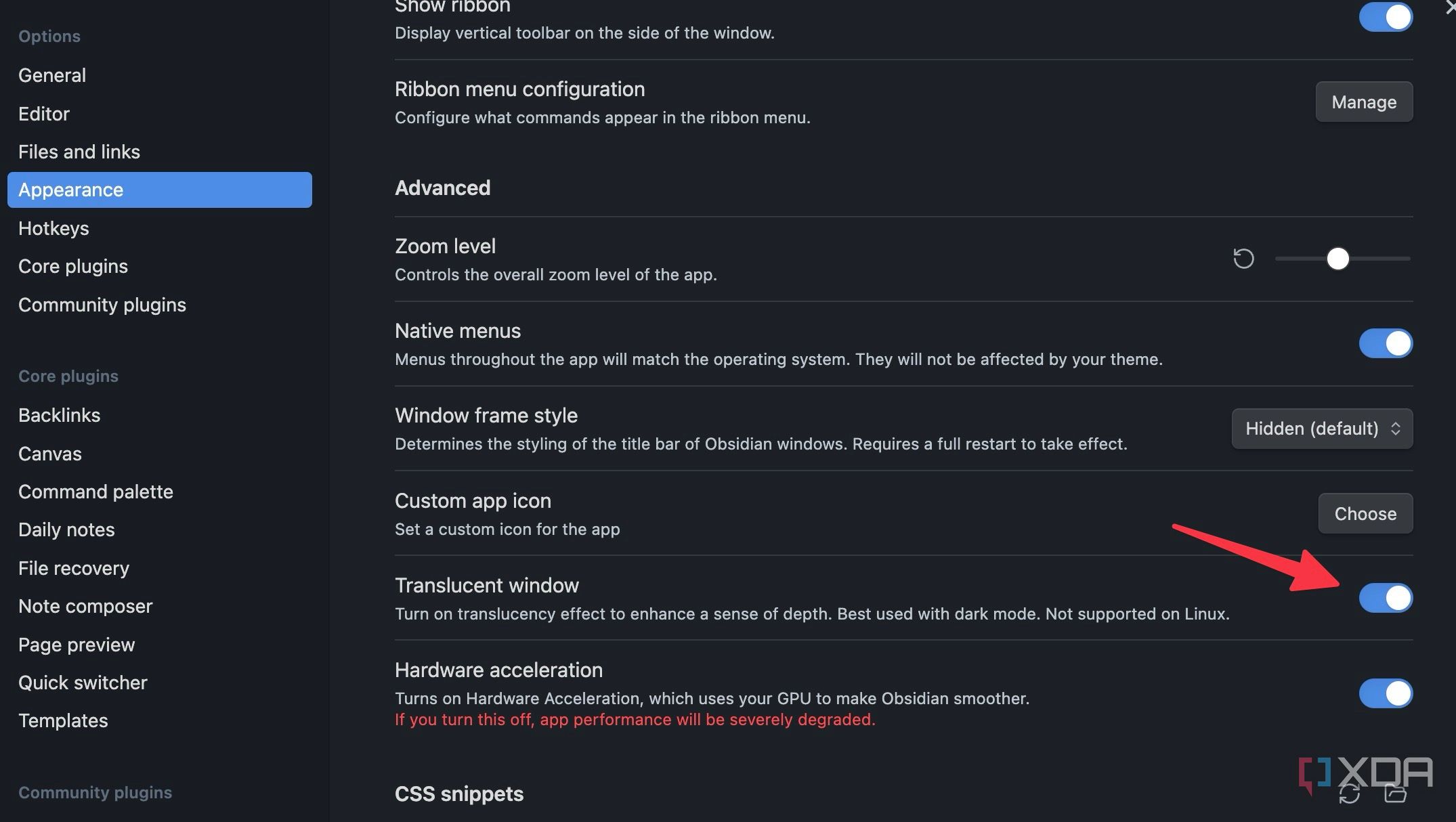

The option isn’t supported on Linux. It adds a cool glass effect on the sidebar. If you use Obsidian in a dark theme all the time, I highly recommend enabling this option.
5
Add custom hotkeys for frequently used functions
Fly through Obsidian tasks
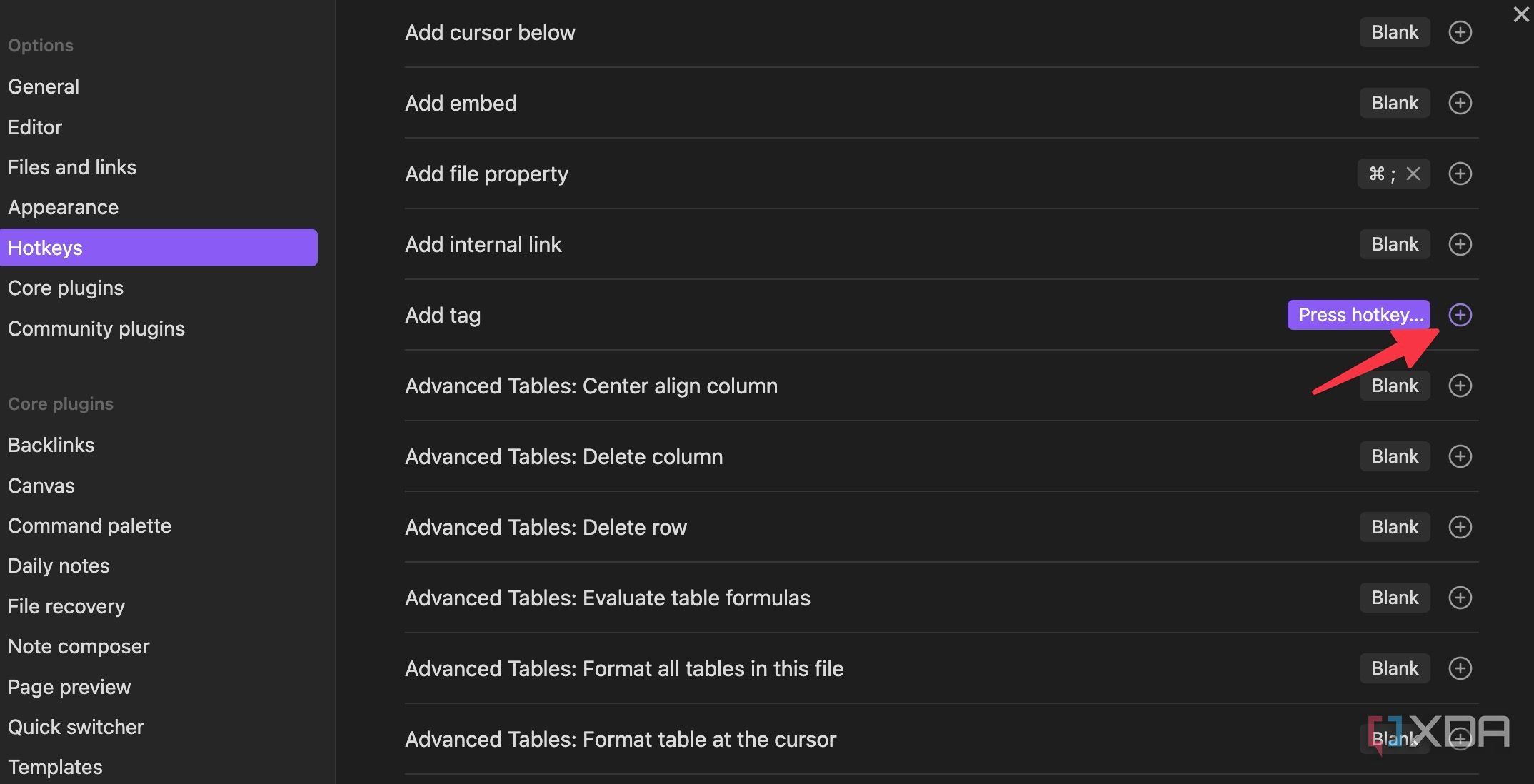
One of the best things about Obsidian is customization. You can assign a keyboard shortcut to practically every feature. I use a green highlighter and code block and glance over a local graph all the time. I have assigned hotkeys for such functions from Obsidian Settings.
- Open Obsidian Settings.
- Select Hotkeys from the sidebar.
- Click + beside an action, press hotkeys, and you are good to go.
-
Repeat the same for other Obsidian functions.

4
Disable restricted mode
Unlock Obsidian plugins
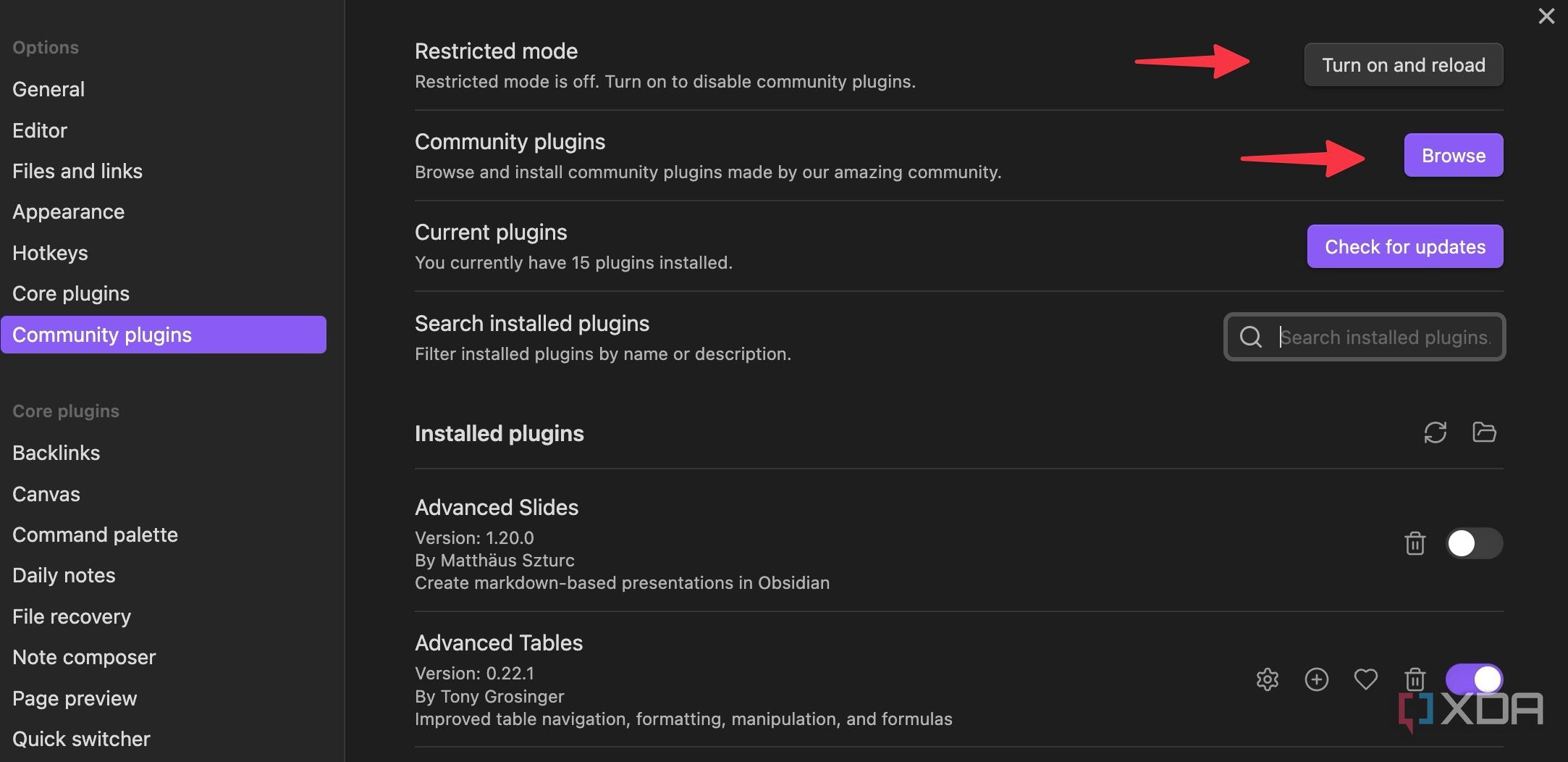
While Obsidian comes with several plugins, the real power lies within the third-party plugin store. However, to take full advantage of it, you must disable the restricted mode first. Here’s how.
- Launch Obsidian Settings and scroll to Community plugins.
- Disable Turn off and reload beside Restricted mode.
-
You can now head to the community plugin store and install the required plugins for your vault.

Check out my dedicated guide, where I used third-party plugins to add a Kanban board in my vault.

Related
10 best Obsidian plugins to supercharge your workflow
Your ideal Obsidian setup is incomplete without these plugins
3
Launch daily notes at startup
Ideal for digital diary
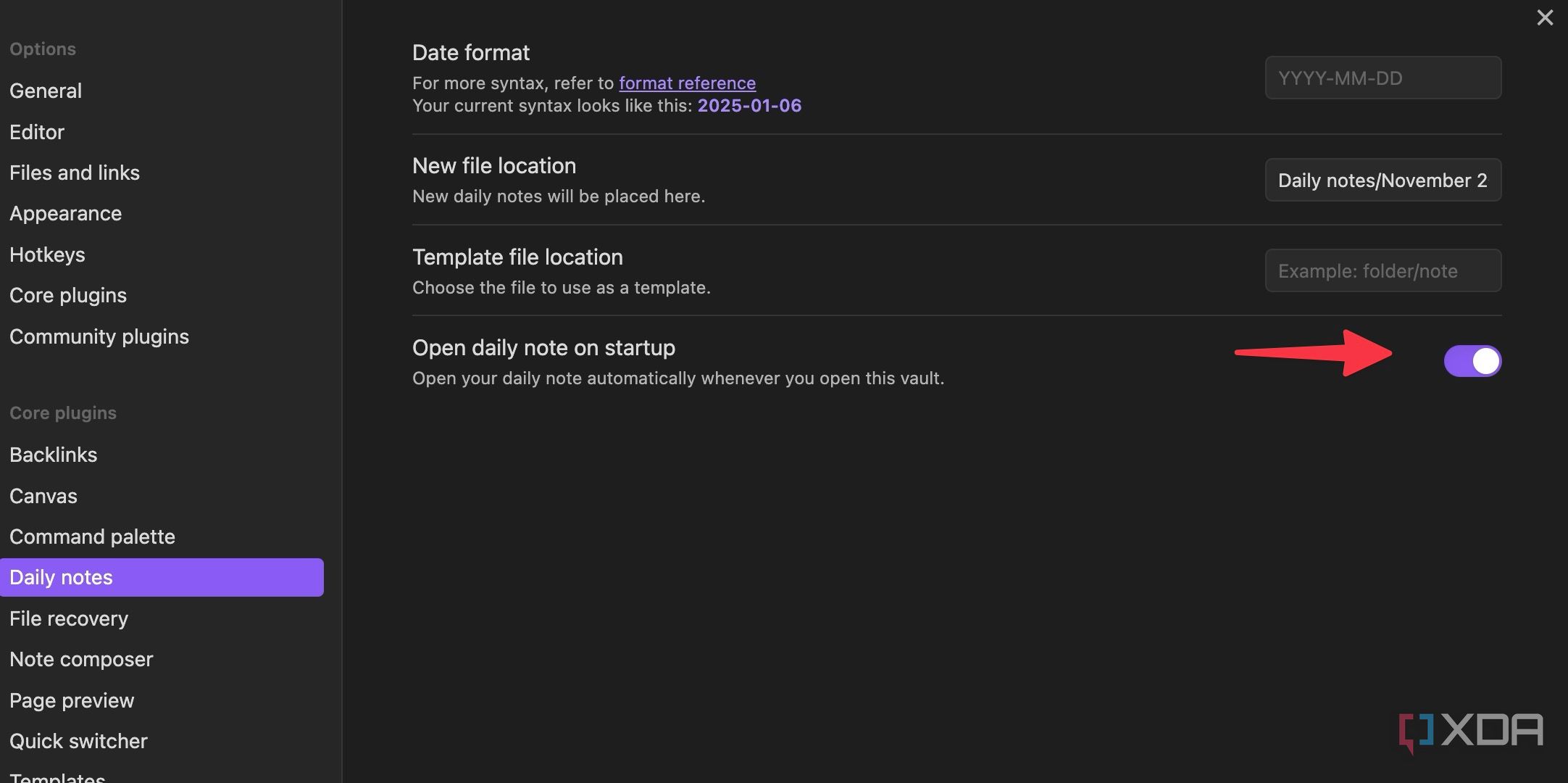
I use Obsidian as my digital journal. Writing a daily note is the first thing I do every morning. That’s why I have set my personal vault to launch a daily note at Obsidian startup.
- Open Obsidian Settings and select Daily notes from the sidebar.
-
Enable the Open daily note on startup.

2
Delete Obsidian files permanently
Don’t leave a trace
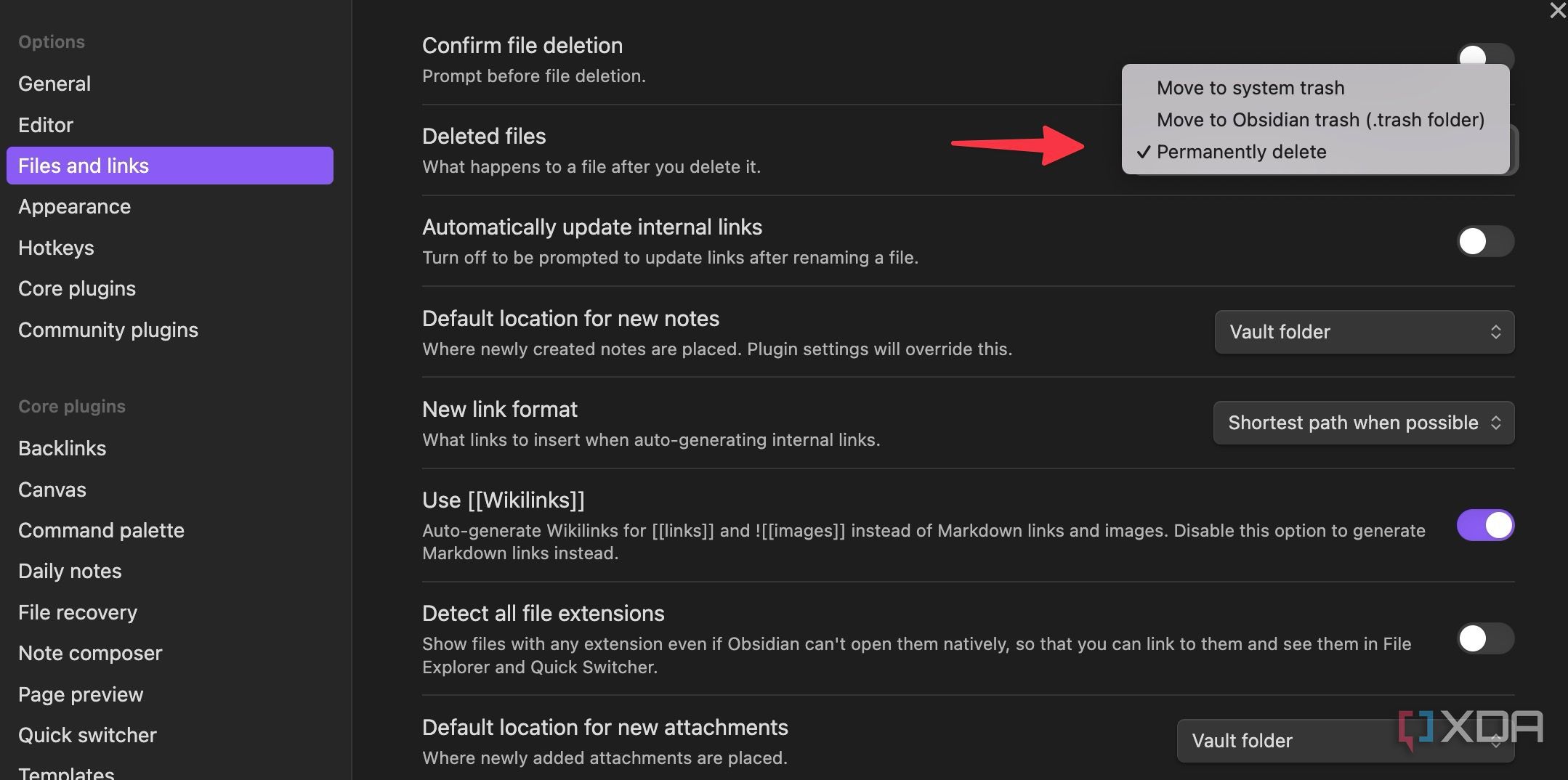
By default, when you delete an Obsidian file, the system moves it into the trash. However, if you don’t want to leave any traces, make sure to delete such files permanently.
- Head to Obsidian Settings.
- Select Files and links from the sidebar.
-
Expand the Deleted files menu and select Permanently delete.

Now, think twice before you delete a note.
1
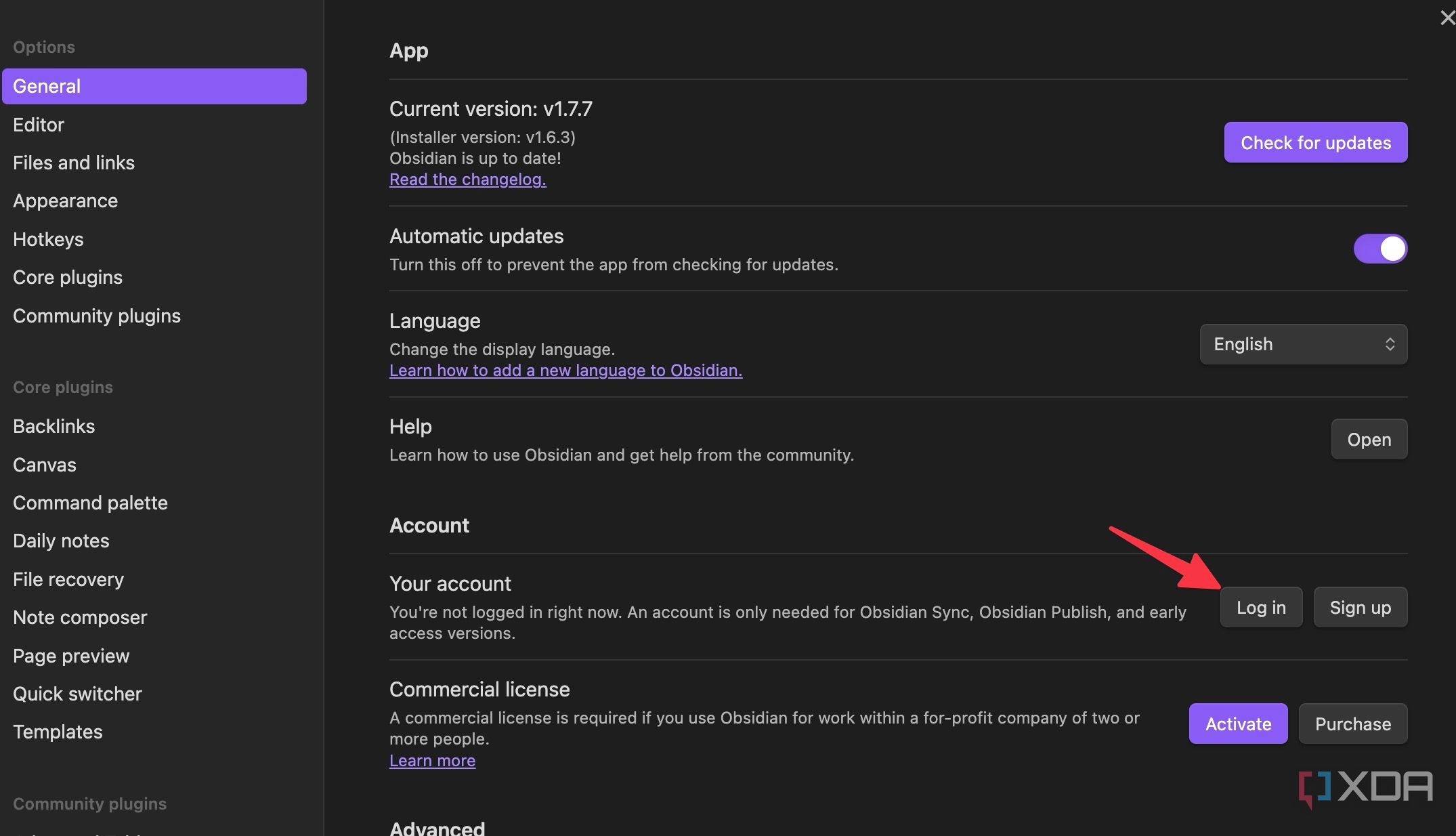
Sign in with your Obsidian account
Get the best out of Obsidian
Obsidian is quite flexible in terms of cloud syncing options. You can either store your vault offline or use one of the popular cloud storage services, OneDrive, Box, Google Drive, or iCloud, to store and sync notes. However, I highly recommend purchasing the Obsidian Sync add-on if you have a budget.
Obsidian Sync delivers the best syncing speeds and enables end-to-end encryption for your notes. Once you purchase the add-on, sign in with your Obsidian account to sync vaults across all your devices.
- Open the General menu in Obsidian Settings.
-
Select Log in and sign in with your account details.

Obsidian defaults are wrong
There you have it! With these simple tweaks, you can transform Obsidian from a decent note-taking app into a productivity machine. As always, you don’t necessarily need to change every setting. Make sure to tweak the required ones to fit your preferences. After that, you are all set to migrate your life into Obsidian.
#Obsidian #changing #settings
source: https://www.xda-developers.com/cant-use-obsidian-without-changing-settings-first/


