

Key Takeaways
- Safeguard your Obsidian notes with an easy-to-use, speedy, private, cost-efficient backup system.
- Cloud services like OneDrive, Google Drive, and iCloud are ideal for real-time syncing and backing up notes.
- Consider using external drives or community plugins like Local Backup and Git to further fortify your notes.
Obsidian is a versatile note-taking tool. Thanks to its rich functionality, people use it for taking notes, creating a Personal Knowledge Management system, logging a digital journal, researching extensive topics, and more. It can be your ultimate digital closet with personal memories. But what happens when the unexpected strikes? A corrupted or crashed hard drive, a misplaced laptop, or a random glitch can threaten to erase your Obsidian treasure trove.
In this post, we will unravel the secrets of safeguarding your Obsidian notes against such scenarios. From local backups to online servers, we have ample tools at our disposal to shield those thoughts from oblivion.
Related
Here are some Markdown tips and tricks to improve your note taking in Obsidian
Unlock the power of Markdown in Obsidian with these expert tips
Why should you back up your data?
Your Obsidian notes are more than mere text. They are the building blocks of your creativity with ideas, insights, and moments of brilliance. By default, when you create a new vault, Obsidian creates a local folder on your device. This practice ensures that you have complete control over your data. That said, your PC or Mac’s local storage is prone to real-world problems like corrupt drives and data loss.
Before you lose access to an entire Obsidian vault, you can make sure to have a robust backup system in the first place. Here’s what a good backup system looks like.
- Easy to use: Your Obsidian backup process should automatically back up all of your notes in the background for you.
- Sync speed: The backup system should have a robust sync speed so that your updated notes are available on all your devices instantly.
- Safety and privacy: This is the most important factor when picking up a backup process for Obsidian. After all, you don’t want your private notes to get into the wrong hands.
- Cost: Power users often have multiple vaults with hundreds of notes in Obsidian. Over time, it consumes more storage on your preferred backup and you will need to keep cost and capacity in mind.
- Ownership: If you plan to store some confidential and private notes in Obsidian, pick a backup system that gives you complete control over the data.
Sync vs. Backup in Obsidian
There are several ways to back up and secure your Obsidian notes. That said, you need to be careful when you choose an online streaming service that syncs your notes across devices. In that case, when you delete a note from a single device, the service removes it from all your devices.
If a note gets corrupted on a device, it will be corrupted on all devices. That’s why it’s essential to have a real backup process in place. Now, let’s check out our top options.
Use cloud services
You should first explore cloud services for your Obsidian backup. There are many options out there, and among them are our top picks for your Obsidian backup.
OneDrive
If you use Obsidian across different operating systems, use OneDrive to sync and back up your notes in real-time. It’s a must-have streaming service for Microsoft 365 subscribers, as all the plans come with 1TB of OneDrive storage.
First, make sure to set up OneDrive on your Windows or Mac. Then, follow the steps below.
- Open Obsidian and select Create beside Create new vault.
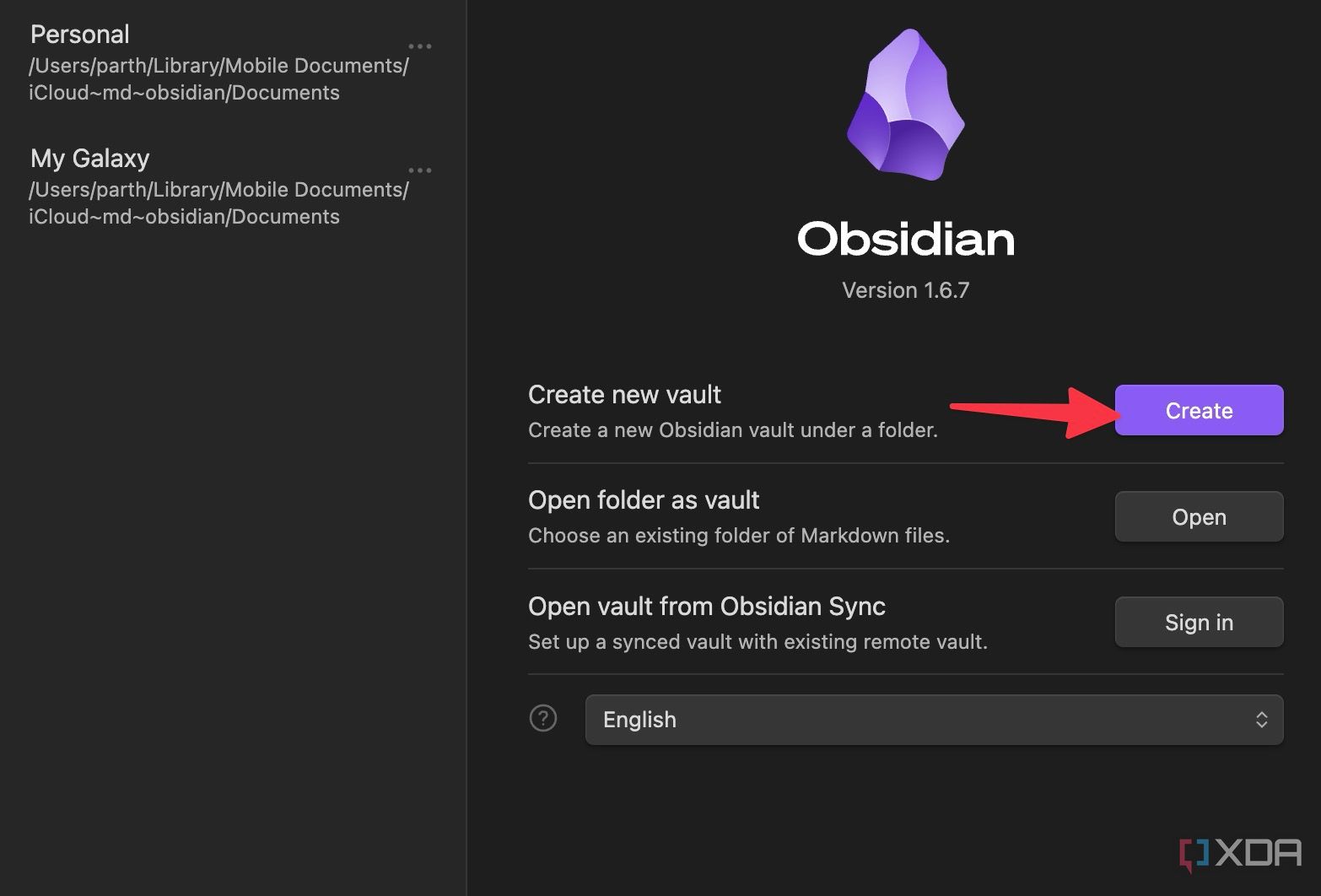
- Give it a relevant name and click Browse.
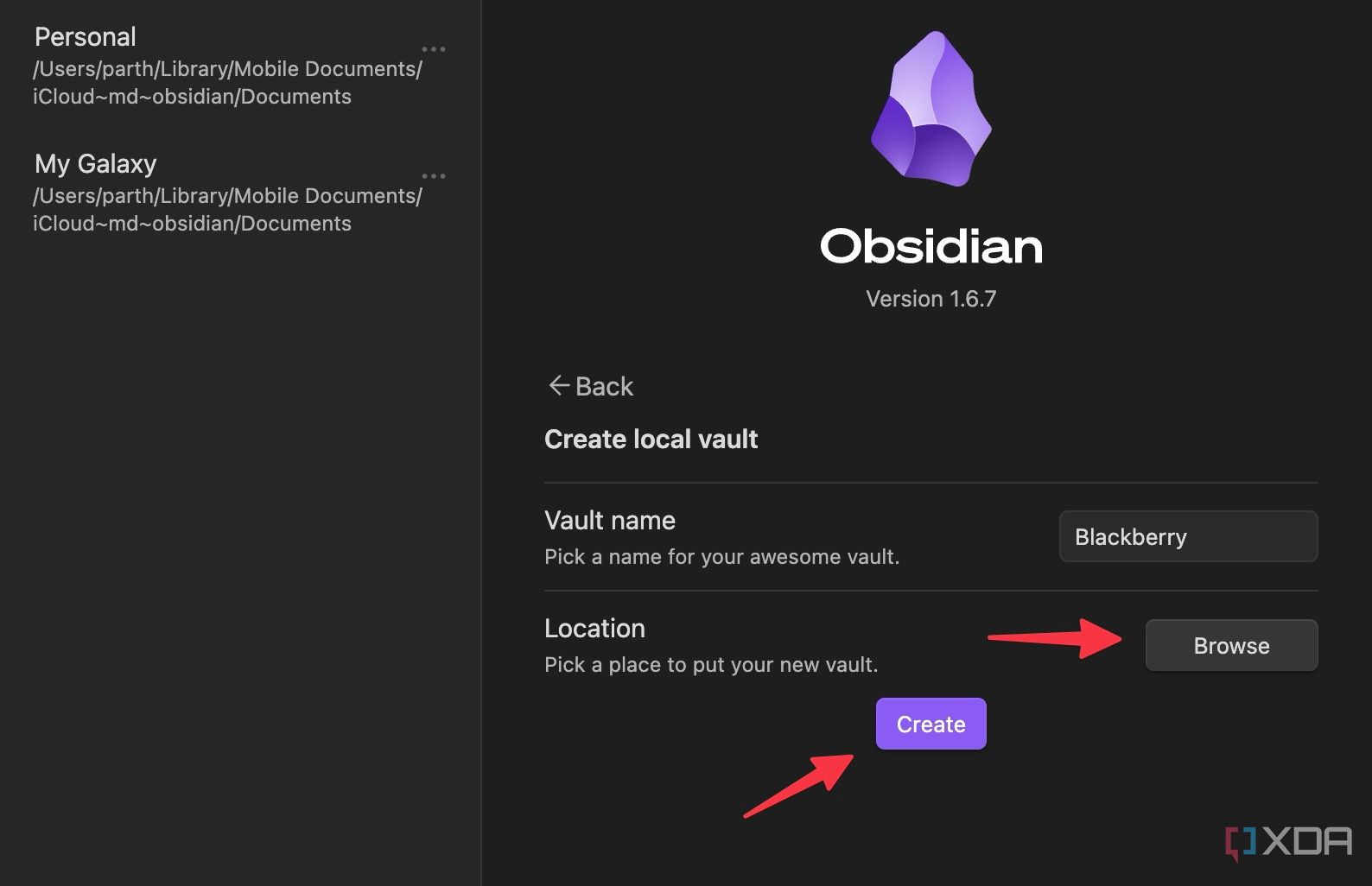
- It opens the default File Explorer or Finder app on Windows or Mac.
- Pick a relevant location in OneDrive and start syncing your Obsidian notes.
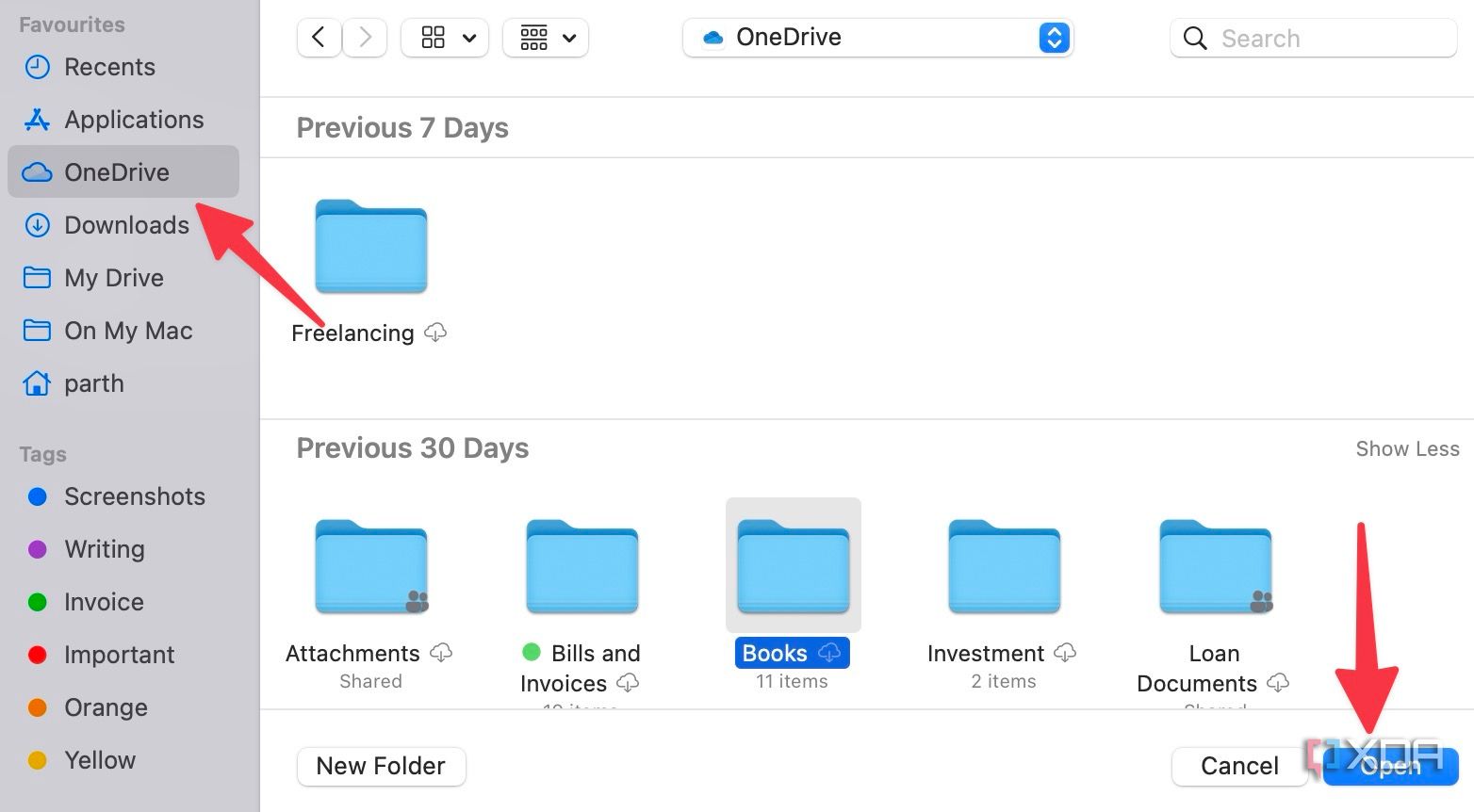


When you open Obsidian on another device, make sure to launch the Vault from OneDrive, and you will be good to go, with sync in place.
Google Drive
Google Drive is another capable streaming service for Obsidian users. It’s available on all the platforms and comes with a generous 15GB of space by default. The steps to create a vault in a Google Drive folder remain the same as above.
iCloud
If you mostly plan to use Obsidian on Apple devices, use iCloud to back up and sync your Obsidian vaults. It comes with 5GB of free space by default and has robust privacy options to keep your Obsidian notes secure from prying eyes.
Obsidian Sync
If you don’t trust any of these services, use Obsidian Sync to back up and secure your notes. It’s the paid service from Obsidian for $8 per month. The biggest advantage of Obsidian sync is speed. Compared to iCloud, Google Drive, or OneDrive, Obsidian sync is quite fast.
Try external drives
This is one of the easiest, secure, and affordable ways to back up and secure notes in Obsidian. You can simply connect an external drive to your PC or Mac and copy your Obsidian vaults to it.
- Connect your USB flash drive to your computer or Mac.
- Make sure your device is recognized and mounted in your file system.
- Copy your Obsidian vaults to a flash drive.
- Unmount it from your PC when finished.

Related
Here’s how I use Obsidian as a digital journal
From notes to narratives: craft your personal journal in Obsidian
Apart from the above-mentioned methods, you can also use community plugins in Obsidian to back up and secure your notes automatically. First, you need to enable community plugins in your vault. Here’s how.
- Open Obsidian and head to Settings.

- Select Community Plugins and disable restricted mode.



You are all set to explore community plugins in your Obsidian vault. Among all the options, here are a couple of recommended ones from Obsidian.
- Local Backup: It creates a local copy of your vault in a folder of your choice. You can even create a syncing folder to combine local and cloud backups.
- Git: You can use it to back up Obsidian content to GitHub and store your notes on a remote server.
You can read our separate guide if you want to explore more Obsidian plugins.
Back up your computer
If you prefer to store your Obsidian notes in a local folder on your computer, back them up using your preferred method to keep them secure. You can back up your PC using the OneDrive PC folder, File History, system image, and more. Read our separate post to back up your Windows 11 PC in no time.
Fortify your Obsidian notes
As you can see from the list above, there are multiple ways to back up and secure your notes in Obsidian. Pick your preferred method, back up your notes regularly, encrypt them if required, stay vigilant against digital threats, and have peace of mind. If you are new to Obsidian, check out our separate guide to learn the top tips and tricks for boosting your productivity.
#backup #secure #notes #Obsidian
source: https://www.xda-developers.com/how-you-can-backup-and-secure-your-notes-in-obsidian/


