

Visual Studio Code (VS Code) is one of the best source code editors around. It was created by Microsoft to work with almost every programming language and across any operating system. It’s deeply integrated into GitHub Copilot for faster, smarter coding with an AI assistant and has a robust ecosystem for connecting to any task, from machine learning to game optimization.
With such a powerful code editor, it’s important to get the best performance out of it, and that means ensuring your graphics card is accelerating the application properly. You don’t want to have to rely on the software renderer running on your CPU when dealing with multiple windows of code, so enabling GPU acceleration makes the whole experience smoother. VS Code can use your GPU for many other things as well, from environment management, usage tools, debugging support, and more, so make sure the application is using the correct GPU before you start to code your next project.
Related
If you’re a programmer, VS Code is still the best IDE by far
VS Code may technically not be an IDE, but for all intents and purposes, it absolutely is.
How to use your GPU in Visual Studio Code
You can get better performance by switching to discrete graphics
We’re using an Nvidia GPU as an example here, but you can follow the same steps for AMD and Intel GPUs, too.
You might think that you only need the GPU to accelerate machine learning or other tasks that are suited to the speedy cores in modern graphics chips. But that’s only part of it, as using GPU acceleration also makes your VS Code experience smoother, especially if you’re working on a high-resolution 4K display or multiple displays. It’s no fun scrolling through code when non-accelerated software rendering is dealing with more pixels than normal, so lets smooth things out again by getting VS Code to use your GPU for rendering.
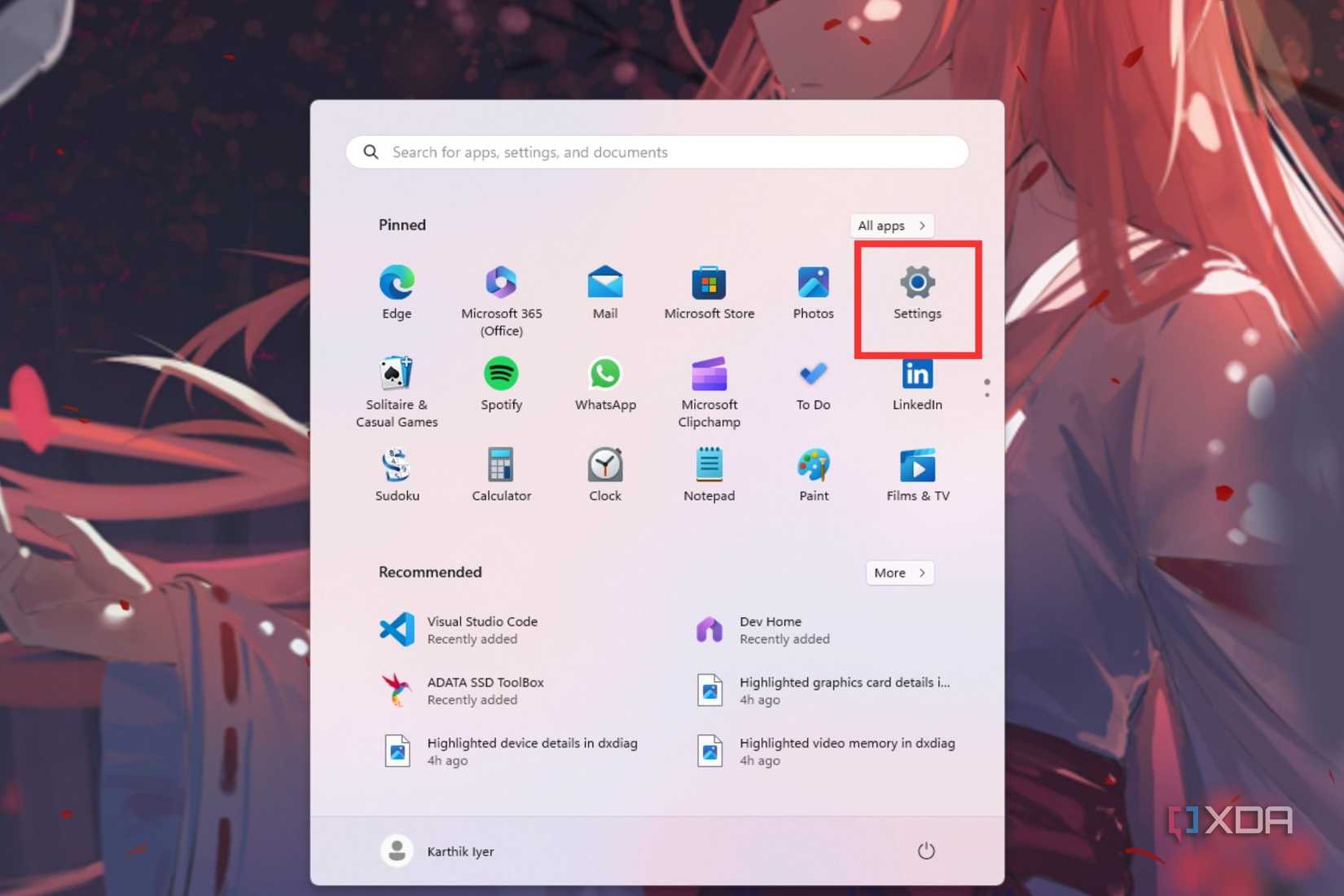
- Open the Windows Start menu and click on Settings.

- Select System from the left sidebar menu and choose Display.

- Select the Graphics option that’s located under Related settings.

- Select Desktop app from the dropdown menu and click on Browse.

- Head into the directory where you installed Visual Studio Code to find and select it.

- With Visual Studio Code selected, click Options to select the preferred graphics processor for this application.

- Select High performance and click Save.



You can restart Visual Studio Code, which should now use the GPU and its resources for processing.
Troubleshooting GPU acceleration
If you open VS Code and see blank windows, it could mean that the program is having issues with your GPU’s acceleration. If so, try disabling GPU acceleration when launching the program by putting the following command-line switch when you launch.
code --disable-gpu
That will launch VS Code without GPU acceleration, so you can test if that’s the issue or not.

Related
How to use your GPU in Jupyter Notebook
Speed up your machine learning algorithms by running them on your graphics card in Jupyter Notebook
Enable GPU acceleration in Visual Studio Code Terminal
Supercharge your integrated Terminal sessions with a few simple steps
You can also enable GPU acceleration within the Visual Studio Code Terminal, which makes running your code and other tasks smoother. It’s quick to get it GPU-accelerated, with only a few clicks to complete the process.
- Open Visual Studio Code and select the Settings icon.

- Select Settings from the pop-up menu.

- Type GPU in the Search box on the Settings tab.

- Locate the Terminal > Integrated: Gpu Acceleration option.

- Select On from the dropdown menu to enable GPU acceleration within the terminal.


Now, your Terminal sessions will be smoother, as you won’t have to rely on the software-based rendering engine.

Related
5 tips and tricks for improving Windows Terminal
You can make use of Windows Terminal like a pro
What you can use your GPU power for
From Machine Learning to game optimization, GPU acceleration is key
GPUs are perfect for crunching through large data sets used for 3D modeling, AI, Machine Learning, and other tasks. That’s because, instead of a few CPU cores running at high frequencies, graphics cards can have thousands of cores at lower clocks to process your data. They’re also set up for parallel computing tasks, making some functions happen faster than if they ran on a CPU. If the projects you’re working on in VS Code can take advantage of GPU acceleration, you should always opt to use it. You’re just making things harder and slower for you if you don’t.

Some common application development environments that work in VS Code include Nvidia Nsight, which brings powerful CUDA development into your editor, and AMD Radeon GPU Analyzer, which is an offline compiler and performance analysis tool for many common graphical APIs. And you can head to the VS Code Marketplace for so many more plugins and extensions to build out the development environment that you need without having to install things you won’t be using.

Accelerate Visual Studio Code performance in just a few steps
Enabling the program setting to utilize the GPU in Visual Studio Code is fairly simple. It’s better to stick with GPU processing for source code editors and other similar tools that involve graphics processing. It’s also important to ensure you’re using a dedicated GPU for processing, as these tools often default to an integrated graphics processor, which will not perform as well. Thankfully, tools like Visual Studio Code have better GPU support than something like VirtualBox, so you won’t struggle to set things up and get started with your work.

Related
How to install VS Code on Ubuntu
You don’t need to run Windows to use Microsoft’s Visual Studio Code (VS Code). You can install it on Ubuntu in a few steps.
#GPU #Visual #Studio #Code
source: https://www.xda-developers.com/how-use-gpu-visual-studio-code/


