

One of the biggest advantages of getting a gaming PC over a console is pushing relatively higher frames per second (FPS) in games. Pair a high-end gaming PC that can push frame rates as high as possible with one of the best gaming monitors out there with support for high refresh rates, and you’re looking at a solid gaming setup. However, it always helps to know how many frames you’re getting in order to be able to optimize the graphical settings and strike a good balance between visuals and performance.
Fortunately, there are a lot of ways to check and monitor the FPS on every game you play on your PC. Some of these methods are more straightforward than others, but they all end up helping you achieve the same goal.
Related
4 settings I first tweak when optimizing game performance on a PC
It’s important to flick the right switches to get good game performance
How to see the FPS using Xbox Game Bar
Works universally for all games on Windows
Microsoft’s Xbox Game Bar, which is available on Windows 11 and 10, is a multi-purpose tool that also includes a FPS counter that works with pretty much all games you can play on your PC. It’s also the fastest and easiest method to see the FPS counter while you are playing a game.
- Press Win + G to open the Xbox Game Bar overlay.
- By default, you’ll see the FPS counter below the CPU, GPU, VRAM, and RAM usage metrics in a separate window.
- If the FPS counter is still not visible, click on the Performance button at the top of the screen.


Since the performance window with the FPS counter shows up as a part of the overlay, it will disappear when you try to get back into the game. This means you’ll have to bring up the overlay multiple times if you want to tweak your graphic settings. Fortunately, you have the option to pin the FPS counter anywhere on the screen.
In order to pin the FPS counter where you want it, follow these steps:
- Click and hold the left mouse button on the Performance window (or an empty area at the top of the window) and drag the FPS counter around the screen.
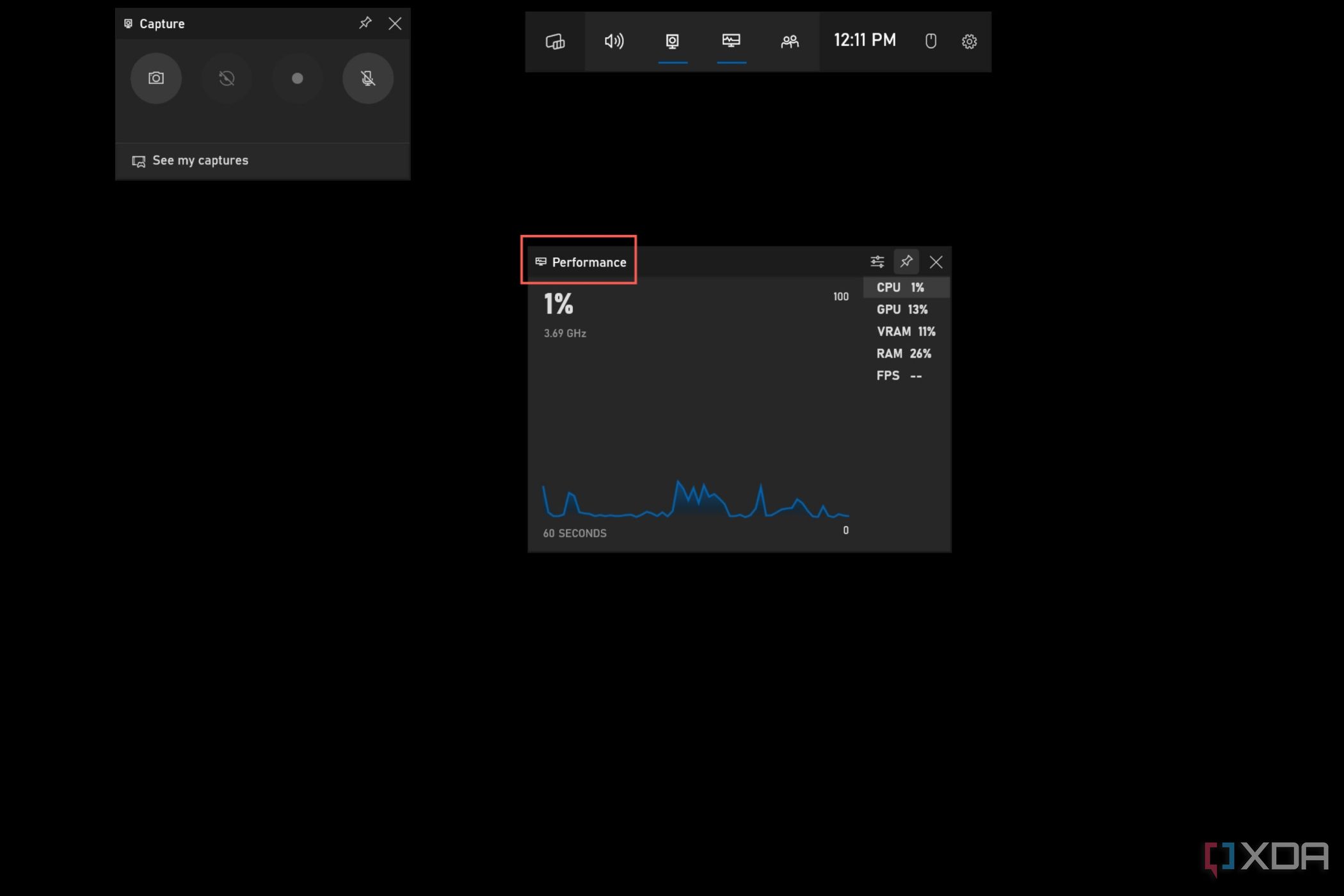
- Click on the Pin button after you’ve placed the FPS counter in the desired position.
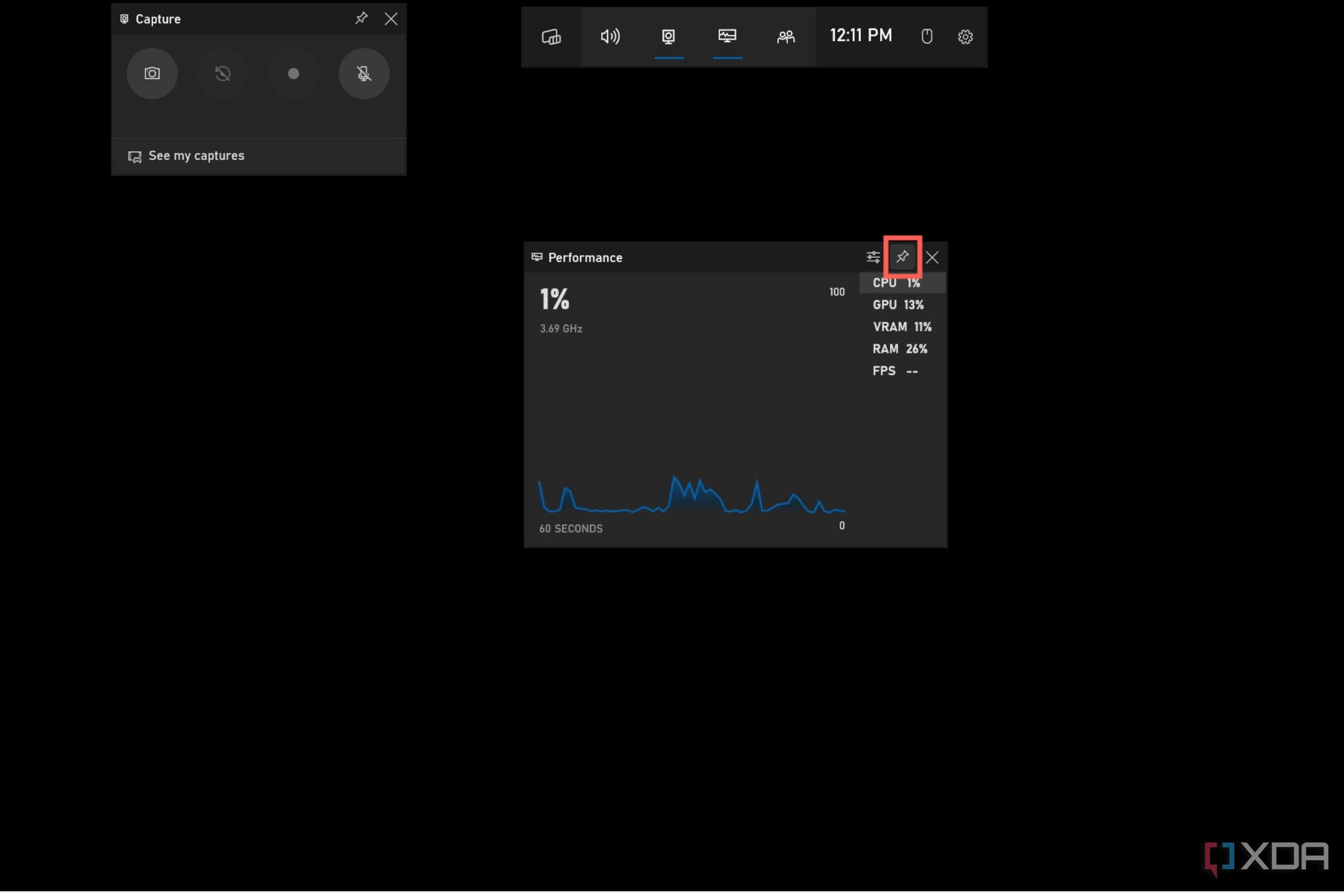


You can then hover the cursor over the window to reveal an arrow, which you can click to collapse the expanded window for a compact view of the metrics without the full graph.

Customizing the Xbox Game Bar FPS counter
The Xbox Game Bar also allows you to set the transparency and accent colors of the FPS counter. To customize it, follow the steps below.
- Click on the Performance options button at the top of the FPS counter window.
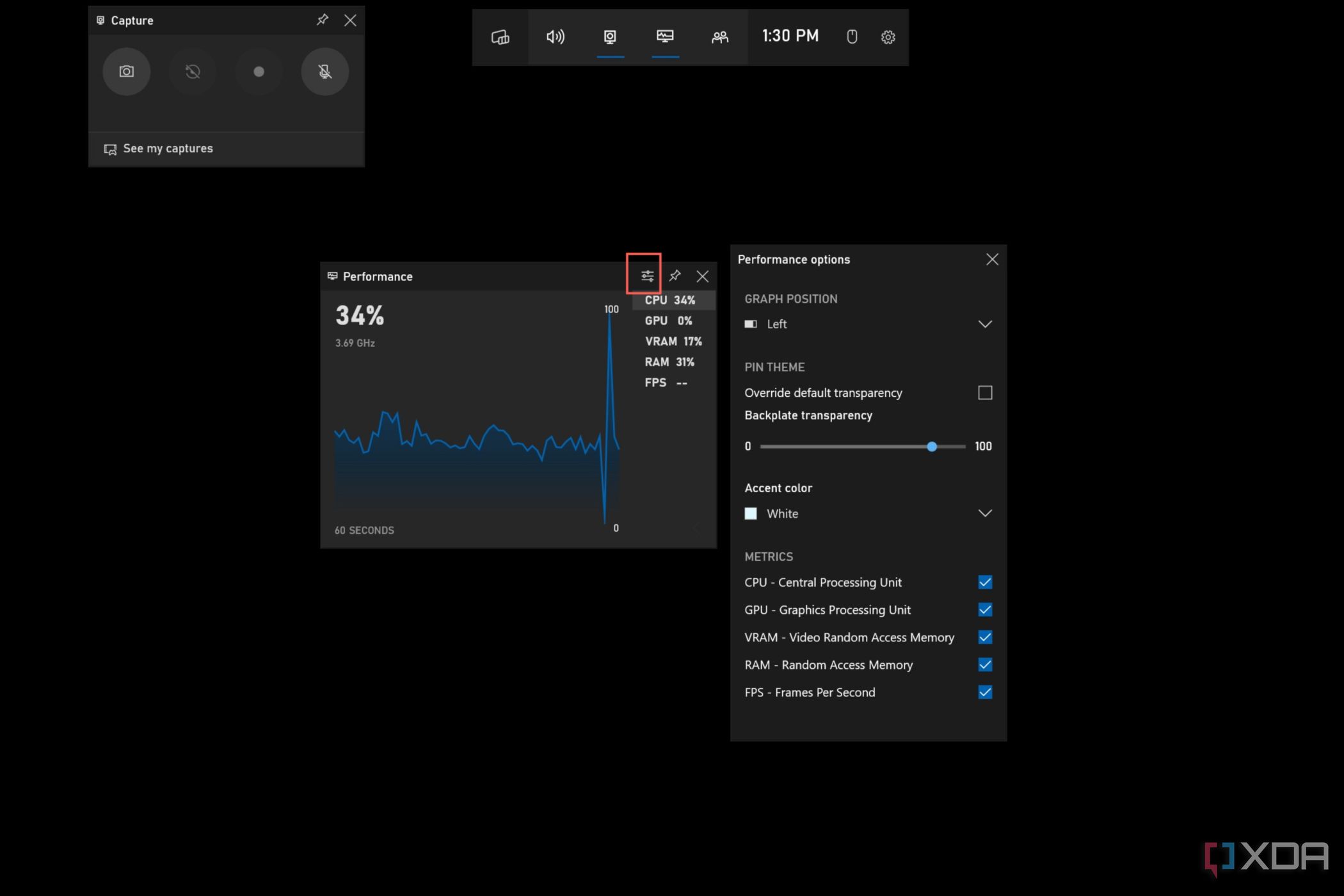
- A pop-up menu displaying the accent colors, transparency, and metrics options will show up on your screen for you to adjust.

How to see the FPS using Steam’s FPS Counter
Works even for games from outside Steam’s marketplace
Steam’s desktop application allows you to keep an eye on the frame rates of your favorite games with its in-game overlay. And yes, you can use Steam’s FPS counter even for games that you download from other sources, simply by adding them to your library and launching them via Steam. To enable Steam’s FPS counter for all games on your system:
- Launch the Steam app on your PC and click the Steam button located in the top left corner.
- Choose Settings to open a pop-up menu.
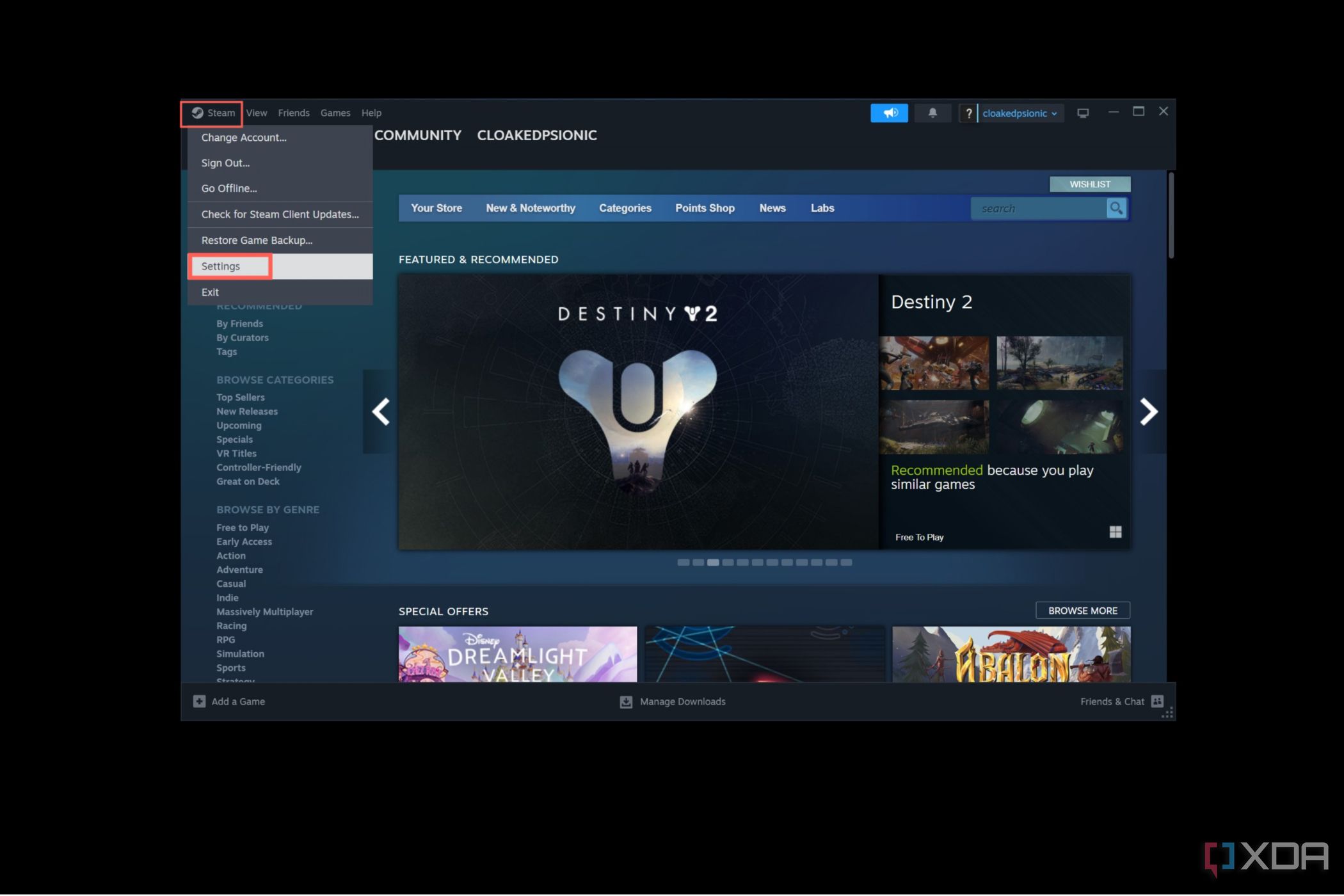
- Select the In Game tab and click the Enable the Steam Overlay while in-game toggle to enable it.
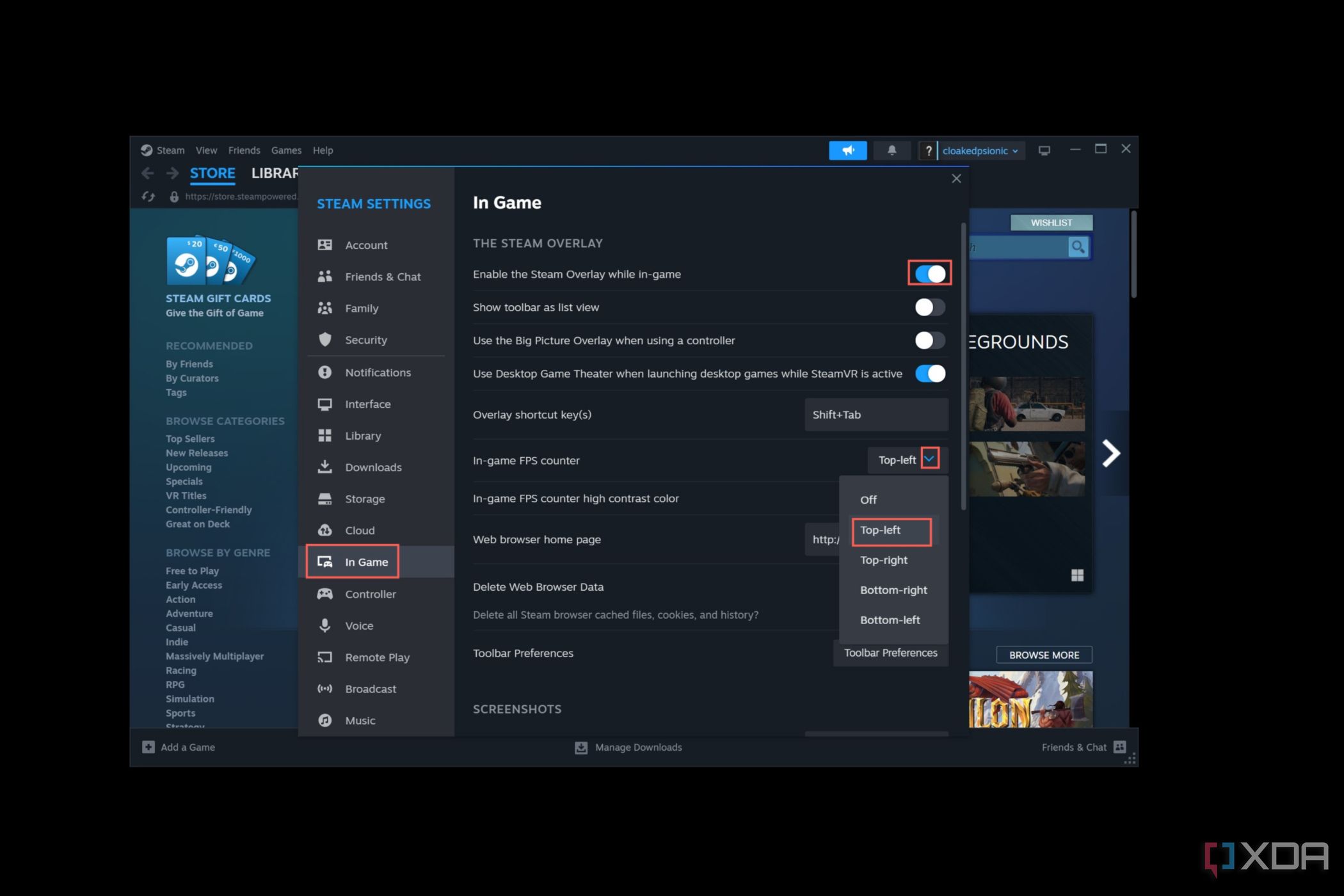
- Click on the drop-down arrow next to the In-game FPS counter setting and position it at any corner of the screen.
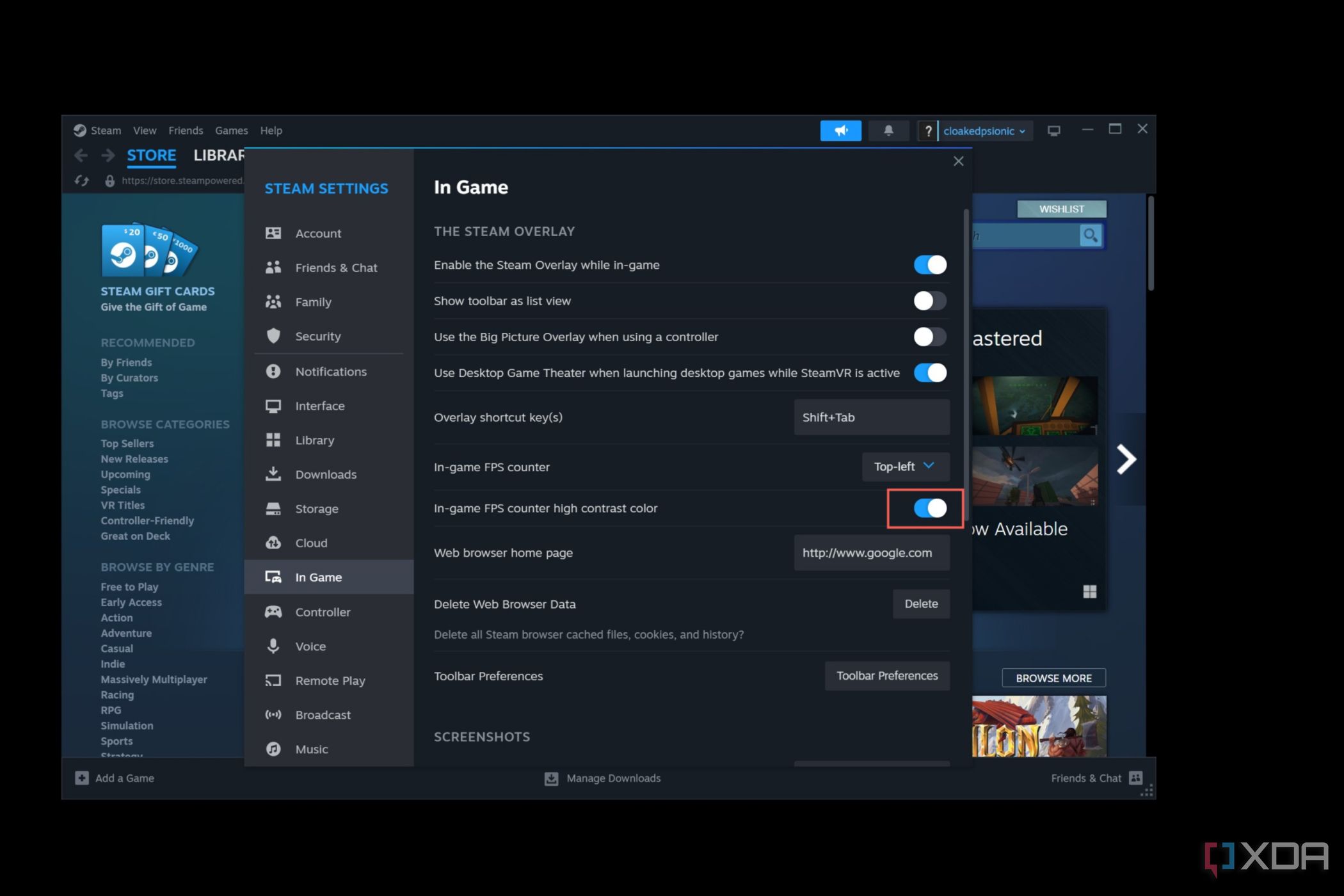
- (Optional) Enable the In-game FPS counter high contrast color toggle. As its name suggests, this setting will make the counter more visible by displaying it in higher contrast colors.


How to see the FPS using Rivatuner Statistics Server
One of the best third-party solutions
Rivatuner Statistics Server is an add-on for MSI Afterburner, a third-party software designed to offer extensive overclocking options for your PC. Unlike Steam’s overlay, RTSS provides multiple options to customize the on-screen display, making it perfect if you want to keep an eye on your CPU and GPU temperature, voltage, clock speed, and other metrics. However, you’ll have to go through a series of steps before you can enable real-time FPS monitoring with RTSS.
Installing MSI Afterburner
Since the latest version of Rivatuner Statistics Server is built into MSI Afterburner, you’ll have to install the latter if you want to use RTSS to keep track of your frame rates.
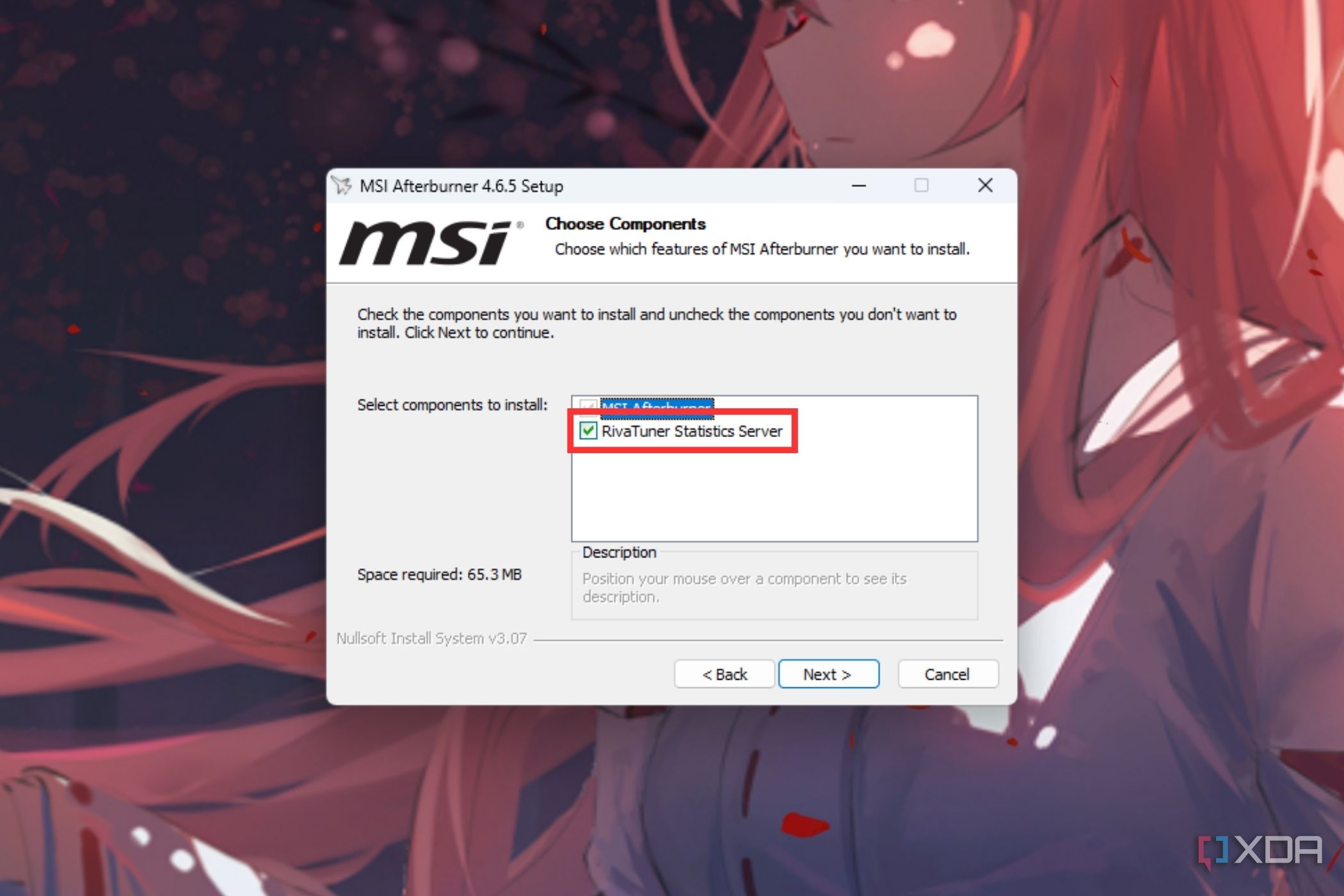
- Download MSI Afterburner from the official website and run the setup file after extracting it.
- Toggle the Rivatuner Statistics Server checkbox during the setup procedure and proceed with the installation.

Enabling Rivatuner Statistics Server
Once MSI Afterburner is set up, you can go ahead and customize its overlay to enable frame rate monitoring per the below steps.
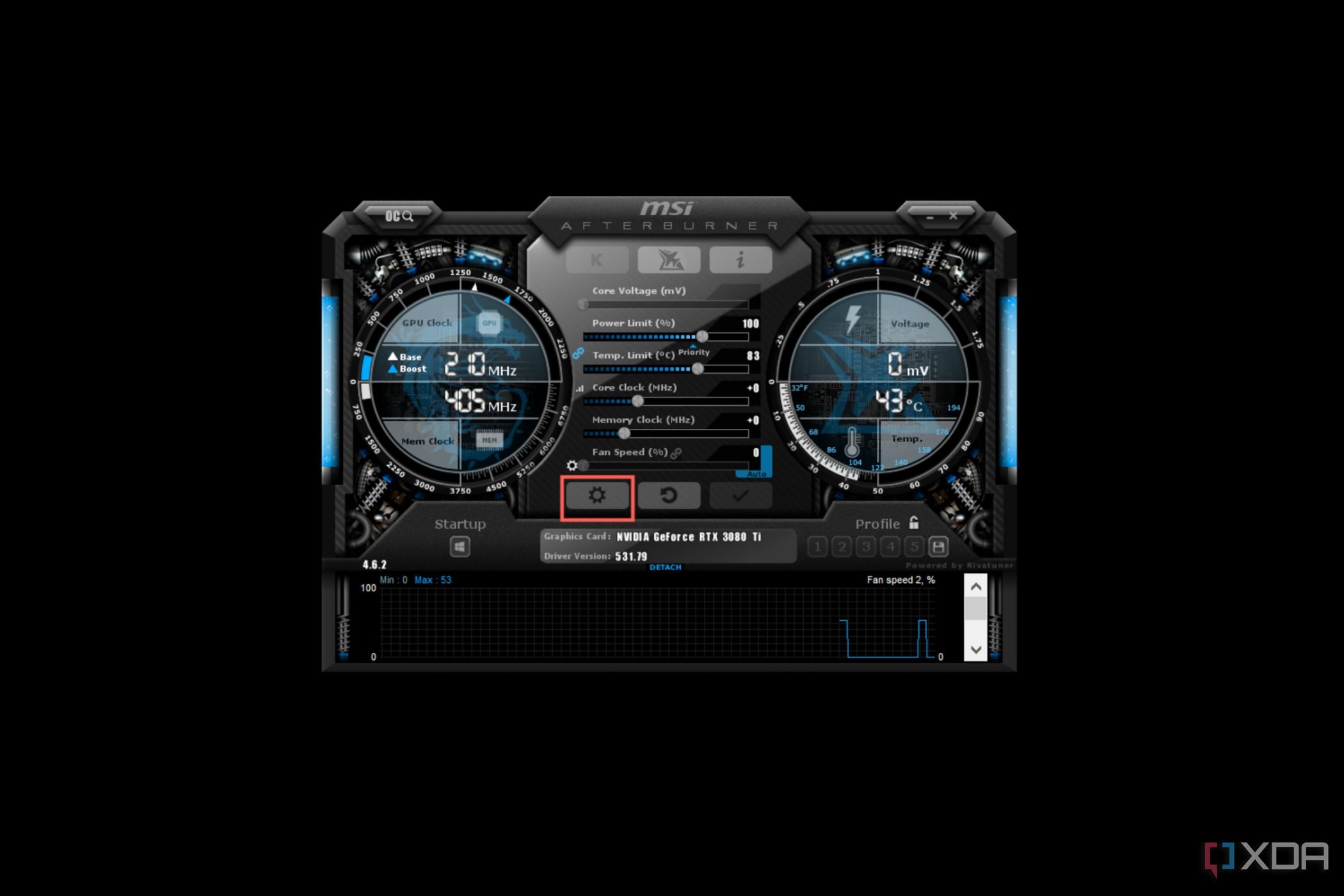
- Run MSIAfterburner.exe and click on the Settings icon.
- Head to the Monitoring tab and enable the Framerate option under the Active hardware monitoring graphs section.
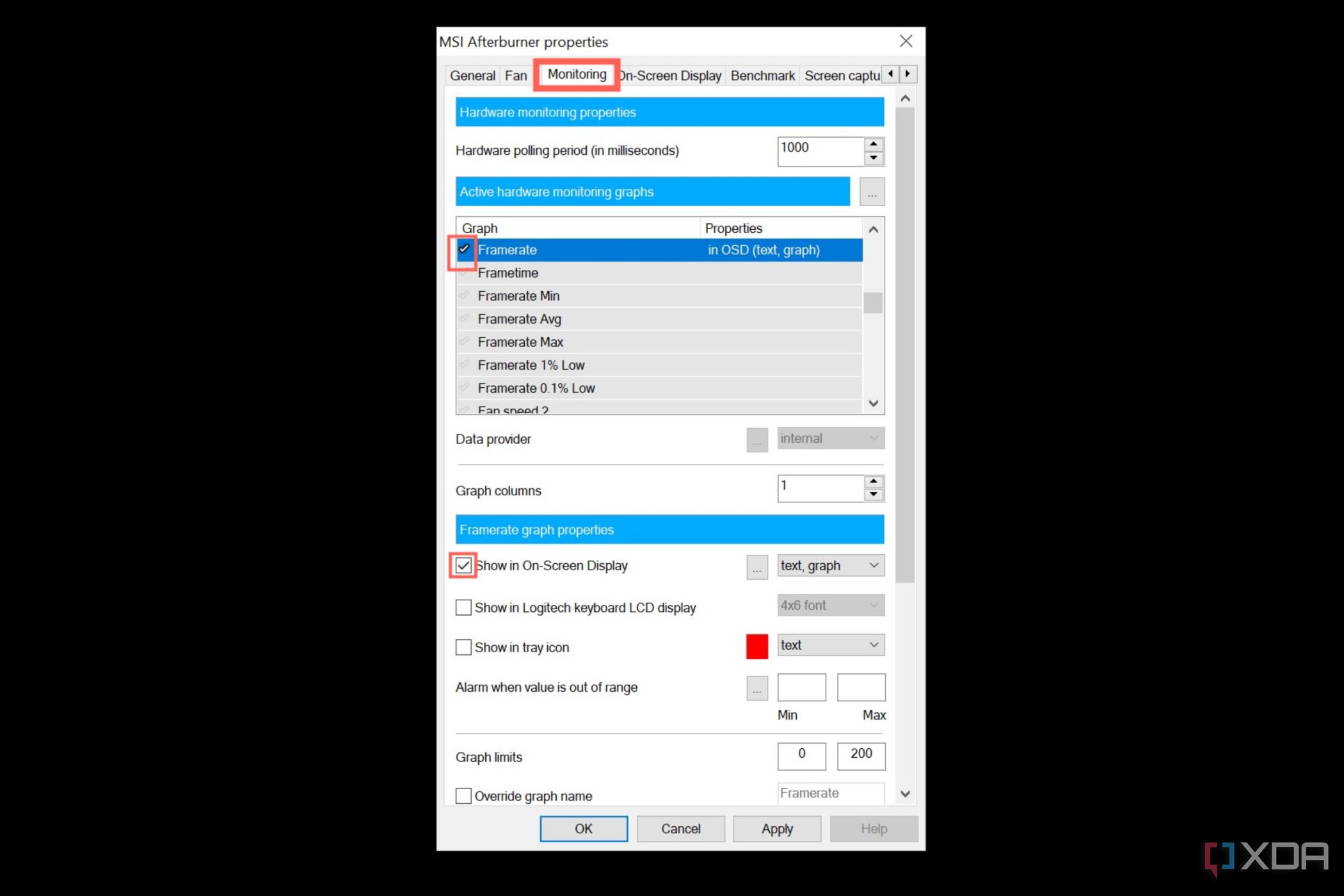
- Toggle the Show in On-Screen Display checkbox.
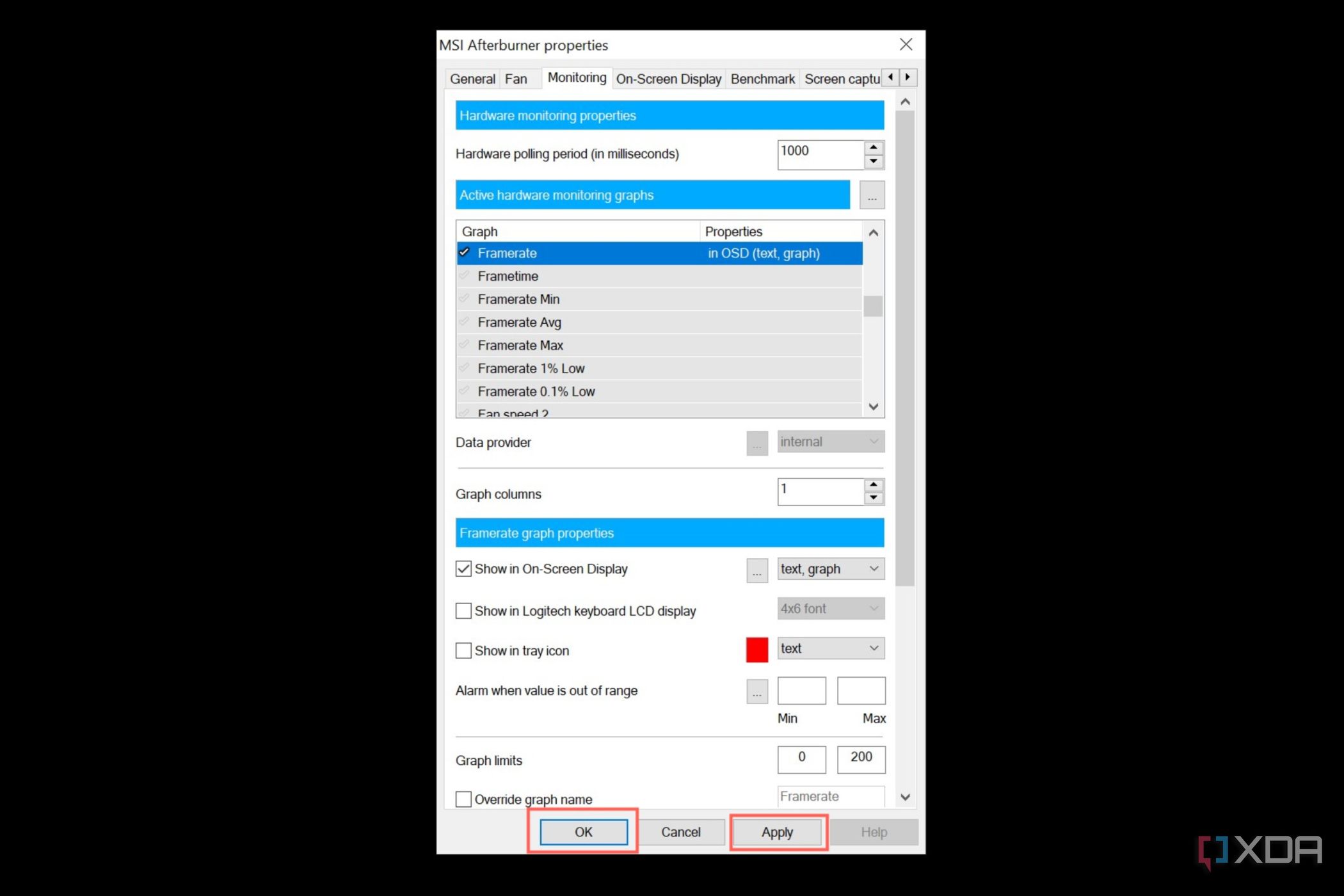
- Choose Apply and press OK to save your configuration.


How to see the FPS using Nvidia GeForce Experience
A simple solution for Nvidia GPU users
Nvidia’s GeForce Experience is a great utility that comes with a bunch of useful tools and features for those who use an Nvidia graphics card. It also allows you to enable an overlay, which you can use to see your FPS in games. Using GeForce Experience and enabling the overlay is fairly simple, so just update your drivers and follow the steps highlighted below carefully to turn on an FPS counter and other performance metrics overlay through GeForce Experience.
- Press Alt + Z to open the GeForce Experience overlay.
- Select the settings icon, then click on the HUD layout option.
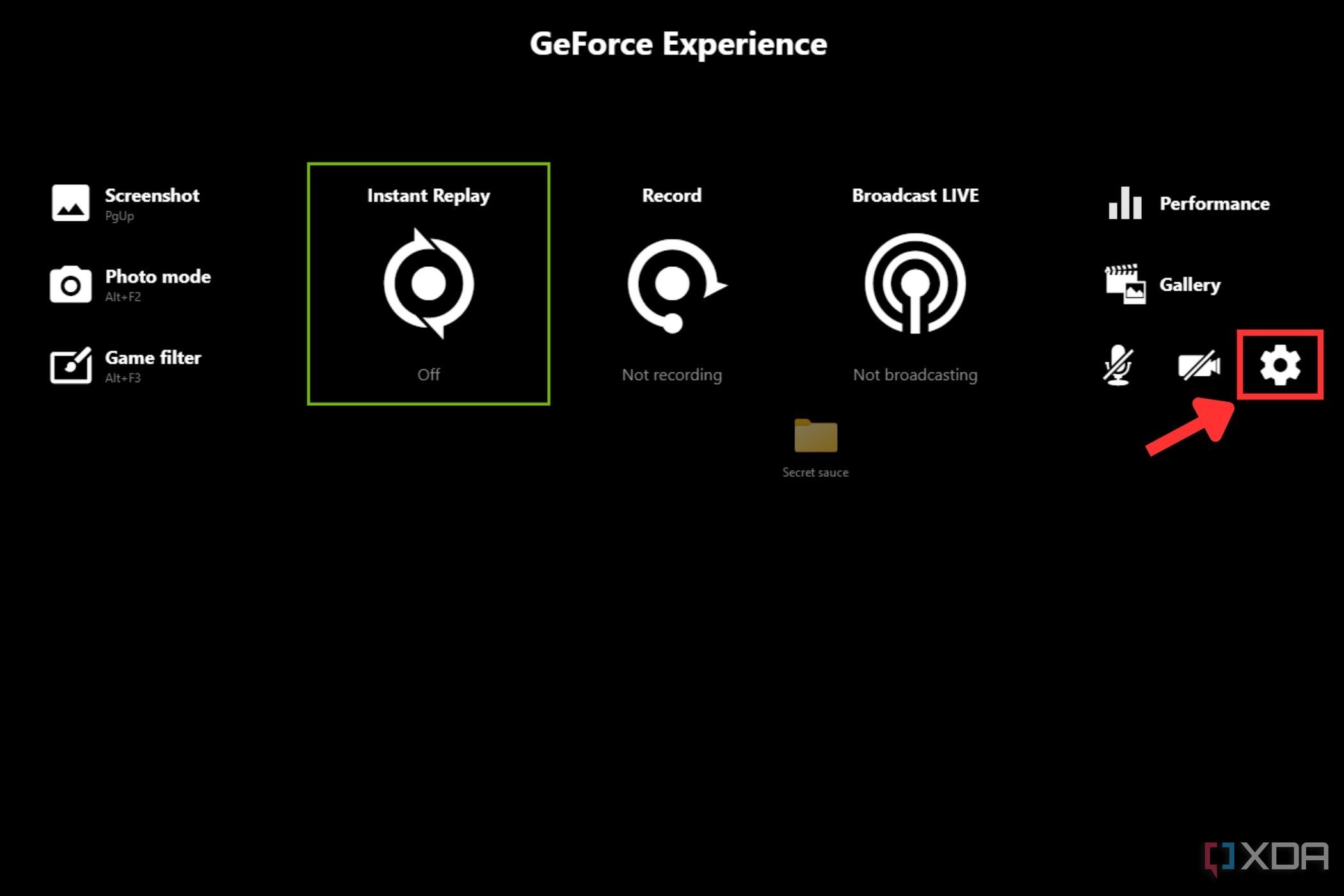
- Choose Performance and then select your desired position for the FPS overlay.

- Select FPS to see just your game’s frame rate, or pick Basic or Advanced to see additional performance metrics.


How to see the FPS using AMD Radeon Software
AMD’s GPU utility has a built-in counter too
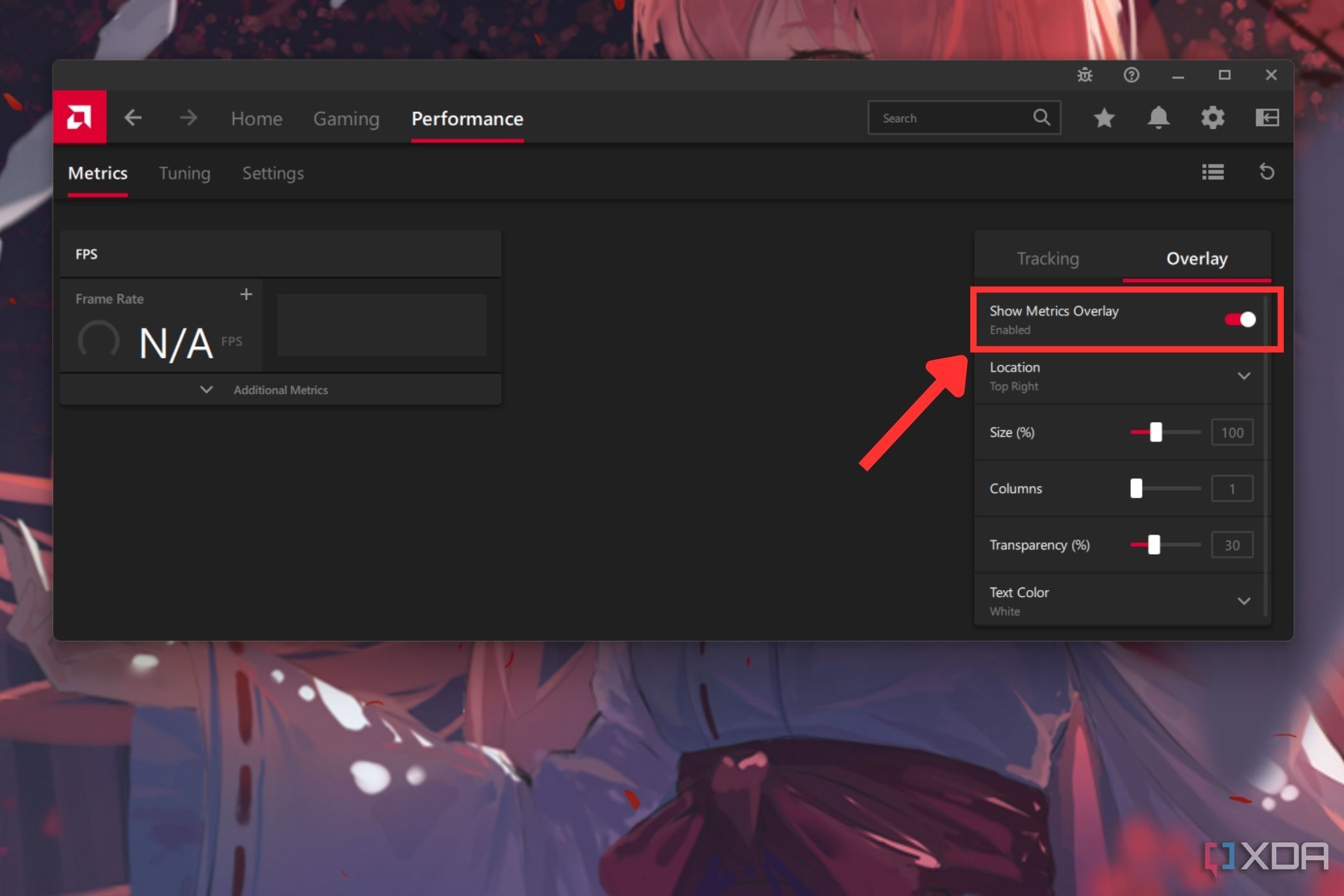
Those using an AMD graphics card can use the AMD Radeon software to display the frame rate counter while playing games. Enabling it is fairly simple and only takes a few steps.
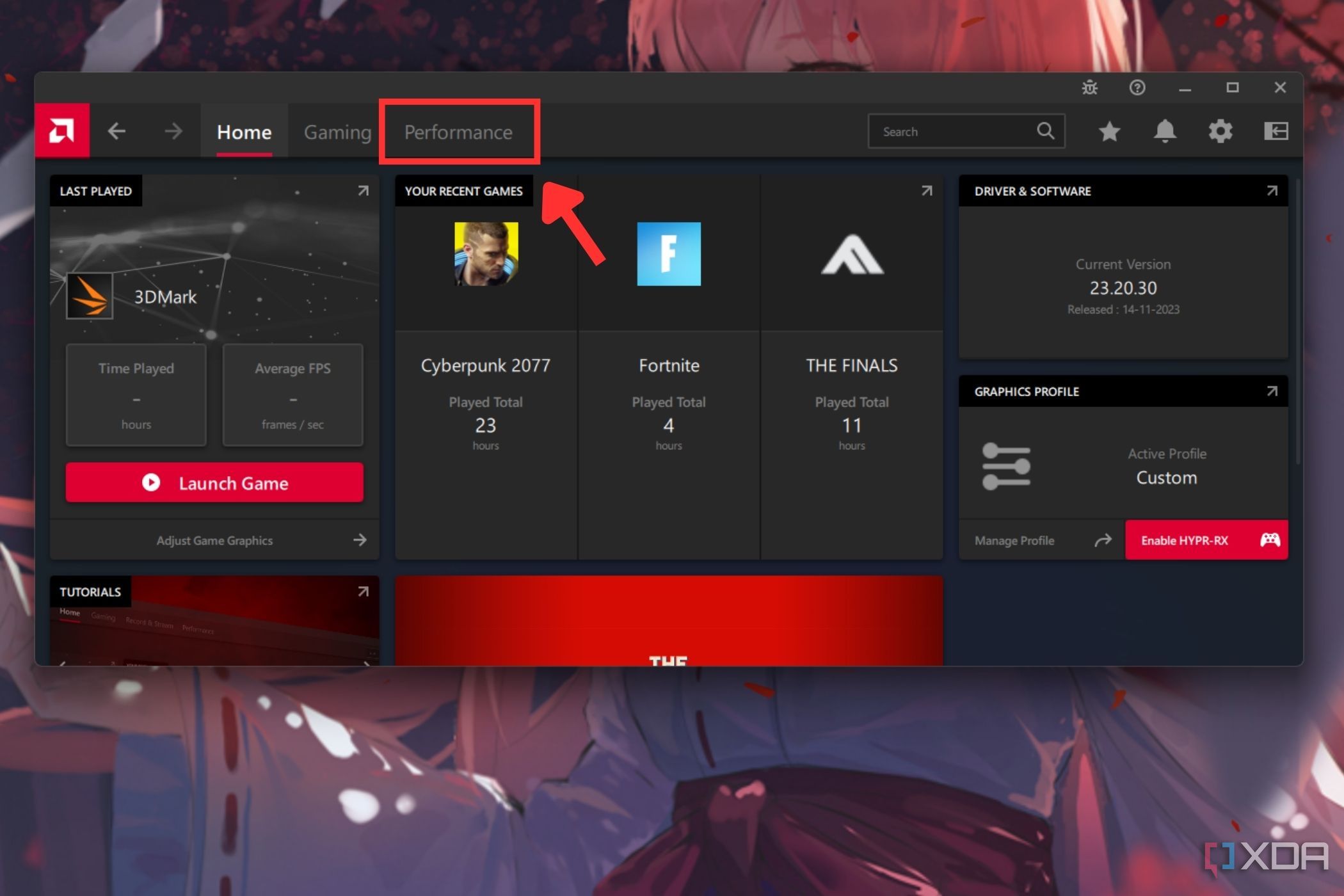
- Press Alt + R on your keyboard to launch AMD’s Adrenaline Software.
- Select the Performance tab at the top.
- Locate the Tracking tab on the right side and click on the eye icon next to the metrics that you want to see in the FPS overlay.

- Select the Overlay tab next to the Tracking tab, and click on the toggle next to the Show Metrics overlay option to enable the overlay.


Easily monitor the performance of your games
If you want a straightforward way to see your in-game FPS without all the hassle, Xbox Game Bar is the way to go. With that said, both AMD and Nvidia’s software utilities give you a more comprehensive performance overlay over all your games. If you need the most amount of control, the RivaTuner Statistics Server and MSI Afterburner combo is the best for fine-tuning your graphical and performance settings.
It’s also worth noting that a lot of games come with built-in FPS counters, which you can enable by heading into the game settings. If you feel your framerates are too low, there are several ways to get your GPU to perform better as well.
#FPS #games
source: https://www.xda-developers.com/how-see-fps-games/


