

SSDs have replaced the archaic mechanical hard drives for the most part, and they’re readily available on the market now. They come in a variety of shapes, sizes, and connectors, which makes choosing the right SSD for your motherboard a bit tricky. An incompatible SSD can be too fast, too slow, or simply not work. To avoid this frustration and save money, let’s dive into M.2 SSD compatibility and ensure you get the perfect drive for your build.
Related
Best SSDs in 2024
From 2.5-inch SATA drives to more advanced M.2 NVMe drives, these are the best solid-state drives you can buy right now.
What are M.2, SATA, PCIe, and NVMe?
Different interfaces and communication protocols
First, let’s clear up all the technical jargon you might come across. SATA is the older, slower interface used by both HDDs and SSDs. Older SSDs that come in the 2.5-inch size exclusively use the SATA 3 interface, which runs at a meager 6GB/s (600MB/s). The PCIe interface is much faster, with PCIe Gen 5 SSDs supporting up to a staggering 14,000MB/s.
M.2 is an expansion slot for various components, not just the SSD. For example, there are M.2 Wi-Fi cards, Bluetooth cards, and Ethernet adapters. M.2 slots can use either of the two interfaces, depending on how expensive and newer your motherboard is. SATA M.2 slots are cheaper and slower than PCIe M.2 slots, but both interfaces support an SSD. PCIe M.2 slots use NVMe, which is a communication protocol that leverages the increased bandwidth to support faster NVMe SSDs, which isn’t present in SATA M.2 slots.
Whatever interface you choose, the one on the SSD needs to match the M.2’s for it to work. Unless your PC slots support dual-mode, a SATA M.2 SSD will only work in a SATA M.2, and an NVME SSD will only work in a PCIe M.2.
M.2 connector shapes
Understanding the B & M keys
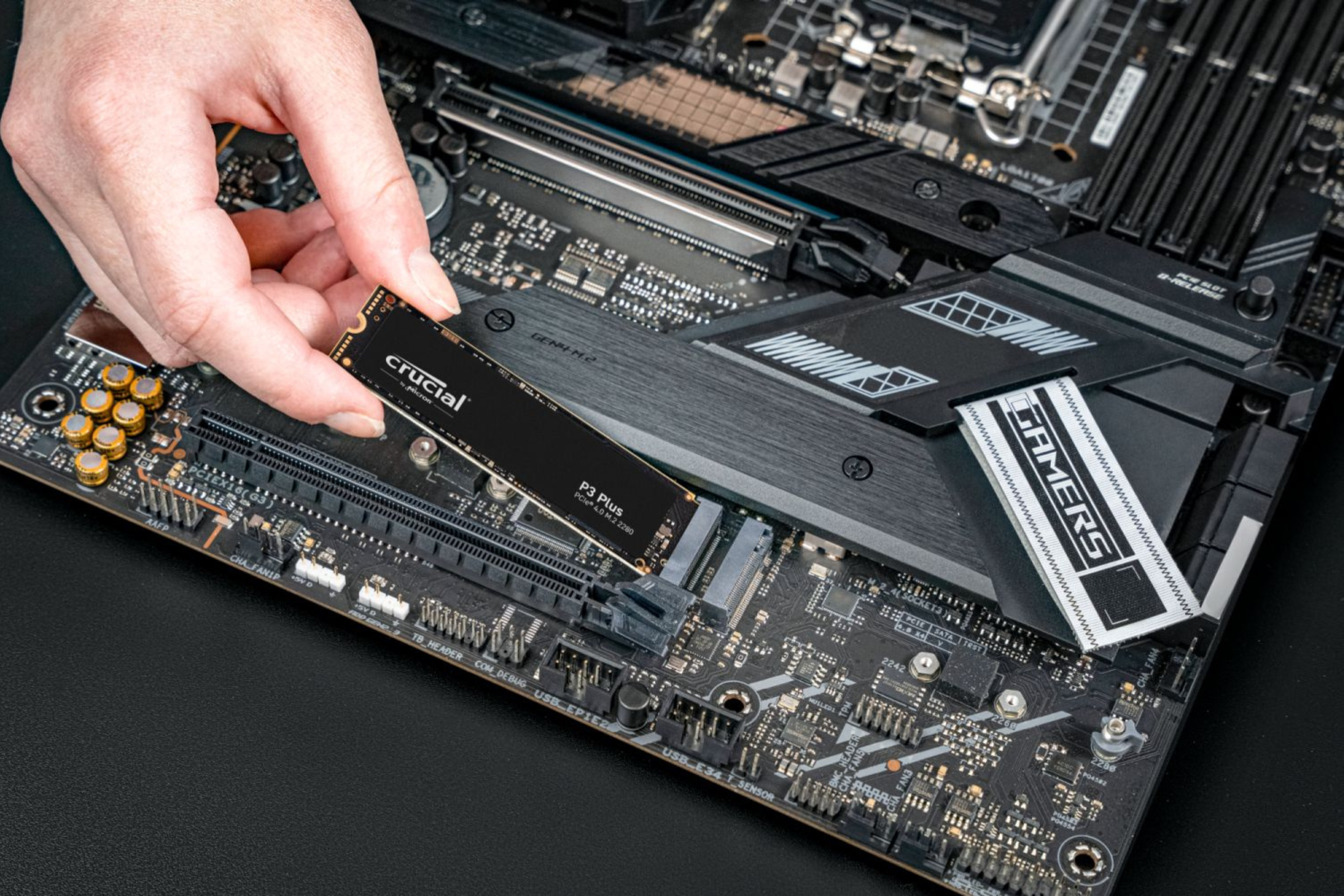
M.2 SSDs have indents at certain positions on the end of the metal pins. Similarly, the M.2 slots also have matching protrusions at certain positions. These indents and protrusions are called keys. There are two positions for these keys: B and M. When an M.2 slot is viewed from the front with the pins visible, the slot with the B-key specification will have a protrusion on the left side, and the one with the M-key specification will have a protrusion on the right side of the slot.
M.2 slots with the B-key specification are exclusively SATA M.2, whereas slots with M-key specification can either be exclusively PCIe M.2 or might support SATA if it’s dual-mode. Like the slots, SATA M.2 SSDs are keyed at both M and B positions, so they can fit in SATA and PCIe M.2 slots, even if they might not work in the latter. NVMe SSDs are keyed only in the M position, which means they can fit in the PCIe M.2 slot since the slot has a matching protrusion at the M position. However, NVMe SSDs can’t fit into the SATA M.2 slot due to the protrusion in the slot at the B position, for which there is no indent in the NMVe SSD.
Since an NVMe SSD will never work on a SATA M.2 slot, if an SSD doesn’t fit into the M.2 slot, it’s a good indicator that your M.2 SSD uses a newer interface that is incompatible with your motherboard’s older interface. Even if you rotate the SSD upside down, it won’t fit since both the B and M keys aren’t contralateral.
A breakdown of all the M.2 SSD sizes
Various sizes of an M.2 SSD
Once you pick the SSD with the right connector shape, you have to make sure the length of the SSD is enough for the space in your PC. Most desktop motherboards, except for some mini-ITX motherboards, have ample space for even the longest M.2 SSD. Laptop users, in particular, have to make sure that they pick the SSD that can easily fit inside their laptop’s M.2 slot. Here’s a table of all the M.2 SSD sizes commonly in use:
| M.2 Size | Length (mm) |
| 22110 | 110 |
| 2280 | 80 |
| 2260 | 60 |
| 2242 | 42 |
| 2230 | 30 |
If these sizes confuse you, there is a simple rule of thumb to remember these names and lengths. The first two digits in the size denote the width of the SSD, which is 22mm and is the same for all sizes. The last two or three digits denote the length. So, a 2280 M.2 SSD is 22mm wide and 80mm long.
Since a longer M.2 SSD has more physical space, 2260, 2280, and 22110-sized SSDs can reach a higher max storage capacity. Smaller sizes often have to cut some corners due to physical restraints, which can mean a smaller or no cache or smaller maximum storage capacity. These are also more expensive than longer SSDs, so always try to go for the largest size of SSD your motherboard can support.
How to check M.2 SSD compatibility
Using the motherboard’s specifications
It’s pretty easy to check what M.2 interface your motherboard supports and the maximum length of SSD that can fit in it.
- On Windows, search for Dxdiag.
- Open the application.
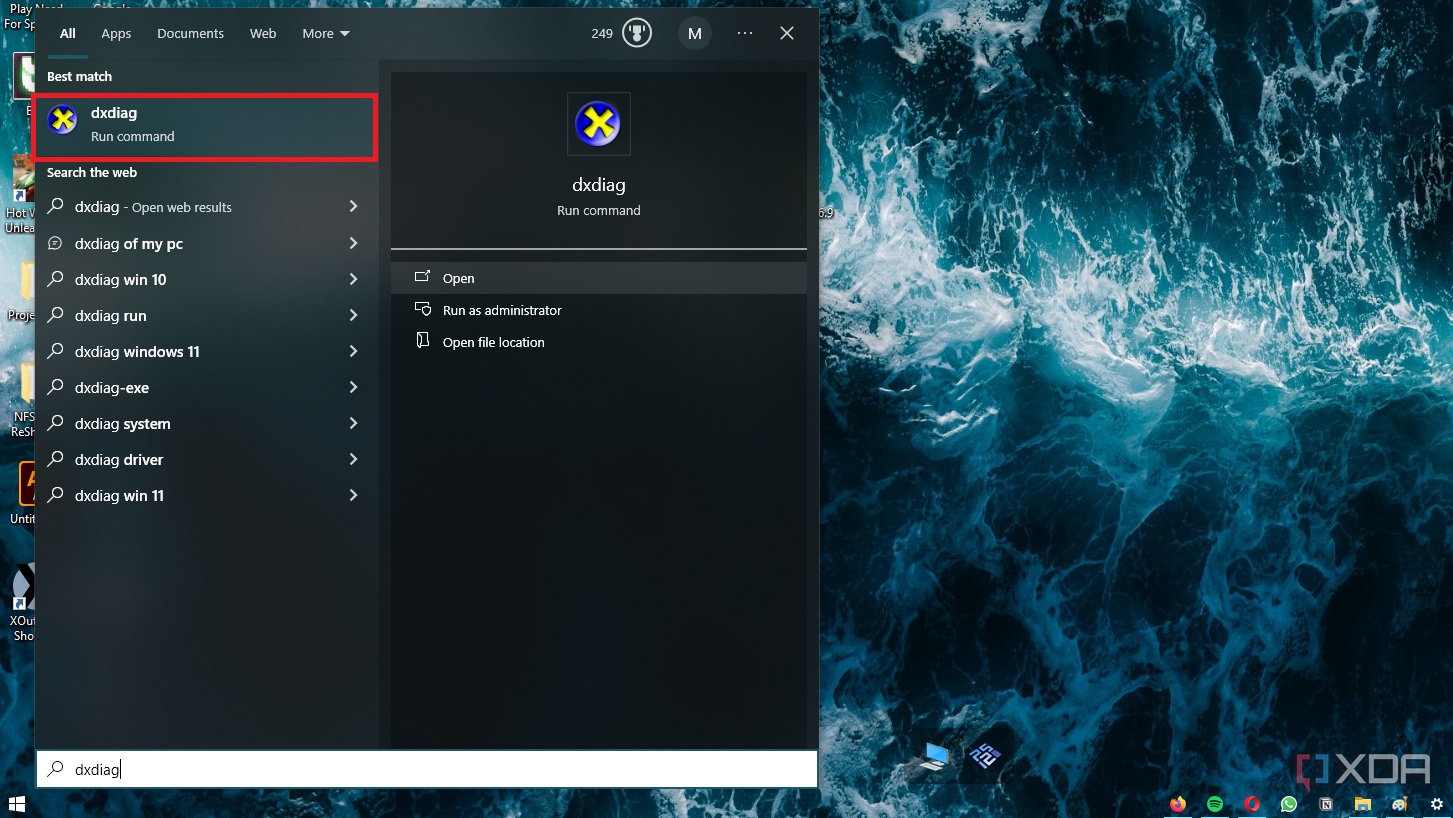
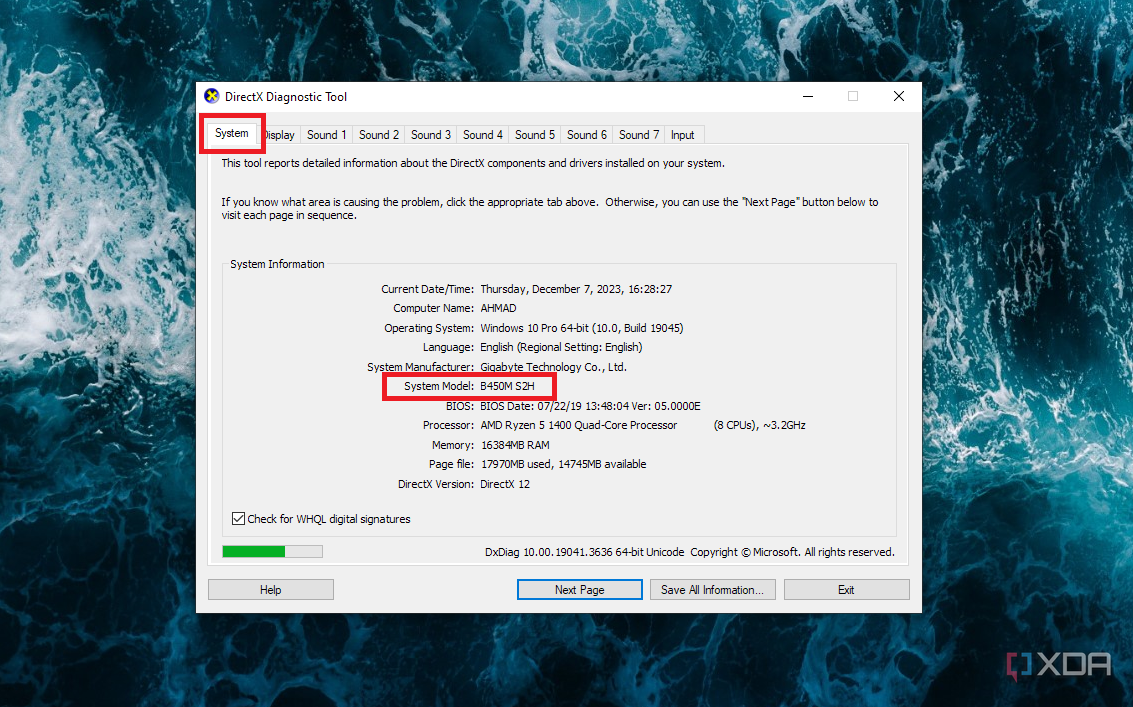
- Under the System tab, you can find the name of your motherboard next to the System Model.
- Open your favorite browser.
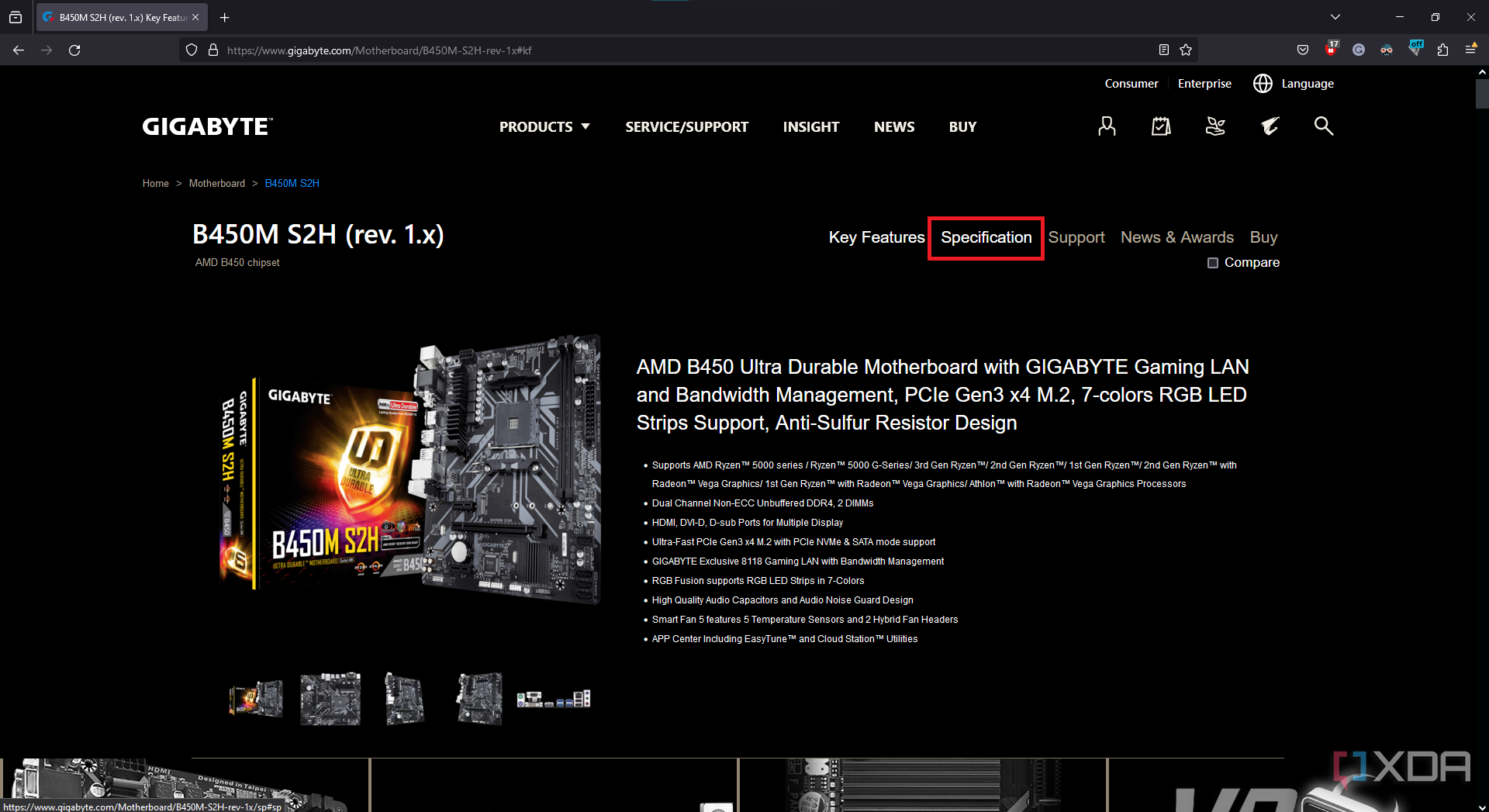
- Search for your motherboard model. For example: Gigabyte B450 S2h.
- Choose the search result for your motherboard manufacturer’s site. (It should be the first or the second result that shows up.)
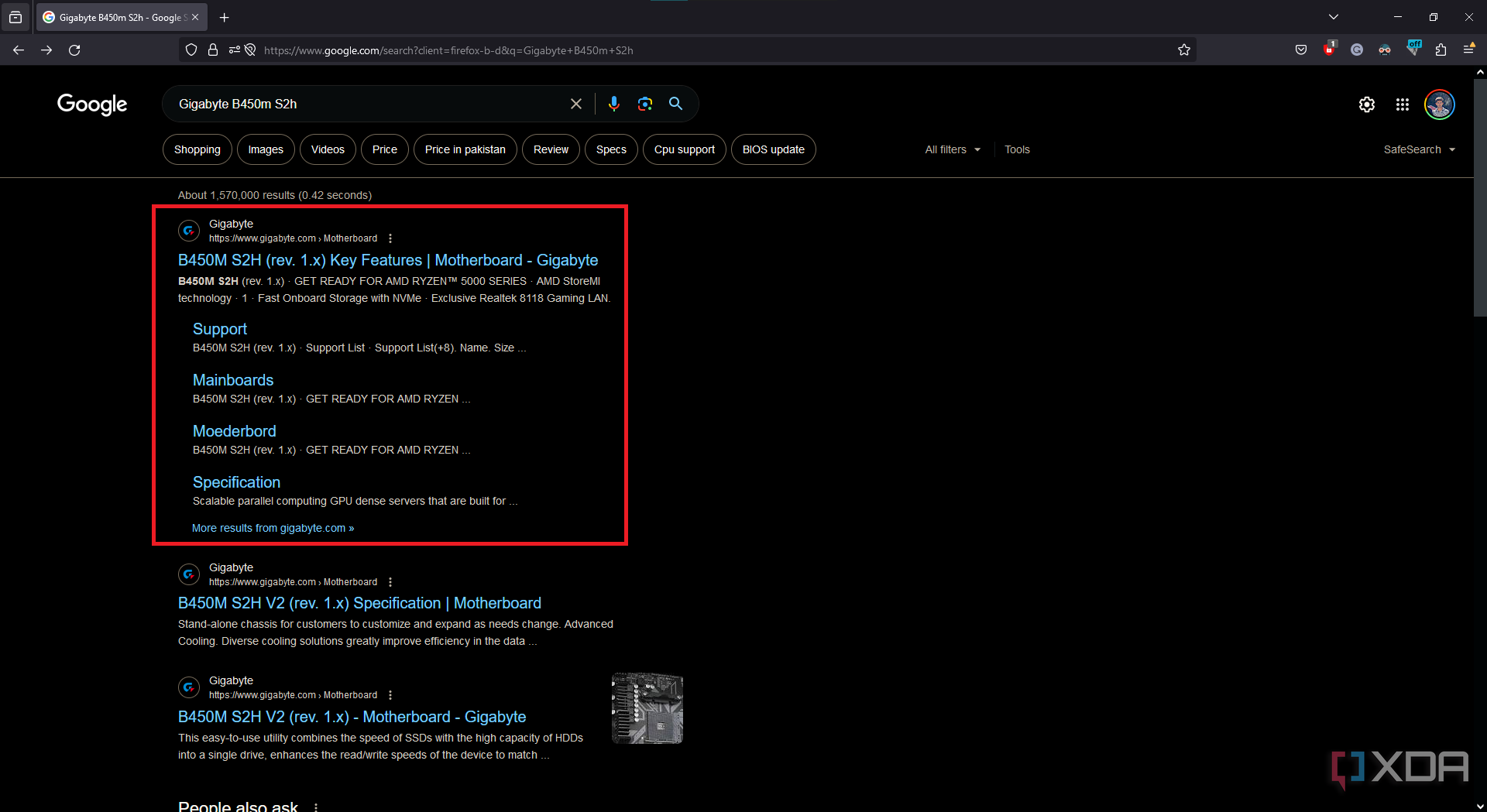
- Search for the specifications section on the motherboard manufacturer’s website and click on it.
- Here, you’ll find the exact specs of the M.2 slot on your motherboard, from its interface and dual-mode support to the maximum length of an M.2 SSD it can fit. My motherboard supports NVMe SSD since it’s M-key and uses the PCIe interface. It supports 42mm, 60mm, and 80mm lengths of SSDs and can also work with SATA M.2 SSDs.
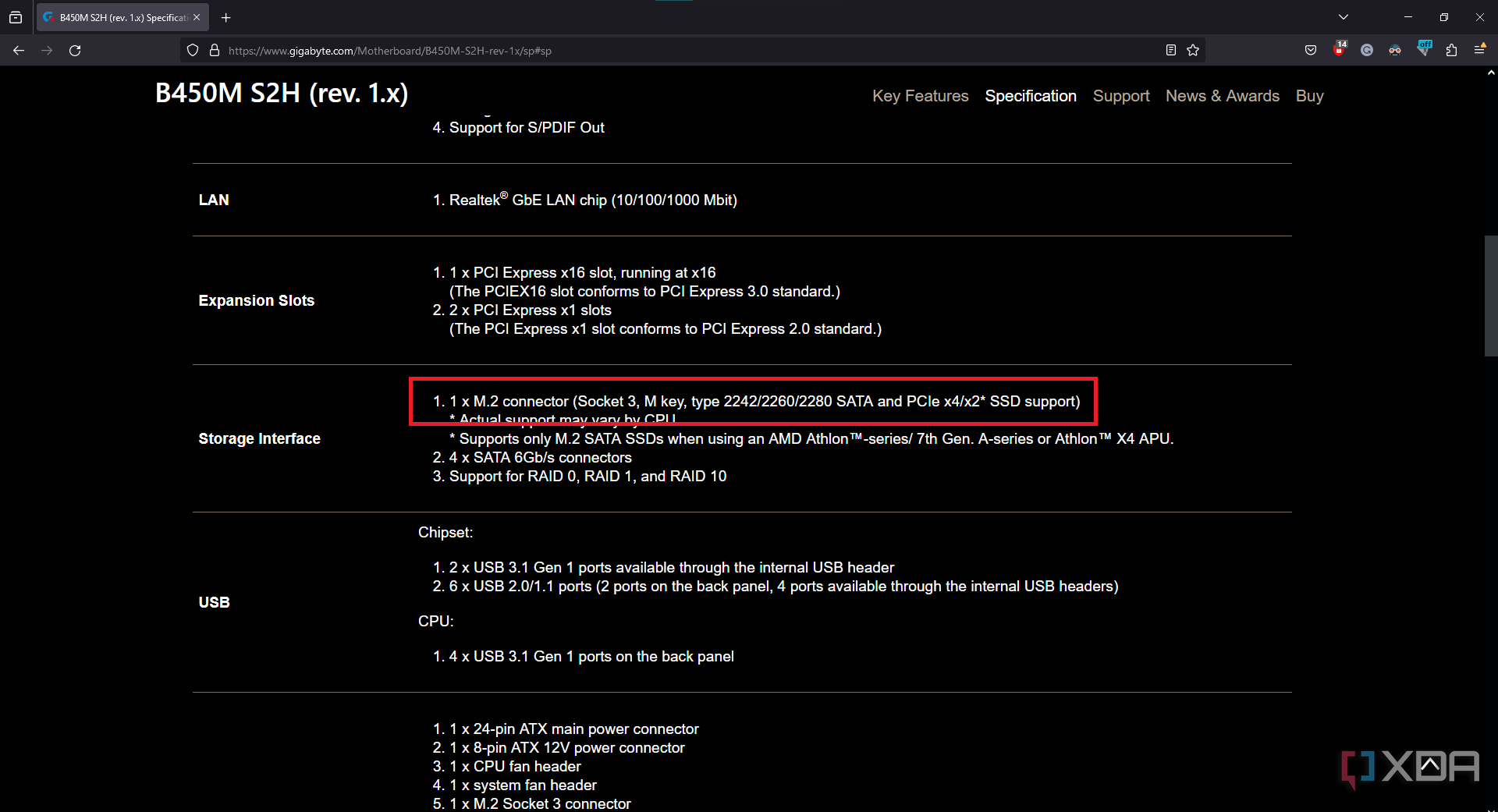


The specification sheet of your motherboard will tell you all you need to know about the M.2 slot of your motherboard. When you purchase an M.2 SSD, make sure to compare its specifications with your motherboard’s, so you pick the correct SSD for your PC.
Don’t buy the wrong SSD for your PC
There’s no shortage of SSDs out there on the market, and you’re bound to find something to your liking. It is, however, important to choose the right M.2 drive for your motherboard. Finding a compatible SSD may seem like a herculean task, but it isn’t complicated. A little research goes a long way in ensuring your new parts work seamlessly together. Upgrading to an SSD is one of the best ways to boost your PC’s performance. There’s no better time than now to ditch that old hard drive and embrace the speed and efficiency of an SSD.
#M.2 #SSD #compatible #motherboard
source: https://www.xda-developers.com/m2-ssd-compatible-with-motherboard/


