

Building a new PC can be a fun and perhaps somewhat daunting process if you’re doing it for the first time. Even if you run into some challenges, it’s usually worth it for the feeling of turning it on for the first time knowing you have a faster (presumably) better experience waiting for you. Then there’s that moment when you realize you still have to install an operating system, such as Windows 11.
Fortunately, installing Windows 11 is the easiest part of putting together a new PC. I say that because there’s no intricate assembly required for this step. It’s simply a matter of following the on-screen instructions. As long as you have the right tools and follow the steps below, you’ll be up and running in no time. Just be prepared for the installation to take a little while.
Here’s what you need
There are four things you’ll need to install Windows 11:
- An internet connection
- An empty USB flash drive that’s at least 8GB in size
- A third-party tool like Rufus or similar (optional)
- A separate computer that’s already functional
It’s a fairly short list of items, so it shouldn’t be too difficult to get going.
If you have all the requirements above, you can get started by creating installation media for your new PC.
Because this process will
delete all the data on the USB drive
, we recommend starting with an empty one, and unplugging everything except the drive you’re planning to use for the OS to avoid any mistakes.
- Go to the Windows 11 download page on your functional (spare) computer, and look for the section called Create Windows 11 Installation Media. Click the Download now button that’s under it.
- Once the file finishes downloading, run it and click Accept.
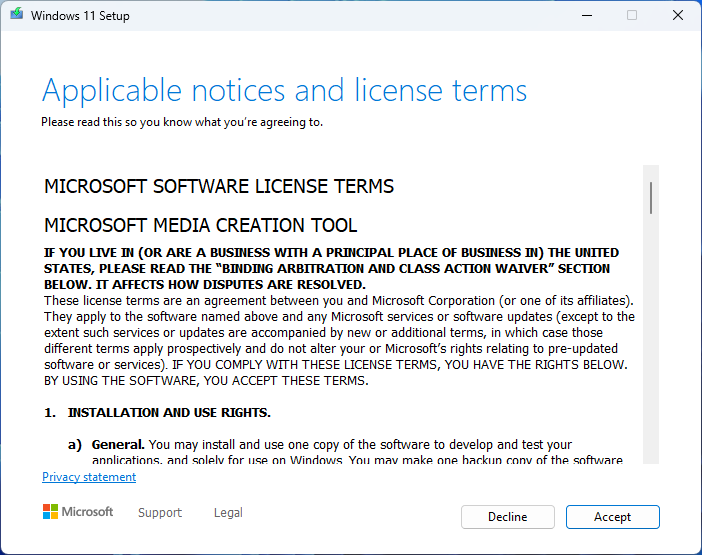
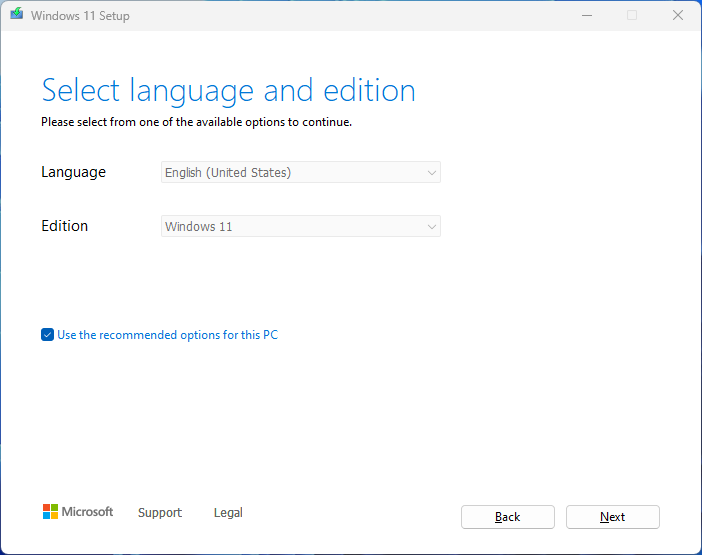
- You’ll be asked to choose the language you want Windows 11 to be in. By default, it will match your current system, but you can change it if you need to. Click Next.
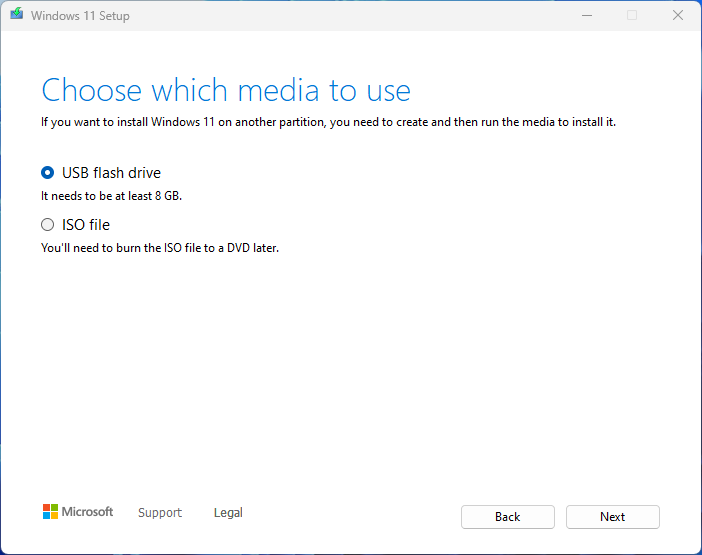
- Installation media can either be an ISO file or a flash drive, but only the flash drive will work if you’re using a new PC. Select USB flash drive and click Next.
- You’ll see a list of all the USB drives connected to your PC. Select the correct drive and click Next.


Windows 11 will begin downloading and the OS files will be transferred to your flash drive. Once it’s done, your flash drive will be ready to be used as installation media.
Using Rufus to create a bootable USB drive
While the process above should work for almost everyone, maybe you won’t have access to a USB flash drive and an internet connection at the same time, or maybe you want to bypass some of the system requirements of Windows 11. Rufus is a great piece of software that can help with both of these things. Here’s how to use it.
Just like before, it’s best to unplug any other drives, since this process deletes all the data on the drive you select.
- Follow the process above, but instead of choosing USB flash drive, choose ISO file when prompted (step 4). Alternatively, ISO files are available for direct download on the Windows 11 download page.
- Connect the USB flash drive to your PC and run Rufus. Choose your drive at the top of the window.
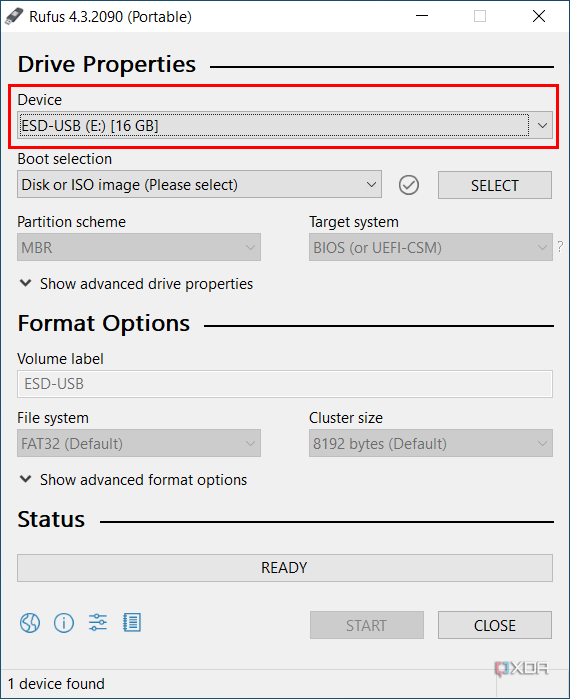
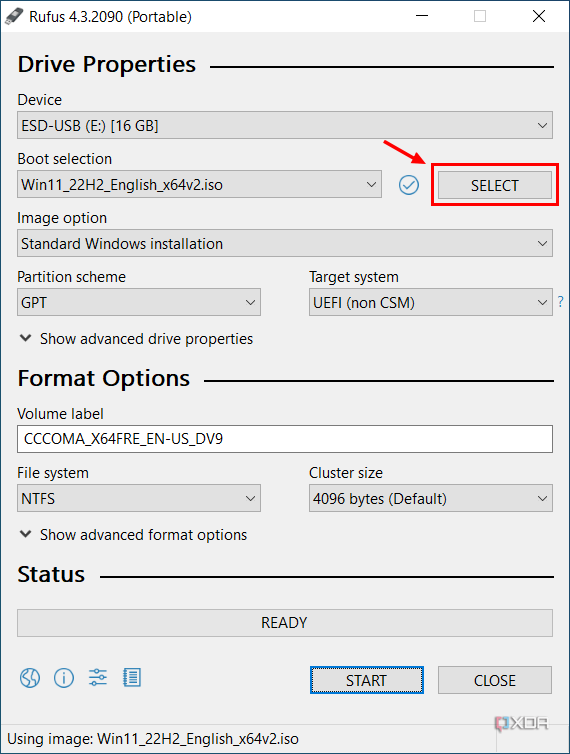
- Click the SELECT button near the top and choose the ISO file you downloaded previously. Some default settings will be selected, which you shouldn’t need to change. Click START near the bottom of the window.
- You’ll see a series of options in a pop-up, but you don’t need to change anything here. By default, Rufus will disable compatibility checks so you can install Windows 11 on PCs that don’t meet all the requirements. Click OK.
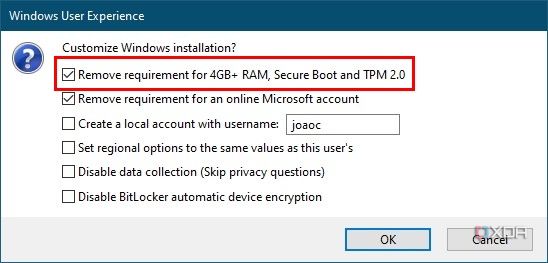


Rufus will start transferring the installation files to the flash drive. Make sure to leave it plugged in until it’s finished. Then you’ll have the installation media for Windows 11, which you can plug into your new PC to start the installation.
Installing Windows 11 on your PC
Once you have installation media ready to go, it’s time to install Windows 11 on your new PC (which doesn’t have an operating system yet). Here’s what you need to do.
- Plug in the USB drive into the PC where you want to install Windows 11 and power on the computer.
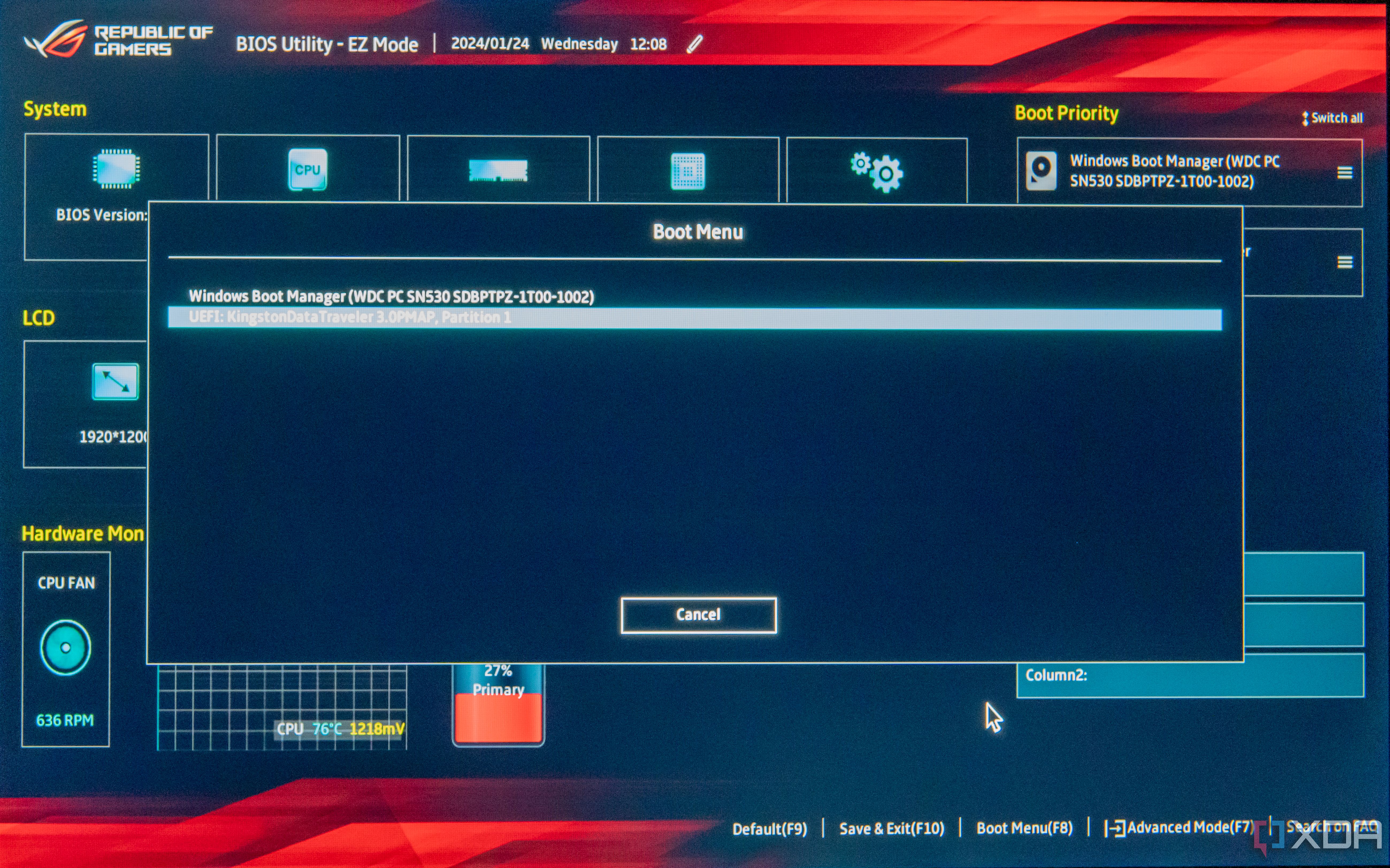
- Since there’s no boot drive configured yet inside the PC, it should boot from your USB flash drive by default.
If it doesn’t boot from the USB, you may need to press Esc, F1, F11, or F12 on startup to go into the BIOS settings. If your motherboard has a boot menu, you should be able to see a list of available drives to boot from, and you’ll want to choose your flash drive from the list. Otherwise, navigate the BIOS to find the boot options and move your flash drive to the top of the list of boot devices.

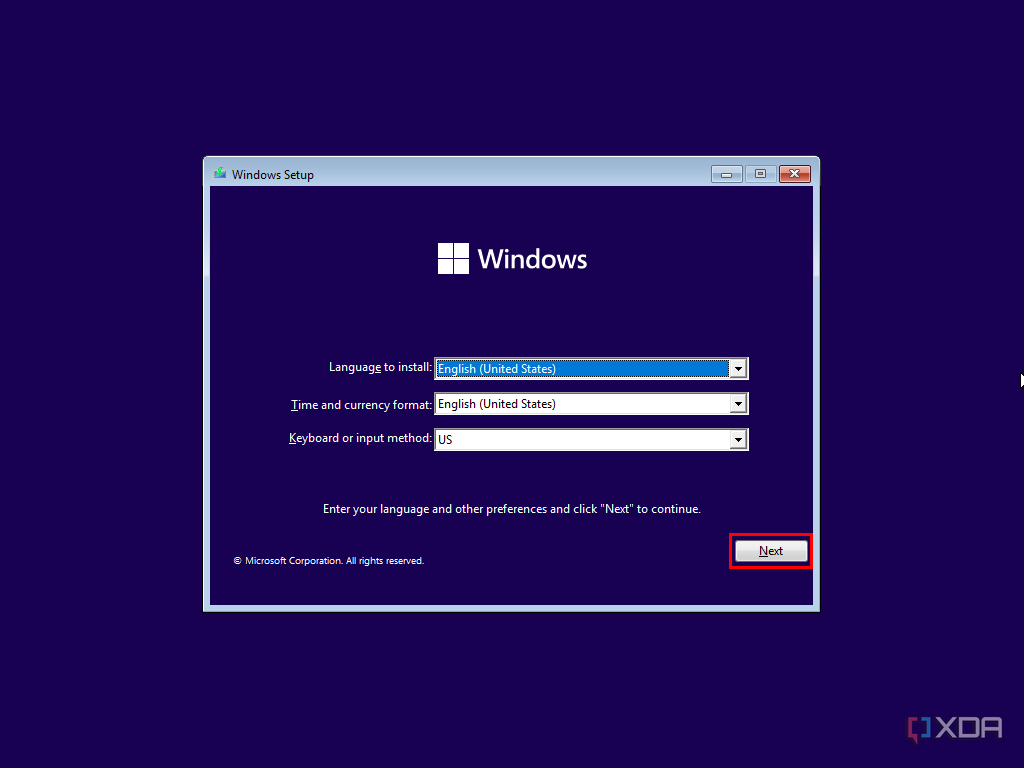
- Once you’ve booted from the flash drive, you’ll be asked to choose language, region, and keyboard layout. Click Next, then Install now on the next screen.
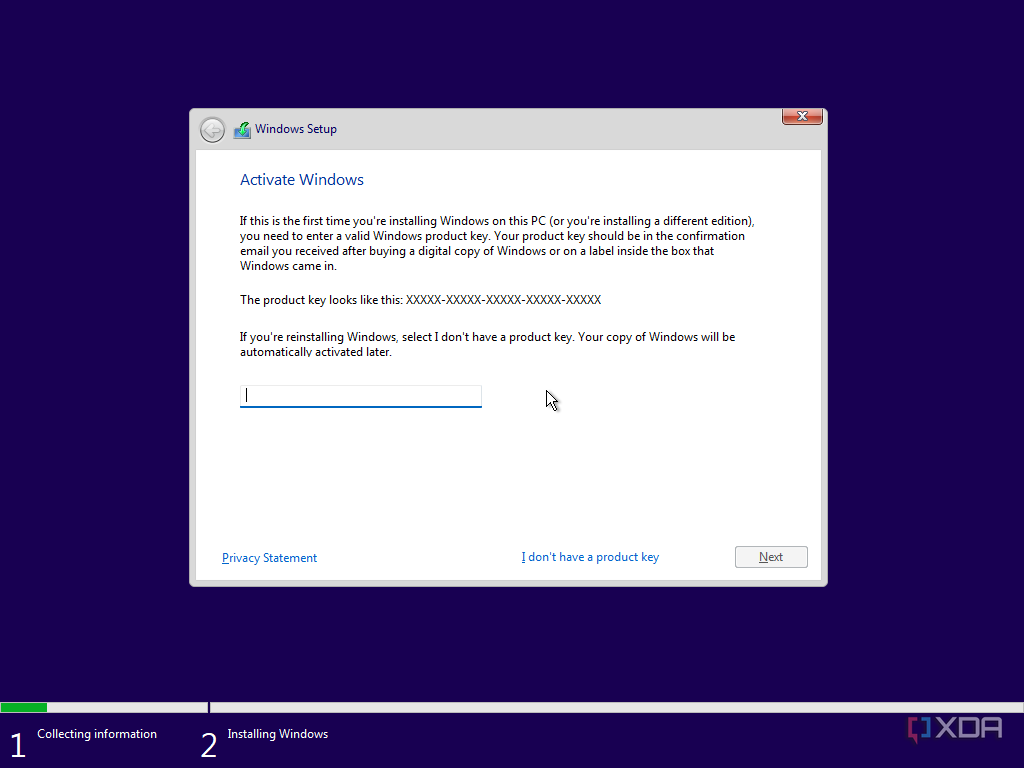
- You’ll be asked for a product key to activate Windows. You should have bought a license, but if you want to enter the product key later, you can click I don’t have a product key. If you do have one, enter it and then click Next.
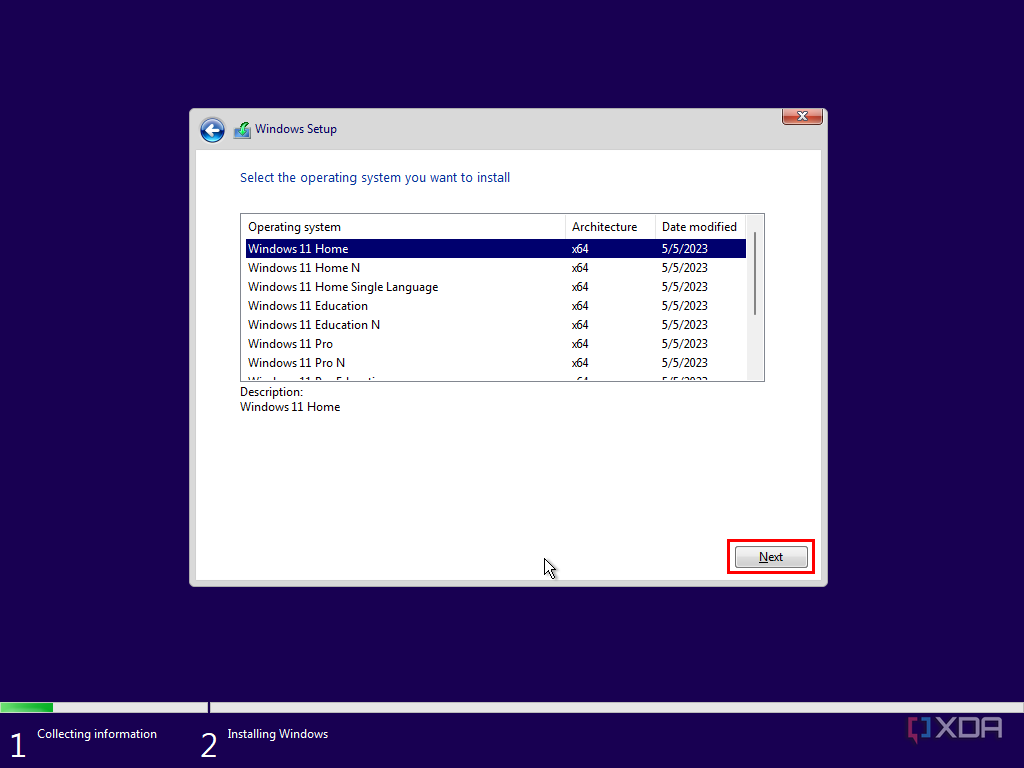
If you didn’t enter a product key, you’ll be asked to choose the edition of Windows 11 you want to install. Choose the edition that matches the product key you’re planning to use, otherwise you may be unable to activate it later. Click Next.


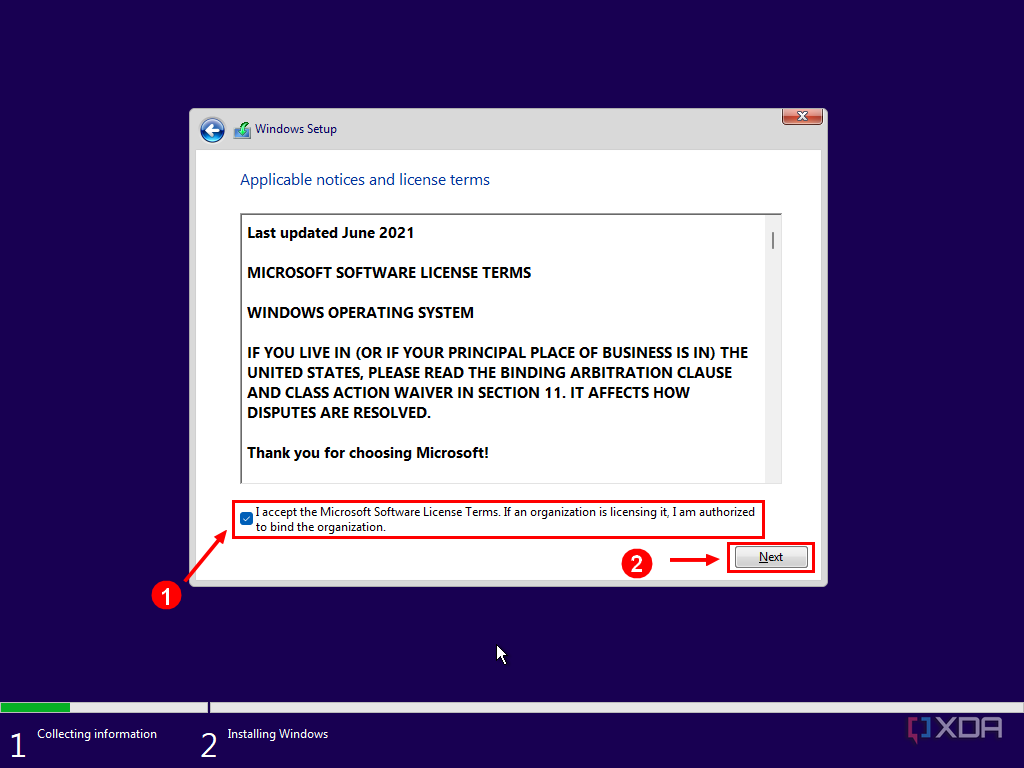
- Accept the license agreement.
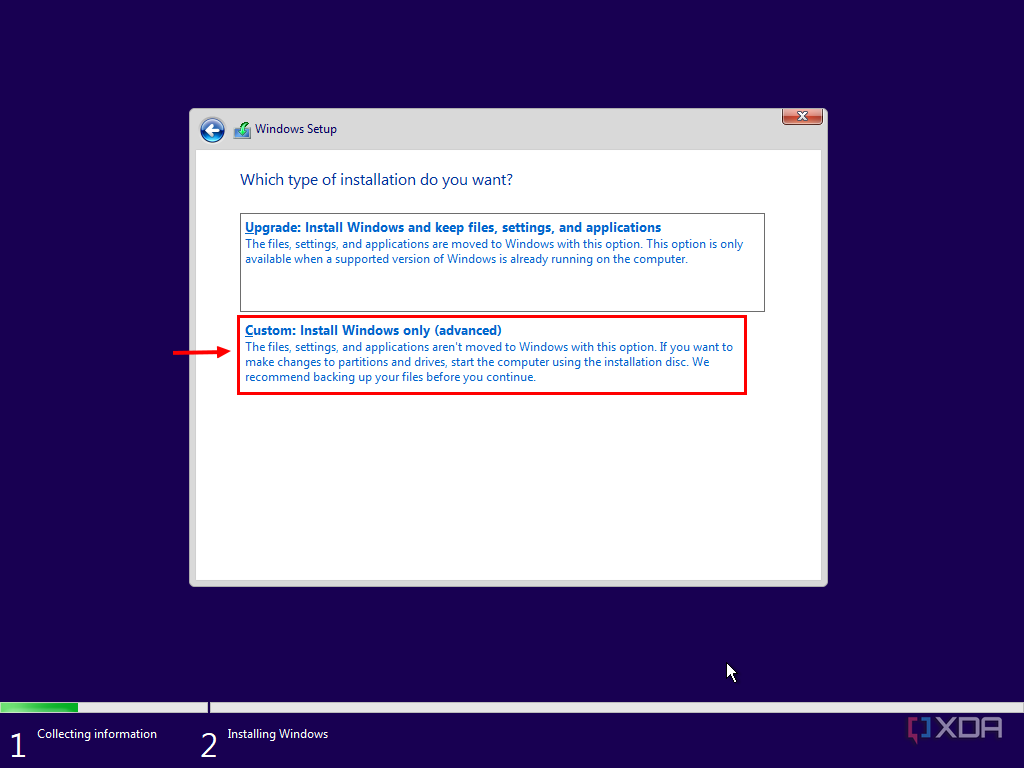
- In the next screen, click Custom: Install Windows only (advanced).
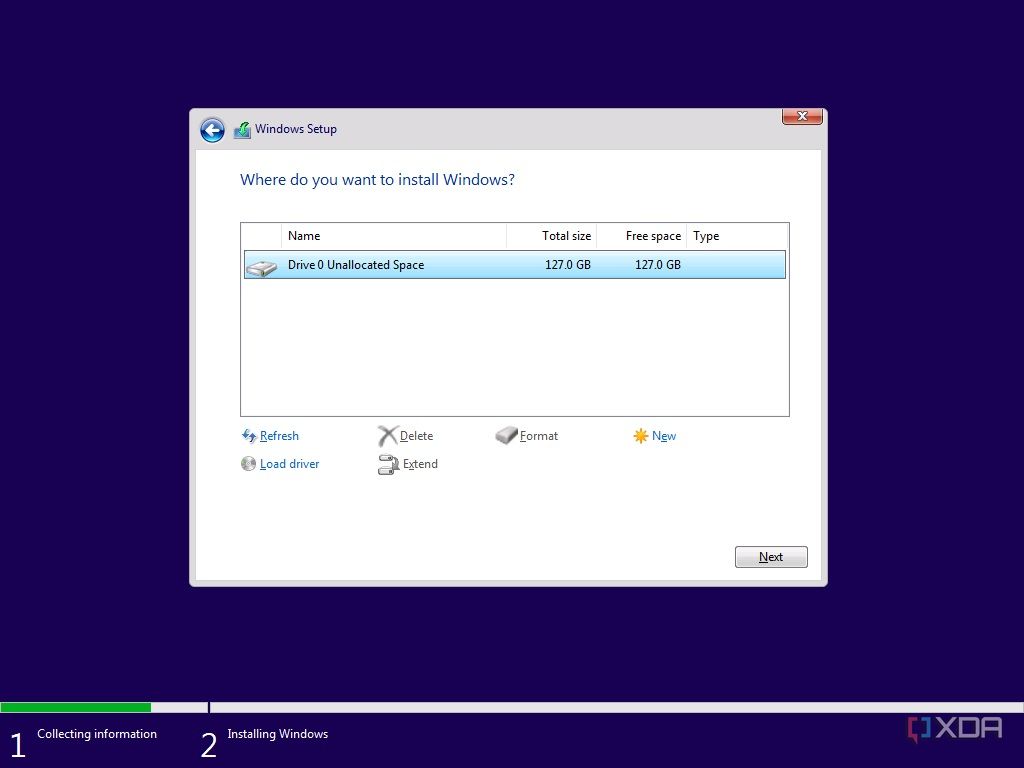
- You should see a list of drives on your PC, and you can choose where you want to install Windows 11. You can also create multiple partitions if you want, but otherwise, simply select the drive and click Next.
- Windows 11 will now begin installing, so just wait until it finishes.


Once it’s done installing, you’ll be guided through the Windows 11 out-of-box experience (OOBE). This is the same thing you’d see on a brand-new laptop or after resetting a PC, and it should be fairly easy to understand. If you’re interested in learning more about this part of the experience, you can check out this guide.
You’re now ready to use your PC
That’s all you need to know about installing Windows 11 on a new PC you just built. This process has remained mostly unchanged for many years, so it should be familiar if you’ve done it before. Of course, things get a bit more tricky if you want to dual-boot Windows 11 and Linux, for example.
#install #Windows
source: https://www.xda-developers.com/how-to-install-windows/


