

For a lot of people, the Apple Watch is the gold standard when it comes to the best smartwatches. Whether you have a Series 9, an Ultra, or even the Watch SE, you’ll get the best integration and experience if you own an iPhone. Unfortunately, even premium products aren’t immune to software-related bugs. Apple Watch owners sometimes run into an issue where their watch won’t properly track workouts. This happens mainly when you’re using a third-party app to track your activity.
Or, perhaps you occasionally just forget to hit start or stop at the right time while exercising. Fortunately, it’s relatively easy to edit (or delete) your Apple Watch workouts.
Related
Complete guide to the Fitness app on iOS
The Fitness app is an essential hub into a world of activity from iPhone and Apple Watch. Here’s a complete guide to this iOS application.
How to edit an Apple Watch workout
While editing an Apple Watch workout is relatively easy, you can’t directly make it look like you worked out harder or burned more calories than you did. Once a workout is recorded, it’s pretty much set in stone. However, you can edit small parameters and delete data. For example, you can’t directly increase the number of calories burned from 150 to 200, but you can adjust stats such as the total distance.
1. Open the Health app on your iPhone.
2. Scroll down and select Show All Health Data.
3. Scroll all the way down and select Workouts.
4. Scroll all the way down to the bottom of the page and select Show All Data.
5. Select the workout you want to edit.
6. Scroll to the bottom where it shows Related Samples.
7. From here, you can select Total Active Energy, Average Heart Rate, Total Resting Energy, Segments (for a walking or running workout), Total Distance (for walking or running workouts), or other relevant data, depending on the type of workout. Then tap Edit in the top-right corner and adjust as necessary. You may use this functionality to remove some distance stats after you have ended the workout, for example.
8. Tap Done once you’re finished.

Related
How to change kilojoules (KJ) to calories (Cal) on Apple Watch
You can opt for your unit of choice during fitness tracking.
How to manually add an Apple Watch workout
Sometimes it may be quicker to add a new workout than edit one that wasn’t recorded properly. Manually adding an Apple Watch workout is even easier than editing one. You can simply go to the Health app, select the workout type, enter start and finish time, and add further relevant data manually.
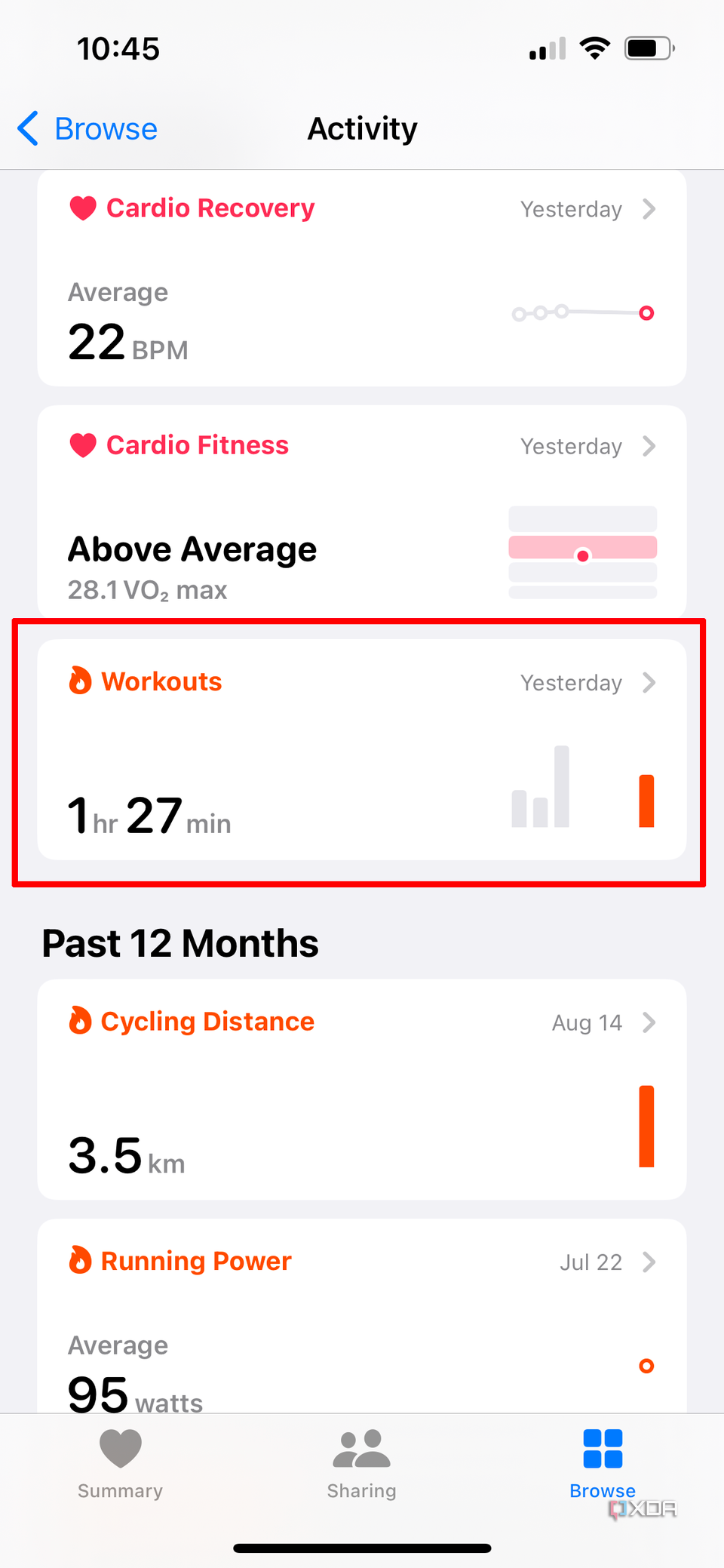
1. Go to the Health app on your iPhone.
2. Select the Browse tab.
3. Select Activity.
4. Scroll down to Workouts and select.
5. Tap Add Data in the top-right corner.

6. From here, select the Activity Type, Start and End date and time, Calories (if you have honestly calculated them), and other parameters depending on the type of workout, such as Distance for cardio.


7. Tap Add in the top-right corner. The workout is now added to your list and will also be viewable from the Apple Fitness app.

Related
How to see your daily steps on the Apple Watch face
It’s not easy to track steps on your watch face, but it’s doable
How to delete an Apple Watch workout
If you decide to manually add a new workout, deleting the older one with incorrect data will be an important step as well. To ensure your activity log only reflects intentional and accurate workout data, follow the steps below to delete incorrect workouts.
1. Deleting a workout with the Fitness app
Here’s how you can delete an Apple Watch workout from the Fitness app on your iPhone:
1. Go to the Fitness app.
2. In the Summary tab, select Show More under History.


3. Scroll to the workout you want to remove, then swipe to the left on it until you see the Delete button and tap it.
4. You will be asked whether you want to Delete Workout & Data, Delete Workout Only, or Cancel. If you choose Delete Workout & Data, it will remove the record of the workout as well as any data stored in the Health app that came from that workout. If you choose to Delete Workout Only though, it just removes the workout but any Health information from the log (like if the workout helped you meet your Activity goals) will be retained.
2. Deleting a workout with the Health app
You can also delete an Apple Watch workout from the Health app. Here’s how:
1. Alternatively, you can go to the Health app and select the Browse tab.
2. Select Activity.
3. Scroll down to Workouts and select.
4. Scroll all the way down and select Show All Data.


5. Tap Edit in the top-right corner.


6. Tap the red circle with a white line inside at the left of the workout you want to delete, then Delete will appear to the right of it. Select it to remove the workout.
Editing workouts is easy, but it’s not the most comprehensive solution
If you don’t get the proper data, or accidentally initiate a workout that you didn’t intend to record, editing or deleting Apple Watch workouts is quick and easy. Unfortunately, it’s not the most full-fledged solution. For example, you don’t get the proper active and total calories calculated for the workout, nor the heart rate status throughout, which is a bummer if you’re competing with friends. Fortunately, both Apple and app developers alike are constantly making improvements to the Apple Watch, especially when it comes to fitness and health tracking.

Related
watchOS 11 navigation: Similar, but with new interactive Smart Stacks
watchOS 11 introduces an updated navigation system. Here’s how to use your Apple Watch following this operating system update.
#edit #Apple #Watch #workout
source: https://www.xda-developers.com/how-to-edit-an-apple-watch-workout/


