

The Elgato Stream Deck is one of the most popular accessories used by gamers and live streamers. It makes your life so much easier by allowing you to quickly switch between apps, create different scenes, and streamline your workflow when playing or streaming your gameplay on online platforms. While the Stream Deck Neo is both functional and rather affordable, spending on a new gadget as a beginner may not be the wisest decision. If you’re already an established gamer or streamer, it makes sense to invest in a tool that’s improving your workflow. But, if you’re just starting to stream on YouTube or Twitch, it’s ideal to save as much money as possible. Thankfully, there are free alternatives that let you mimic the Stream Deck’s functionality using an old smartphone lying around at home.
I recently repurposed my old smartphone into a makeshift Stream Deck, and it’s been working perfectly well. While I’m not a gamer or a streamer, I recently discovered that a Stream Deck can be an excellent productivity companion, regardless of what you do. You don’t necessarily have to assign the buttons to switch between games and chat applications. Instead, you can program them to launch a set of apps that you use for multitasking, or quickly switch between custom scenes that you may use for work or entertainment. Thankfully, the trick works with any smartphone running Android 5 and above, so anyone can use it. If you don’t have a spare phone lying around, you can also use your existing smartphone. It’s a good way to avoid checking your smartphone repeatedly in the middle of work!
Related
Setting up Macro Deck on a PC
We’ll be using an app called Macro Deck to facilitate the entire process of converting a phone into a Stream Deck. The service requires you to install an app on both your PC as well as a smartphone, after which both of them can be connected wirelessly. Let’s first install the PC client on a computer and set it up.
Macro Deck is an open-source piece of software that’s free to use. The app does not collect your data and is present on the Google Play Store on Android.
-
Head to the Macro Deck website and download the Macro Deck 2 installer for Windows. Install the app once downloaded by clicking on the setup file. Follow the on-screen instructions and select the path for installation.
The app is only available for Windows as of now and is still under development for macOS, Linux, and Docker.
-
Once you’re in the app, select your desired language and hit Next. On the next screen, select the relevant Network adapter using the drop-down menu. I’m using a Wi-Fi connection, so I will select Wi-Fi. Once done, note down the IP address and Port number since we’ll need these details later on.
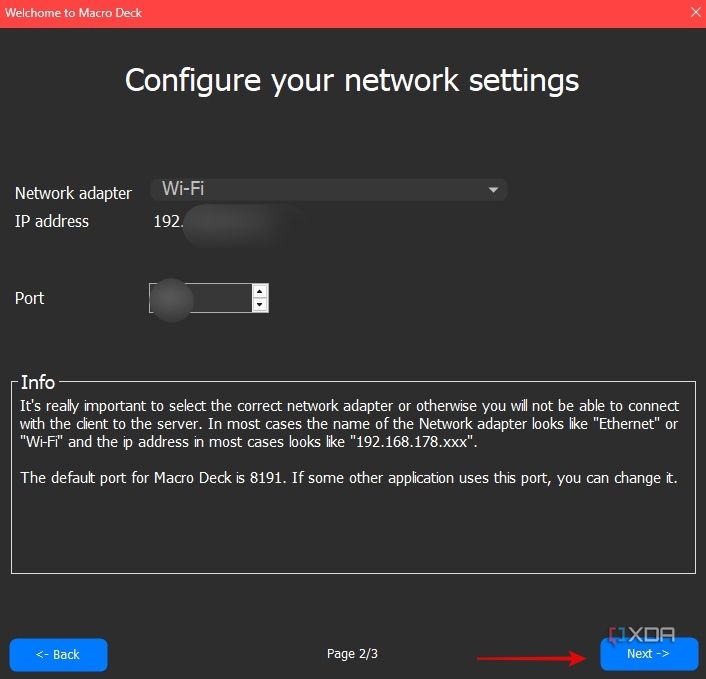
You may now encounter a Windows firewall dialogue box asking you to allow the app to access the network. Select the relevant checkboxes to grant permission.
- Now that you’re inside the app, you can pick the grid size, change the spacing, add or remove the background from buttons, etc. using the various options on the homepage.

Setting up Macro Deck on a smartphone
Now that the PC client is set up, let’s get to setting up the app on the smartphone so that both of them can talk to each other.
Before we begin, it’s important to note that Macro Deck only works when both the smartphone and PC are connected to the same network. If they aren’t, connect them to the same network before proceeding.
- Download the Macro Deck app from the Google Play Store. Alternatively, you can also download and install the APK via the website.
-
Open the app once downloaded and tap on Add Connection. Now, you can either select the Scan QR Code button to scan the code displayed on the PC client or use the Manual Setup section to manually enter details like the IP address and port number.
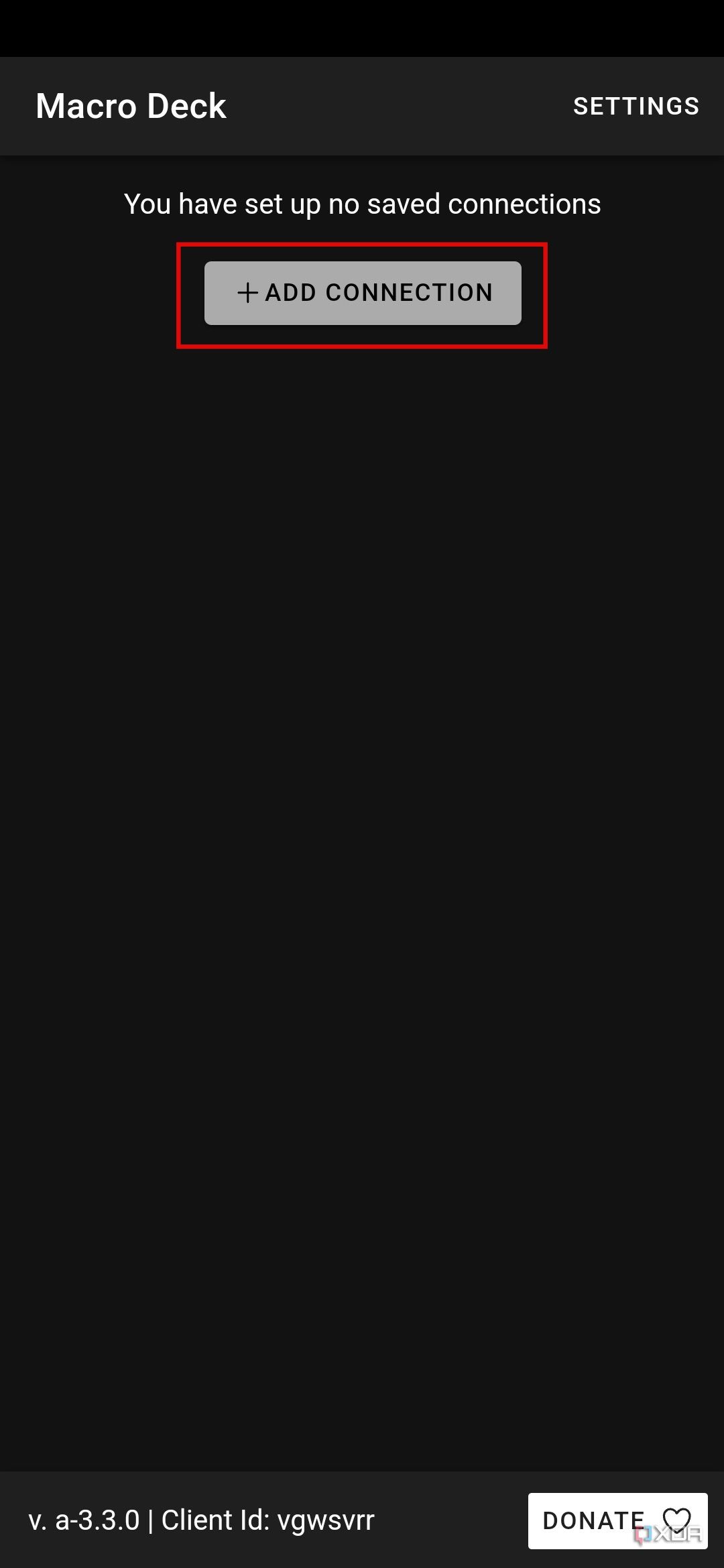
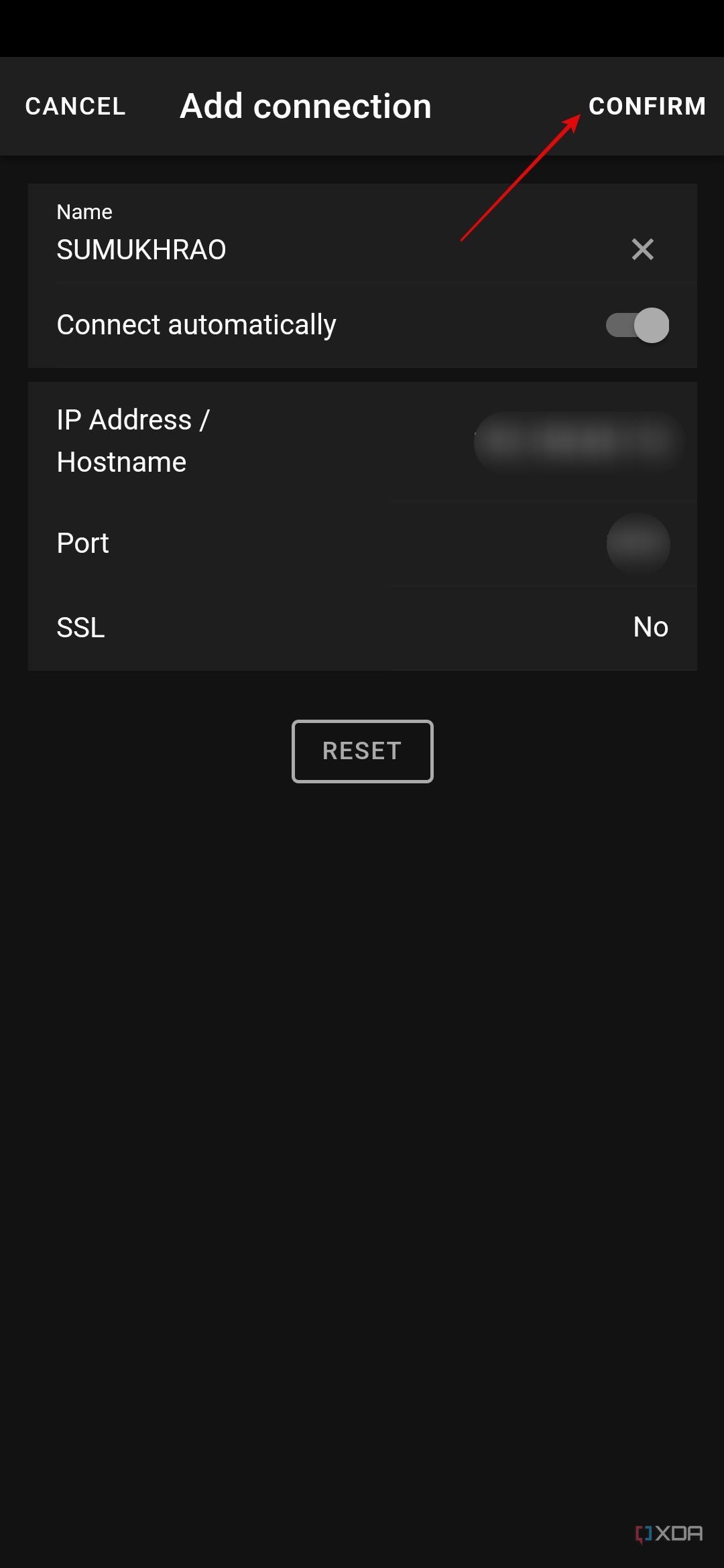
- Once you’ve scanned the code, you will see all the relevant details displayed. Enable the Connect automatically toggle before tapping on Confirm.


You should now see a bunch of rows and columns on your smartphone indicating that you’ve successfully linked the PC client with the smartphone app.
Adding custom buttons and plugins on Macro Deck
There are a plethora of buttons and functions you can add to Macro Deck to customize the interface as per your workflow. Let’s take a look at them. Head to the Plugins section and select the Online button to get a list of plugins you can install.

Simply hit the Install button next to any plugin you require.

You can also install icon packs from this section for specific tasks. For instance, if you want to have a mute button on your Stream Deck, you can install an icon pack that has those specific icons.
Adding a plugin to a button
Once you’ve installed the required plugins, it’s time to assign them buttons on the deck. Here’s how to do that.
-
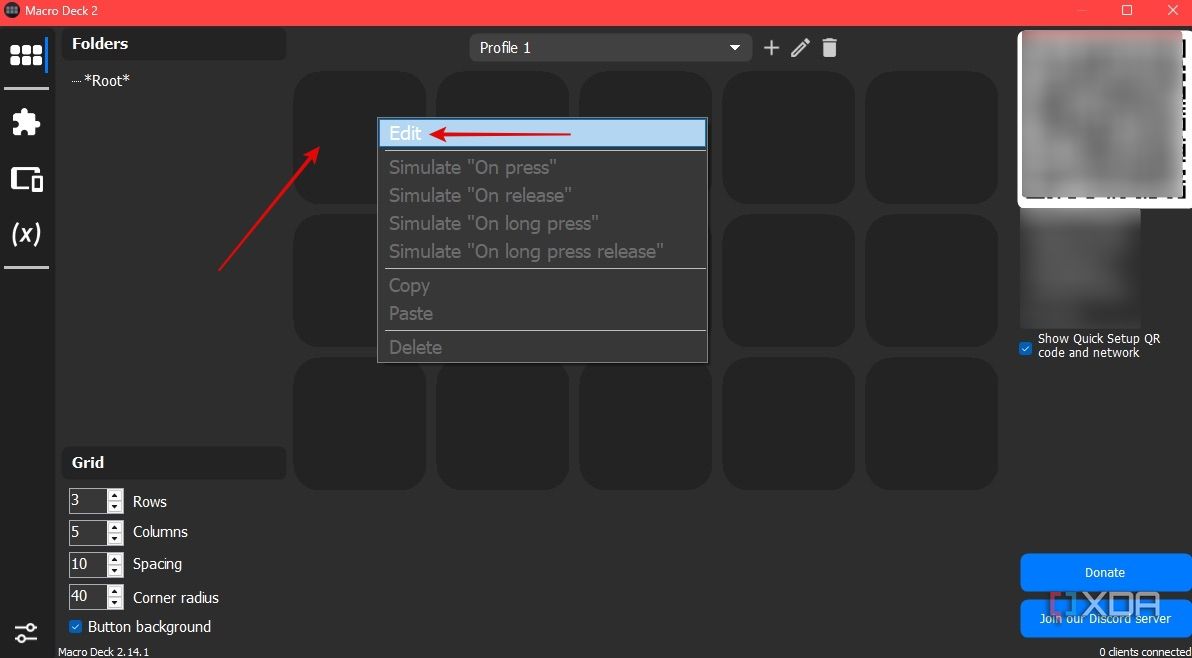
Right-click on any empty button in the grid and select Edit
-
Select the empty icons space.
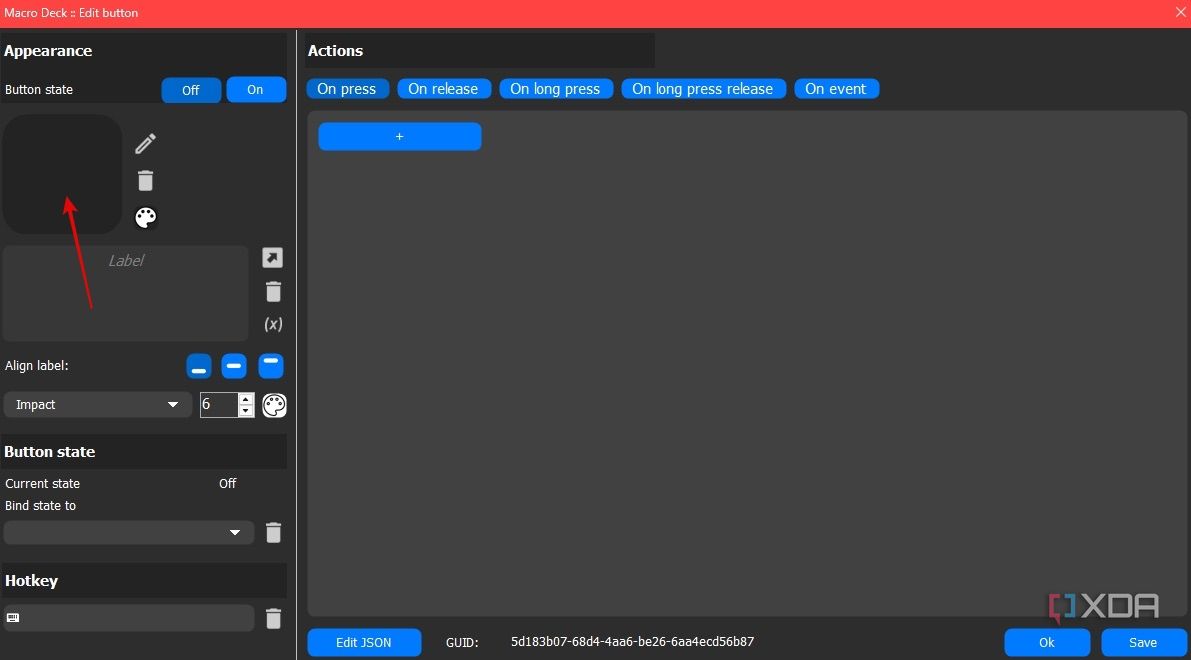
-
Choose from the list of available icons. You can also add your own custom image using the ‘+‘ button at the top of the screen. Click on OK when you’re convinced.
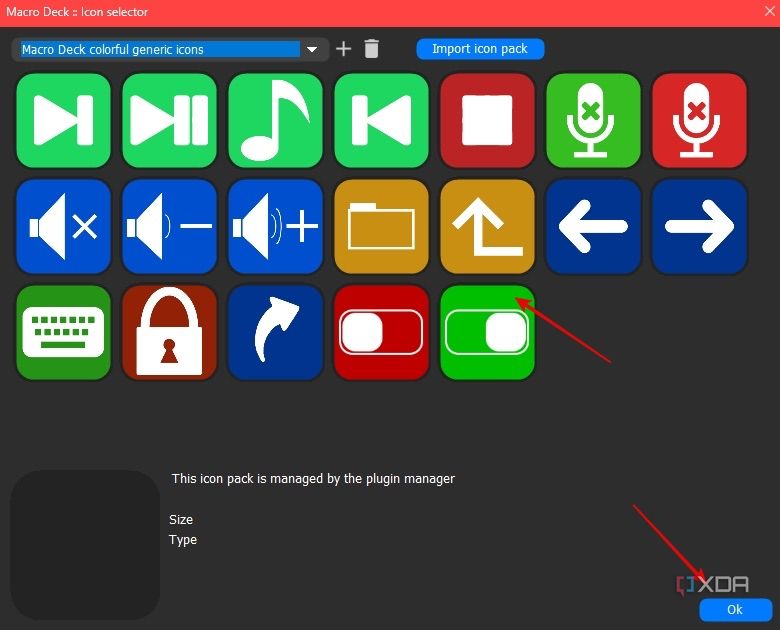
You can choose to add text to the icon using the Label section.
-
Then, select the trigger for the button at the top of the screen. This is to tell the app whether you want the action to be triggered when you press the icon, release it, or press and hold on to it. Once done, hit the ‘+‘ button below it and select Action.
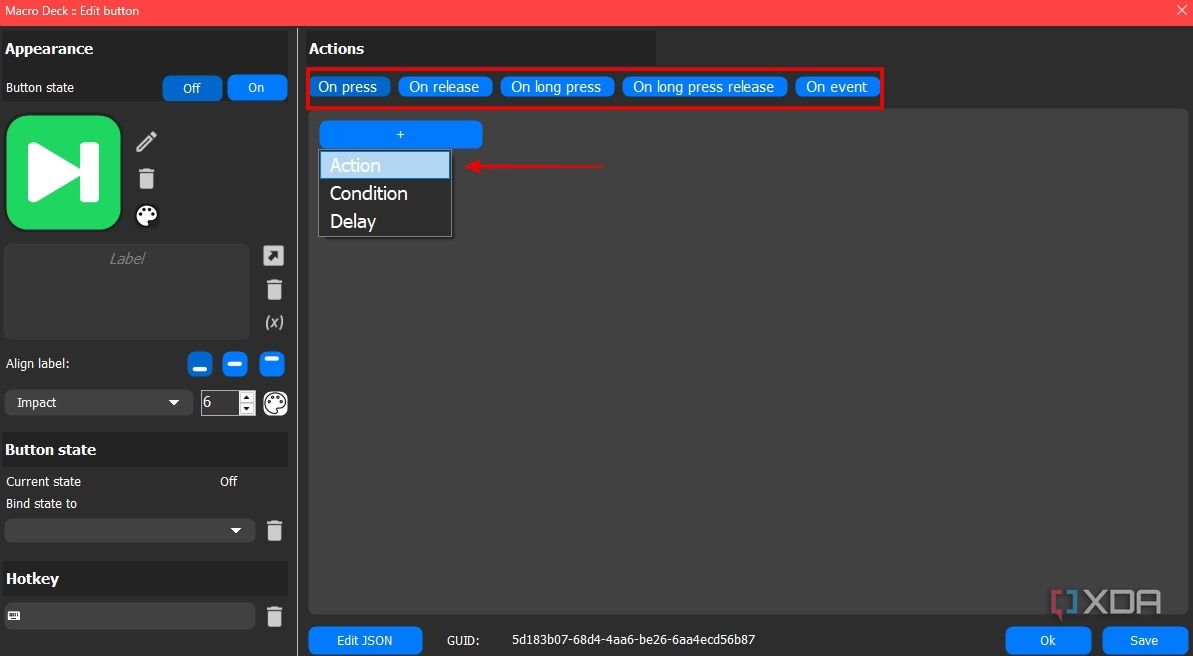
- Find the action corresponding to the icon in the left pane and select it. For instance, I selected the ‘Play’ icon, so I will choose the Play playlist option under SpotifyPlugin. Hit Save once done.
-
Repeat the process for all the buttons in the grid and assign whichever task you want quick access to. You can launch apps, play/pause media, display your CPU temperature, switch to a browser window, run scripts, and whatnot. The possibilities are endless.
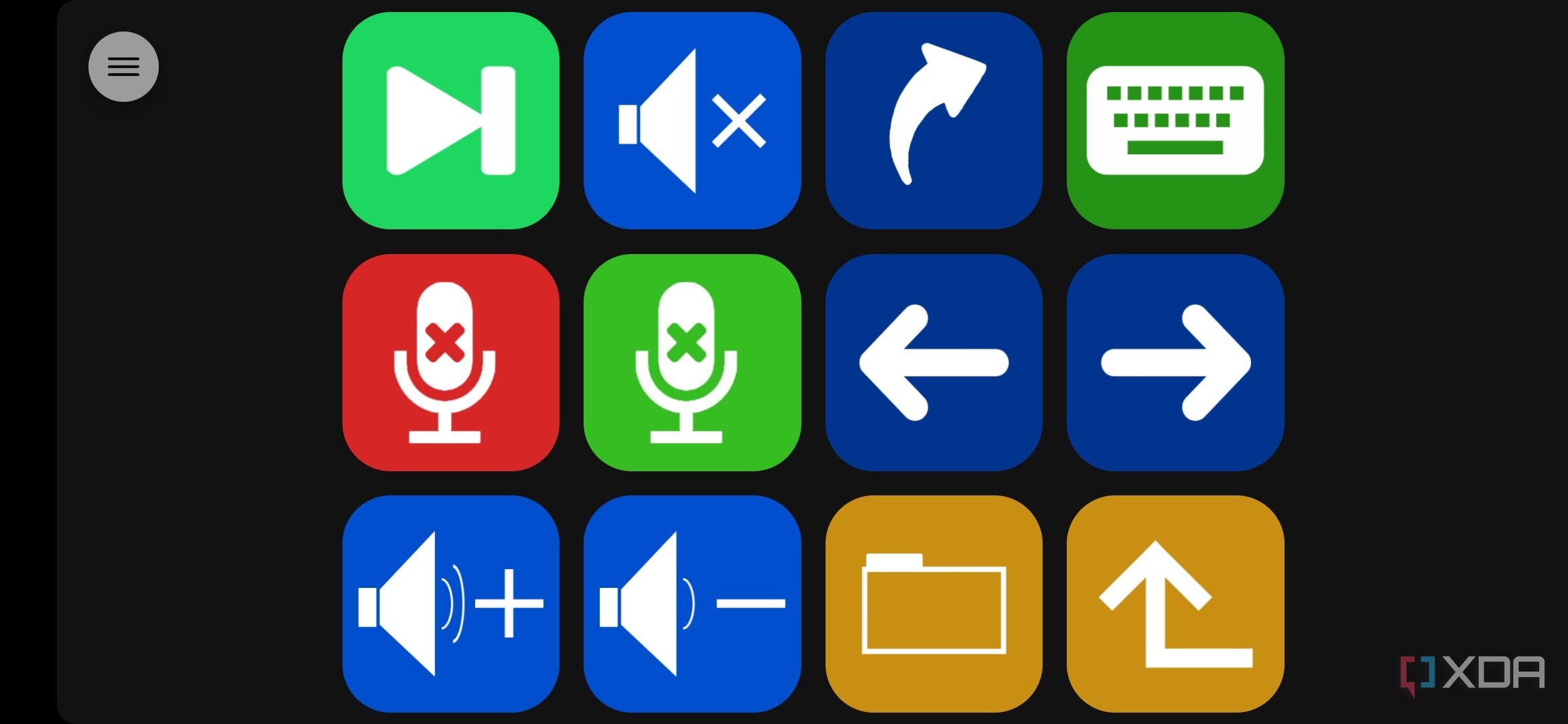


As soon as you make any change in the PC client, it reflects automatically on your smartphone. I’ve created a sample set of buttons for media playback, but you can mix and match and add multiple types of buttons on the same screen. If you run out of space, increase the grid size or create multiple button folders for each scenario.
Boost your productivity with Macro Deck
The Macro Deck app offers an insane level of customization and features that allow you to utilize it to its maximum potential. In fact, you get more buttons than you do on an actual Elgato Stream Deck, since you can change the grid size and create folders. I’ve been using the service for only a day now, but I can already see how it’s making certain tasks easier since it saves me quite a few clicks and time every time I want to perform an action.

Related
What software should you use to record gameplay and stream, just like professional streamers?
If you want to do it like the pros, there’s a pretty great free and open-source application.
#turn #phone #Stream #Deck #heres
source: https://www.xda-developers.com/you-can-turn-an-old-phone-into-a-stream-deck-for-your-pc-heres-how/


