

Windows search is slow, frustrating, resource-intensive, and prone to burying the file you actually need under irrelevant results. With a built-in Bing search engine, it’s undoubtedly a common pain point for Windows users. And that’s even before mentioning the full-screen takeover that disrupts your focus. Overall, it’s nowhere close to app launchers like Alfred, Raycast, and even Spotlight Search on Mac.
Here is where Wox comes into play. This lightweight, highly customizable launcher provides instant access to your applications, files, and a wealth of powerful plugins. See why Wox is the ideal Alfred replacement that Windows users have been waiting for.
Wox is currently available in version 2.0 state. However, it’s full of bugs. I highly recommend sticking with version 1.0 for now. It looks outdated compared to the latest version, but gets the job done without throwing errors that still need to be worked out.
Related
5
Search for apps and files
Find what you need quickly
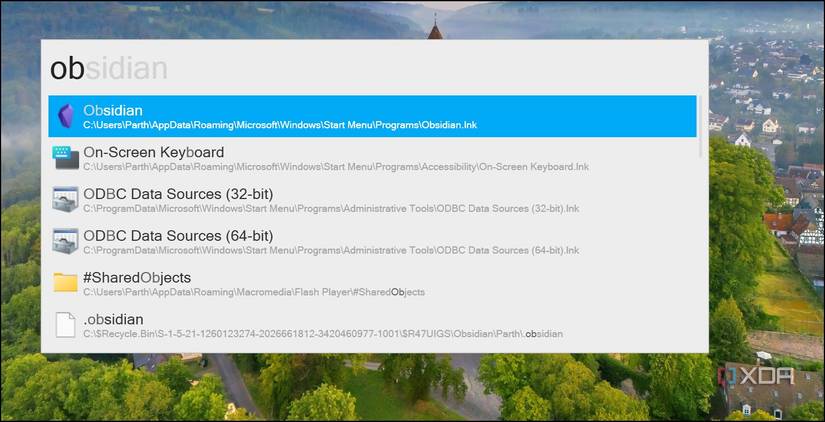
Wox offers a unified search bar that acts as a central hub for a variety of tasks. You can simply begin typing the name of the application you want to launch. Wox will instantly start filtering the results. For example, when you start typing “words” it will likely bring up Microsoft Word.
Once you install the Everything setup file, it unlocks local file search on Wox. You can simply type the file name in Wox and glance over the relevant suggestions. In my testing, it worked like a charm. For instance, I have several Obsidian folders on the PC and have written many articles on the same subject. I can launch Wox and search for Obsidian to glance over everything from a single place. It’s a huge productivity booster.
You should specify file types in your search. For example, typing “report .docx” might help narrow down your search to Word documents.
4
Run web searches and add your favorite folders
Stay organized, effortlessly
Do you frequently access several folders on your Windows PC? Wox has a built-in Folders plugin where you can add your favorite folders and open them from Wox directly. In my case, I have added my loan documents folder from OneDrive. Now, I can type “Loan Documents” in Wox, select the folder, check the sub-folder and files, and other data without leaving the launcher.
You can even run web searches like a pro with Wox. There is a specific keyword for popular search engines. You can type g and enter your query to run a search through the Google search engine. Similarly, you can type wiki to run queries on Wikipedia, or duckduckgo and enter queries for private browsing sessions (no offense, Google). There are action keywords for Facebook, Gmail, Drive, and other popular services. You can also type b to activate the Bookmark plugin and find your favorite web addresses right from the Wox launcher.
3
A rich plugin store
Customize with just what you need

An extensive plugin store is where Wox truly shines. You can think of it as an app store for Wox. Plugins can add a wide range of functionalities that aren’t included in Wox’s core features. This includes everything from simple utilities to complex integrations with other applications and services.
Clipboard history is one such plugin to easily access previously copied text or images. This is incredibly useful for developers, writers, and anyone who frequently copies and pastes information. There are over 300+ plugins for Wox, opening up endless possibilities.

Related
5 best apps for customizing your Windows Start menu
You don’t have to accept what Microsoft gives you
2
Customizable hotkeys
Make your own shortcuts

Wox has hit it out of the park with customizable hotkeys. Let me elaborate on this one with a real-life example. I often access my XDA profile on the web. I have created a hotkey in Wox where I simply type the Alt + D keys, and it instantly brings up the launcher with the relevant web address. Now, I can hit Enter and visit the web address. You can create as many hotkeys as you prefer and fly through web searches in no time.

Related
6 ways you can customize your Windows 11 lock screen to make it truly yours
Make it work perfectly for you
1
Free and open-source
Transparency at its finest

Unlike Alfred and Raycast, Wox is completely free to download and use. There are no hidden charges or features getting locked behind a subscription plan. Besides, it’s an open-source solution where the source code is available for anyone to inspect. It also encourages an active community of developers and passionate users who contribute to the project.
Your secret weapon for Windows productivity
Wox isn’t just a better search. It’s a complete productivity ecosystem. While Alfred has long been the gold standard for macOS, its absence on Windows has left a significant gap. Its closest competitor, Raycast, is all set to join the Windows ecosystem, but it’s still in closed beta, so for now I highly recommend giving Wox a try.
It delivers an ideal workflow tailored specifically for the Windows environment. Whether you’re a developer, designer, student, or simply someone who wants to get more done in less time, Wox is the productivity boost you’ve been waiting for. Aside from Wox, you can also try these tools to give your bland Windows desktop a makeover.

#Wox #Alfred #alternative #Windows #users #boost #productivity
source: https://www.xda-developers.com/wox-is-the-alfred-alternative-windows-users-need-to-boost-their-productivity/


