

Windows 11 has become much smarter in recent times, thanks to the introduction of features like Copilot and improvements to the file explorer. There are several hidden tips and tricks apart from these that improve the user experience of using Windows 11 on your PC. One of them is the ability to extract text from images. If you take a lot of screenshots and frequently extract text from them, you no longer need to rely on external apps or web services.
The latest version of the Photos app on Windows 11 has Optical Character Recognition or OCR capabilities. In short, you can select any text from images as though you were selecting it from a text field. Other operating systems like macOS and iOS introduced the feature quite some time back, and I’m so glad it has finally made its way to Windows. However, there is a catch. The feature seems to be disabled by default. Owing to this, one needs to follow a needlessly painful process to enable OCR in the Photos app. Not sure why Microsoft is doing this, though. Probably saving the feature for a future release of Windows 11? I’m not sure. If you’re like me, though, and you don’t want to wait, here’s how I enabled the OCR feature and you can too.
Related
5 reasons you should use the Windows Snipping Tool instead of third-party apps
It’s better than you think
What is OCR?
It’s more than an anagram

Source: Microsoft
Optical Character Recognition is the method using which your computer can recognize text from a document or image. Let’s say you scan a document that has a lot of text in it — something like a contract. Now, you may want to send a particular clause in the contract to your lawyer to make changes. It’s a hassle to do with a scanned document, as you will have to send an image to the concerned person, or manually type the contents of the image into a word processor.
That’s where OCR comes in handy. Running any image or document through OCR allows you to select text from it just like you would from this article on the web or a document on Word. While there are several online services offering this functionality, they are either paid or inaccurate. Funnily, the Snipping Tool in Windows 11 has built-in OCR, so if you take a screenshot directly on your PC, you can extract text from it with a single click. But I wonder why Microsoft hasn’t simply ported the feature over to the Photos app yet.
How to enable OCR on the Windows 11 Photos app
You have to use Regedit
Enabling the hidden OCR feature on the Photos app involves making changes in the Registry Editor. For those unaware, the Registry Editor enables users to modify certain aspects of the OS, fix issues with their PC, or even enhance the overall computing experience. In this case, we’ll be using it to enable the OCR feature.

Related
11 Registry Editor tweaks every Windows 11 user needs to know
Despite the risks associated with using it, the Registry Editor has many options that you can modify to improve your Windows 11 experience
Enabling the OCR feature requires the Photos app to be updated to the latest version. So, I recommend updating your PC to the latest version of Windows 11 and then using the Microsoft Store to update the Photos app to the latest version as well.
-
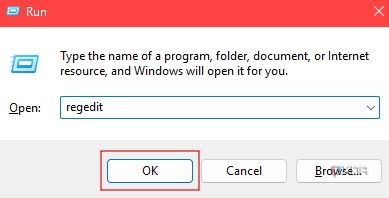
Hit the Windows+R keys on your keyboard to launch Run. Type in regedit and press the Enter key.
-
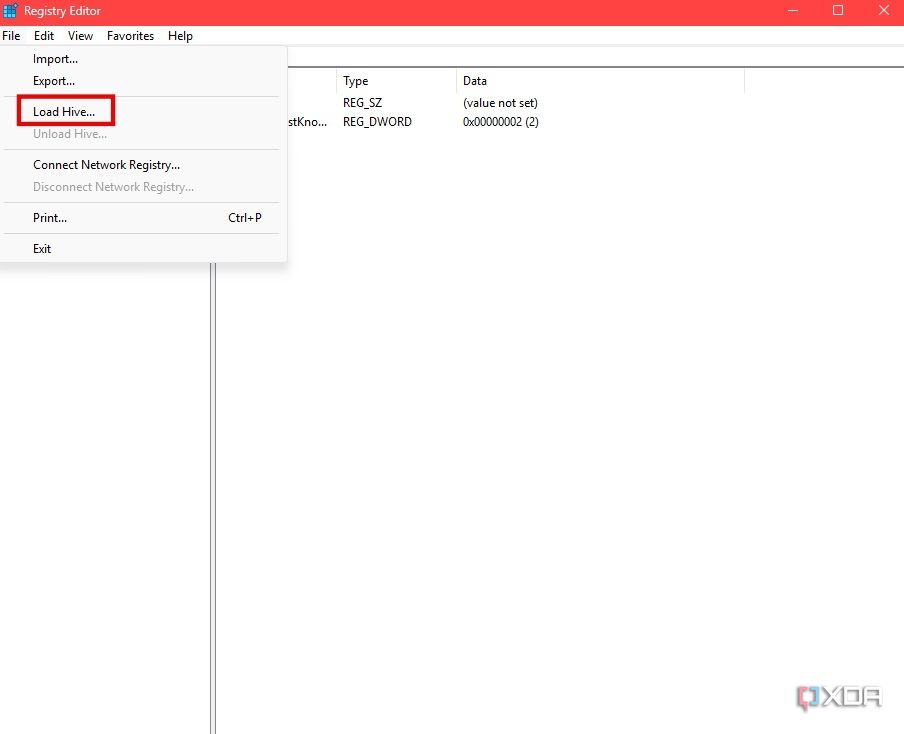
In the Registry Editor, click on HKEY_LOCAL_MACHINE to select it. Then, head to the File tab in the menu bar and choose Load Hive.
-
Navigate to C:/Users/username/AppData/Local/Packages and look for the folder starting with Microsoft.Windows.Photos.8weky. Open the folder, then navigate to Settings. Select the Settings.dat file and click on Open.
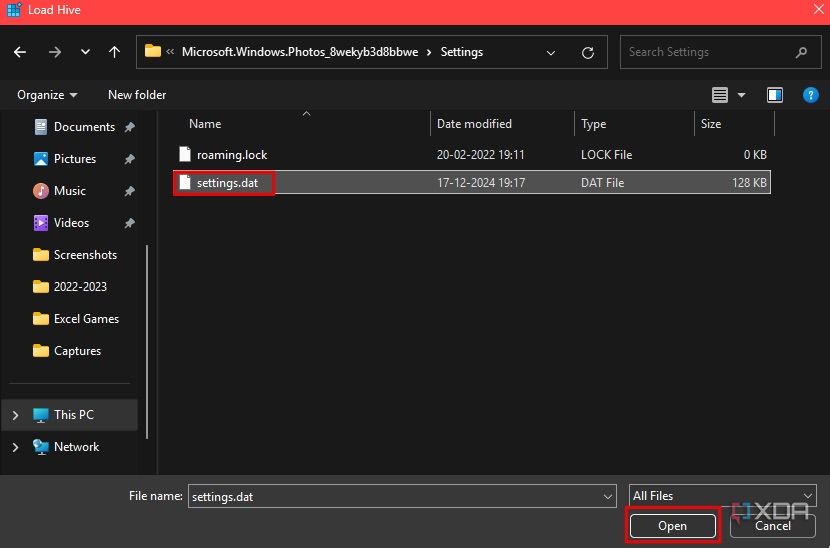
The ‘username’ here represents the name of your PC in the Users folder.
-
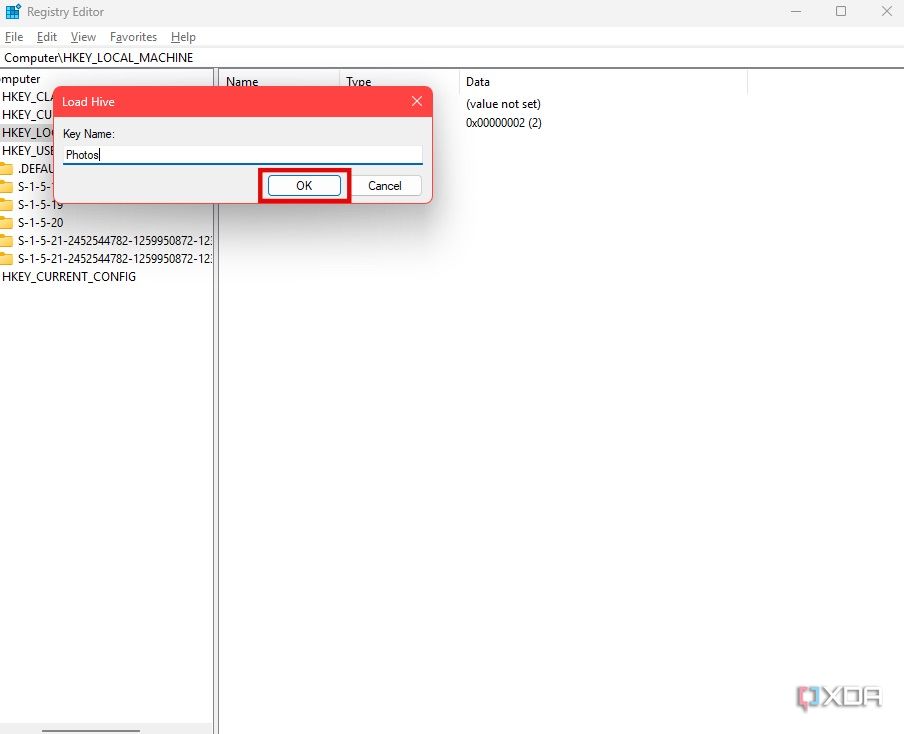
You’ll now be asked to enter a Key Name. Type in Photos and click on OK.
-
Open Notepad on your PC and paste the text mentioned below inside it.
Windows Registry Editor Version 5.00[HKEY_LOCAL_MACHINE\Photos\LocalState]“ExperimentationOverrideEnabled”=hex(5f5e10b):01,41,3f,99,74,67,16,db,01“ExperimentationOverride_ViewerOcr-IsEnabled”=hex(5f5e10b):01,9d,e2,9a,ee,81,3b,db,01
-
Save the file as Photos.reg in any folder of your choice. Then, double-click on the file to load it into the Registry Editor.
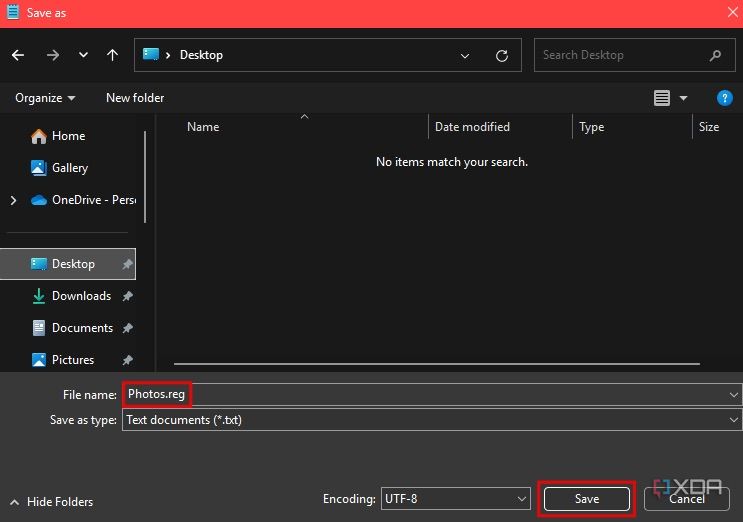
Ensure you rename the file with the .reg extension. Otherwise, the feature won’t be enabled.
- At this point, you may see a couple of warnings popping up on your screen. Select Yes and OK when prompted.
-
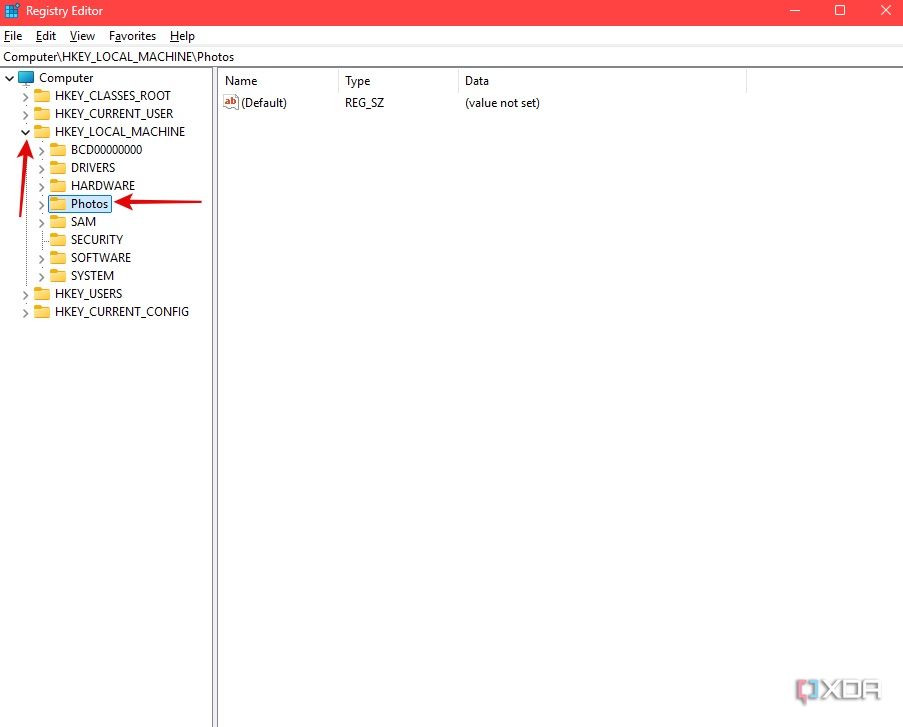
In the Registry Editor, click on the tiny arrow next to HKEY_LOCAL_MACHINE to expand it. Then, click on the Photos folder.
-
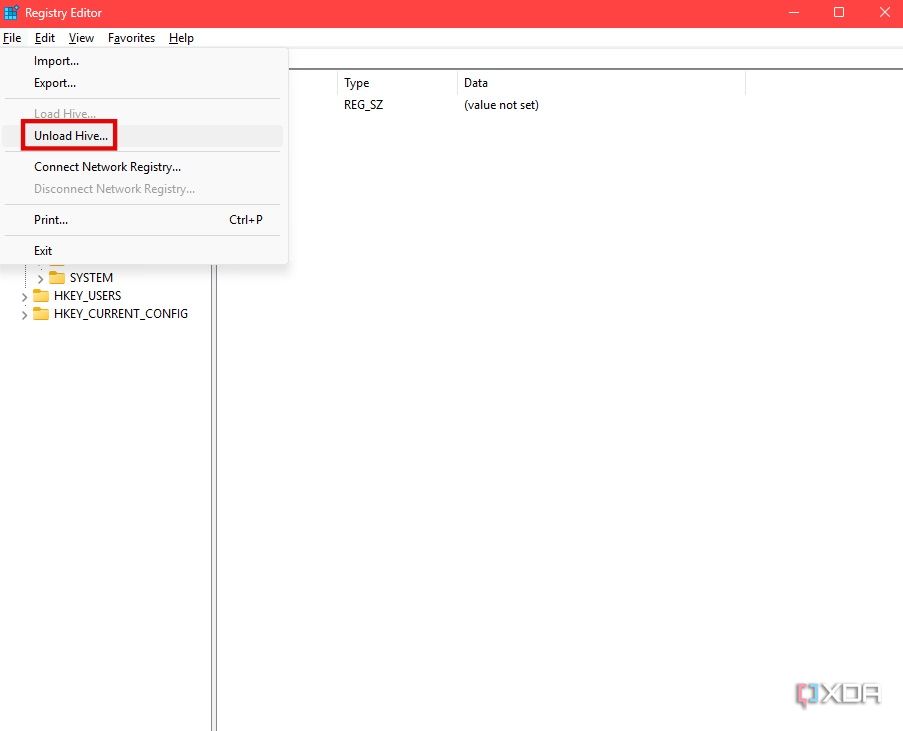
Finally, click on the File tab in the menu bar and choose Unload Hive.
-
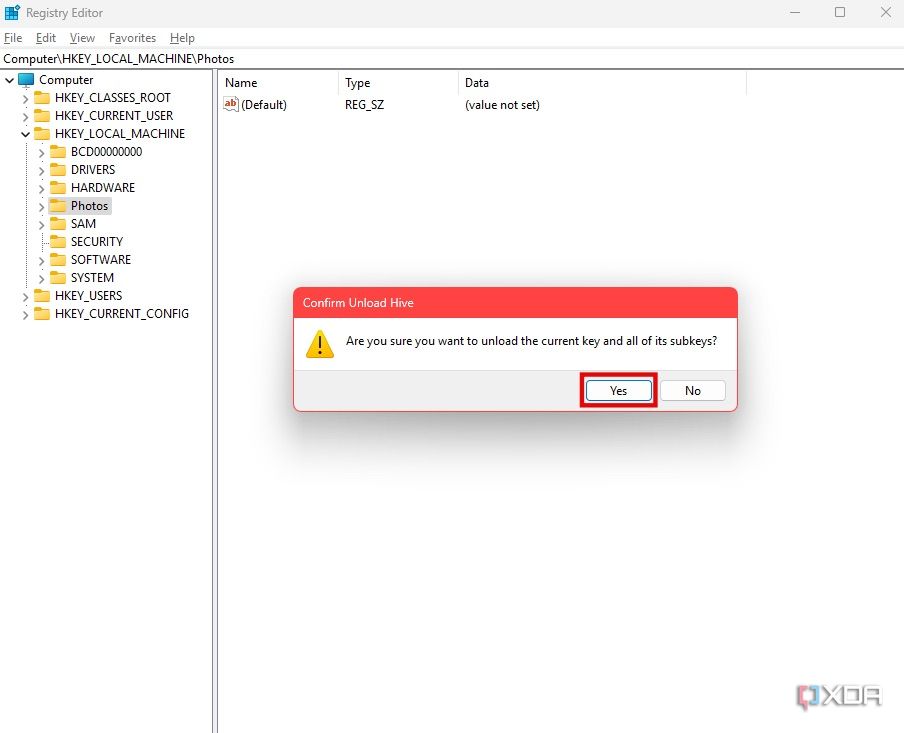
Select Yes to confirm.


You can now open any image of your choice in the Photos app. If it has text, you will be able to select it using your mouse cursor, just like you would from a text field.
If you don’t see the OCR option, ensure the Photos app is updated to the latest version. If it already is, restart your PC and you should see the feature.
How is the OCR performance on the Photos app?
You might be surprised
I compared the OCR functionality on the Windows 11 Photos app to the one on the Apple Photos app on macOS. From the few different documents I tried, the performance on both apps was more or less similar. While Windows 11 got a few numerals wrong, macOS kept messing up the text formatting. Overall, though, both apps are certainly usable and can extract text without any issues. Considering how well the feature is optimized, it’s surprising Microsoft hasn’t made it widely available yet. It’s even more surprising considering the fact that the Phone Link app on Windows 11 has OCR to extract text from photos on Android phones.

Related
Windows 11’s Phone Link now detects and extracts usable text from Android photos
Windows 11’s Phone Link app gets more useful with the new text extraction feature, but it’s not available for everyone yet.
Until I figured out the feature, I used online services like ilovepdf to extract text from PDFs. The issue with that was it was inaccurate quite a few times, and the free version didn’t work occasionally. On the other hand, the native OCR is much more reliable on Windows 11. Notably, it only works with images. So, if you wish to use OCR with PDFs or files with other formats, just take a screenshot of it and open it in the Photos app to extract the text.
#Windows #Photos #app #secret #feature #didnt
source: https://www.xda-developers.com/windows-11-photos-app-ocr-feature/


