

Apart from browsing the web via Google Chrome, your Chromebook can also run Linux and Android apps. While most Android apps are available from the Google Play Store, you also have the option to sideload apps that aren’t accessible from the official Play Store. Sideloading apps with ChromeOS does require some effort though. You need to enable developer mode on your Chromebook or use ADB (Android Debug Bridge) to complete the job.
There’s no need to sideload a Linux app to your Chromebook. As we explained in our
guide to Linux apps
, you can install almost any Linux app directly onto your ChromeOS device normally, as long as you know its terminal command. Also, ChromeOS web apps don’t need to be sideloaded since they’re just websites.
Related
How to turn on ChromeOS Developer Mode on your Chromebook
In this tutorial we demonstrate how to enable developer mode in ChromeOS. This is very useful if you want to unlock advanced functionality.
A word of caution
Before we show you the steps to enable developer mode and sideload apps on Chromebook, let’s have a word of caution. Since these apps are unavailable from the Google Play Store, Google hasn’t verified them. You should download APK files from trusted sources and developers only. Unknown, corrupt, or unverified APK files may cause glitches on your Chromebook.
You should also be watchful if you plan to install third-party apps and IPTV services with unlicensed content. Streaming such content on your Chromebook may not be legal in your region. You may even receive a legal notice from the local authorities if you stream unlicensed content from such apps.
How to sideload apps to a Chromebook in developer mode
Using developer mode is the easiest way to sideload an Android app on a Chromebook. The option is usually reserved for developers to test their apps on Chromebooks. Simply follow the steps below to give it a try.
Using developer mode on Chromebook may void your device warranty. Switching to developer mode will also completely erase your Chromebook, including any information that you already have stored on it.
- Power on your Chromebook and press the Esc +Refresh + Power keys.
- A message saying Let’s step you through the recovery process will appear.
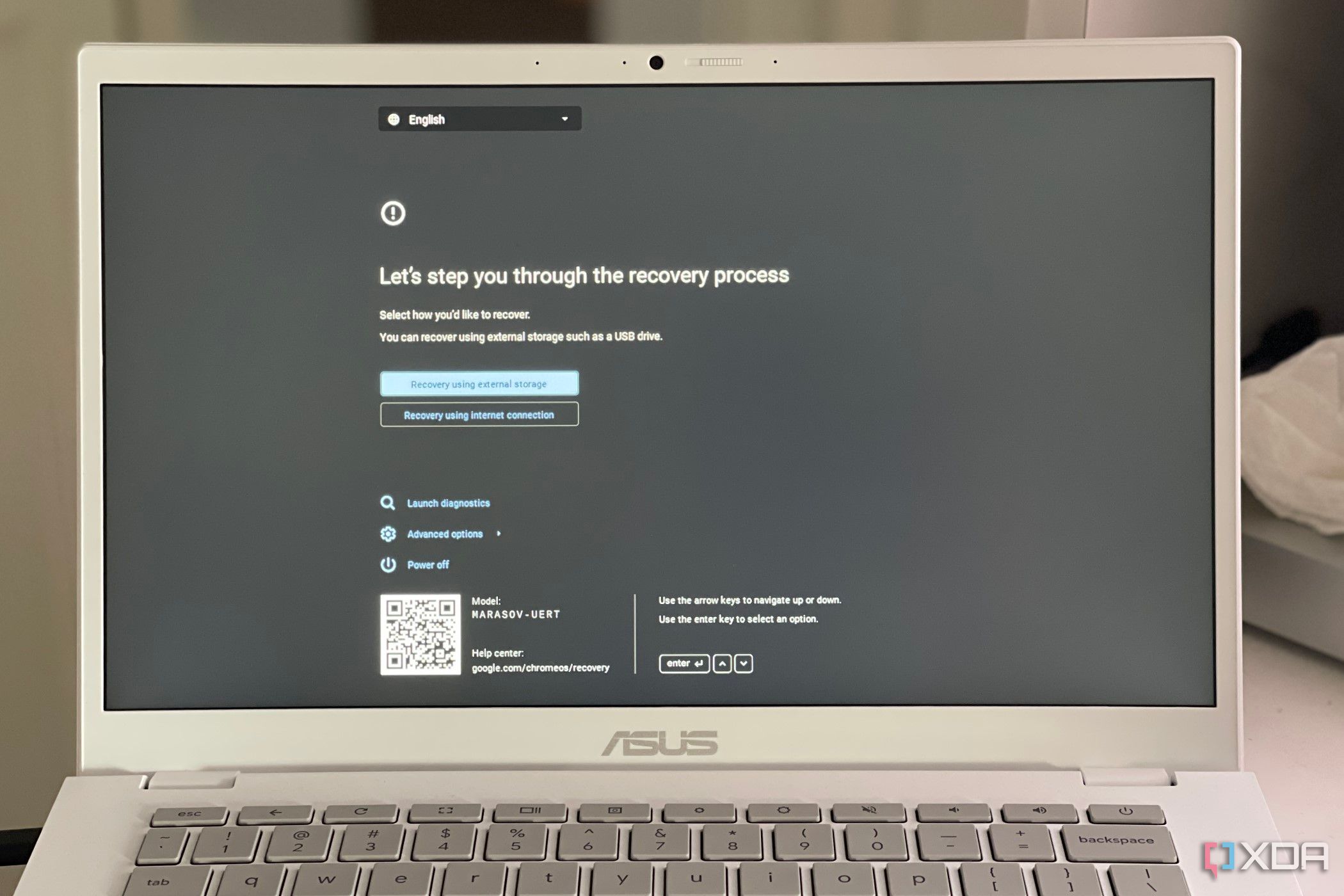
- Press and hold Ctrl + D.
- You’ll see a warning message: You are attempting to enable developer mode. **Caution: this will wipe your device completely.
- Press the up arrow and select Confirm to confirm you’re entering developer mode, then press Enter.
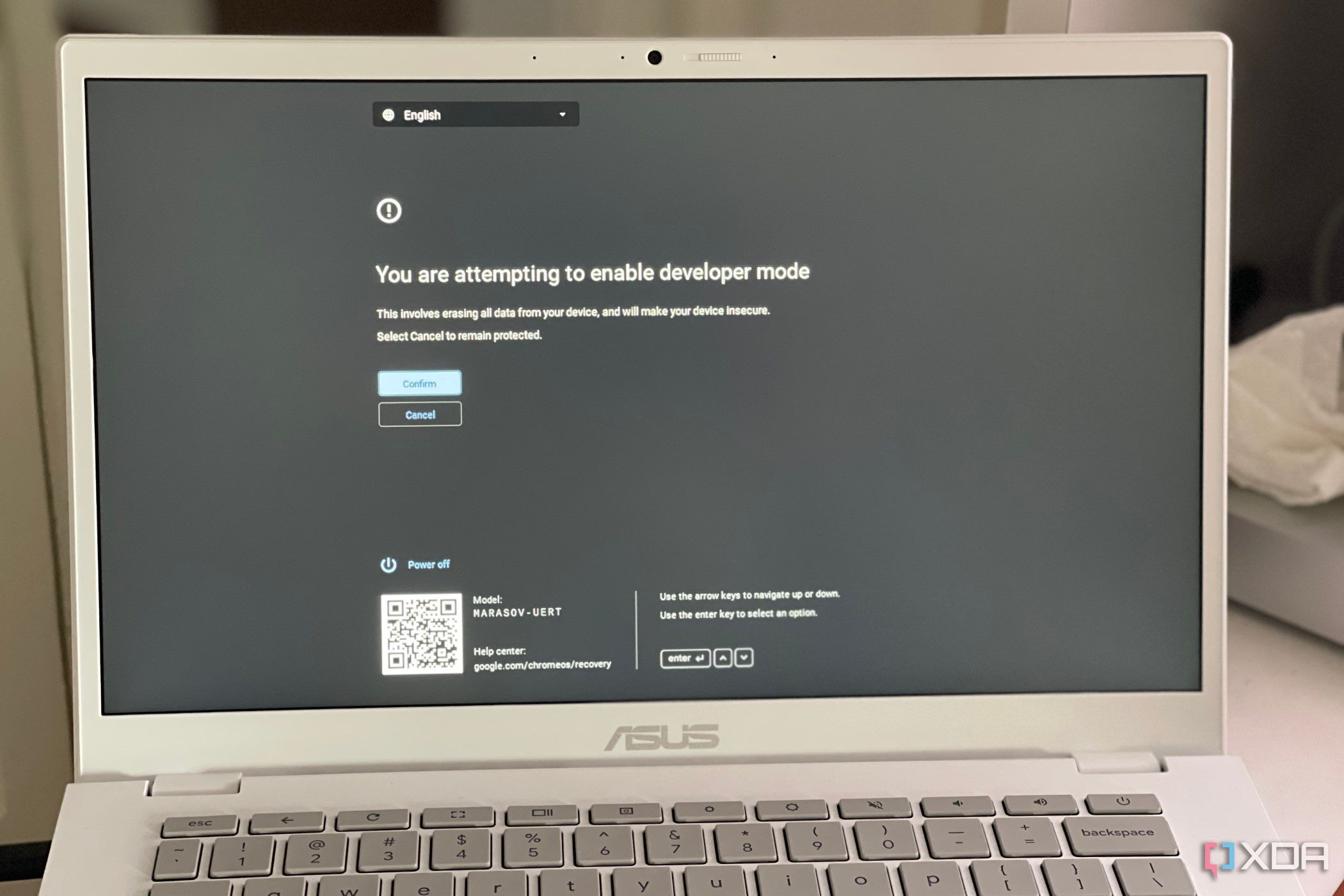


- Press Ctrl + D again and wait for your device to restart.
- You will notice a You are in recovery mode message. Press Ctrl+D to dismiss the message.
- ChromeOS enables developer mode to allow you to proceed with sideloading any app.
- Open Chrome and download the APK file for the Android app you want to install. APKMirror is a great resource for finding interesting apps.
- Go to Files on your Chromebook. Find the APK file you downloaded, right-click it, and choose Package Installer.
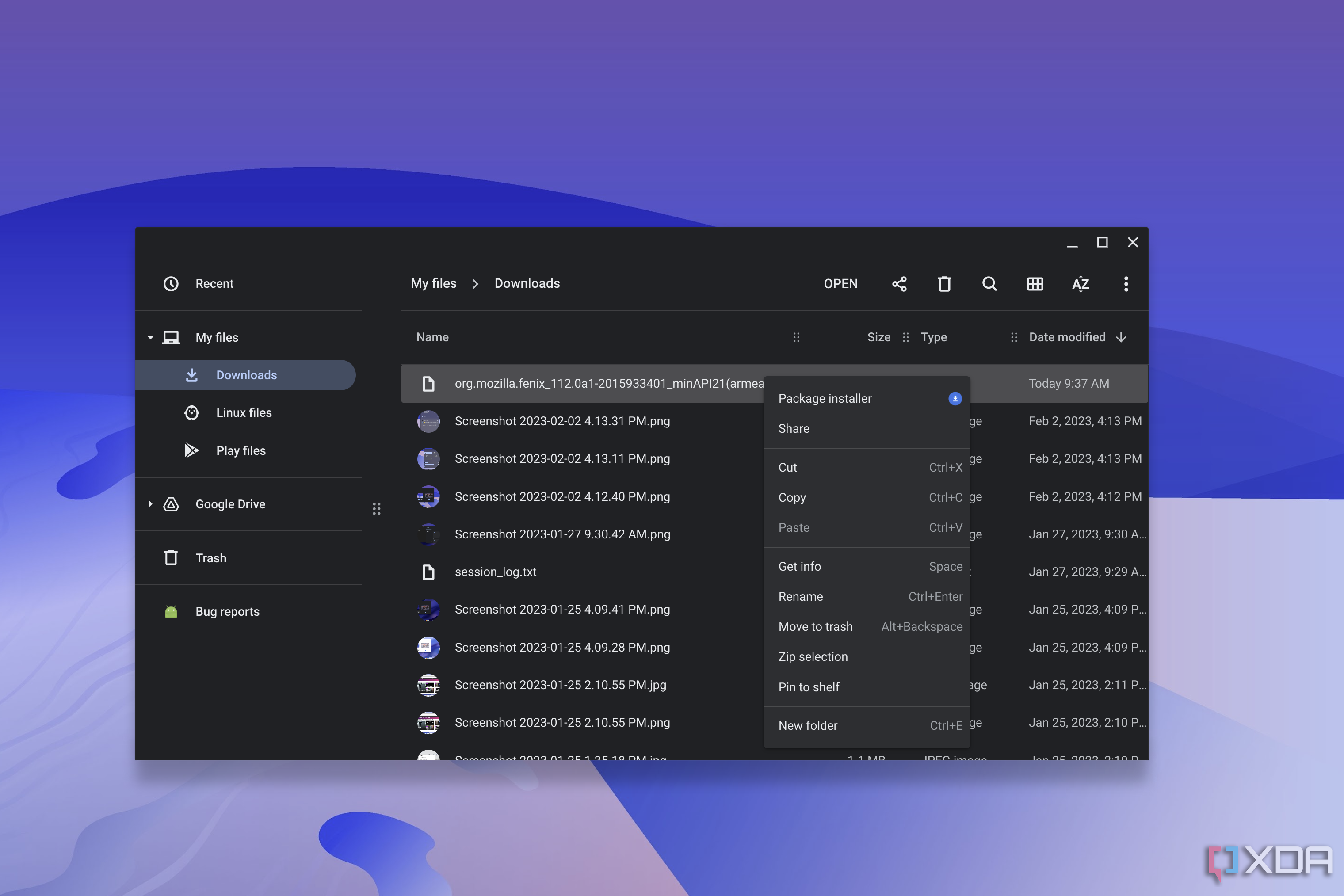
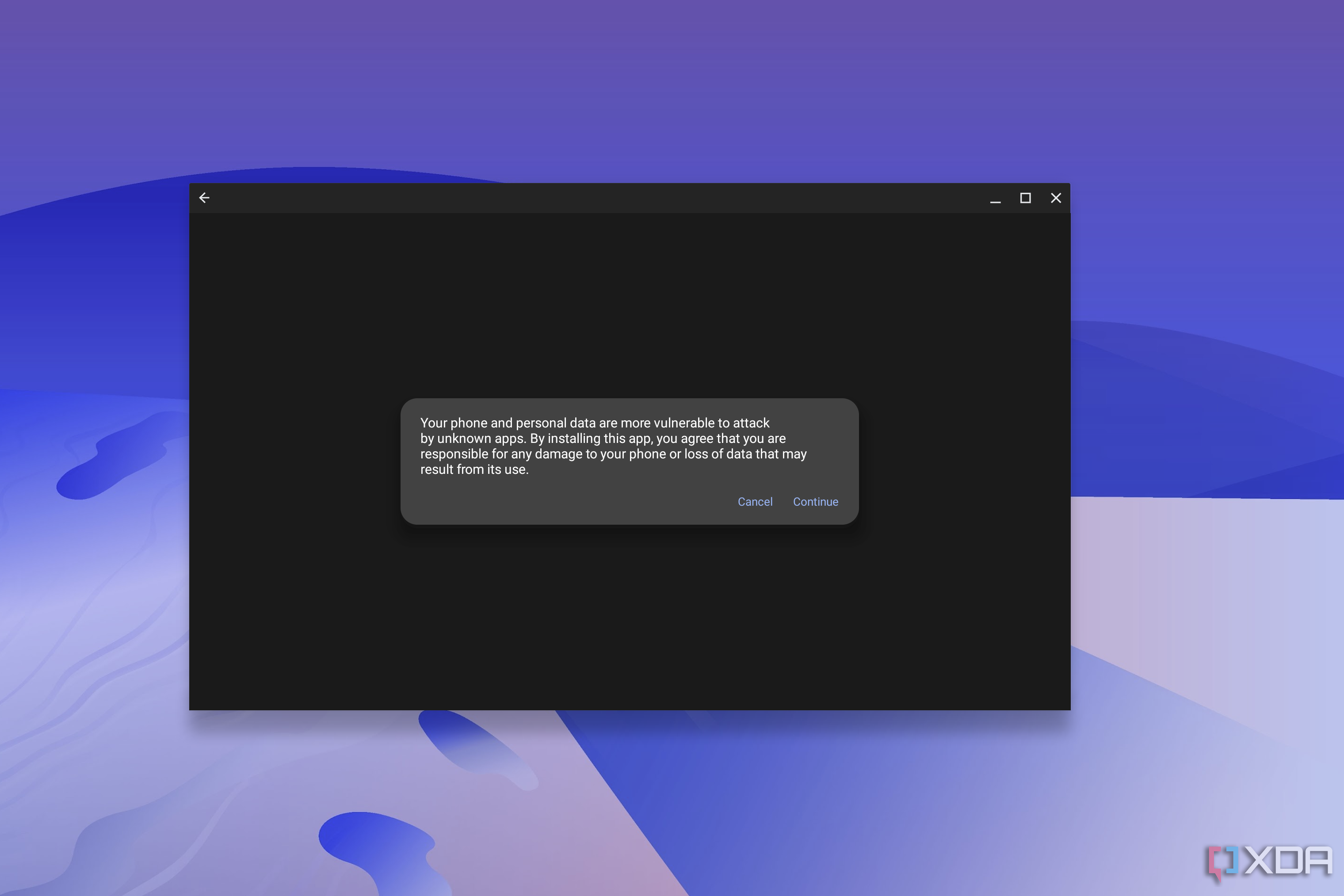
- Follow the on-screen prompts and view your sideloaded app in action.


How to sideload apps to a Chromebook via ADB
If you don’t want to deal with developer mode on Chromebook or lose the information stored on your computer, use the Android Debug Bridge (ADB). It is a technical tool for app developers to install Android apps from an APK file. As part of this process, you’ll need to enable Linux too. This is a multi-step process, so we’ve divided it for you here.
Enable Linux in ChromeOS settings
- Open the ChromeOS Settings app and choose Advanced.
- Select Developers from the Advanced menu.
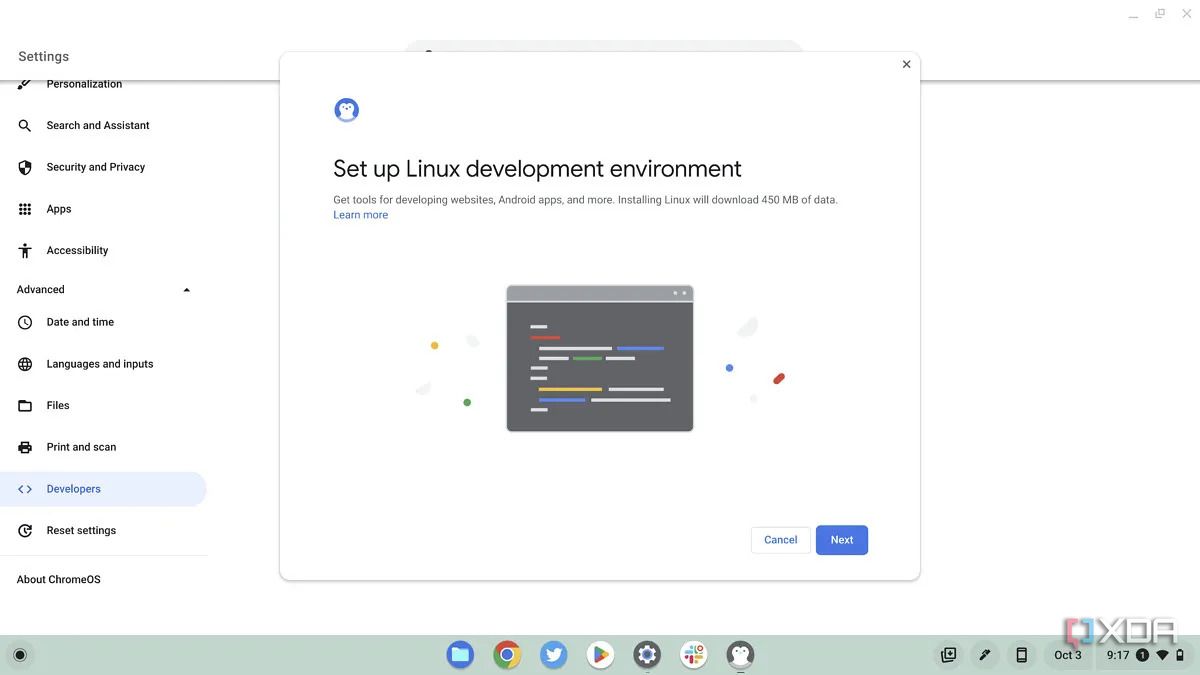
- Enable the switch for Linux Development Environment and follow the steps on your screen.

Enable Android App development
- Go back to the Settings app, and in the search box look for Develop Android Apps, then pick the top result found.
- Choose Enable ADB debugging, then select Restart and Continue, and then Confirm.
- Once your Chromebook restarts, go to the launcher, search for Terminal, and choose the top result found.
- Click Penguin and launch it.
- Type the following command: sudo apt install adb, hit Y then Enter.
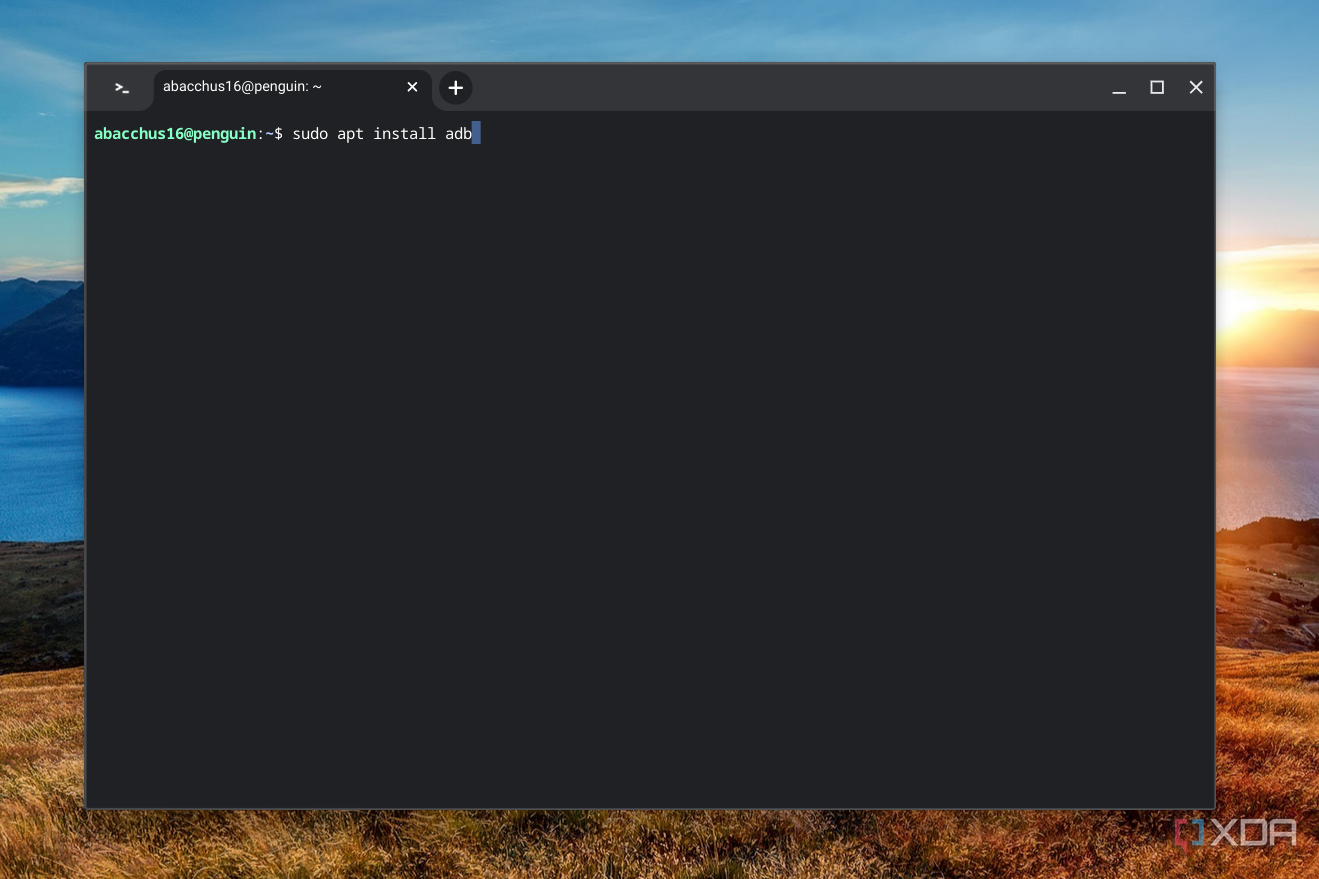
- Type adb connect arc and press Enter.
- Click the checkbox next to Always allow from this computer, then click OK.

Install your application
- Download the APK file for the app you want.
- Copy the file or move it into the Linux files folder by dragging and dropping it there.
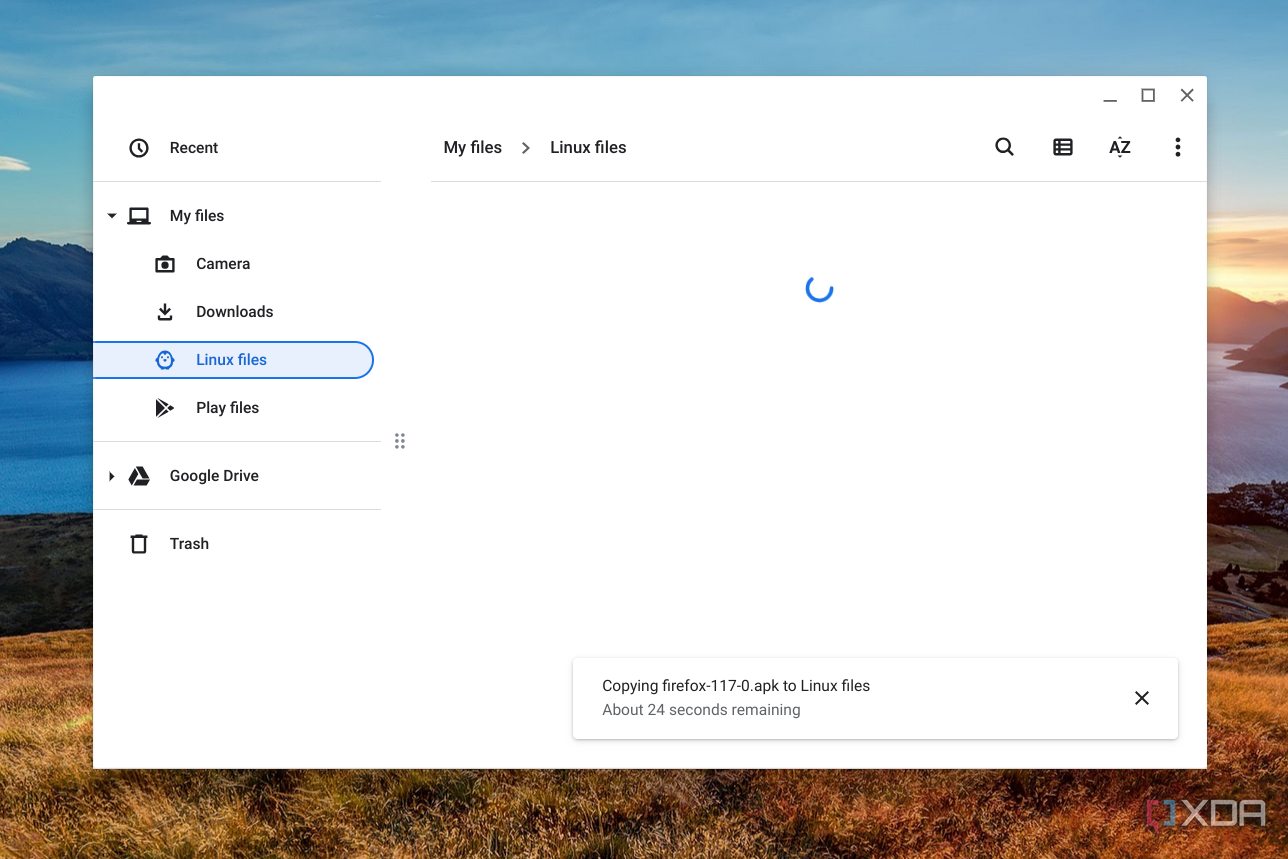
- Open the Terminal app again.
- Type the following command, inserting app name: adb -s emulator-5554 install [app name].apk
- Press Enter and then restart your Chromebook.

That’s it. Your sideloaded app should appear on your device.
Access your favorite apps on your Chromebook
The default Google Play Store is packed with millions of apps and games to choose from. We suggest that you avoid sideloading apps unless you absolutely trust the source and legality of said apps. Once you complete your Chromebook setup, check out our separate post on top ChomeOS apps.
#sideload #apps #Chromebook
source: https://www.xda-developers.com/how-sideload-apps-chromebook/

/cdn.vox-cdn.com/uploads/chorus_asset/file/25485458/Silo_S2___first_look_2.jpg?w=1068&resize=1068,0&ssl=1 "Silo season 2 hits Apple TV Plus this November")
