

McAfee was one of the most popular antivirus products back in the day. However, improvements to the Windows Security app have pretty much rendered McAfee useless for the average PC user. These days, McAfee is no longer considered an essential app; instead, it is viewed as bloatware tacked on many systems by laptop manufacturers.
Unfortunately, it’s still possible to find McAfee pre-installed on some of the best laptops on the market. If you want to free up system resources by uninstalling McAfee but don’t know where to start, you’ve come to the right place. In this guide, you’ll find all possible ways to eliminate McAfee on your Windows 11 system.
Related
Best antivirus for Windows 11
Protecting your data is always important, and when the built-in Windows security fails, these antivirus programs are your best bet.
How to remove McAfee using MCPR
The McAfee Consumer Product Removal tool
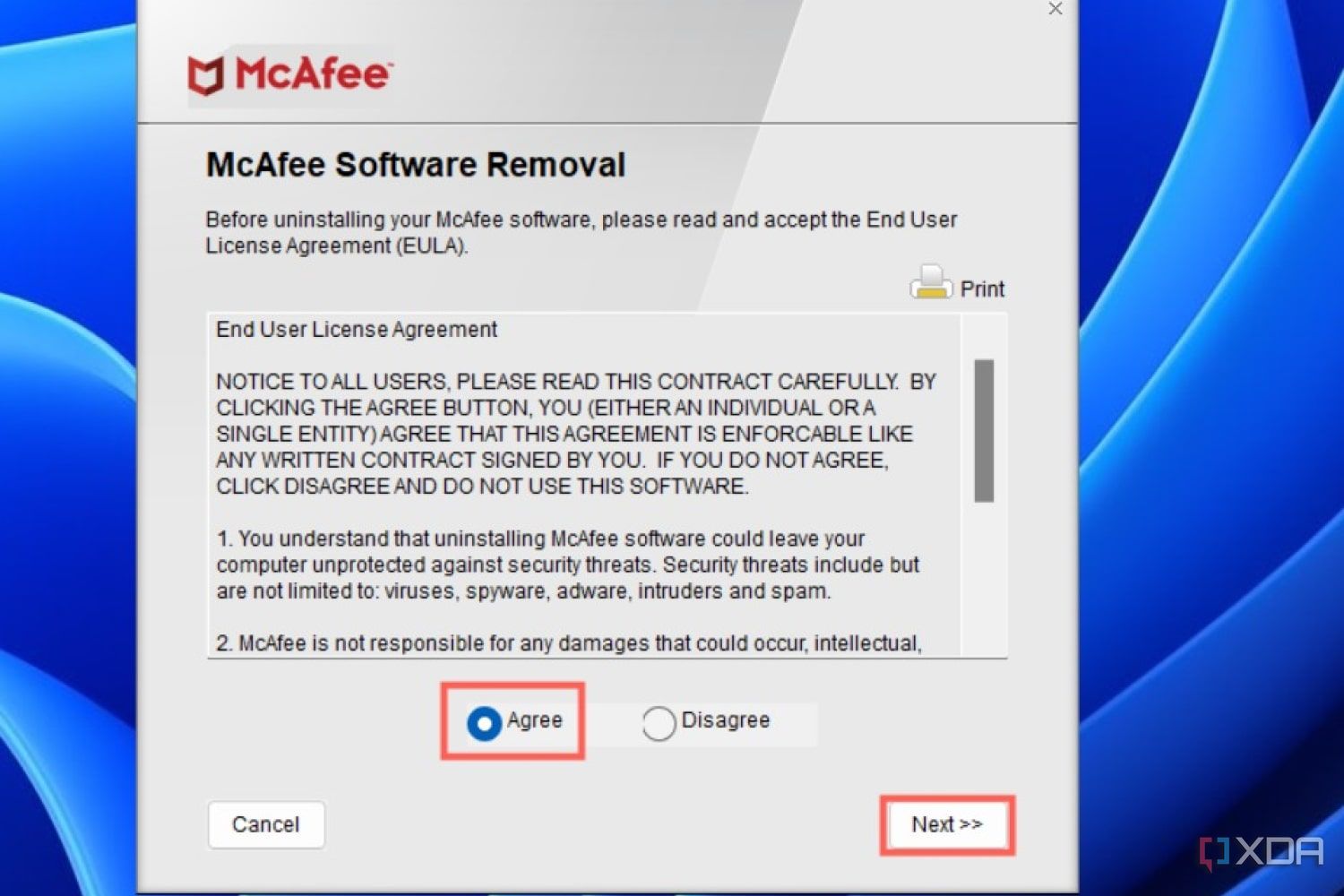
If you don’t want to mess with Windows Terminal or Control Panel, you can use the official MCPR tool to uninstall McAfee. This free software can be downloaded from McAfee’s official website, and McAfee can be removed in a few minutes. To start, download MCPR from the official website, then run MCPR.exe with administrator privileges and wait for it to finish extracting the files.
- After starting MCPR, choose the Agree checkbox under the End User License Agreement and click on the Next button again.
- Enter the CAPTCHA and select Next.
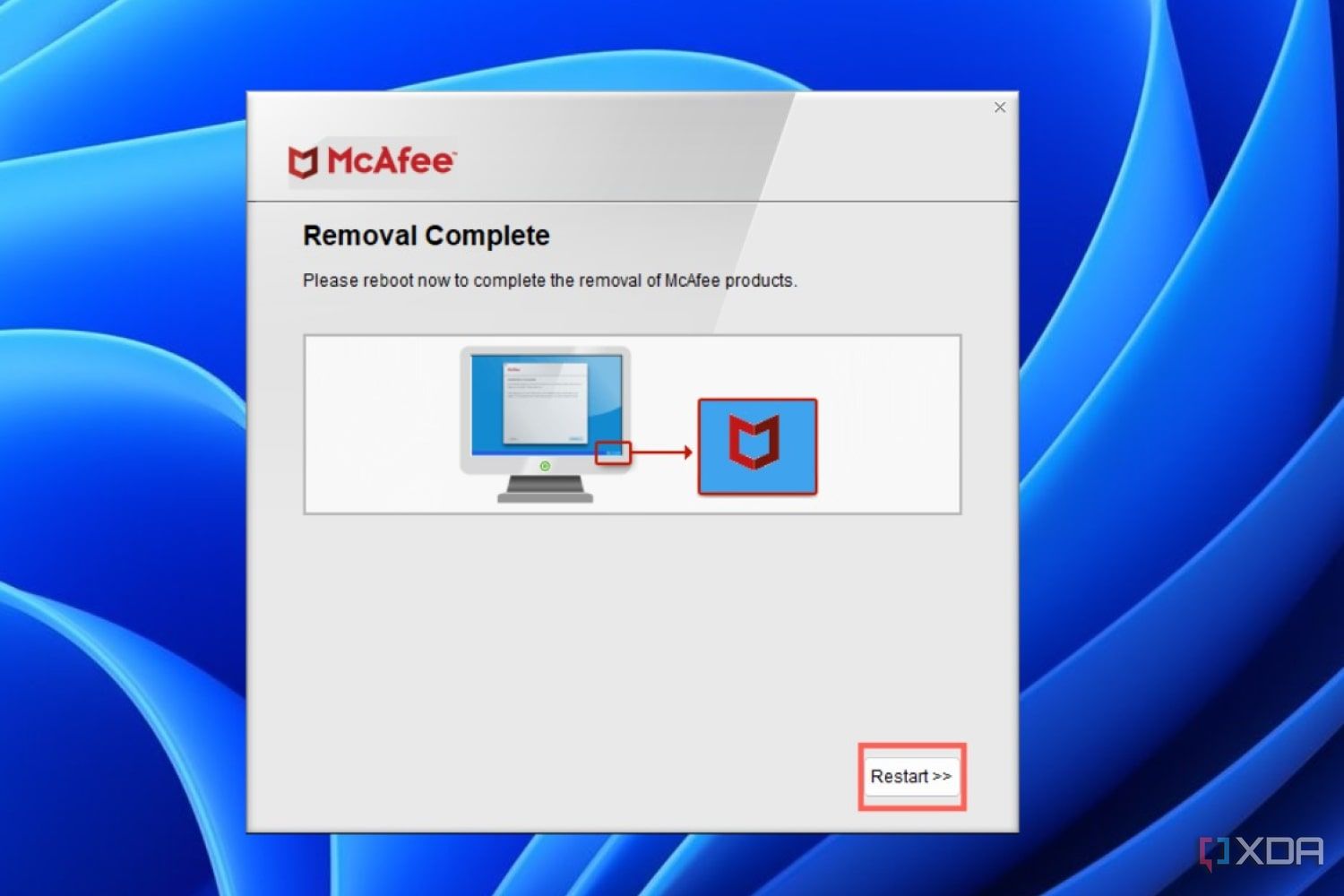
- Click on Restart after MCPR finishes uninstalling McAfee.


How to remove McAfee using Windows Settings
How to remove McAfee Total Protection from Windows
If you don’t want to download another tool just to uninstall McAfee, you can use the Apps tab in Windows Settings to get rid of the antivirus software.
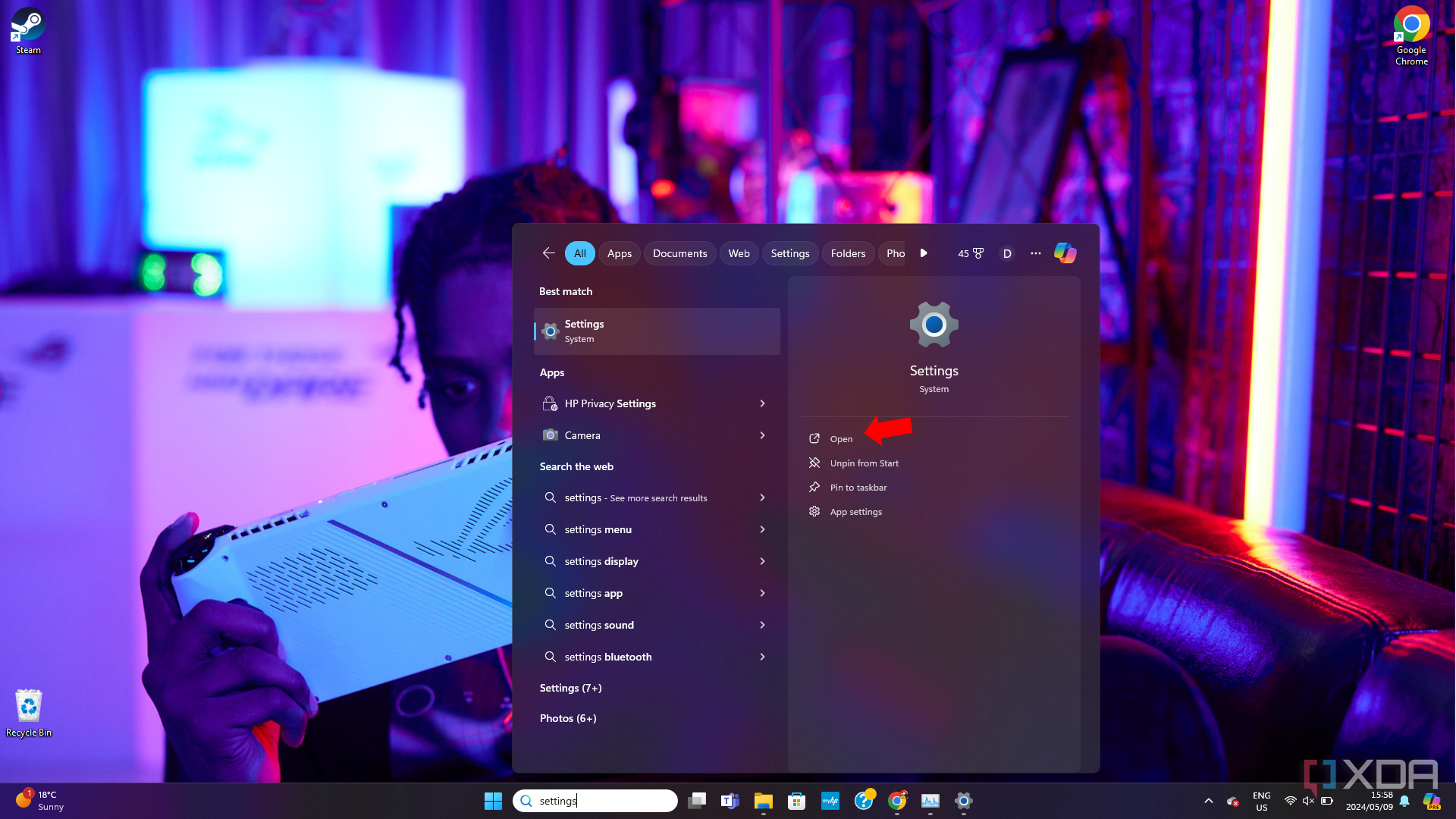
- Right-click on the Start menu and choose Settings.
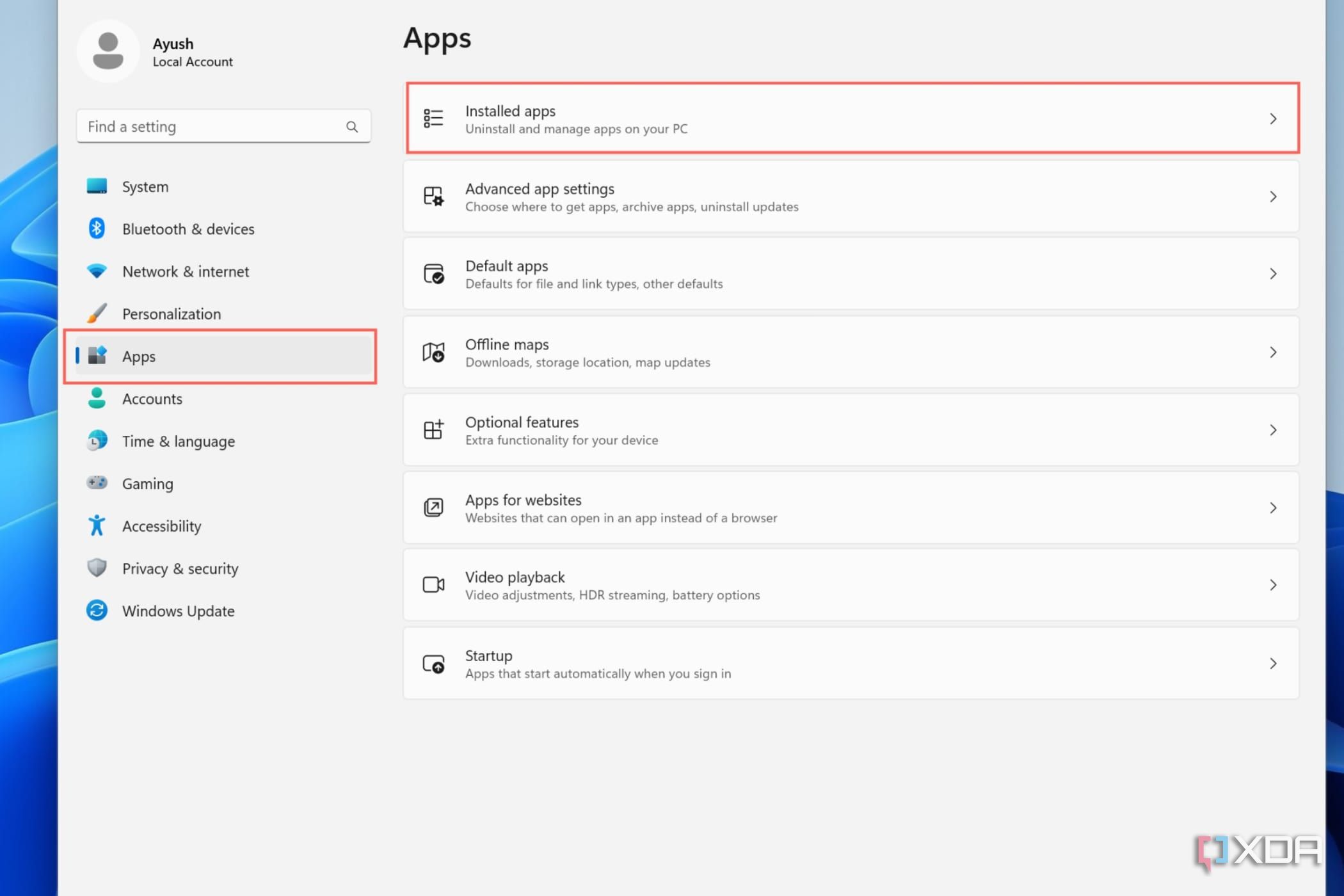
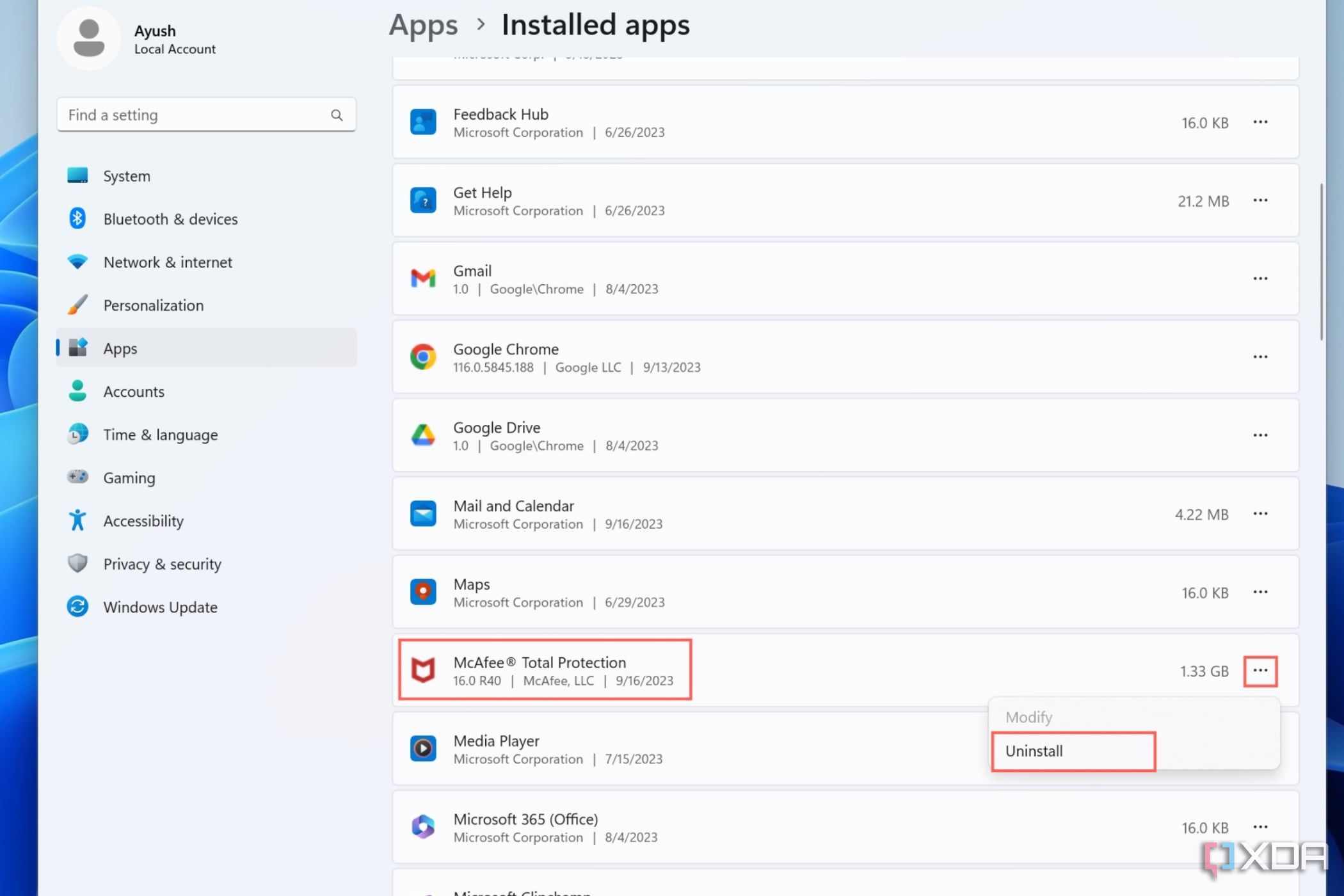
- Navigate to the Apps tab and click on Installed apps.
- Scroll down until you spot McAfee® Total Protection, and click on the three dots next to it.
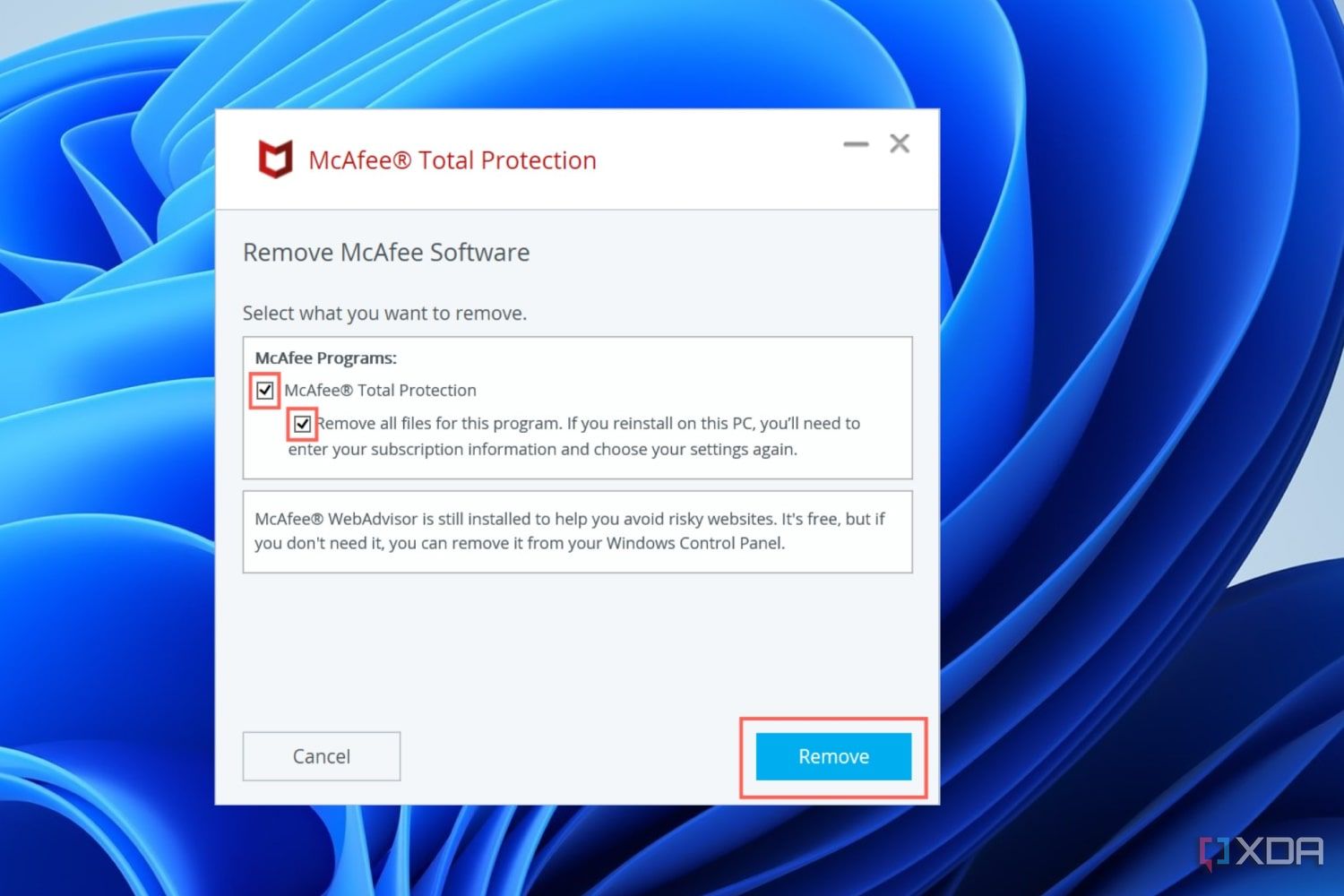
- Choose Uninstall twice and grant administrator privileges when prompted by Windows.
- Toggle both the McAfee® Total Protection option and the checkbox underneath it, and click on the Remove button twice.


How to remove McAfee WebAdvisor from Windows
You’ll also want to uninstall McAfee’s WebAdvisor if you want to completely remove the software from your system.
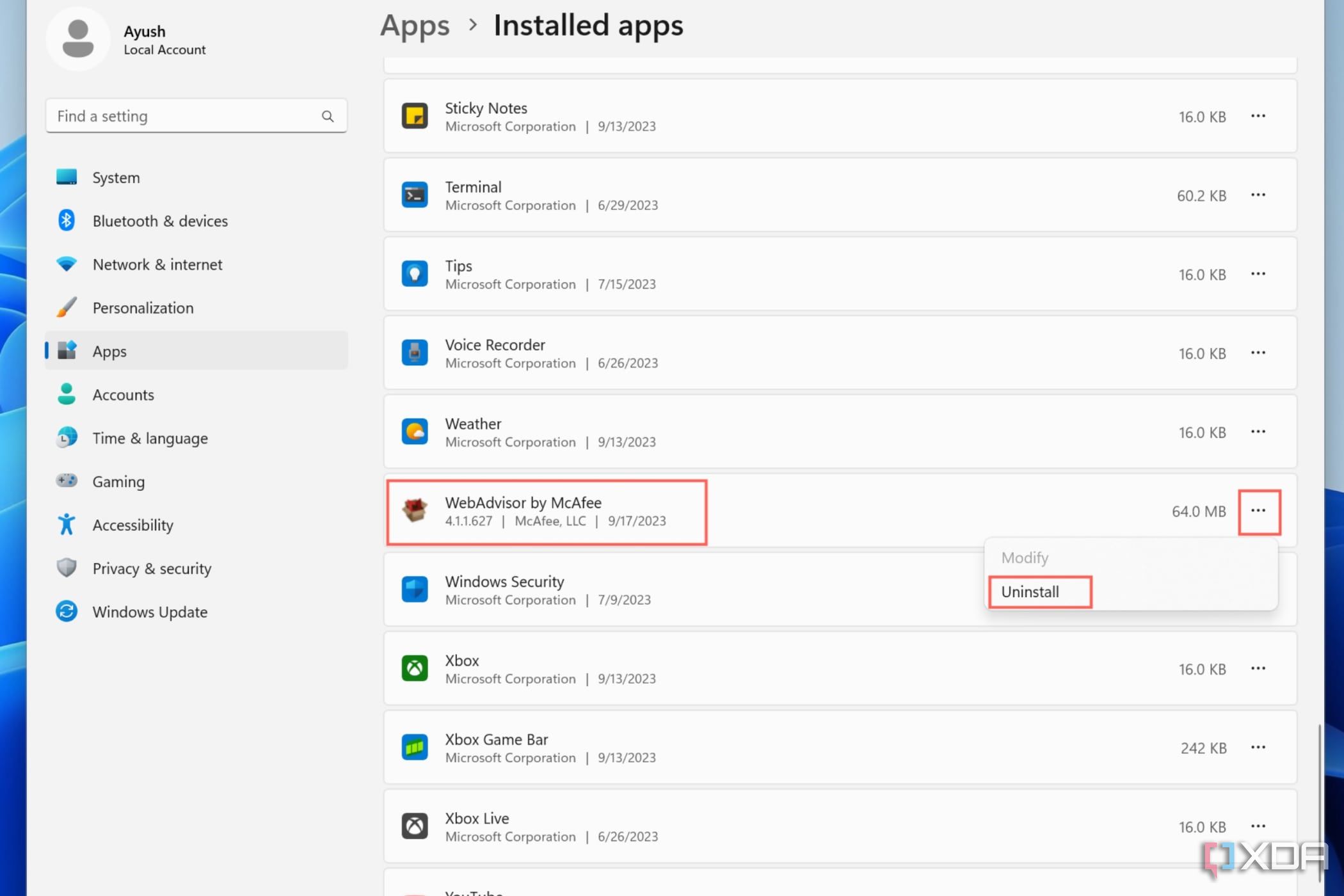
- Scroll to the bottom of the apps list and locate WebAdvisor by McAfee.
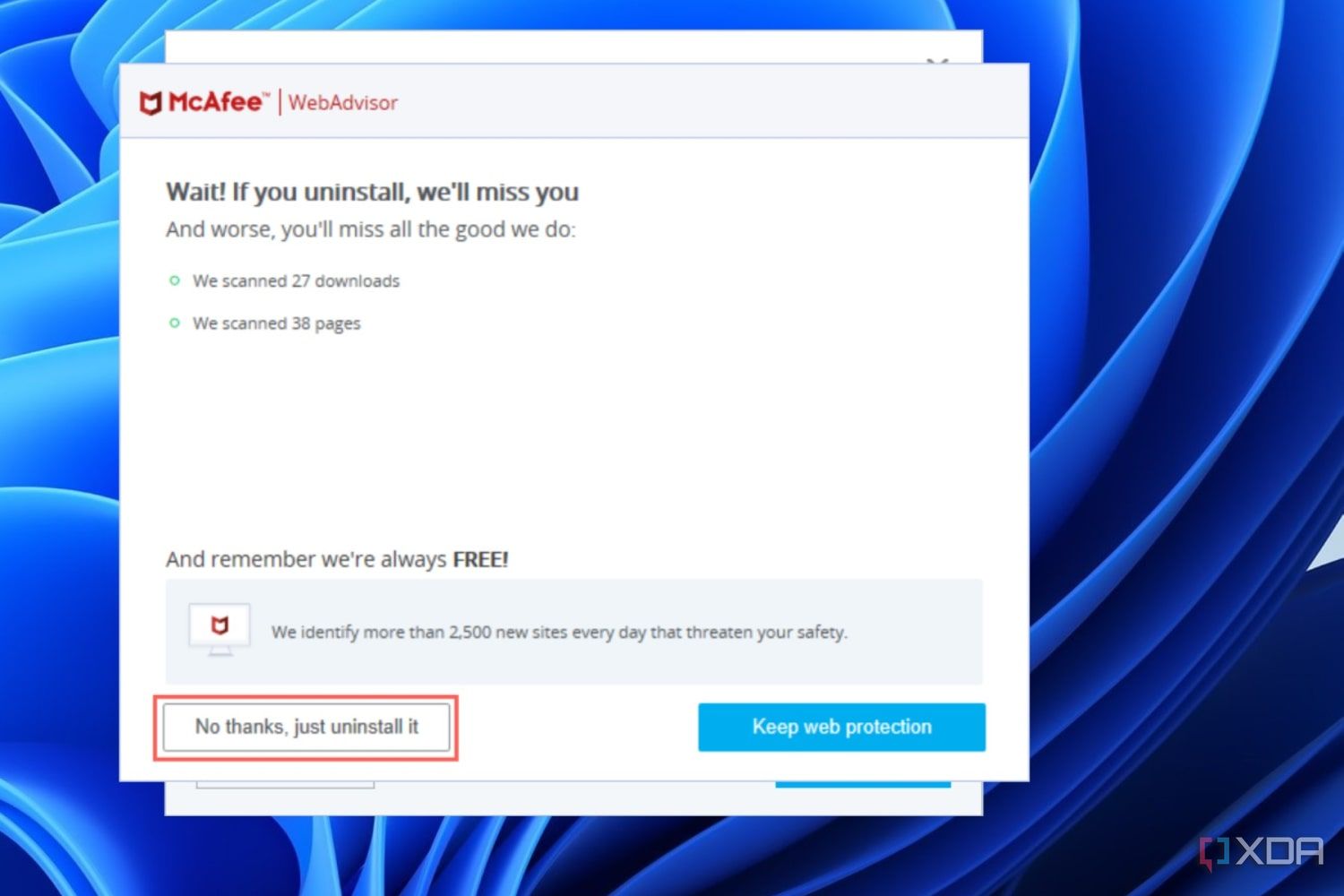
- Click on the three dots next to it, press the Uninstall button twice, and grant administrator access to the uninstaller.
- Choose the No thanks, just uninstall it option to remove WebAdvisor.


Restart your PC to clear all temporary files or if the program is still visible after uninstalling it.
How to remove McAfee using the Control Panel
You can also use the Control Panel to remove McAfee. The second half of the uninstallation procedure is similar to what we did in the Windows Settings method.
- Type Control Panel into the search bar and click on the Control Panel suggestion.
- Click on the Uninstall a program option under the Programs tab.

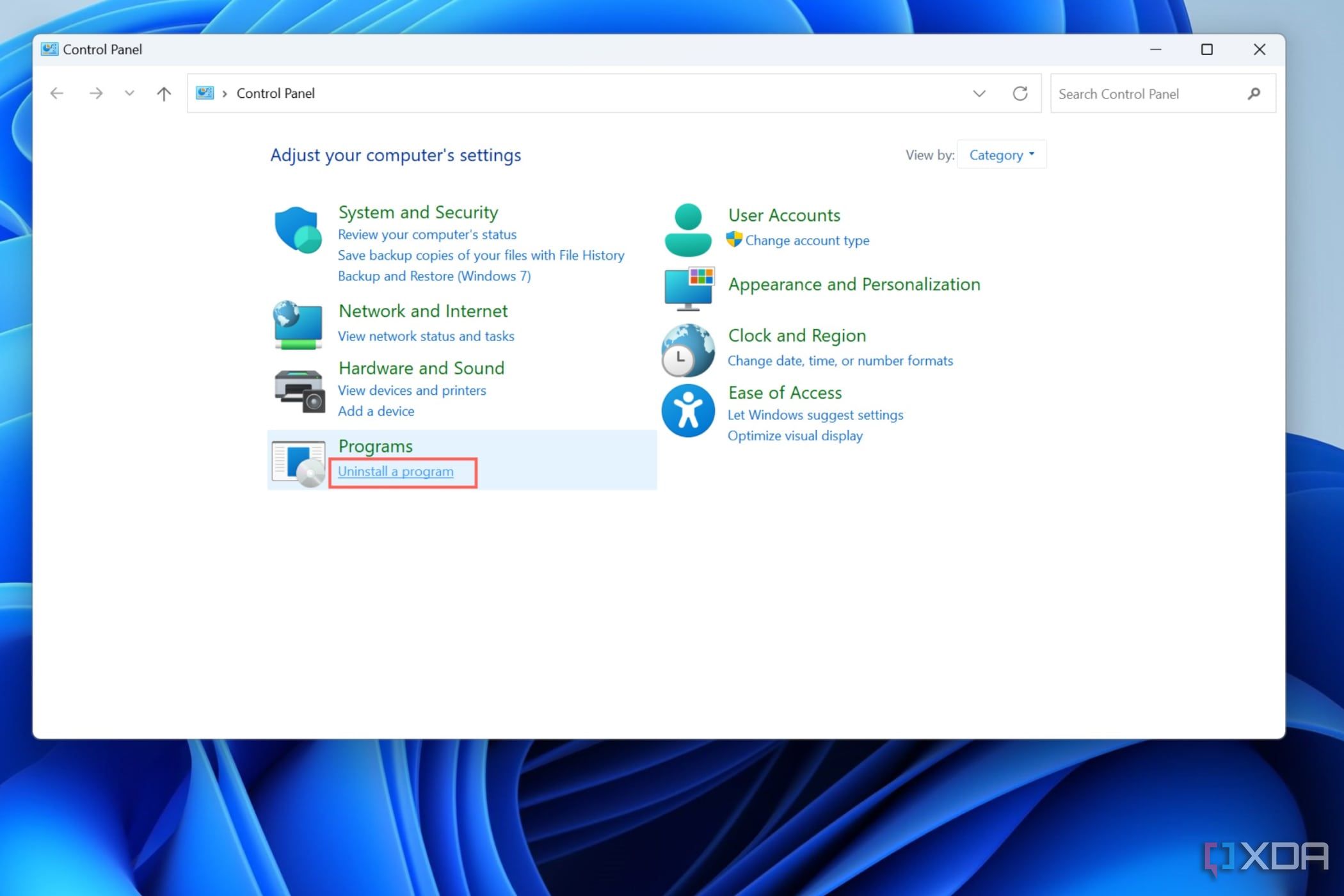
- Right-click on McAfee® Total Protection, select Uninstall/Change, and grant admin privileges when prompted.
- Ensure the McAfee® Total Protection option and the checkbox under it are enabled and press Remove.
McAfee Total Protection - Follow the same procedure as Step 3 to open the uninstaller for WebAdvisor.
- Press No thanks, just uninstall it.
- As always, restart your PC after uninstalling the McAfee apps.


How to remove McAfee using Terminal commands
In case you wish to go the high-tech route
Windows Terminal provides a set of commands that you can use to uninstall any program, including McAfee.
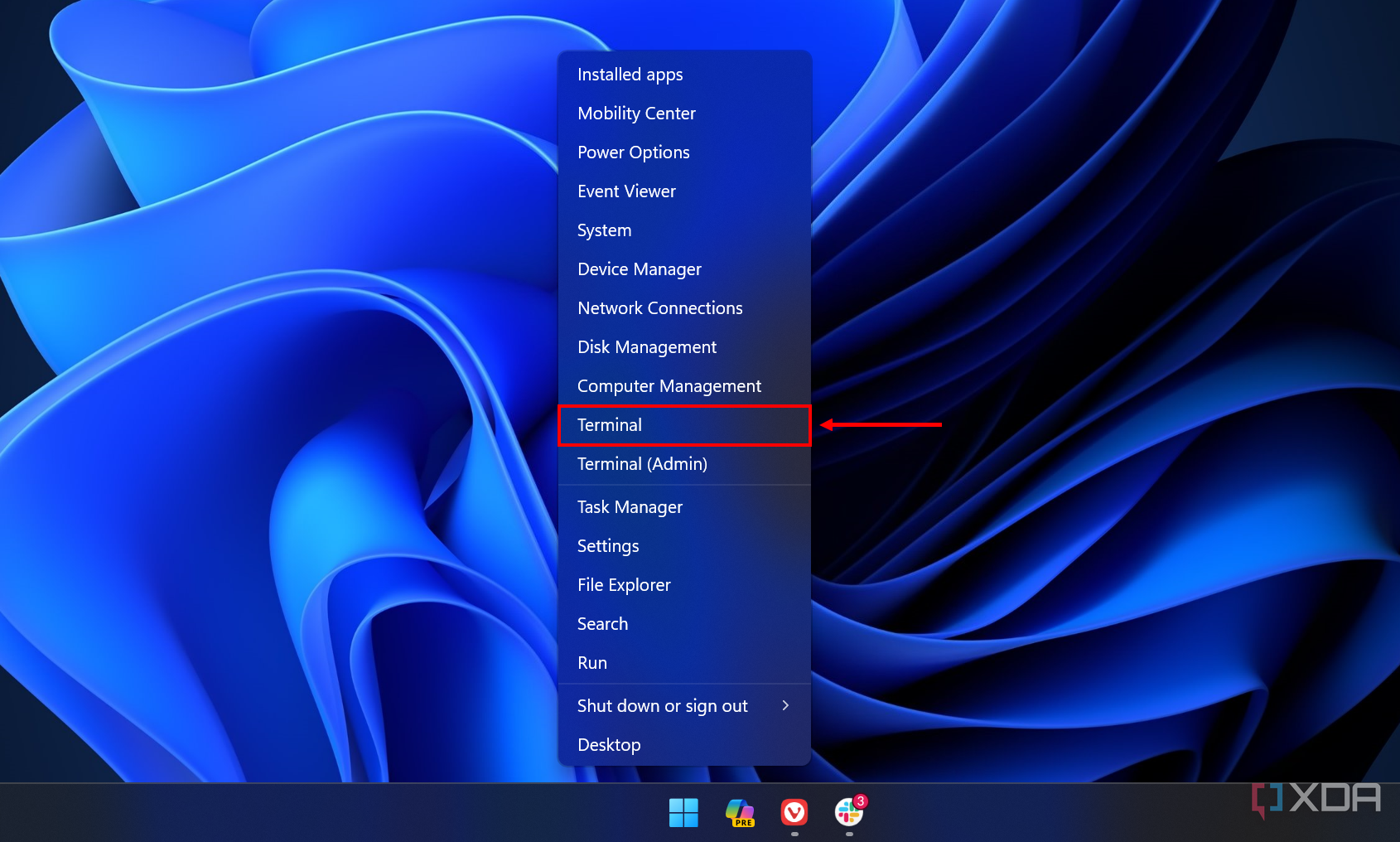
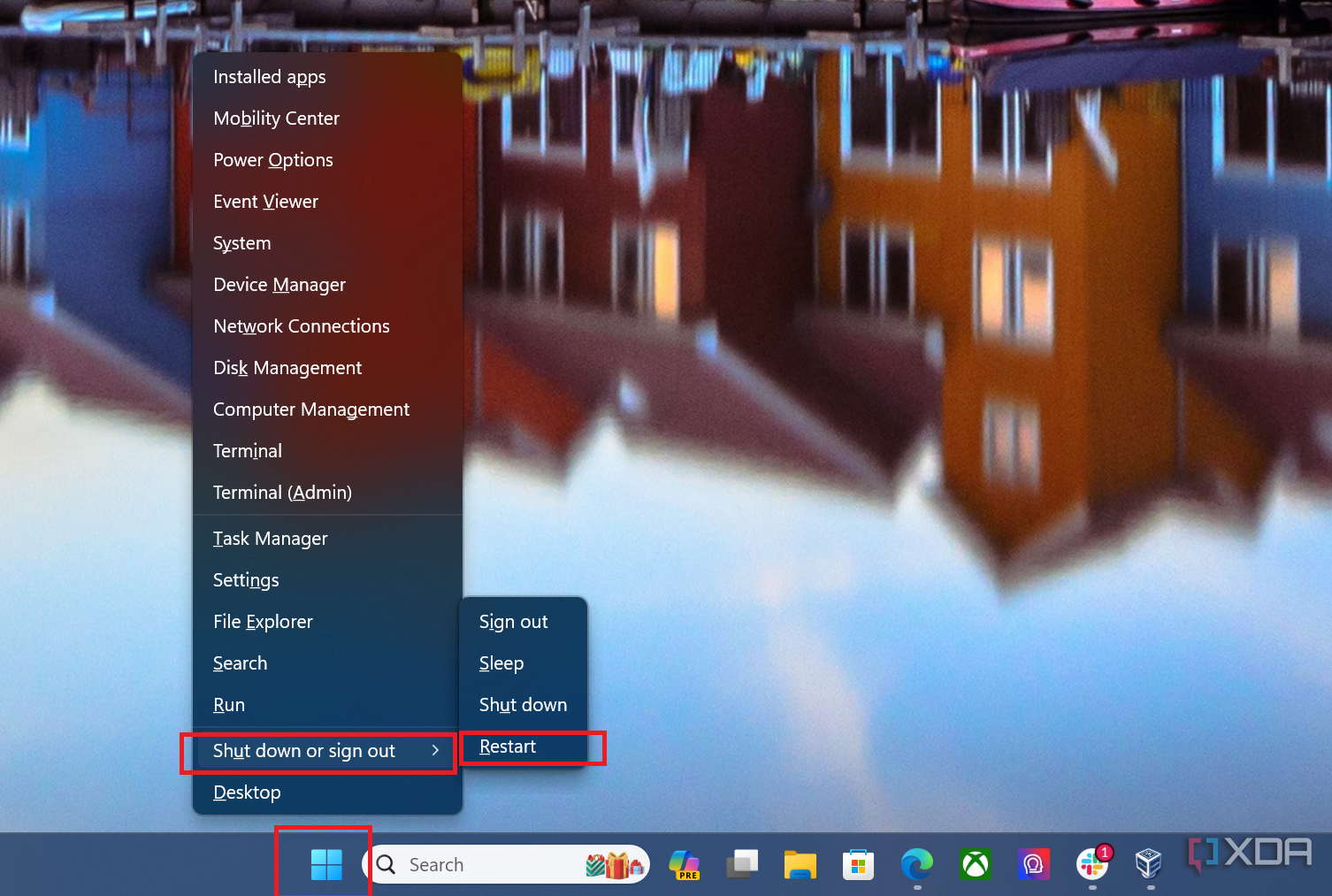
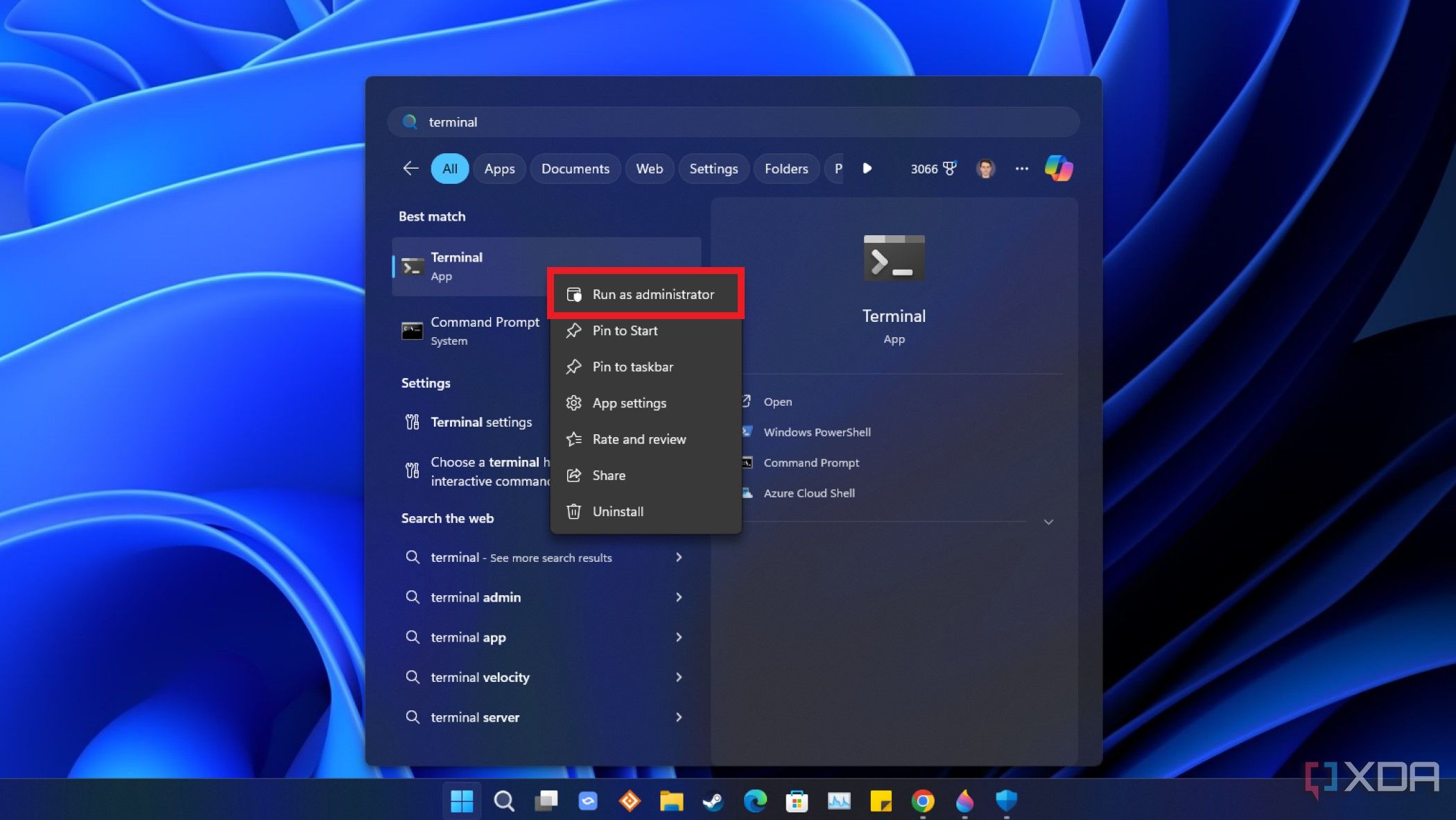
- Right-click on the Start button and choose Terminal (Admin). Choose Yes when Windows asks for admin privileges.
- Paste the following command and press the Enter key.
Get-WmiObject -Class Win32_Product | Select-Object -Property Name
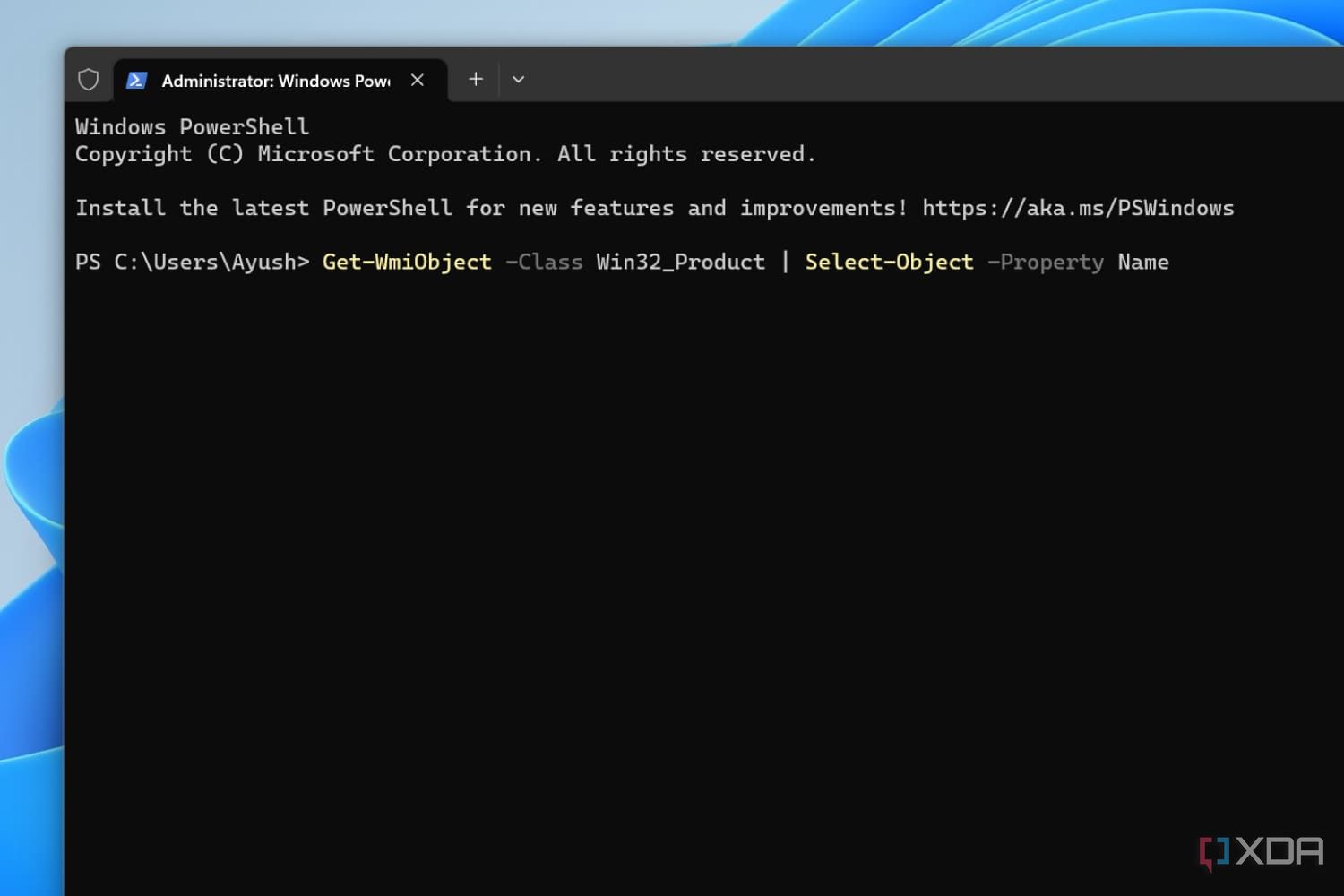
- Scroll down until you spot a service associated with McAfee on the list. Paste the following code into Windows Terminal and replace app_name with the name of the McAfee service that you wish to uninstall.
$app = Get-WmiObject -Class Win32_Product `-Filter "Name="app_name""
- Restart your PC.


How to remove leftover McAfee files and services in Windows 11
How to remove leftover McAfee files using Command Prompt
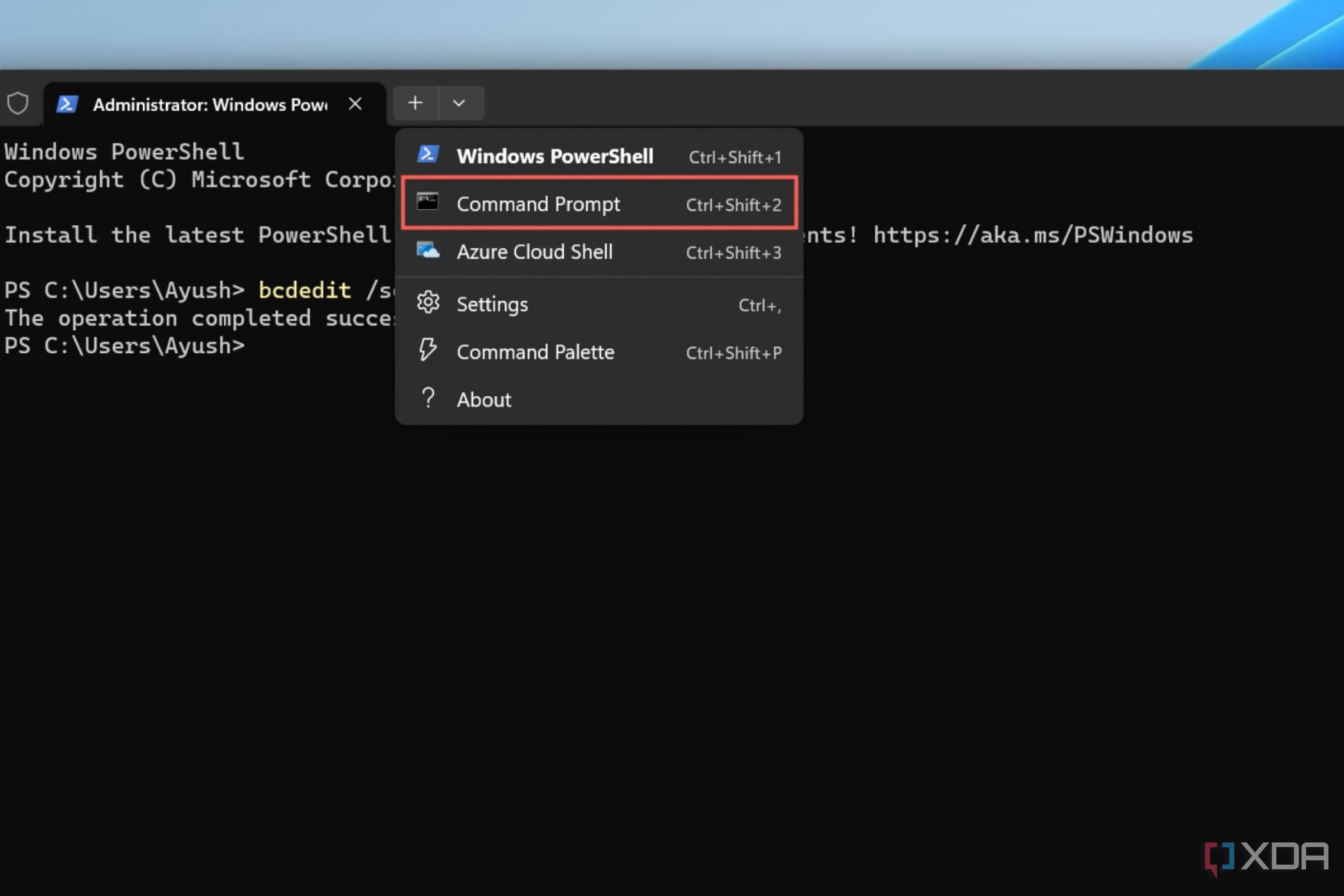
McAfee, like many other third-party apps, can leave some files and processes on your system even after you uninstall it. So, you’ll have to use the Windows Terminal to disable and remove the remaining services.
- Open Windows Terminal.
- Click on the drop-down menu next to the New Tab button and choose Command Prompt.
- Minimize Command Prompt, right-click on the Start button and choose Run.
- Type services.msc and press Enter.
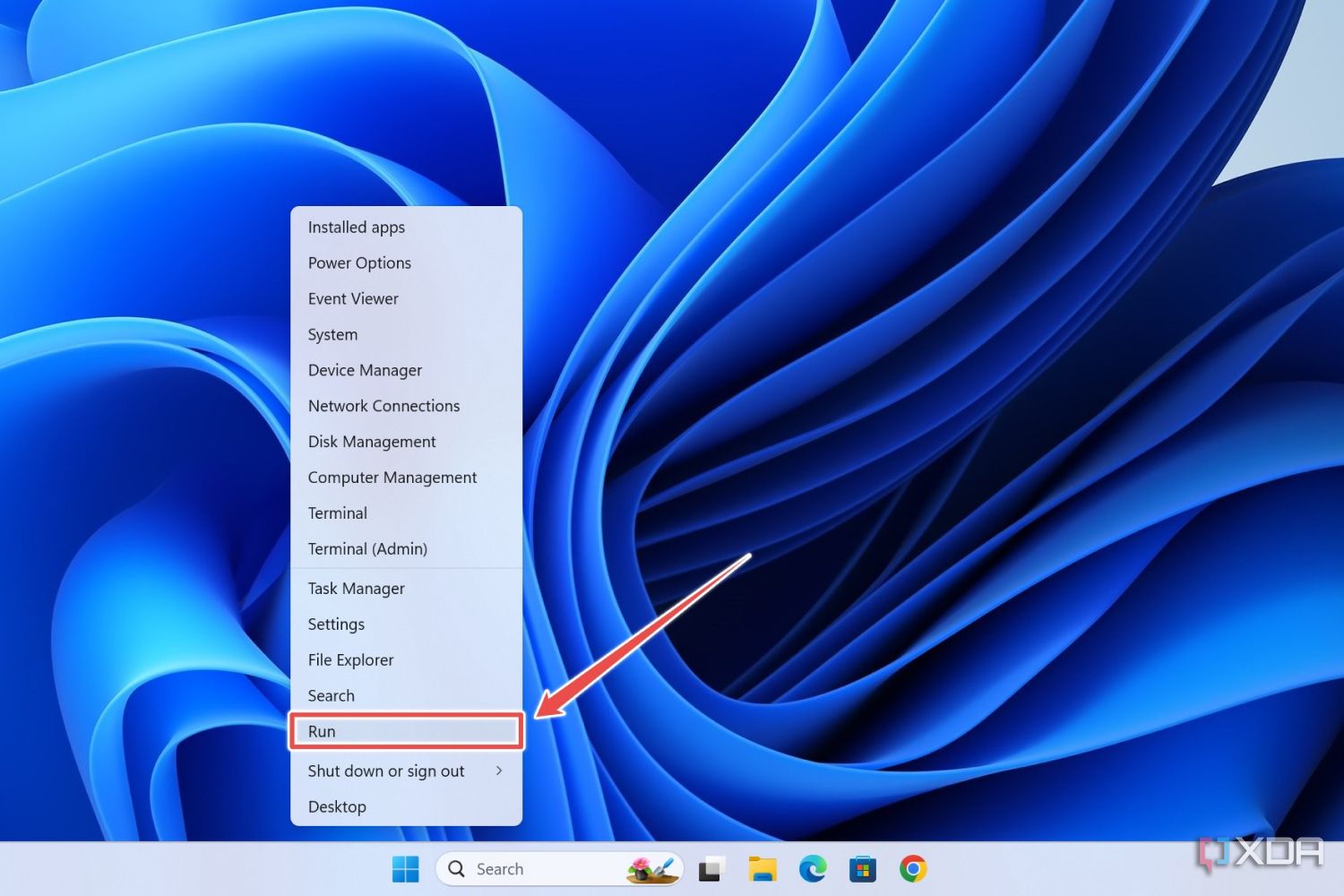
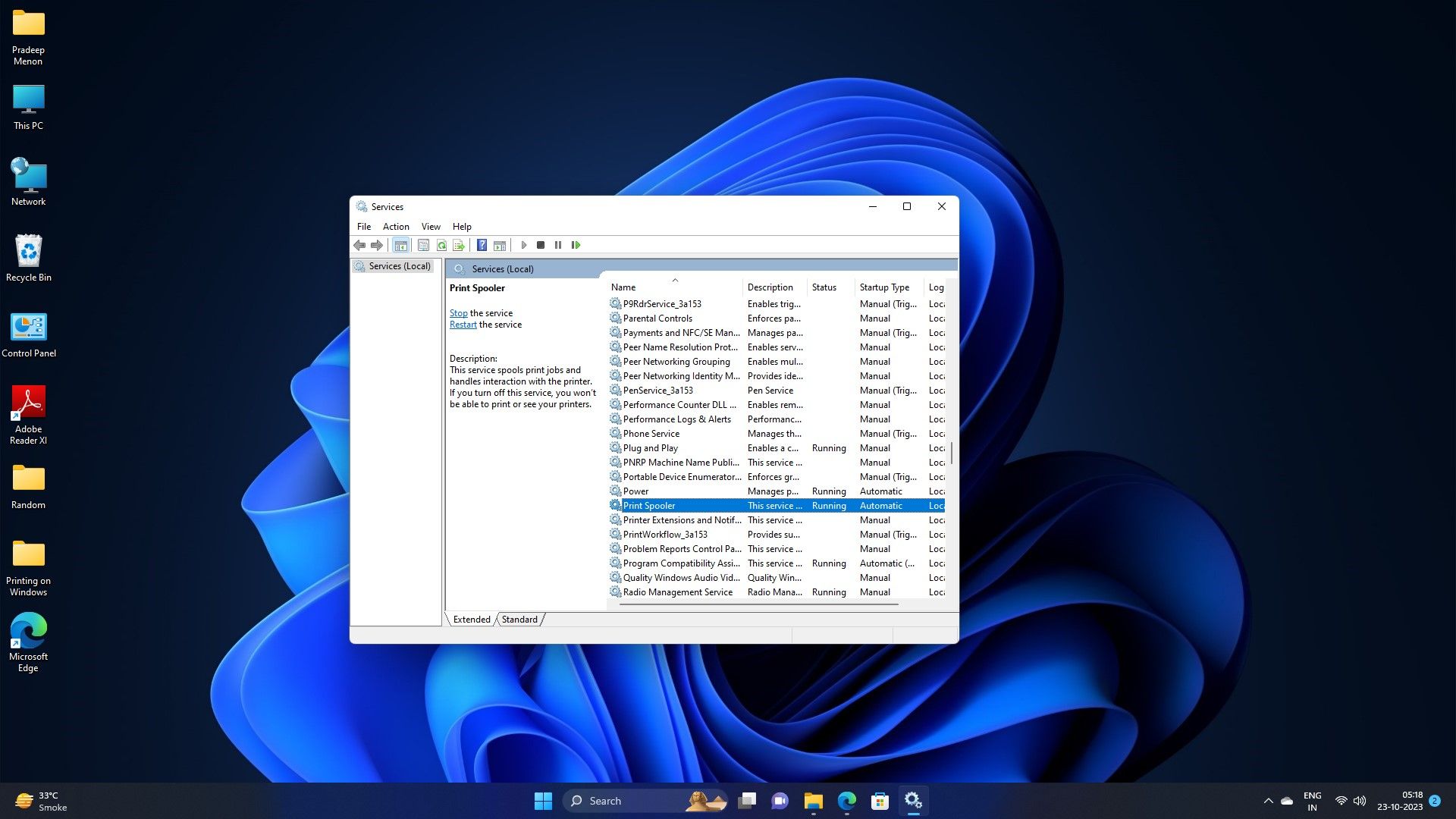


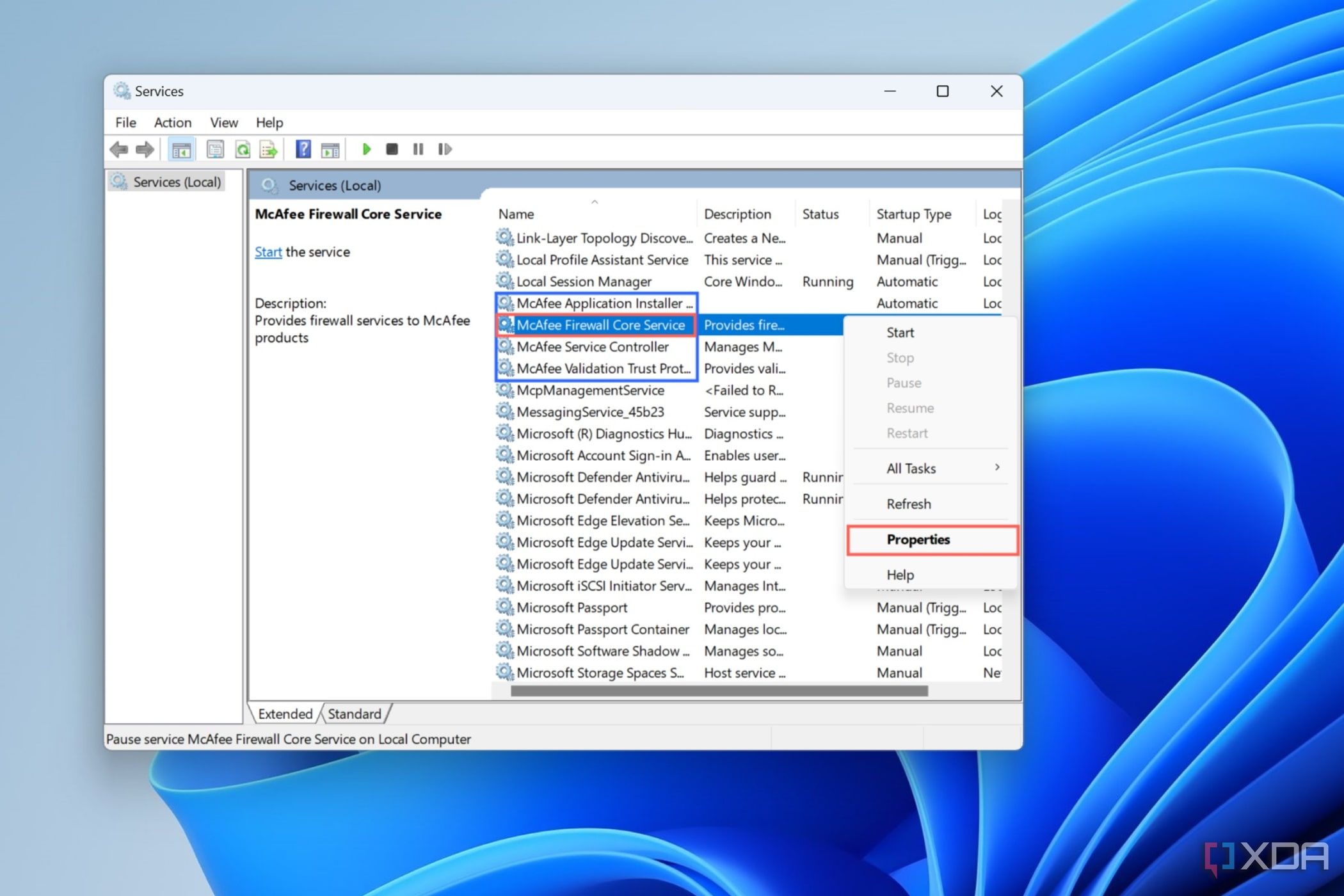
- Scroll down until you spot the McAfee services.
- Right-click on one of them and choose Properties.
- Copy the name of the service.
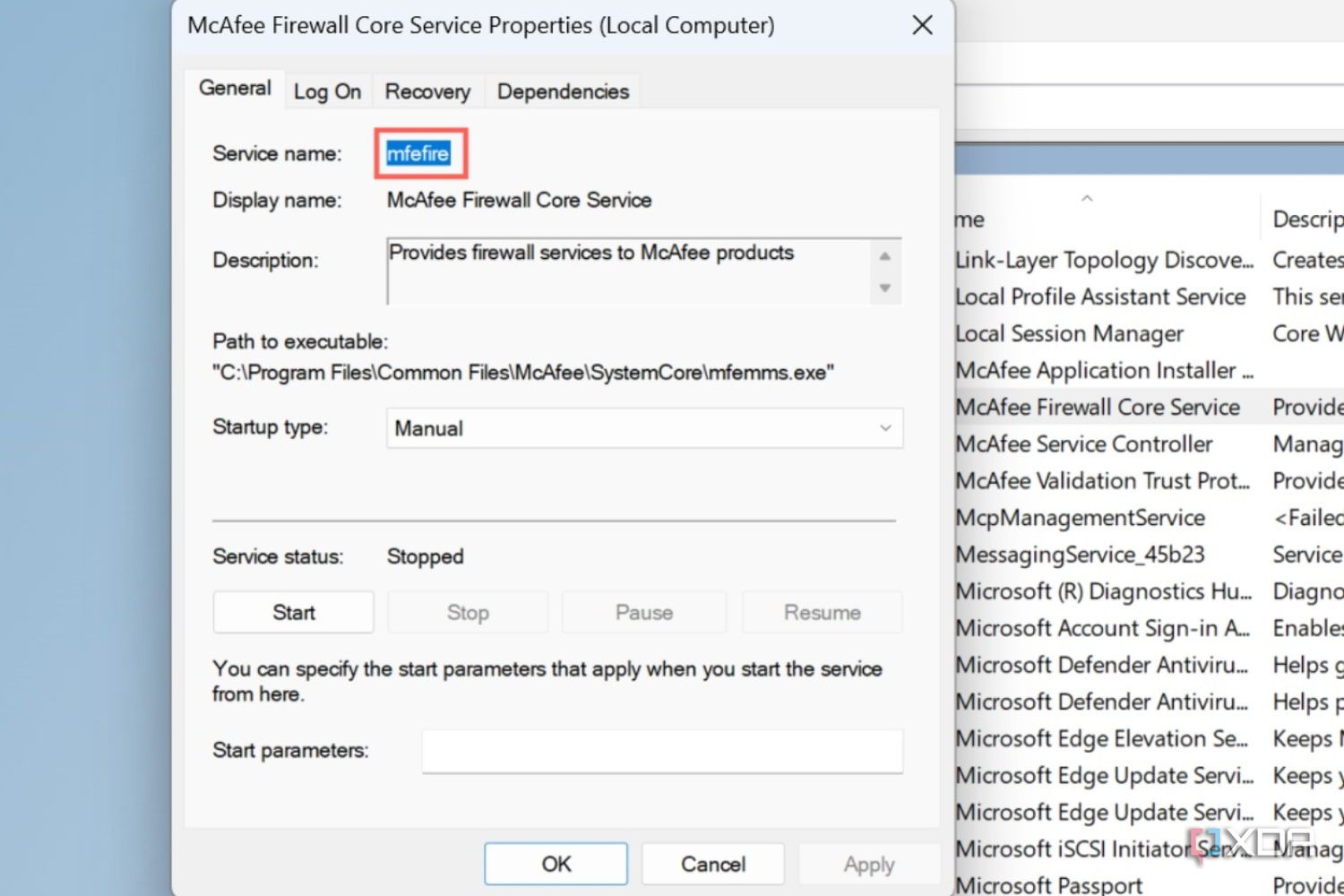
- Go back to Command Prompt, and press Enter after typing the following code (with relevant file name).
sc delete mfefire
- Repeat steps 5, 6, and 7 for the rest of the McAfee processes. Be sure to replace mfefire with the name of the services you wish to delete.


How to remove leftover McAfee files using Registry editor
In some cases, Windows Terminal may show the “Access is denied” error message. This means you’ll have to remove the services via the Registry Editor. Here is how to do so.
- Type regedit into Windows Search and click on the Registry Editor suggestion.
- Paste the following address into the Search Bar and locate the McAfee service that you wish to uninstall.
Computer\HKEY_LOCAL_MACHINE\SYSTEM\CurrentControlSet\Services
- Right-click on the service folder and select the Delete option.
- Repeat the process for all the services you were unable to remove via the Command Prompt method.
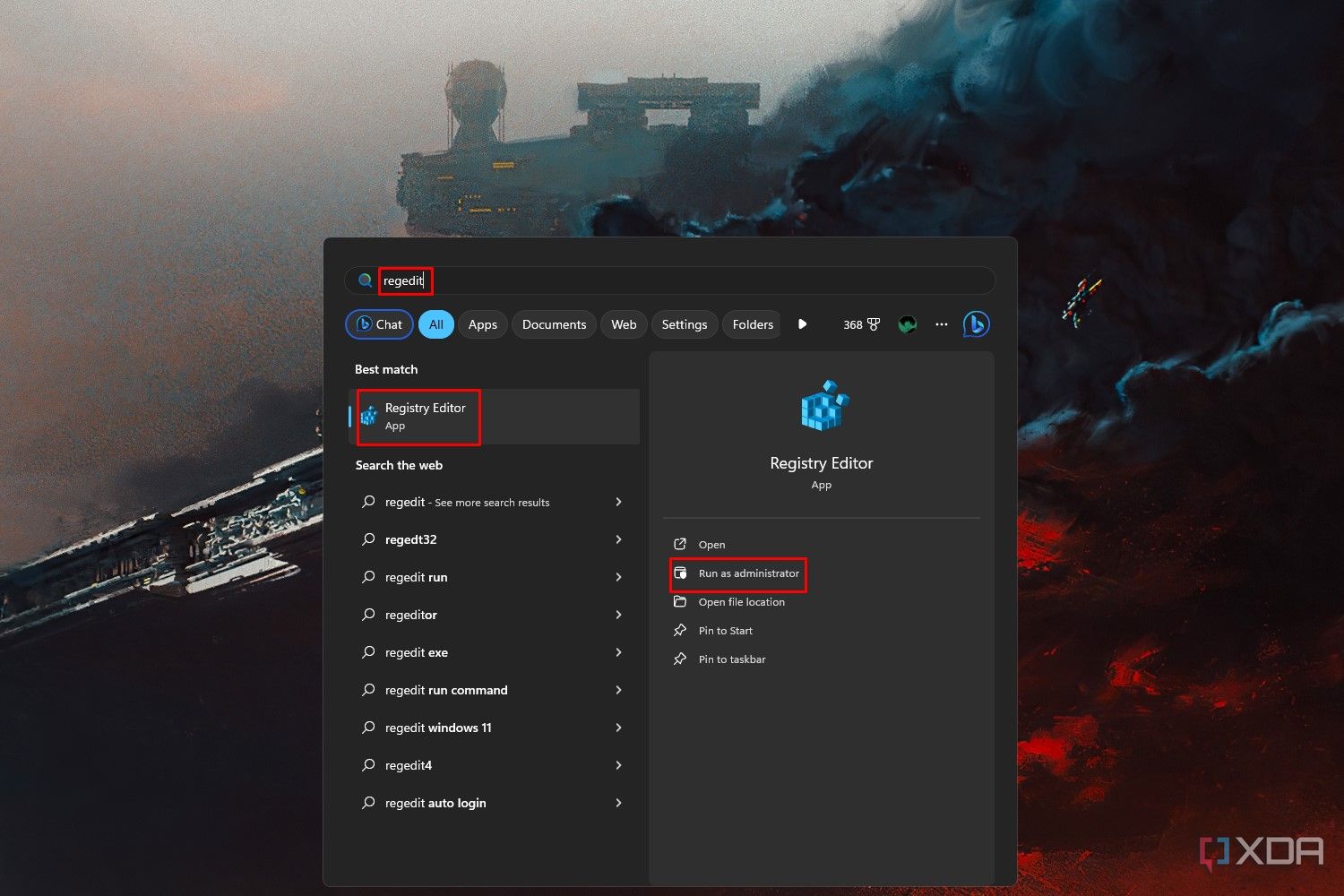
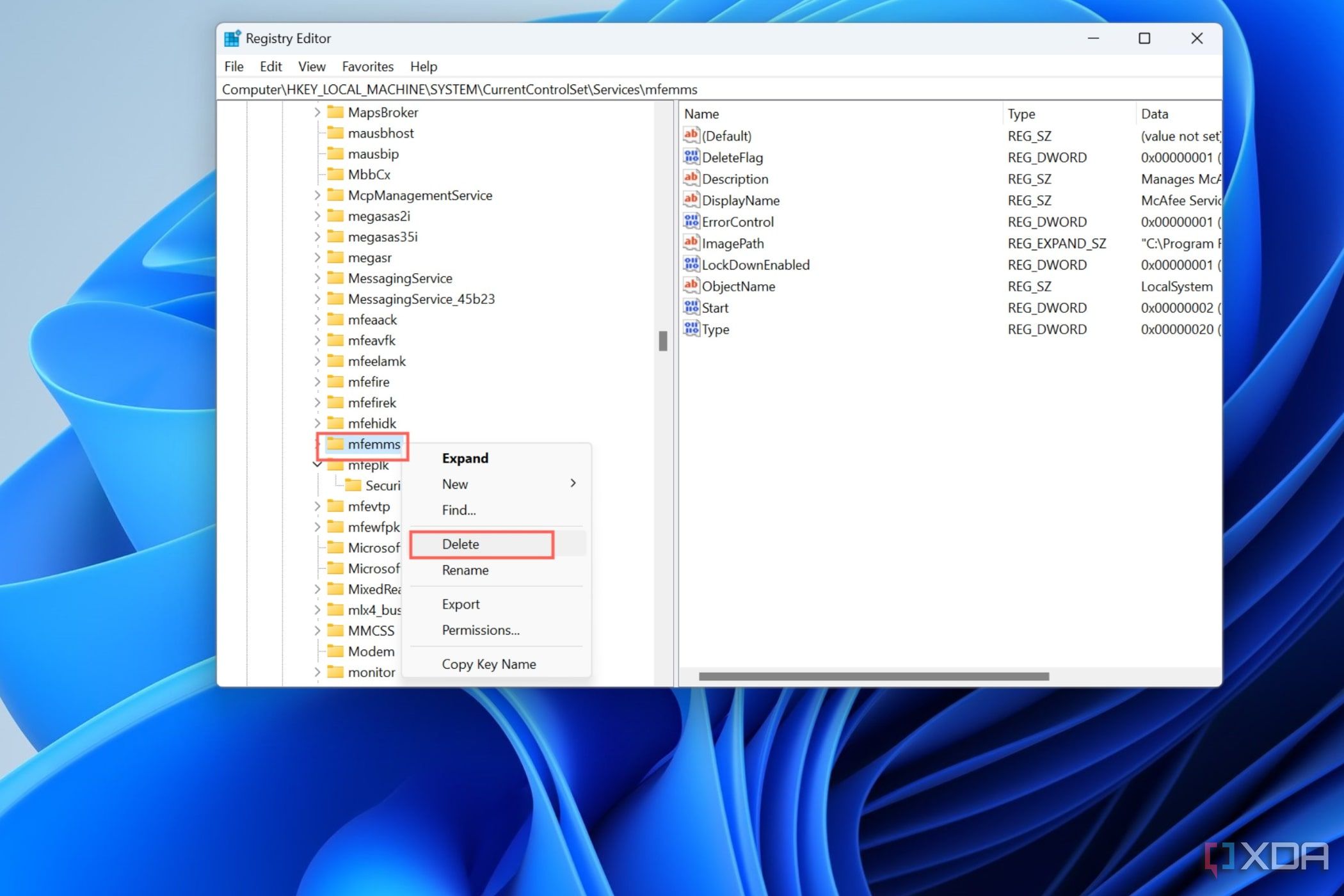


Be sure to double-check whether the folder you’re deleting is associated with a McAfee service, as accidentally deleting the incorrect key can break your operating system.
How to remove leftover McAfee files using File Explorer

Finally, it’s time to delete the remaining McAfee folders. To do so:
- Open File Explorer and paste the following address into the search bar.
C:\Program Files
Be sure to replace C:\ with the actual name of your boot drive.
- Delete all the folders associated with McAfee.
- Repeat the procedure for the following folders:
-
C:\Program Files\Common Files
-
C:\Program Files (x86)
-
C:\Program Files (x86)\Common Files
-
C:\ProgramData
-
C:\Users\user_name\AppData\Local
-
C:\Users\user_name\AppData\Roaming
For the last two addresses, be sure to replace user_name with the actual name of the user profile on your boot drive.
-
- Head to the Documents folder and delete the McAfee Vaults folder.
How to enable Windows Defender after uninstalling McAfee
Reinstate some protection

If you haven’t noticed already, only one antivirus can be enabled on your Windows 11 machine at a time. So, once you uninstall McAfee, you’ll want to enable another antivirus to protect your system from malware. The Windows Defender antivirus that’s built into the Windows Security application is adequate for most users, and these are the steps you can take to re-enable it.
- Type security into the search bar and choose the Windows Security app suggestion.
- Click on the Turn on button under the Virus and Threat Protection tab to re-enable Windows Defender.
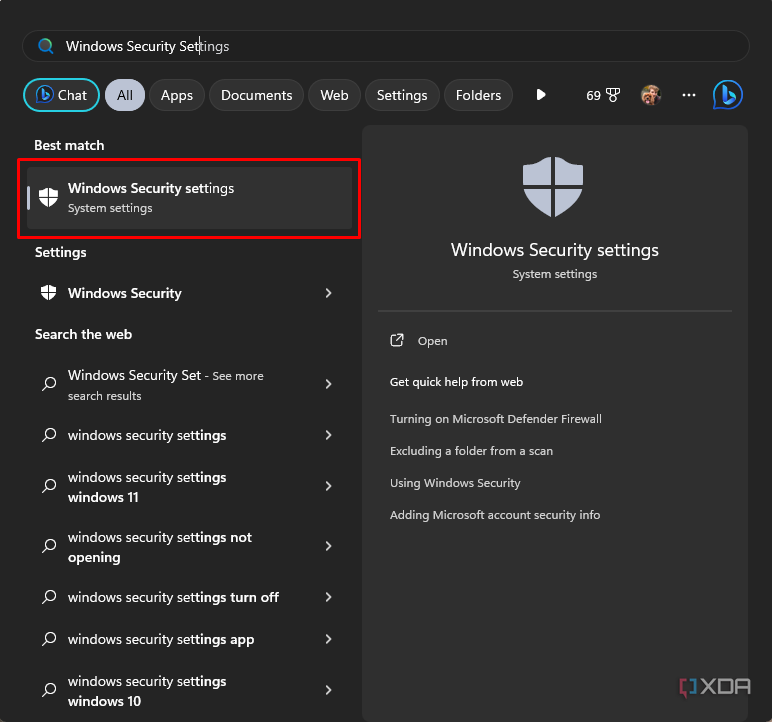
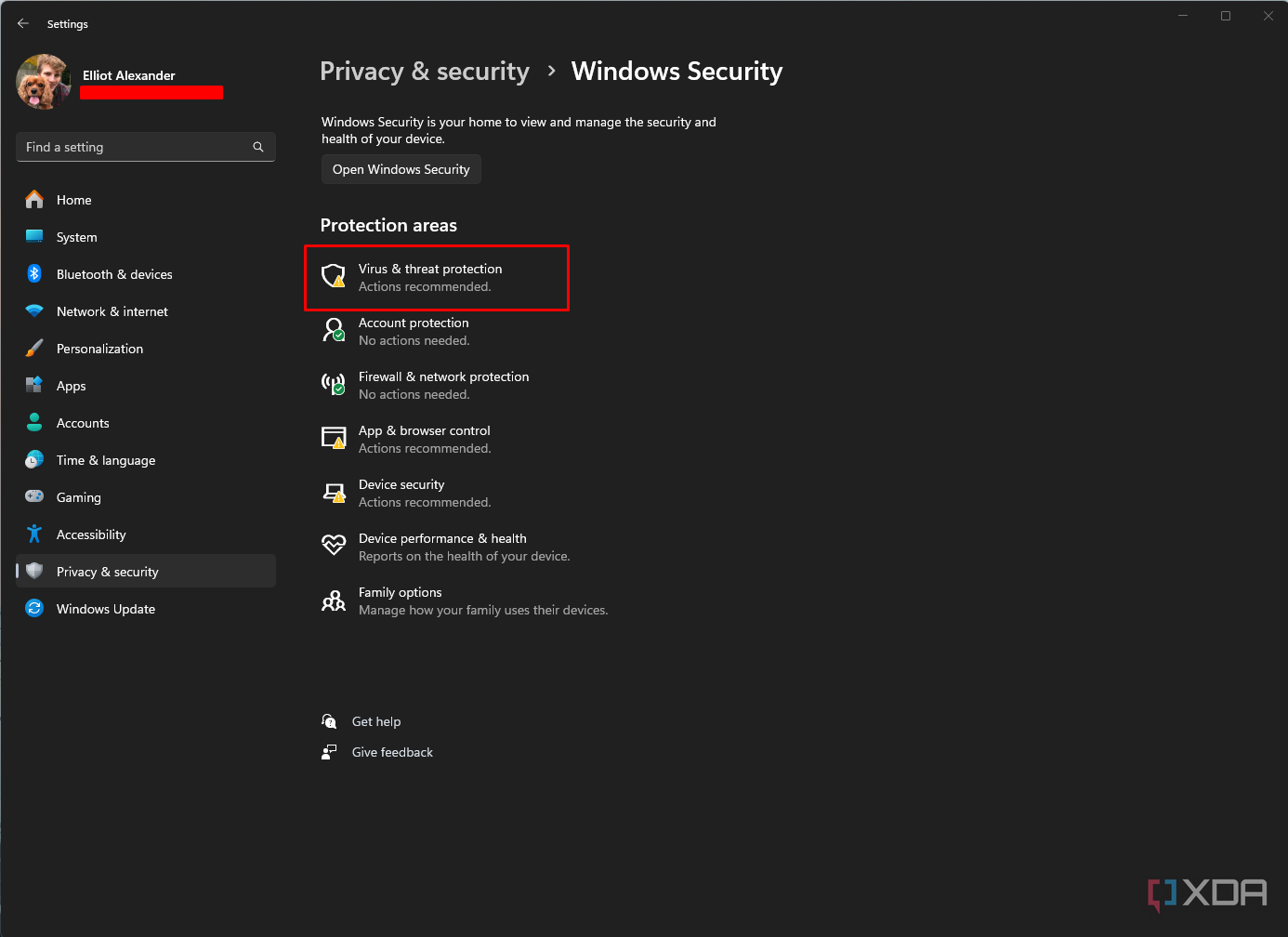


Is it safe to remove McAfee from your system?
Hopefully, this guide helps you get rid of McAfee and all its associated files and services. If you’re concerned about leaving your system vulnerable to viruses, keyloggers, and other threats after removing McAfee, then don’t worry! The Windows Security utility is a fantastic antivirus that can safeguard your system from malware.
Alternatively, you might want to consider installing Malwarebytes if you want a robust third-party antivirus. Another tool worth mentioning is HitmanPro, which works well as a secondary antivirus and can be used in tandem with Malwarebytes. Finally, there’s the VirusTotal website that lets you analyze files and URLs for malware by running them through more than 70 antivirus scanners.
#remove #McAfee #Windows
source: https://www.xda-developers.com/how-to-remove-mcafee/


