

If you have an aging TV that you don’t want to get rid of just yet but is missing your favorite streaming options, an Amazon Fire TV stick is a perfect way to give it a few more years of life. Like most media streaming devices, it comes with all the essential features and apps you’d need. The Fire TV OS is also simple and easy to navigate, even if it is heavily biased in pushing Prime TV content.
Just like Android phones, Fire TV OS has a hidden developer options menu. This menu unlocks powerful features like the ability to sideload apps, ADB Debugging for advanced users, and Deep Sleep mode to conserve energy. These options are available on pretty much all Fire TV OS devices, including the Fire TV Stick 4K, Fire TV Stick Lite, Fire TV Cube, and even TVs that run Fire TV OS, and they’re all tucked away under a few tabs on the Settings page. If you are wondering how to get to these settings, then follow the step-by-step guide below.
Related
Best VPN for Amazon Fire TV stick in 2024
Use a VPN to turn your Amazon streaming device into an international streaming superstar
How to access developer options on Amazon Fire TV OS
If you’ve ever done this on your Android phone you have a head start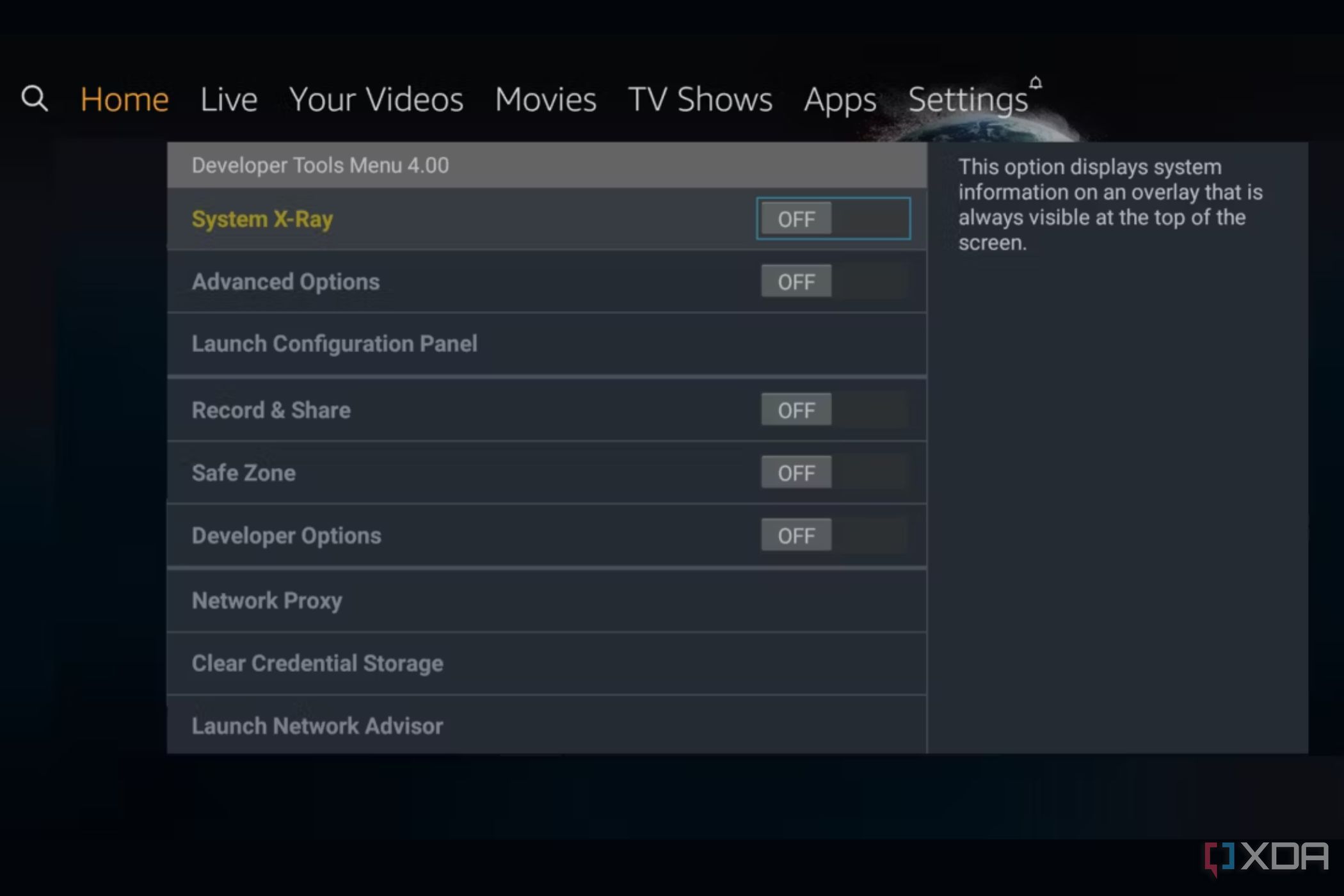
Accessing the hidden developer options on Amazon Fire TV is fairly simple. It’s the same routine as if you were on any other Android device, except you’ll be using the Fire TV’s remote to navigate instead of a touchscreen.
Here’s how to do it in just a few steps:
-
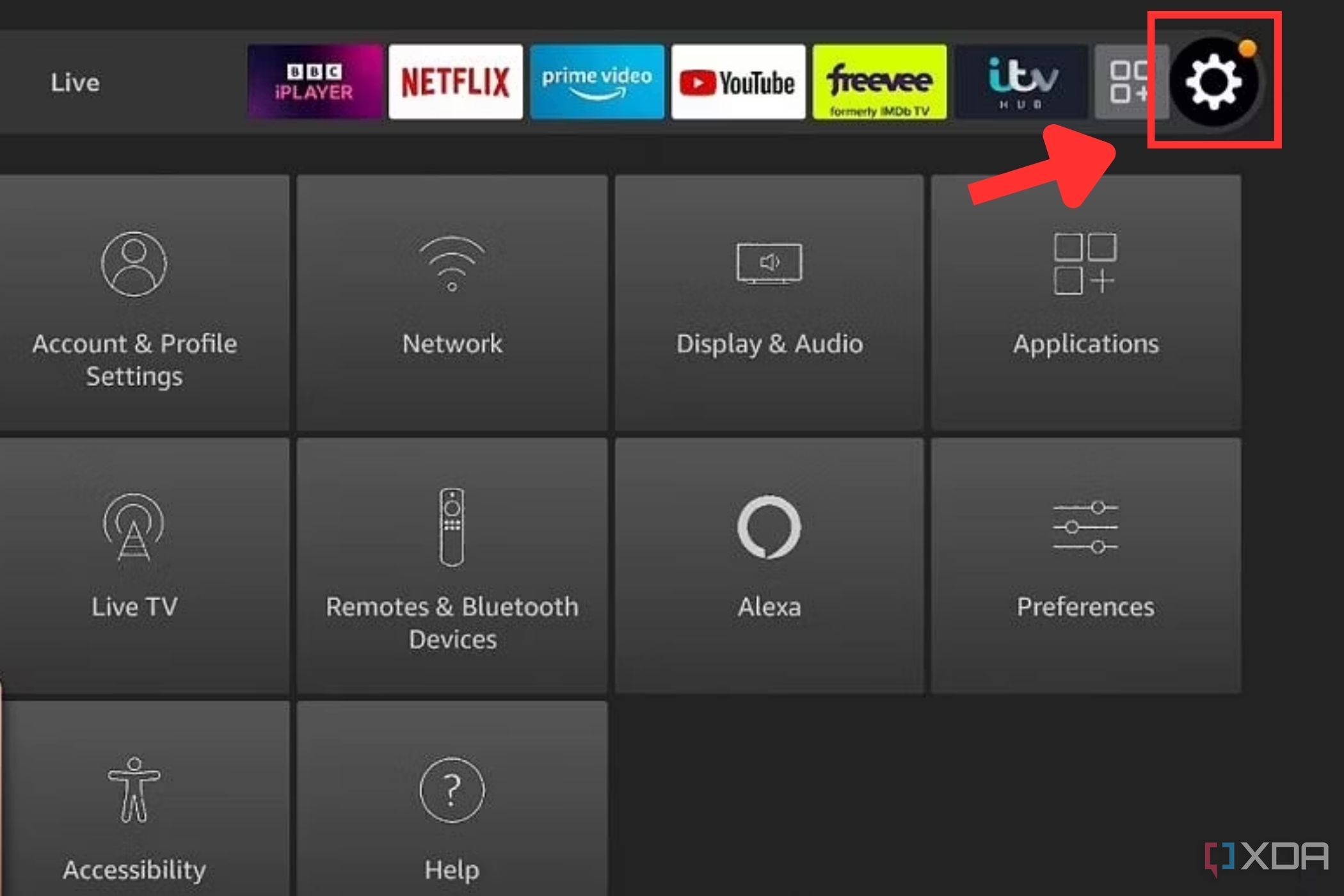
Select the gear icon on your Fire TV’s home screen to open Settings.
-
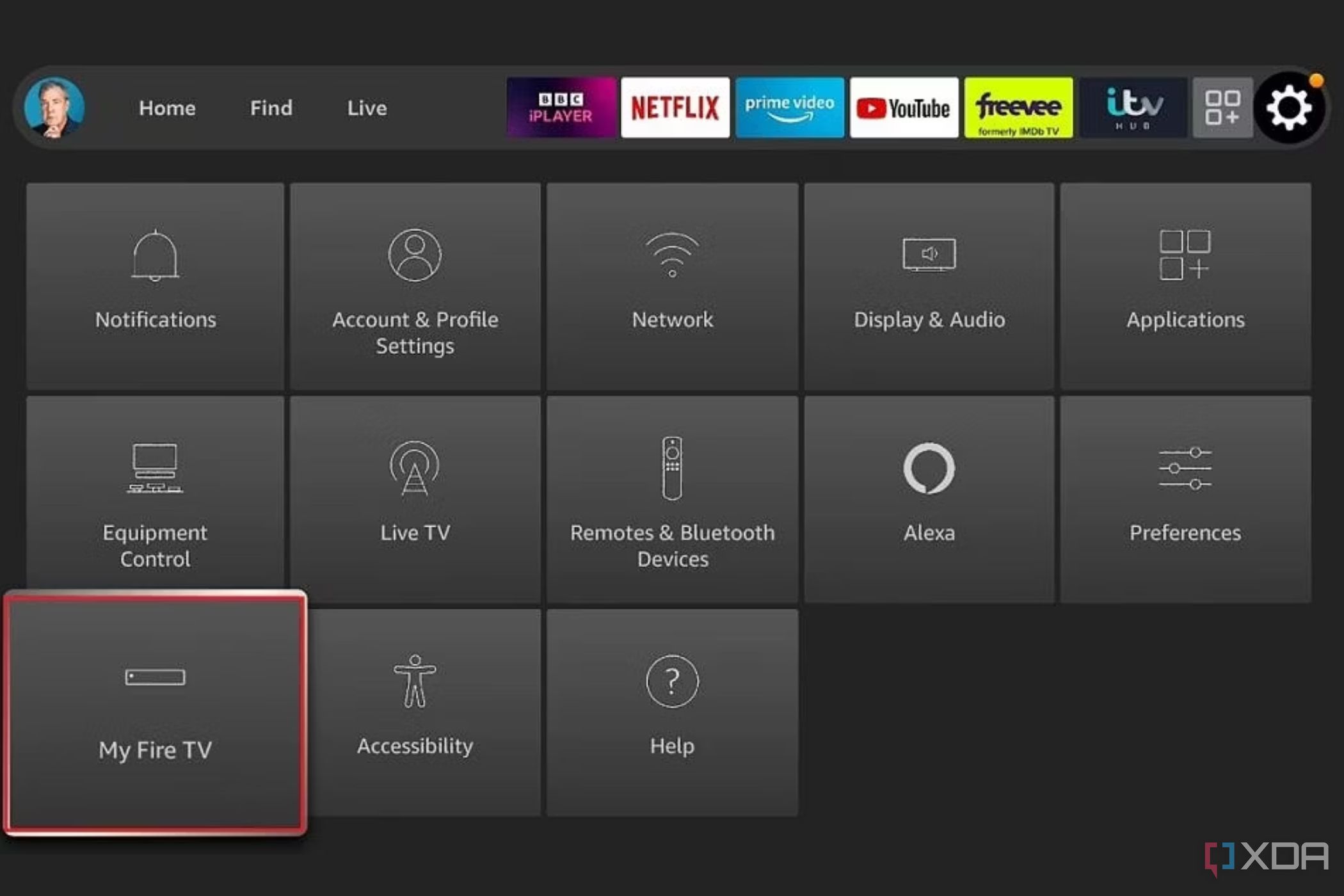
Go to My Fire TV, and select About.
-
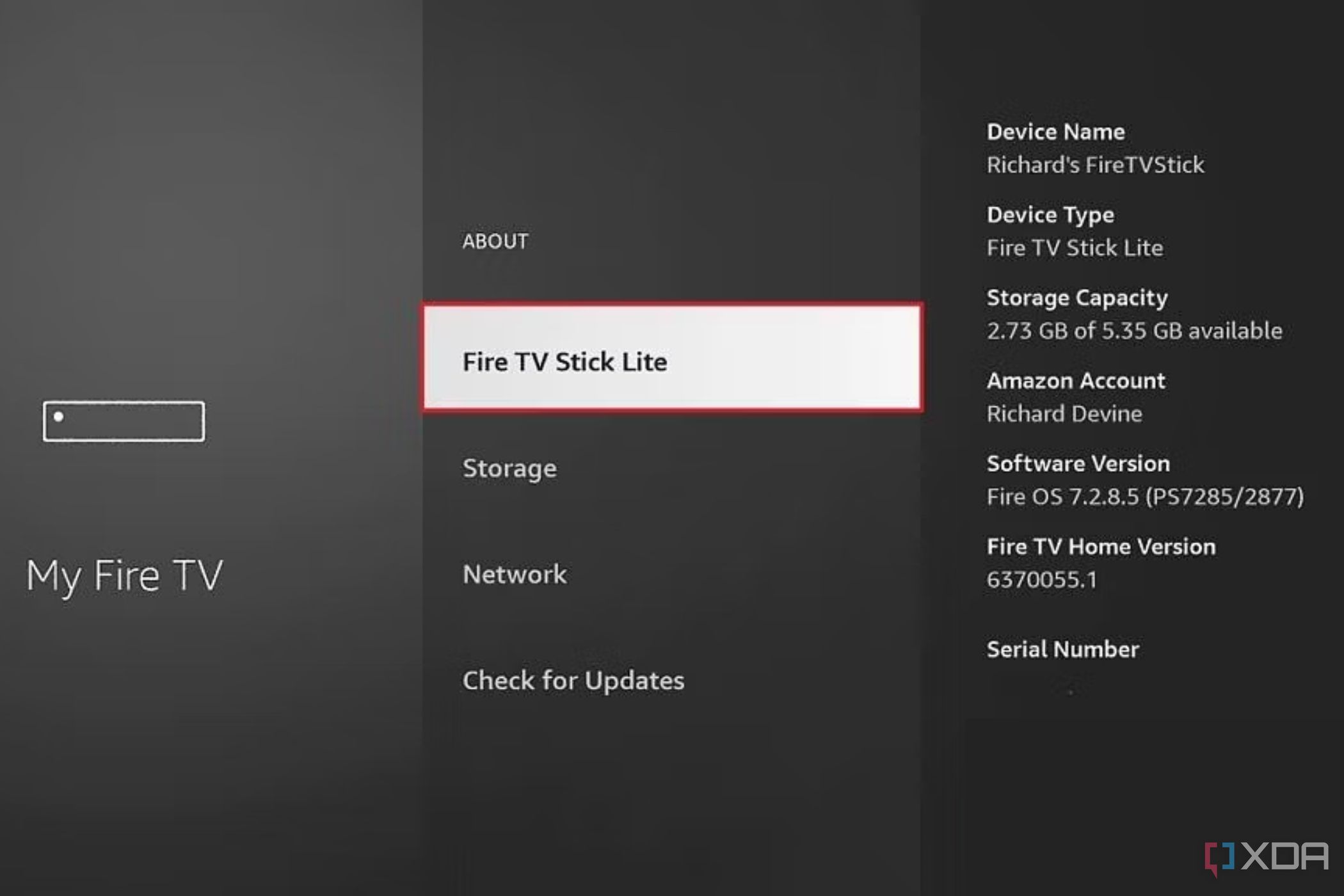
Highlight the first option on the list, which is usually your device’s name, and press the action button on your remote seven times.
-
You’ll now see a message confirming “You are now a developer,” and it’ll unlock the developer options in the previous menu.
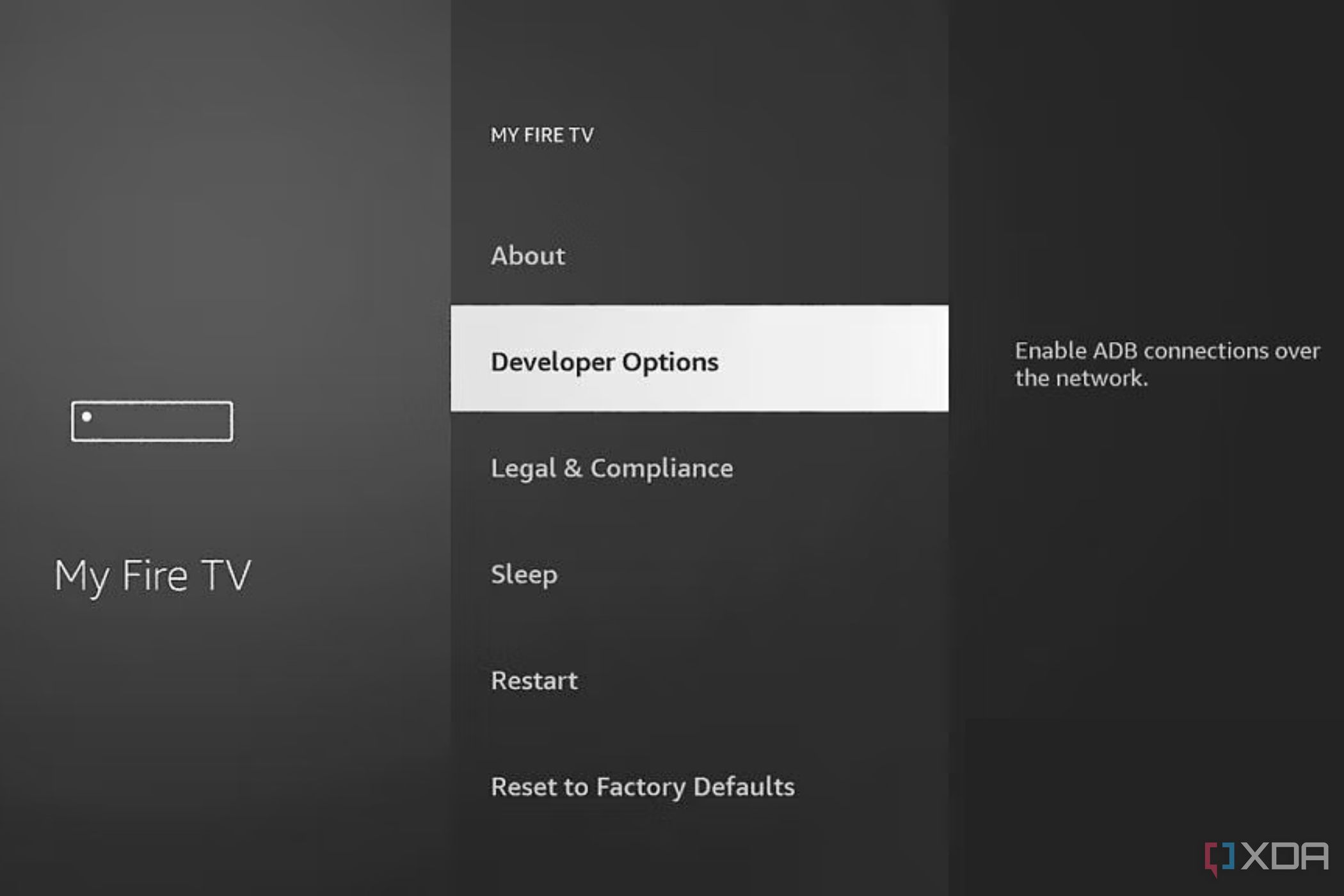


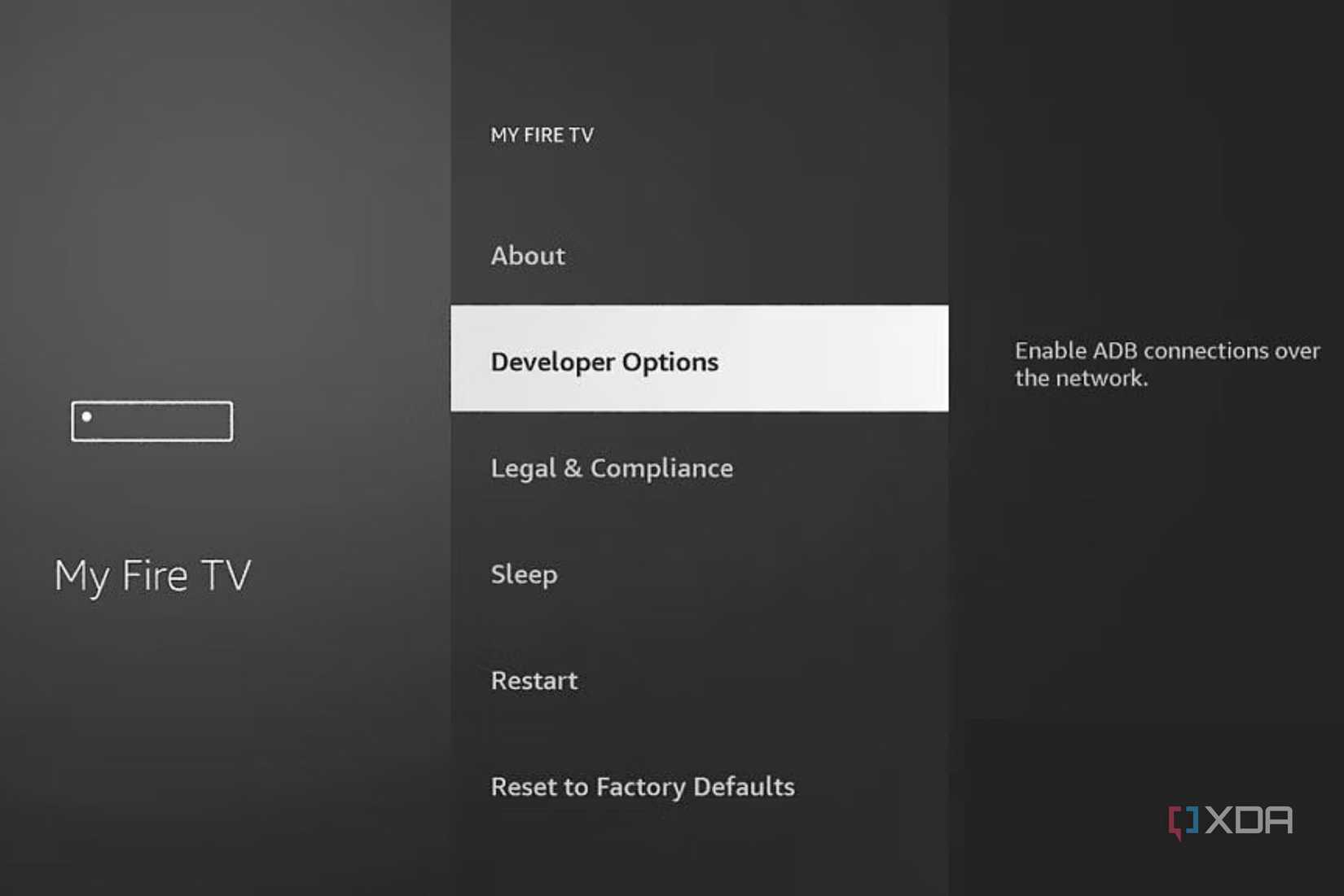
If you’re using a Fire OS television, then step 2 may refer to Device & Software instead, but the rest of the steps are the same.
The menu you’ve unlocked will remain permanently unless you reset your Fire TV. In some cases, a major software version upgrade can also hide it again. In such cases, just perform the steps mentioned above once again to unlock the developer options.

Related
Why you should buy a Fire TV Cube over a Fire TV Stick
The Fire TV Cube offers more power and versatility than a Fire TV Stick. Here’s why it’s a better choice over other Amazon streaming devices.
A bonus tip to unlock more options
Apart from the aforementioned developer options (which are vaguely indicative of the Android base of Fire OS), Amazon also ships a standalone developer tools menu with its Android fork. However, it’s primarily aimed at app developers, which means that accessing the menu and tinkering with the options is not recommended unless you really know what you are doing. To invoke this menu, though, you can pick one of the following methods to access it.
Provided everything goes smoothly, you should see the built-in Developer Tools menu on your Fire TV.

Related
How to sideload apps on the Amazon Fire TV
Looking to add apps to an Amazon Fire TV? It’s super easy to do with sideloading
Developer options on the Fire TV are quite useful
The menu offers a myriad of features compared to the barebone developer options. For example, the System X-Ray and Advanced Options toggles can be used to show instantaneous system metrics on top of the screen as an overlay. On the other hand, the Developer Options entry here is meant for turning on recommendations from all third-party apps installed by the user. You can take a look at the Amazon Fire TV developer documentation to learn more.
That’s all you need to do to access the developer options on any Fire TV device. For most people, the primary reason for even accessing this menu is to sideload third-party apps from unknown sources. While a number of these install-helper tools are in Amazon’s store, you’ll need to enable the necessary options for unknown sources before you can actually install anything with them.
#access #developer #options #Amazon #Fire
source: https://www.xda-developers.com/how-to-access-developer-options-amazon-fire-tv/


