

Summary
- File Pilot focuses on speed and smoothness, with fast loading fluid animations.
- File Pilot supports multitasking with multiple tabs and panes so you can get things done more quickly.
- File Pilot offers extensive customization options for visuals and keyboard shortcuts, enhancing user productivity and the overall experience.
The
File Explorer
in Windows 11 (and even previous versions) is often the target of criticism from users, and as such, many alternatives exist out there. I’ve tried a good handful of them, such as
FreeCommander
, OneCommander, Directory Opus, and more.
But recently, a new challenger entered the arena: File Pilot. I first heard about this app when it was still in alpha stages under the name Disk Voyager, and I’ve been wanting to talk about it ever since. I held off until the app was in a more finalized state, and now that it’s entered the beta stage, I can finally share my thoughts with you. Simply put, this is my favorite File Explorer alternative yet, with only a couple of things I wish were improved.
Related
4 reasons Microsoft should let you change the default file explorer in Windows
Managing your files could be so much better if Windows 11 gave you more options
All about speed
Everything is so smooth here
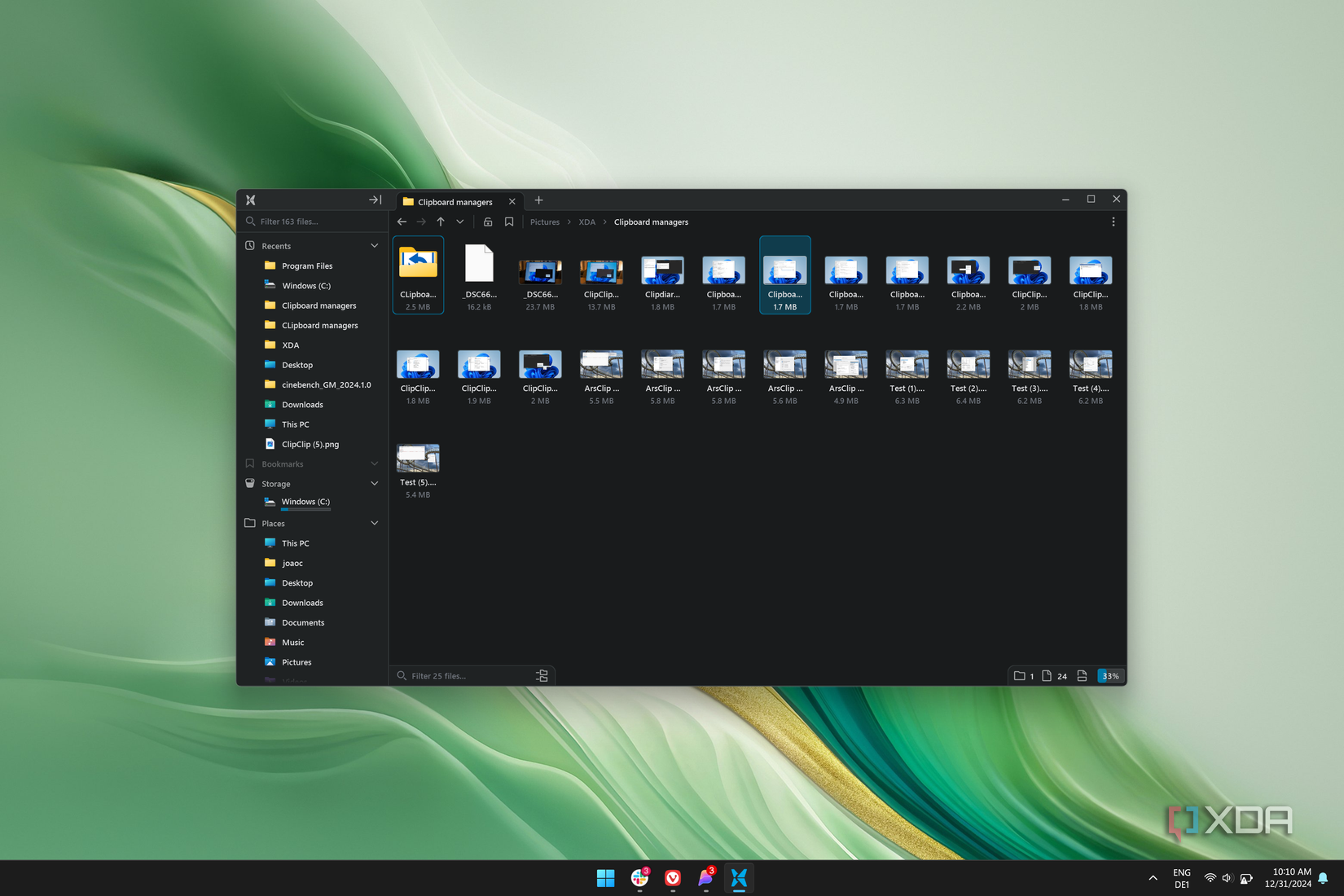
The first thing that stands out about File Pilot is how focused it is on just being and feeling fast and smooth. It’s almost unreal to see this app running compared to the Windows 11 File Explorer. Opening folders happens instantly, and it’s because the app isn’t afraid to use your PC’s power to move things along. Loading large directories on an Intel or AMD-based PC will likely get your fans spinning, but you see how quickly everything moves as a result.
Further to that point, animations are also unbelievably smooth here. File Pilot uses a very cool implementation of the viewing modes you’d normally expect in File Explorer, such as the details, list, or icons view. Here, all these options appear as a slider, so you gradually move from details, to a simple list, and eventually to icons, which can be resized with an unparalleled level of freedom. And seeing these icons change in size as you drag the slider feels so smooth and natural you can probably waste some time just playing with it to see how cool it looks. Here’s the slider in action.
Speed really is the name of the game here, and all this comes in a super lightweight package — The FIle Pilot app is a mere 1.72MB download in its current beta form, and that’s not a compressed archive or anything. The app is a standalone executable.
A multi-tasking prodigy
All the tabs and panes you could want
Focusing on speed isn’t just about running fast, but also about enabling users to get things done quickly, and File Pilot succeeds here, too. Like any self-respecting file manager for Windows, File Pilot comes with tab support, meaning you can open as many folders as you want within the same window. But more importantly, the app also supports multiple panes.
And it’s not something like most other file managers where you get a dual-pane view by default and that’s it. At any point while browsing your files, you can create a new split in your view, whether it’s horizontal or vertical, giving you access to another folder on the same screen. You can continually create splits in any direction and make the crazy layout of your dreams. There may be some kind of limit to it, but I haven’t been able to find it. Plus, each split gets it own tabbed view, so there’s no limit to what you can do here. If you find a layout you like and want to use again, you can always save it so you can load it up later without having to create all the splits again.
You can continually create splits in any direction and make the crazy layout of your dreams
One thing some file managers do is offer specific features that rely on the split view, but I don’t think there’s anything major you’re missing out on with this implementation.
There’s also a cool feature called Inspector that allows you to see the contents of a folder before opening it. This splits your current view to show you a second pane with the contents of a highlighted folder in the main view, so it’s much easier to find the files you want if you don’t remember where you stored something. You can quickly toggle this feature on or off, too, so it’s not invasive at all.
Yet another feature I love about File Pilot is Go To, which simply brings up a search bar that lets you find basically any folder on your PC. It’s a very fast way to get to anything you need, and it seems to be far more reliable than the built-in Windows search. It’s all crafted to speed up your workflow.
A customizable experience
Make it work for you
File Pilot’s benefits continue in the customization department, both in terms of visuals and the commands you can perform. See, File Pilot can work just as well with the keyboard as it can with a mouse, and if you don’t like how something is set up by default, you can make it more to your liking.
The Commands panel is where you can change pretty much all the major keyboard shortcuts for interacting with File Pilot. You can change the shortcut to create a new tab, toggle viewing hidden files, opening a folder in a new tab, and much, much more. There are tons of actions that can be assigned to keyboard shortcuts to help maximize your productivity.
It’s crazy to see how much can be packed in such a tiny app
You can also customize the visual experience in File Pilot quite a bit. Changing the font used (as well as the font size), the spacing between items in a list, color scheme, toggling rounded corners, turning animations on or off, and much, much more. File Pilot offers a good range of options to make the experience work best for you, and it’s crazy to see how much can be packed in such a tiny app.
There are some downsides
File Pilot could still use some work

For all the great things it does, File Pilot does still have some problems, especially for less common use cases, which can often be the case for many power users. Personally, there isn’t really anything I dearly miss, but I know some capabilities aren’t quite there yet.
For one thing, File Pilot isn’t installable, which makes it a bit harder to launch manually compared to a standard program. It won’t get promoted in search results on the Windows Search bar or even in apps like Flow Launcher, so it takes a little bit longer to get to. Most notably, File Pilot also doesn’t offer a way to replace File Explorer as the default file manager yet, so you’d have to
tweak the registry manually
if that’s something you want to do.
Another big omission is support for viewing other devices on your network. You can browse a network-connected PC if you use File Explorer to map it as a drive first, but you can’t use File Pilot itself to map a network drive, and you can’t browse folders on other PCs if they’re not mapped to a drive.

Related
How to map a network drive on Windows 11
If you want to access a folder on another PC on your network, you can map a network drive on Windows 11. Here’s how to do it.
I also recently saw someone request the developer add support for drives protected with BitLocker, so it seems like if you have a drive that isn’t unlocked yet, it may not show up in File Pilot. For most people, that’s likely not an issue, but if you happen to have an external drive with BitLocker encryption or you set a drive up so it doesn’t unlock automatically when you sign in, it might be a problem.
Ultimately, though, these issues aren’t going to affect the majority of people, and more importantly, they can still be fixed in a future update. We’re talking about an app that’s still in a closed beta, so things are definitely going to evolve over time.
File Pilot is my favorite file manager for Windows
Suffice it to say I love File Pilot so far. I already loved it when it was called Disk Voyager, and the developer has been putting in a ton of work to make it even better. I remember initially renaming files in bulk wasn’t possible, but I reported that issue, and the current implementation works even better than the native Windows one, since you can actually see the new name appearing in every file you selected, rather than magically transforming like it does in File Explorer.

Related
The Windows File Explorer isn’t good enough — 5 file managers for power users
Microsoft could learn a thing or two… or more
For me, the biggest setback right now is that the app doesn’t register as an installed program, and I also wish I could set it to replace File Explorer whenever possible. But if my main criticism is that it can’t be launched more easily, I’d say you’re in a pretty good place, and File Pilot is definitely on the right track.
In the current beta stage, the app is free to use, but once it becomes publicly available, it will be a paid app. I’m not sure what the price will be, but if it’s reasonably priced, then I can see myself easily recommending it to almost anyone.

File Pilot
File Pilot may only be available in beta, but it’s a promising File Explorer alternative for Windows with fantastic performance and a lot of customizability to heklp you improve your workflow that much more.
#Handson #File #Pilot #File #Explorer #alternative
source: https://www.xda-developers.com/hands-on-file-pilot/


