

If your OneDrive is feeling a little cramped lately, you don’t have to rush to buy more storage just yet. There are plenty of ways to reclaim valuable gigabytes and keep your OneDrive efficient and organized. In this post, I will show you several practical strategies to declutter your cloud and maximize your OneDrive storage in no time.
From analyzing your current storage usage to identifying and deleting large files, managing Outlook attachments, and optimizing your sync settings, the tricks below help you make the most of your OneDrive.
Related
How to use OneDrive on Windows 11
OneDrive comes preloaded on your Windows PC, but how does it work?
Analyze your OneDrive storage
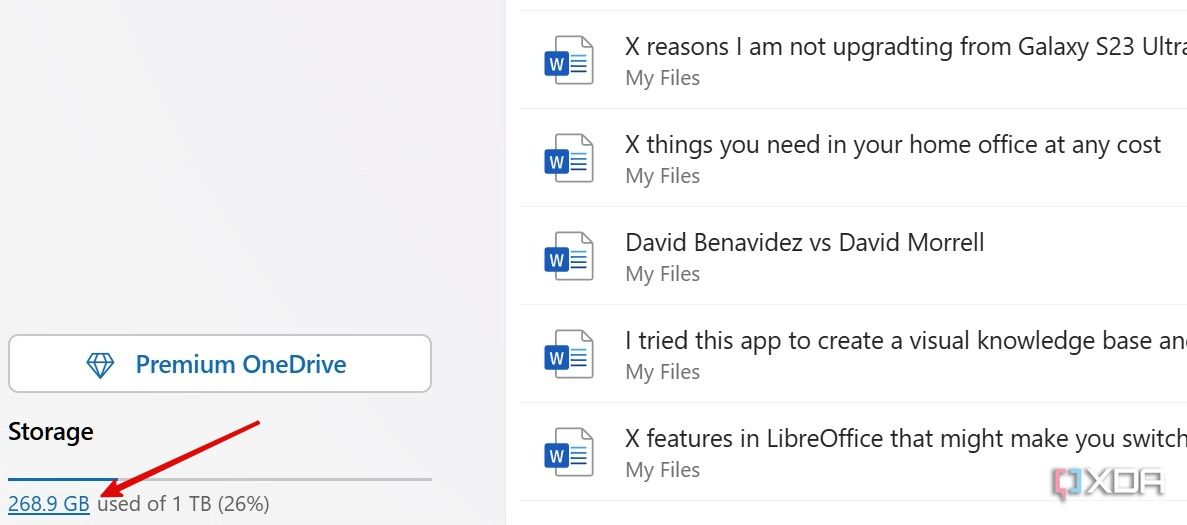
Before we start, make sure to analyze your OneDrive storage first. If you use OneDrive on your phone, simply tap your account picture in the top left corner and check the storage breakdown. However, it’s quite basic. Instead, I recommend using the web version to get the job done.
- Visit OneDrive on the web and sign in with your account details.
-
Select storage breakdown at the bottom.
-
You can now see a detailed storage summary. Most Microsoft apps and services, like Loop, Outlook, Designer, and more, use OneDrive to sync your data across devices.
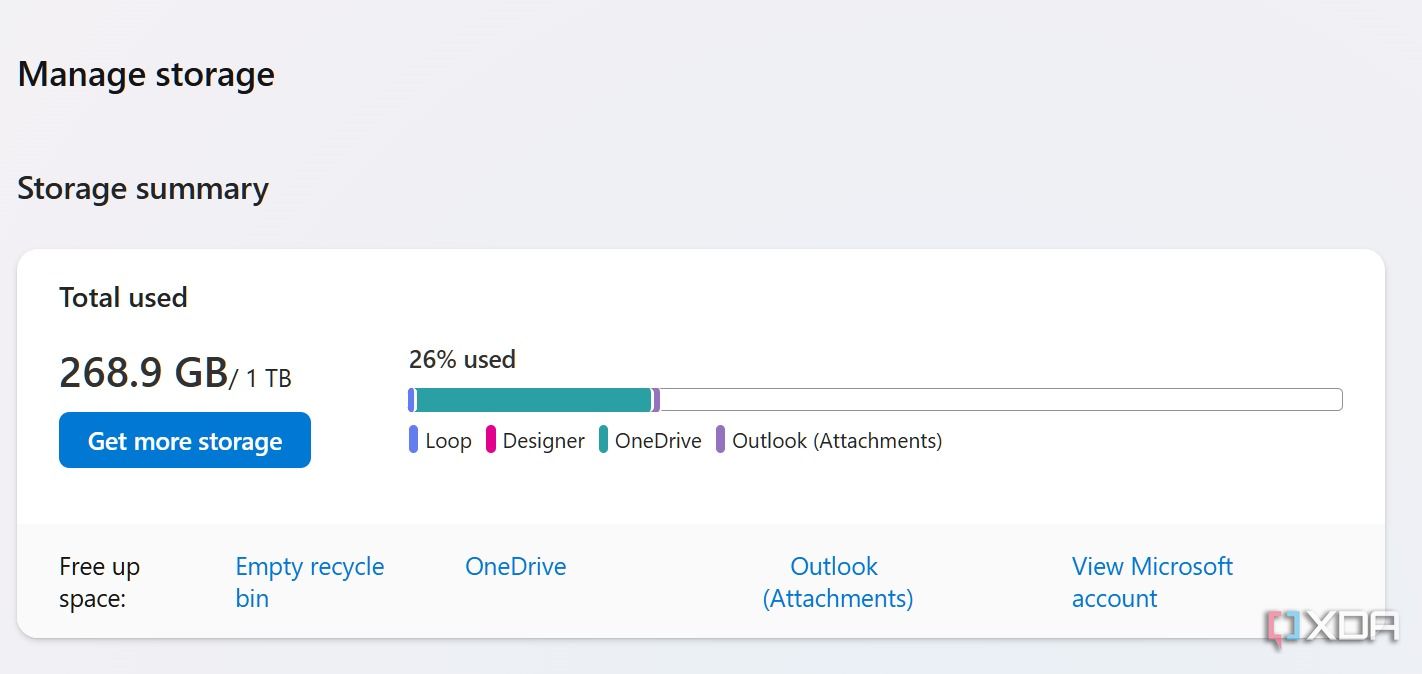

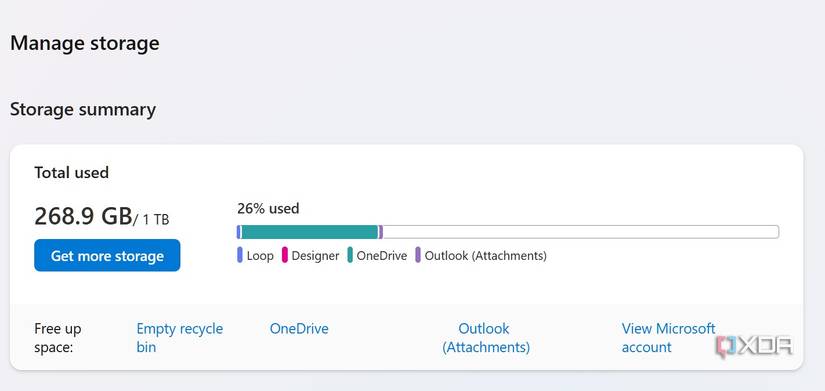
You shall notice them in the storage breakdown. If you are nearing 90% storage, it’s time to free up space. Otherwise, you won’t be able to save new files, run into sync issues, and sometimes end up with corrupted files. Also, if you rely on OneDrive to share files with others, full storage can prevent you from easily collaborating with others.
7
Empty Recycle bin
The usual way
This is the easiest way to maximize storage efficiency in OneDrive. When you delete large files or folders on OneDrive, Microsoft sends them to the Recycle Bin for 30 days. That way, you have a month to recover accidentally deleted files on your device. You can empty the Recycle Bin and free up valuable space in no time. Here’s how.
-
Visit OneDrive on the web. Select Recycle Bin from the sidebar.
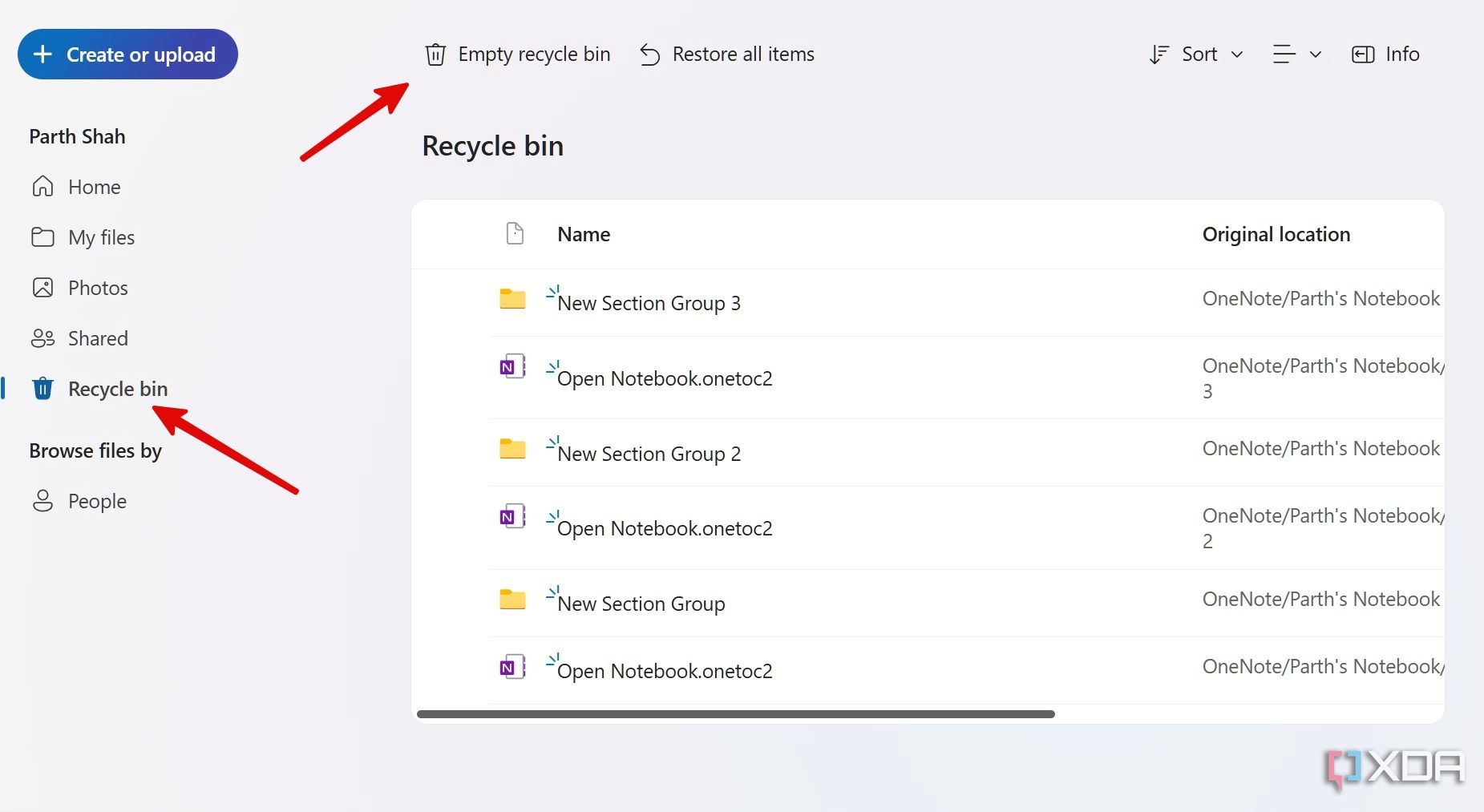
- Click Empty recycle bin at the top and confirm your decision.

6
Delete large files in OneDrive
Track and remove those 4K videos
Deleting large files is a straightforward way to declutter your OneDrive space. However, you don’t necessarily need to find large files from endless folders and subfolders. You can easily use the storage summary menu to filter such files. Go through the steps below.
- Open the OneDrive Storage summary menu on the web (check the steps above).
-
Select OneDrive beside Free up space.
- It displays the largest files in your OneDrive account.
-
Select irrelevant ones and delete them from your OneDrive account.
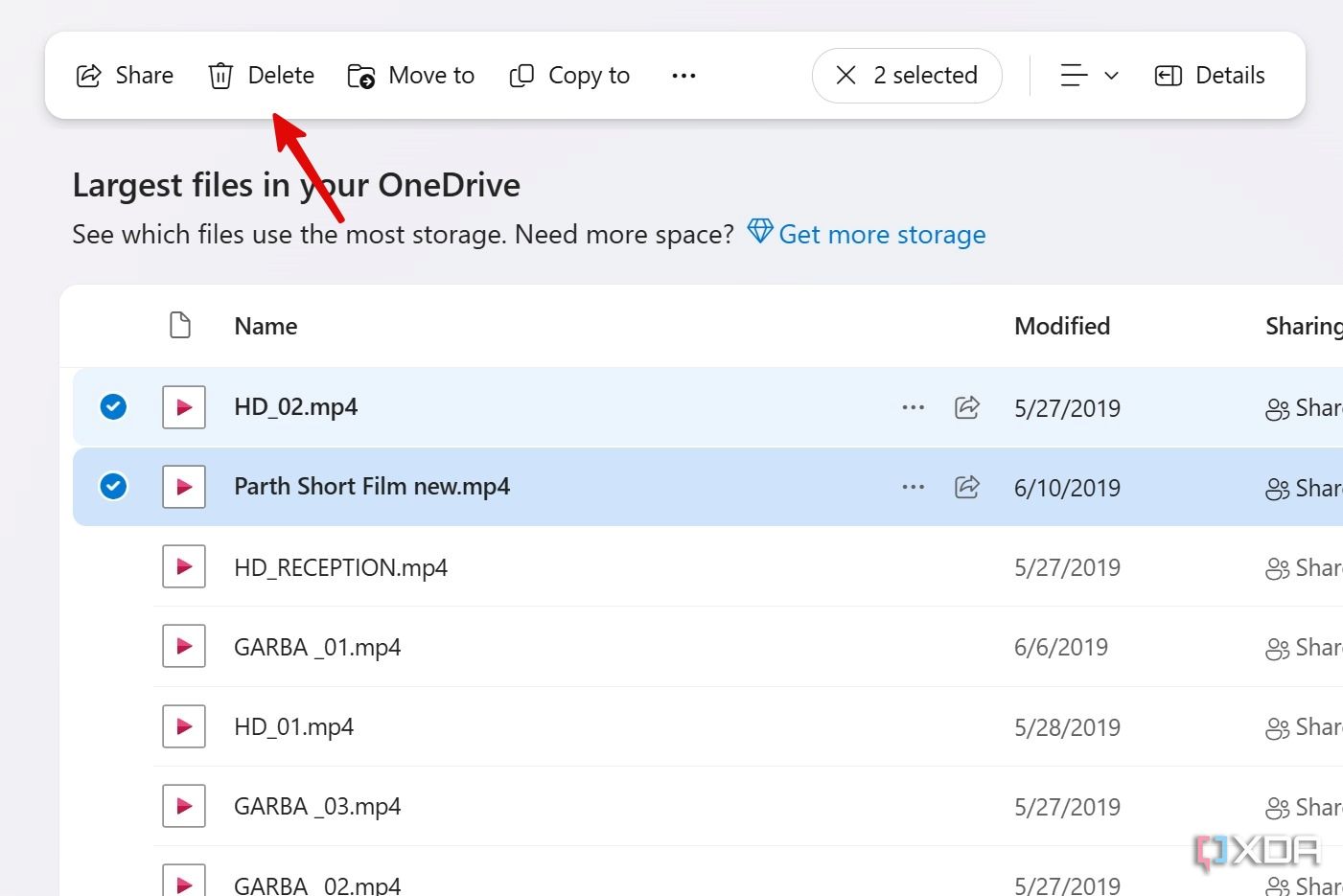
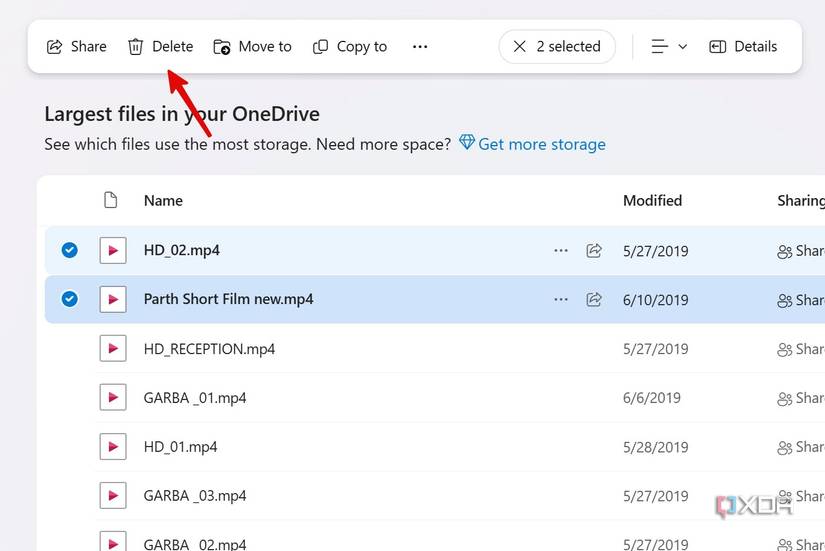
Now, make sure to empty the recycle bin to see immediate storage benefits.
5
Remove Outlook attachments
Can take up some space
If you are a power Outlook user, you may have thousands of attachments stored in your inbox. These attachments can take up considerable space on your OneDrive account. Here is how you can easily identify and remove them.
- Navigate to the OneDrive Storage summary menu (refer to the steps above).
-
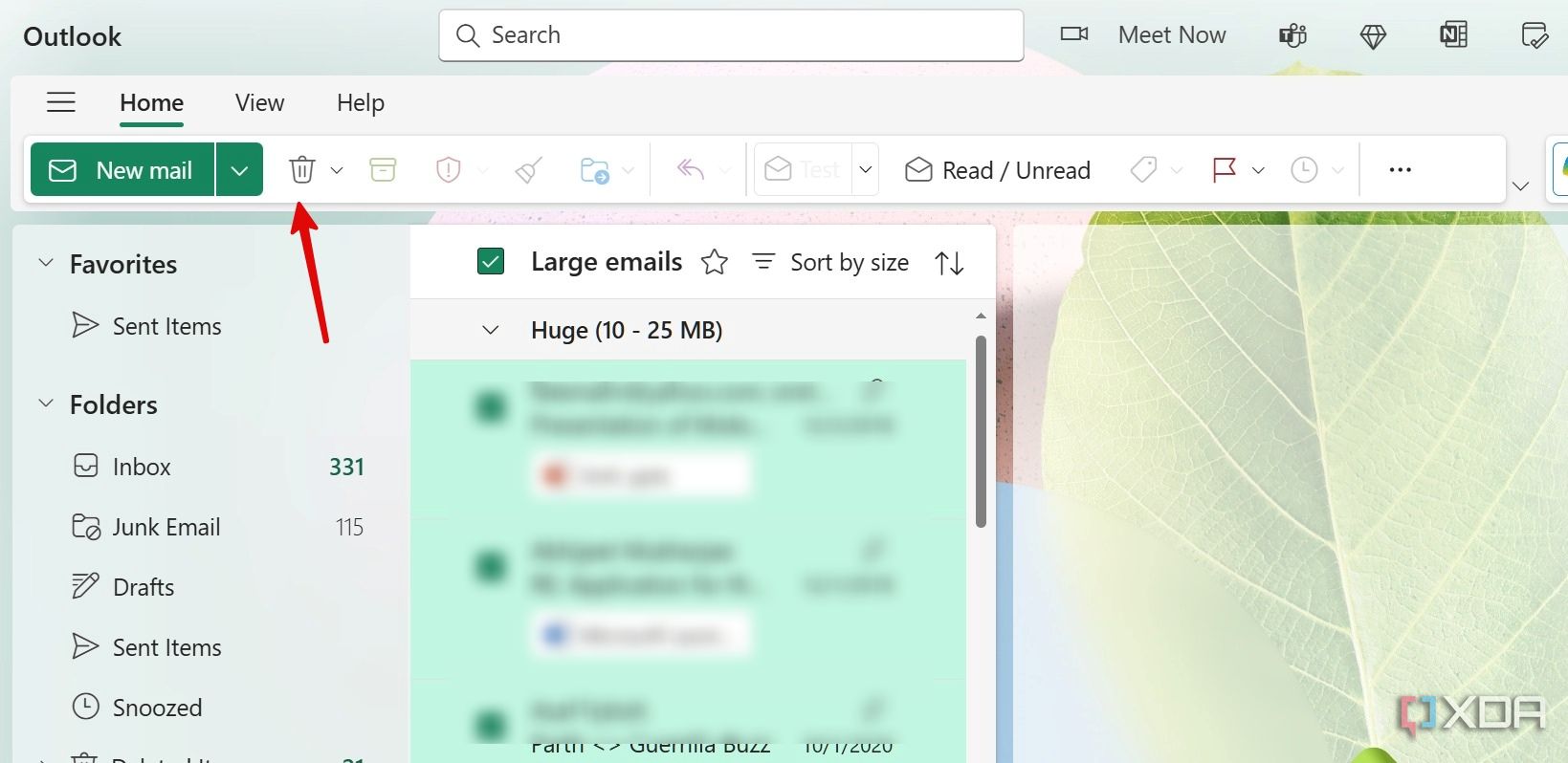
Select Outlook attachments.
-
Glance over large emails from a dedicated tab. Select them and click delete at the top.

4
Stop syncing local PC folders on OneDrive
Some folders are unncessary
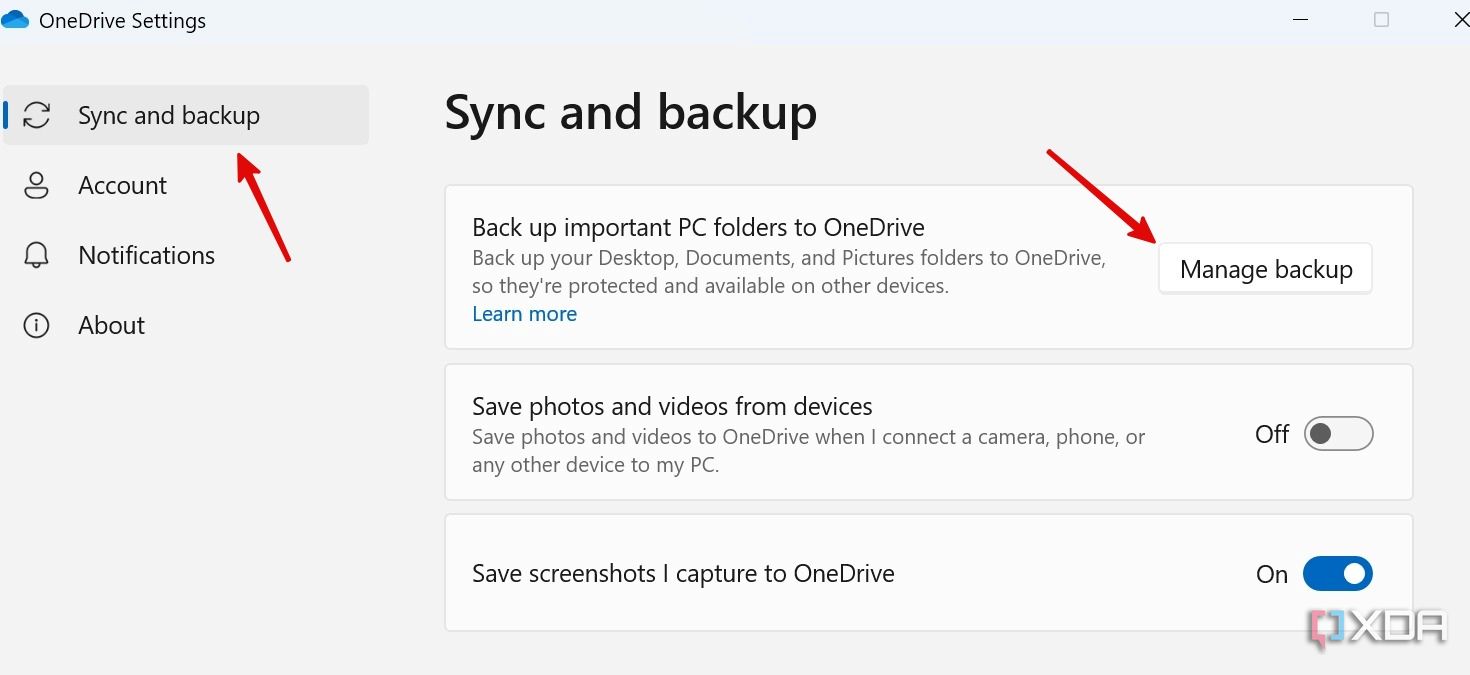
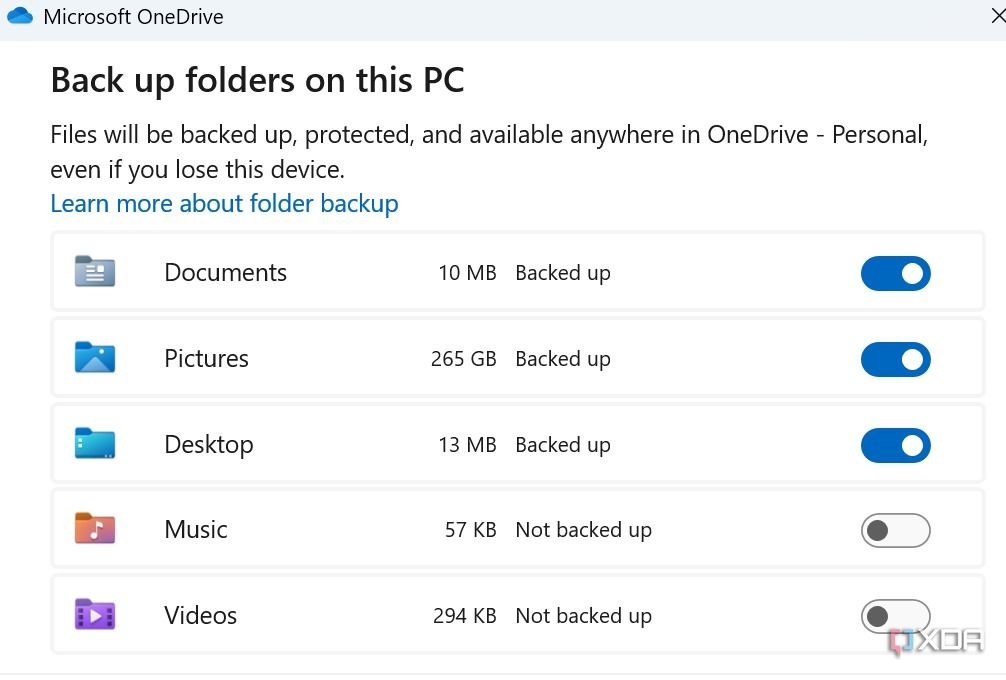
So far, I have only talked about how to free up space on your OneDrive account. Now, let’s go over several tricks to avoid stuffing up OneDrive with unnecessary content. For example, during the Windows 11 setup, the system asks you to sync local folders to OneDrive. The practice may fill up your OneDrive storage in no time. Here’s how you can stop this behavior.
-
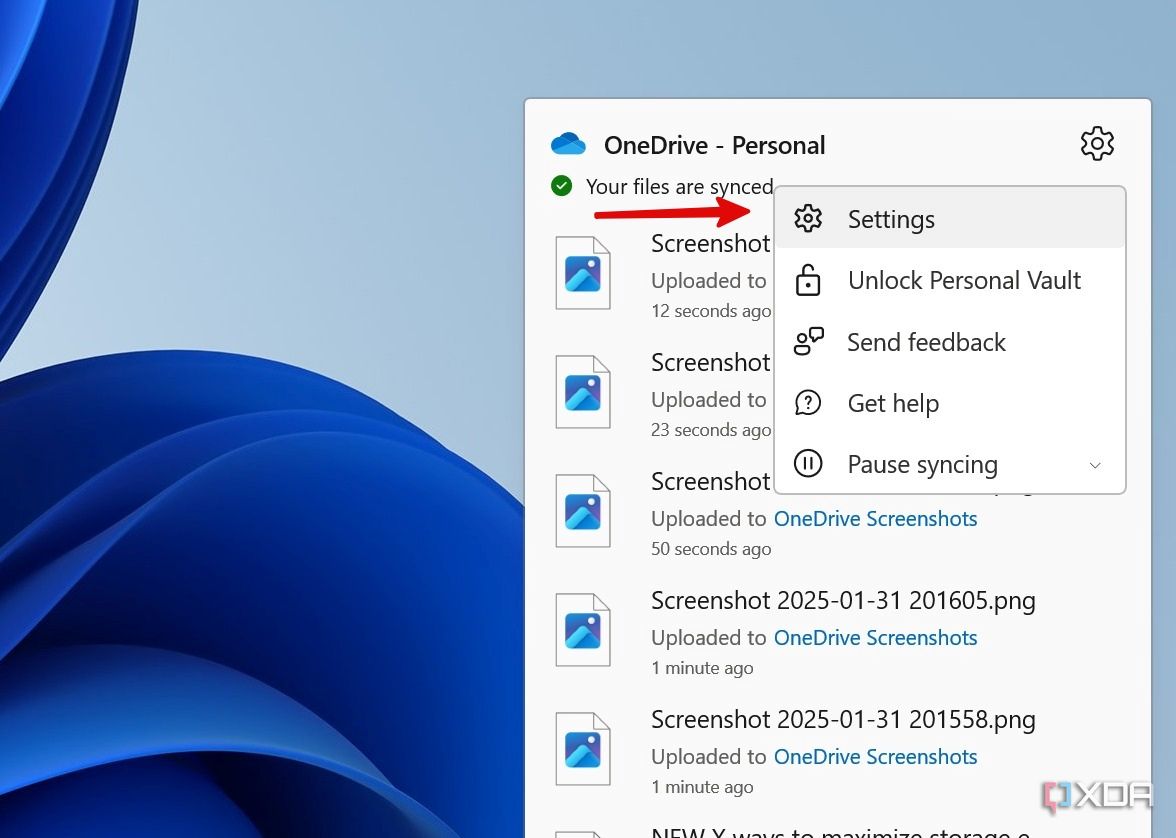
Open OneDrive from the taskbar and launch Settings.
-
Select Manage backup.
-
Disable irrelevant folders and close the menu.


3
Exclude videos during camera backup on OneDrive
Keep your OneDrive free from those large videos
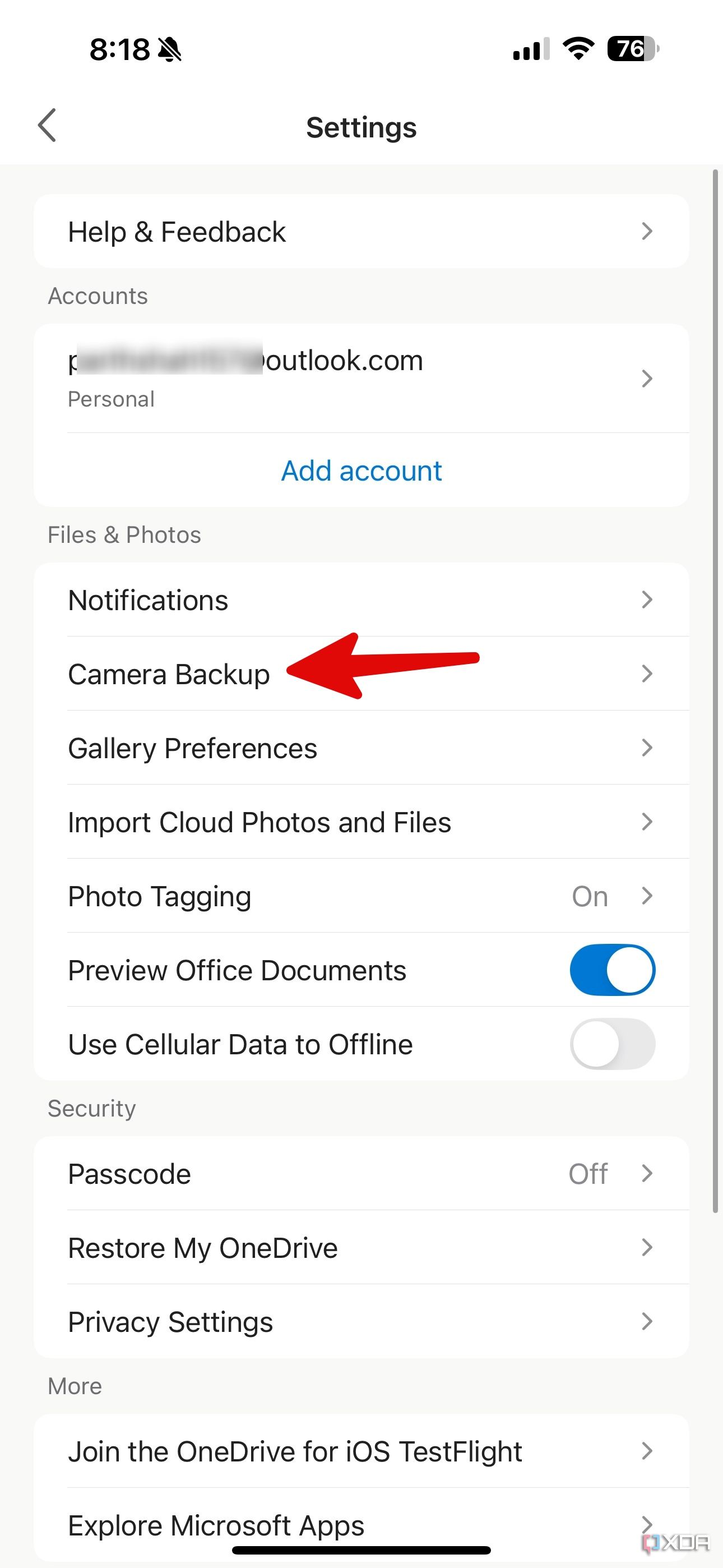
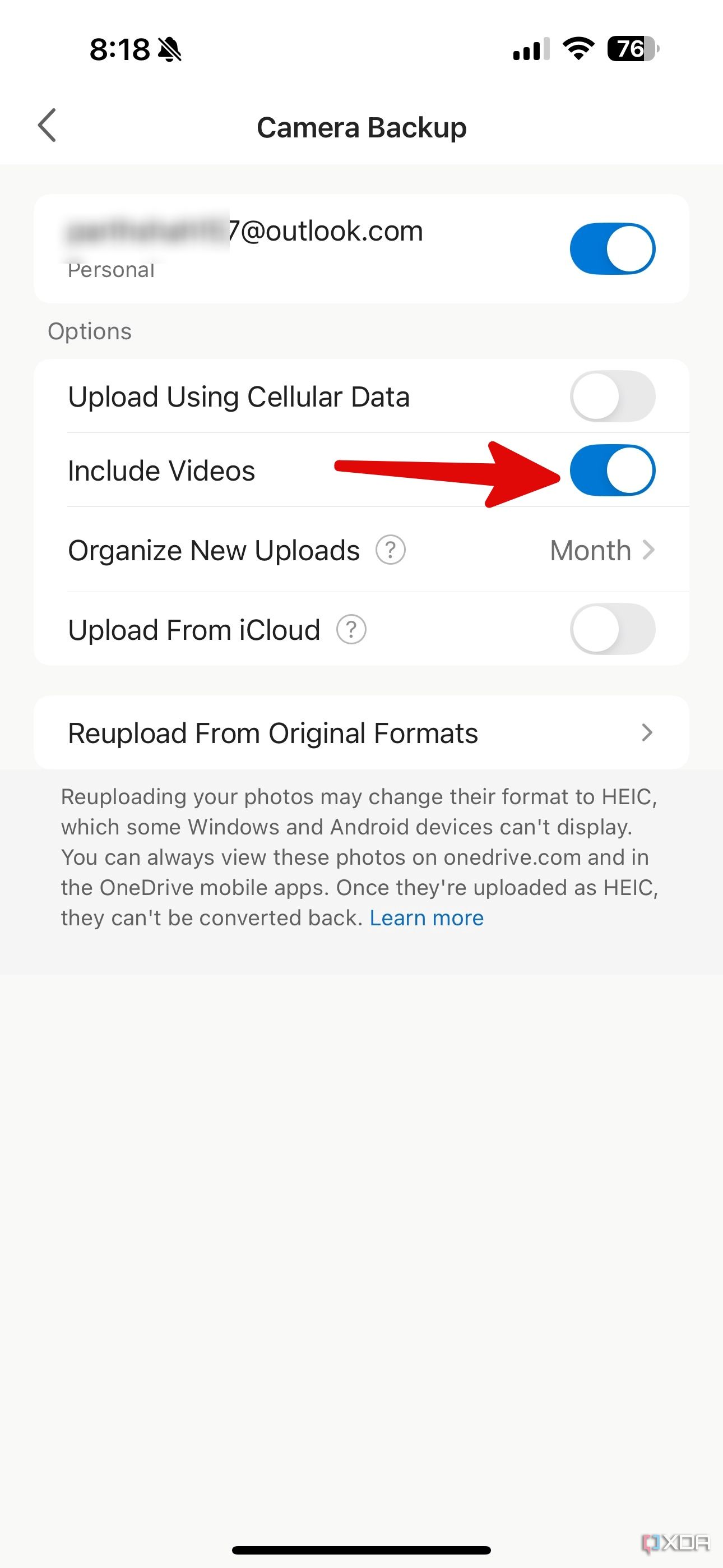
When you enable camera backup on OneDrive mobile apps, it uploads your photos and videos to the cloud platform. While images don’t take up much space, 4K videos can fill up OneDrive storage in no time. Here’s how you can exclude them.
- Launch OneDrive on your phone. Tap the profile picture and head to Settings.
-
Select Camera Backup and disable the Include Videos toggle.


2
Move certain OneDrive files to local storage
Use File Explorer for the move

Moving OneDrive files to local storage that you don’t access on other devices is a great way to free up cloud space while still keeping those files readily available on your primary machine. You can think about which files you primarily use on your current computer and rarely, if ever, access from other devices or share with others.
You should prioritize larger files for moving. Since freeing up OneDrive space is the goal, targeting the biggest files will have the most significant impact. You can simply open the OneDrive folder in the File Explore or Finder and drag and drop the selected files or folders to a location on your local hard drive.
1
Upgrade your storage plan
When none of the tricks work
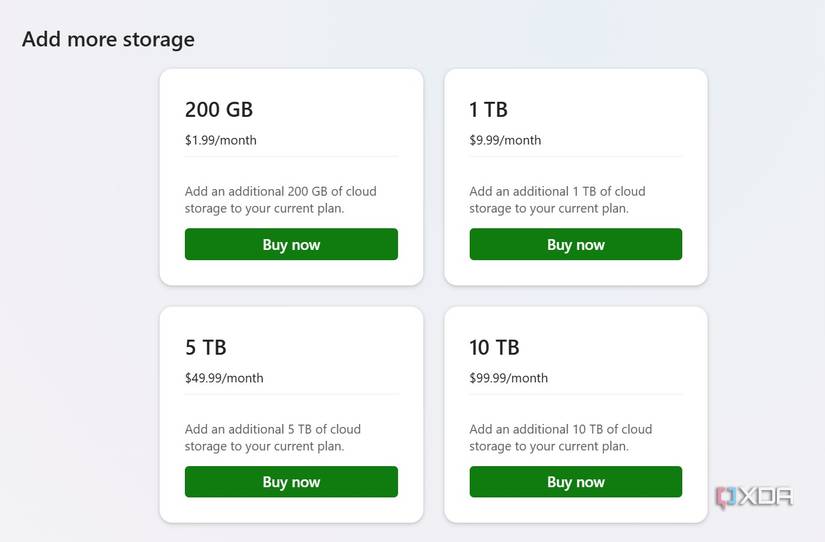
If you are still low on OneDrive storage, you have no option but to upgrade to one of the paid plans. The pricing starts at $2 per month for 100GB. You can also sign up for one of the Microsoft 365 plans and unlock 1TB of OneDrive storage. There is even an option to expand the 1TB space with additional purchases.
Declutter your OneDrive
Optimizing your OneDrive storage doesn’t require rocket science. Thankfully, Microsoft has made it dead easy to analyze the storage on the web. Aside from the tricks above, you should also develop a habit of regularly reviewing (maybe once a month) OneDrive files and getting rid of unnecessary ones.
If Microsoft’s cloud storage solution doesn’t work for you, fret not! There are plenty of capable alternatives out there. Check out my dedicated guide to learn more.
#ways #maximize #storage #efficiency #OneDrive
source: https://www.xda-developers.com/ways-maximize-storage-efficiency-onedrive/


