

Joplin is a powerful, free, and open-source note-taking application that has gained immense popularity in recent years. It strikes the perfect balance between versatility and features set. If you are looking to start your Joplin journey, check out these essential features to revolutionize your note-taking workflow.
From mastering Markdown for beautifully formatted notes to extending functionality with plugins and scripts, the tricks below will unlock Joplin’s true power and elevate your note-taking game to the next level.
Related
7
Utilize Markdown in your notes
Fly through your notes

Unlike some of the modern note-taking apps (looking at you, Obsidian), Joplin doesn’t blindly follow minimalism for the sake of it. It offers both a rich Markdown editor and a user-friendly toolbar at the top. If you are new to Markdown, I would highly recommend learning some essential shortcuts to keep yourself in the flow of writing.
It’s a valuable skill that can be applied across various platforms and applications. However, if you prefer a more visual way of formatting your notes, there is always a toolbar to get the job done. You will find all the usual options to craft an ideal note in no time.
6
Change Joplin’s look with third-party themes
The default look is meh!
The user interface isn’t Joplin’s strong suite. While functional, it’s definitely a bit plain and might not be the most visually appealing. Luckily, Joplin offers a fantastic way to personalize your experience and give it a fresh look with custom themes. These themes can completely change the appearance of the interface, from the background colors and fonts to the styling of buttons and menus.
Here is how you can install a third-party theme for Joplin to give it a visual makeover.
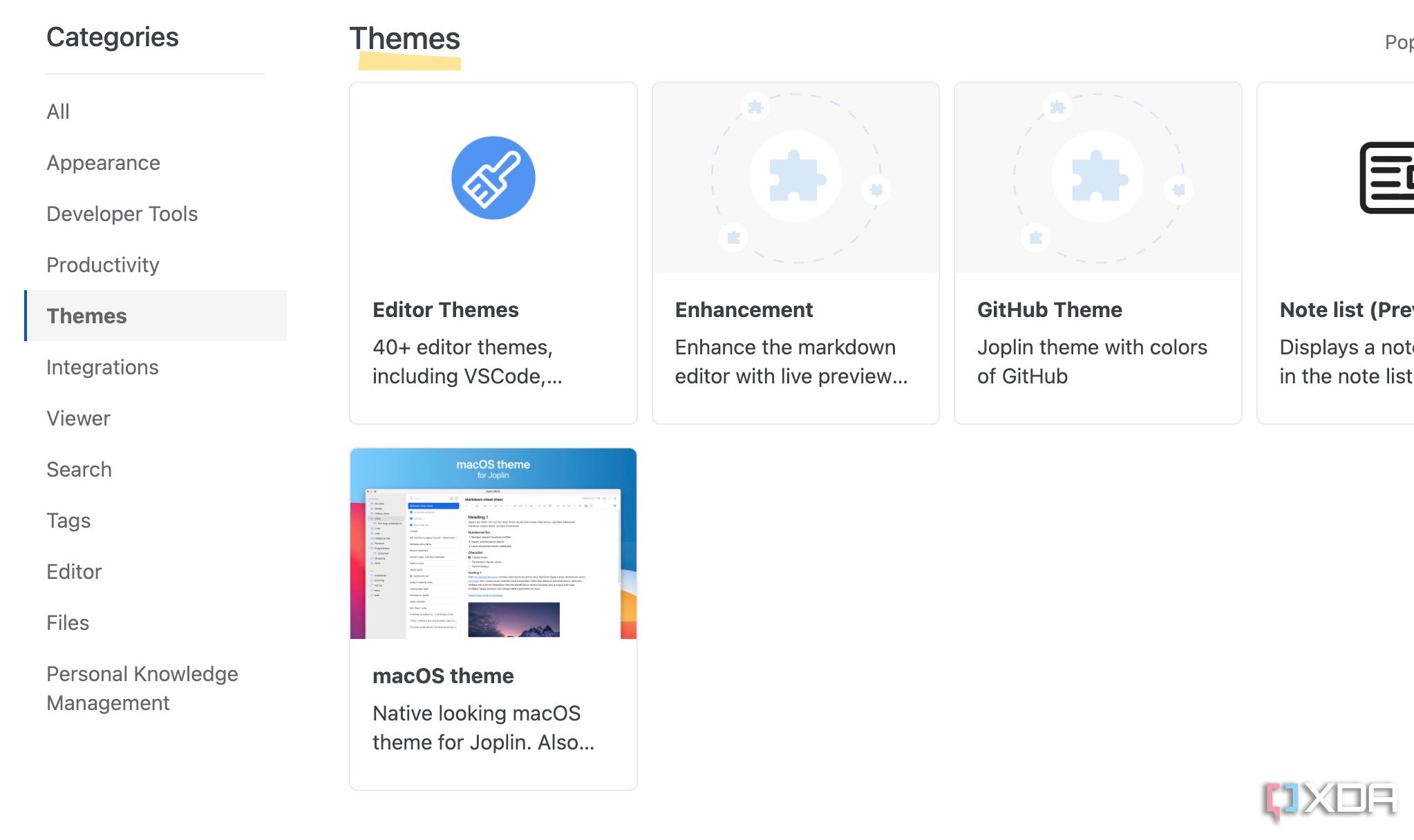
- Visit Joplin on the web and head to the Plugins store.
-
Select Themes from the sidebar. Let’s pick a macOS theme.
-
Select Install Plugin from the following menu. Follow the on-screen instructions and enjoy Joplin in a new avatar.
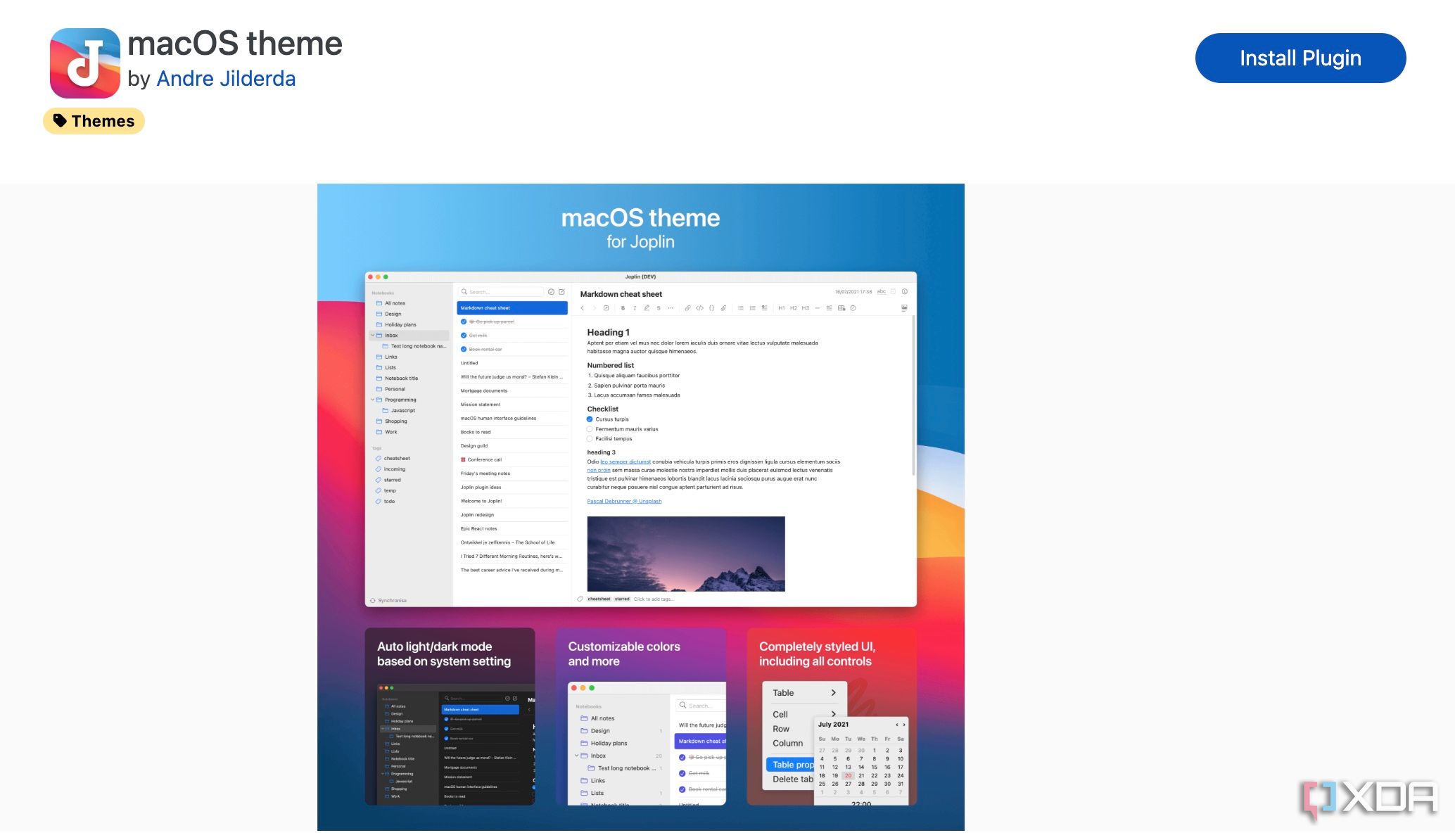


You can also explore the Joplin forum or other community websites to find more themes.
Organize your notes like a pro

If you are a power note-taker, you may fill your digital cabinet with hundreds of notes in no time. Thankfully, Joplin provides a robust system for organizing your notes so that they always remain accessible with just a few clicks.
You can create notebooks and sub-notebooks and even assign icons to add a visual cue. My favorite add-on is tags, where I can assign multiple tags to a single note and categorize it from different perspectives. For example, a note about a project meeting could have tags like project X, meeting, important, and more.

Related
The best open-source productivity software: Free tools to boost your workflow
From photo to office software, there are lots of open-source programs that can help you be more productive
4
Insert drawing in your notes
Ideal for some types of brainstorming

Joplin’s drawing feature is a hidden gem that can unleash your creativity. At times, the standard notes canvas may feel limiting for brainstorming complex projects and ideas. You can simply click Insert Drawing option at the top and unlock a versatile digital canvas directly within your notes.
You can sketch diagrams and mind maps, or simply jot down visual design ideas. You can choose from a variety of pens, colors, and thicknesses to create unique visual elements. Joplin also offers a range of shapes, such as rectangles, circles, and arrows, to help you create structured diagrams and flowcharts.
There is also an option to insert images and files directly into your drawings.
3
Synchronize your notes for easy access
Use OneDrive, Dropbox, or Joplin Cloud

Joplin doesn’t restrict you to its own cloud service for synchronization. You can opt for Joplin Cloud or use third-party providers like OneDrive and Dropbox to save and sync your notes across all the platforms. You have the flexibility to pick the service you are most comfortable with and already use for your other files.
2
Save web pages using Joplin clipper
Clip interesting web articles
The Joplin Web Clipper is a game-changer for anyone who wants to effortlessly capture information from the web. It seamlessly integrates with your standard notes. Let’s check it out in action.
- Open Joplin and head to Settings.
-
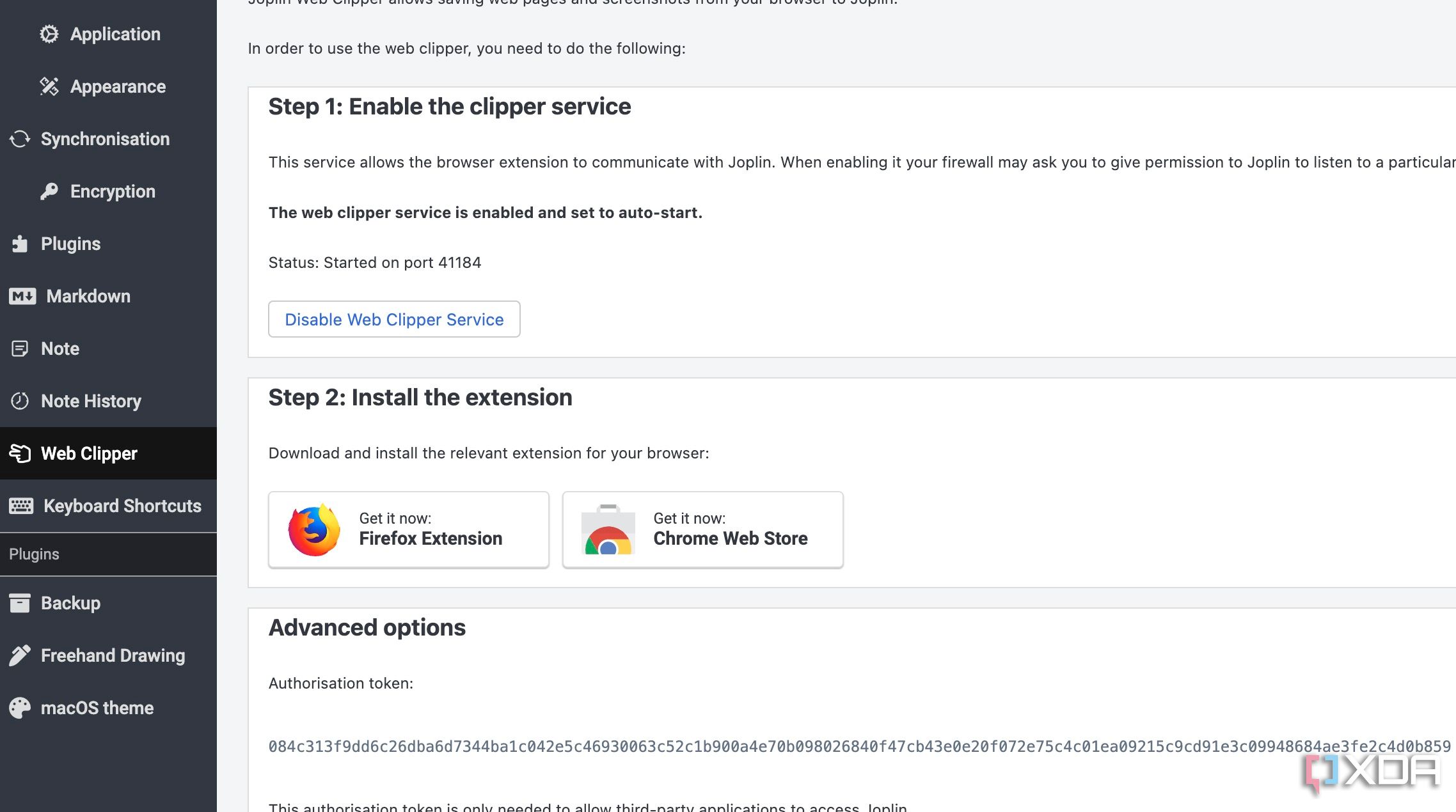
Select Web Clipper from the sidebar and enable the service.
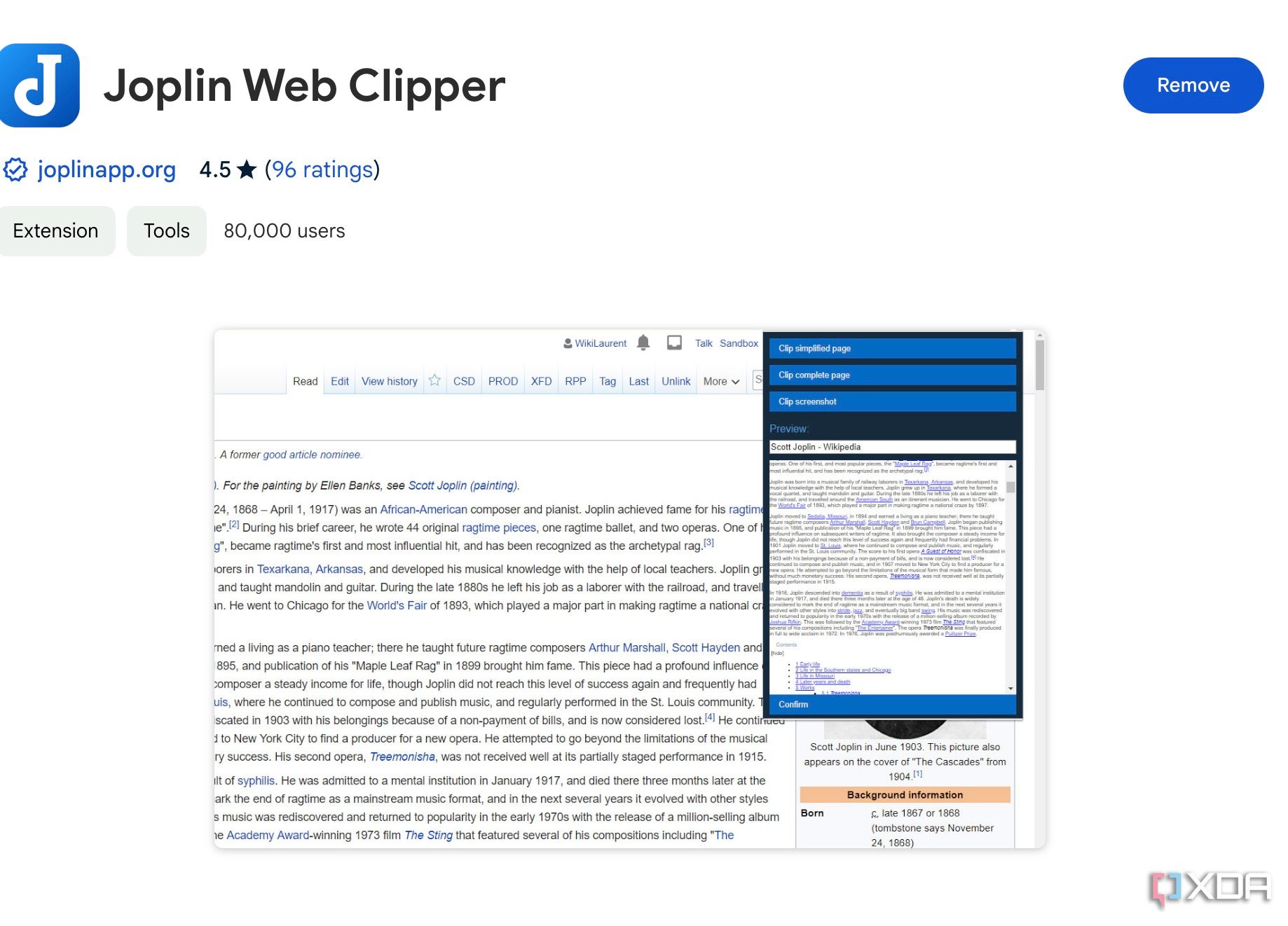
- Visit Chrome Web Store and download Joplin web clipper.
-
Select Get and add the extension to your browser.
-
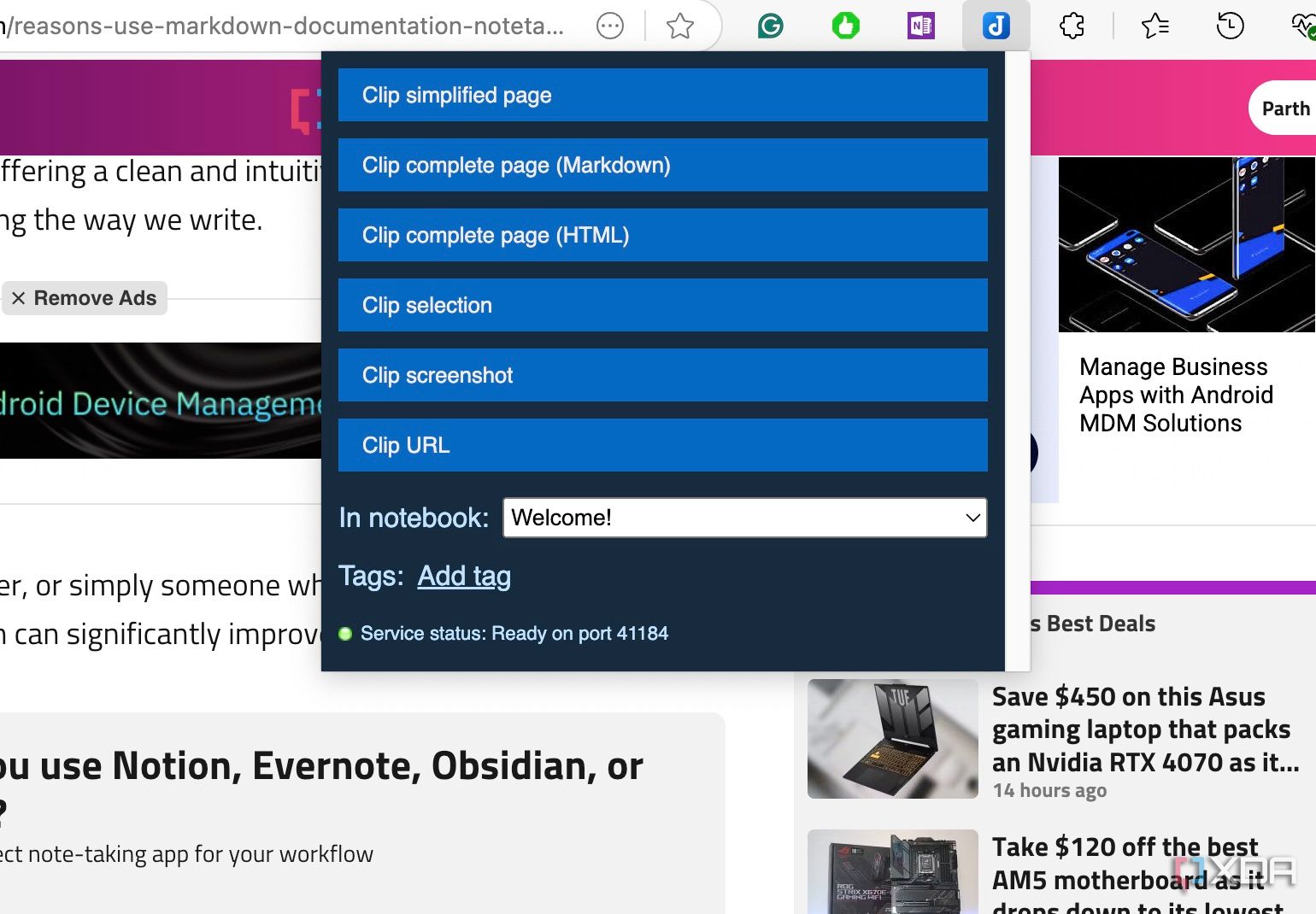
Whenever you come across an interesting article, click the Joplin icon in the toolbar and pick one of the options to clip it to your notebook. (It will ask for authorization for the first time.)


1
Customize the app with plugins
Unlock unlimited possibilities
Joplin’s plugin system is like a secret weapon that allows you to supercharge your note-taking. You can extend Joplin’s functionality with third-party plugins. For example, you can use Note Tabs plugin to open several notes at once in tabs, Templates to create and use templates, the Outline plugin to insert a table of contents on the sidebar, and more. The possibilities are endless.

Related
9 reasons you should self-host Joplin on your Raspberry Pi
Joplin is a great note-taking app that can sync between all your devices. Here’s why you should self-host your Joplin notes on Raspberry Pi.
Organize your thoughts like a pro
Compared to modern productivity apps like Notion, Capacities, Logseq, and more, Joplin may feel basic at first glance. However, as you can see from the list above, it’s more than just a simple note-taking app. When used to its full potential, Joplin can significantly enhance your productivity and organization. Besides, it’s completely free to download and use. What’s not to like here?
Obsidian is another well-known tool that feels similar to Joplin. Check out my comparison post to learn all the differences between the two.

#features #Joplin #improve #notes
source: https://www.xda-developers.com/features-you-need-to-be-using-in-joplin-to-improve-your-notes/


