

Copying and pasting are probably among the most common tasks we do on our Windows PCs, whether it’s grabbing text from the web for a document or exporting numbers from an Excel sheet. It’s a repetitive task that eats up a fair amount of time, yet most of us still rely solely on CTRL + C and CTRL + V keyboard shortcuts. Your new laptop or PC offers many more tools for copying and pasting that could save you time. For example, you can enable Clipboard history to save and paste multiple items. Here are five unique ways to level up your copying and pasting game on Windows.
Related
7 things you need to do to make search better in Windows 11
Don’t settle for underwhelming search results
5 Enable Clipboard history

When you copy text or images, they’re saved to the clipboard, but as soon as you copy something new, the previous item is typically overwritten. This can be a hassle if you need to copy and paste multiple items repeatedly. A faster way is to enable Clipboard history, which keeps a list of your most recent items so you don’t have to go back and copy again each time. With Clipboard history on, Windows stores up to 25 items, including text, code, and images. Once activated, simply press WIN + V to access the Clipboard history, and use CTRL + C to re-copy any entry from the list.
To turn on Clipboard history, go to Settings > System > Clipboard and toggle the switch for Clipboard history. Keep in mind that as you copy more new items, the oldest ones are automatically removed to maintain the cap of 25 items, and your clipboard history is also cleared every time you restart or shut down your device.
4 Use PowerToys Advanced Paste
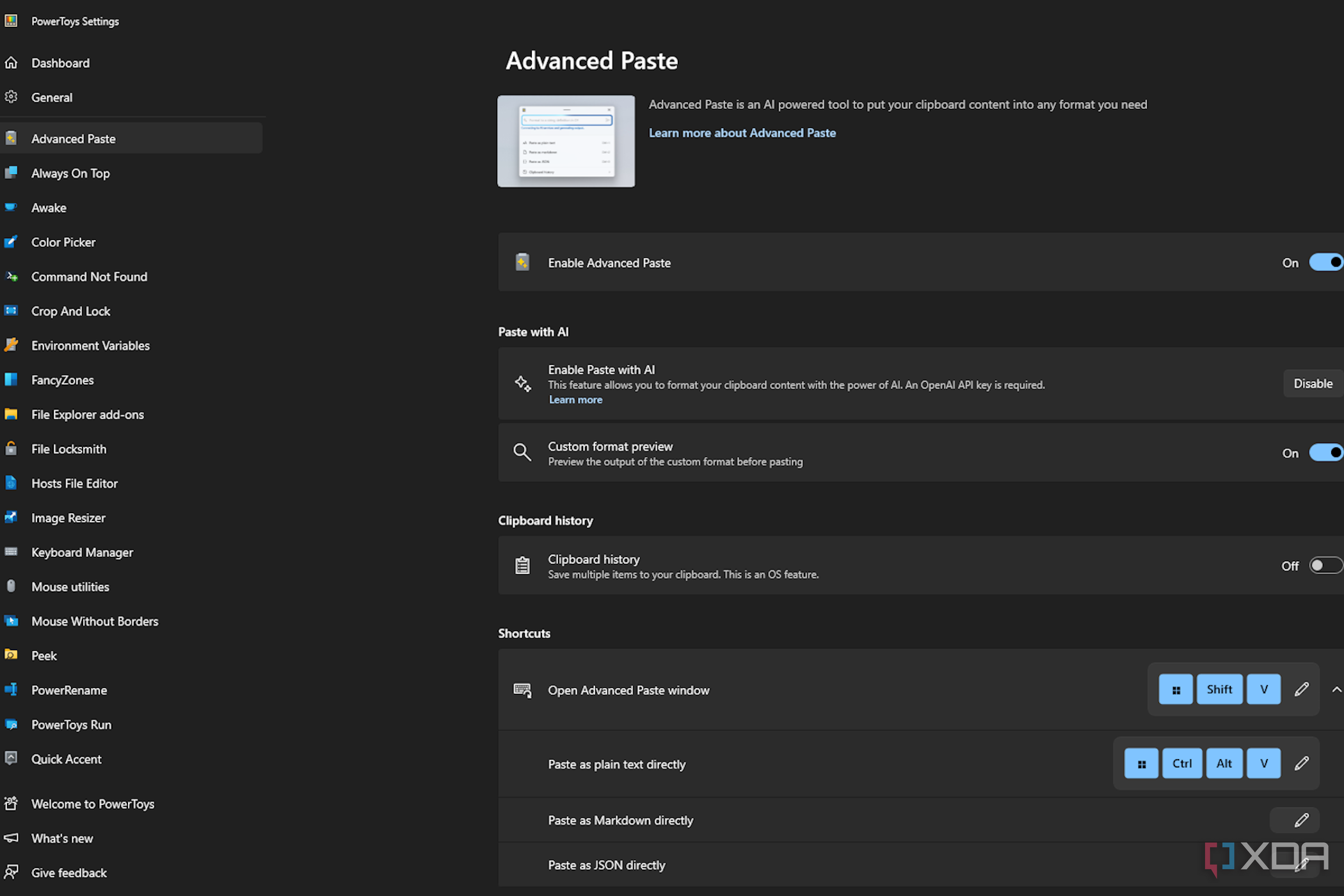
PowerToys Advanced Paste lets you paste text from your clipboard in various formats to suit your needs. You can paste as plain text, Markdown, or JSON, either through the user interface or by using a quick keyboard shortcut. Here’s how to use it.
- Open PowerToys and navigate to the Advanced Paste settings page.
- Toggle on Enable Advanced Paste, and, if it’s not already enabled, turn on Clipboard history as well.
- Open a plain text file or document and copy some text.
- Press Windows key + Shift + V to open the Advanced Paste menu.
- From here, you can choose to paste your text as plain text, Markdown, or JSON.
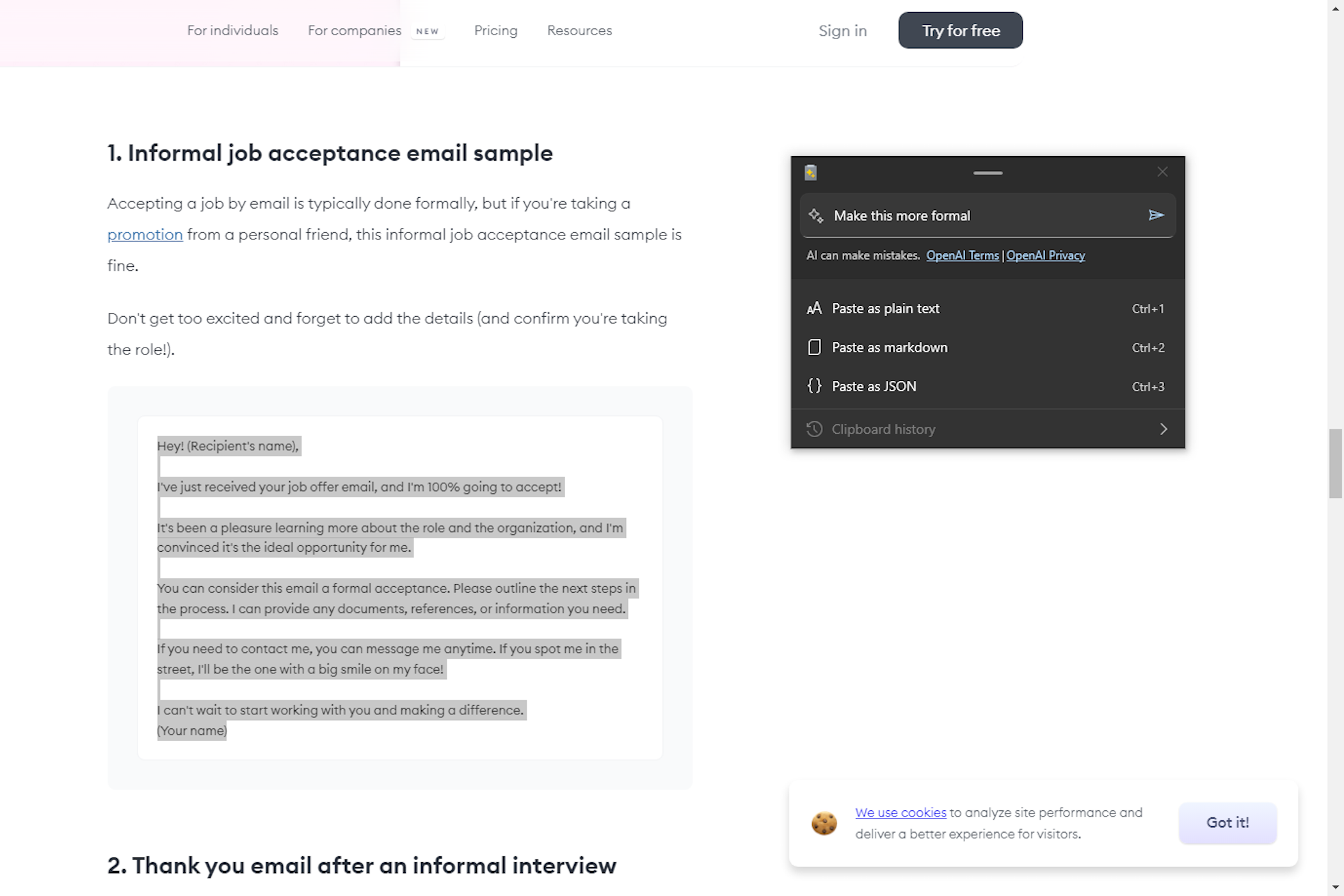

When you paste as plain text, all formatting is removed. Pasting as Markdown keeps the formatting of HTML content by converting it to Markdown. Pasting as JSON formats the text as JSON, which is widely used in programming and data files.
3 Paste text with AI
PowerToys Advanced Paste also has an option that lets you paste text with AI. When you enable this feature, you’ll see an OpenAI prompt where you can enter the conversion that you want — summarized text, translations, generated code, a rewrite from casual to professional style, or whatever you can think to ask for when pasting a modified version of text. To set this up, you’ll need an API key from OpenAI as well as available credits in your account.
- Go to the OpenAI API Keys page and sign in with your account or create a new one if needed. Skip to step 5 if you already have a key.
- Click the Create new secret key button.
- In the secret key window, click the Create secret key button.
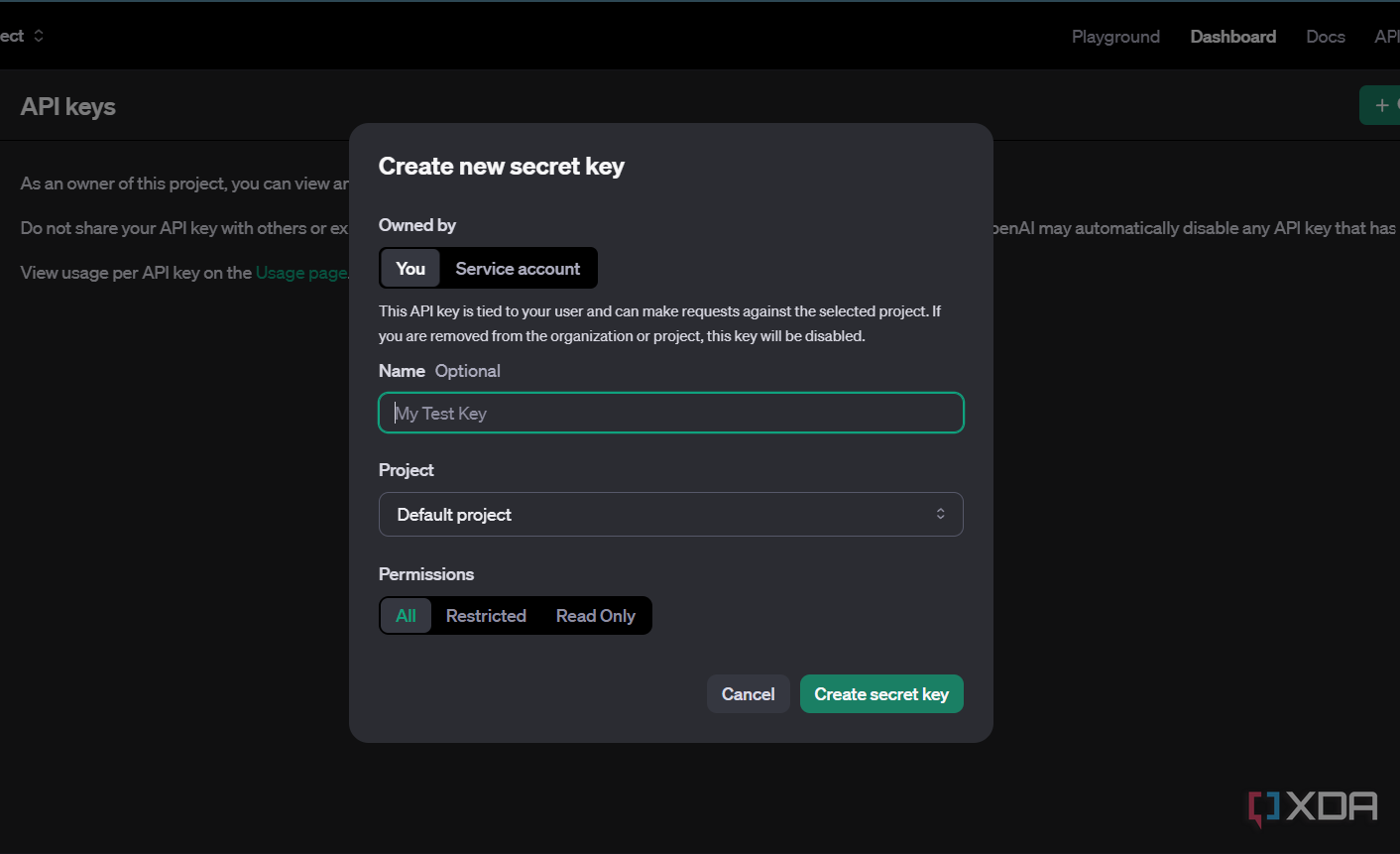
- Click Copy to copy the key to your clipboard.
- Return to the PowerToys settings screen for Advanced Paste and click the Enable button next to Enable Paste with AI.
- Paste the API key into the designated field and click Save.
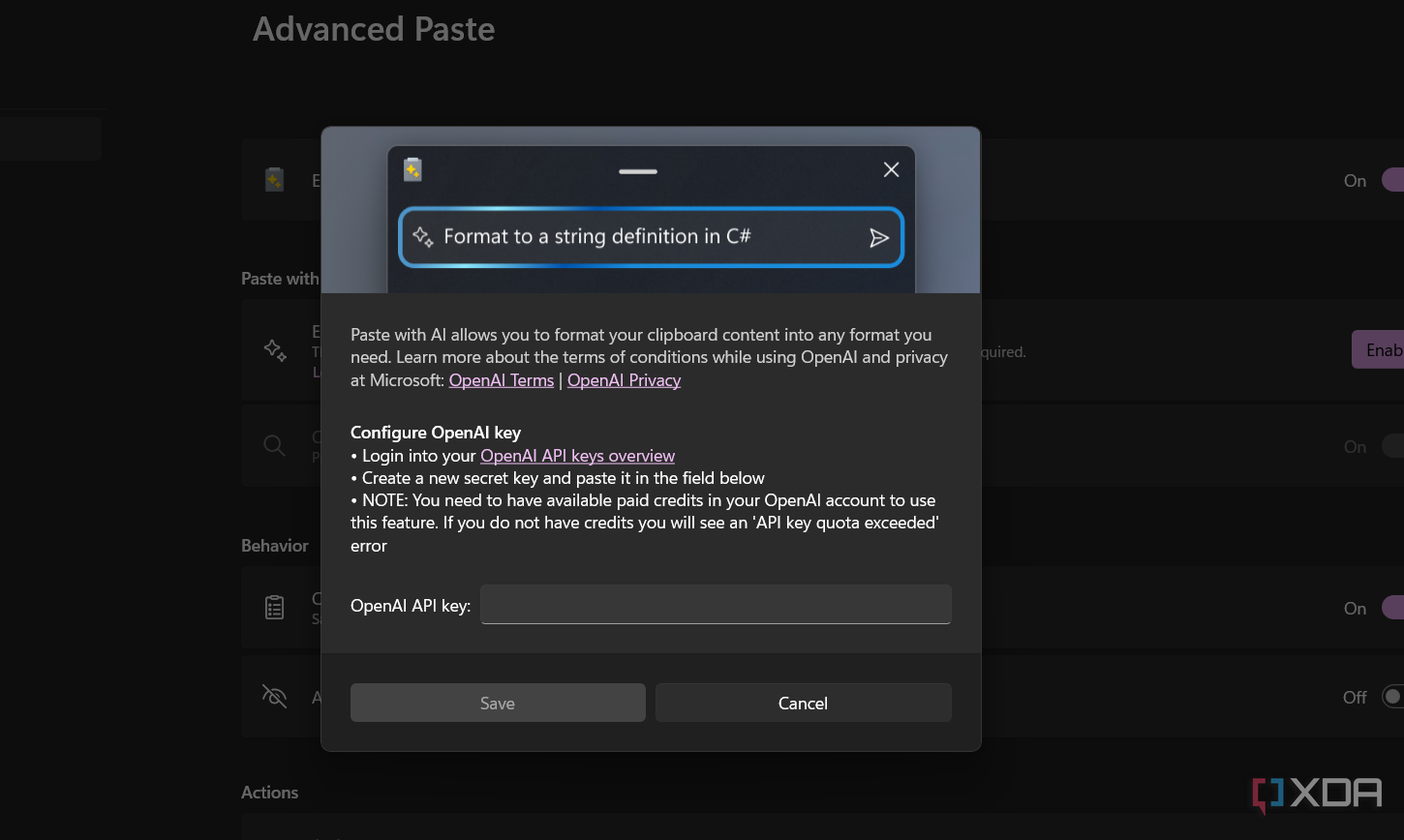
- Open a text file or document and copy some text.
- Press Windows key + Shift + V to open the Advanced Paste menu. In the Describe what format you want field, you can type a unique prompt to utilize the AI feature to transform it to your liking.


2 Paste without formatting

When you copy text from a webpage or document, formatting such as font, size, and color often carries over when you paste. However, you can easily paste text without formatting by using the keyboard shortcuts Ctrl + Shift + V (commonly used in applications like Chrome and Gmail) or Ctrl + Alt + V (typically found in Microsoft Office).
If an app doesn’t support a dedicated keyboard shortcut for pasting without formatting, you can right-click and select “Paste as plain text” or “Paste without formatting.” Alternatively, you could open Notepad, paste your text there first, and then copy it again. Notepad will strip away all formatting, leaving you with pure, unformatted text.
1 Copy text from images

You’re not limited to copying text from just documents and web pages. The Windows 11 and Windows 10 Photos app allows you to extract text from images as well. It uses Optical Character Recognition (OCR) technology to scan your photos, identify any text, and make it available for copying just like regular text.
Another way to copy text from images is by using the Snipping Tool, which also includes built-in OCR. Take a snip, then click the Text Actions button on the Snipping Tool toolbar to make the text selectable. From there, you can highlight and copy the text with your mouse.
Copy and paste with ease
Windows makes copying and pasting a breeze, whether you need to copy text from a web page or an image. Features like PowerToys Advanced Paste can save time for power users by streamlining the process. If you’re interested, you might also want to explore how to copy and paste more efficiently on your Mac or Chromebook.

Related
3 ways you can take your Windows 11 Taskbar back in time with this fantastic retro app
Retrobar is a powerful app that transforms your Taskbar into one from an earlier version of Windows
#ways #copying #pasting #level #Windows
source: https://www.xda-developers.com/5-ways-to-take-copying-and-pasting-to-the-next-level-on-windows/


