

During multitasking on Windows, you might be required to open several apps simultaneously and juggle between them while continuously paying attention to one particular one. Whether it’s a media player for a quick tutorial, a calculator for making calculations, the task manager for monitoring your system, or a chat window for monitoring updates, keeping an app window always on top can be highly beneficial for a proper workflow during multitasking.
Windows 11 doesn’t natively offer a universal “always on top” feature, but there are several reliable ways to achieve this functionality.
Related
The 6 best Windows 11 features you probably didn’t know about
If you are looking for new ways to improve your workflow, then check out these hidden gems
3
Using Microsoft PowerToys
The built-in powerhouse for window management

Microsoft PowerToys is a free and versatile utility that adds several advanced features to Windows, and its Always on Top tool is a standout. If you’re looking for an official, hassle-free solution, PowerToys is a perfect choice. It’s lightweight and integrates well with Windows 11.
Here’s how to enable “Always on top” in PowerToys:
- Download the Microsoft PowerToys and run its installer to install it.
-
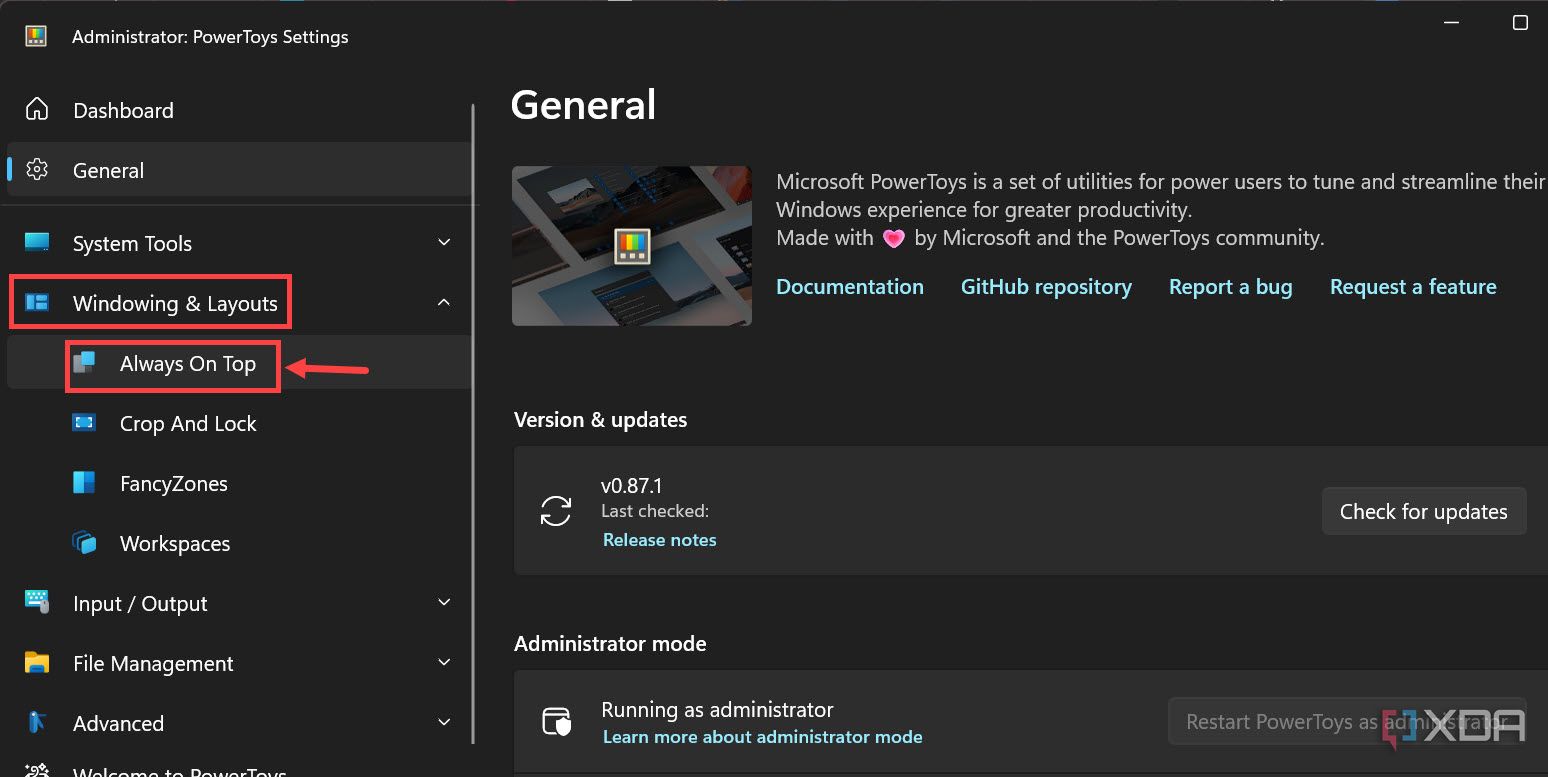
After installing the program, launch it and, on the left, expand the Windowing & Layout, and select Always On Top.
-
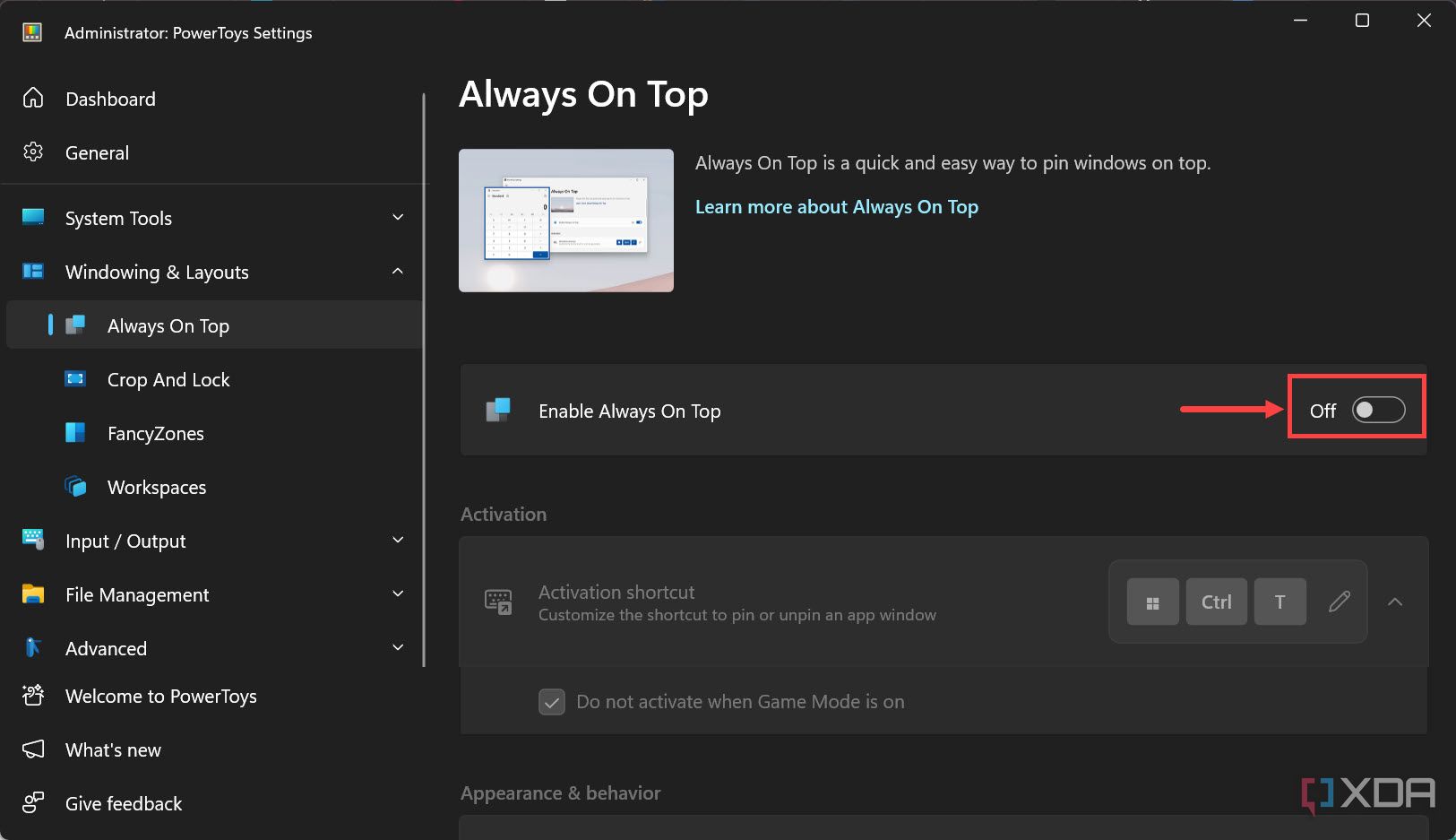
On the right, toggle the button to turn on the Always On Top feature.
-
Now, use the default shortcut, Windows + Ctrl + T, to pin any app window to the top. A border will appear around the window, indicating it’s always on top. You can also modify the shortcut to your preferred one.
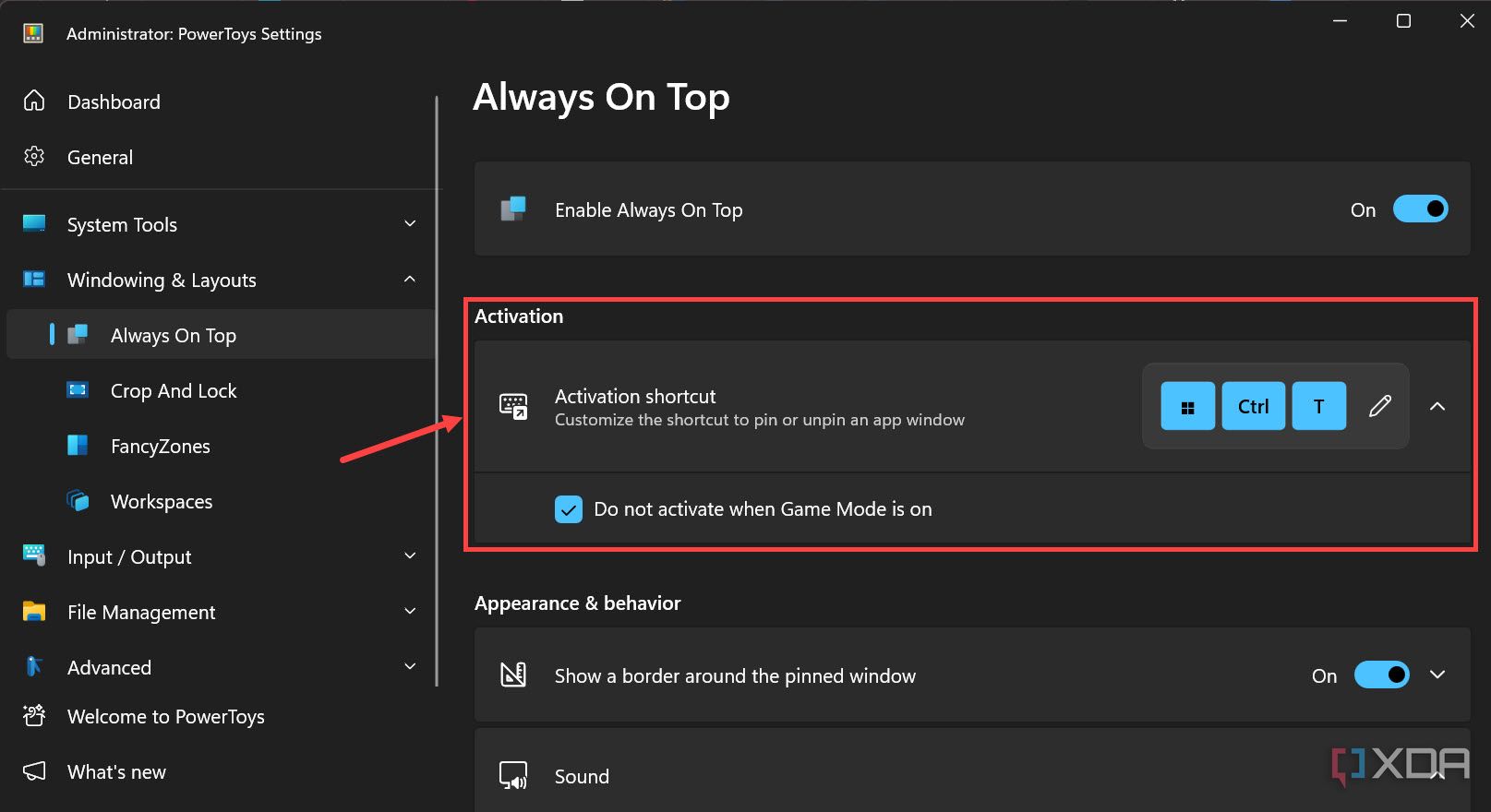
- Further, you can modify the Appearance & Behavior and exclude apps from pinning on top.


Apart from “Always on Top,” PowerToys offers many more features, such as Advanced Paste, Color Picker, Awake, Screen Ruler, Shortcut Guide, File Locksmith, Image Resizer, and more.

Related
7 PowerToys features you need to maximize your productivity
Microsoft PowerToys adds a ton of features and tweaks to your Windows experience, and these game-changers will maximize your productivity.
2
From the app itself
When the software has a built-in option
Some modern applications have a built-in “always on top” option, eliminating the need for a separate application. This option is especially common in media players, monitoring apps, and communication tools, where keeping the window visible is crucial.
Here are a few examples of apps with the ”always on top” option:
- VLC media player: Open the app, expand the View section from the top toolbar, and select the Always on top option.
- Task Manager: Right-click on the taskbar and select Task Manager from the options. From the left pane, switch to Settings. Find and expand the Window Management section, and check the Always on top option.
1
Using a Third-Party App
Use a dedicated app for flexibility

If you like more control and advanced features to keep your app window always on top, a third-party dedicated app might help you. There are various apps that provide “always on top” functionality, like Stay On Top, WindowTop, DeskPins, TurboTop, and more.
For this article, I’ll take DeskPins and show you how to pin an app window using it:
- Download the DeskPins installer and install it.
- After it’s installed, you can find the pins by going to the “Show hidden icons” section of the taskbar.
- Now open the application window, which you always want to pin on top of others.
- You can grab a pin from the tray and put it at the top of that application window like you pin something on a pin board.
- The pinned window would have a red pin mark on its top so that it can be easily distinguished.
Make multitasking easier
Keeping an app window always on top in Windows 11 can make multitasking easier and enhance your productivity when you need to juggle between tasks and focus on a specific app. Microsoft PowerToys provides an elegant and official solution, while built-in options in certain apps are ideal for specific use cases. Third-party tools like DeskPins and WindowTop offer some extra features like shrinking windows and more. Choose the one that best fits your needs and preferences and pin the app over others easily.
#ways #app #window #top #Windows
source: https://www.xda-developers.com/keep-app-window-always-on-top-windows-11/


