

Key Takeaways
- Unlock your Mac’s full potential by tweaking macOS settings in the System Preferences menu.
- Enhance productivity by customizing hot corners, preventing automatic sleep, and using storage recommendations.
- Personalize your Mac experience with unique wallpaper, lock screen messages, and app unlocking with Apple Watch.
Your Mac is more than just a sleek, powerful, aluminum device. It’s a productivity powerhouse waiting to be harnessed. While your Mac works well out of the box, you can explore the macOS System Settings menu (via the Apple icon) to unlock its full potential. In this guide, we will delve into lesser-known macOS adjustments that can transform your Mac experience. From customizing hot corners on your Mac, to generating unique email addresses, these macOS settings will make you wonder why you didn’t know about them sooner.
Related
10 Mac productivity hacks you didn’t know about
Supercharge your workflow with these hidden time-saving tricks on your Mac
15 Enable Low Data mode for Wi-Fi
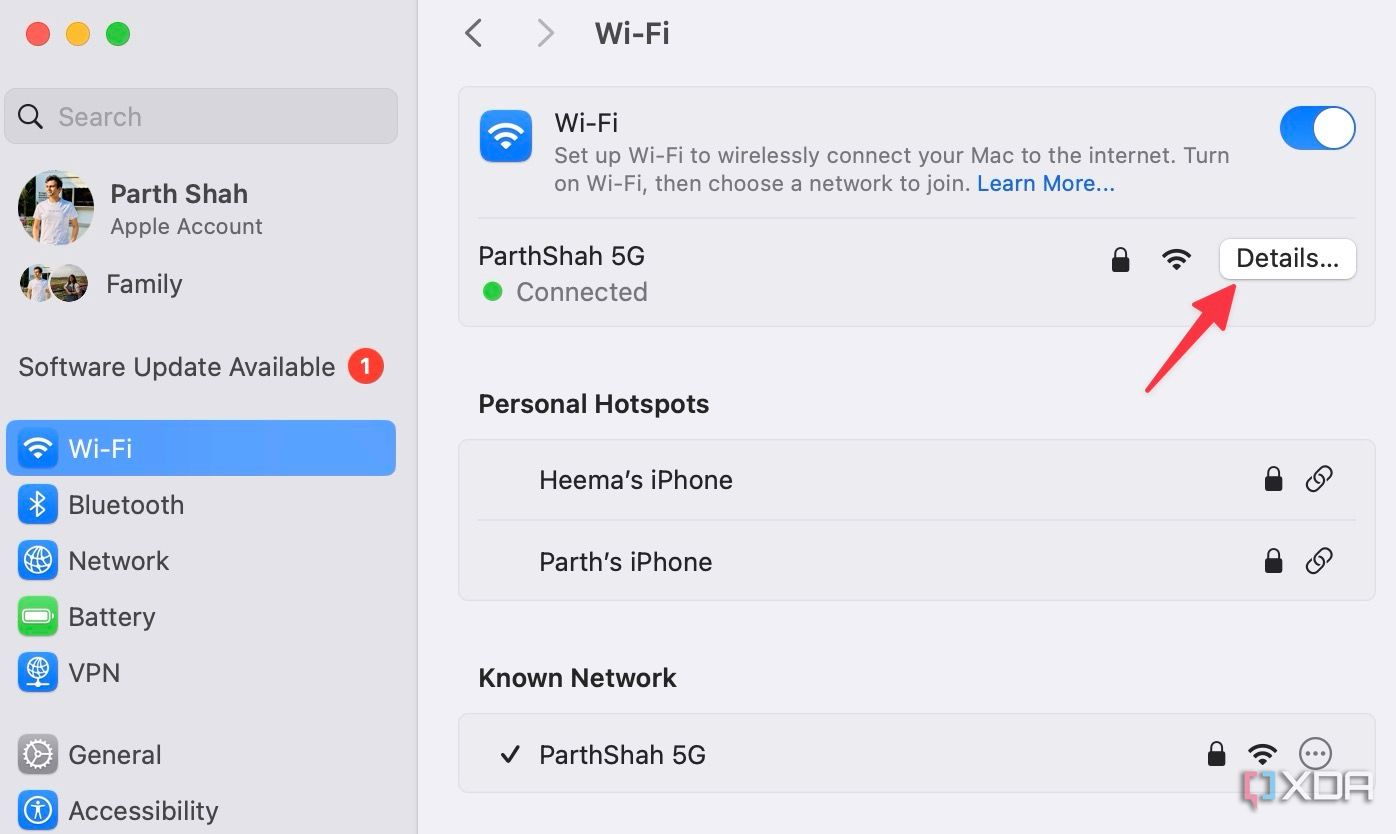
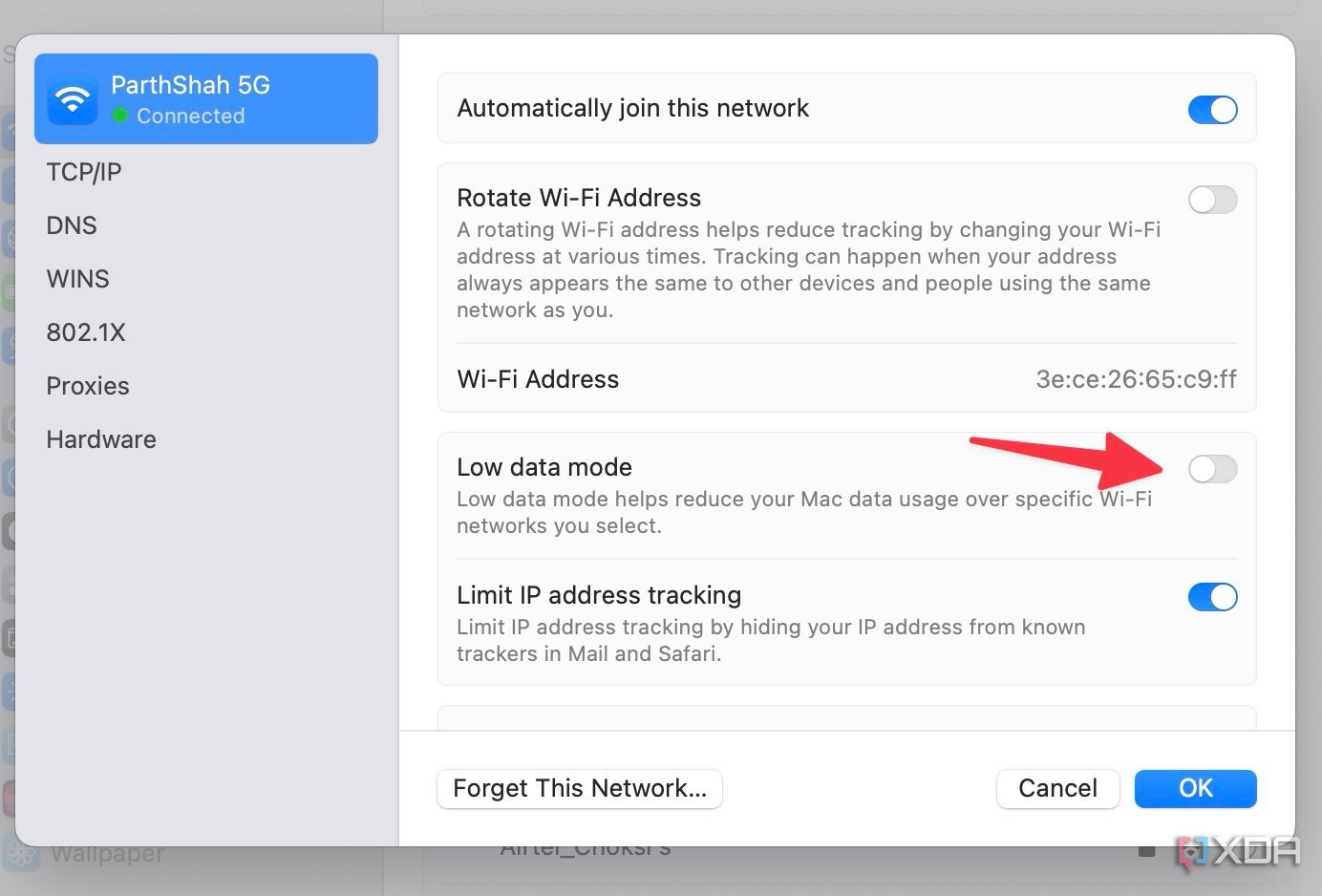
Most ISPs (Internet Service Providers) offer unlimited Wi-Fi to their users. However, if your local ISP has put a limit on Wi-Fi consumption, enable Low Data mode on your Mac. As the name suggests, it reduces Mac data usage over a specific Wi-Fi network. It’s buried in the Wi-Fi details menu. Here’s how to access and enable it.
- Click the Apple icon in the menu bar and open System Settings.
- Open the Wi-Fi menu and select Details beside a connected Wi-Fi network.
- Enable Low data mode.


14 Prevent automatic sleeping on power adapter
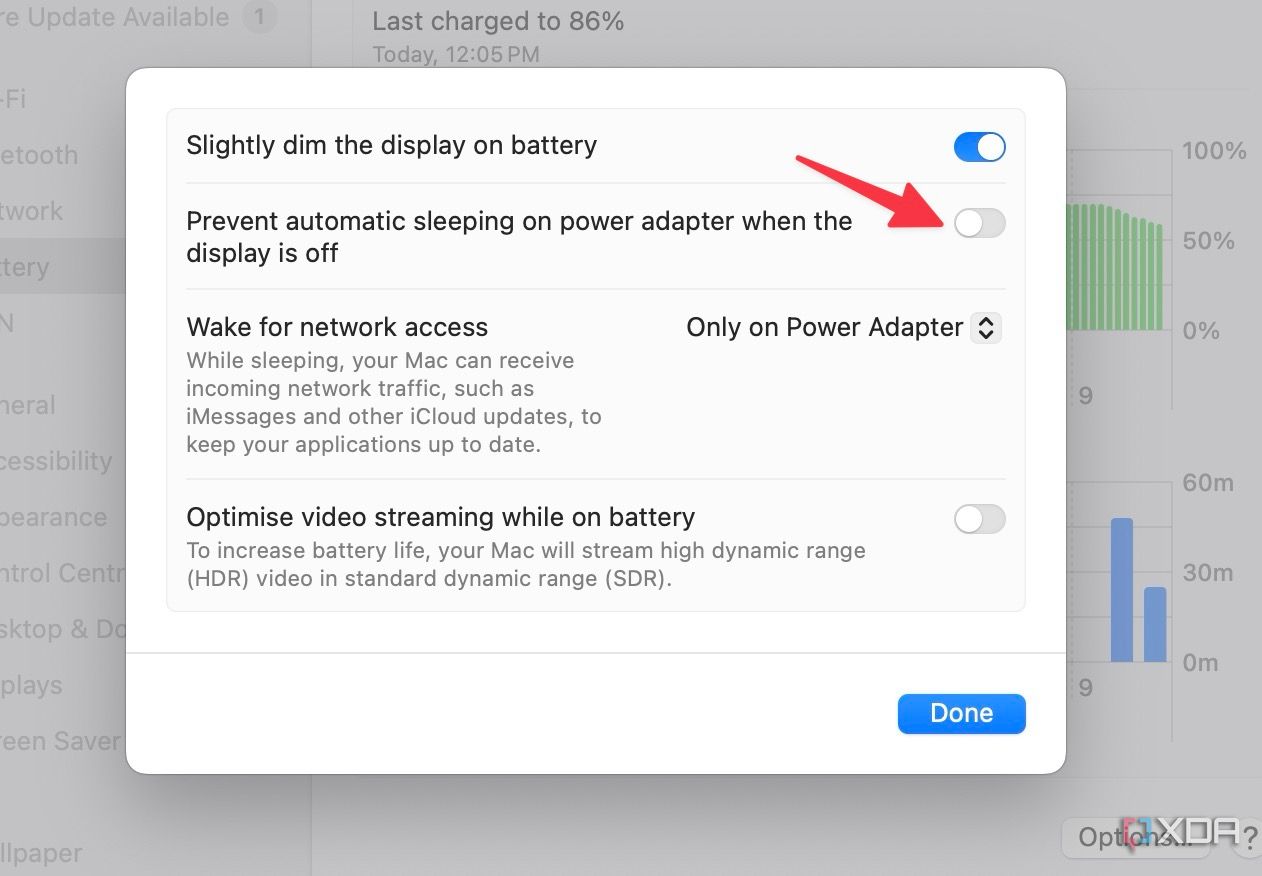
macOS offers a handy add-on to prevent automatic sleeping while on a power adapter. It can be useful in specific situations when you are downloading large files or updating dozens of apps in the background. Here’s how to enable it, if it is something that may come in handy for you.
- Head to Mac System Settings. Scroll to Battery.
- Select Options.

- Enable the Prevent automatic sleeping on power adapterwhen the display is off, then Done to save and exit.


13 Use storage recommendations
Is your Mac running low on storage? You may run into performance issues if your drive is too full. macOS offers storage recommendations to free up some space in no time.
- Navigate to macOS System Settings. Scroll to General and open the Storage menu.
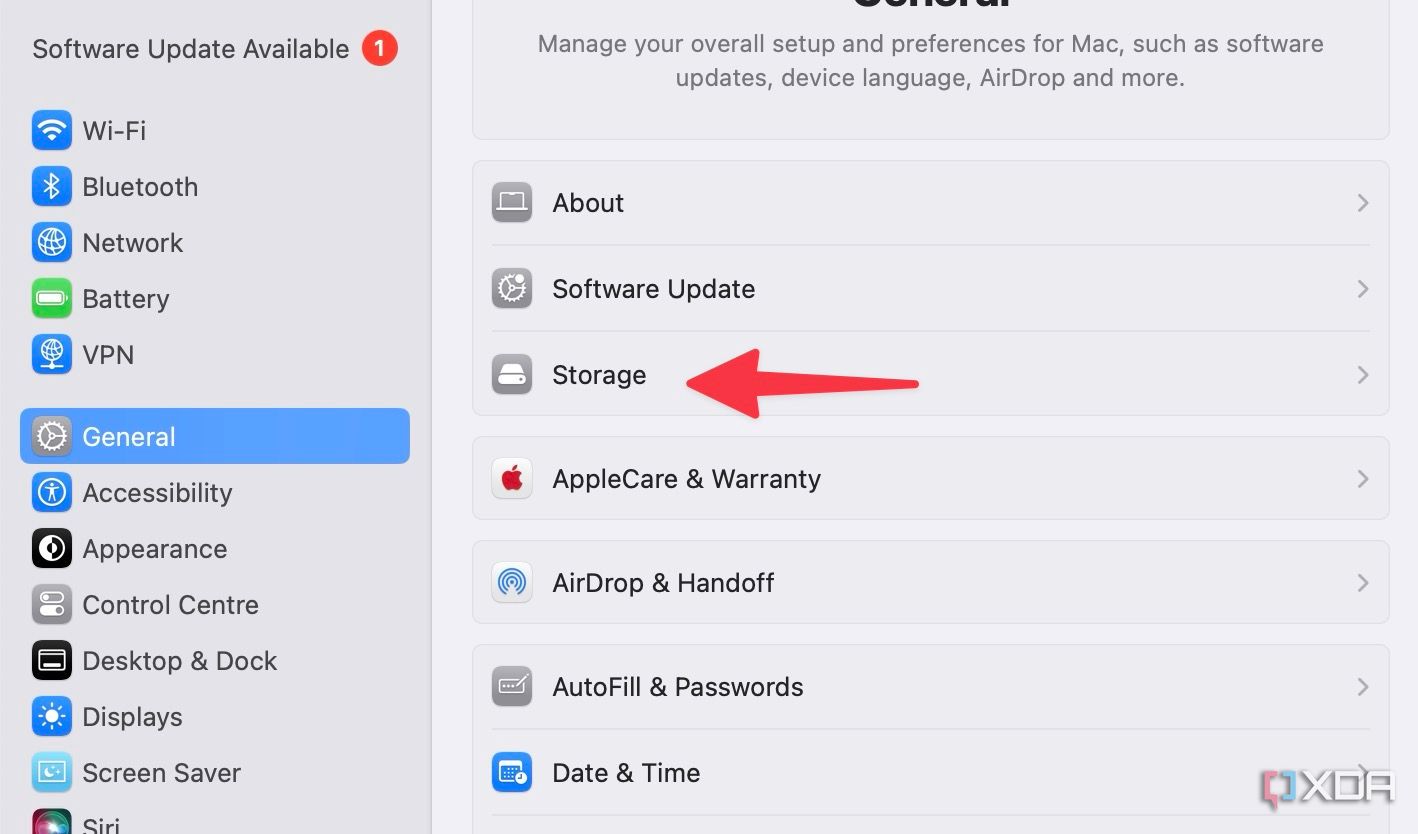
- You can store your Mac content in iCloud, optimize storage, and empty Bin automatically.
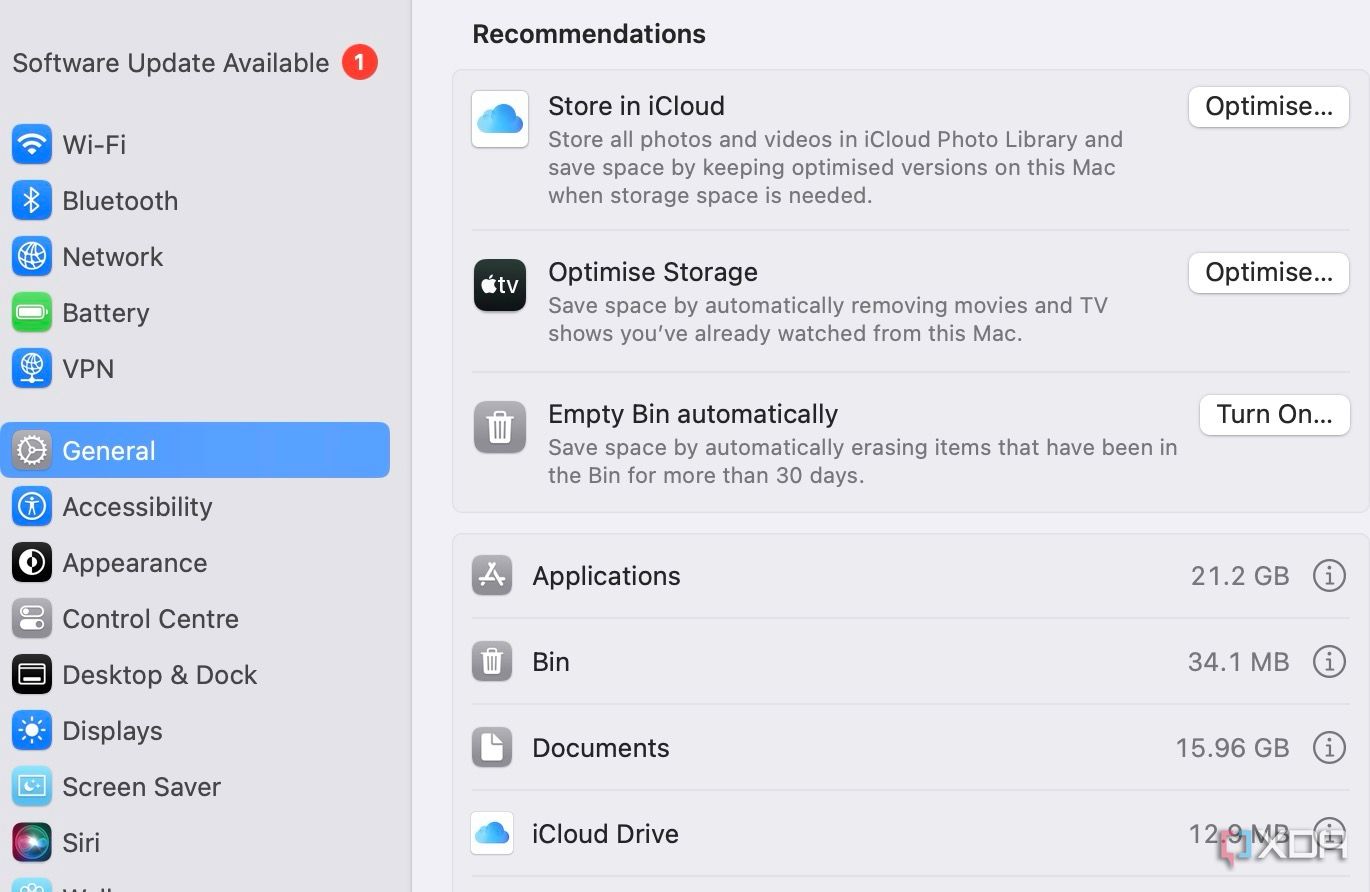


You can also glance over other app data accordingly and take action on specific apps to reduce content.
12 Tweak hot corners
By default, macOS opens the Quick Note when you hover the cursor on the bottom-right corner. You can customize all hot corners from the Settings menu.
- Open Settings and scroll to Desktop & Dock.
- Select Hot Corners under Mission Control.
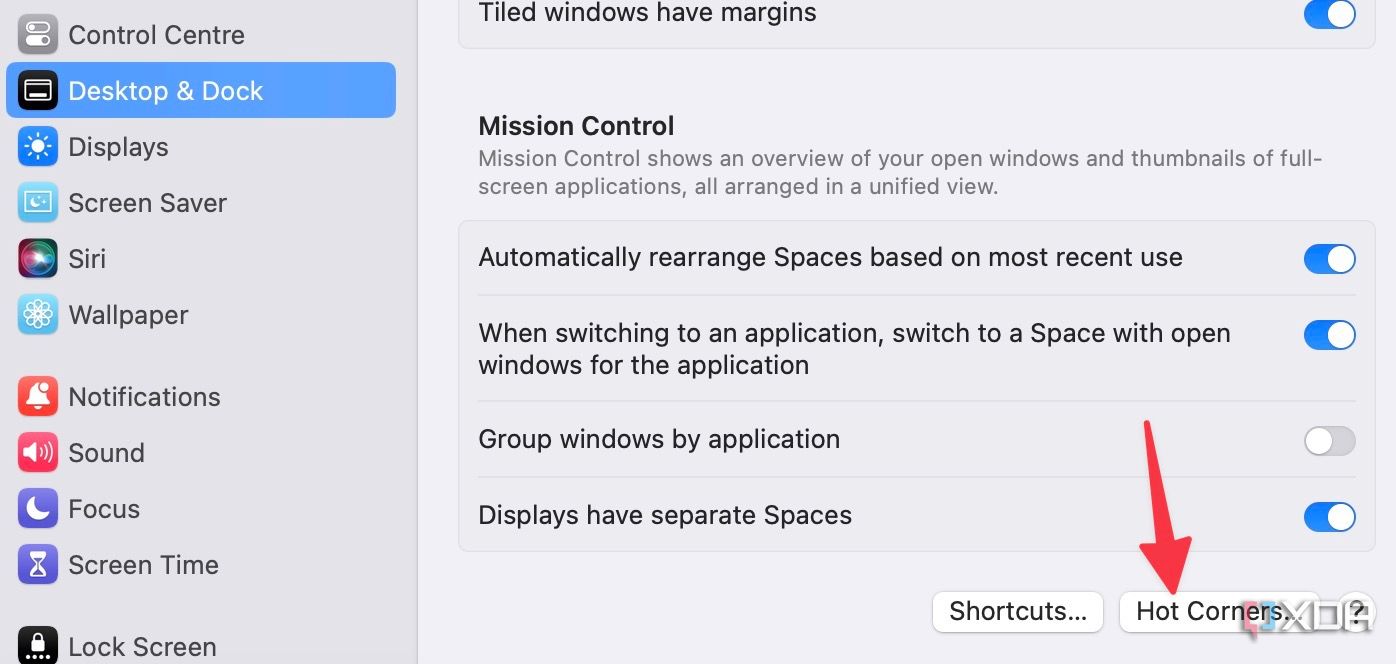
- Expand each corner and set a specific function.
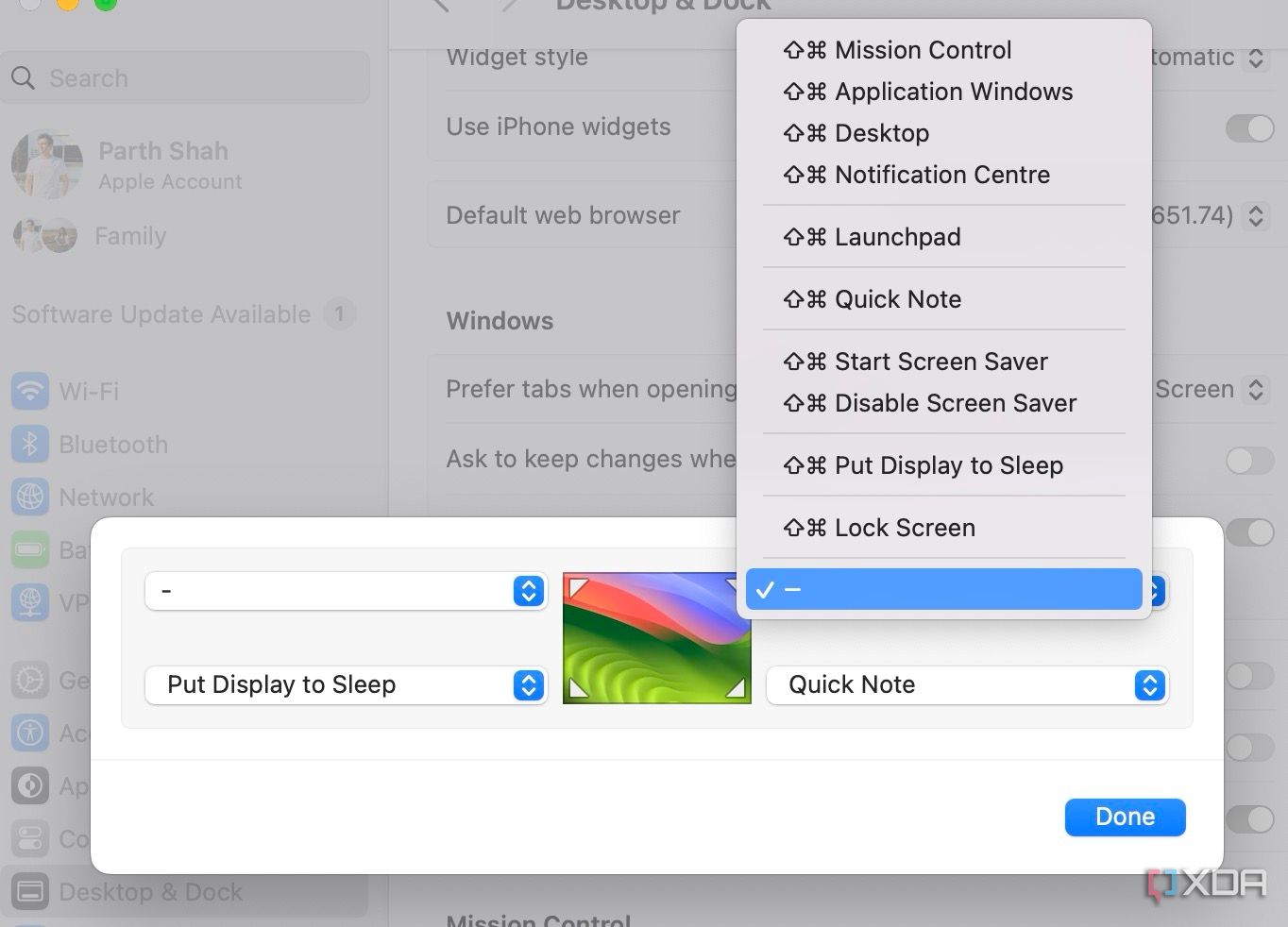


I have added a quick note and put the display to sleep in the bottom right and left corners, respectively.
11 Show a message on the lock screen
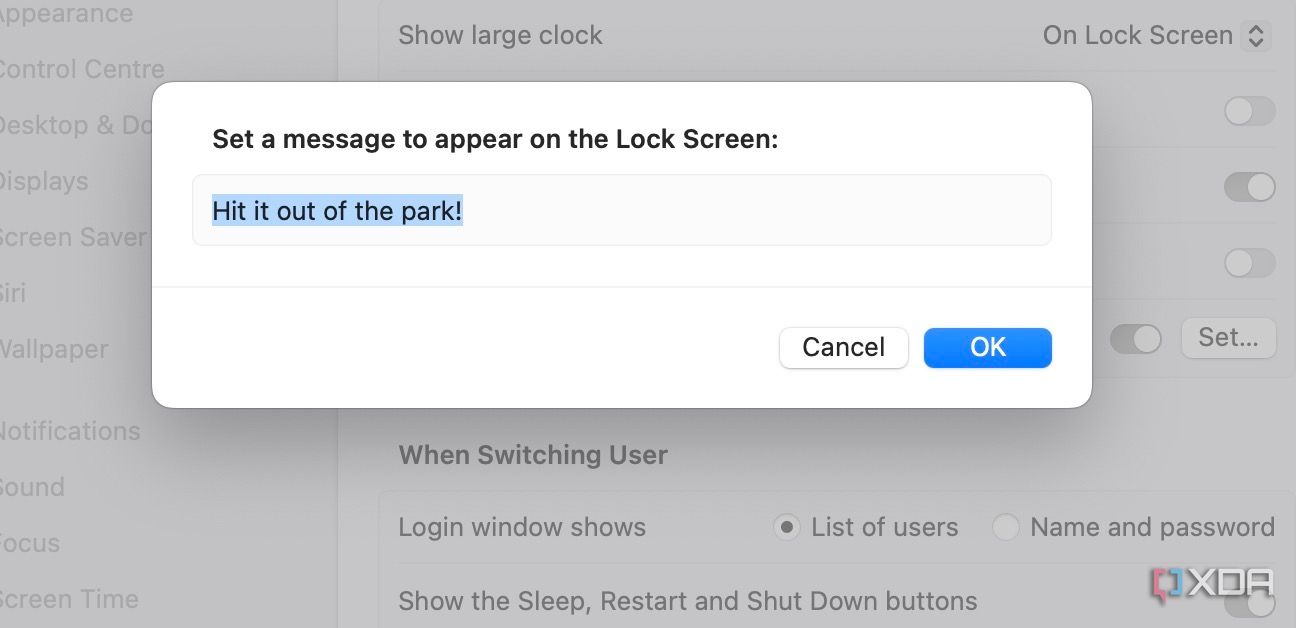
If you want to start your day with a motivational quote, use the option to display a message on the lock screen.
- Open System Settings and scroll to Lock Screen.
- Enable the Show message when locked and click Set.

- Enter a message that you want to see, and select OK.


10 Set the picture folder as wallpaper
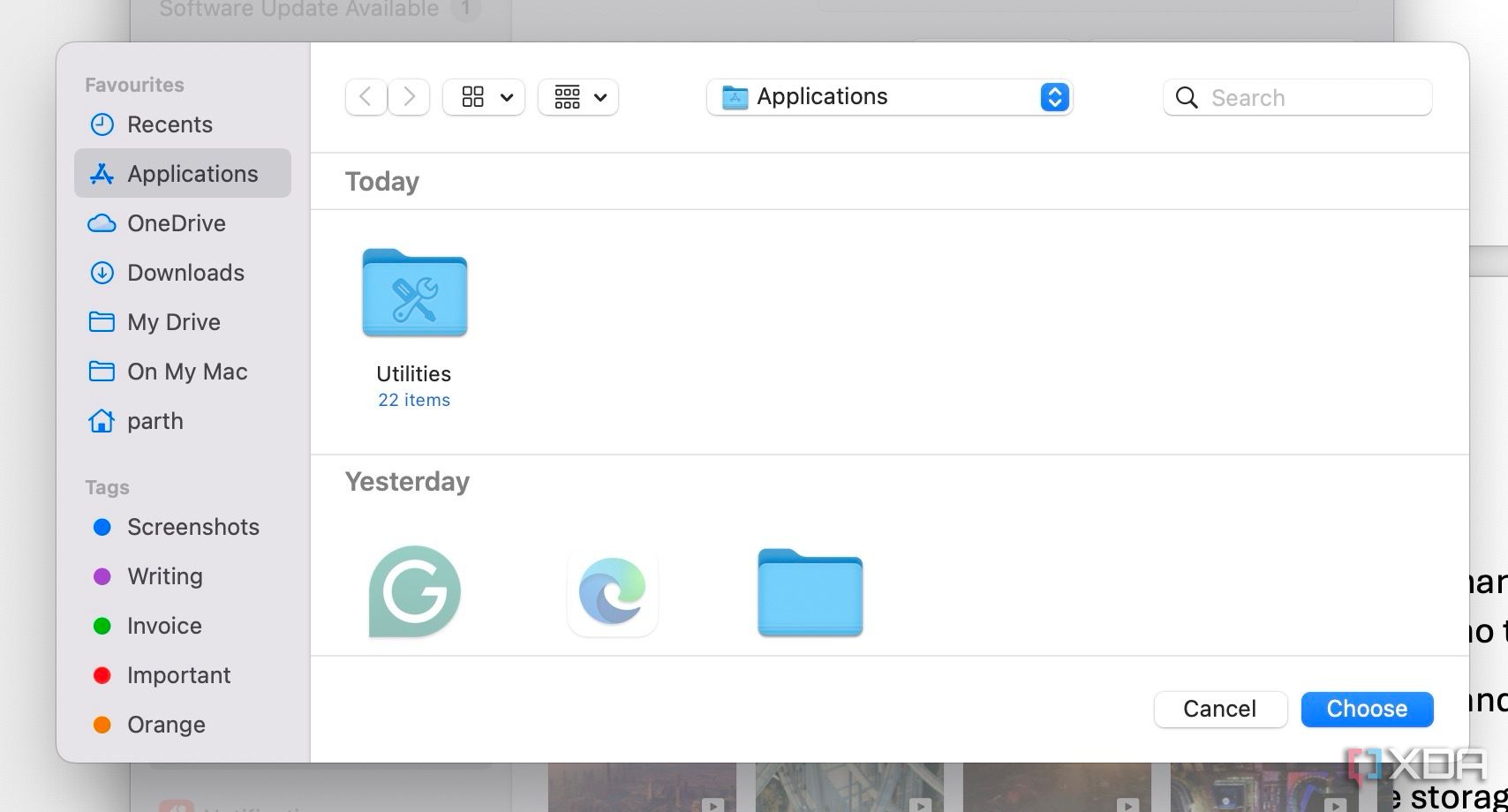
macOS also offers an option to set a specific photo folder as a wallpaper. Let’s set it up and give your Mac a neat makeover.
- Head to System Settings and scroll to the Wallpaper.
- Click Add Folder or Album. You can select one of the albums from the Photos app. You can also pick a specific person to feature.
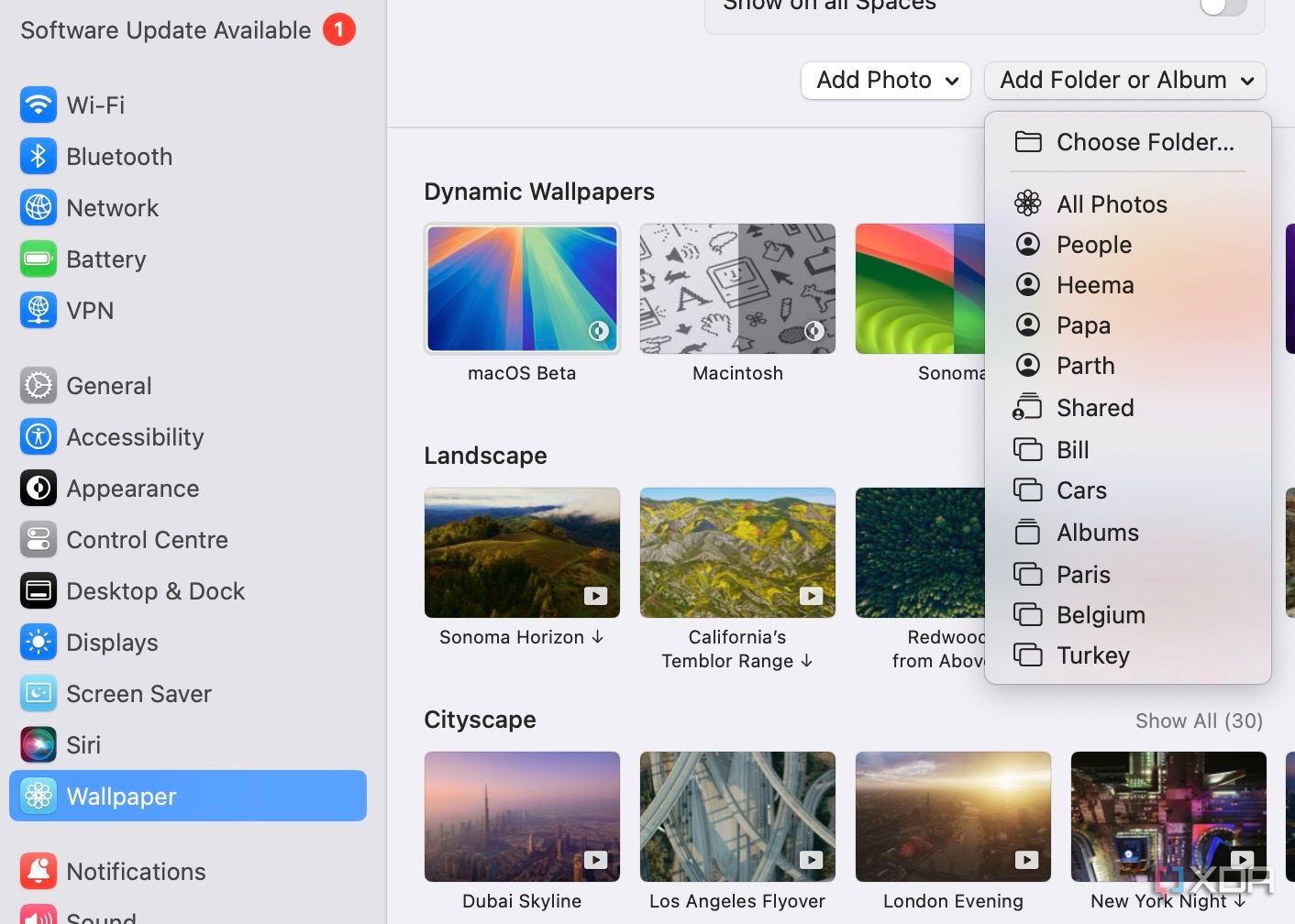
- Select Choose folder and pick a folder from the Finder menu.


Related
First 10 things to do with a new Mac
Bought a new Mac recently? Check off these things first and familiarize yourself with Apple’s desktop OS.
9 Enable notifications when mirroring on Mac
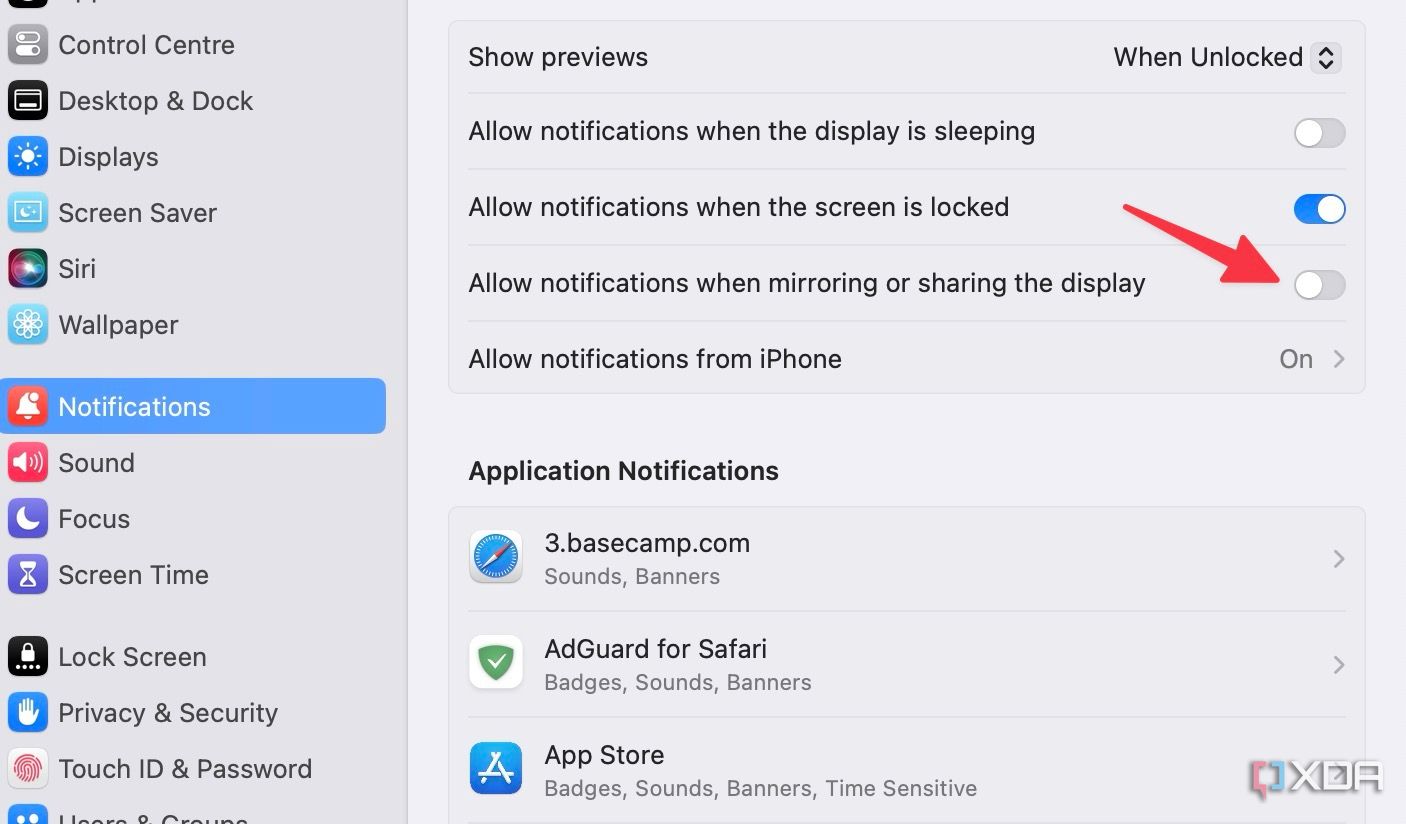
By default, macOS disables notifications when you mirror or share the display. Go through the steps below if you would rather enable the functionality.
- Open Mac System Settings and scroll to Notifications.
- Enable the Allow notifications when mirroring or sharing the display toggle.

8 Enable and tweak iPhone notifications
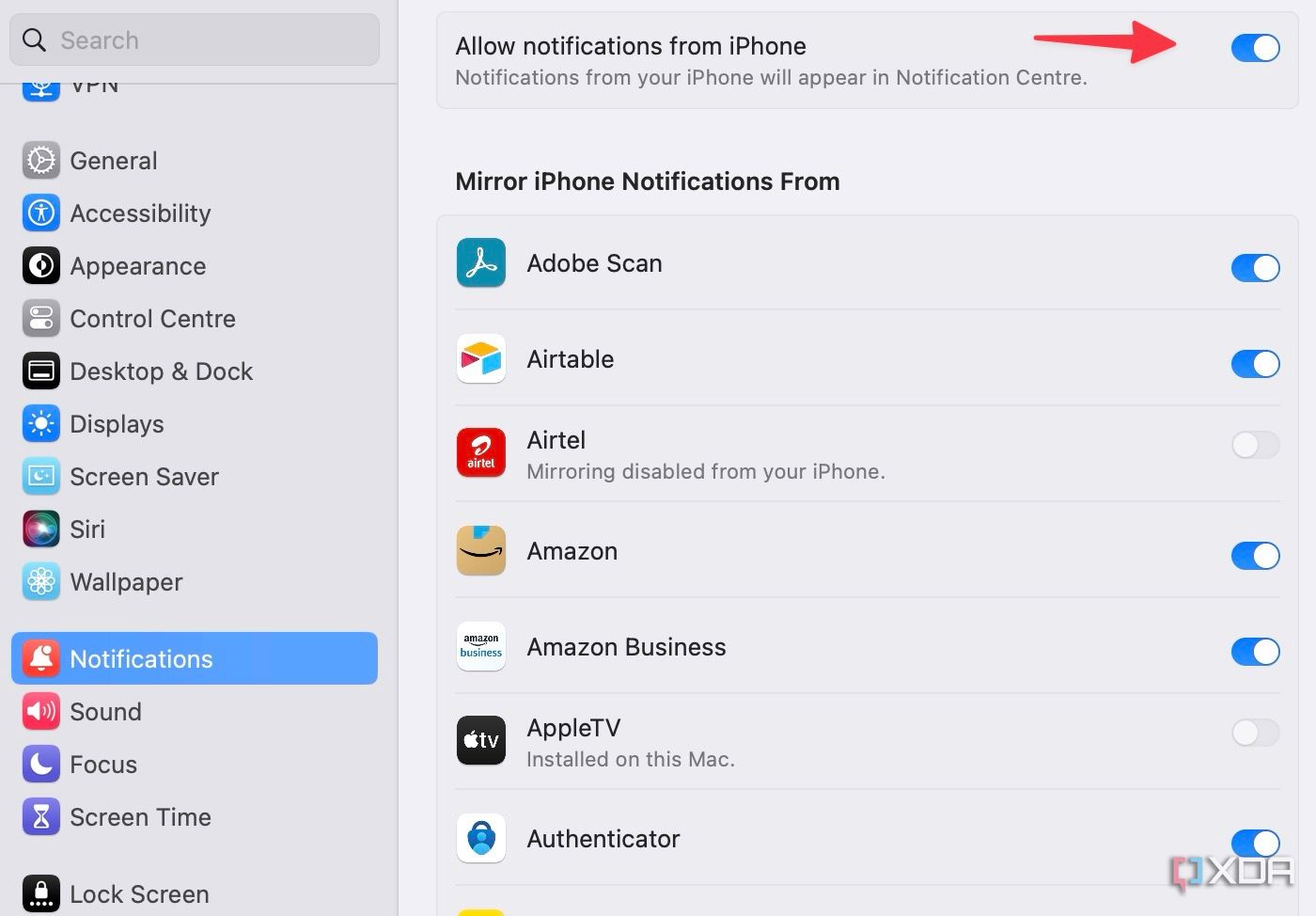
Following the macOS Sequoia update, there is an option to mirror iPhone notifications overall on your Mac. Here’s how to enable it and stay up to date regardless of which device you are looking at.
- Head to System Settings. Scroll to Notifications.
- Select Allow notifications from iPhone. Enable the same from the following menu.
- You can also tweak notification settings for specific apps.

7 Launch Focus when you open an app
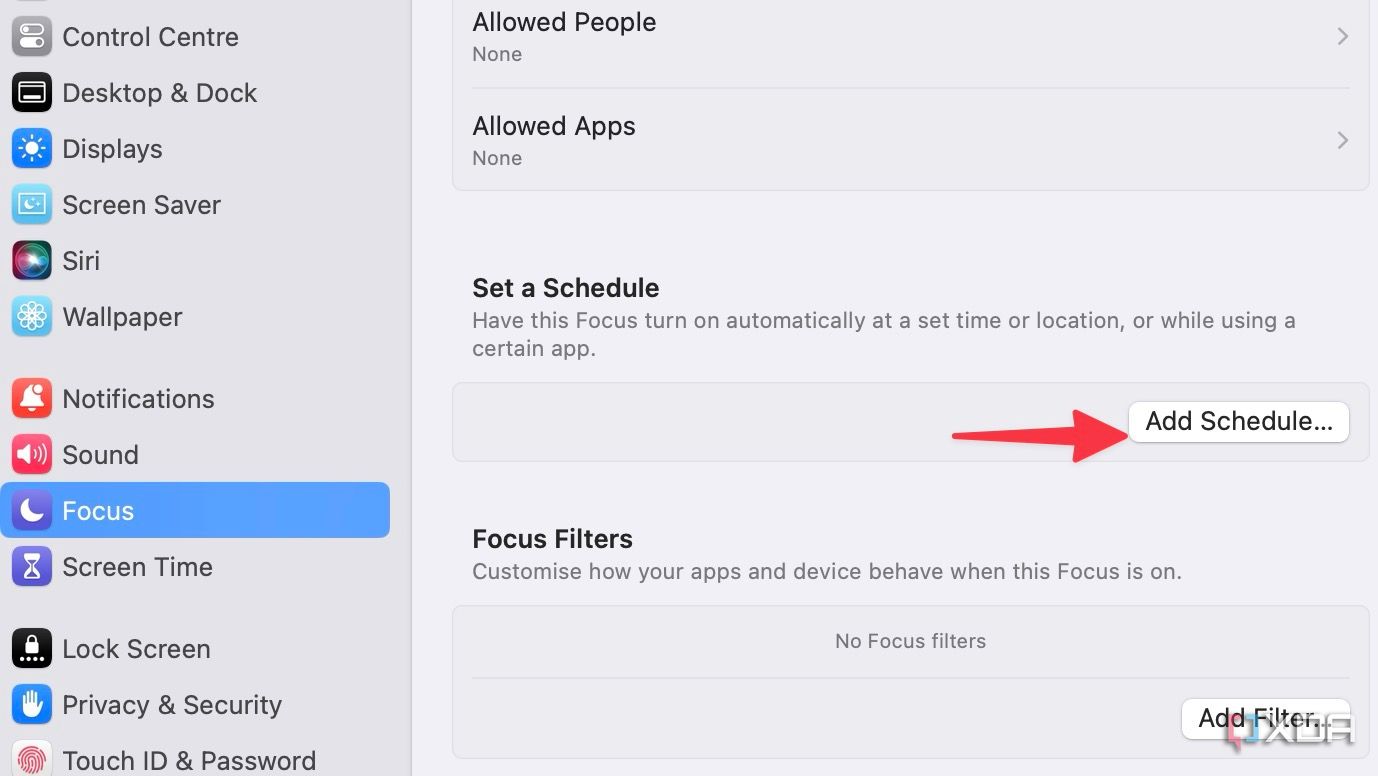
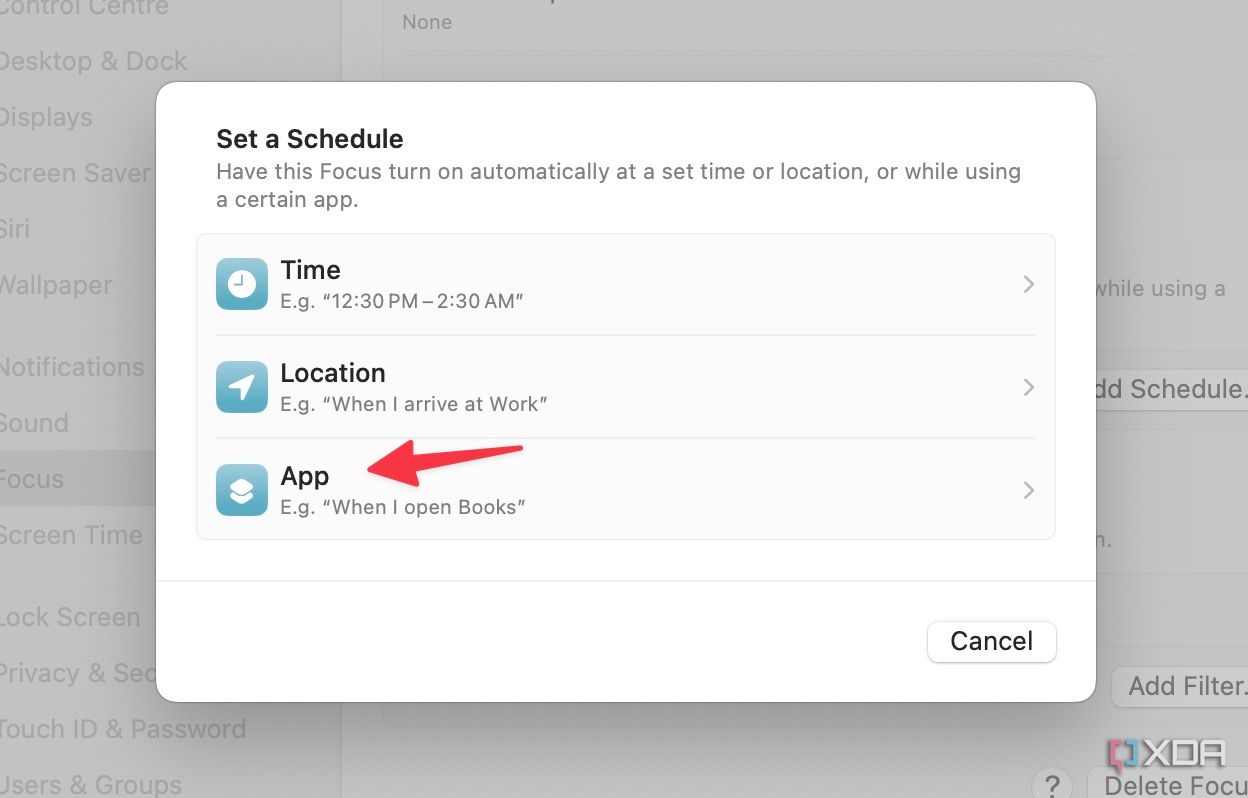
This is one of the best productivity hacks for Mac users. macOS comes with different Focus profiles, and you can enable them with several automations. I have set my system to enable Work Focus mode whenever I launch the Slack app, to prevent distractions while I am working.
- Head to Mac System Settings and scroll to Focus.
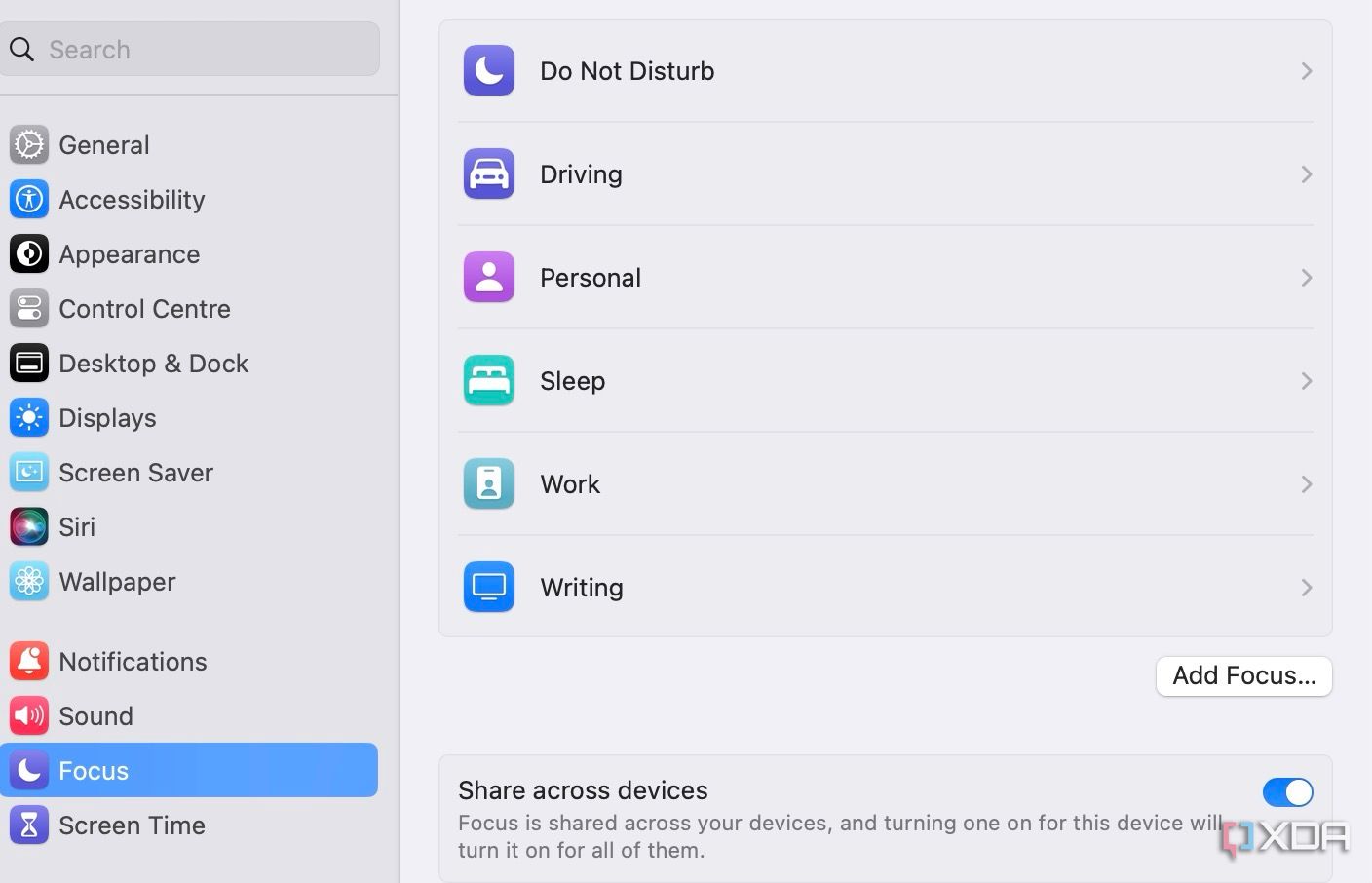
- Select Work. Click Add Schedule.
- Select App. Search for Slack or any other preferred app and click OK.


6 Use Apple Watch to unlock applications on Mac
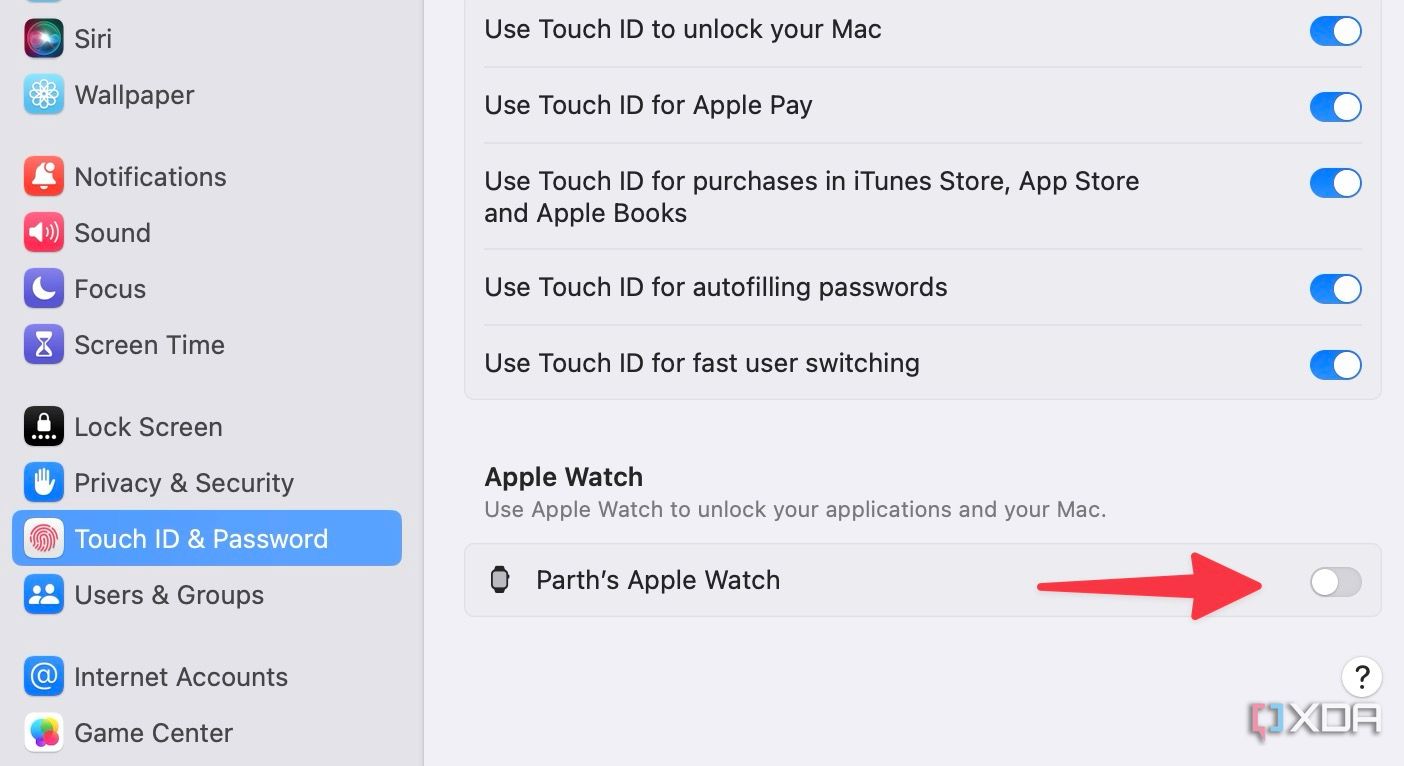
If you use an Apple Watch, there is an option to unlock applications with your wearable. However, you need to make an adjustment in your Mac Settings.
- Open System Settings and scroll to Touch ID & Password.
- Enable the Apple Watch toggle, and you will be able to unlock your apps and Mac using the wearable.

5 Tweak Spotlight search
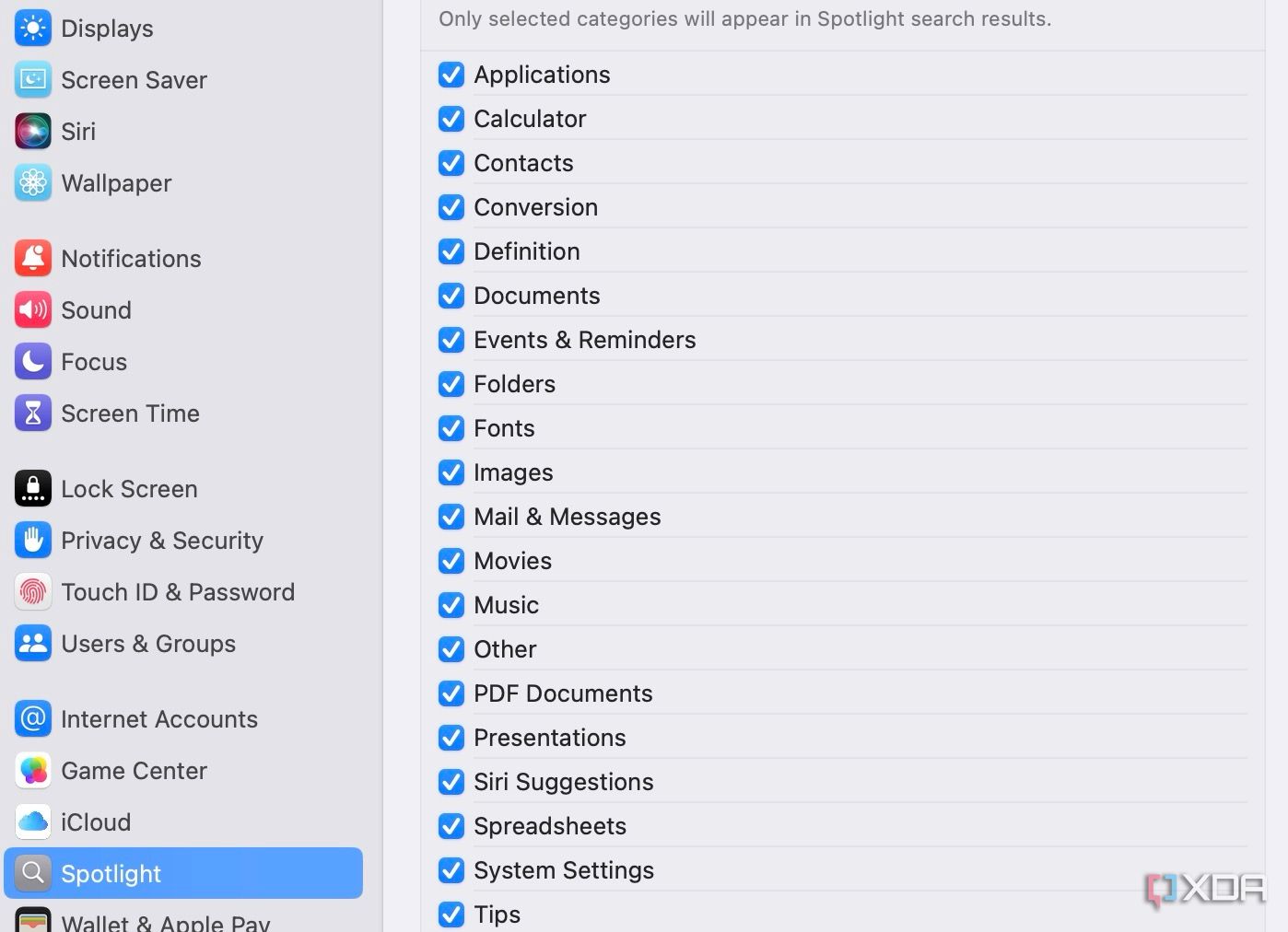
Mac Spotlight searches for folders, documents, images, contacts, and more. You can tweak Spotlight settings and exclude specific types of items from results.
- Open System Settings and scroll to Spotlight.
- Uncheck specific items that you don’t want to get indexed on your Mac.

4 Disable Private Relay
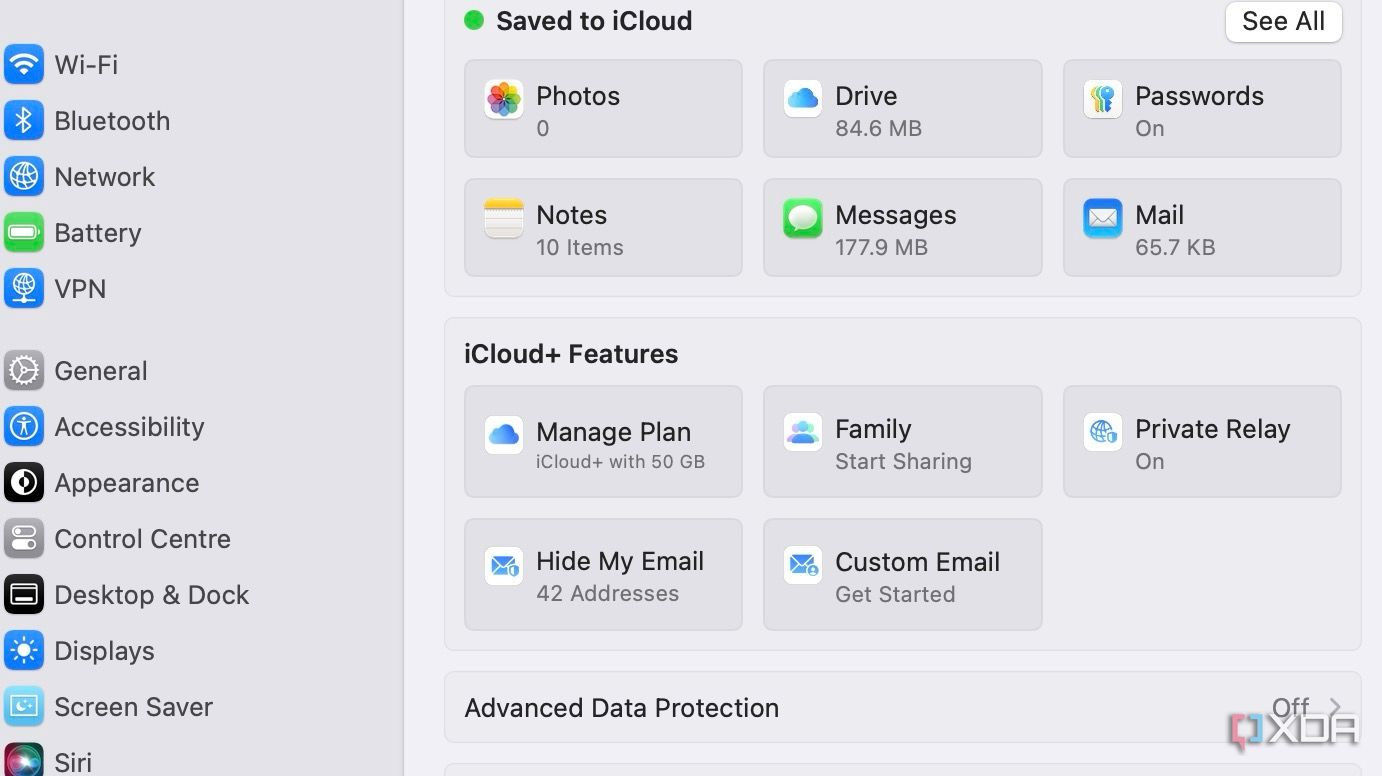
If you subscribe to Apple One or iCloud+, macOS enables Private Relay in Safari and Mail. It’s basically a privacy feature that hides your IP address from advertisers. However, at times, it results in a glitchy experience in Safari. Here’s how to disable Private Relay.
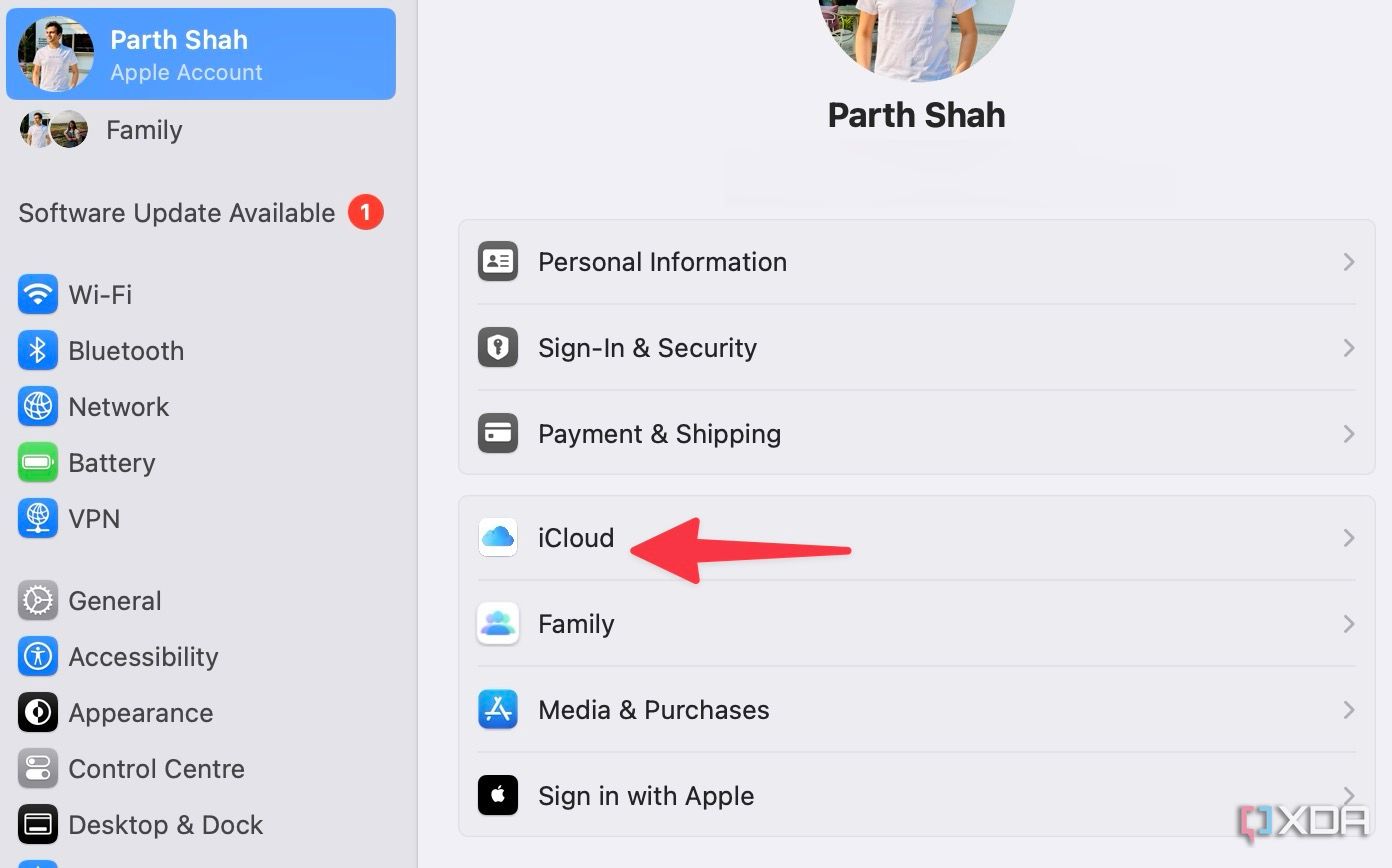
- Head to System Settings. Open an Apple account and select iCloud.
- Click Private Relay.
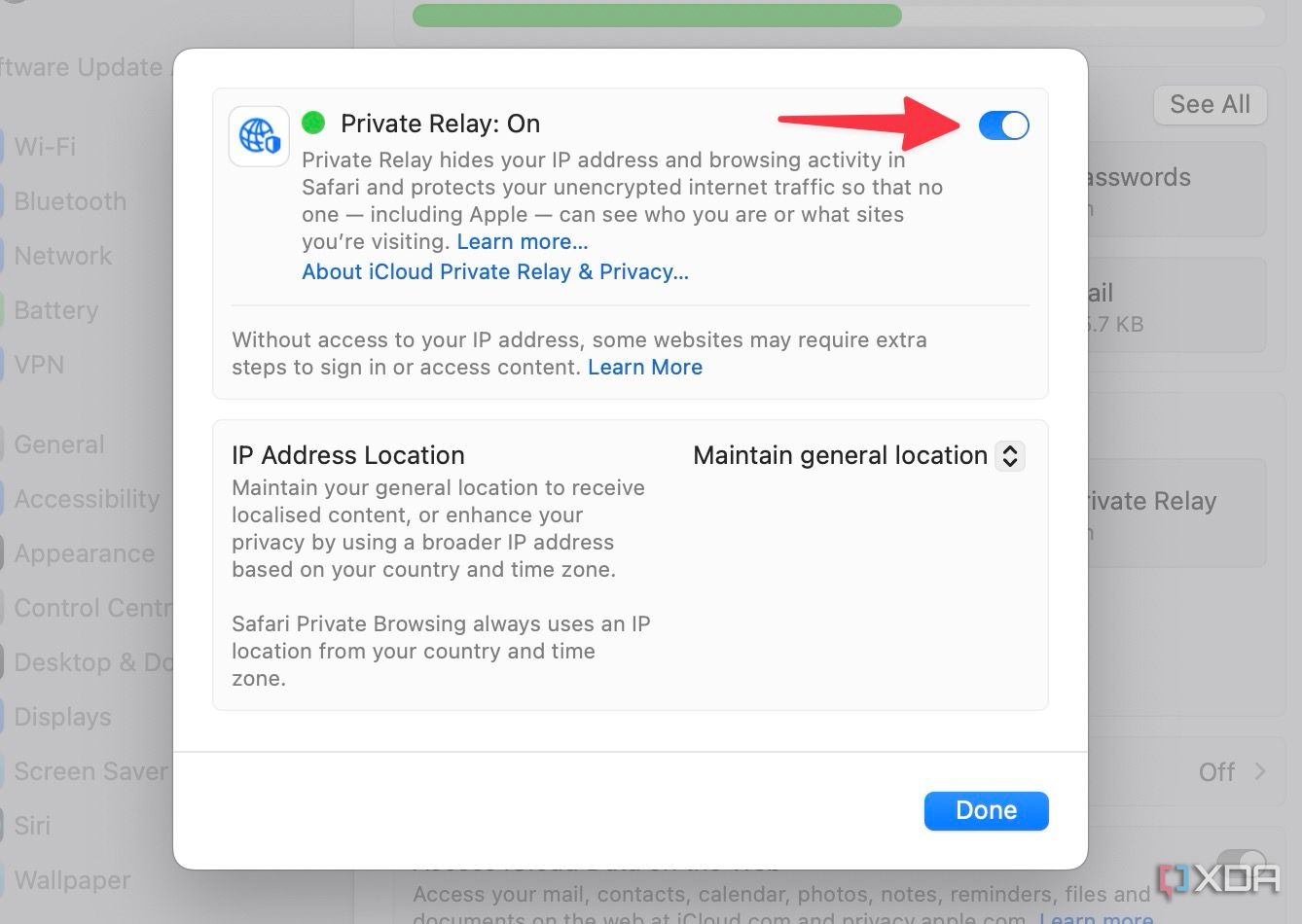
- Disable it from the following menu, then press Done.


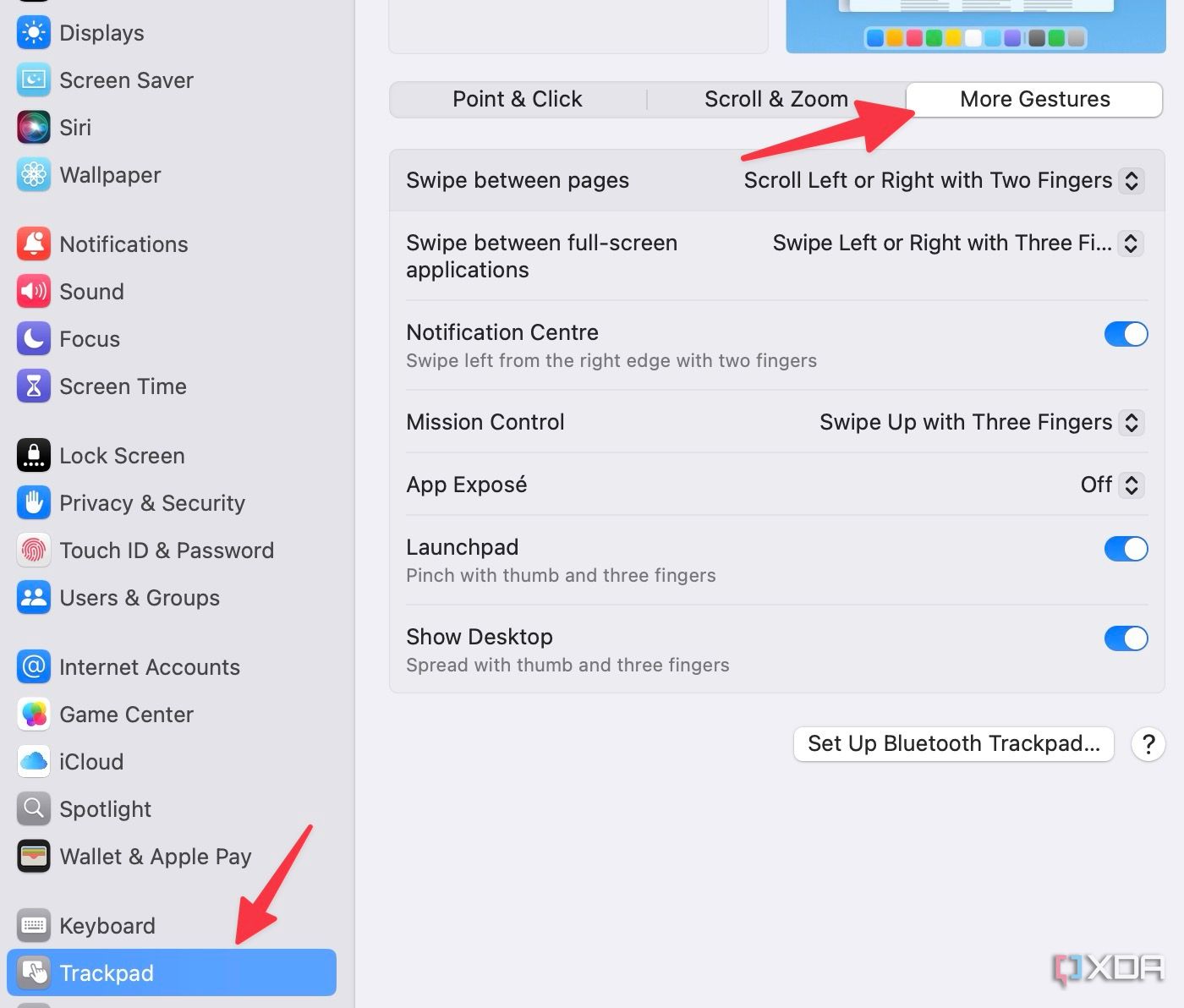
3 Change Mac gestures
macOS comes with robust support for gestures. Apple even offers an option to customize them as per your preferences.
- Open System Settings. Scroll to Trackpad and select More Gestures.
- You can change gestures for multiple actions, as may be useful to you.

2 Generate unique email addresses
This perk is available for iCloud+ subscribers. You no longer need to share your primary email address with random web services and apps. You can generate a unique email address right from the Settings menu.
- Head to the iCloud menu in System Settings.
- Select Hide My Email.
- Click +.
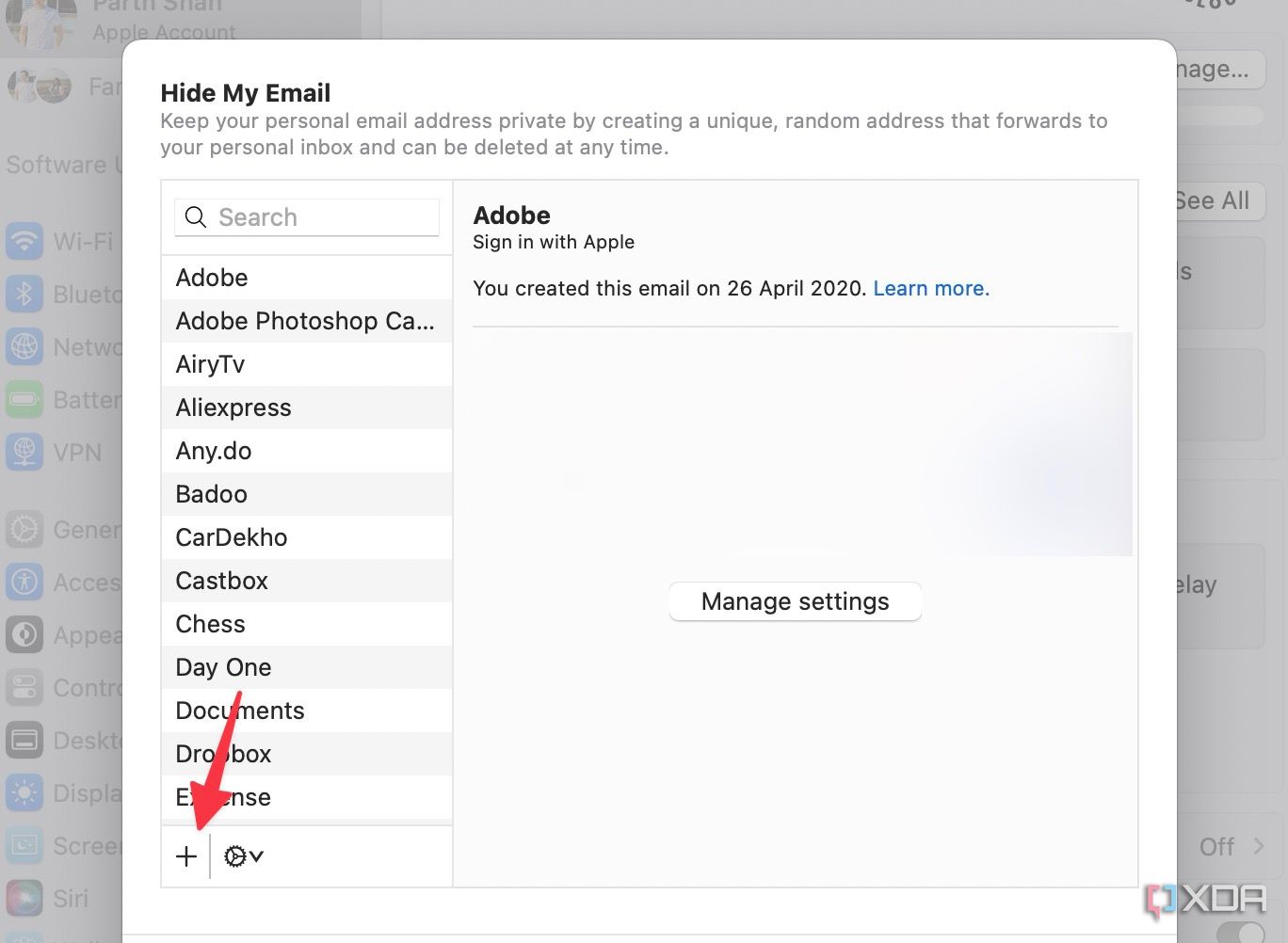
- Generate and copy email addresses that you can use on the web.

1 Create text replacements
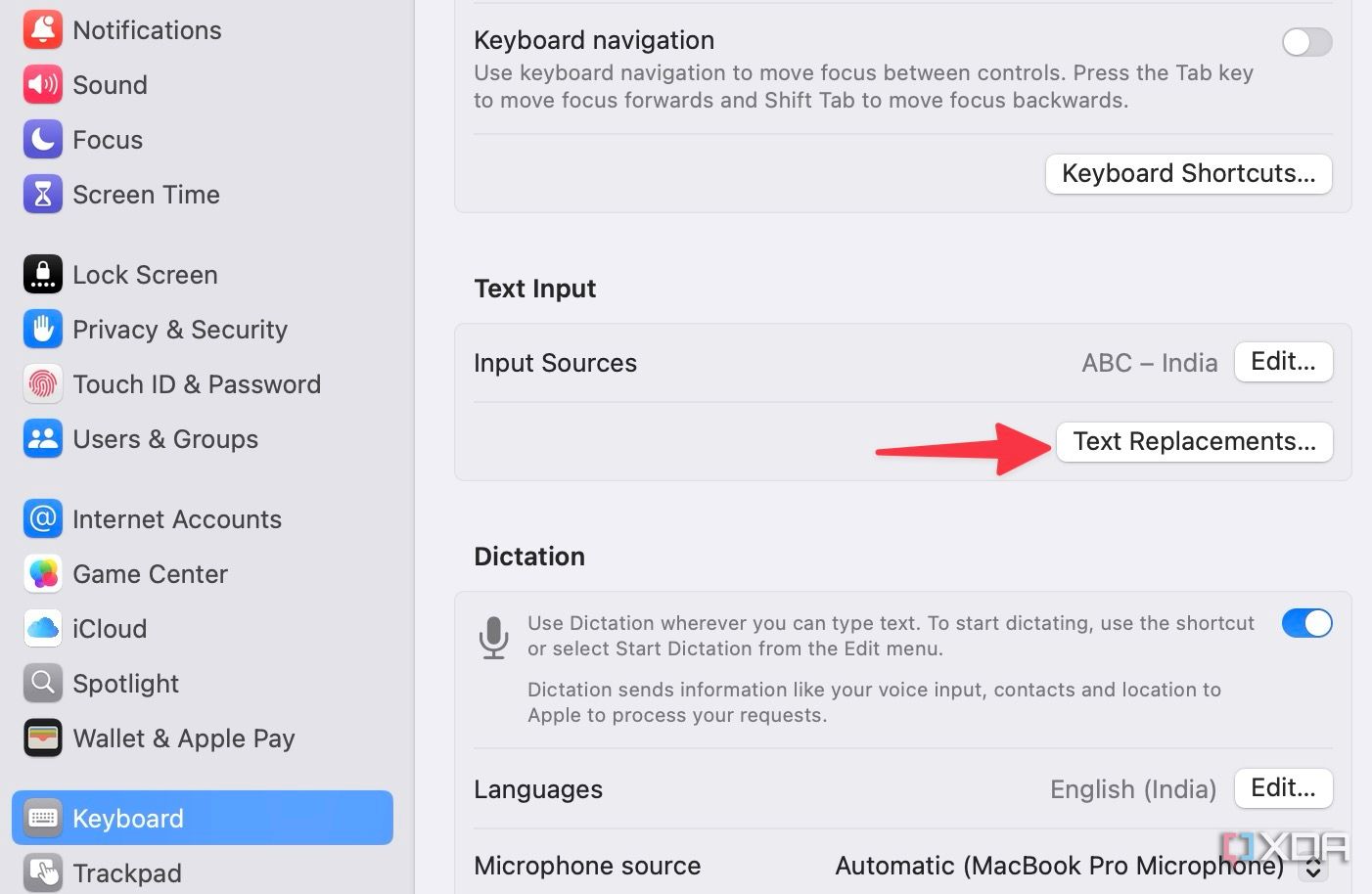
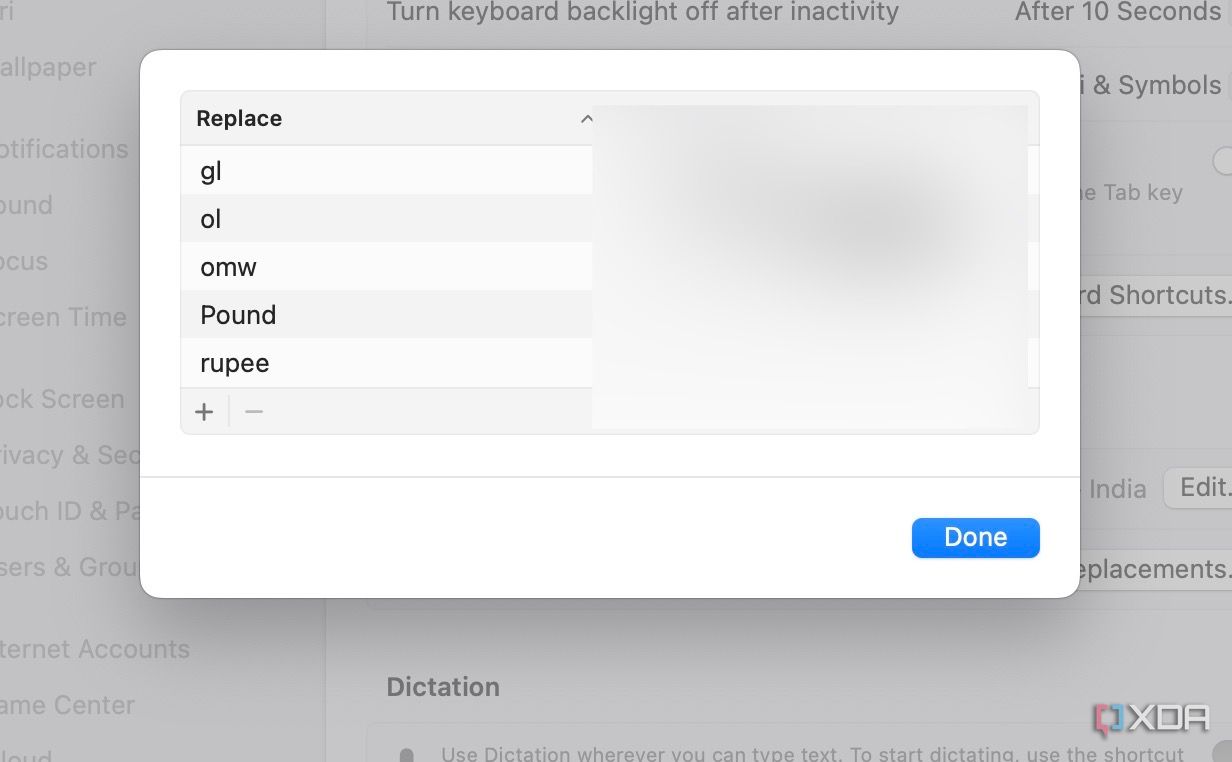
The ability to create text replacements is another productivity hack for Mac users. You can use it to create several replacement shortcuts for your frequently used phrases and sentences.
- Navigate to the Keyboard menu in Mac System Settings.
- Select Text Replacements.
- Click + and enter the brief text that you want to replace a phrase with on your Mac.


Level up your Mac experience
These are just some of the macOS tricks to give your Mac a personal touch. Apple’s desktop operating system is packed with customization and efficiency features. You can explore further, experiment fearlessly, and make your Mac truly yours.
Apart from these hidden settings, you can also glance over the top Mac productivity apps to get the best out of your Mac.
#settings #didnt #change #Mac
source: https://www.xda-developers.com/15-settings-you-didnt-know-you-need-to-change-on-mac/


