

The
File Explorer
is a core part of Windows 11, allowing you to manage your files, move them around, organize them, or just delete them. Everyone who’s used a computer has interacted with the File Explorer at one point or another, and we all know the basics.
But underneath this piece of software we use every day, there are some capabilities that many users might not know about. Whether they’re hidden in the settings, relatively new, or just not that commonly used, there’s quite a bit File Explorer can do that you might not know about. So let’s take a look at some of those useful things you’ve probably been missing out on using.
16
15
Gallery
View all your photos in one place
One of the more recent additions to the File Explorer on Windows 11 is the Gallery, a new section that’s made to let you see all the images on your PC and/or OneDrive in one place. In addition to bringing all your images together, the Gallery section also sorts them by date with a neat timeline feature that makes it easy to find memories from a specific time in your life.
You can access the Gallery from the left side pane in File Explorer at any time, so it’s not exactly a hidden feature, but it’s something you might not have thought to open before, and it’s a nice way to go through your photos. It also lets you view them a bit better with larger previews compared to a standard File Explorer folder.
14
13
Optimize folders for specific content
Browse your files more conveniently
Have you noticed how the Documents, Downloads, Pictures, and Music folders on Windows 11 all display slightly differently by default in File Explorer? Indeed, each of these folders has a layout optimized for the kind of content it holds, so a documents folder will show as a list and prioritize things like the last modified date, while the Pictures folder displays large icons with previews so you can see your images. Meanwhile, the music folder also shows as a list, but it prioritizes metadata like the song title instead of the modified date.
Well, you can actually apply the same principles to any folder on your PC. Windows tries to do this automatically, but if you want to force your own preference and apply it to sub-folders, you can. Simply right-click a folder and choose Properties, and then head over to the Customize tab. You can optimize folders for documents, music, pictures, or videos so it all looks just how it should.
12
Change the default launch location
Not a fan of Home?

By default, File Explorer will always open to the Home folder unless you’re opening a specific folder through another app. However, you can change where File Explorer opens to. Your options are a bit limited but if you want, tou can have File Explorer open the This PC folder by default so you can see your hard drives Alternatively, you can also have it open OneDrive, which is great if you’re used to working from the cloud.
You can change this by clicking the ellipsis button on the File Explorer menu bar and then choosing Options. The option to change where File Explorer opens is right at the top. And if you don’t want to see the Home page ever again, you can also disable the Home button in File Explorer, too.

Related
How to remove the Home button from File Explorer
The Home button in File Explorer represents a page for files, folders, and pinned items. But you can remove it by tweaking the Registry.
Newer isn’t always better
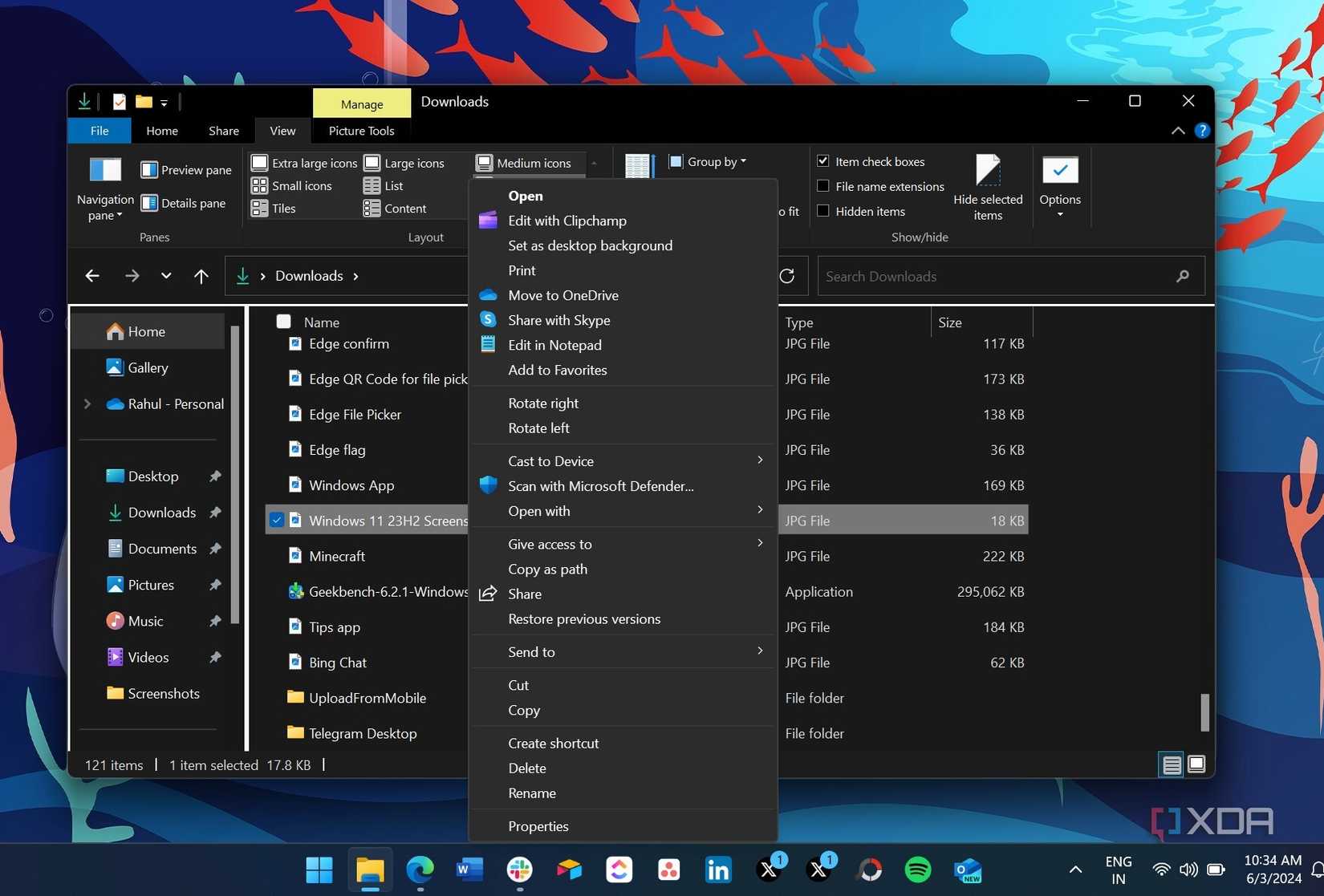
If you’re using Windows 11, you’ve undoubtedly noticed how the context menu has changed from what it used to look like on Windows 10, but did you know you can actually still use that old context menu if you want? You can click the Show more options button in the standard context menu, but if you want to do it faster, you can actually hold the Shift key while you right-click the item you’re trying to interact with, and it will take you straight to the old context menu.
Still not good enough? Well, with a simple registry hack, you can skip the new context menu entirely and just use the classic one full-time. It’s up to you, really.

Related
You can go back to the old Windows context menu on Windows 11 with this simple tweak
The new context menu isn’t for everyone
10
Clear File Explorer history
Want to start over?

As you use File Explorer, it keeps track of the folders you visit so it can provide suggestions and also populate the Home page with your frequently visited folders. But what if the history is not being helpful or you just need to start over so it stops suggesting folders you don’t use anymore?
Well, you can reset the File Explorer history and start fresh so the suggested folders aren’t held back by what you did before.
9
8
Managing OneDrive files
Save space on your PC, or don’t

You’ve probably noticed how Windows 11 computers come with OneDrive installed out of the box and they let you browse your OneDrive files on your PC. What you might not know is that managing OneDrive items is a little more complicated than it seems. OneDrive files are stored in the cloud, and if you delete them in File Explorer as you would a local file, you will be deleting them from the cloud too.
However, File Explorer does give you options for managing OneDrive files stored locally on your PC. You’ll see an icon next to each file that indicates whether a file is available offline (white circle with green checkmark), online only (cloud icon), or forced to be kept on the computer at all times (green circle with white checkmark). If you right-click a OneDrive file, you can use the Free up space button to delete it from your PC but keep it in OneDrive, or you can choose Always keep on this device if you’d like the file to always be available offline and download updates from the cloud if any changes are made on other devices.

Related
How to use OneDrive on Windows 11
OneDrive comes preloaded on your Windows PC, but how does it work?
7
Selecting multiple files with the keyboard
It’s easier than you think
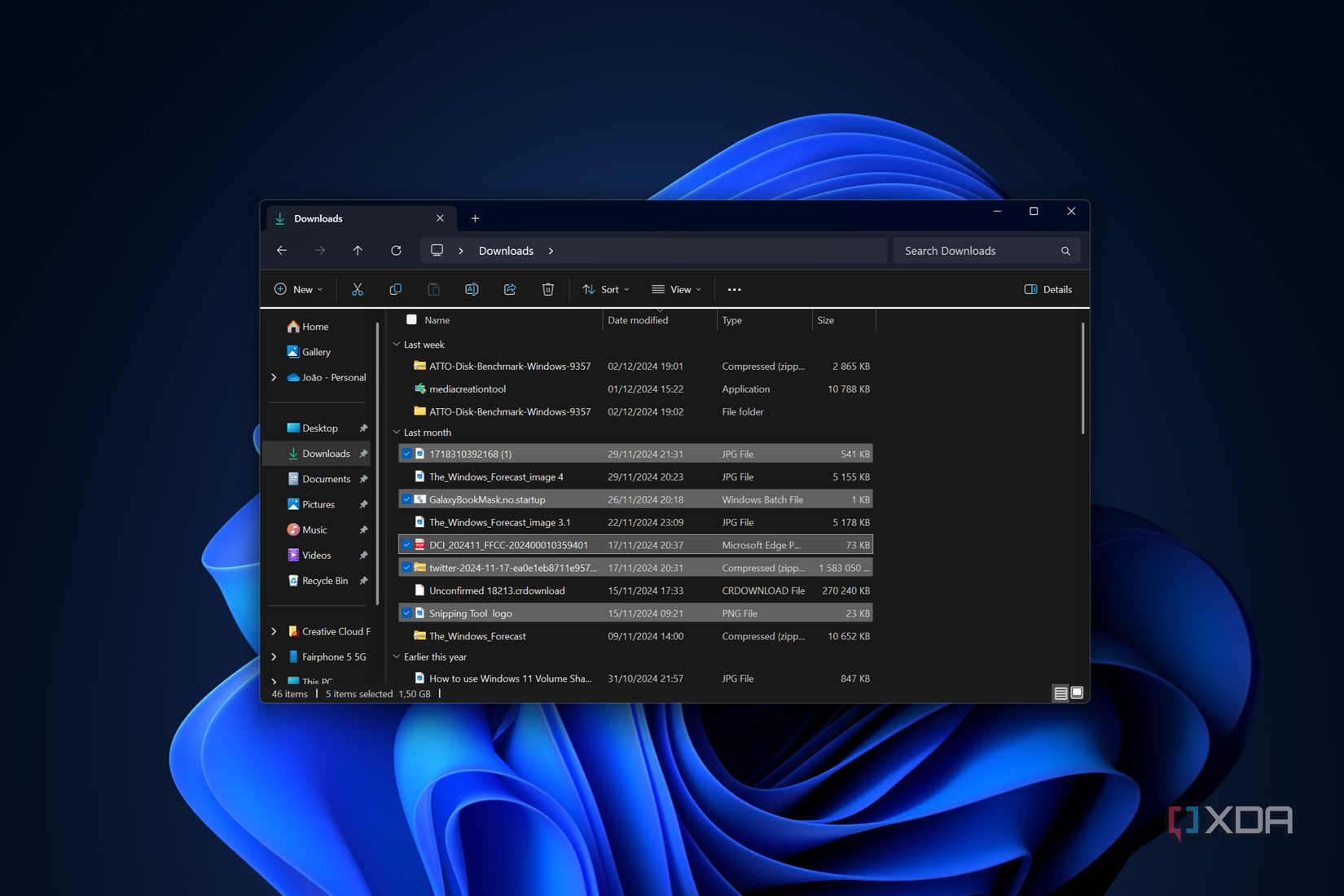
Keyboard aficionados may already know this one, but selecting files in File Explorer with the keyboard goes a bit deeper than most people will know. Sure, you probably know you can use the arrow keys to navigate the files, and you might also know that if you hold Shift while doing so, you’ll select items as you move.
But did you also know you can hold the Control key while using the arrow keys, you can move along files without selecting them, and then you can just press Spacebar to select the files you want? You don’t have to select every contiguous file in a folder even if you’re using the keyboard, which is something I didn’t know for the longest time.
6
Extracting and creating archives
It’s not just ZIP files anymore

Windows has been able to open and creqate ZIP files for as long as I can remmber, but recently, Microsoft added the ability to not only open all kinds of file archives, including 7z and RAR, but also create them starting with Windows 11 version 24H2.
When you right-click a file, you can now use the Compress to… option to choose the option you want, and even change Additional options if you want to configure specific settings like the compression method and level. Of course, being able to just extract these files is also extremely convenient so you don’t have to install apps like WinRAR or 7-Zip to open these files.

Related
How to open and extract RAR files on your PC
Having trouble opening that RAR file someone sent you? Here’s how you can open RAR files on your Windows PC using WinRAR.
5
Move files to your Android phone
Why use another app?

There are plenty of ways to move files between an Android phone and Windows PC, but did you know you can actually do it within File Explorer thanks to the Phone Link integration on Windows 11? Indeed, you don’t have to open an app anymore, and if you have a Samsung phone, you don’t need to install anything special, either (though other brands will need the Link to Windows app).
When you link your phone to your Windows PC, your phone will show up in File Explorer on the left-side pane, and you can browse its files just as you would the ones on your PC. You can move files from one device to the other easily, or simply organize or delete files from your phone with a more convenient interface. This is one of the most useful features Microsoft has enabled with its mobile device connectivity, and it’s definitely worth checking out.
4
Rename files in bulk
A surprisingly little-known secret

I didn’t think this feature was that hidden until recently, when not only my wife didn’t know about this, but also the developer of a third-party file manager for Windows was seemingly surprised by it when I mentioned it in conversation. So I figured it might be a good idea to bring it up here: you can actually rename files in bulk using just the File Explorer, no extra add-ons.
All you need to is select the files you want to rename, right-click any of them and choose Rename, and then enter the name you want. It may only appear under one of the files as you’re typing, but when you confirm the changes, all the files will be renamed, with a counter at the end to differentiate each one. It’s very handy if you want to have files with more readable names with a similar format.

Related
How to batch rename files in Windows 11
Renaming multiple files can be a tedious tasks, but there are ways you can batch rename files in Windows 11 to make it easier.
File Explorer is more capable than you might think
All of this just goes to show that even if you’ve used File Explorer for a few years, there’s quite a bit to it that you might not know about. If you did know about all these things, then you can count yourself among some of the more knowledgeable Windows users, but chances are you learned at least one thing here. And as Microsoft keeps evolving File Explorer and Windows, there’s surely more to come.
3
2
1
#features #didnt #Windows #File #Explorer
source: https://www.xda-developers.com/features-you-didnt-know-were-windows-11-file-explorer/


