

You can have the fastest CPU in the world paired with the fastest GPU, but if your gaming PC doesn’t have adequate cooling, you won’t get the most performance out of your powerful and expensive hardware. Thermal throttling is a common issue PC builders face, considering how much power modern processors and graphics cards consume under load. Yet, many people still overlook the thermal aspect while building a gaming PC and often cheap out on components like CPU coolers, case fans, thermal paste, etc.
Even experienced PC builders make cooling mistakes; for instance, a minor oversight while configuring case fans can throttle the performance of your components. Fortunately, I’ve learned from some mistakes I made building multiple gaming PCs over the past decade. So, let’s dive into some crucial factors people overlook while building a PC that affect cooling, negatively impacting its gaming performance.
Related
5 reasons liquid cooling isn’t always better than air cooling
Liquid cooling has some advantages, but it isn’t always the best choice in every scenario.
4
Airflow configuration
You need positive air pressure inside your case
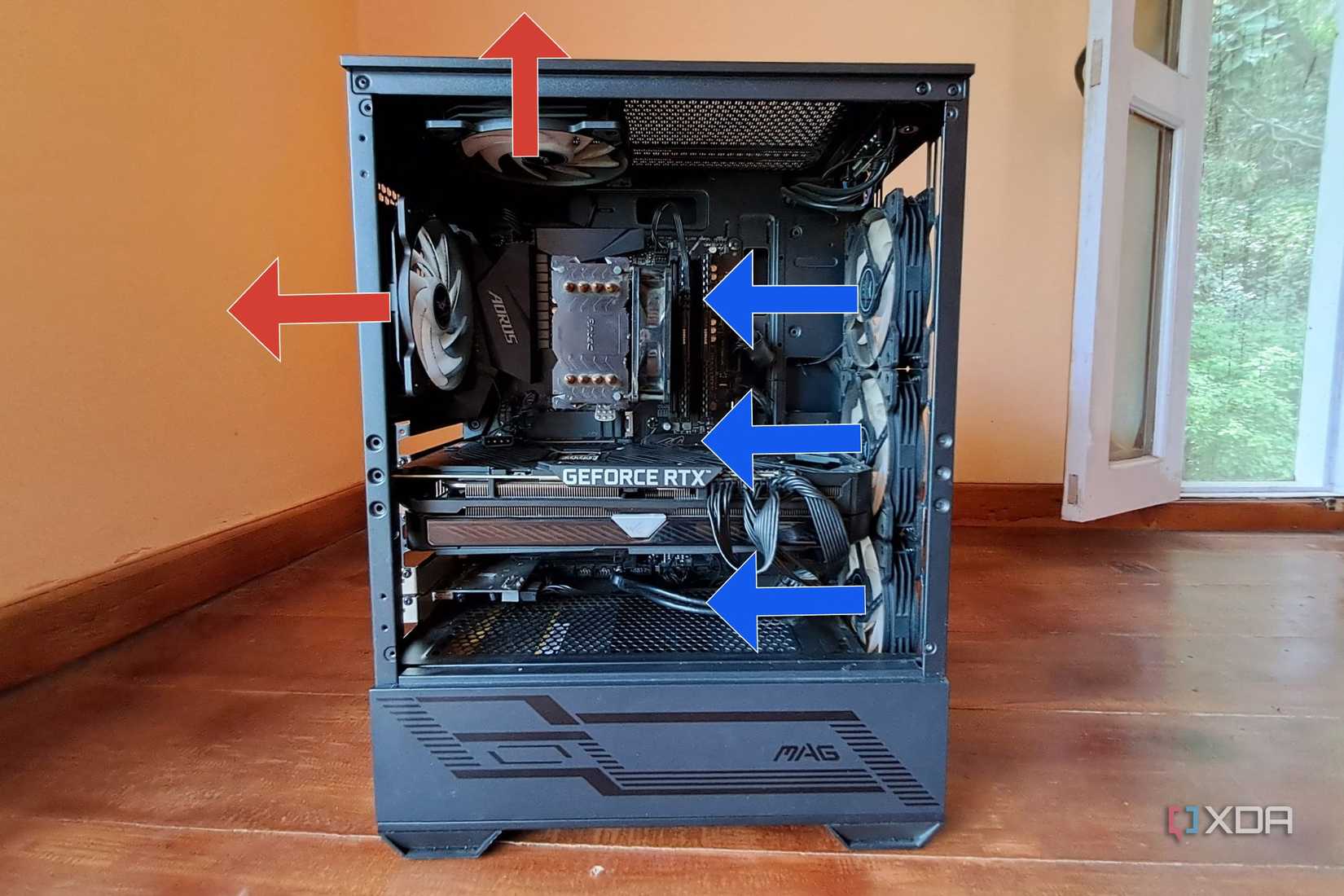
It’s good to have a lot of fans installed in your case, but what’s even more important is how you’ve configured them. Remember that you install fans to manage the airflow inside your case; therefore, you should ensure your fans are oriented correctly in the first place. I’ve seen many install fans without considering the airflow path, often creating negative air pressure inside the case and dead spots.
I highly recommend maintaining positive air pressure inside your PC case, which you can do by having more fans for intake than exhaust. You can install intake fans at the front and bottom of the case to bring in fresh air and leave the top and rear for exhaust fans. This ensures fresh air is pushed directly over crucial components like your graphics card and processor to maximize cooling efficiency. Positive air pressure also helps prevent dust from building up inside your case — if you have dust filters for all your intake fans — because your case tries to push out air instead of sucking it in.
3
Thermal paste quality and application
Premium thermal pastes will improve your CPU temperatures
Most people don’t spend money on thermal pastes, even though they’re inexpensive, because they’re often pre-applied on CPU coolers or included in the box. While decent, you can improve your CPU temperatures with a high-end aftermarket thermal paste like the Arctic MX-6 or Thermal Grizzly Kryonaut. These pastes have a much higher thermal conductivity to efficiently transfer heat from your CPU die to the cooler’s heatsink. As a result, you can expect your CPU temperatures to drop by a few degrees.
Additionally, how you apply thermal paste to your CPU is just as important. For years, people have sworn by the dot or pea method for thermal paste application. However, with modern CPUs having bigger dies, you may end up applying too little thermal paste, which can affect your CPU temperatures. So, I’d argue that it’s better to spread out thermal paste evenly over your CPU’s IHS (Integrated Heat Spreader) for maximum coverage and cooling efficiency. Also, remember to reapply thermal paste every two years or so because the dried-up paste will raise your CPU temperatures.
2
Using cheap or stock coolers
High-end CPUs need more powerful cooling solutions

If you want optimal CPU temperatures, you should avoid stock coolers included with the CPU or cheap aftermarket ones at all costs. Modern CPUs run hot, especially while gaming, so if you can’t keep the temperature in check, you will run into thermal throttling, where the CPU lowers its clock speeds to lower its temperature. And if your CPU doesn’t run at its peak speed, you won’t get the most performance out of it.
For a CPU like the Ryzen 7 9800X3D, you need a beefy air cooler like the Noctua NH-D15 or a 360mm AIO liquid cooler like the Arctic Liquid Freezer III. Even a 240mm AIO cooler isn’t particularly great when a high-end air cooler can often beat its performance. Likewise, when buying a graphics card, don’t get the one with two fans just because it’s cheaper. A triple-fan GPU with a chunky heatsink will always have better thermals, allowing it to sustain its boost clock speeds for longer.
1
Poor cable management
Cables shouldn’t obstruct airflow inside your case

Proper cable management isn’t just about making your gaming PC look aesthetic. It plays a crucial role in maximizing the airflow within your case. Messy cables shouldn’t block fresh air coming through intake fans from flowing freely over the main components, like your CPU and GPU. Otherwise, they may create turbulence and hotspots inside your case.
So, make sure you spend extra time routing all your cables behind the motherboard tray or through dedicated channels. You can also use zip ties or velcro straps to secure cables neatly for unobstructed airflow. Besides improving cooling, proper cable management simplifies future upgrades and troubleshooting.
Lower temperatures mean better gaming performance
Modern CPUs, GPUs, and SSDs operate at peak speeds when they aren’t running hot. That’s why gamers are often pretty vocal when thermal throttling is the topic of discussion on Reddit threads. Fortunately, as long as you avoid or fix these cooling mistakes, you won’t have to worry about your PC’s gaming performance, provided your hardware is capable. You’ll spend less time troubleshooting hardware issues and more time playing your favorite games. Remember to clean your PC every few months and reapply thermal paste every two years to maintain its cooling performance.

Related
6 things I do every month to maintain my PC
Here’s a list of the six maintenance tasks I perform every month to extend the longevity of my system
#cooling #mistakes #ruining #PC039s #gaming #performance
source: https://www.xda-developers.com/cooling-mistakes-ruin-gaming-performance/


