

If you’ve been buying laptops long enough to remember a time when trackpads weren’t multi-touch and a world where you thought nothing would ever be better than Windows XP, then there’s a decent chance you have an old model lying around collecting dust.
You probably cast it aside to your electronic graveyard once it started “running slower” or wouldn’t hold a charge. Or maybe you moved on to thinner, lighter form factors. Whatever the reason your laptop was laid to rest, there may be a future for it yet, as we walk you through the best and easiest upgrades you can make to your old, abandoned laptop.
Many popular laptop models from before 2010 are actually fairly user-friendly to open and work on, with some exceptions found in the few ultra-thin and premium models of that generation. This was before Apple, and others started soldering important internal components to the motherboard across their entire lineup, which I firmly believe is just plain evil. For those devices from the past, these updates might just bring the performance of your well-loved relic into the modern era.
Related
4 reasons why your old laptop would make for a great NAS
Don’t throw that old laptop away! Here’s why you should turn it into a NAS.
4
Swap the SATA HDD for an SSD
A simple upgrade that’s a total game-changer

I recall the moment I swapped the HDD on my 2010 Unibody MacBook Pro for an SSD, as if it were yesterday. It was 2013, and MacBook Pros had since gone entirely solid state, but I couldn’t afford one at the time. I was frustrated that my boot times were increasing, and my performance was decreasing with each passing release of macOS and each update to the photo and video editing software I used heavily at the time.
In what would be nearly impossible today, I was able to simply remove the old HDD by taking out just a handful of screws and installing a 2.5″ Samsung 840 Series SSD in its place. Checking my Amazon purchase history, I see that I went with the 120GB model, and I must have been thrilled to have so much storage space.
For extra measure, many of those older laptops had CD drives — remember those? If you’re confident working on your device, you can remove it and replace it with a hard drive caddy, allowing you to install a second SSD where your CD drive used to be.
3
Upgrade your RAM
A once simple upgrade to reminisce about
While some modern high-performance gaming laptops have easily interchangeable internal components, normal laptops for everyday use increasingly do not, but that wasn’t always the case. From roughly 2000 to 2010, most mainstream laptops from Dell, Apple, Lenovo, HP, and others had DDR1 or DDR2 SODIMM RAM. If you were really fancy and had a larger budget, you might have been rocking DDR3 as far back as 2008.
Many DDR1 laptops shipped with as little as 256MB of RAM, but were commonly expandable to a whopping 2GB. DDR2 laptops at the time often carried 512MB of RAM, but could be expanded to a whole 4GB. Once DDR3 hit the scene, it was more common to see laptops with 1GB or 2GB of RAM, expandable up to 8GB.
While you may not have wanted to spring for the extra memory back then, it’s dirt cheap now. Look up the specifics for the model you’re trying to upgrade and purchase the compatible maximum now for less than the cost of a burrito with guacamole.

Related
5 ways you can repurpose your old hard drives
Your old drives aren’t completely useless. You can still use them for storage or some cool DIY projects
2
New thermal paste on your CPU
Easier than you think, but often overlooked

Surface Laptop Studio
Perhaps one of the most overlooked improvements you can make to any older laptop, even one that is only five or 10 years old, is replacing the thermal paste between the CPU and the heatsink. You might remember that your old laptop began running hotter over the years and that your fans were going into overdrive.
While that could certainly be partially attributed to the increased load from programs that became more demanding with each passing year, it was also caused by the decreasing thermal efficiency of the machine. A fresh application of high-end thermal paste on your old laptop’s CPU can do wonders in bringing down temperatures, helping it run smoother, and extending the life of your CPU.
If you’re not sure how to do this, or you find it a bit intimidating, check out our guide on how to apply thermal paste to your CPU.
1
Replace the battery
Your first stop in bringing a laptop back from the dead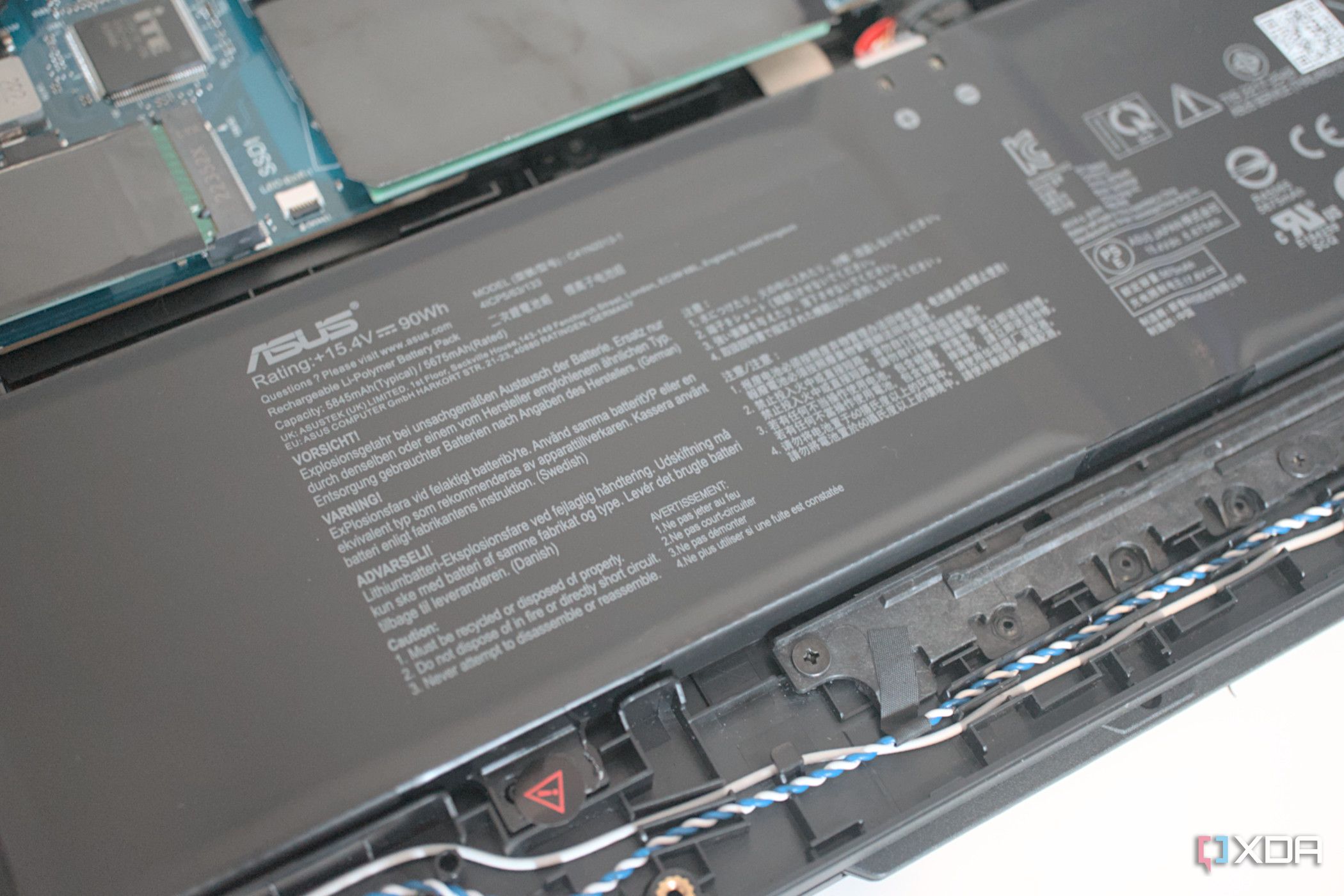
Beyond the ridiculousness of soldering down RAM and CPUs, the modern affliction of securing laptop batteries to their frame with powerful adhesives drives me absolutely mad. Back in the day, likely the day your vintage laptop was from, batteries were far easier to replace. Typically encased in some sort of hard shell frame and held down by either a few screws or a simple locking tab, replacing an old laptop battery is often as easy as just popping the old one out in a matter of seconds and replacing it with an OEM or third-party compatible one.
If your laptop is swollen on the bottom, doesn’t stay on without being connected to a power source, doesn’t last long at all when on battery power, or doesn’t even turn on, there is a very good chance that a new battery might do the trick, especially after many years of power cycles. You can find a compatible battery for your device fairly easily by looking up the model number followed by the word “battery” on Amazon. A new battery can do wonders in revitalizing just about any consumer tech device, and thankfully, old laptops usually make it easy.
Extending an old laptop’s useful life can be cheap and easy, especially on older models
While I am by no means saying that you can suddenly make your 15-year-old laptop capable of running advanced modern software or handling 10 different Chrome tabs, you might very well be able to pull together a useful backup machine for answering e-mails, simple web browsing, or simple word processing or excel work. There are several possible uses for your outdated laptop, from using it to run a NAS in your home, to turning it into a retro gaming emulator. Giving a revamped laptop a newfound purpose is limited only by your imagination.
#easiest #upgrades #laptop
source: https://www.xda-developers.com/easiest-upgrades-old-laptop/


