

There are a lot of reasons why you should learn how to convert text documents into .docx extension even if you don’t have Microsoft Word installed on your device.
Whether you need to submit an official document or just need to know someone who doesn’t know how to handle any other document, it’s a useful skill to have. Also, some communication apps might not accept attaching other office or text documents. Nevertheless, I will show you a couple of tricks for turning your text documents into .docx Word compatible files with just a few clicks.
Related
6 reasons Microsoft Word is better than Google Docs
Unmasking Word’s hidden advantages over Google Docs
Using Microsoft WordPad is the easiest way to convert your text
The easiest method to convert your text document into .docx is by using the old WordPad on Windows 10 or Windows 11. It’s very simple to do, by applying the steps below.
- Open your text document using WordPad by using the Open with context menu option, or simply copy and paste the text into a new blank page.
- After you have finished editing the document, click on File.
-
Hover your mouse cursor over Save as and select Other formats from the context menu.
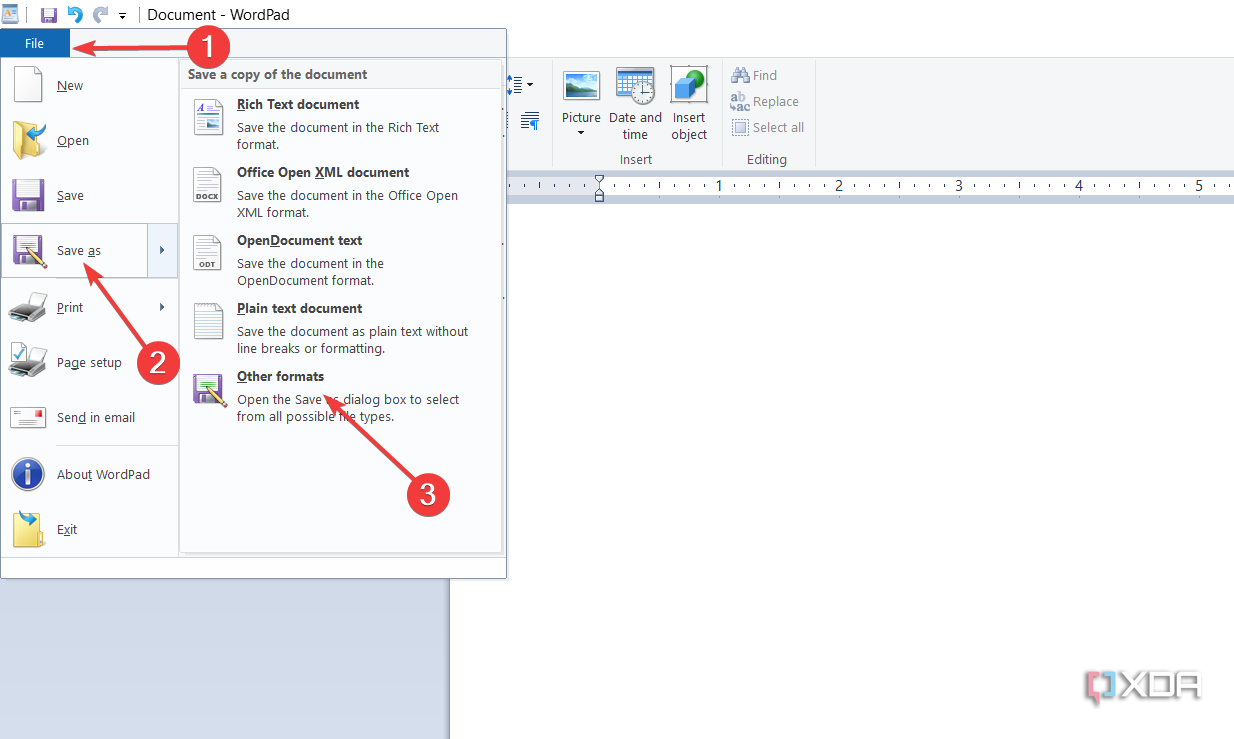
- Finally, click on the Save as type field.
-
Select the .docx format from the list and confirm your choice.
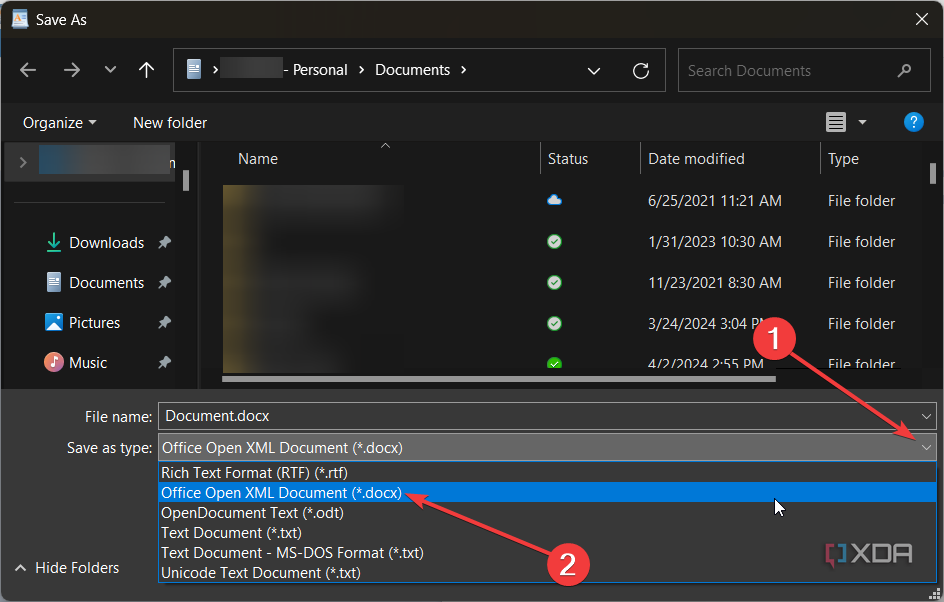
- That’s it! Now, you have a .docx file that can be opened with Microsoft Word.


WordPad was officially removed from Windows 11 24H2, but if you didn’t update the OS, you should still have it installed. Even if you no longer have it, it’s easy to restore.
Just go to the C:\Program Files\Windows NT\Accessories folder on a computer which has WordPad installed. Then, copy the WordpadFilter.dll, wordpad.exe, and the en-US localization folder and paste them in a WordPad folder on your machine.
Google Docs can format any text document into .docx
The second easy choice to edit and convert your text document into Word’s .docx format is Google Docs. It’s a free tool for anyone who has a Google account, and you probably have one as well. Here’s how to do that quickly.
- Go to the Google Docs website by using the browser of your choice.
- If you’re not already logged in, you will have to provide your Google email and password to sign in.
-
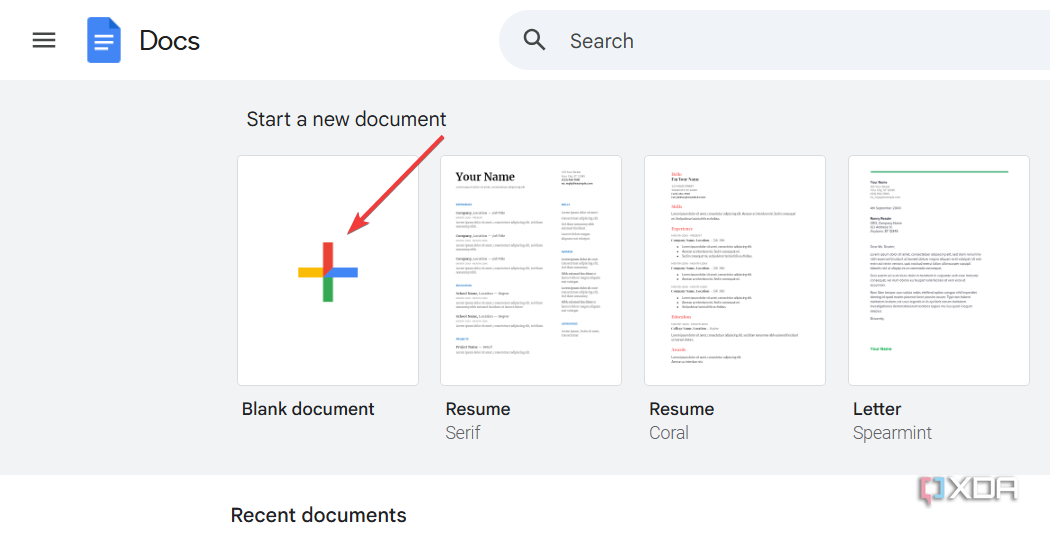
Click on the Plus icon to create a new document in Google Docs.
-
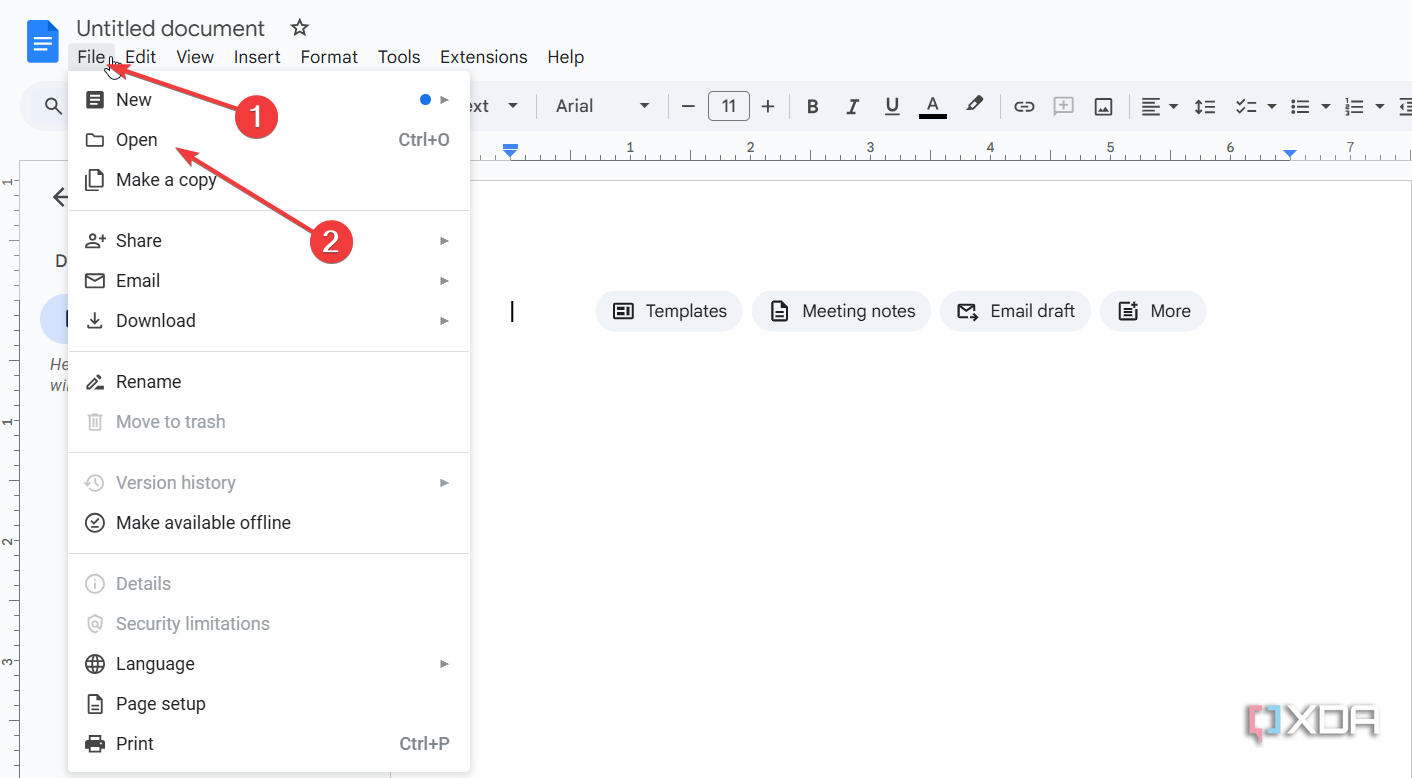
From here, you have two choices: paste the text content on the newly opened blank document or click the File button and select Open from the menu.
-
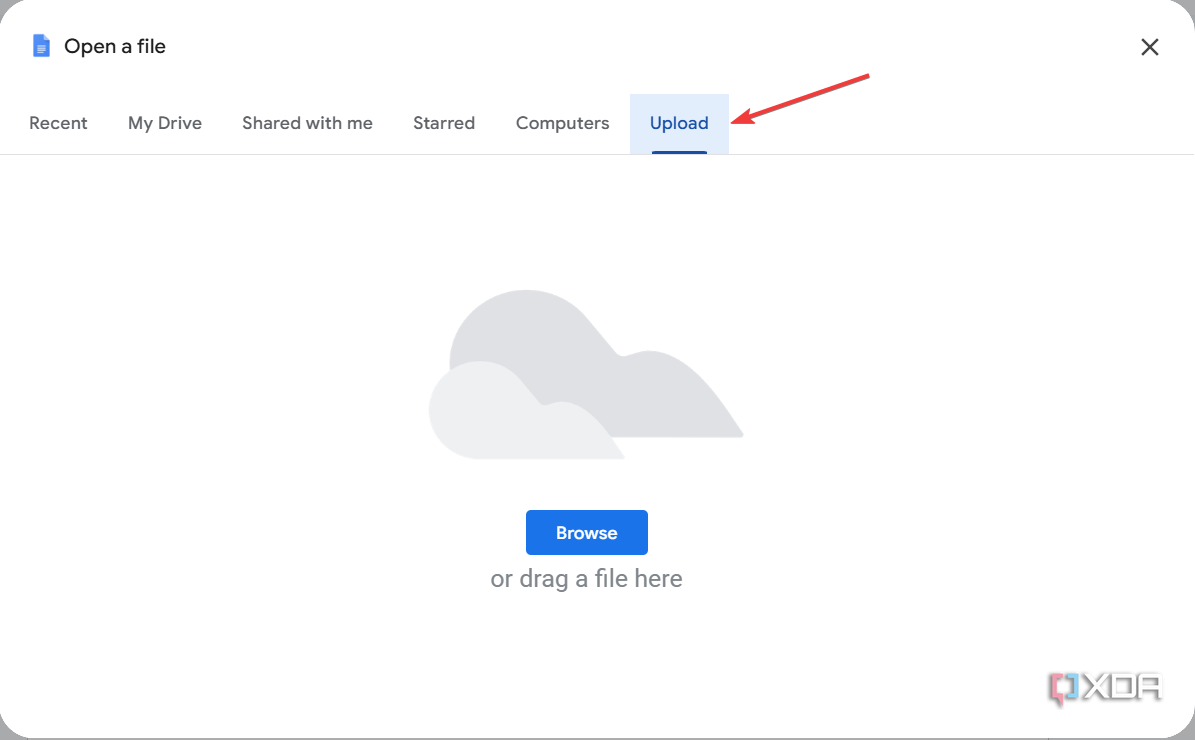
If you choose the second option, click the Upload tab, then drag and drop the text document into the designated area. You may also click the Browse button and select the file from your computer.
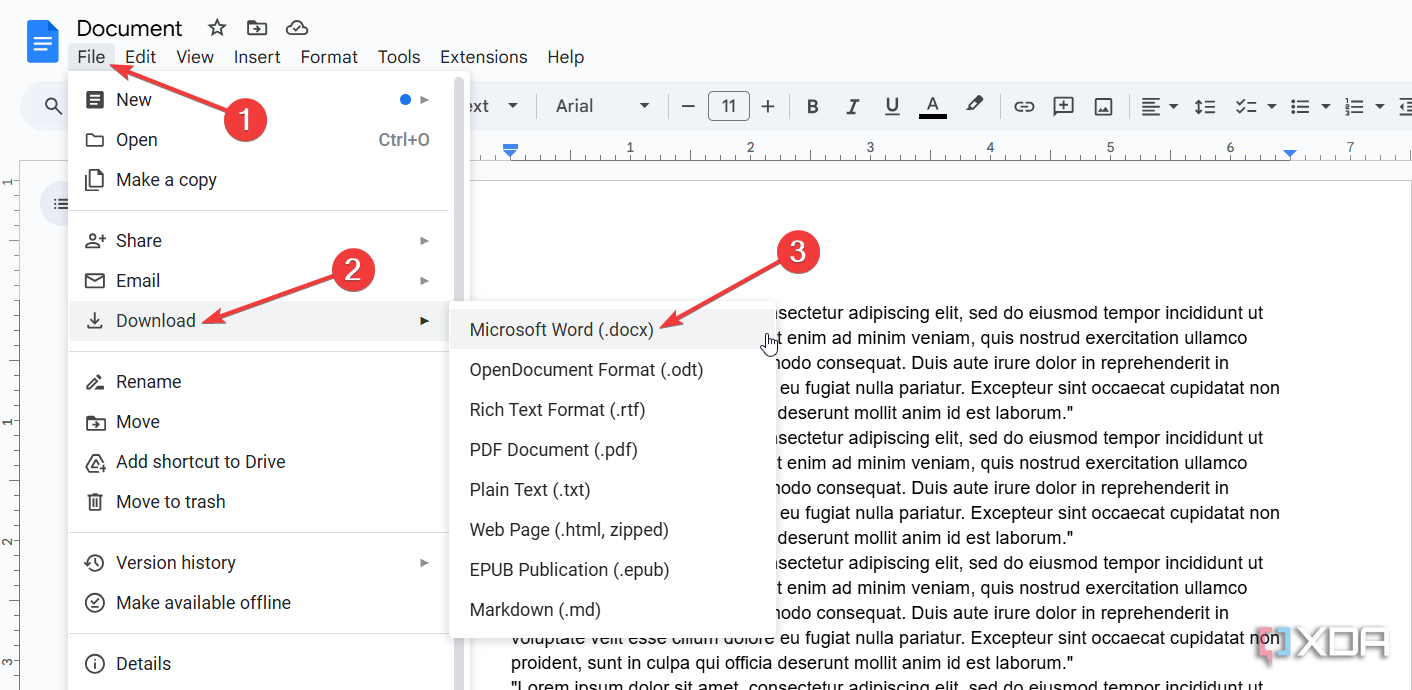
- After editing the document, click the File button from the top-left corner of the window.
-
Hover your mouse cursor over the Download option and select Microsoft Word (.docx) from the menu.
- You can rename the document and save it anywhere on your computer.


If you’re logged into your Google account on your browser, it will only take a few seconds to convert your text document into .docx and save it on your PC. Of course, you also have more advanced formatting tools with Google Docs. However, be careful with the formatting because not all of them will open the same in Microsoft Word.
Using Microsoft Word online
Microsoft Word online is free for anyone with a Microsoft account. If you’re logged on to your computer with a Microsoft account, you are one step away from using Word online.
Open the browser of your choice and go to the Microsoft Word online page. If you’re not logged into your system with a Microsoft account, you will have to enter your email and password to sign in. However, if you did use your Microsoft account to log into your PC, you will already be logged in and ready to use the software.
At this point, you may create a blank document and paste your content. To save the document as a .docx on your PC, click on File, select Create a Copy, and choose Download a copy. In the next window, you can Download a copy or send an email link to the document online.
This method is also extremely easy to use and ensures that the document’s formatting stays the same as intended.
There are also some online converters, but I don’t recommend using them. The developers of these tools say that they don’t store or use your files, but that’s not really guaranteed. If you’re dealing with sensitive information, you should stick to the more reliable options mentioned above.
There are a lot of text conversion tools and editors you can use
Any text and document editor that can open .docx files can also save your text file in Word format. We have a selection of the best Microsoft Word alternatives that can do just that. The method of use will be exactly the same: Open your text file or copy/paste your content into a new document, then save it as .docx from the menu of that application.
#converted #text #documents #docx #Microsoft #Word #seconds
source: https://www.xda-developers.com/convert-text-documents-into-docx-without-microsoft-word/


