

Microsoft Outlook is among the best free email apps because of its Office 365 integration and handy features like the shared mailbox. Shared mailboxes are ideal for company departments, like inquiries that receive large email volumes, because multiple users can access the inbox and share an Outlook calendar. They’re also great when one user is out of the office in Outlook and someone else needs to complete their work while they are away.
Setting up and configuring a shared mailbox can be complicated, but this step-by-step guide will simplify the process and show you what to do. Here are the easiest ways to create and add a shared mailbox in Outlook.
Related
How to share your calendar in Outlook
When someone wants an appointment, you can make sure they know your availability by sharing your Outlook calendar with them.
How to create a shared mailbox
You must have Exchange
Before you can set up a shared mailbox in Outlook, you’ll need to create one. This requires a Microsoft 365 Business Standard or above subscription with the Exchange Online Service.
- Log in to the Exchange admin center.
-
Click on Mailboxes.
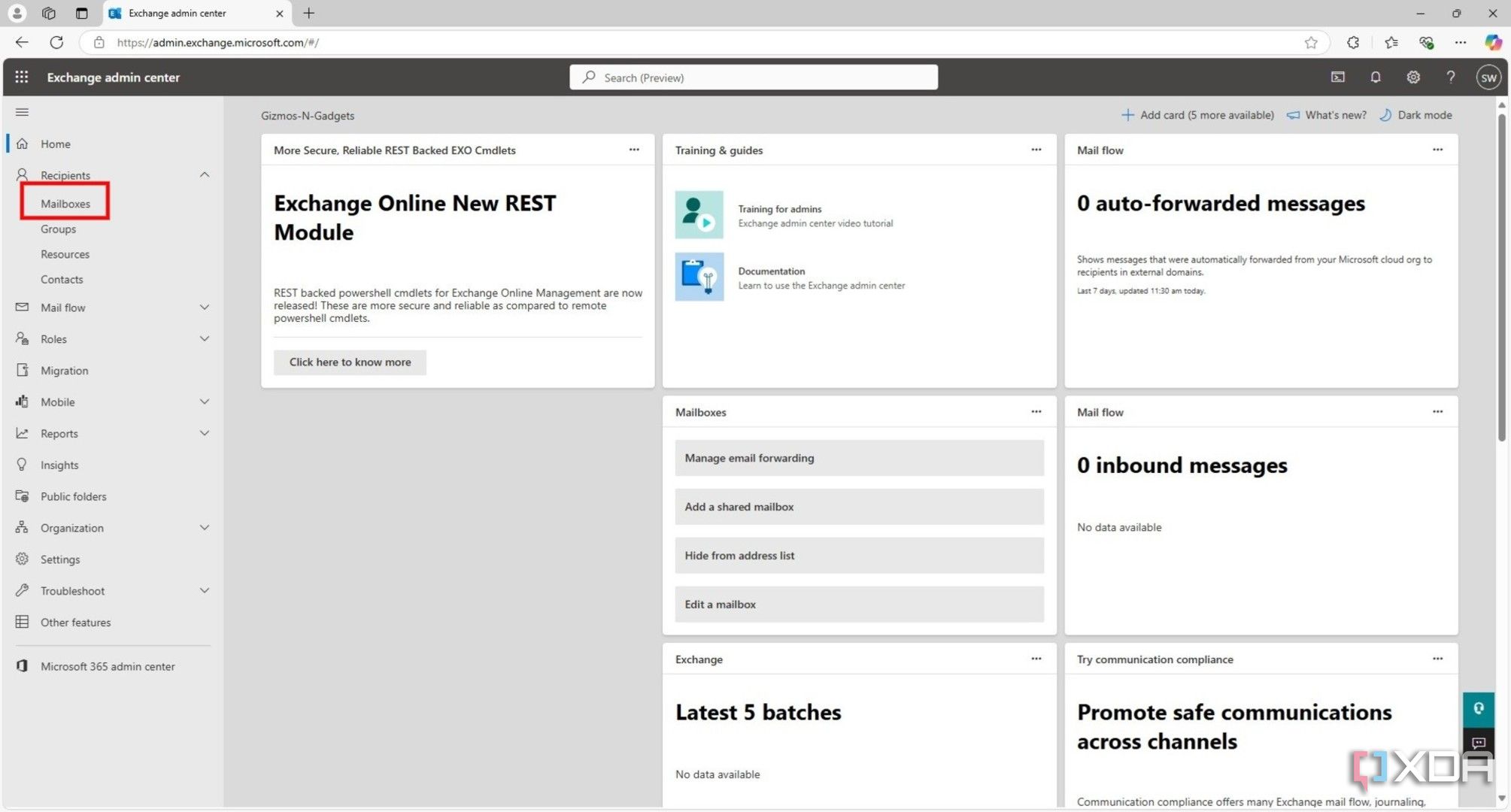
-
Click on Add a shared mailbox.
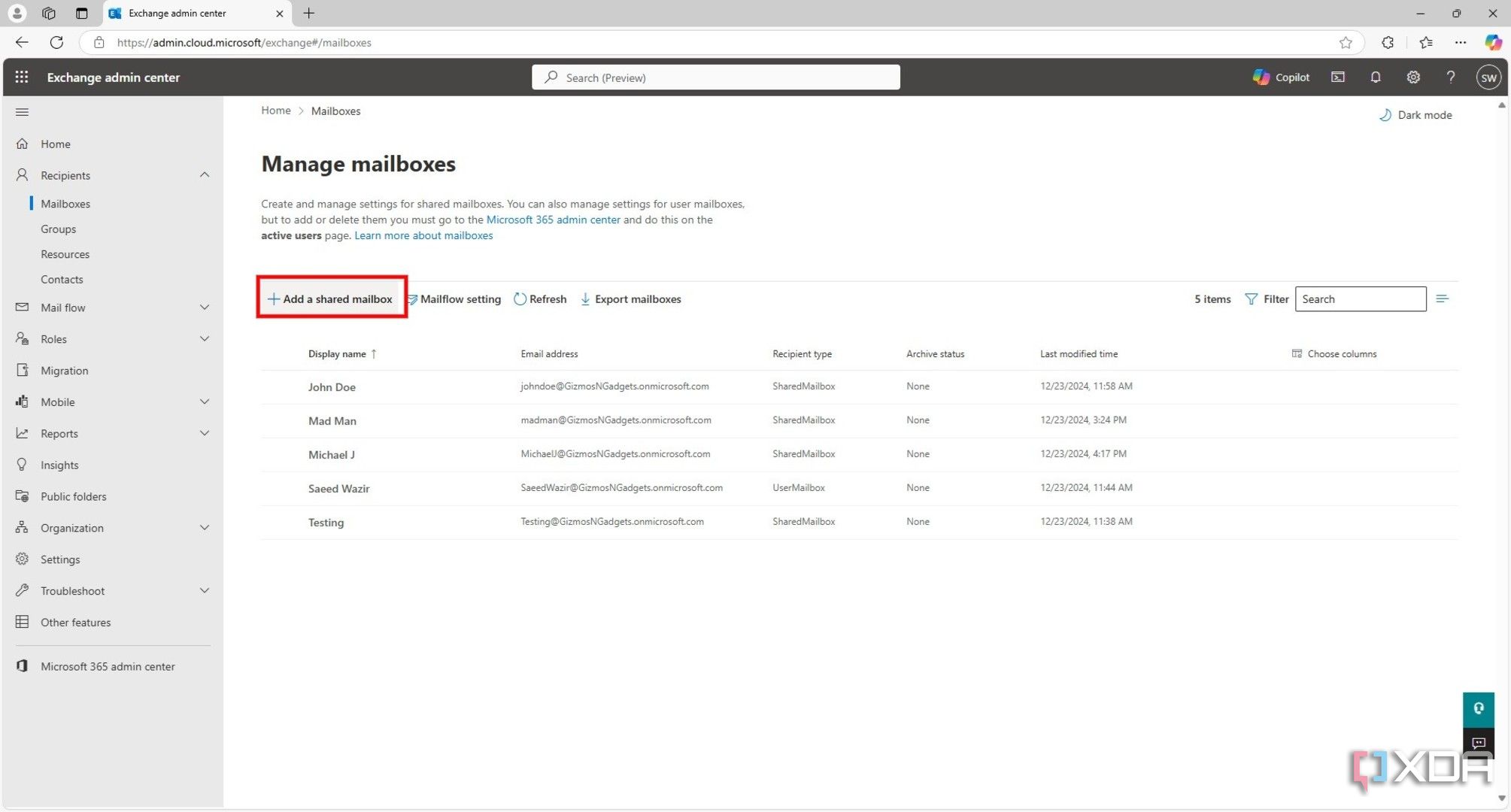
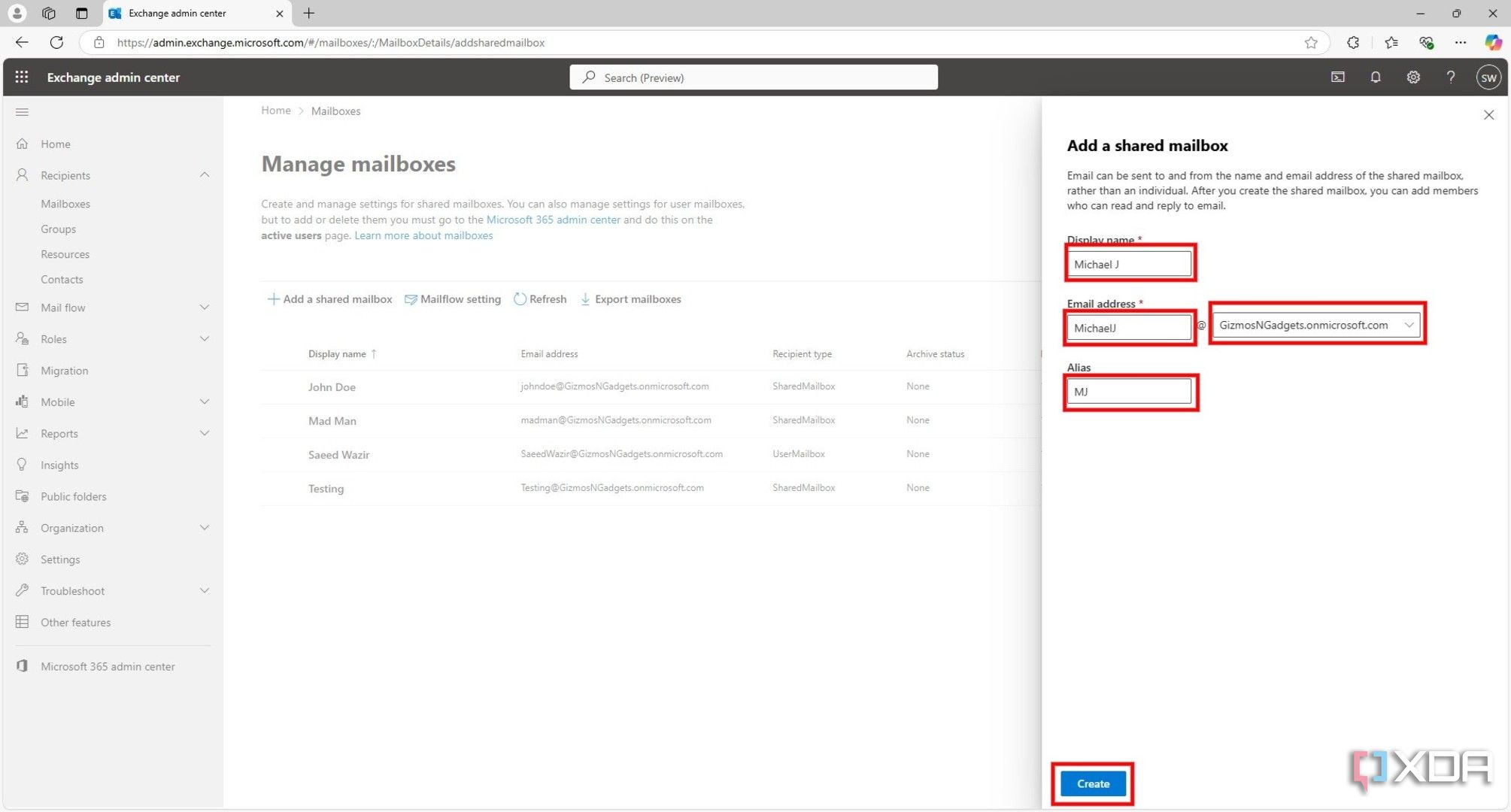
- Enter relevant details in the dialogue box, like name, email address, etc.
-
Click on Create.
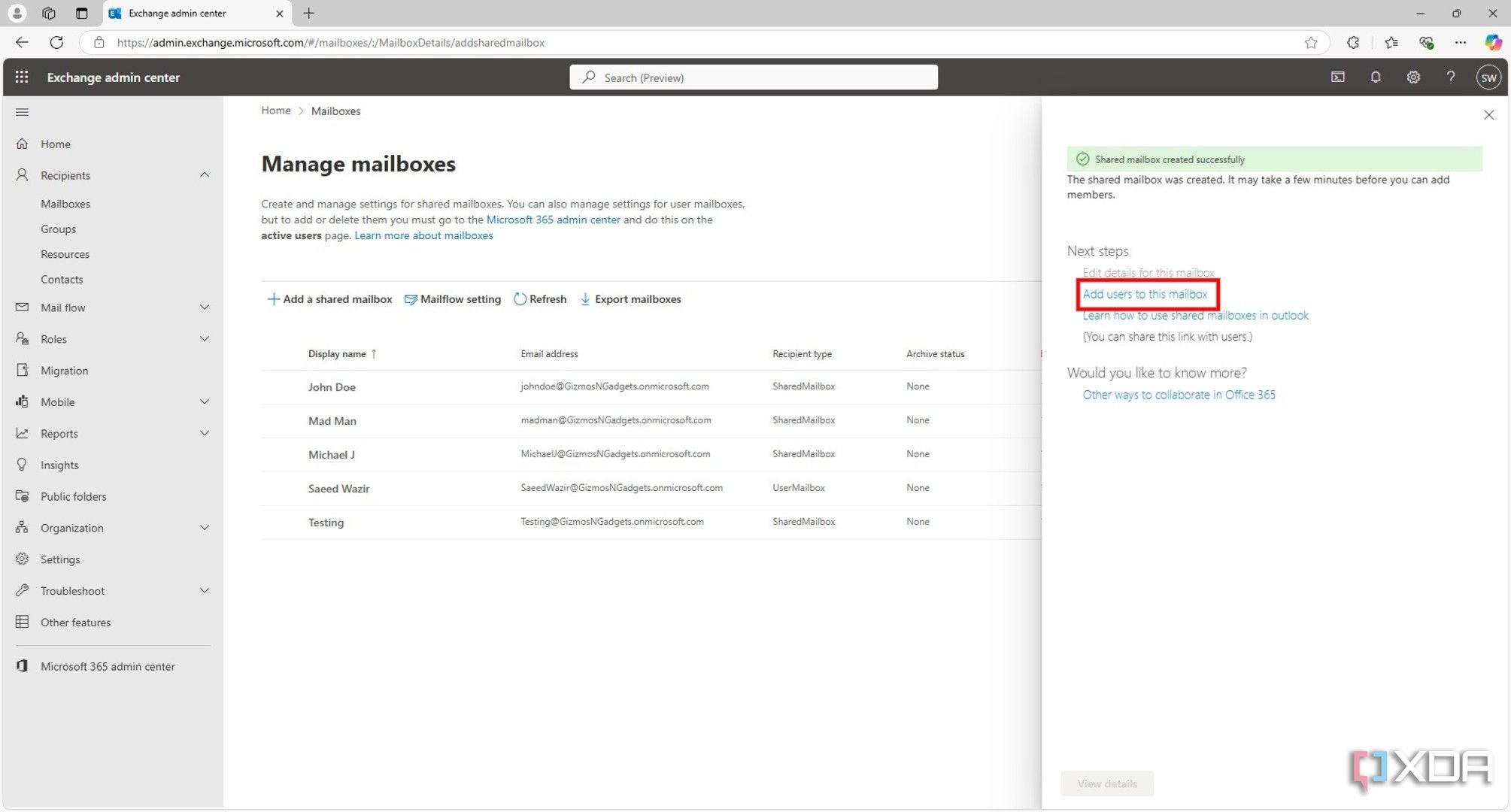
- You’ll get a notification that the mailbox was created. Click on Add users to this mailbox.
-
Click on Add members.
- Tick the box beside the account name of the person you’d like to share the mailbox with.
-
Click on Save.
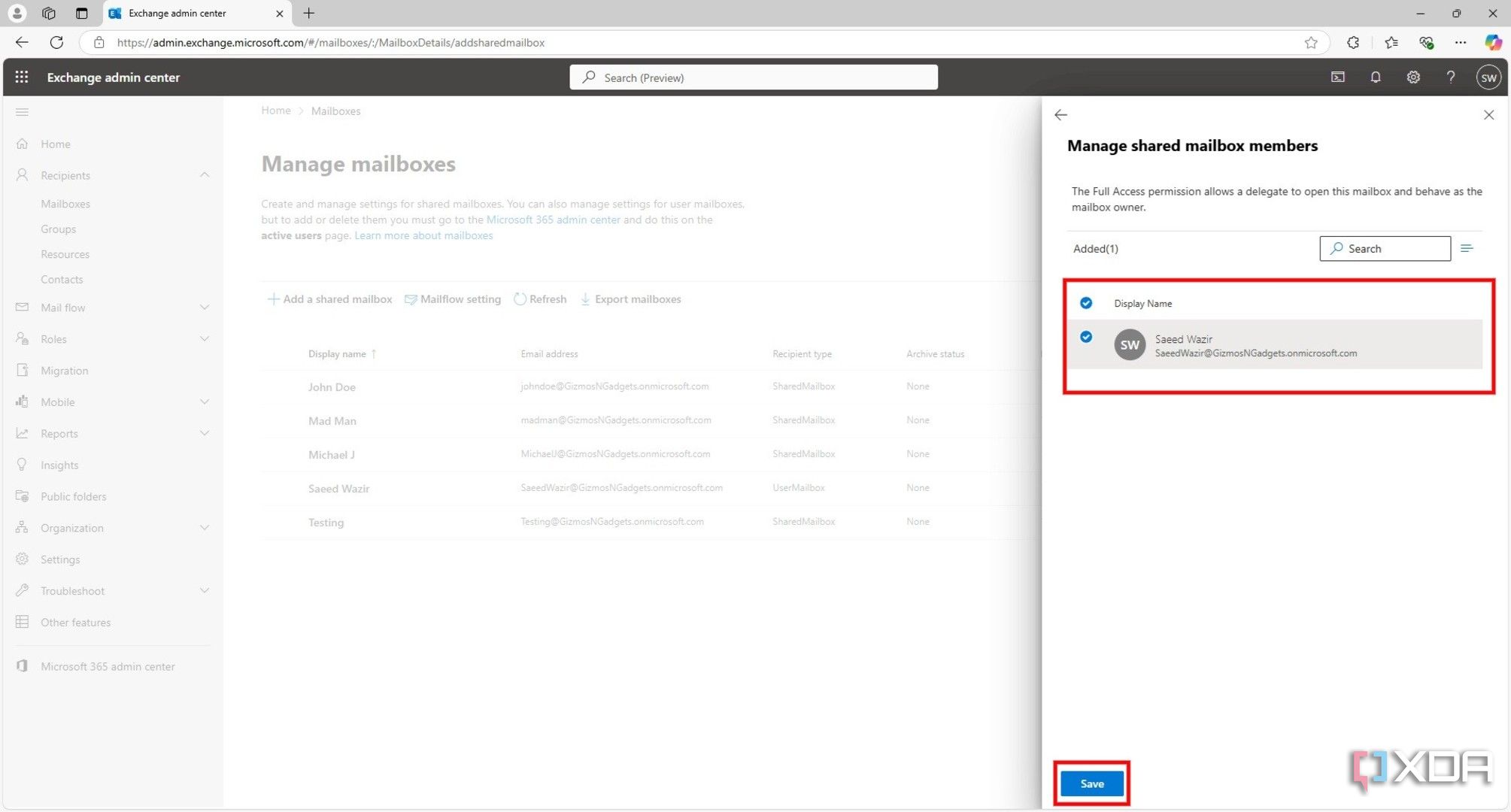


Click on Confirm. You’ll get a confirmation message that the mailbox is shared and that it might take up to 60 minutes for the changes to be reflected in Outlook.
The changes are usually instant, and you can then move on to setting up the shared mailbox in Outlook. If you no longer want to share it, you can convert it back to a regular mailbox later.
How to add a shared mailbox to Outlook on the web
This requires the mailbox to be created first
You can access a shared mailbox online in the Outlook browser app after it’s been created, and you have permission to view it.
- Log in to your Outlook Profile.
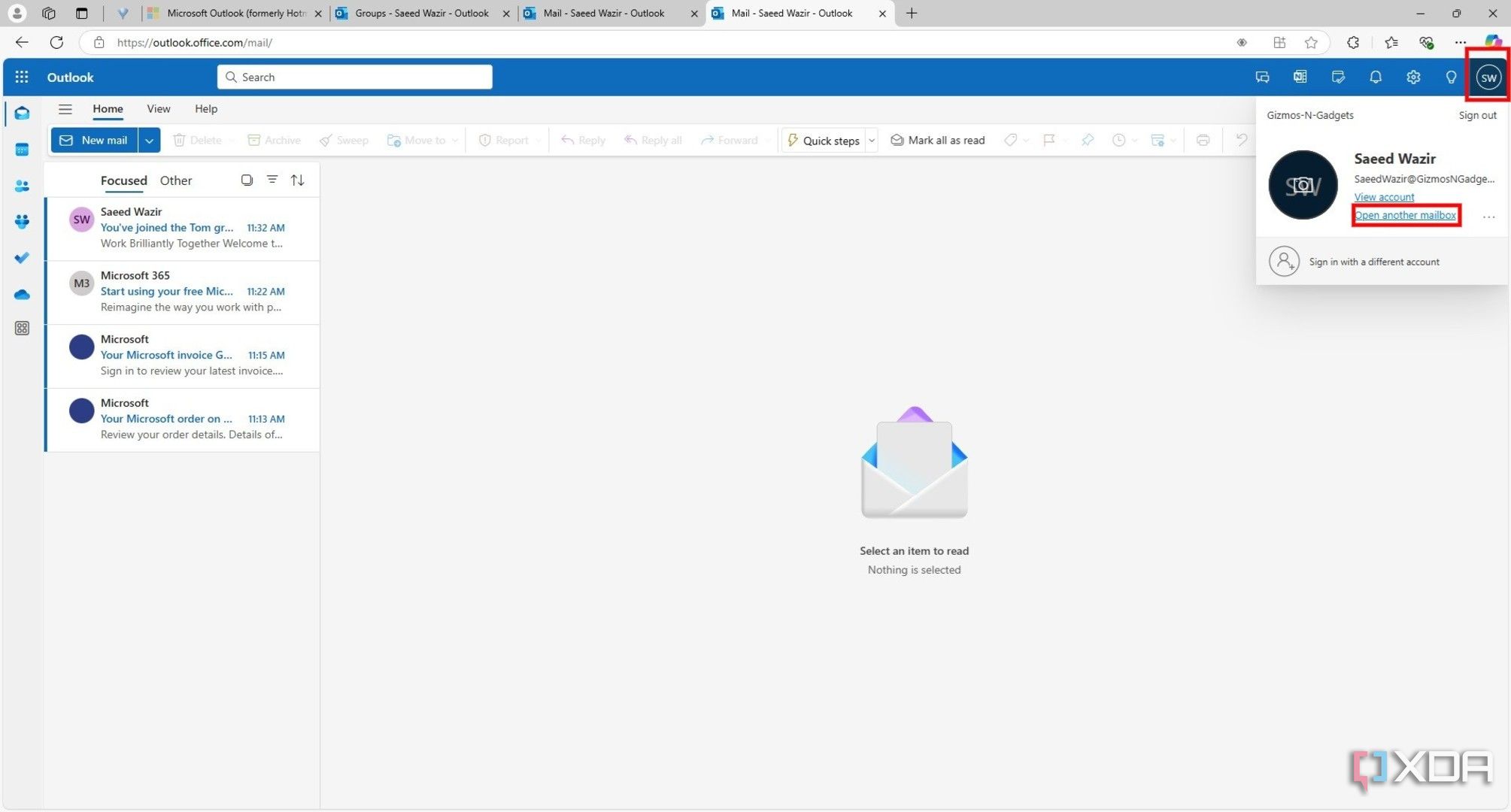
- Click on your profile information in the top right corner.
-
Click on Open another mailbox.
-
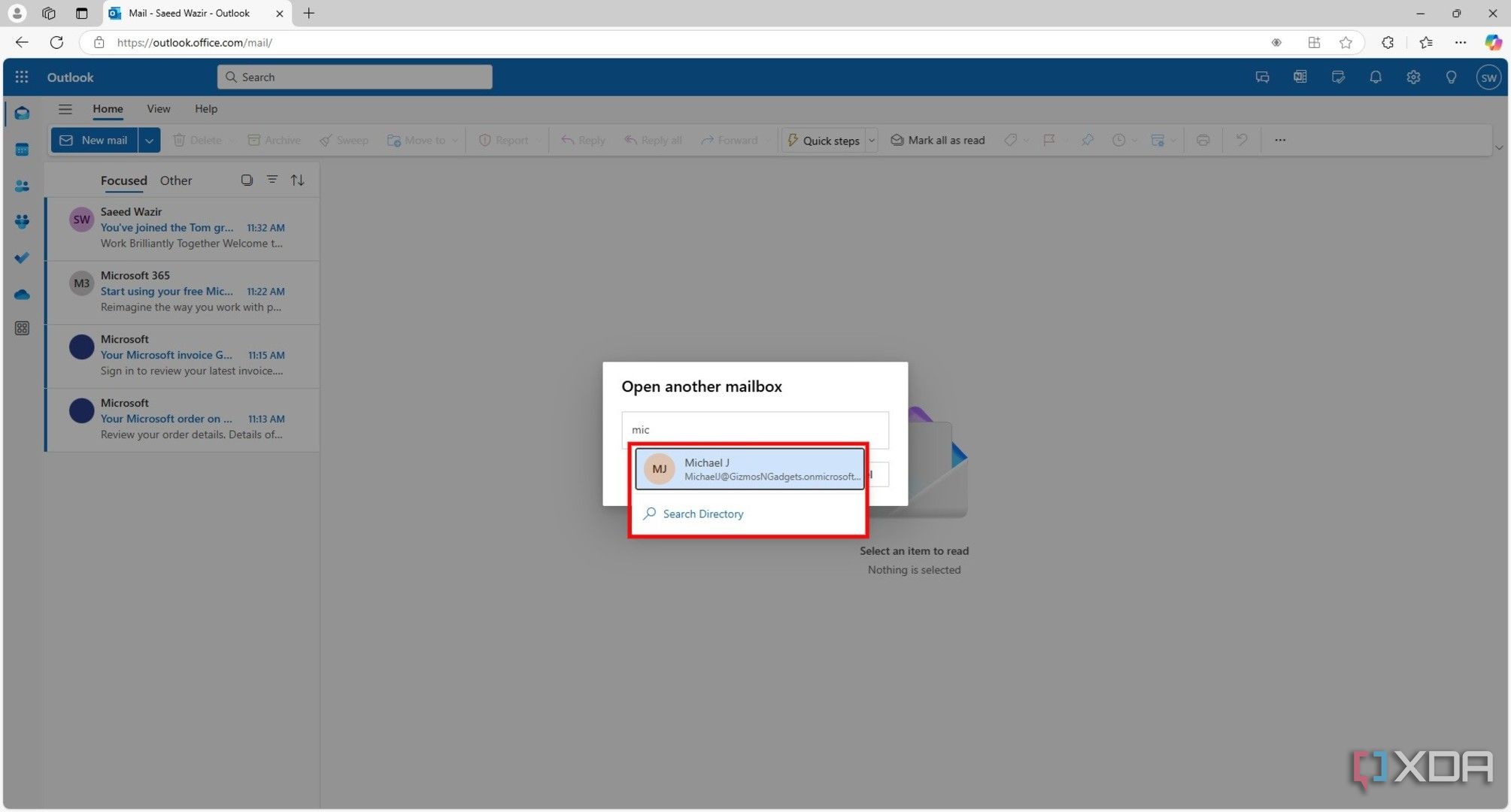
Type the mailbox name in the dialogue box.
-
Click on Open.
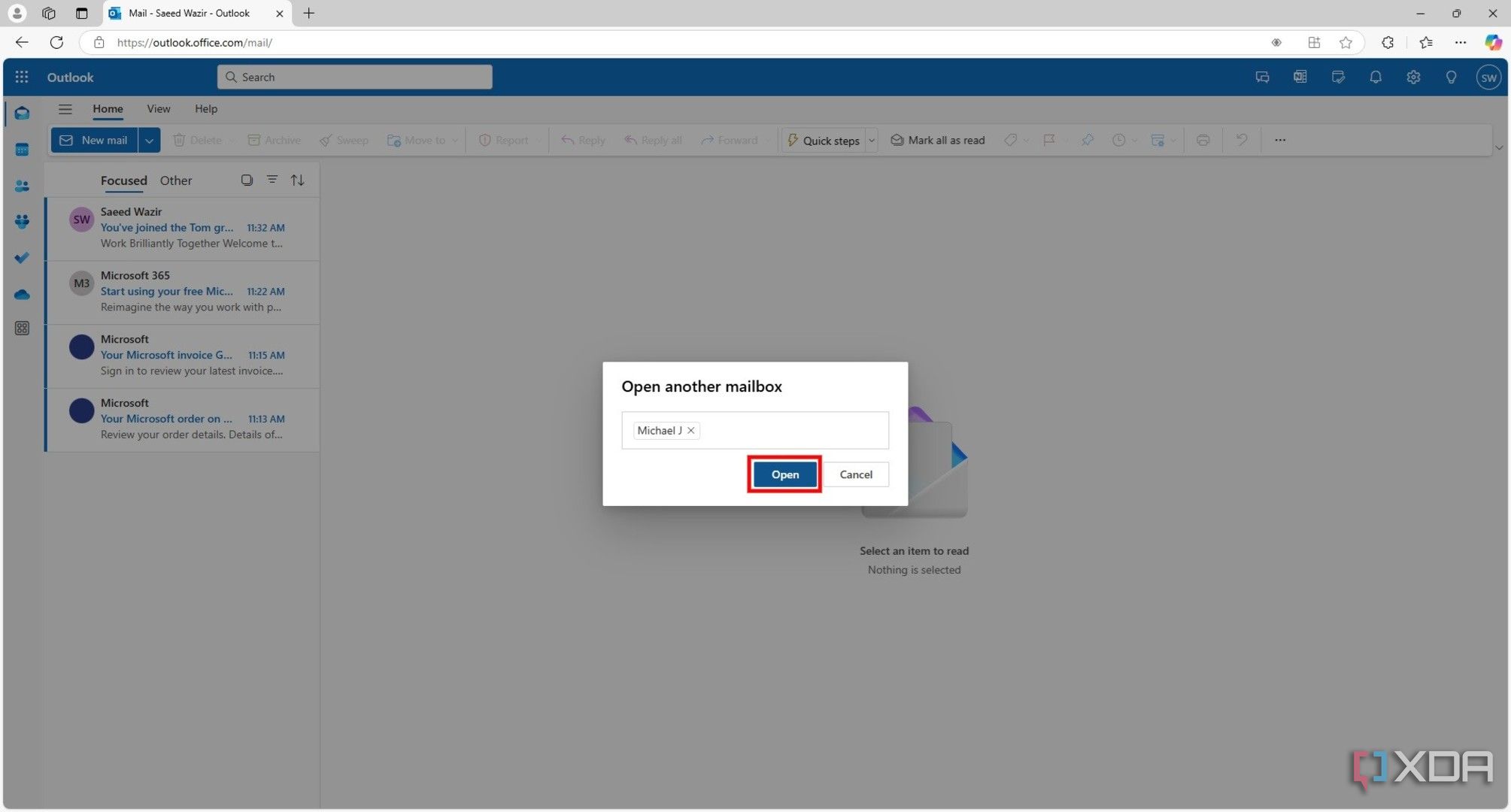
- A new window will open, giving you access to the shared mailbox.


You can now send and receive emails in the shared mailbox and switch between tabs to work in your regular mailbox. When you’re done, you can close the shared mailbox browser tab to end the session.

Related
How to change the default browser in Microsoft Outlook
Tired of Outlook opening your links in Microsoft Edge? Here’s how you can change the default browser within Outlook.
How to add a shared mailbox in New Outlook
Just a few simple steps
- Open New Outlook.
-
Click on the three dots beside your account name.
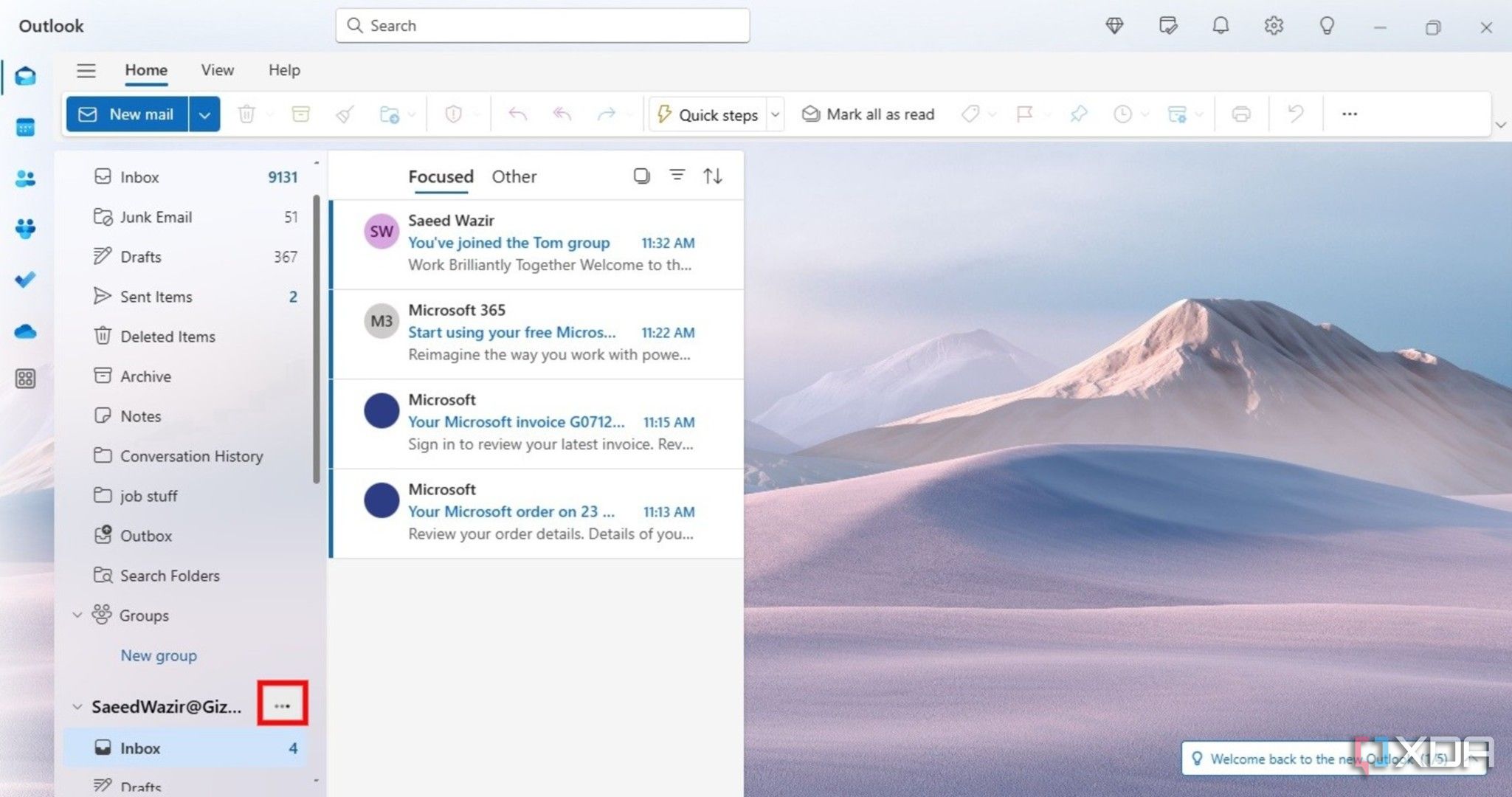
-
Click on Add shared folder or mailbox in the menu.
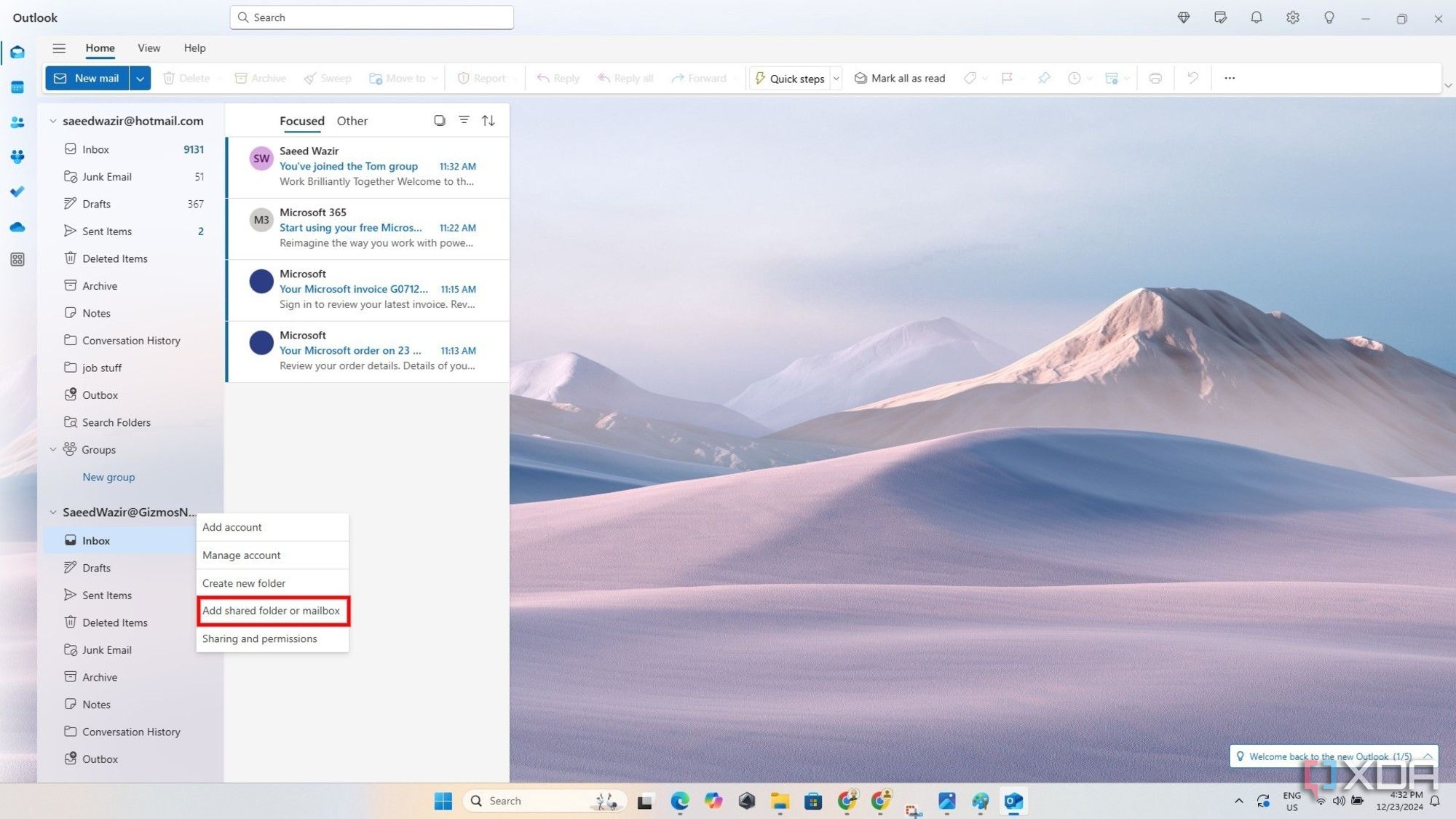
-
Enter the name of the shared mailbox you want to access in the dialogue box.
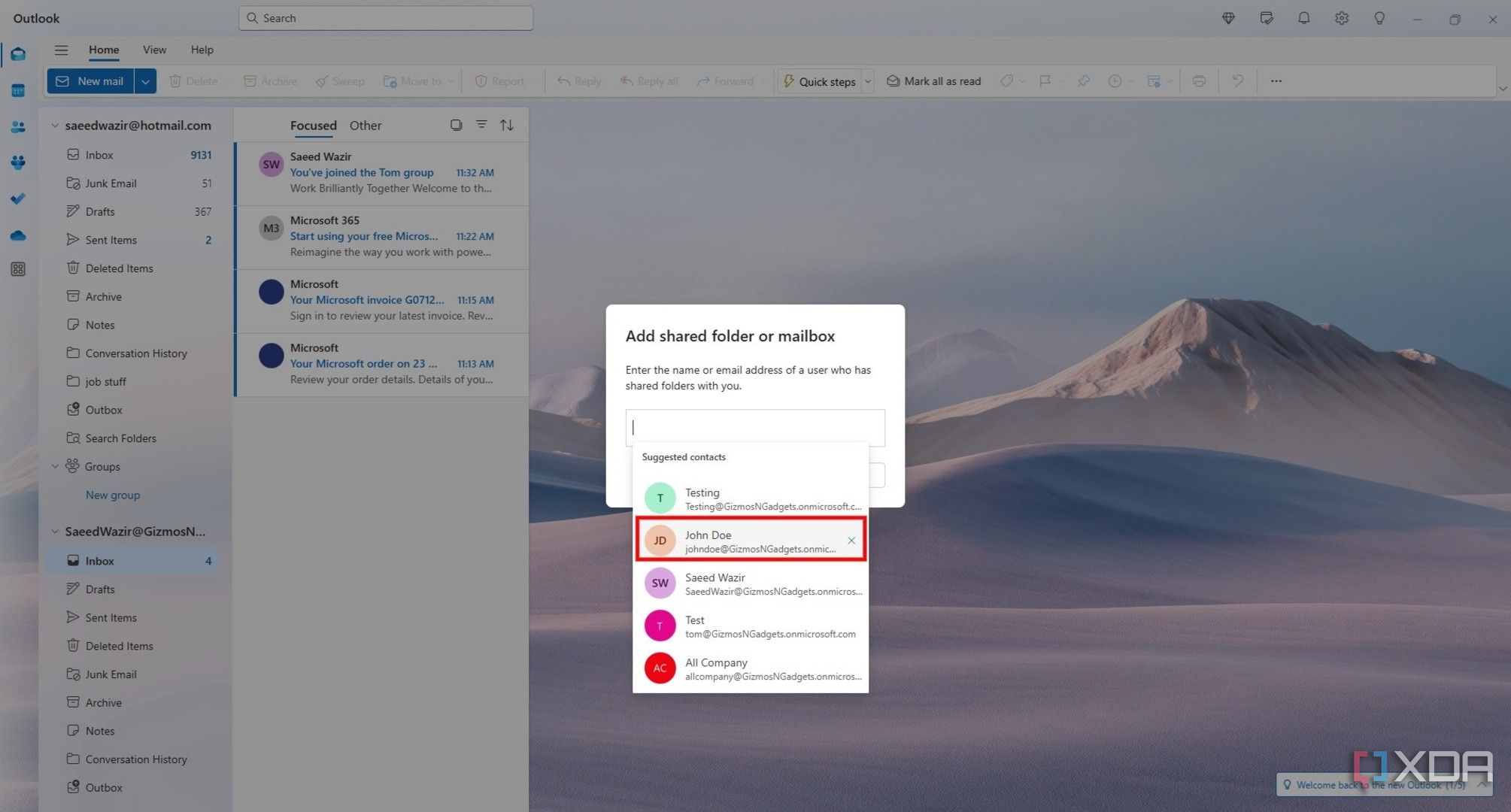
-
Click on Add.
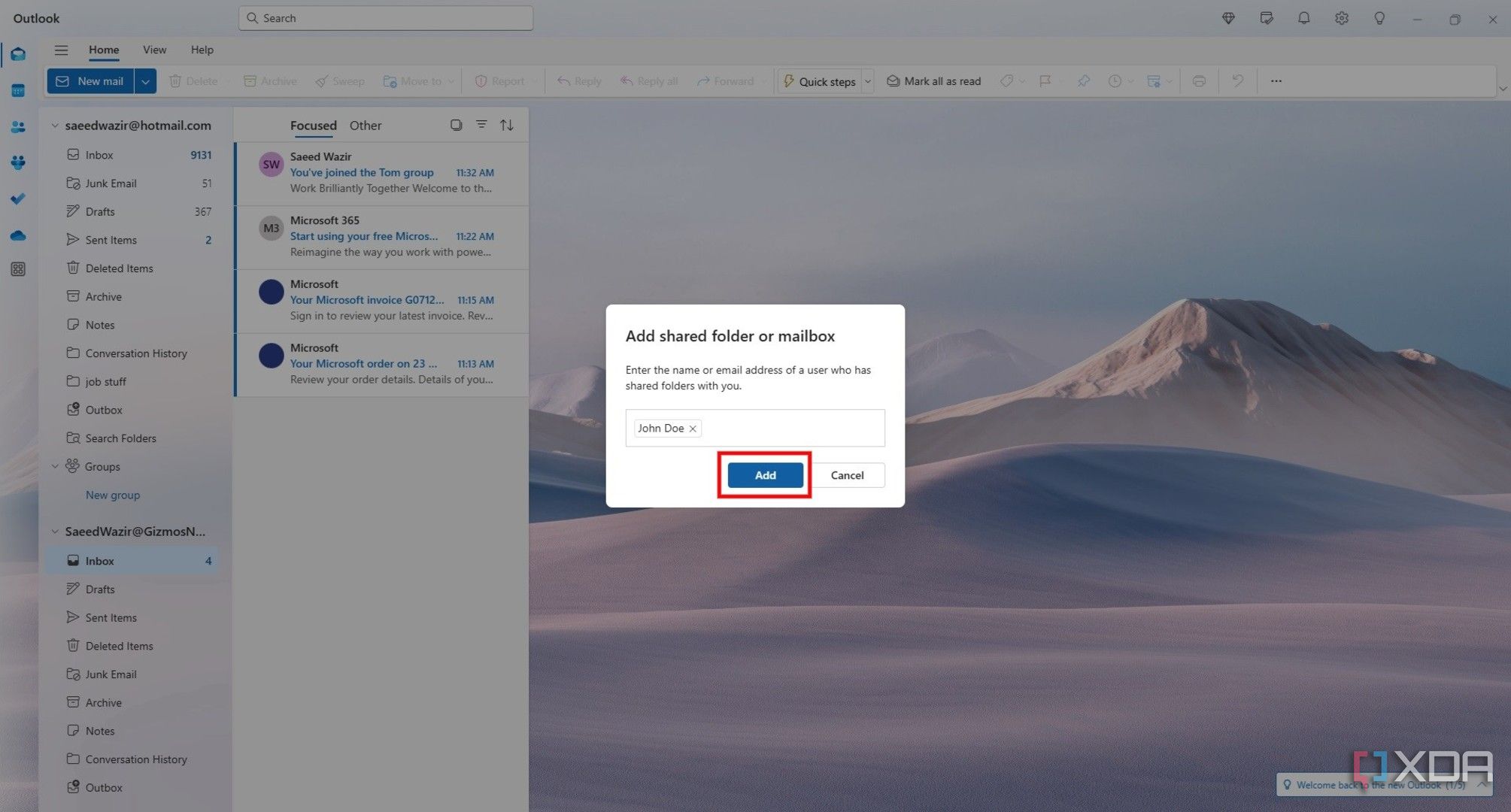
-
The shared mailbox will now be accessible in the Shared with me menu in your folder list.
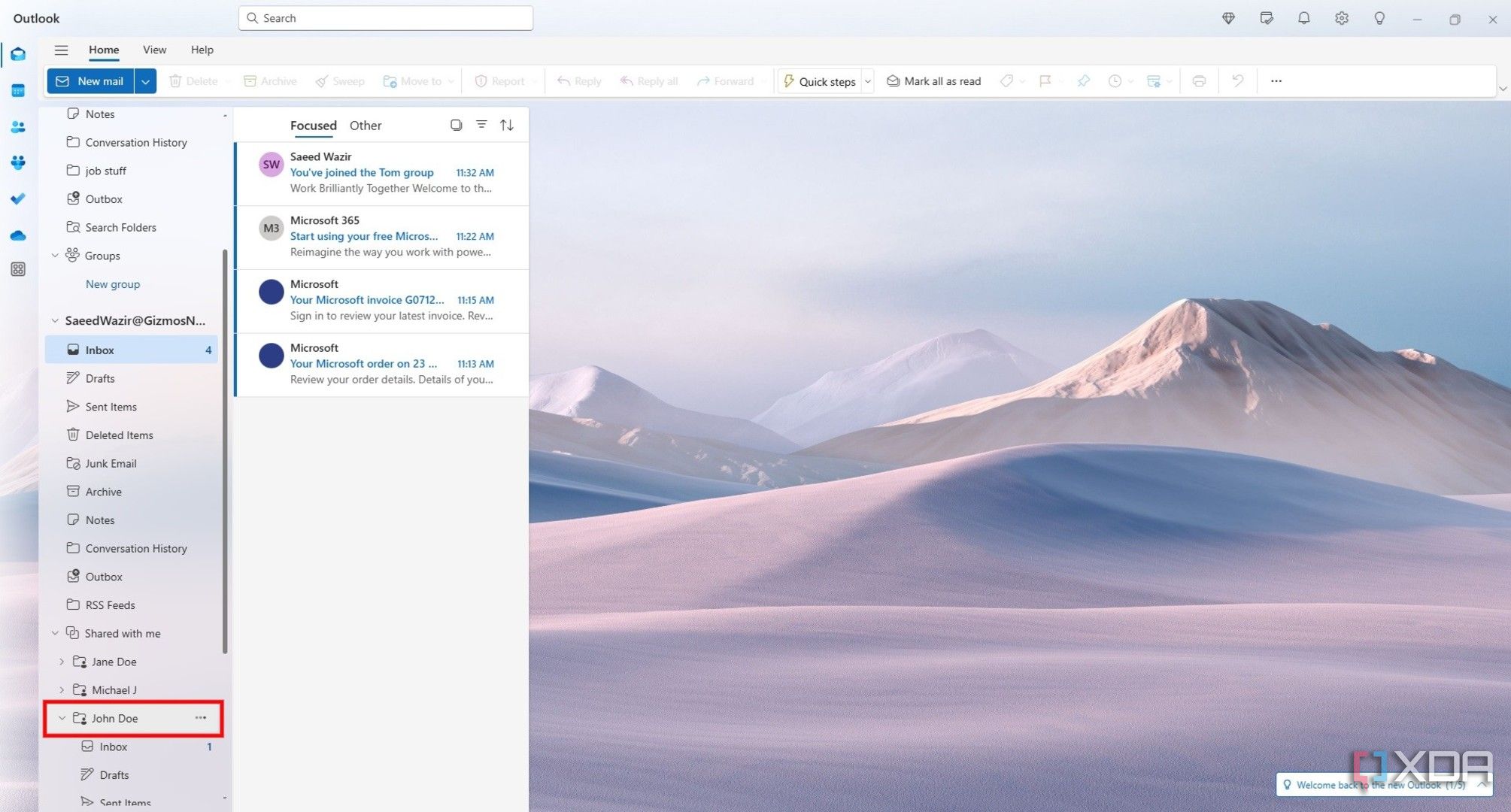


The Inbox, Drafts, and other folders will now be viewable in the shared mailbox list. You can send emails from the shared mailbox by clicking on New mail and selecting its address from the list.
How to add a shared mailbox in Outlook Classic
Ensure a shared inbox has already been created
- Open Outlook Classic
-
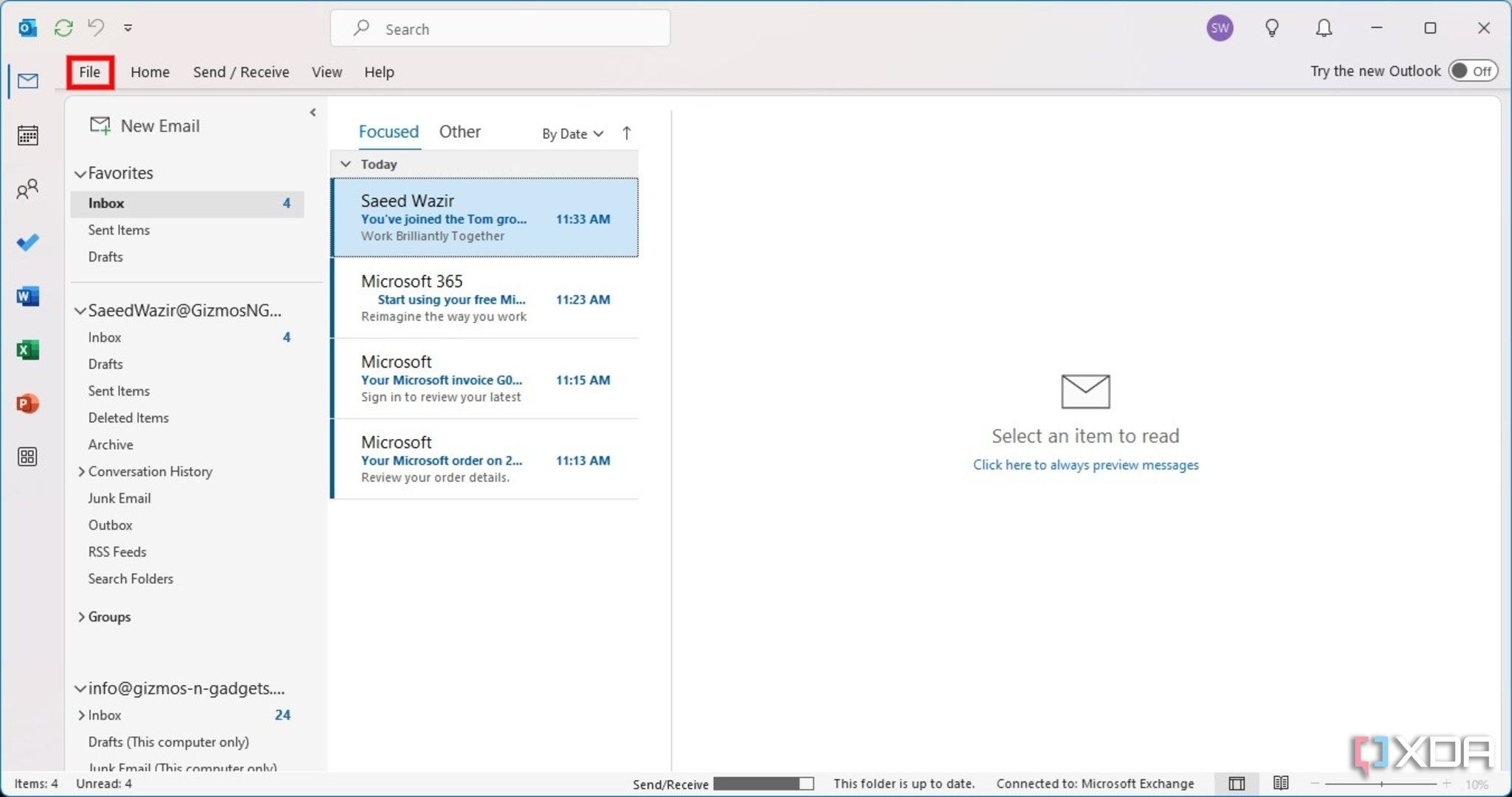
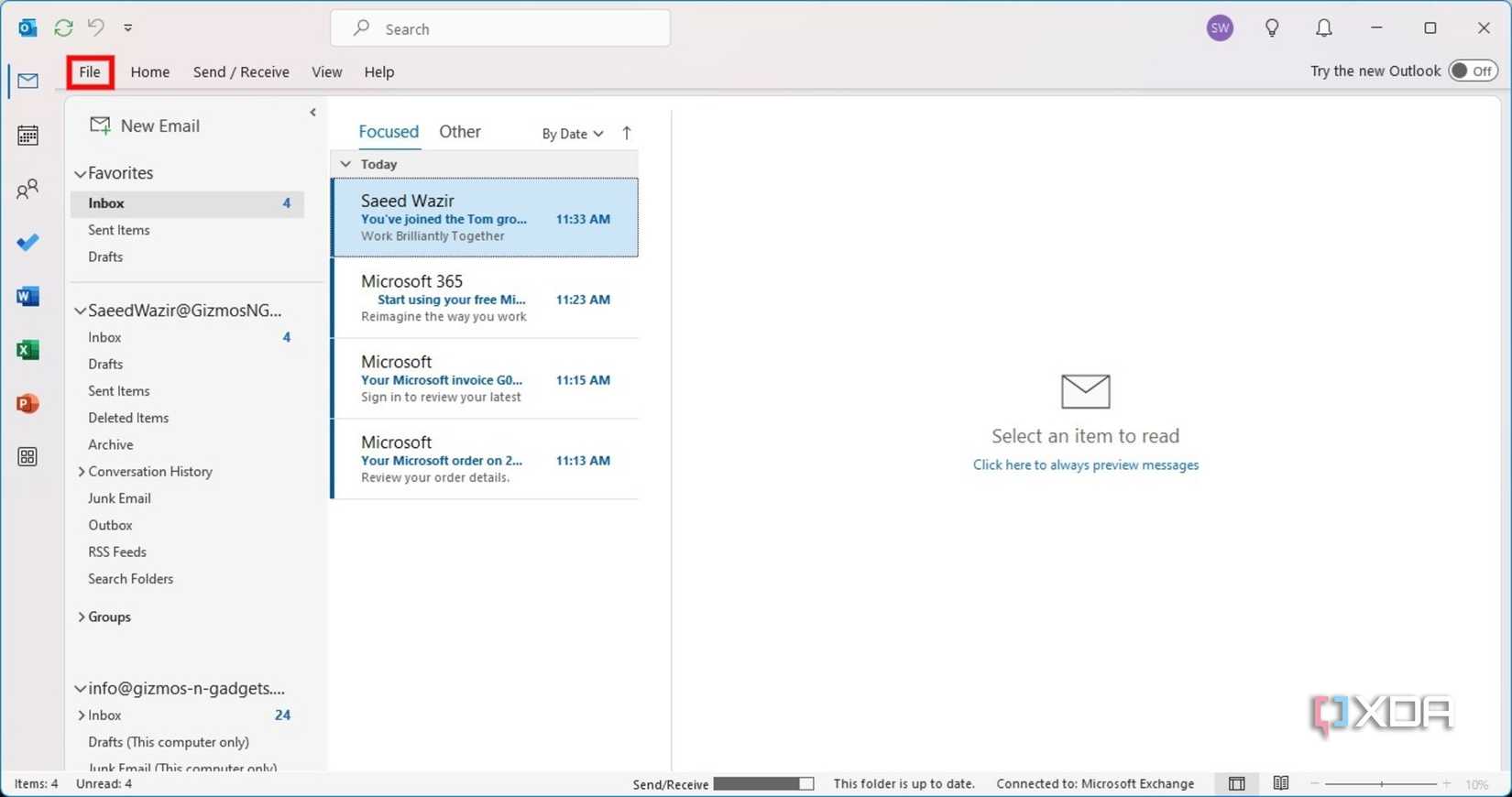
Click on File in the top left corner.
-
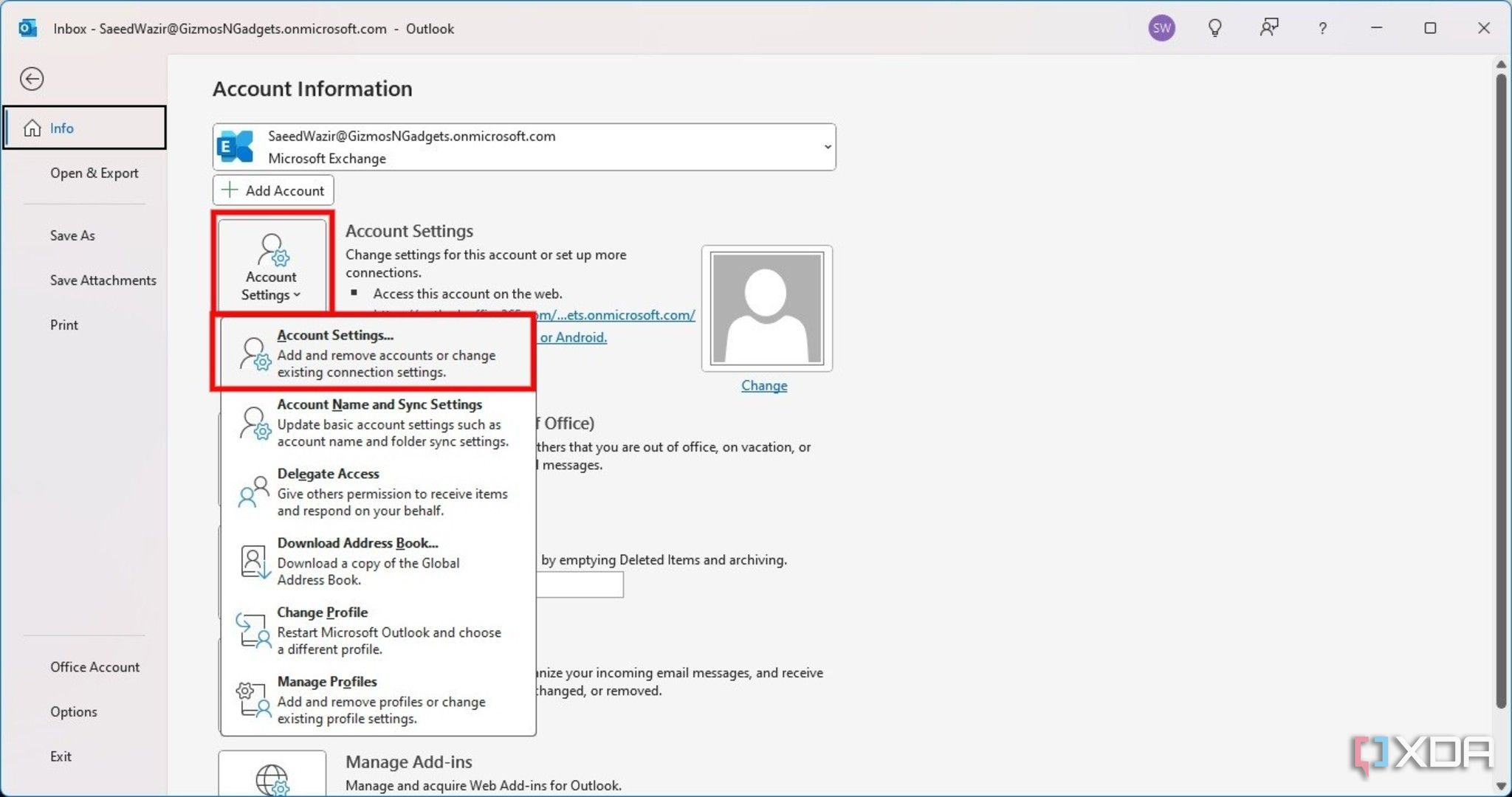
Click on Account Settings and open the Account Settings option at the top of the menu.
-
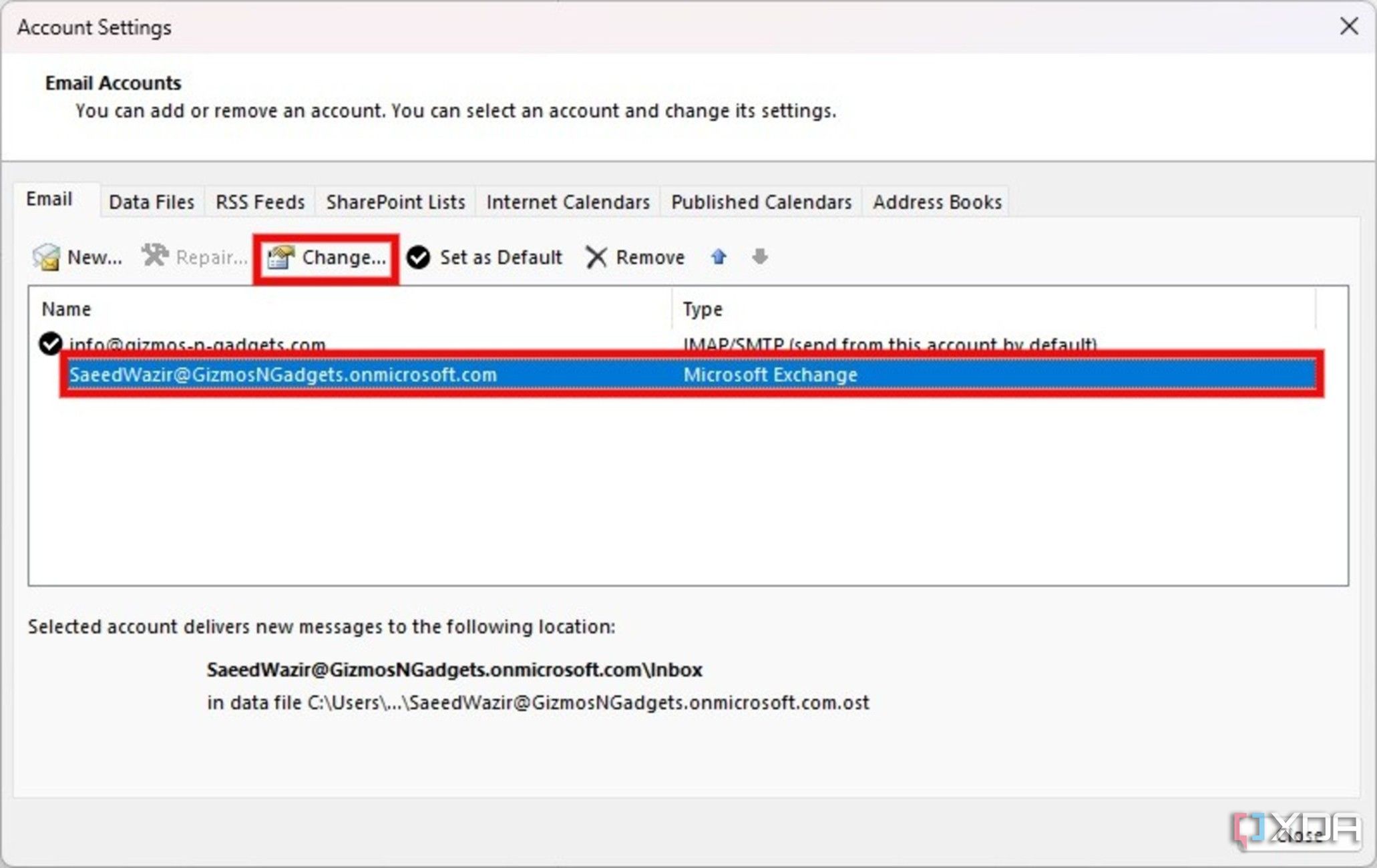
Click on the profile to which you want to add the shared mailbox and click on Change.
-
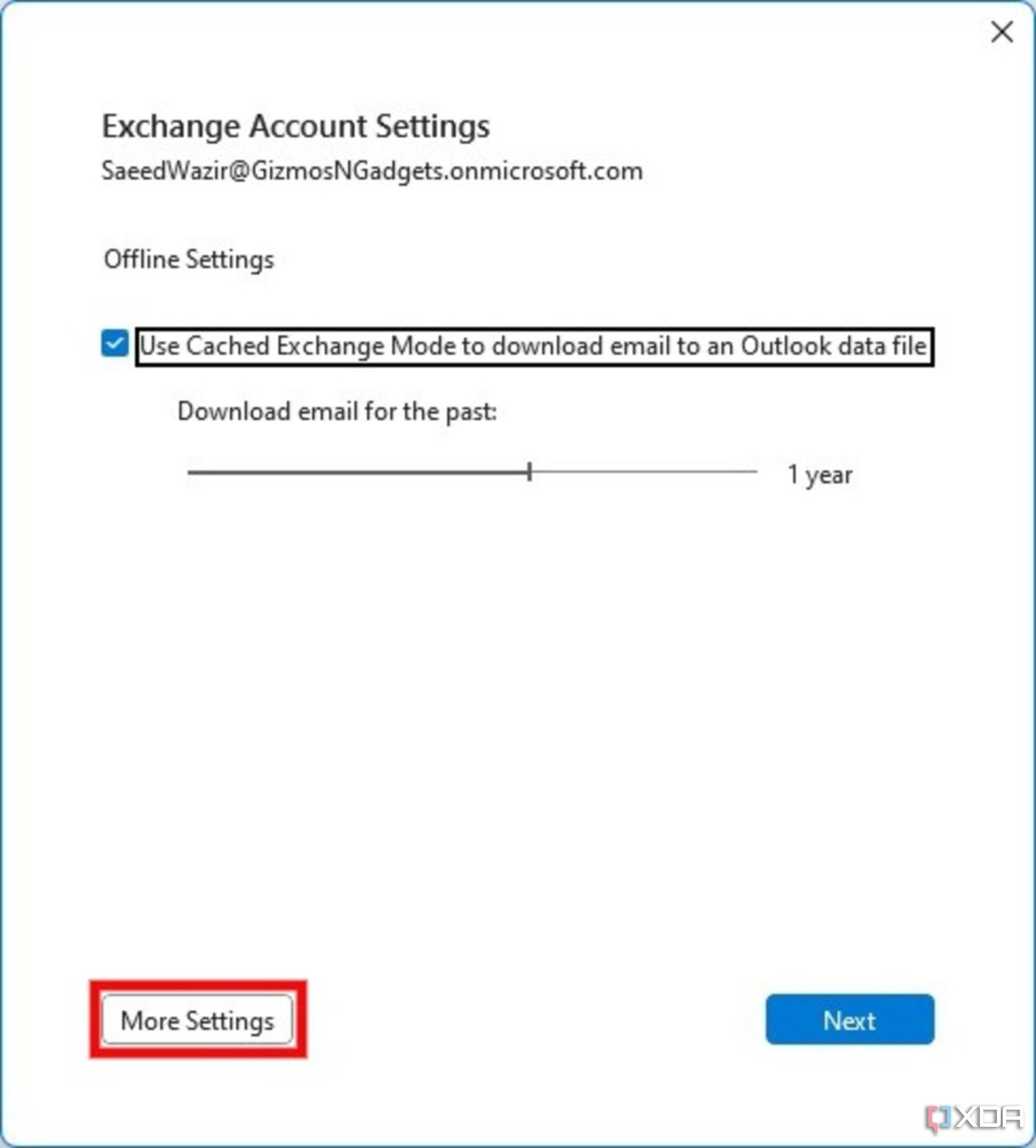
Click on More Settings in the Exchange Account Settings window.
-
Click on the Advanced tab in the Microsoft Exchange window.
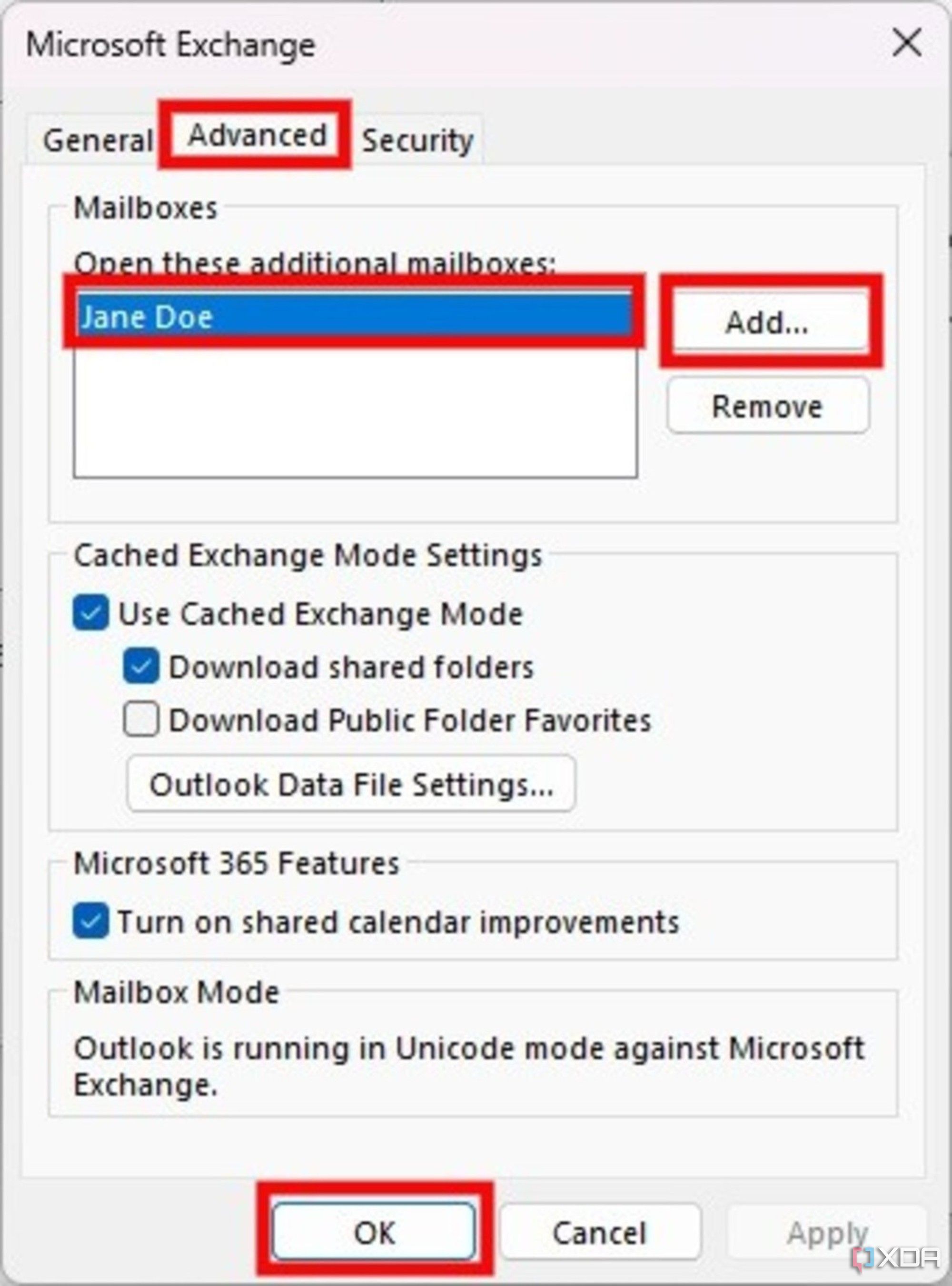
- Click on Add.
- Insert the email address of the shared folder into the dialogue box and click OK.
-
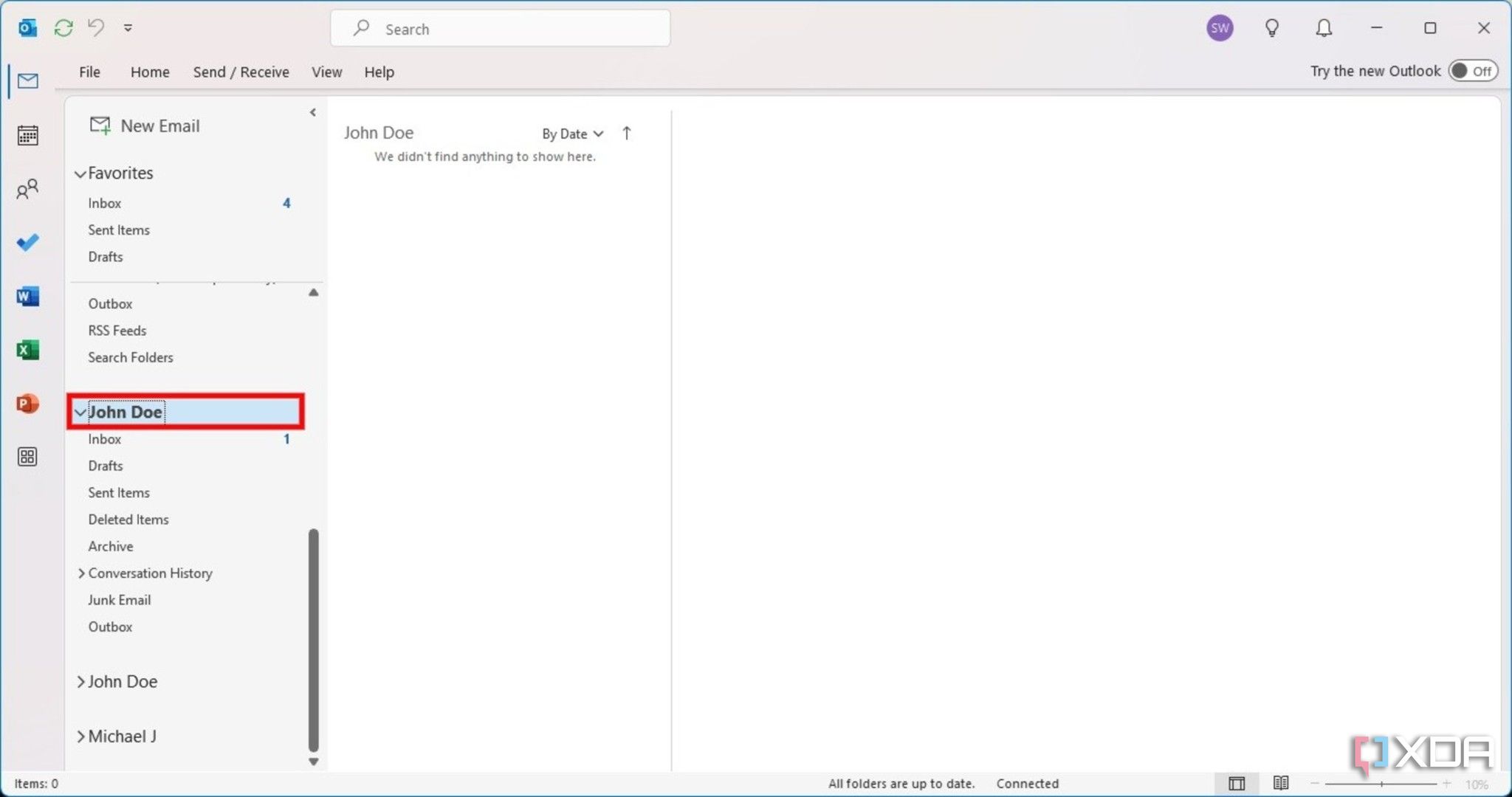
Click on Apply, and the shared mailbox will appear as a folder in your profile.


Access the shared mailbox from anywhere
After following the above steps, you can access the shared mailbox from anywhere. Outlook on the web works on most phones and tablets, making it ideal for when you’re on the go and away from your workstation.
New Outlook and Outlook Classic work independently on your laptop or desktop, making it easy to manage your inbox efficiently. You can use both if you’d like to create different accounts on each program and switch between them to access your shared or personal mailboxes.
#add #shared #mailbox #Outlook
source: https://www.xda-developers.com/how-to-add-shared-mailbox-outlook/


