

Microsoft Defender is an essential part of Windows 11 that helps keep your computer safe from all kinds of threats. It’s a firewall and antivirus, and contrary to what used to be said a few years ago, it’s more than good enough for most people. If you don’t want it at all, though, you might be looking to disable it.
It’s worth noting that the Windows Security app offers many layers of protection on top of Microsoft Defender itself. We won’t dive into each of those options here. If you want to disable Microsoft Defender, though, here’s how.
Related
Is Microsoft Defender good enough in 2024?
Back in the day, you absolutely needed an anti-virus. Is Microsoft Defender good enough now, though?
Temporarily disable real-time protection
Disabling Windows Defender permanently on Windows 11 is not recommended, and somewhat challenging. However, you can temporarily turn off real-time protection if it’s blocking you from doing something. Here’s how:
- Open the Windows Security app.
-
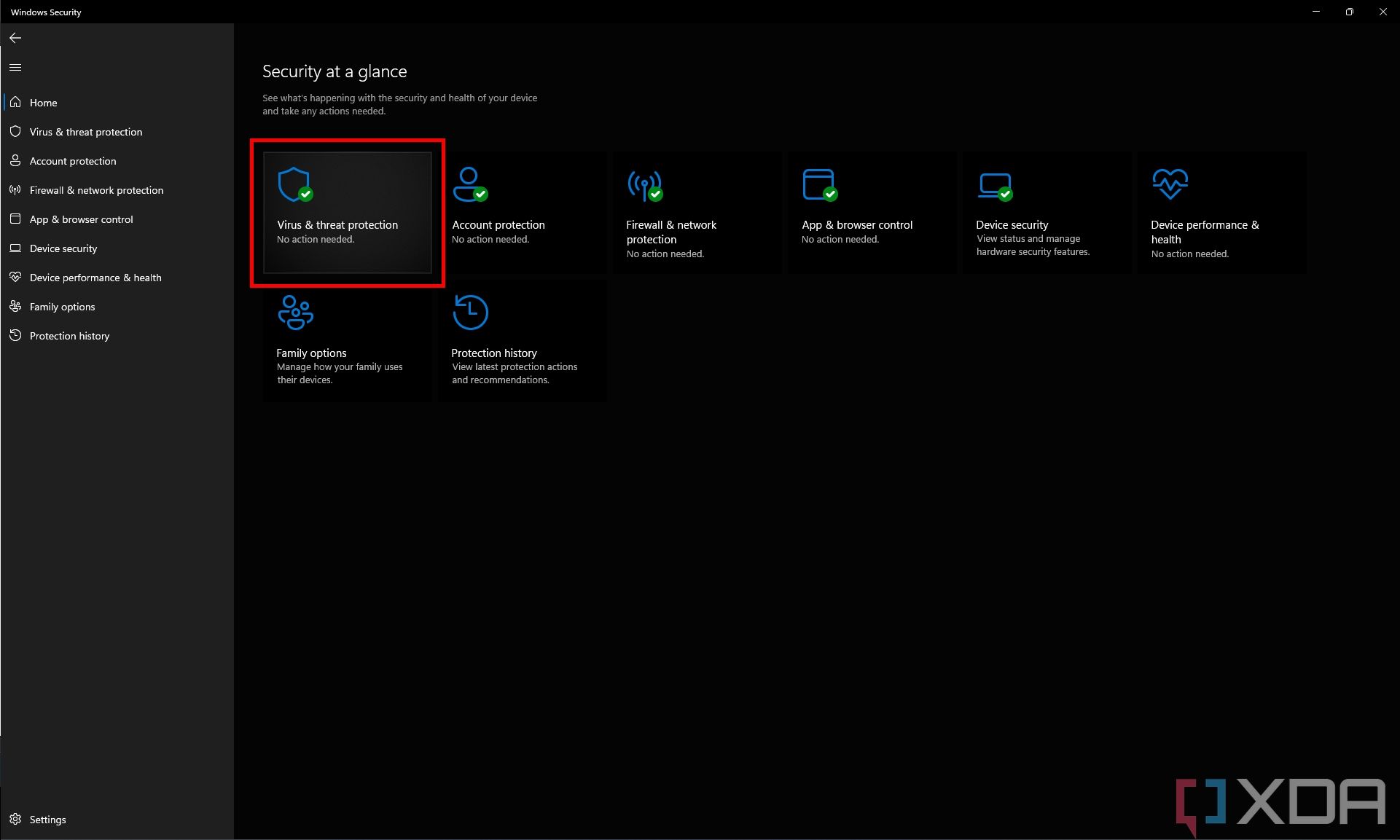
Click Virus & threat protection on the main menu or the left-side pane.
-
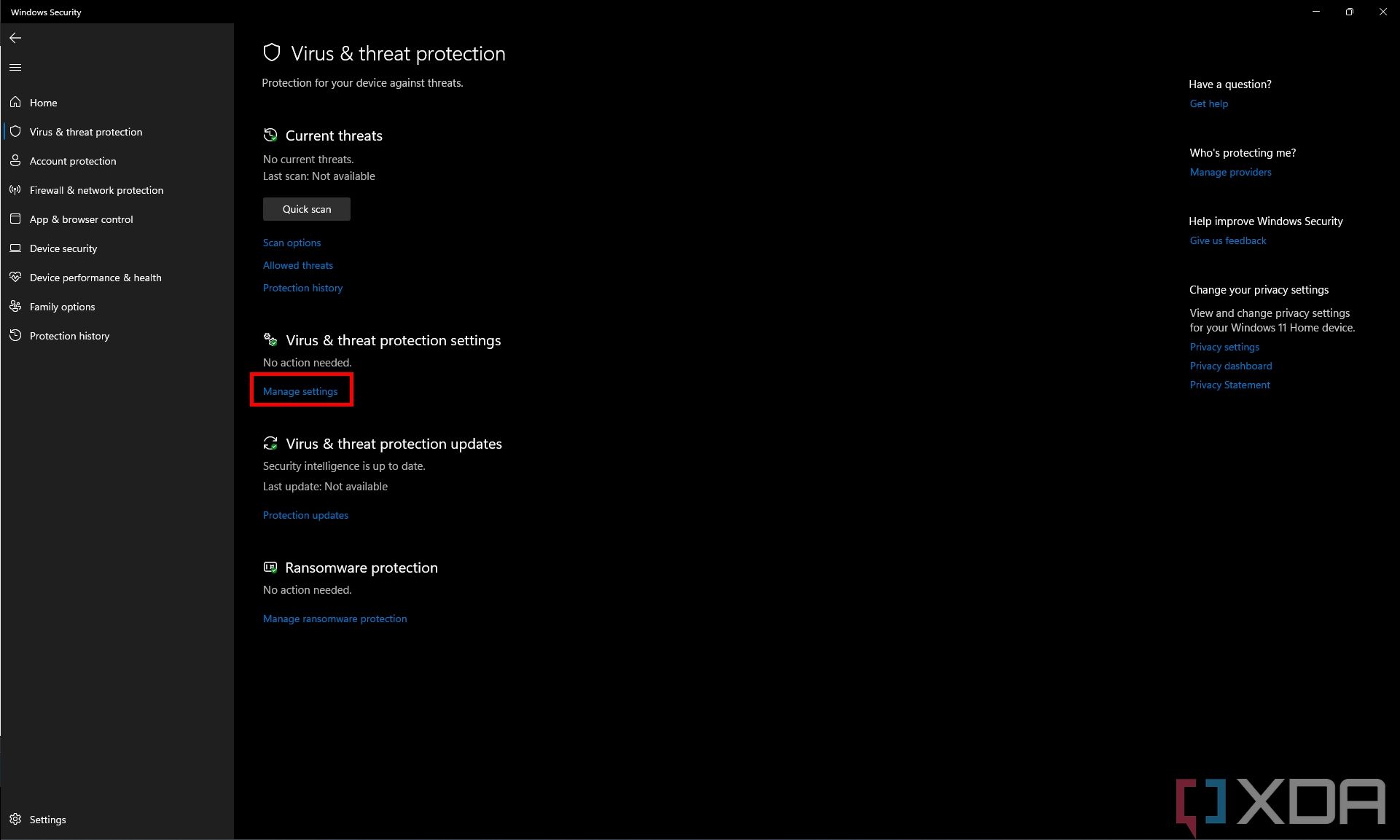
Under Virus & threat protection settings, click Manage settings.
-
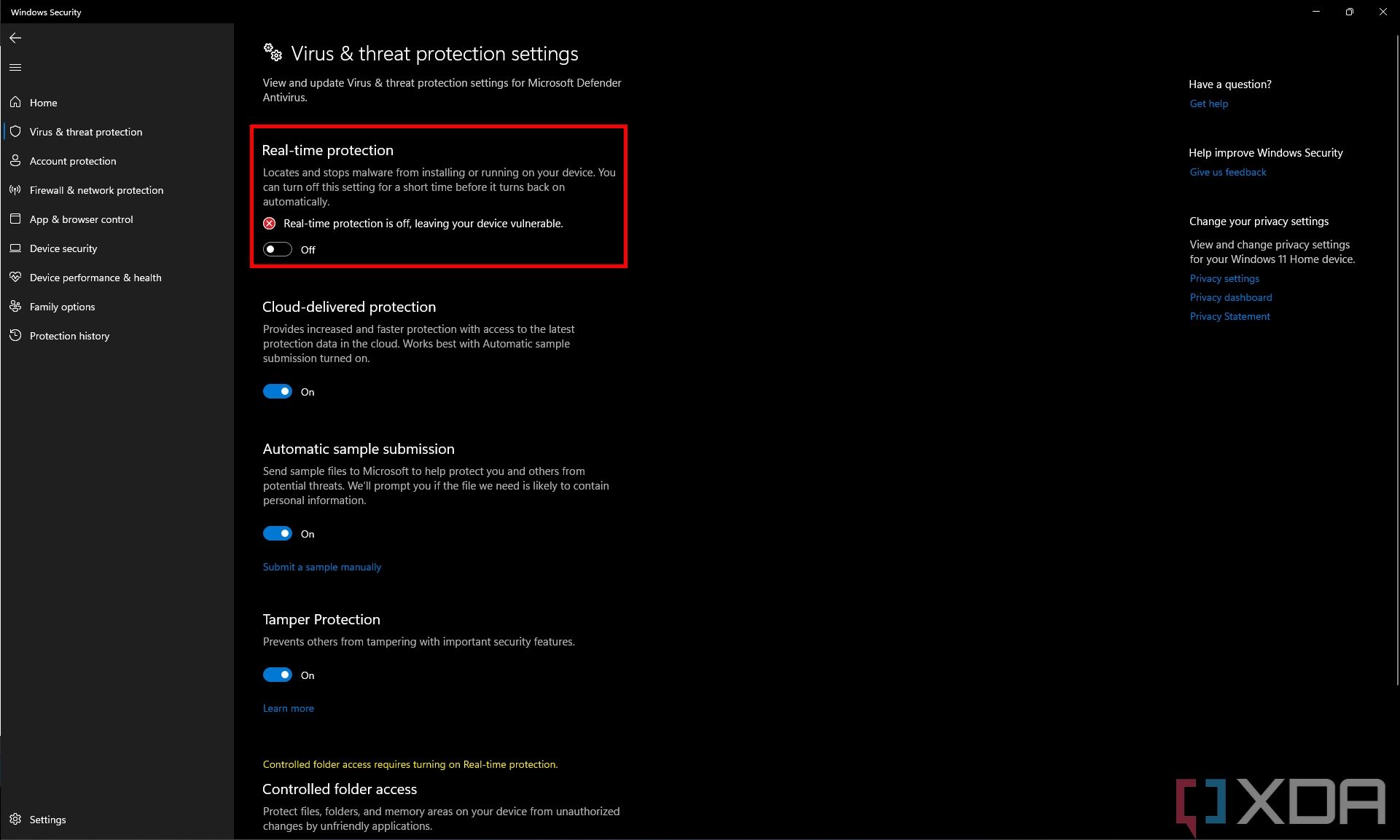
Switch the toggle under Real-time protection to Off.
- If Microsoft Defender prevented you from running a program before, you should be able to do it now.


Do note that, after a while, real-time protection will turn itself back on to make sure your device stays protected from actual threats. Temporarily disabling real-time protection can help if you’re facing issues such as some software being incorrectly detected as malware and blocked from running, but it’s not usually a good idea to leave this option turned off.
Replace Microsoft Defender with another antivirus software

If you want to disable Microsoft Defender’s built-in antivirus permanently, your best bet is to install another antivirus software that can take over for Microsoft Defender. To do this, simply download and install any other antivirus you trust. There are plenty of options out there, including Malwarebytes if you want a free option. Many paid options also exist, like Bitdefender, Webroot, and more.
Simply download and install the antivirus of your choice, and Microsoft Defender’s malware protection will be disabled. This means you can remain protected without relying on Microsoft’s software, but do keep in mind that Microsoft Defender will be re-enabled if you uninstall your other antivirus. You won’t normally be allowed to have no anti-malware program on your PC.

Related
Protecting your data is always important, and when the built-in Windows security fails, these antivirus programs are your best bet.
Even if you use a third-party anti-malware program, you can still have Microsoft Defender run periodic malware scans to get even more coverage against threats.

Disabling the firewall in Microsoft Defender
Something else you might want to disable in Microsoft Defender is firewall protection. This monitors your network for potentially dangerous requests and blocks any threats it detects. This is a separate setting from malware protection, and it’s not actually disabled when you install another anti-malware software. Here’s how to disable it:
- Open the Windows Security app.
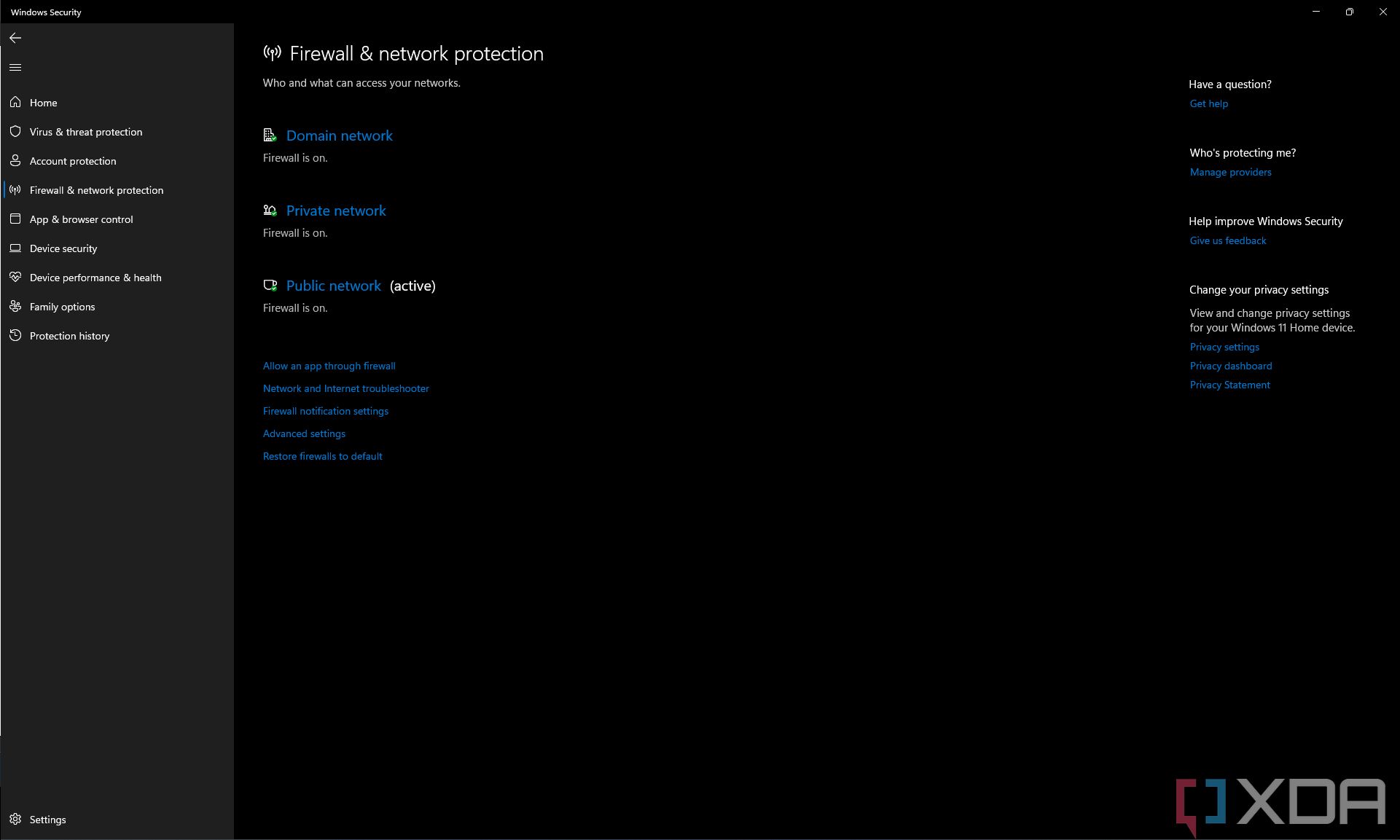
- Click Firewall & network protection in the main menu or the left-side pane.
-
You can choose firewall settings for domain networks, private networks, and public networks separately. Click the appropriate option, though we don’t recommend disabling the firewall for public networks.
-
Set the toggle under Microsoft Defender Firewall to Off.
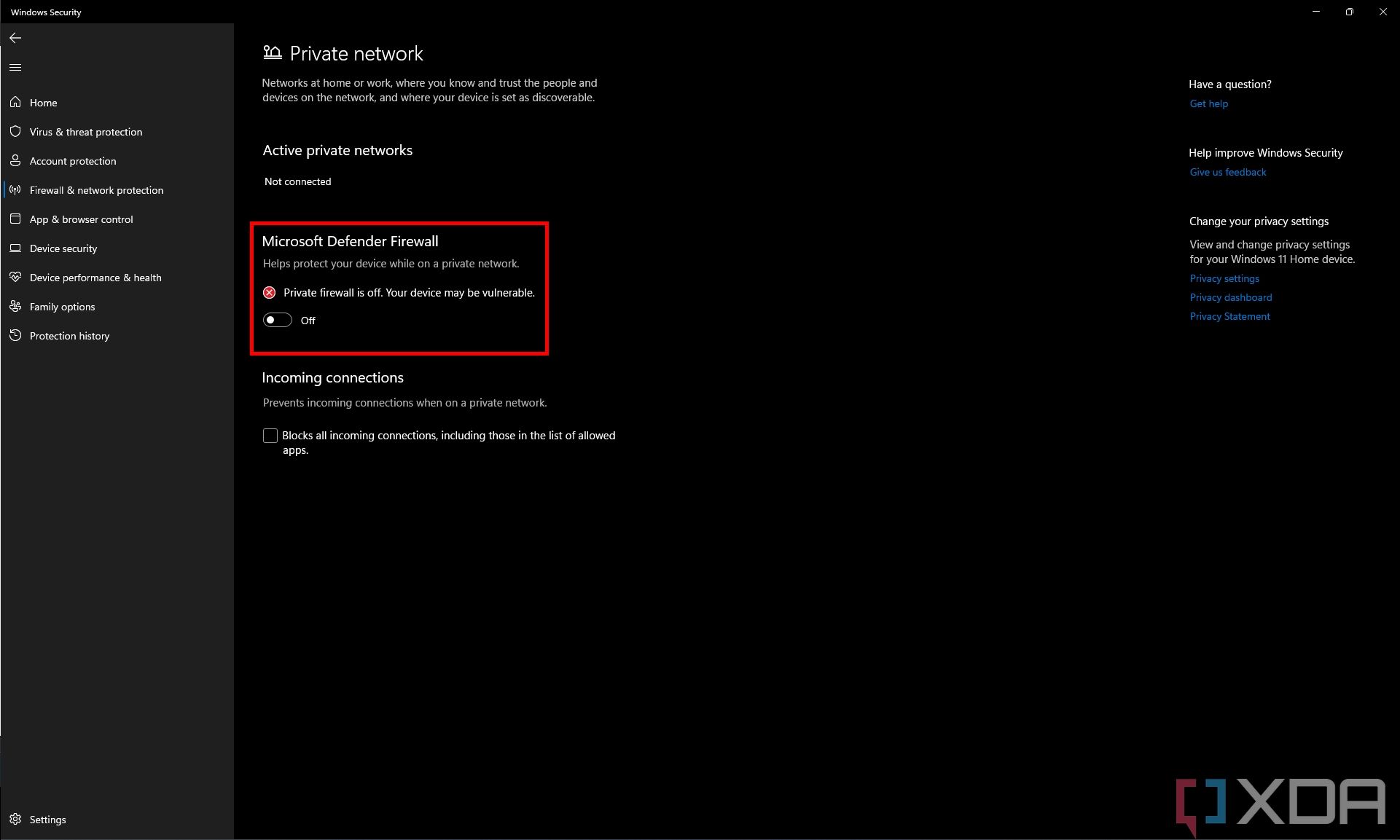
- Repeat this for other network types if necessary.


How to permanently disable Microsoft Defender
So far, we’ve covered methods for disabling parts of Windows Defender that may be replaced by a different app, or simply disabling it temporarily. That’s because disabling Microsoft Defender permanently is dangerous and not recommended whatsoever. However, if you understand the risks and still want to move forward with this, we have written the necessary steps below.
Disabling Microsoft Defender without replacing it can leave your computer severely unprotected against online attacks, potentially resulting in loss of sensitive data or even rendering your computer unusable. Don’t disable it unless you know what you’re doing.
- Open the Windows Security app.
- Click Virus & threat protection.
- Under Virus & threat protection settings, click Manage settings.
-
Scroll down to Tamper protection and set the toggle to off.
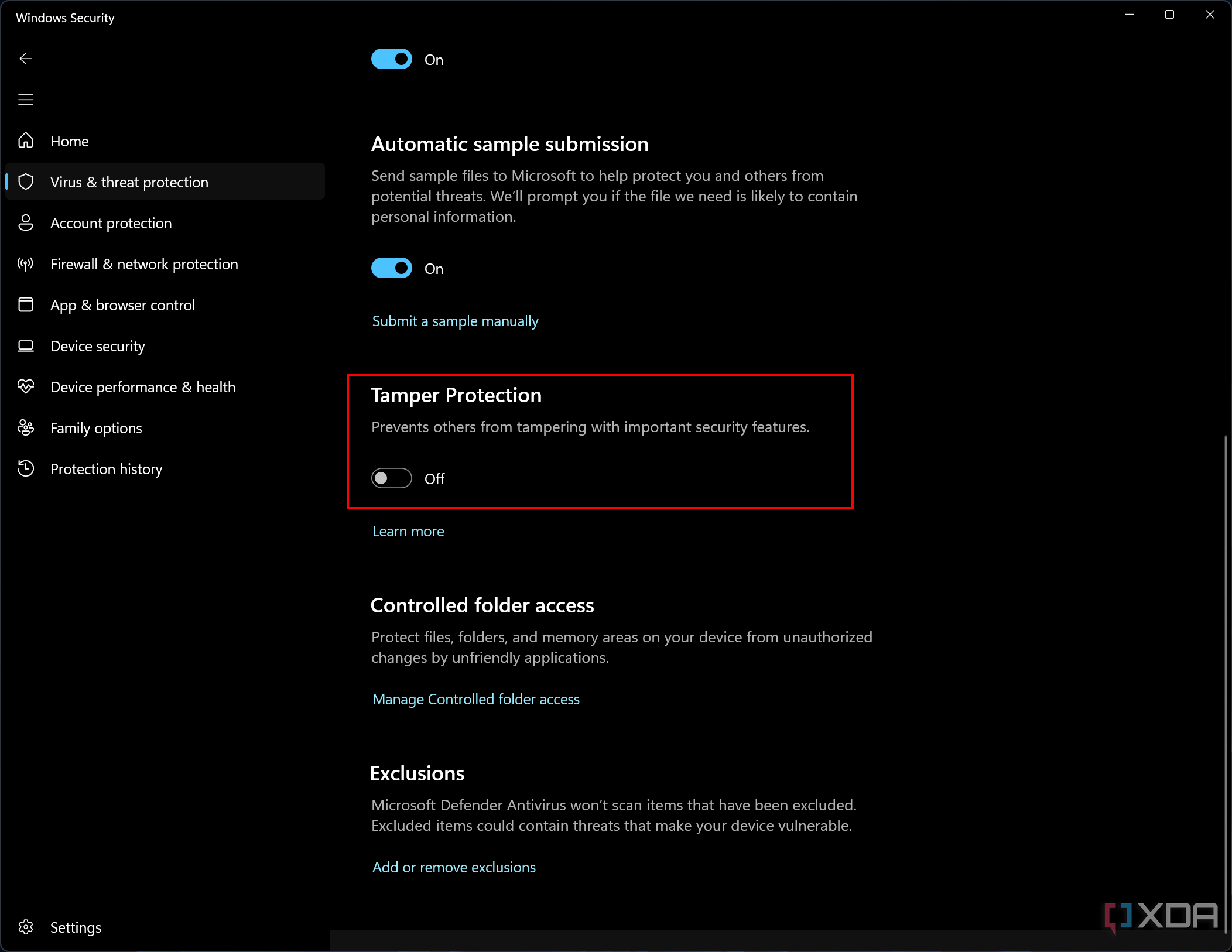
- Additionally, you may want to turn off real-time protection as described at the beginning of this article.

This will allow you to turn off Microsoft Defender using one of the following methods.
1:18

Related
Windows 11 Home vs Windows 11 Pro: What’s the difference?
Trying to choose between Windows 11 Home vs Pro? These are the main differences between the two editions you should be aware of.
Option 1: Disable Microsoft Defender using the Group Policy Editor
One way to disable Microsoft Defender is to use the Group Policy Editor, which is only available on Windows 11 Pro editions of higher. If you have Windows 11 Home, you can’t follow these steps.
- Press Windows + R on your keyboard to open the Run dialog.
- Type in gpedit.msc and press Enter to launch the Group Policy Editor.
-
Under Computer Configuration on the left pane, choose Administrative Templates.
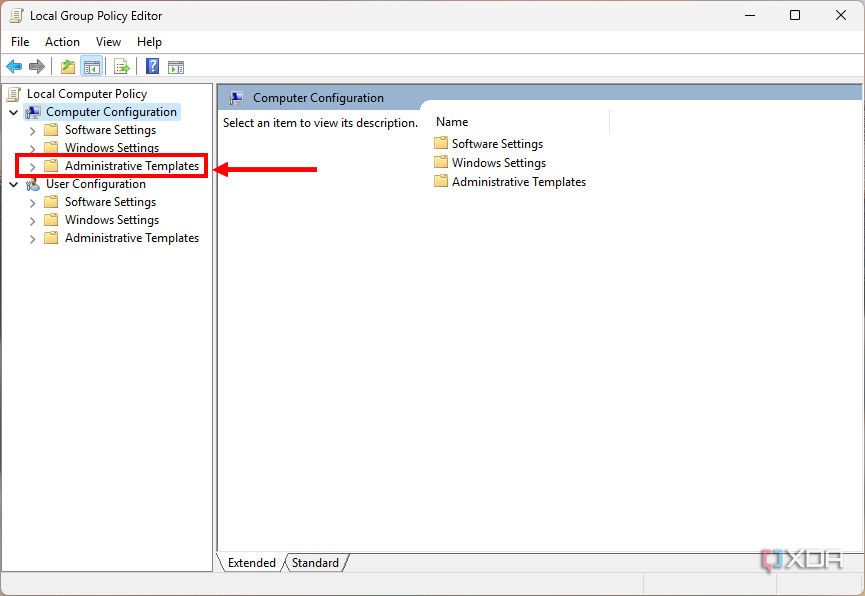
- Choose Windows Components.
-
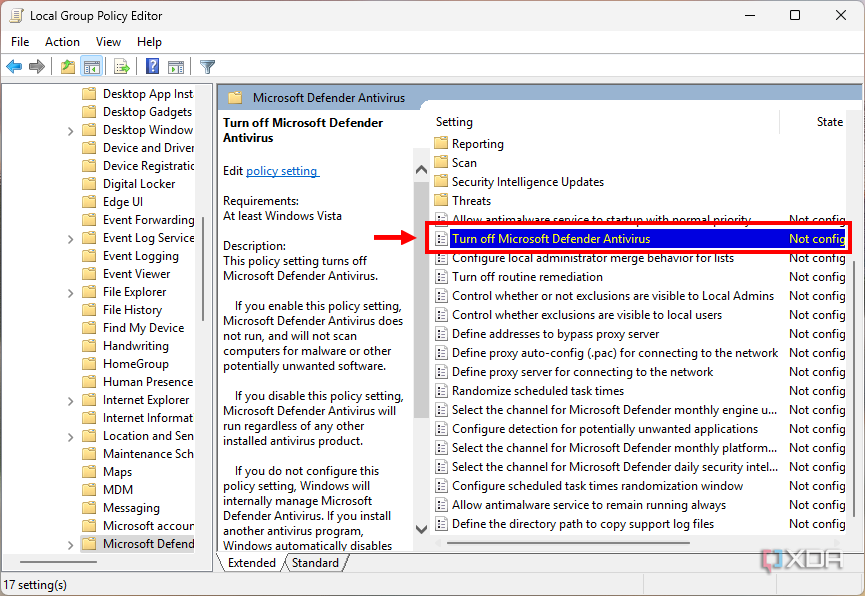
Find and open the Microsoft Defender Antivirus folder.
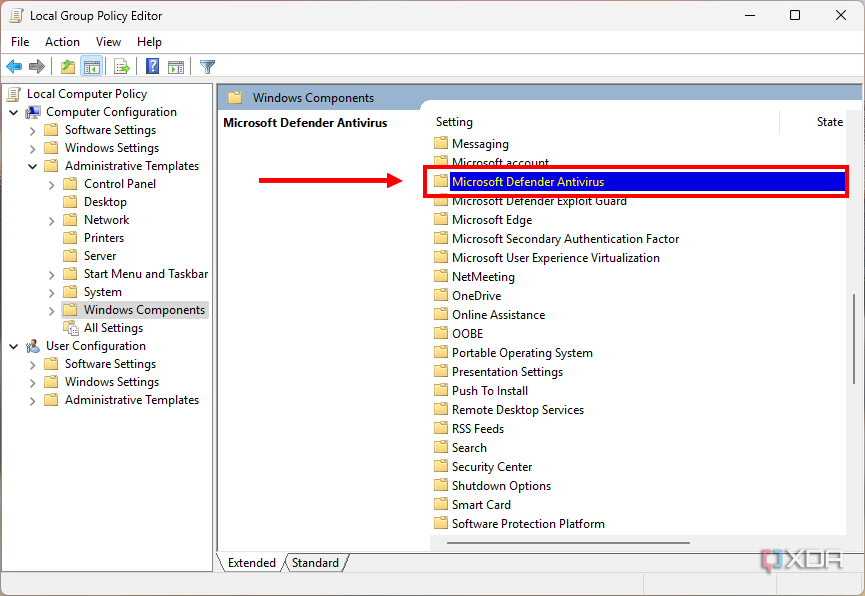
-
Double-click the option called Turn off Microsoft Defender Antivirus.
-
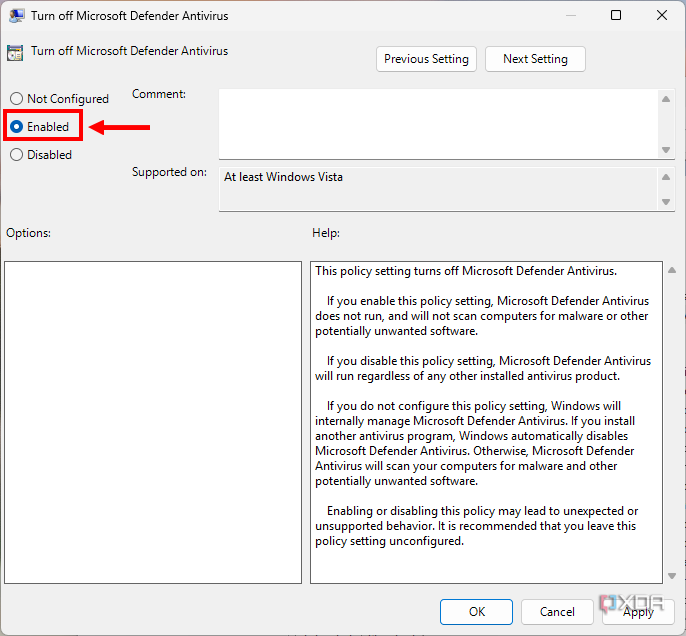
In the dialog that appears, choose the Enabled option and then click OK.
- Restart your computer to finish applying the settings.


Microsoft Defender will now be disabled, which you can verify in the Windows Security app, as settings for virus and threat protection won’t load properly.
Option 2: Disable Microsoft Defender with the Registry Editor
Another route for disabling Microsoft Defender on Windows 11 is using the Registry Editor, which is available on all editions of Windows 11. Here’s how to disable Microsoft Defender:
- Open the Start menu and search for regedit. In the search results, click Run as administrator under Registry Editor on the right pane. Click Yes to confirm.
-
Navigate to the following path in Registry Editor (you can copy and paste it in the address bar):
Computer\HKEY_LOCAL_MACHINE\SOFTWARE\Policies\Microsoft\Windows Defender
-
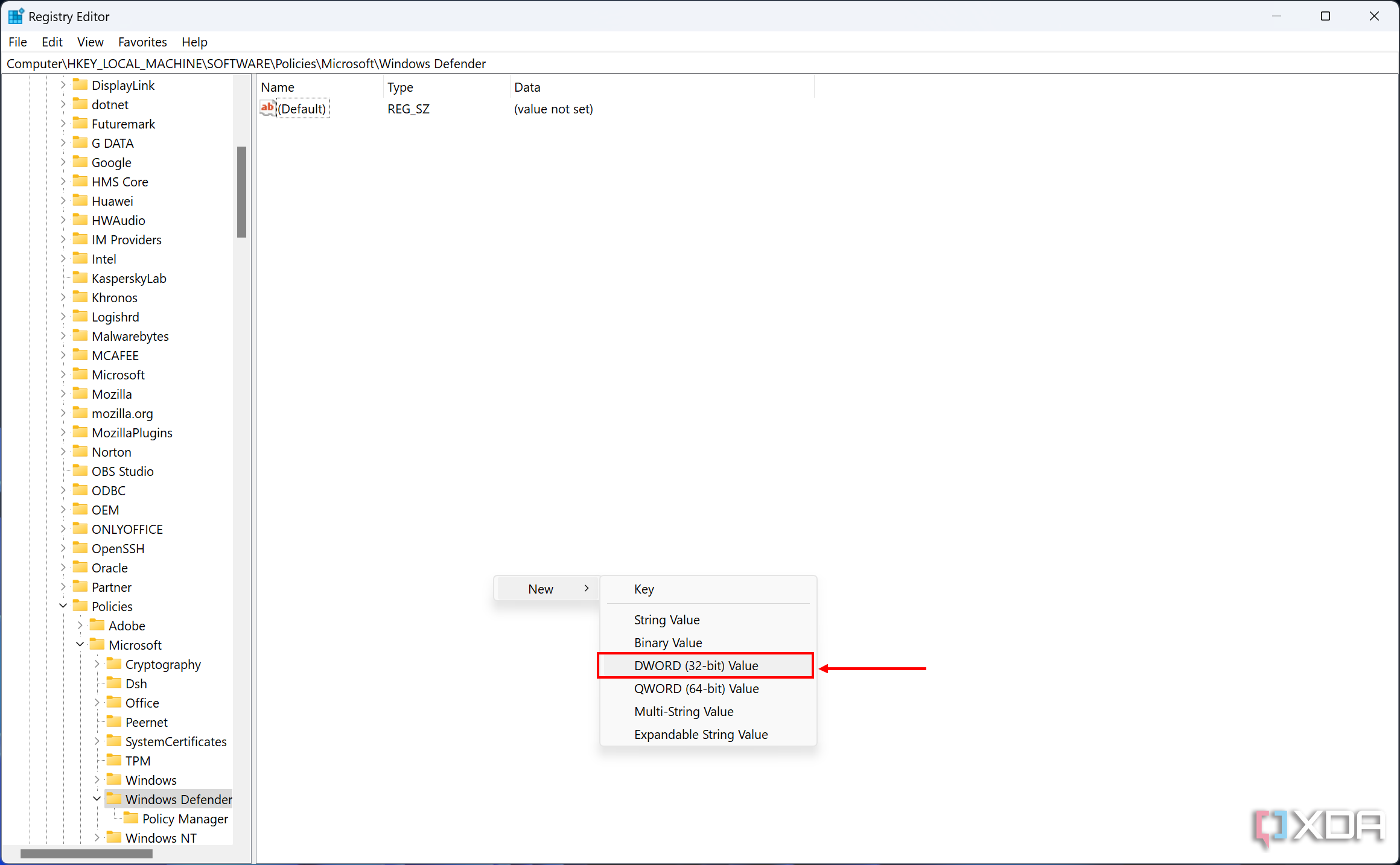
Right-click an empty area of the main pane and choose New > DWORD (32-bit) Value.
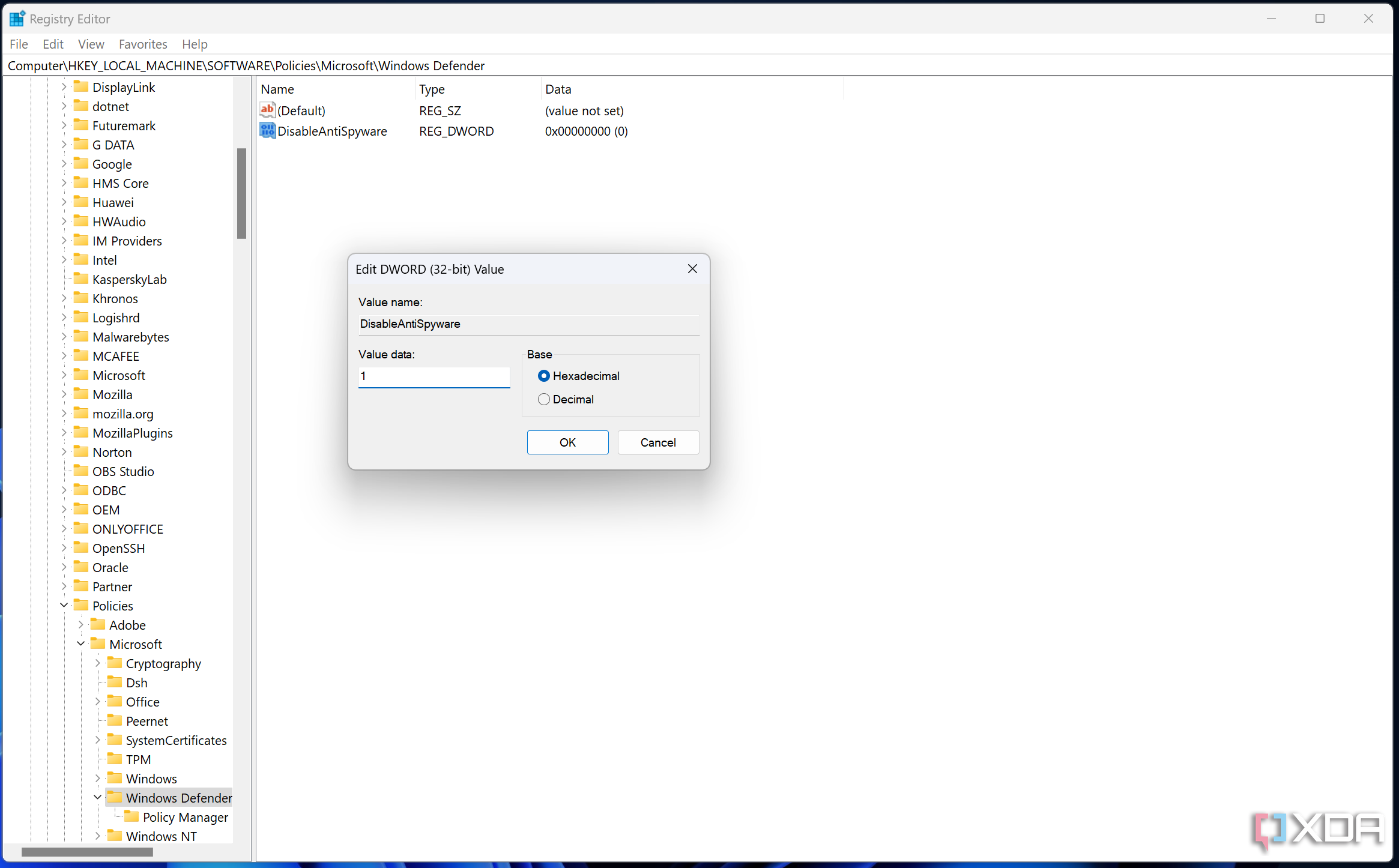
- Change the value’s name to DisableAntiSpyware, then press Enter.
- Double-click the value to change its properties.
-
Set the Value data to 1. The base should be Hexadecimal. Click OK.
- Close Registry Editor and restart your PC to apply the changes.


If you ever want to undo this, simply navigate to the same path in Registry Editor and delete the value you created.
Using the Command prompt (Windows Terminal)
If you’d rather use a command-line interface for changing these settings, you can use Command Prompt or Windows Terminal to add the registry value to disable Microsoft Defender. To do this, simply follow these steps:
- Press Windows + X and choose Terminal (Admin) from the menu.
-
Copy and paste the following command into Windows Terminal, then press Enter:
reg add "HKEY_LOCAL_MACHINE\SOFTWARE\Policies\Microsoft\Windows Defender" /v DisableAntiSpyware /t REG_DWORD /d 1 /f
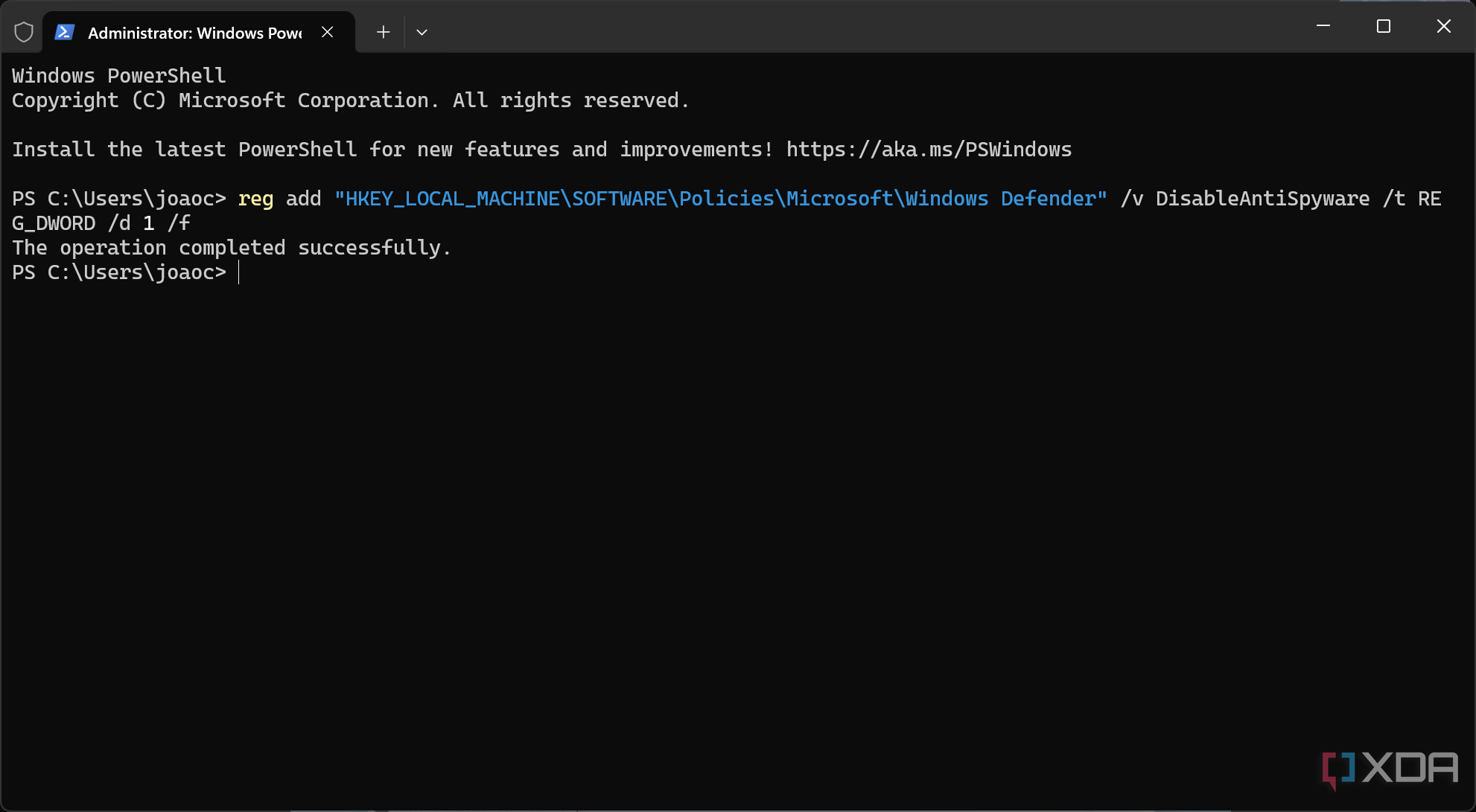
- You’ll see a confirmation message. Close Windows Terminal and restart the computer for the changes to take effect.

To revert this process and delete the value you created, you can use this command to remove the registry key:
reg delete "HKEY_LOCAL_MACHINE\SOFTWARE\Policies\Microsoft\Windows Defender" /v DisableAntiSpyware /f
How to check if Microsoft Defender is enabled
If you’ve followed these steps and you want to make sure Microsoft Defender is still disabled, just follow these steps:
- Press Windows + X or right-click the Windows icon on the taskbar and choose Terminal.
-
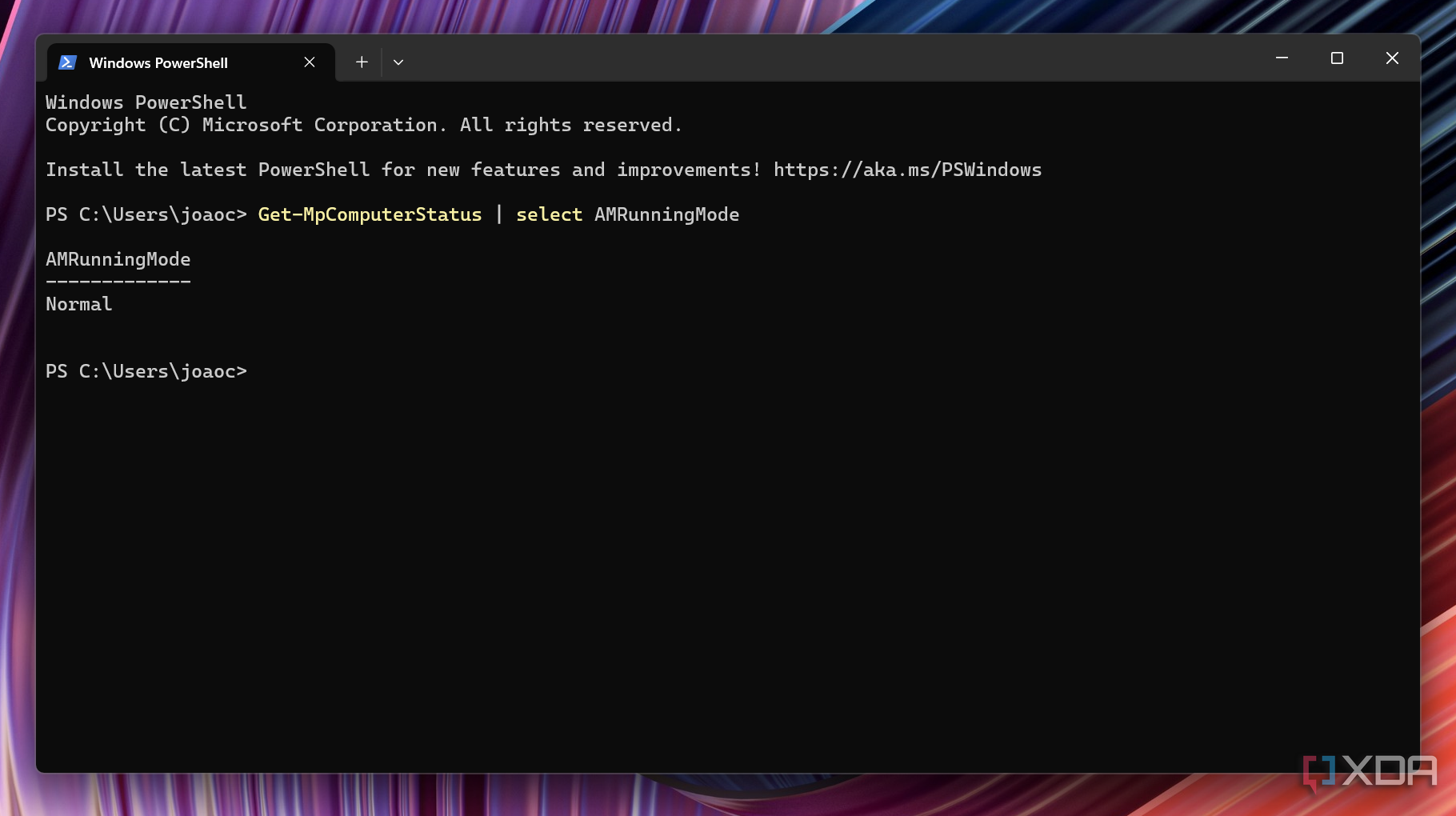
Enter the following command:
Get-MpComputerStatus | select AMRunningMode
-
Check whether the table says Not Running. In the example below, you can see the service is still active, because it says Normal:

Disabling Microsoft Defender is dangerous
These steps are all you need to know if you want to disable Microsoft Defender on Windows, but again, this isn’t something we recommend doing. There’s a reason Microsoft makes it so hard to disable Microsoft Defender, and if you really just don’t trust it, your best bet is using a third-party solution to replace it. Otherwise, we don’t recommend following these steps.

#disable #Microsoft #Defender #Windows
source: https://www.xda-developers.com/how-to-disable-microsoft-defender-windows-11/


