

Are you tired of feeling like an Excel novice? If you spend hours working on endless workbooks, it’s time to level up your Excel game. These simple, game-changing Excel hacks can slash your work time and transform you into a spreadsheet superhero in no time.
In this post, I will reveal nine incredible Excel tricks that I stumbled upon way too late in my spreadsheet journey. These tips will not only save you precious time and effort but also transform you into an Excel ninja.
Related
How I use conditional formatting to automate my Excel spreadsheets like a pro
Supercharge your Excel efficiency with conditional formatting
9
Copy and paste your values in no time
If you copy a lot of data from existing tables, you need to memorize this trick to complete the task instantly.
- Open an existing Excel table in your workbook. Select values in any column you want to copy.
- Select a cell border, right-click and hold, and drag it over another cell.
- Release the right-click button, and a context menu will show up.
-
Select Copy Here as Values Only.
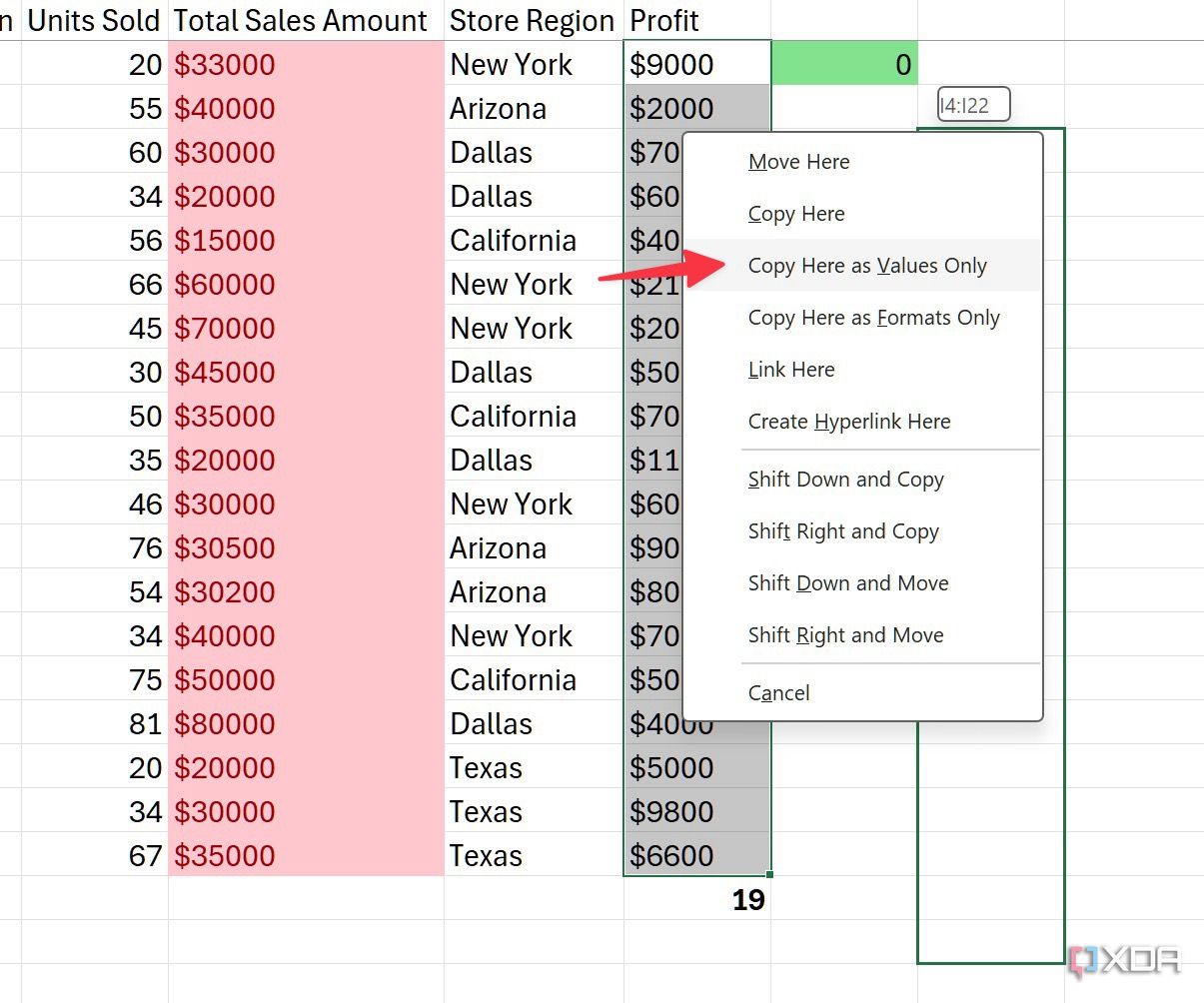

This trick works on shapes and images as well.
8
Pick values from the drop-down list
When I need to add repetitive values like ‘In progress,’ ‘Doing,’ ‘Done,’ ‘Skipped,’ ‘Completed,’ and more in a column, I use data validation to avoid any errors. However, it’s time-consuming and requires multiple clicks to get the job done. Instead, you can use this handy trick.
-
Head to your Excel database, and when you want to add a new value, right-click on a cell and select Pick From Drop-down List.
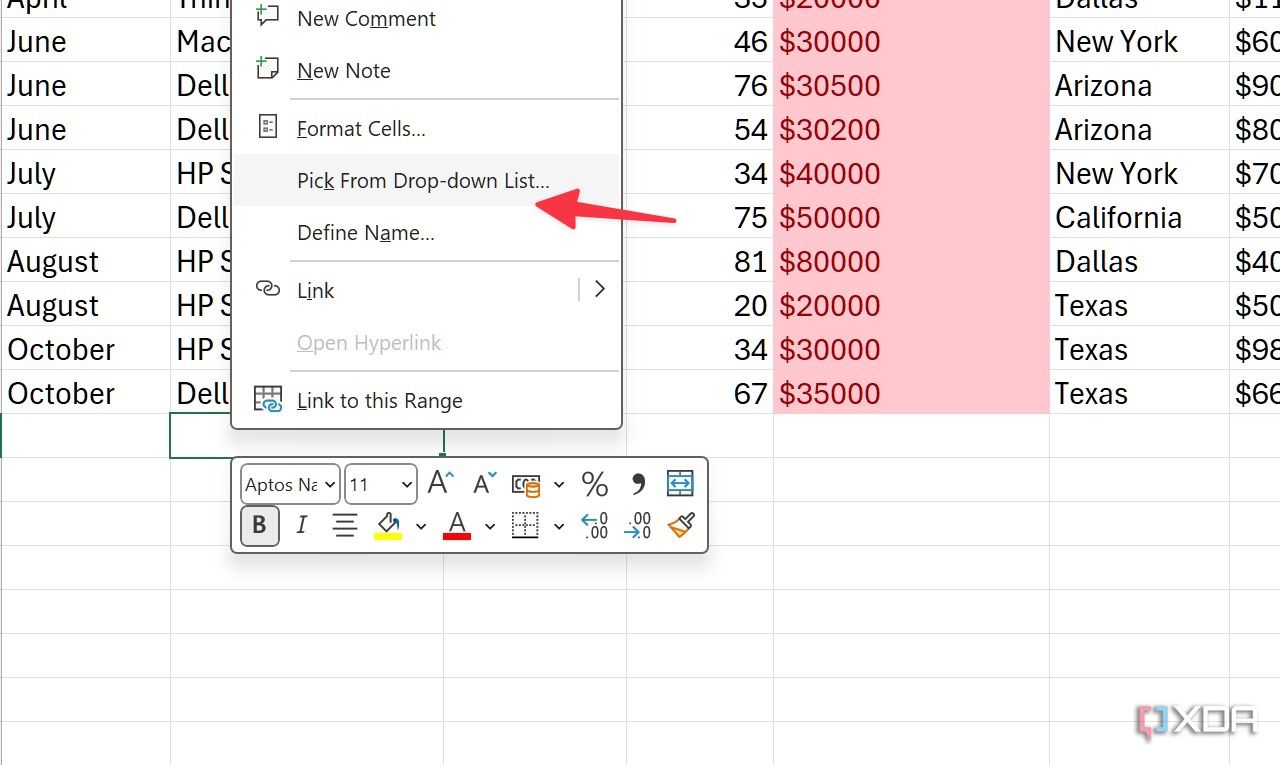
-
Select one of the existing values and you are good to go.
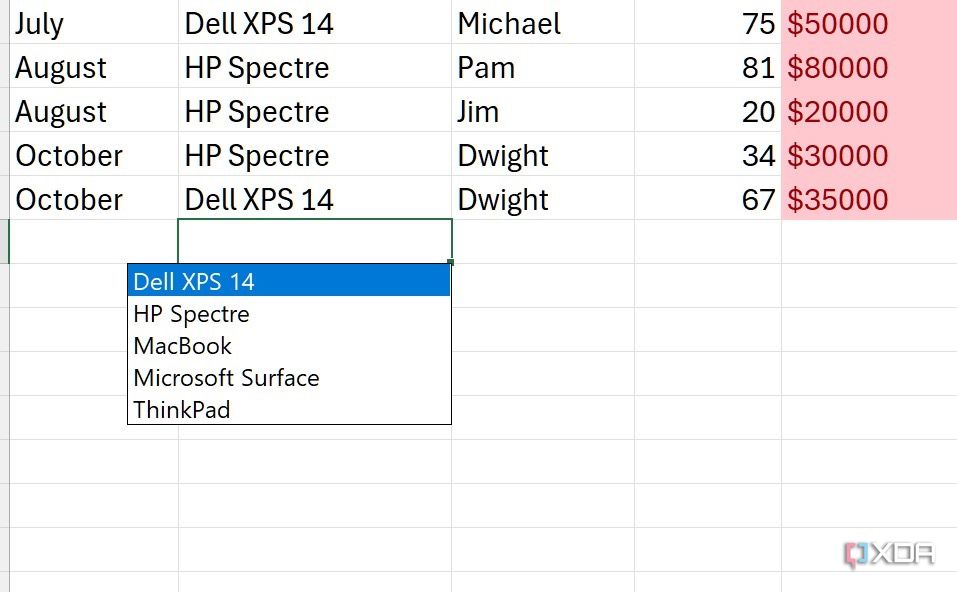


7
Bookmark your frequently used cells
There is no built-in bookmark function in Excel. However, you can use this trick to bookmark your important or frequently used cells in no time. It comes in handy when you deal with large datasets with thousands of rows and columns and want to jump to a specific cell in a single click.
- Select a cell you want to bookmark.
-
Click on the top left corner. Rename it and hit Enter.
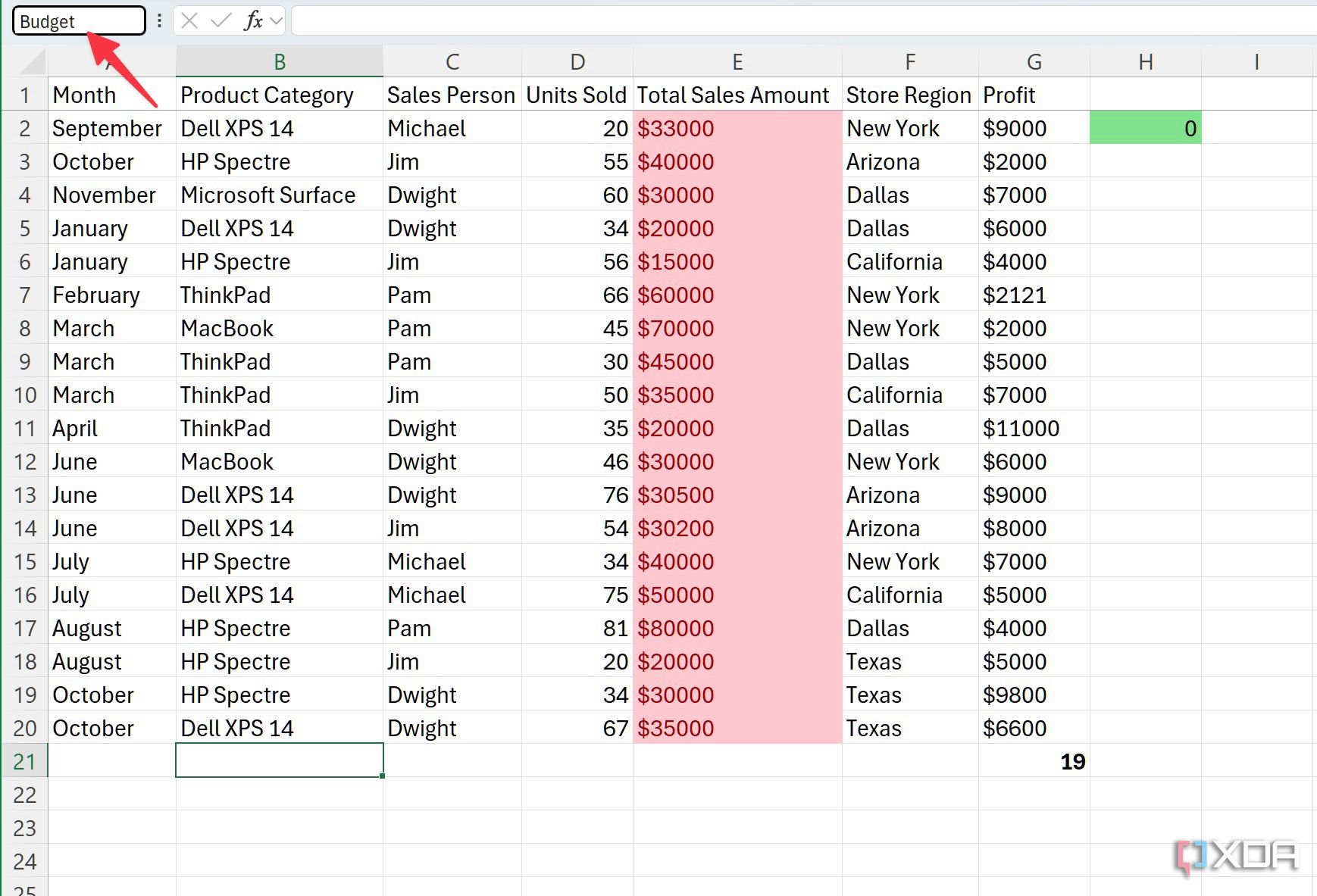
- You can now use the same menu and select a cell to jump to.
-
This trick works across the workbook. So, if you are on a different sheet and select a bookmarked cell from the drop-down menu, Excel jumps to that cell on another sheet.
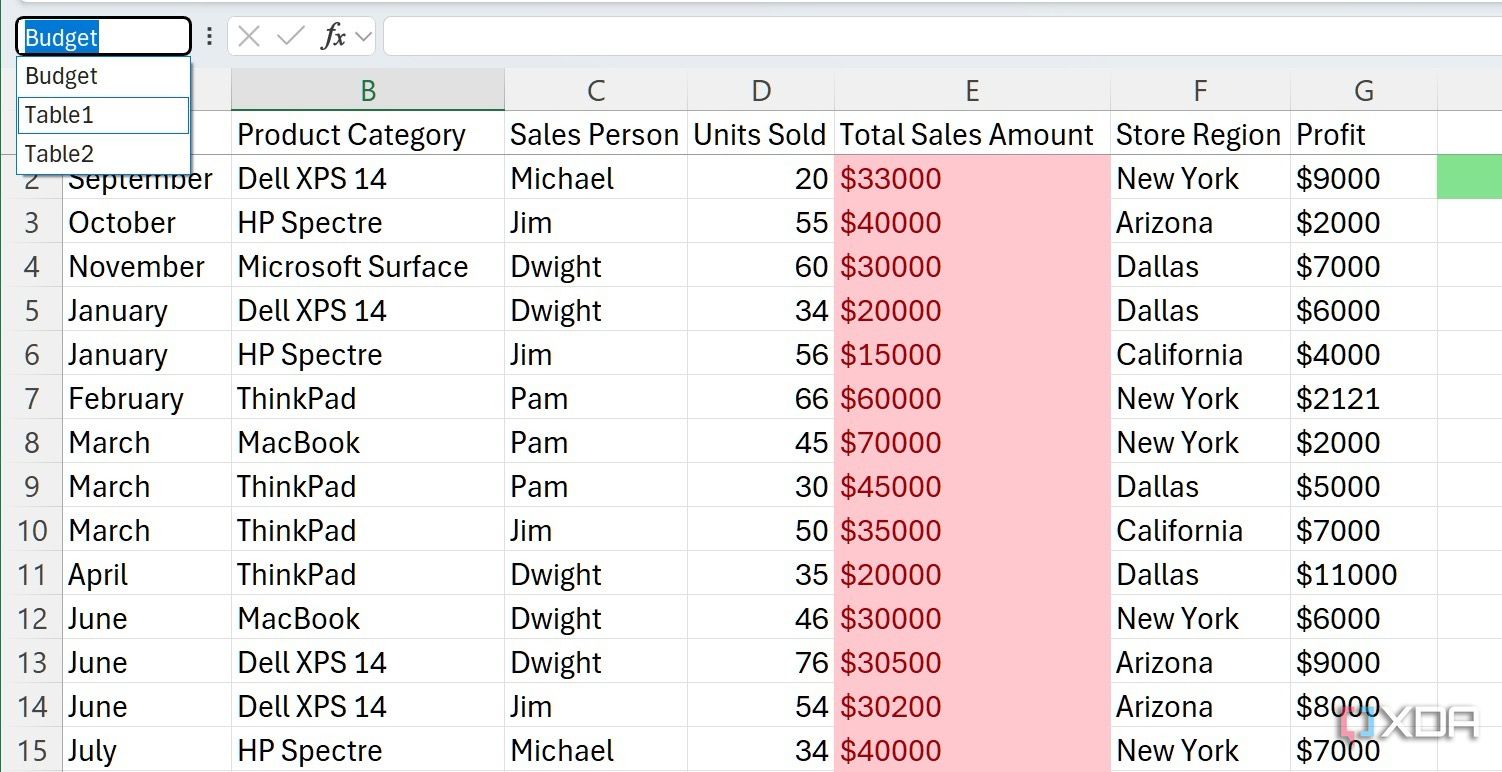


Make sure not to use the same name for two cells, and also, the name must start with a letter without any spaces.
6
Analyze your data like a pro
While Microsoft offers a Copilot Pro subscription for Office users, you don’t need to spend $20 monthly to unlock AI features in Excel. You can use this handy function to perform several AI tasks.
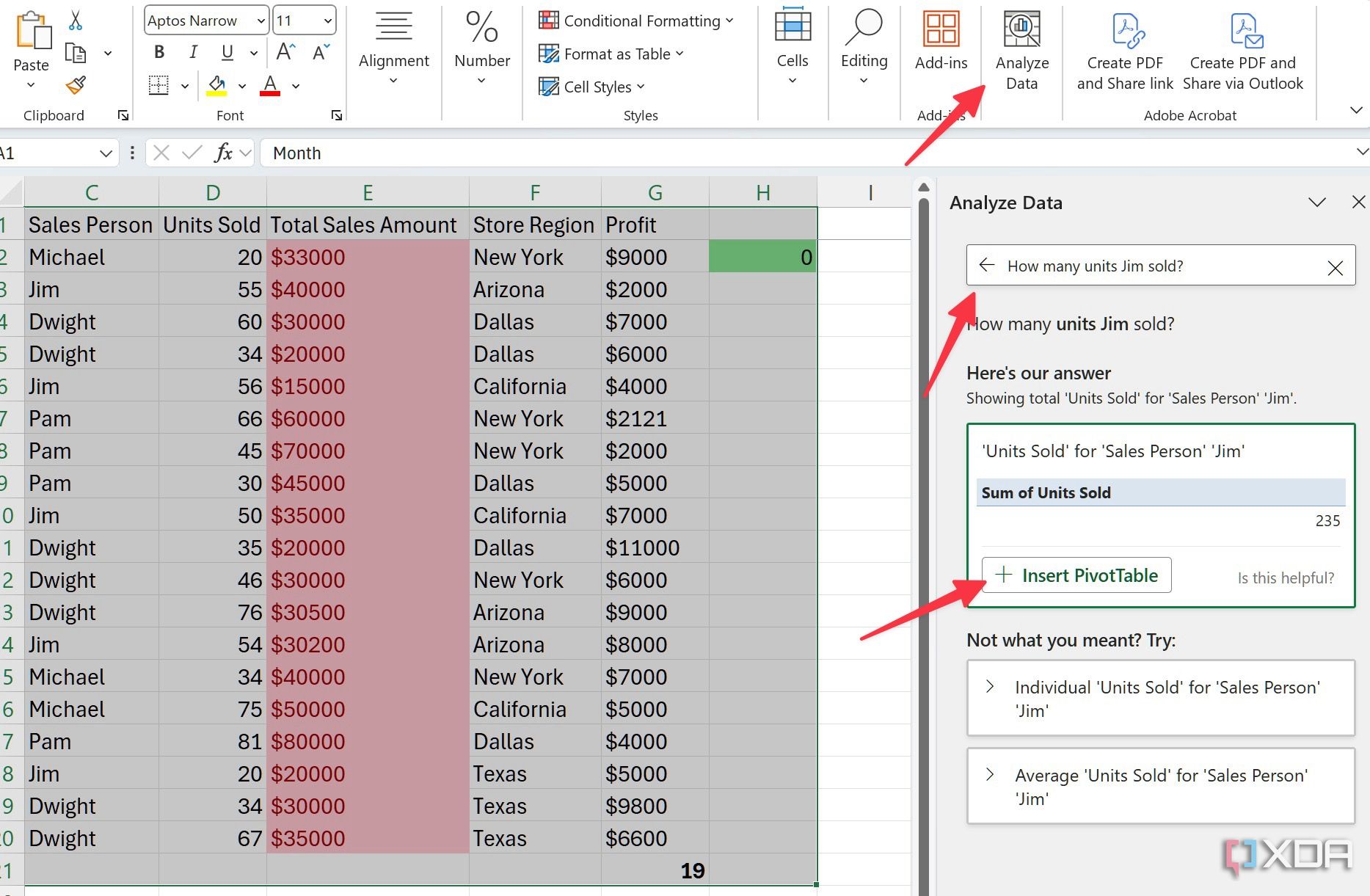
- Open Excel and select Analyze data in the top right corner.
- Let’s ask a question like how many units Jim sold. Press Enter.
-
Excel immediately gets you the correct answer and even offers a suggestion to create a PivotTable out of it. Neat, isn’t it? The possibilities are endless here.

5
Import your existing sheets
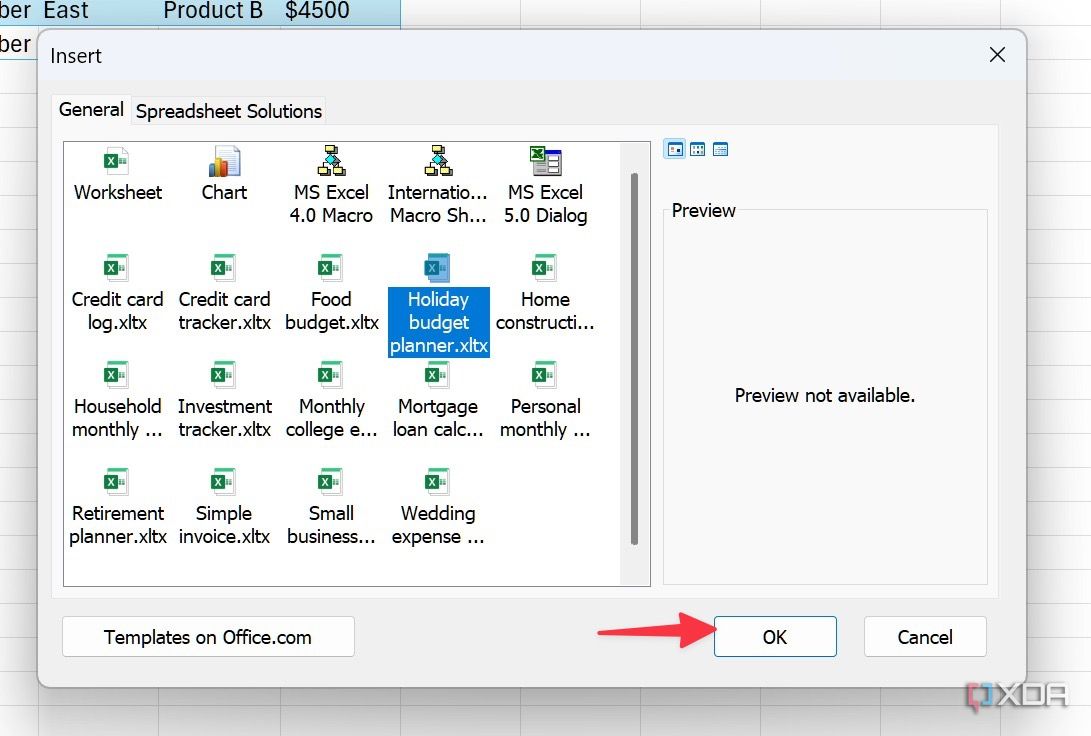
If you have one of the templates stored in your Excel library, you can import it to your existing workbook. Suppose you are working on a client project and want to refer to the expense data. Now, instead of going back and forth between different sheets, you can import them into your current workbook with just a couple of clicks.

First, make sure to create a template out of your existing workbook (when you export a file, save it as an Excel template file type in a specific location) and import the same into another workbook using the steps below.
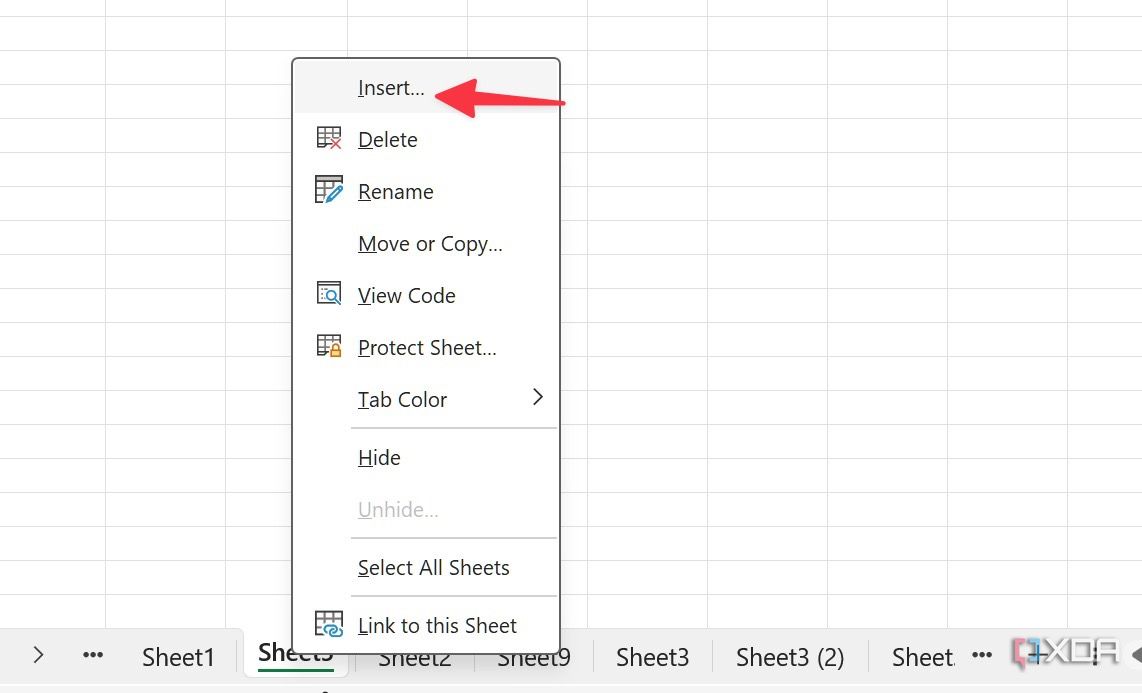
- Open an Excel workbook and right-click on a sheet.
-
Select Insert.
-
Pick a template you want to import and select OK.


4
Navigate your sheets effortlessly
Does your Excel workbook have too many sheets? Instead of scrolling endlessly on the bottom bar, right-click on one of the arrows and select a sheet you want to view in an easy-to-read vertical menu.


Related
7 reasons to convert your Excel spreadsheets into web apps
Unlock a whole new level of data management and efficiency
3
Select all the cells in the column
This is another handy Excel trick I use all the time. When you have a large column with hundreds of entries, you can select the first cell and press the ctrl + shift + down arrow keys to select all the values in the column. You don’t need to drag the cursor to the bottom anymore.

2
Quick data entries
When you deal with a large dataset in Excel, you don’t need to add entries like ancient times. Selecting each cell and adding a value is time-consuming. Instead, you can search for the data entry form at the top, fill it out with the required column details, and click Next to add another row to the Excel workbook.

1
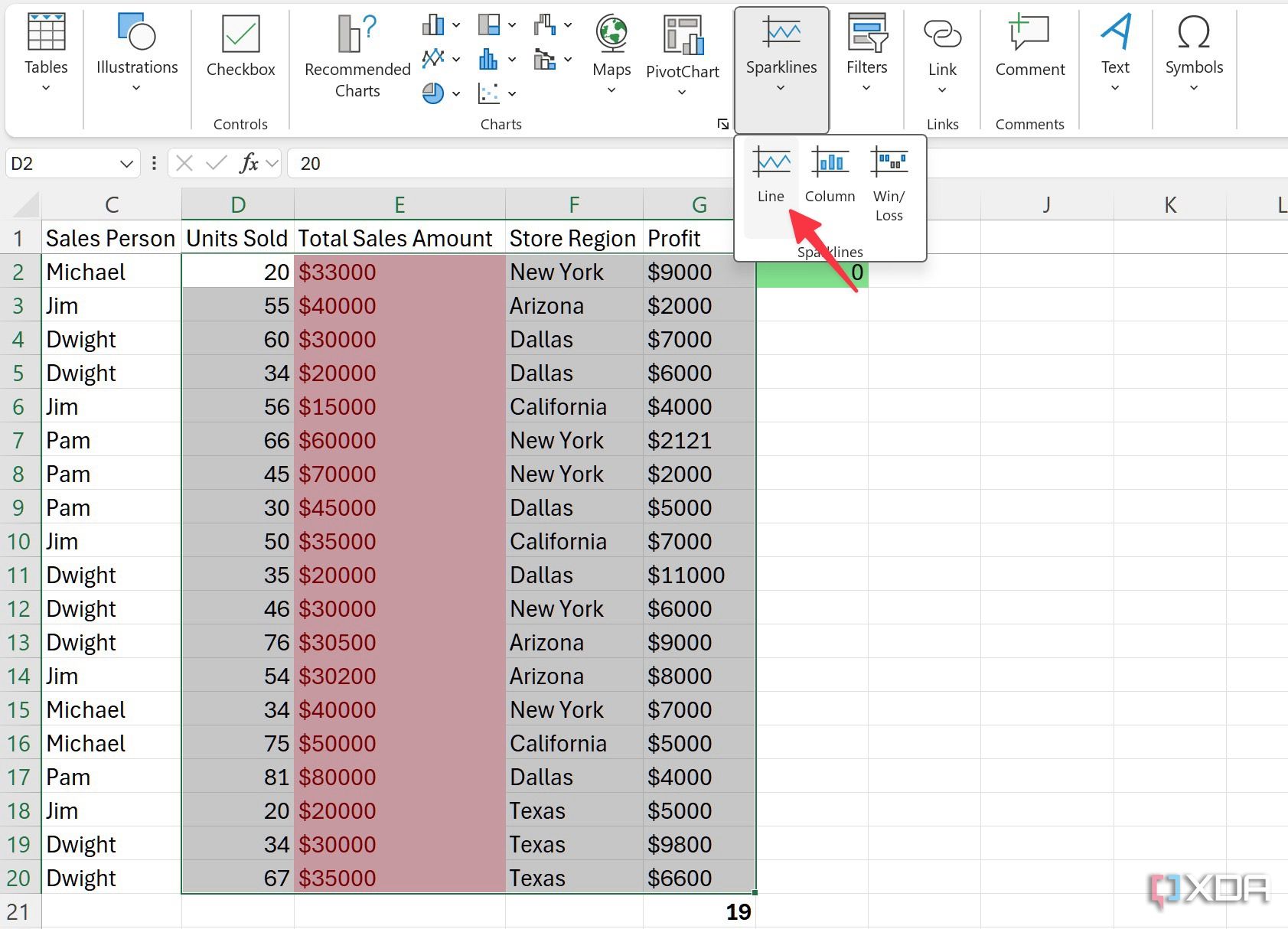
Generate sparklines
Suppose you have sales data from each month in your Excel sheet, and you want to generate a sparkline to visualize growth. Here’s what you can do.
- Select a column where you want to add sparklines.
-
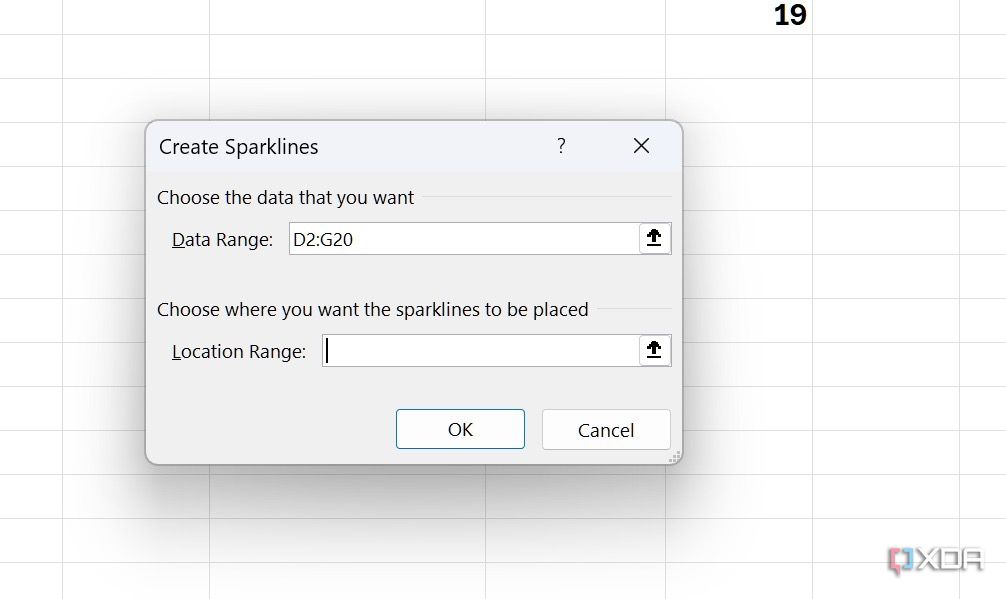
Head to Insert > Line and select the data range you want to insert.
-
Click OK and check sparkline appearing under the new column.


Become an Excel wizard
You have officially leveled up your Excel game. Go ahead, implement these in your workflow and tackle any spreadsheet challenge with confidence and efficiency. While you are at it, don’t forget to share these newfound skills with your colleagues.
Functions can play a vital role in Excel. Check out my separate guide on top Excel functions for effortless data manipulation.
#Excel #hacks #knew #earlier
source: https://www.xda-developers.com/excel-hacks-i-wish-i-knew-earlier/


