

Even the best Wi-Fi routers occasionally have problems, whether they’re provided by your ISP, like Xfinity, or one that you bought. You may one day notice an orange blinking light on your router that wasn’t there previously. If so, don’t panic. This is a common issue and often can be solved with a few basic troubleshooting steps. You might want to have a copy of your router’s manual handy because while this guide is written for general tips, some steps might be different depending on your router’s manufacturer.
Related
How to configure a router: Your guide to the most important settings
Looking to set up a new router? These are the most important settings to make the most of it.
Why does your router sometimes have a flashing orange light
It usually indicates a problem with your internet

Whether you use a modem or a router to connect to the internet, the front of the device will usually have LED lights that indicate normal operation or potential issues. Most of the time, there will be a solid white or green light that indicates a good connection to your Internet Service Provider (ISP). When issues occur between your router or modem and the ISP, the light on the front often blinks orange to show that it is having issues connecting to the internet.
The most common reason for an orange blinking light on your router is a temporary disconnection from your ISP or a glitch with your router hardware. This can be easily fixed with a quick power cycle.
Power cycle your router
If you have a modem as well, power cycle both
1. Find the power source for your router, and unplug it from either the router or the wall socket for one whole minute.
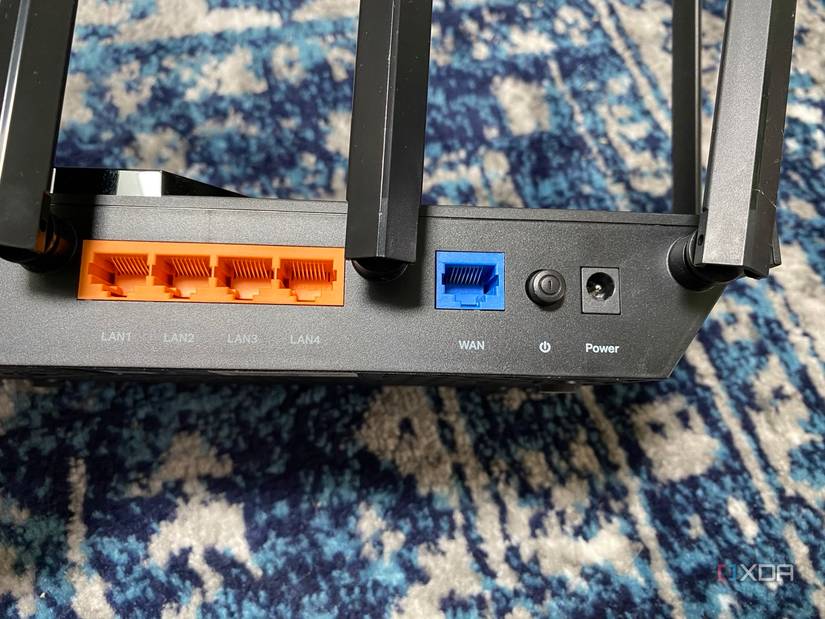
2. Plug the router back in and wait for the lights to stop blinking.
3. If you have a modem and a router, unplug both devices for one minute.
4. Plug the modem back in again, and wait for the lights to stop blinking. Once they do, then plug the router back in as well.

Related
How to fix: Router doesn’t connect to the internet after a reset
If you reset your router and can’t connect to the internet after, there are some quick steps to help get you back online.
Check for outages
It may not be your issue
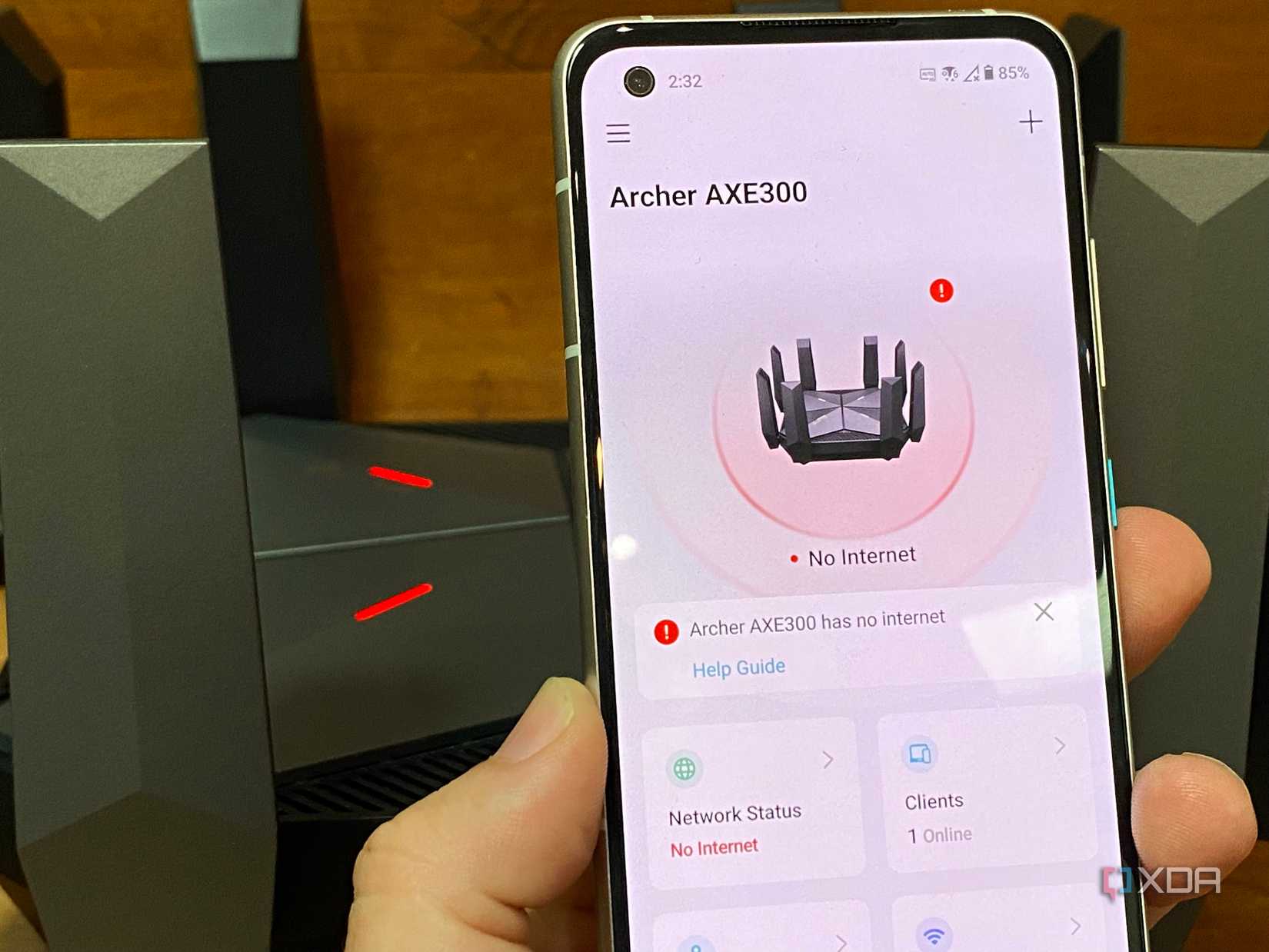
If you have power cycled your router, or both devices, and the orange blinking light is gone, check that your internet is working as expected. If not, check for outages in your local area on your ISP’s help pages.
Here are the most popular U.S.-based ISP outage pages. If you’re not in the U.S. or not with one of these providers, a quick search on your smartphone should get you the relevant page for your own ISP. You can also try looking for your ISP’s name on Downdetector.

Related
4 reasons you should upgrade your router before your internet plan
If you want faster speeds and better performance, a new router might be all you need.
Check for updates
Firmware can take a while to install
If your internet is working as expected, but you still see a blinking orange light, it could be that your router is trying to install a firmware update. Automatic updates could take up to 15 minutes to complete, so leave your router alone for that length of time if you think it might be updating. You can also trigger a manual update if you think the update is stuck for any reason. If your router has an accompanying app, install that and search for an option for firmware updates, and re-start the process.

Factory reset your router
Starting afresh can often fix connection issues

The last thing to try before contacting your ISP or router manufacturer is to factory reset the router. This will remove any settings that you changed, including any custom login details, and put the router back to the state it was when you first received it. Often, this can fix mismatched settings between changes in firmware or other issues that may be keeping you from getting online. As it will erase your login details, find the defaults for your router before you start. This is often on the barcode sticker on the router itself, or you can find common router defaults at sites like RouterPasswords.com.
If your router isn’t on this list, check your manual for how to reset it.
It could also indicate the state of your Ethernet connection
Flashing orange lights on your Ethernet ports usually indicate data activity
It’s not only the front of your router that uses lights to communicate the state to you. Most units also have LEDs on the rear of your router, where the Ethernet ports are, which use solid colors or blinking patterns to give you an immediate visual read on what’s going on. If you’ve noticed blinking orange lights at the rear, you might be wondering what they mean.
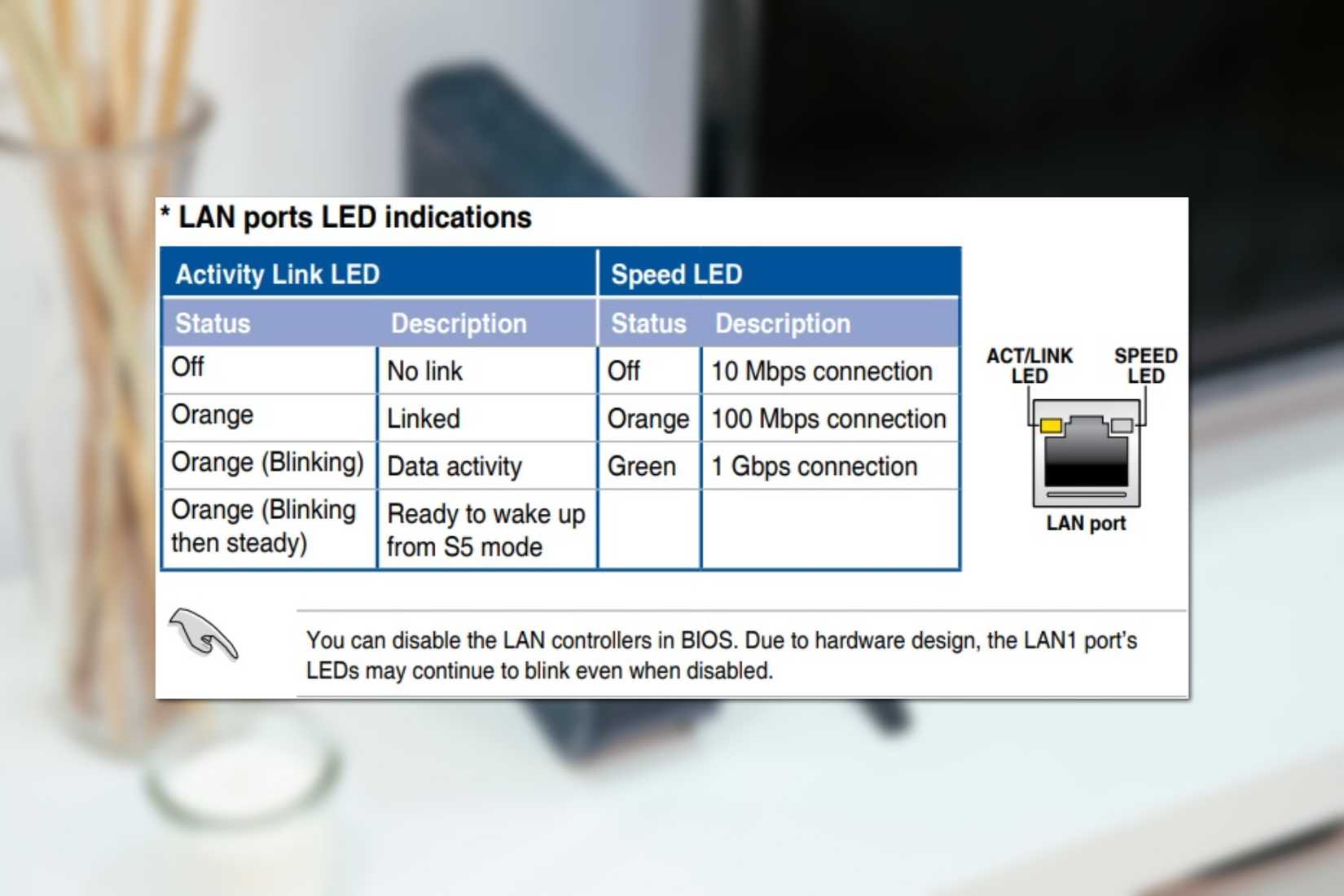
Ethernet ports usually have two LEDs on the side where the clip on the cable plug goes. The LED on the left indicates activity, and the one on the right indicates the link speed. The good news is that a blinking orange LED on the left side is nothing to worry about, as it means data is being transmitted across the cable. The activity LED will be solid orange to show that it is connected properly, and blinking steadily usually means that the link is in sleep mode, often when your PC is off.
The LED on the other side is either orange or green and indicates the link speed. On 1 GbE ports, this will be off if connected at 10 Mbps, orange if connected at 100 Mbps, and green if at 1 Gbps. The only time to worry here is if you know your connection should be at 1 Gbps, and it shows a different status. This usually means that you have an issue with your Ethernet cable. Try unplugging it and plugging it back in to test if it was a loose connection, or try another Ethernet cable if it still isn’t connecting at full speed.

Related
5 things you can do to optimize your router for the best performance
Here’s how to get the most out of your router
If your router is still showing an orange light it might be time to contact support
Most of the time, an orange blinking light on a router means a temporary disconnection of services. This could be while it’s rebooting, or updating its firmware, or even indicate an issue with your ISP. If the light still stays flashing after basic troubleshooting, it’s time to contact support. The tech support team for your ISP can probably see what’s going on with your router, and even send commands to get it working again. Or, they might decide your hardware is failing and send out a replacement, which will get you back online once it arrives.
#fix #blinking #orange #light #router
source: https://www.xda-developers.com/how-to-fix-a-blinking-orange-light-on-your-router/


