

Your computer is home to countless files, and not all of them look or even function the same. You’ve got your standard .doc files for Word documents, .jpg and .png files for pictures, and .mp4 files for videos. When your computer encounters the dreaded Blue Screen of Death (or BSOD), it creates a .dmp file, which is made to help you diagnose the situation. The .dmp extension refers to “dump”, and it’s a memory dump file that contains information about what’s happening to running processes on your computer.
Each .dmp file is full of information that can aid you during the troubleshooting process. While we can’t necessarily help you figure out why your computer crashed, we can at least give you the tools you need to get started. Keep in mind these files are exclusive to Windows, so Linux and macOS memory dump files won’t work with these exact instructions.
Related
How to fix a Windows 11 BSOD: A complete guide
Is your Windows 11 PC crashing with Blue Screens of Death (BSOD)? Here are some reasons why and how you can fix your problems.
How to create DMP files in Windows
Before we get into opening .dmp files, you have to make sure your computer will actually generate them whenever you run into a BSOD. This should be enabled by default on Windows 11, but here’s how to check:
- Open your computer’s File Explorer.
- Right-click on This PC (or whatever you named your computer).
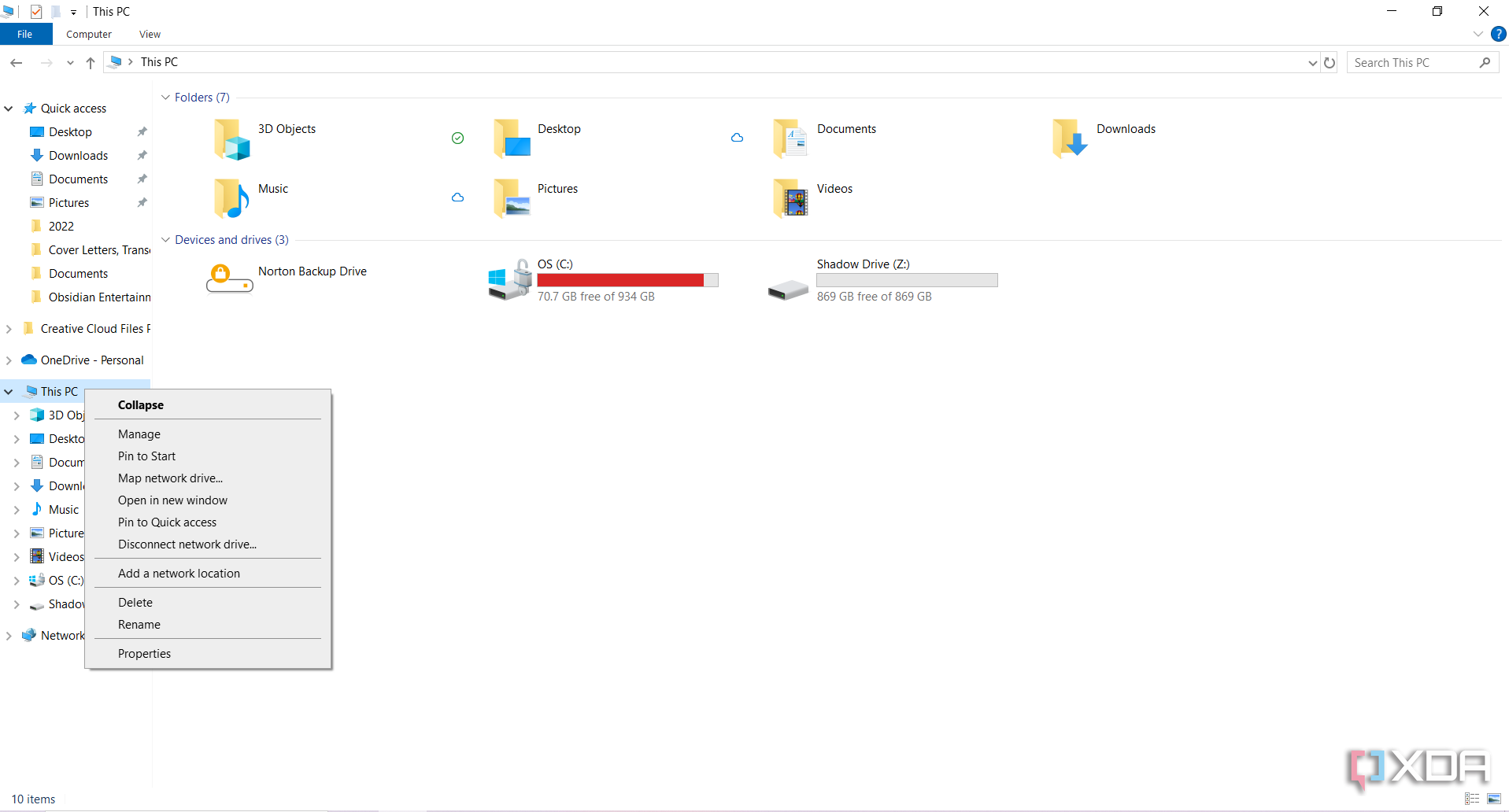
- Select Properties.
- Click on Advanced System Settings.
- Click on the Settings button under Startup and Recovery.
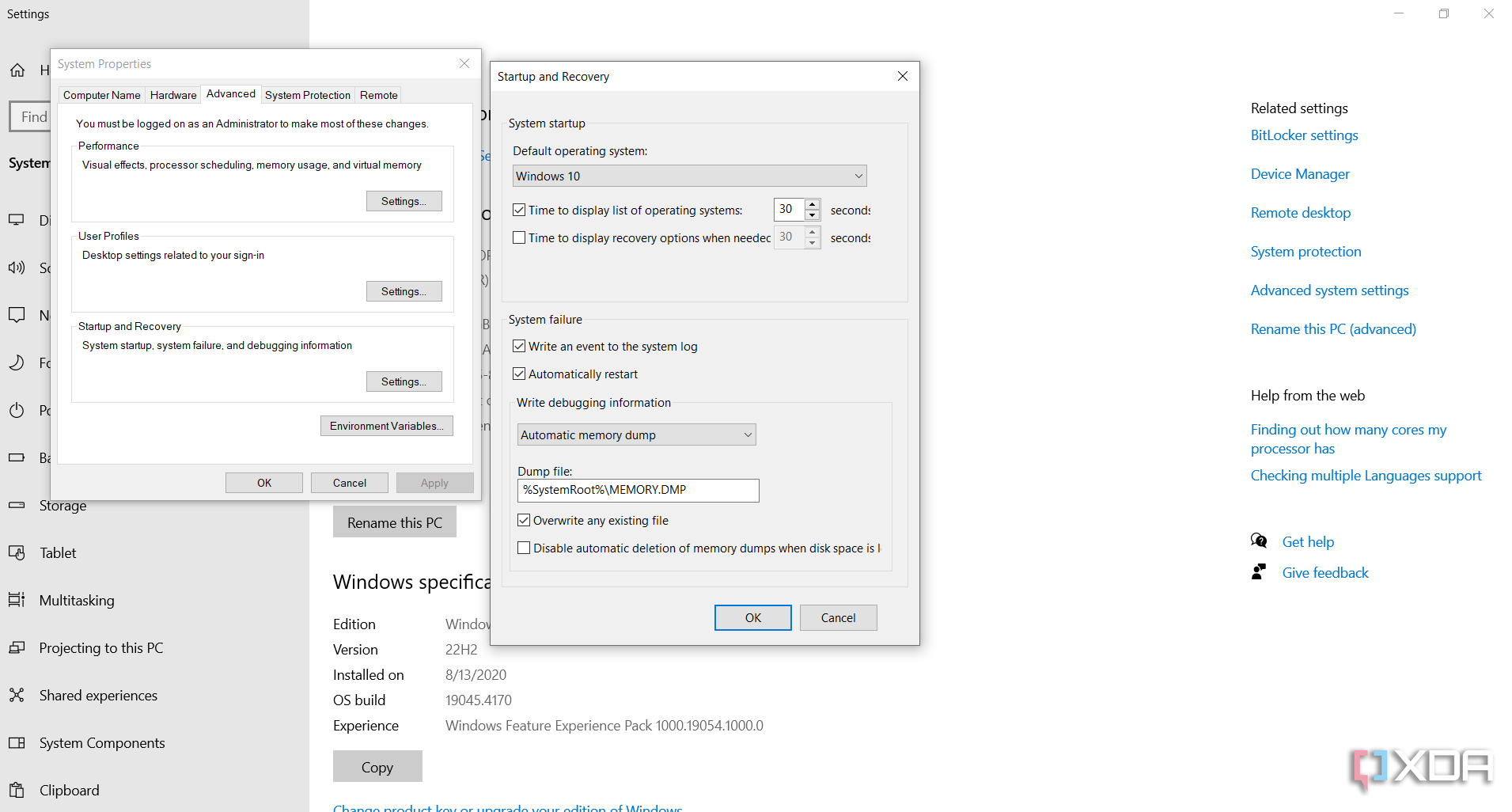
- Make sure the box next to Write an event for the system log is checked.
- Ensure Write debugging information is set to Automatic memory dump.
- Set your dump files to be sent to %systemRoot%\MEMORY.DMP.
- Check Overwrite any existing file if you don’t want .dmp files eating up your hard drive.


How to read DMP files
Now that .dmp files are being generated for each BSOD, you need an app that can open them. A popular choice is WinDbg (Windows Debugger), an official Microsoft tool that’s available on the Microsoft Store. Another option is BlueScreenView.
If you have the Windows Driver Kit, you should already own a copy of Windows Debugger. If not, here’s how to download it:
- Open the Microsoft Store.
- Search for WinDbg. The correct result should be the first one on your list. Make sure the publisher is Microsoft Corporation, and its category is Developer tools.
- Press the Get, Download, or Install button to download the program.


How to open DMP files
After WinDbg.exe is installed on your computer, you’re finally ready to open the crash dump file.
Here’s how to do it:
- Type the app’s name, “Windbg,” into your computer’s search bar.
- Right click on the Windbg icon and select Run as administrator.
- Click the Yes button on the window that pops up.
- In Windows Debugger proper, click on File.
- Select Start Debugging.
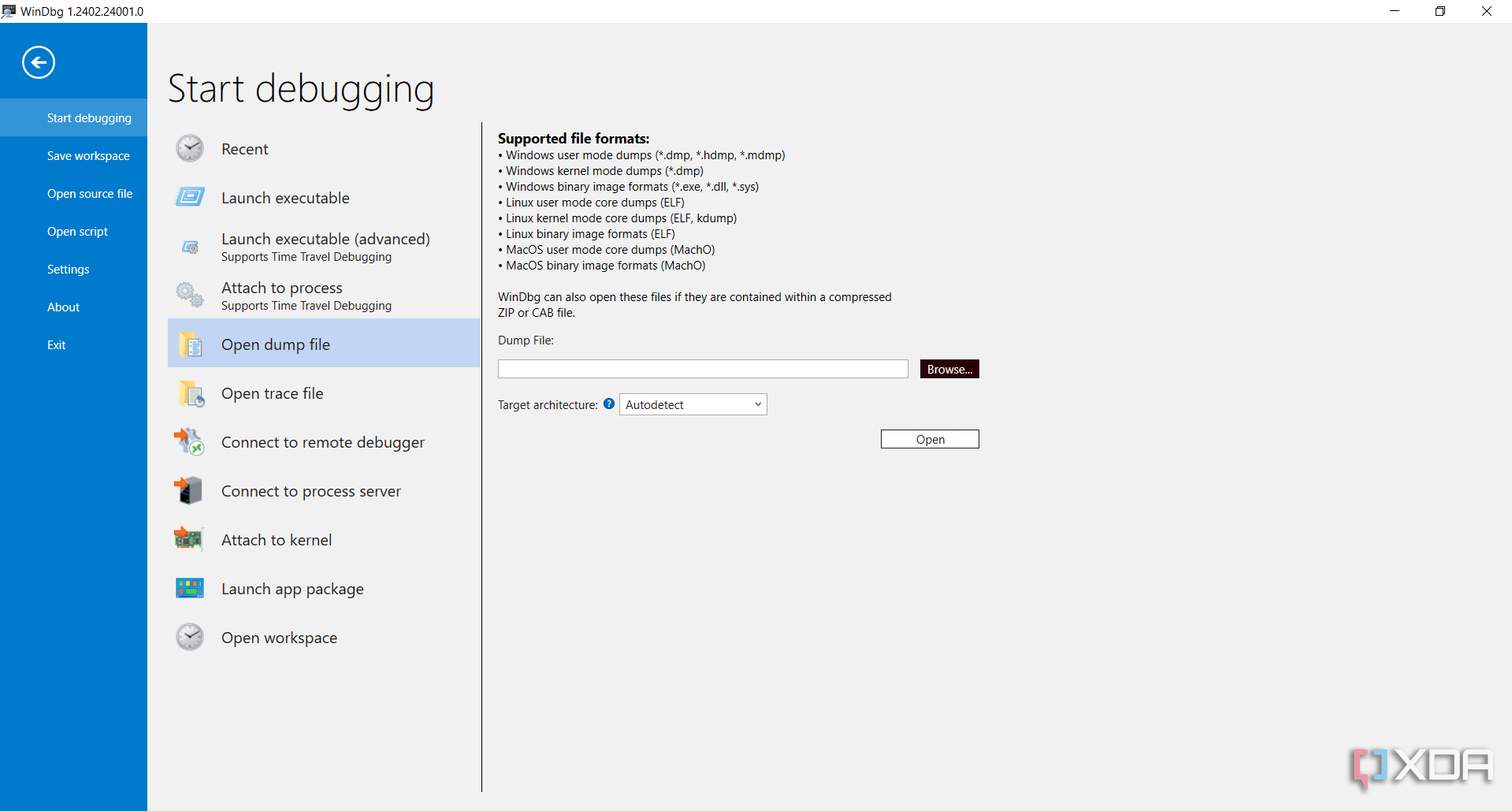
- Click on Open dump file.
- Make sure the correct dump file automatically populates the Dump File line.
- If not, set Target architecture to Autodetect.
- Hit the Browse button and select the proper dump file from the C:\\Windows\Minidump folder.
- Click Open, and the Windows Debugger app will open the file for you.
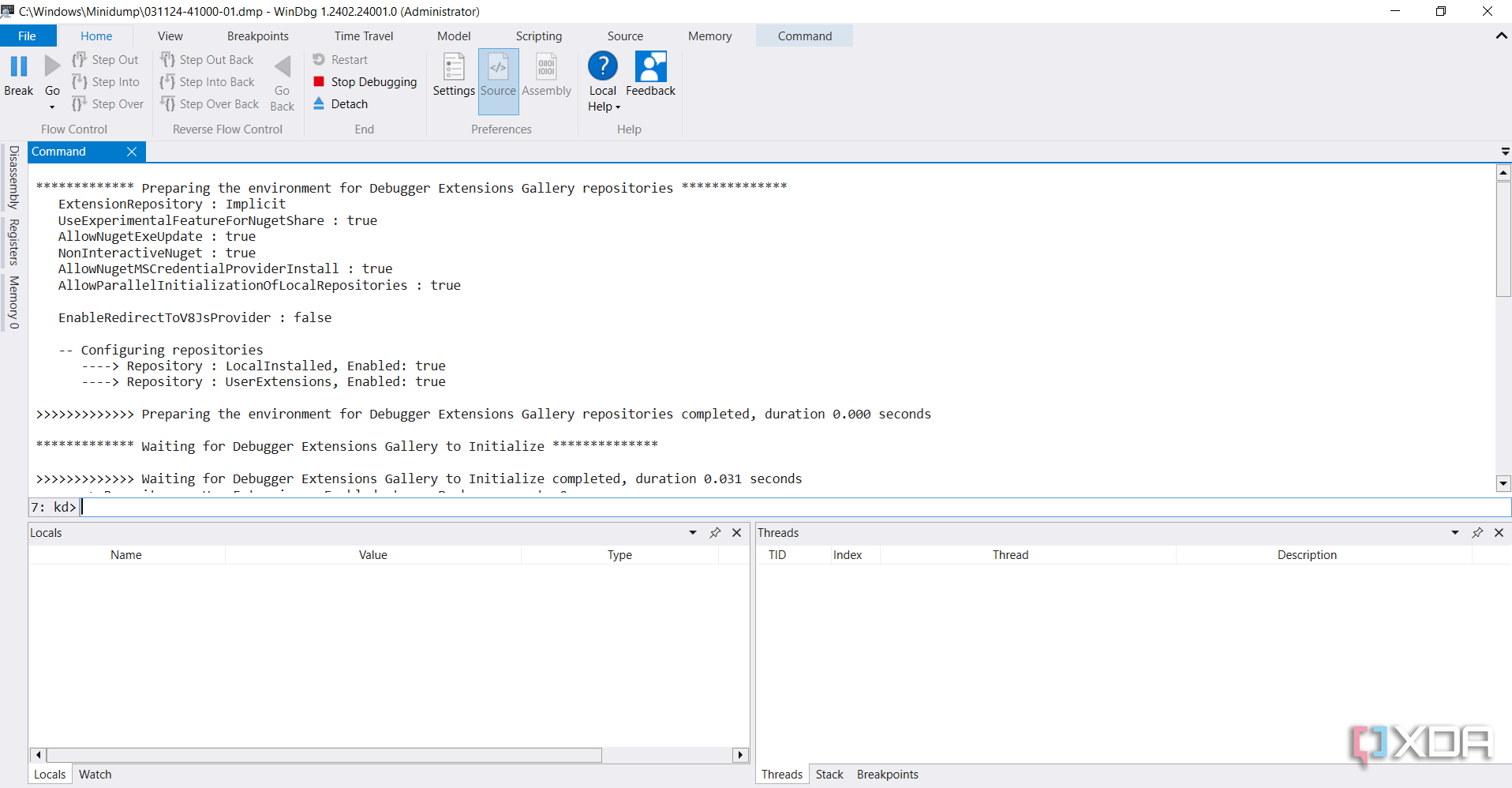
- Type “!analyze -v” into the command line at the bottom to translate the file into a legible form.


Depending on the .dmp file’s size, Windows Debugger might take a few minutes. Keep an eye on the progress bar, as it will tell you when the program is finished. Once Windows Debugger is done analyzing your .dmp file, you can scan the result for errors.
Dump files are your first step towards preventing BSODs
Even the best laptops will run into issues at some point, and even if you can’t make heads or tails of a dump file, using the Windows Debugger app to open and analyze the document will help anyone assisting you. Run the program before you open a ticket with your PC’s manufacturer, bring the computer into a shop, or even post a question on a computer repair forum. It will make things easier for everyone.

Related
Having issues with Windows 11? Try these steps to repair it
Stop your tech-related headaches
#open #DMP #files
source: https://www.xda-developers.com/how-to-open-dmp-files/

![[User Guide] Unlock New Possibilities With Galaxy Tab S10 Ultra](https://i0.wp.com/img.global.news.samsung.com/global/wp-content/uploads/2024/10/Samsung-Mobile-Galaxy-Tab-S10-Ultra-Tablet-User-Guide_Thumbnail728.jpg?w=1068&resize=1068,0&ssl=1 "[User Guide] Unlock New Possibilities With Galaxy Tab S10 Ultra")
