

Leaving aside their power-hungry nature, server PCs are perfect for home labs. With Proxmox, XCP-ng, and other advanced virtualization platforms favoring high core count and massive memory capacity over all else, outdated, ECC-compatible Xeon systems can surpass consumer-grade hardware for advanced workloads.
At the other end of the spectrum, you have underpowered SBCs, especially those of ARM origin. Although high-end Raspberry Pi 5 models lack the horsepower to run a dedicated Proxmox server, it’s possible to set up a couple of Docker containers on the RPi boards.
But if you’re not very enthusiastic about editing .yaml files or just want to avoid the pain of managing all the ports of your containers, you can rely on UmbrelOS to ease yourself into the fine art of self-hosting.
Related
10 projects I host on my Proxmox home lab
Need some cool project ideas for your Proxmox server? This list can help you out
What’s UmbrelOS?
And why should you use it?

In the simplest of terms, UmbrelOS is a container-management environment wrapped inside a convenient dashboard-like UI that simplifies the process of self-hosting. It comes with a built-in application store that, despite featuring a tad too many crypto apps for my liking, includes most of the essential FOSS services.
While it’s pretty similar to CasaOS, there are a couple of differences between the two. Besides a different user interface, CasaOS needs to be installed on top of a pre-existing operating system. While CasaOS works well on modern x86 systems and even inside VMs, you might want to avoid the performance overhead caused by the host OS on a Raspberry Pi.
Meanwhile, UmbrelOS is similar to your conventional operating system: you can create a bootable USB to install it directly on a storage drive. What’s more, UmbrelOS is compatible with the newer Raspberry Pi boards. This makes it quite useful when you want a simple platform that can run your favorite Docker containers on a spare RPi-flavored SBC.
How to set up UmbrelOS on your Raspberry Pi?
Flashing UmbrelOS on a microSD card
If you’ve read my Raspberry Pi tutorials, you probably know the drill by now. First, you’ll need to write the UmbrelOS files onto a microSD card using a flashing tool. Since you can only download an IMG file of UmbrelOS, you’ll want the official Raspberry Pi Imager for this purpose.
- Head to the UmbrelOS GitHub page and download the image file for your specific Raspberry Pi model.
- Grab the setup.exe file for the Raspberry Pi Imager from the official website and install it on your system.
- Launch the Raspberry Pi Imager as an administrator.
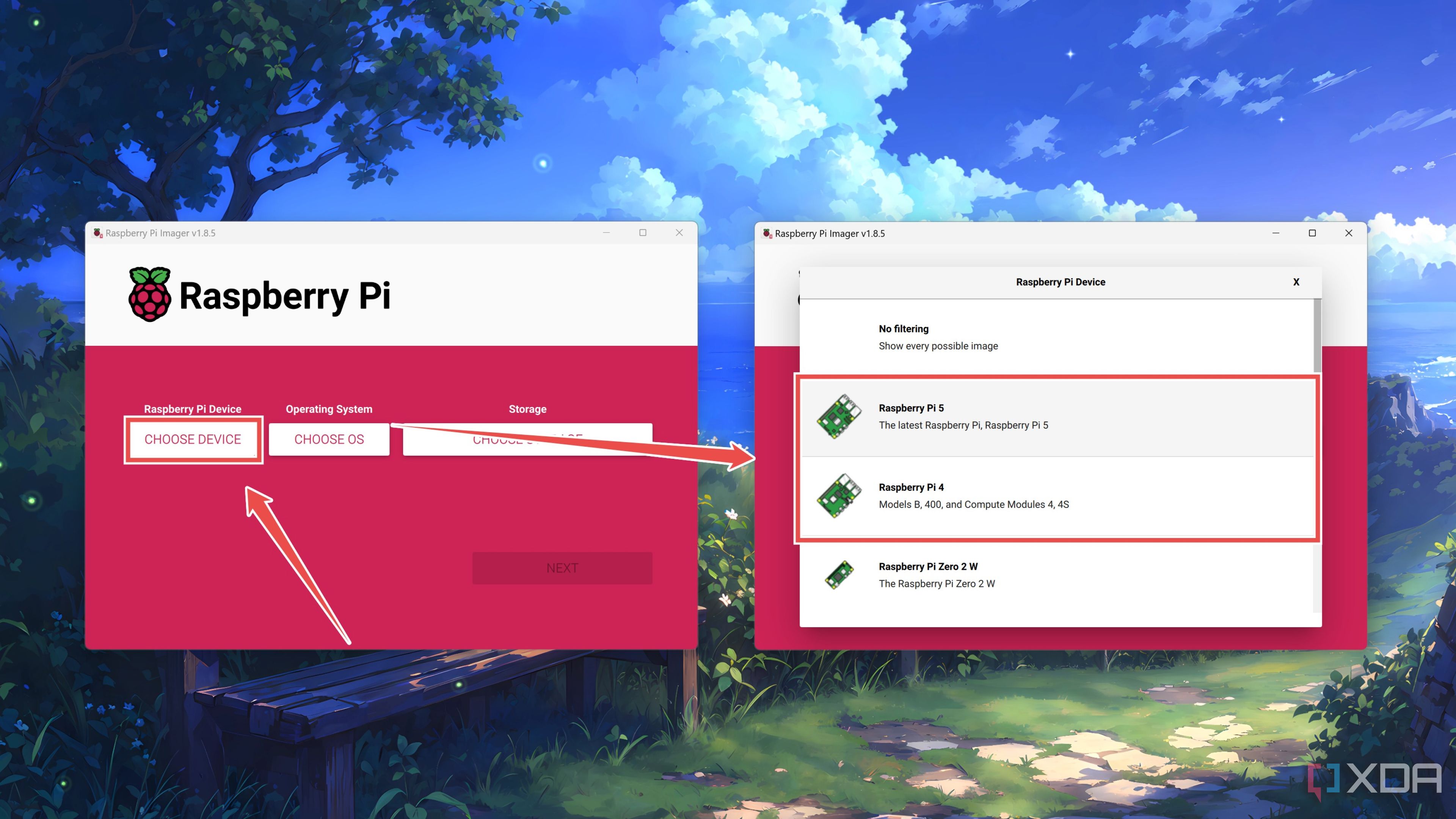
- Hit Choose Device and pick your Raspberry Pi model.
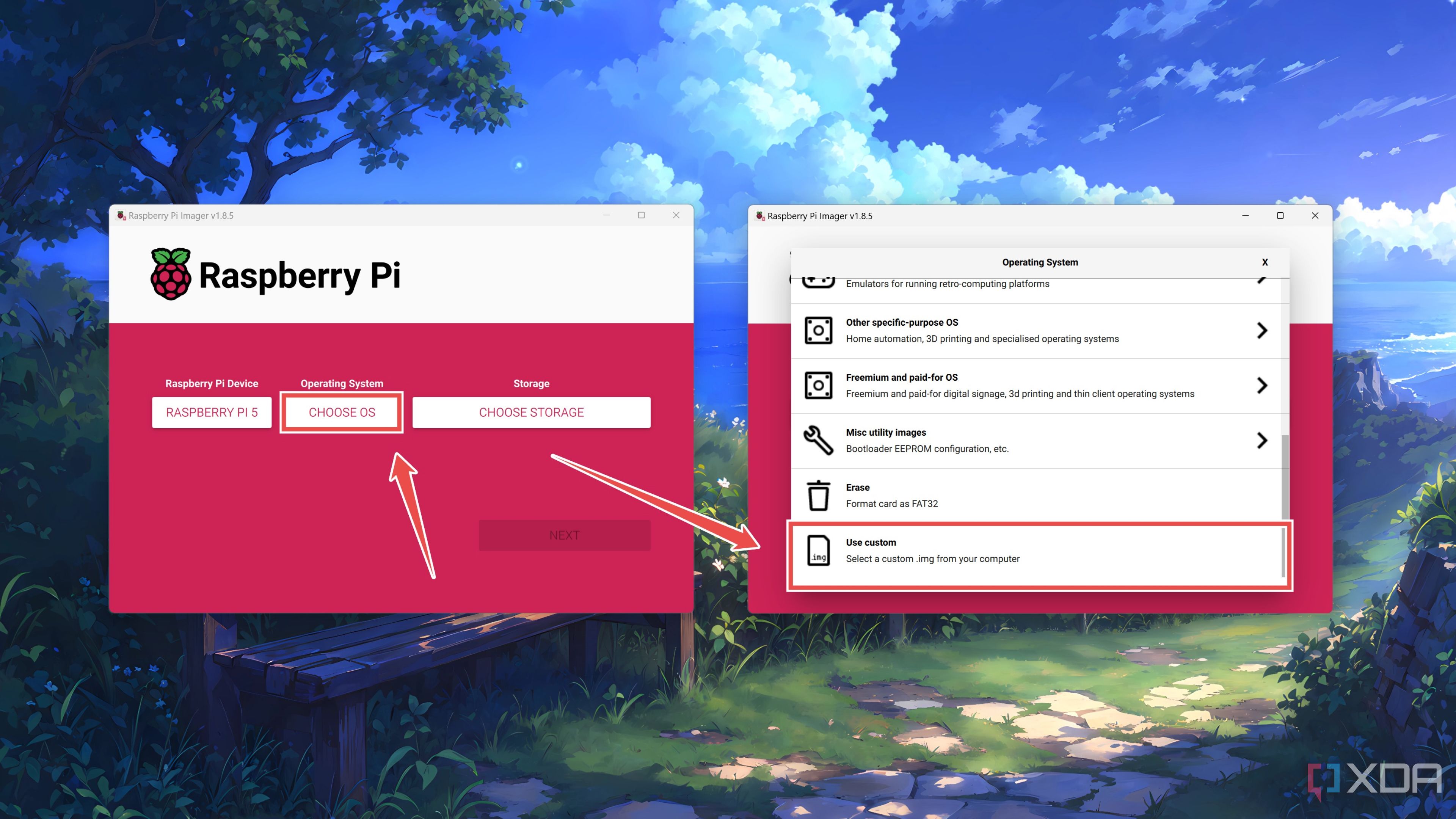
- Tap the Choose OS button and, with the help of the Use Custom option, select the UmbrelOS.img file you downloaded earlier.
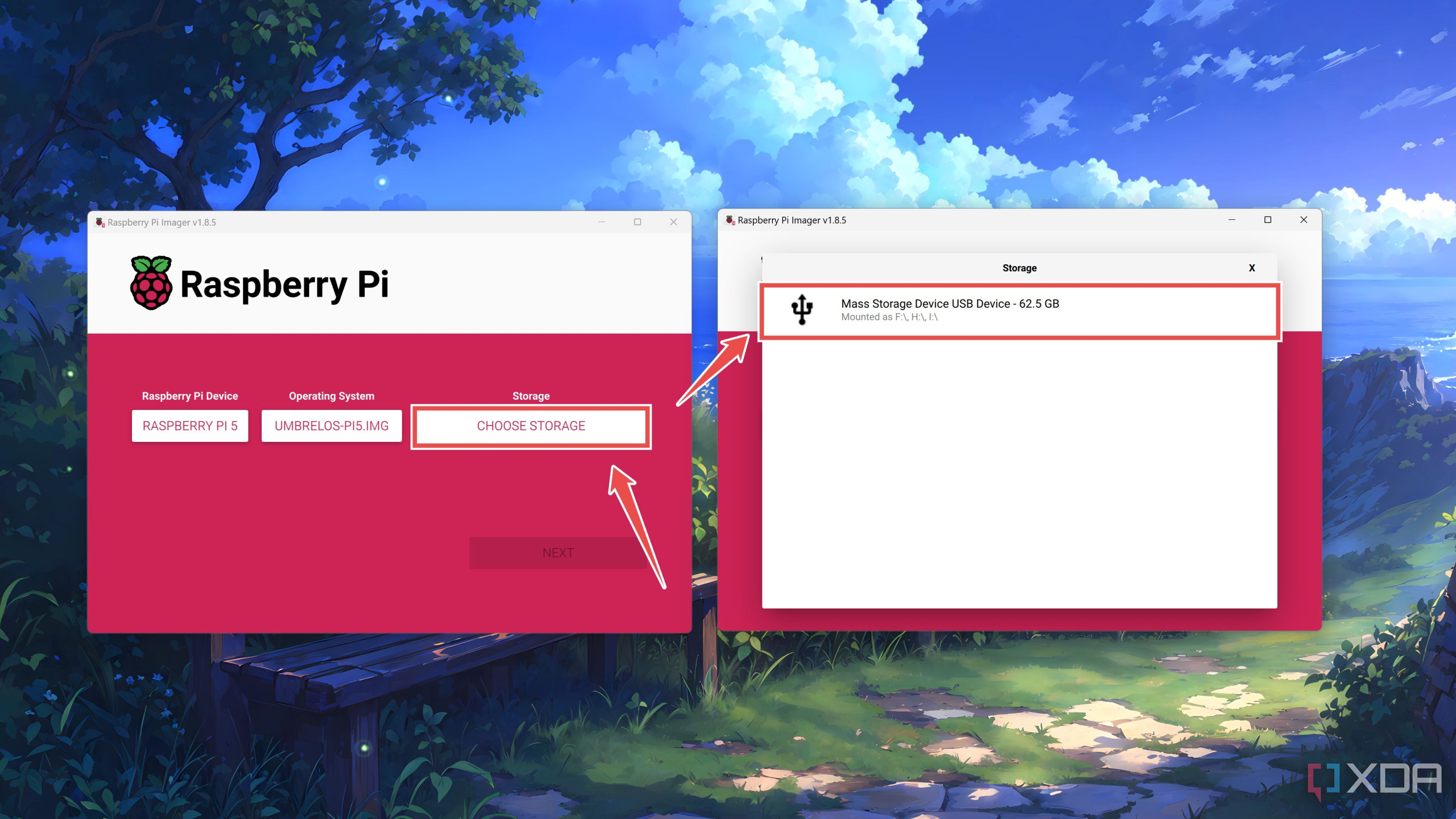
- Select your microSD card after clicking on Choose Storage.
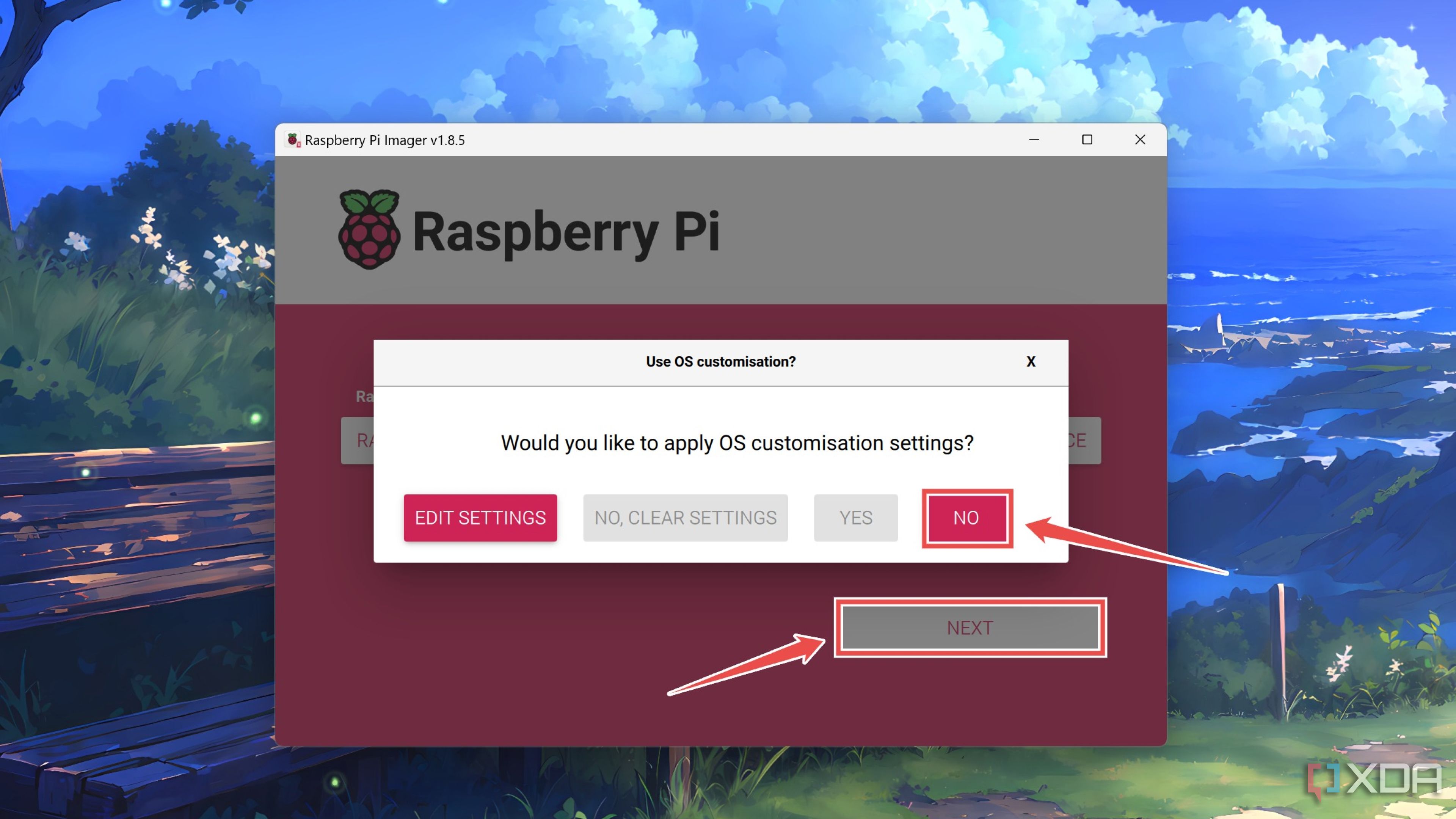
- Hit Next and tap No when the tool asks you to apply the customization settings.
- Wait for the Raspberry Pi Imager to write the UmbrelOS files.


Setting up UmbrelOS
Now that the microSD card is ready, it’s time to configure the UmbrelOS web UI.
- Connect the newly-flashed microSD card to your Raspberry Pi before plugging in the power and Ethernet cables.
- Launch your favorite web browser on another system connected to the same network and type http://umbrel.local into the address bar.
- Press Start at the UmbrelOS Welcome Screen.

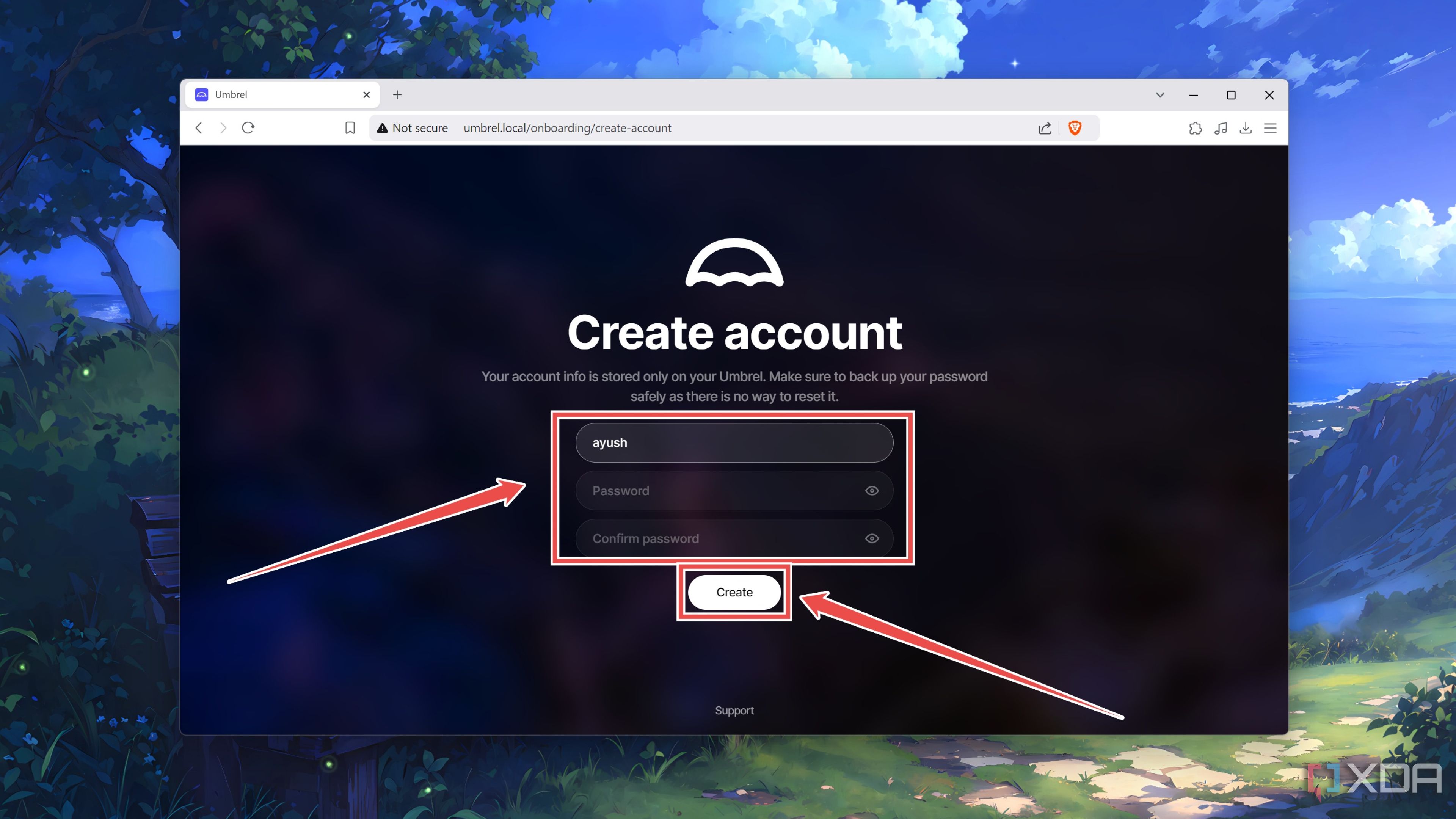
- Pick a Username and a Password and tap Create.
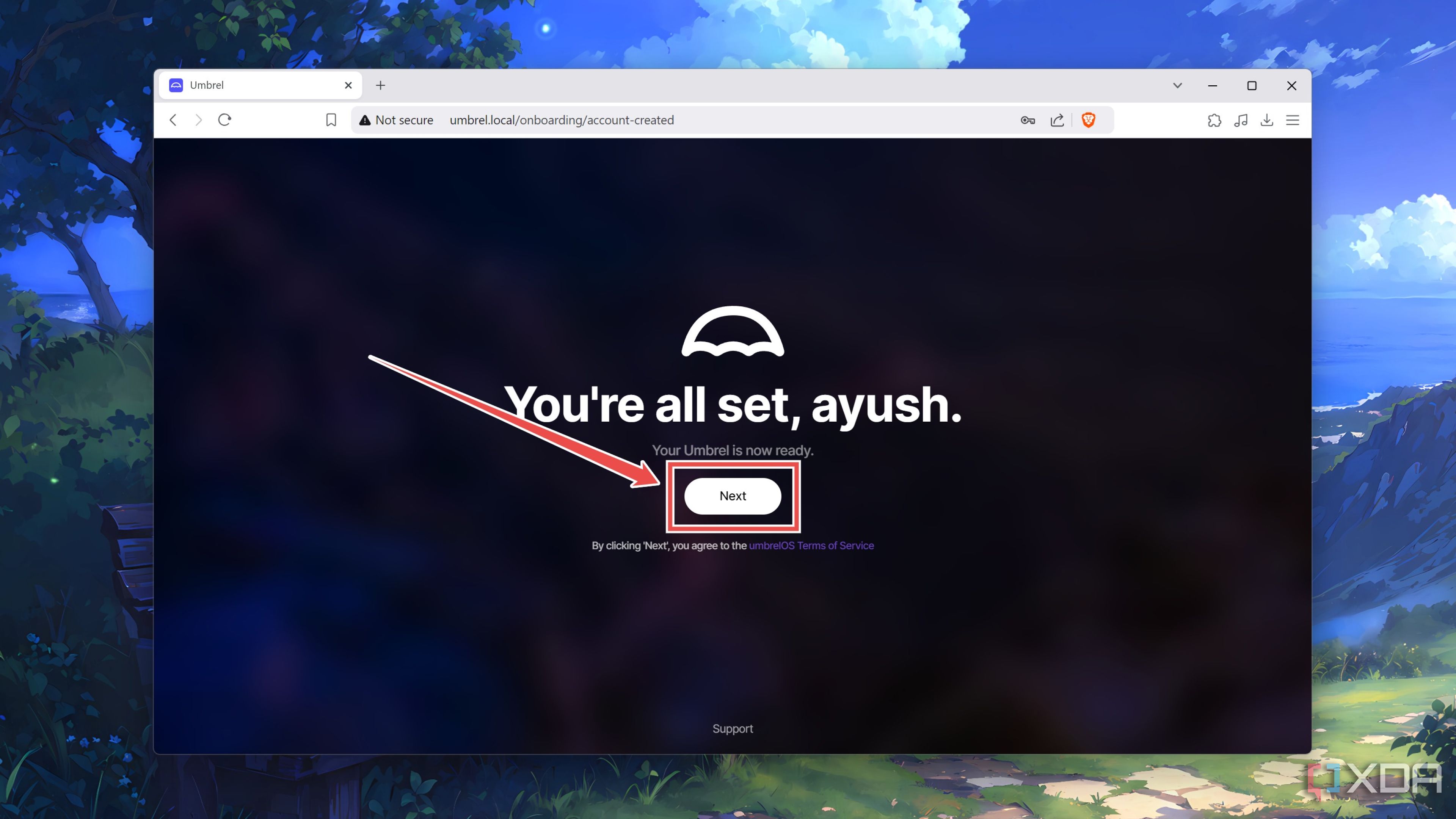
- Finally, hit Next to accept the terms and conditions.


UmbrelOS: A solid home server OS for Raspberry Pi owners
If you followed all the steps correctly, you should arrive at the UmbrelOS dashboard. With that, you’re free to browse the services on the App Store. I’ll reiterate that I’m not very fond of the crypto add-ons, but if you’re willing to overlook those, the UmbrelOS App Store packs a robust set of self-hosting tools. The UI is fairly responsive, and I encountered zero performance issues even after running over ten containers simultaneously.
After spending a few days with UmbrelOS, I have to admit that I’ve grown quite fond of it. It’s clearly not for advanced users who are proficient at managing Docker containers using terminal commands, and I’d still recommend Proxmox if you’re looking for a bare-metal virtualization platform that can run on an x86 machine. But when you’re completely new to self-hosting or just want an ultra-easy way to self-host a couple of useful apps, UmbrelOS is worth considering.
#Turn #Raspberry #selfhosting #hub #UmbrelOS
source: https://www.xda-developers.com/turn-your-raspberry-pi-into-a-self-hosting-hub-using-umbrelos/


