

Do you struggle to keep track of all your streaming services, online tools, and monthly memberships? You are not alone! In today’s world, with dozens of digital subscriptions, it’s easy to lose sight of where your money is going. One minute you sign up for a free trial, and the next, you wonder why your credit card bill skyrocketed.
While there is no shortage of subscription tracking apps out there, I didn’t want to sign up for and use another app on my phone and desktop. So I decided to create a subscription tracker in Notion. With a dedicated subscription tracker in Notion, I can easily manage my memberships, track renewal dates, and even calculate monthly and annual spending by category.
Related
5 ways to automate Notion and supercharge your note-taking
Essential time-saving tricks to optimize your Notion setup
Create a new Notion page
First, you can create a new Notion page with an icon and banner to get started. I will also guide you through some of the optional customization options you can apply to your subscription page. Here is what to do to get started.
- Open your Notion workspace and click + beside Private to add a new page.
- Give it a relevant name, and assign an icon and a banner for a distinct look. When inserting a banner, use the Unsplash integration to find and apply a relevant wallpaper.
- You can also insert a finance or money-related quote. Type /Quote, insert quote, and apply a color background. I have added a Green shade.
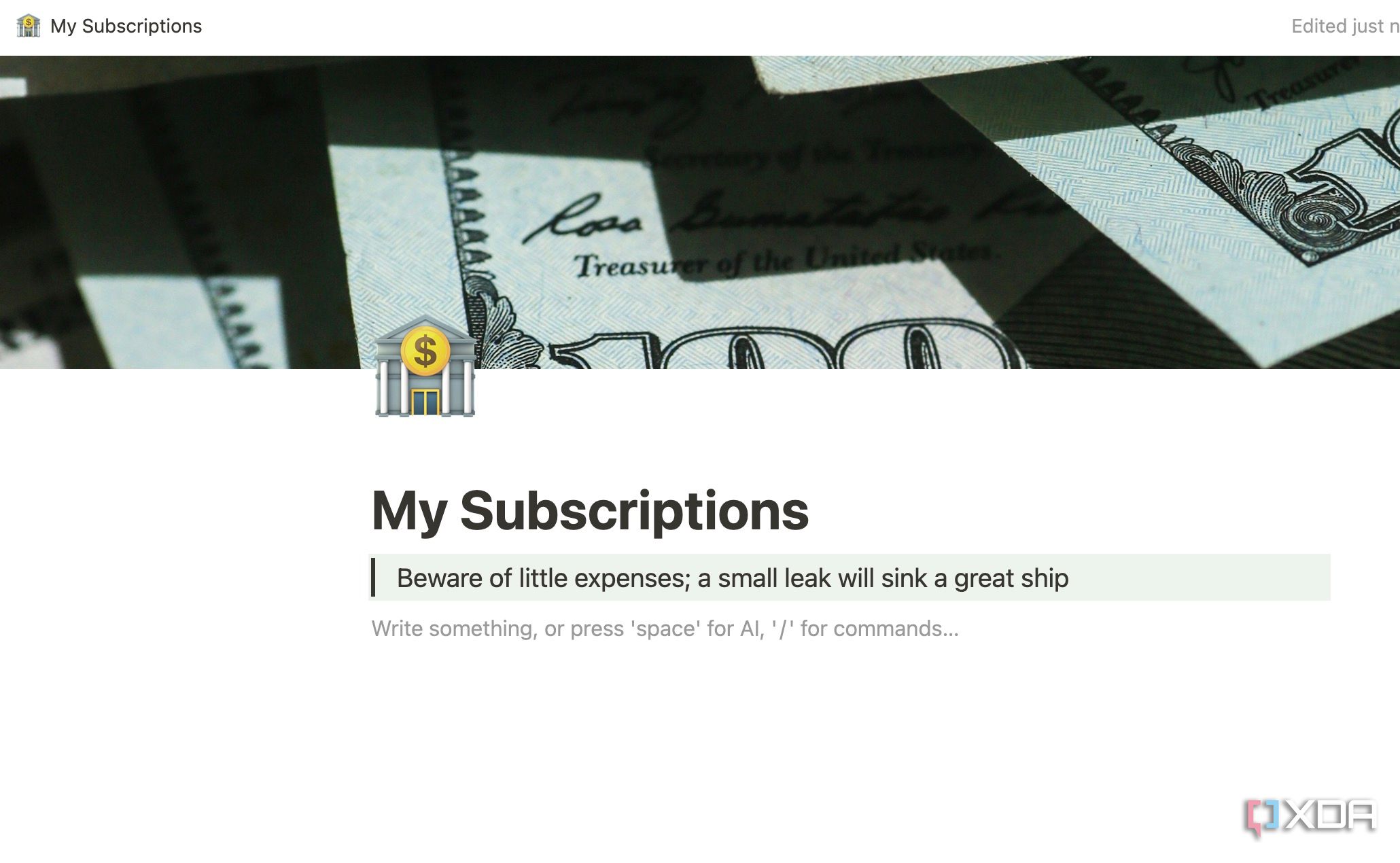

Optional: Decorate your Notion page
Before we start creating databases for our subscription tracker, you can embellish your Notion page with multiple elements. For example, you can click the three-dot menu at the top to change the text style, enable full-sized widgets, and disable table of contents. You can also insert relevant widgets into your subscription tracker to elevate it to the next level.
Since Notion doesn’t support widgets by default, you need to use third-party sources to implement them. In the example below, I will add a life progress bar and time widgets to the Notion page.
- Create Life Progress and Clock headers and insert a divider below it (use /divider command).
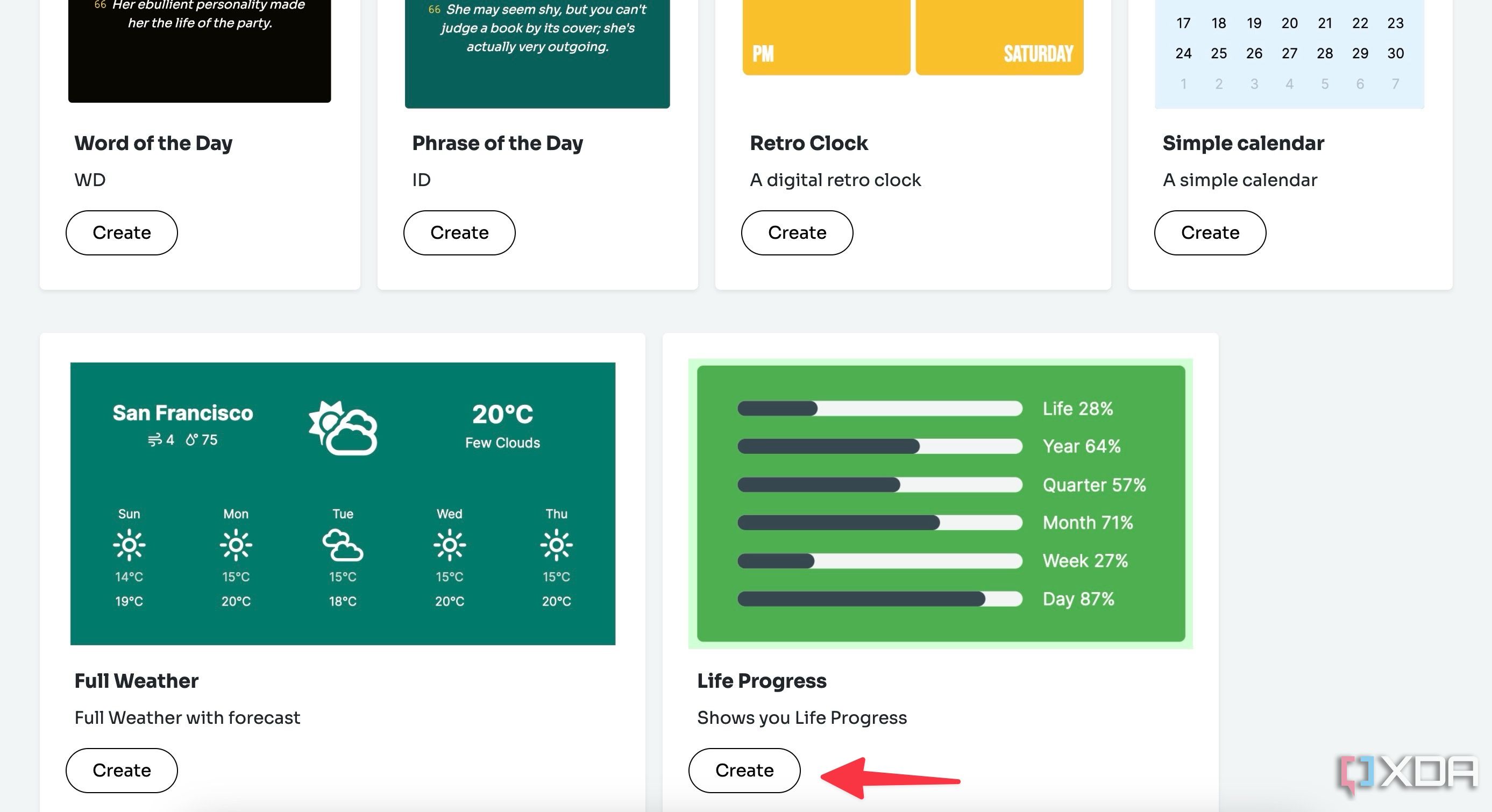
- Head to Widgetbox and review the list of widgets. Select Create below Life Progress.
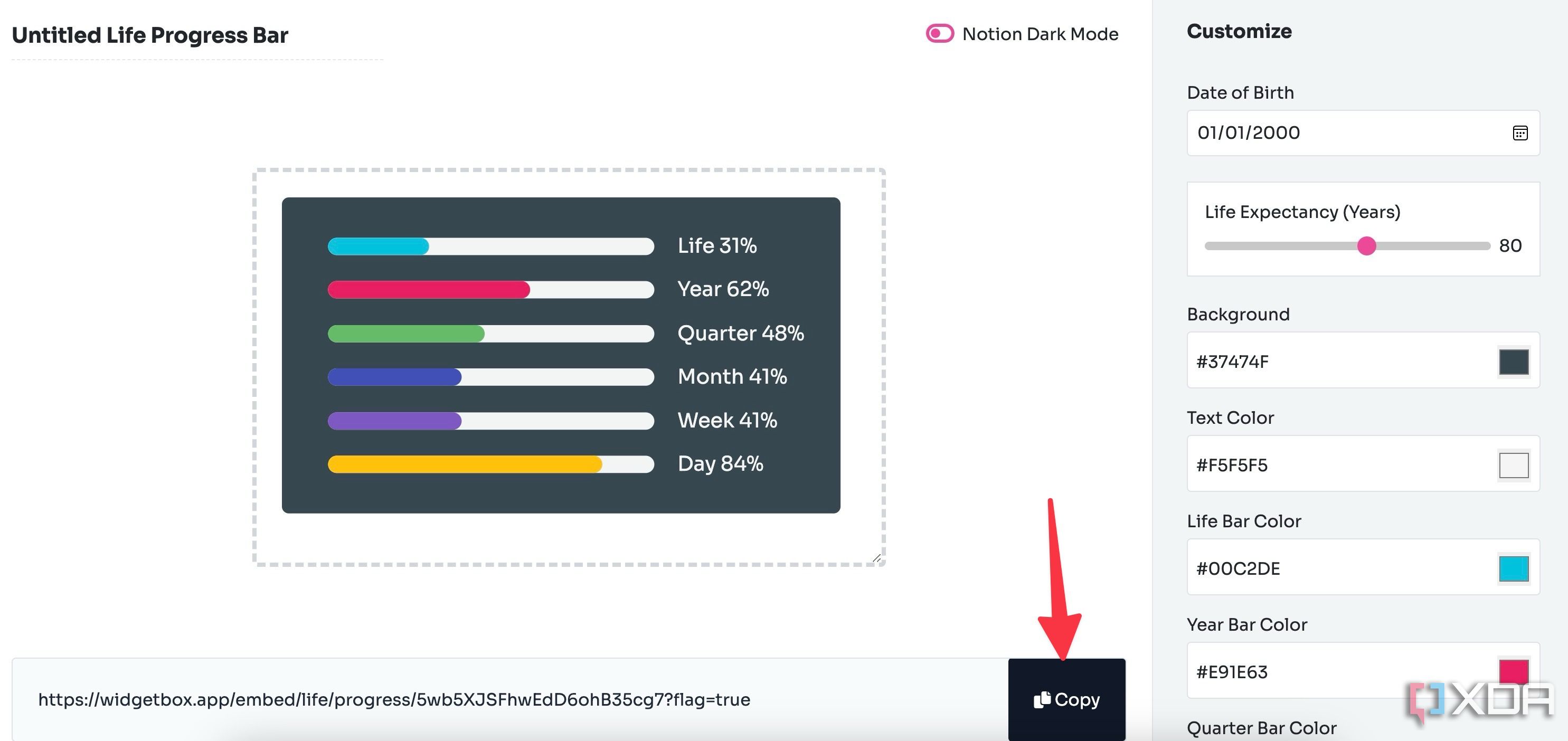
- Customize the look of the widget as per your preferences. You can change background shade, text color, life and year bar color, and more. Copy the widget link.
- Move to your Notion page and type /embed.
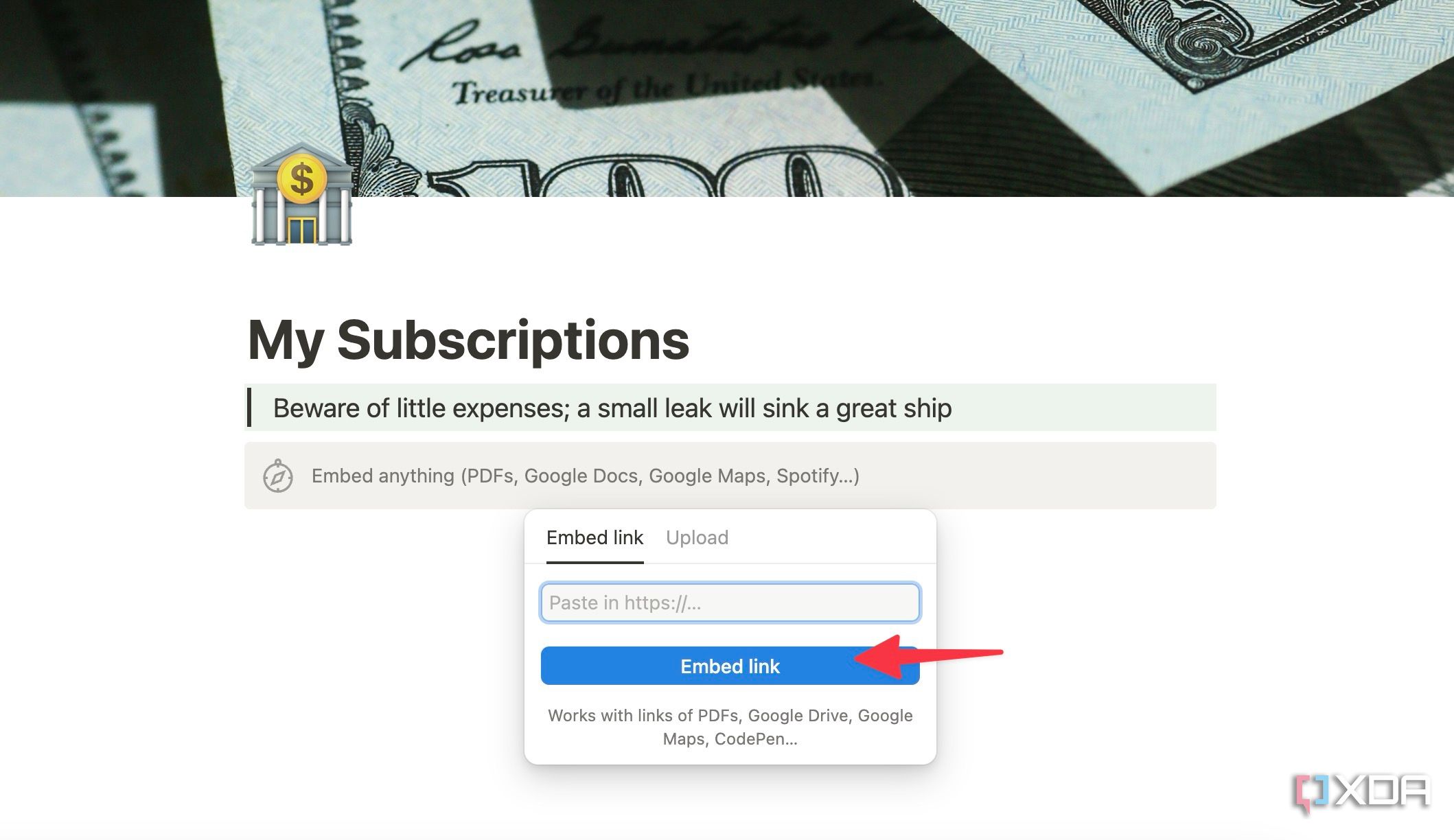
- Paste the widget link.


You can also add a clock widget to your page following similar steps. Check out the screenshot below for a final look. You can also read our dedicated post to find top tips on creating beautiful Notion pages.


Related
9 tips and tricks for creating beautiful Notion pages
Craft aesthetic Notion pages with these customization tweaks
Create a subscription database
Now that the basics are set, it’s time to create a database for your subscriptions. Follow the steps below.
- Create a header called Subscriptions.
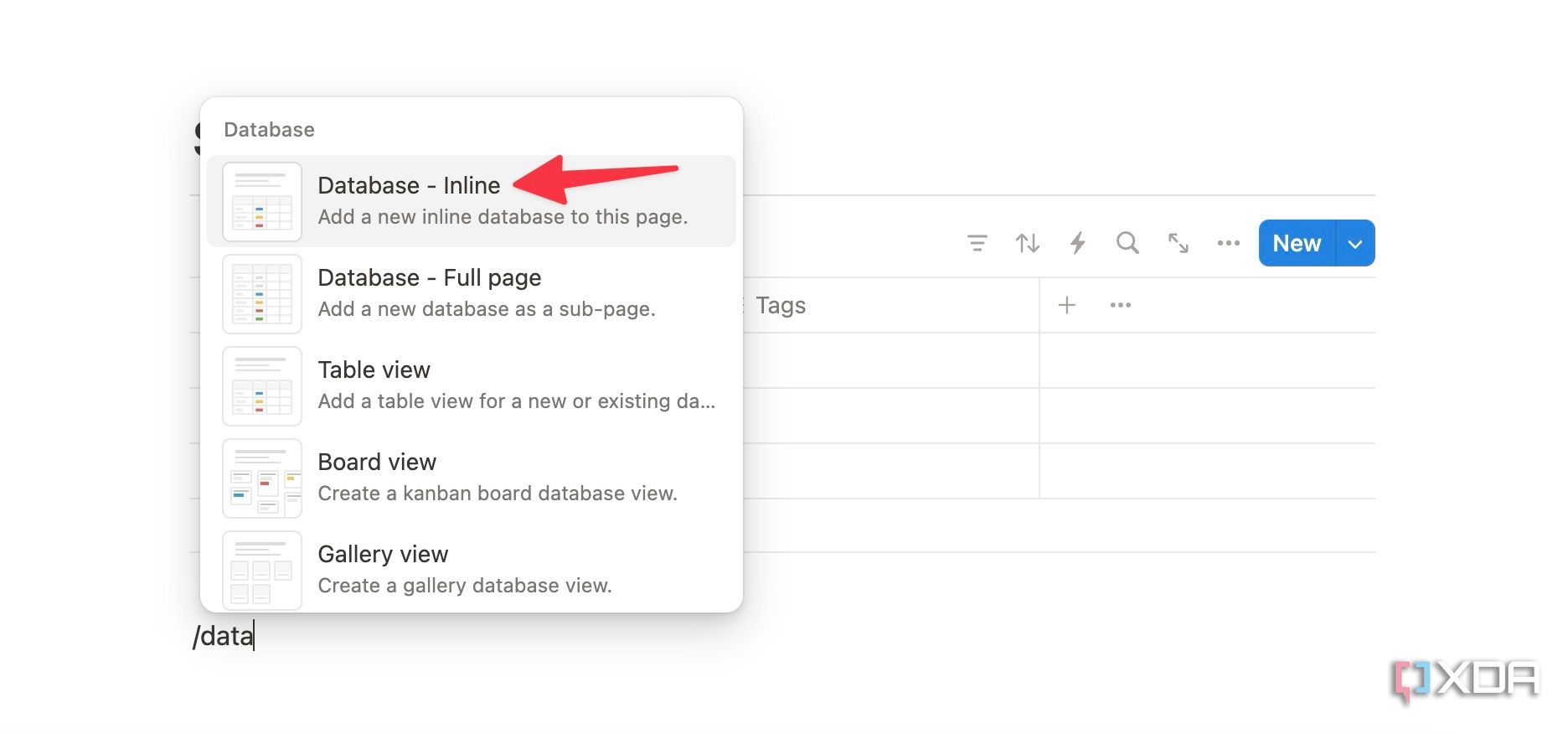
- Type /database and enter an inline database.
- You can also rename your table to the relevant header.
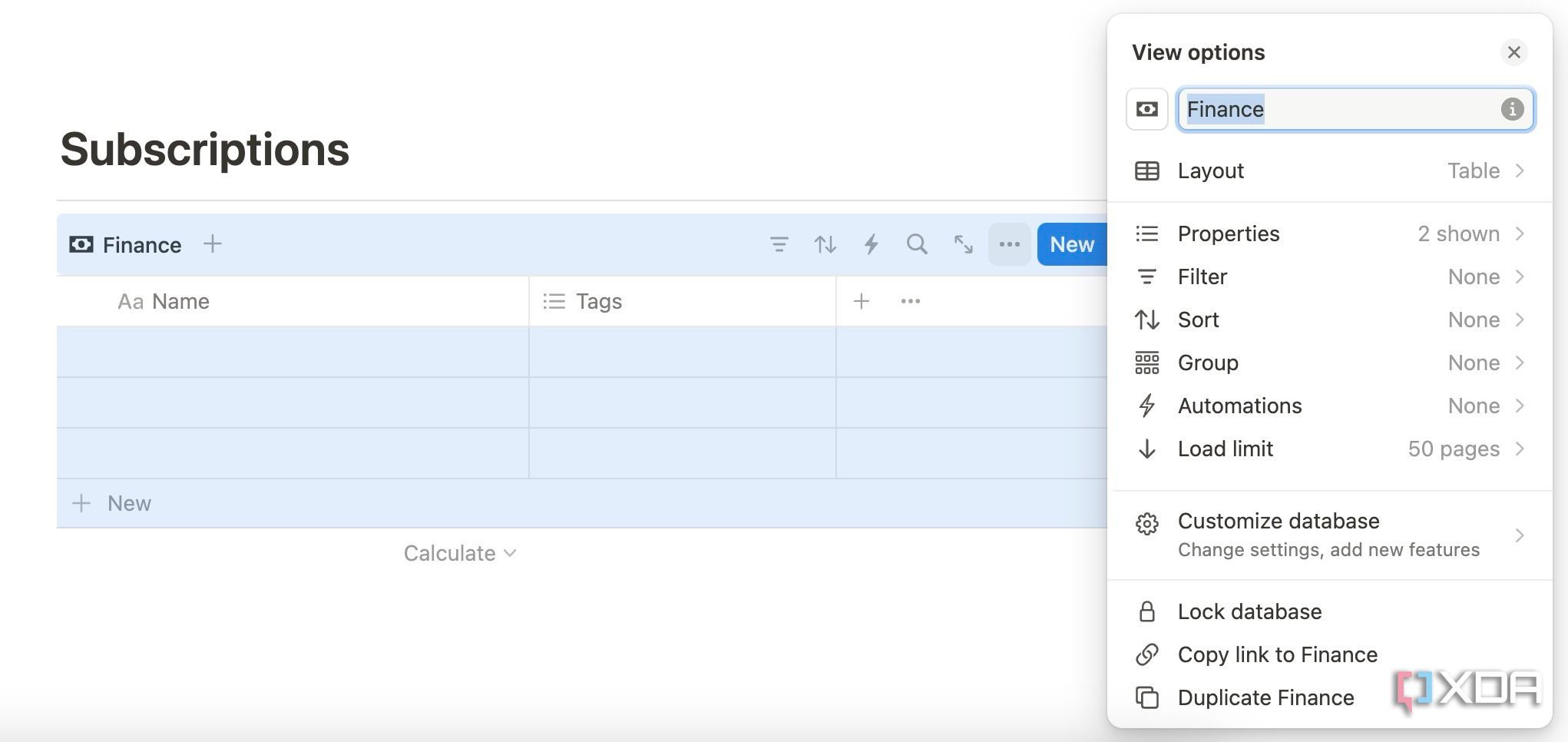


We’re ready to start populating our subscription database.
Add relevant columns
It’s time to fill the subscription database with relevant columns. In the example below, I will add Name, Category, Billing, Cost, Monthly Cost, Yearly Cost, and Status.
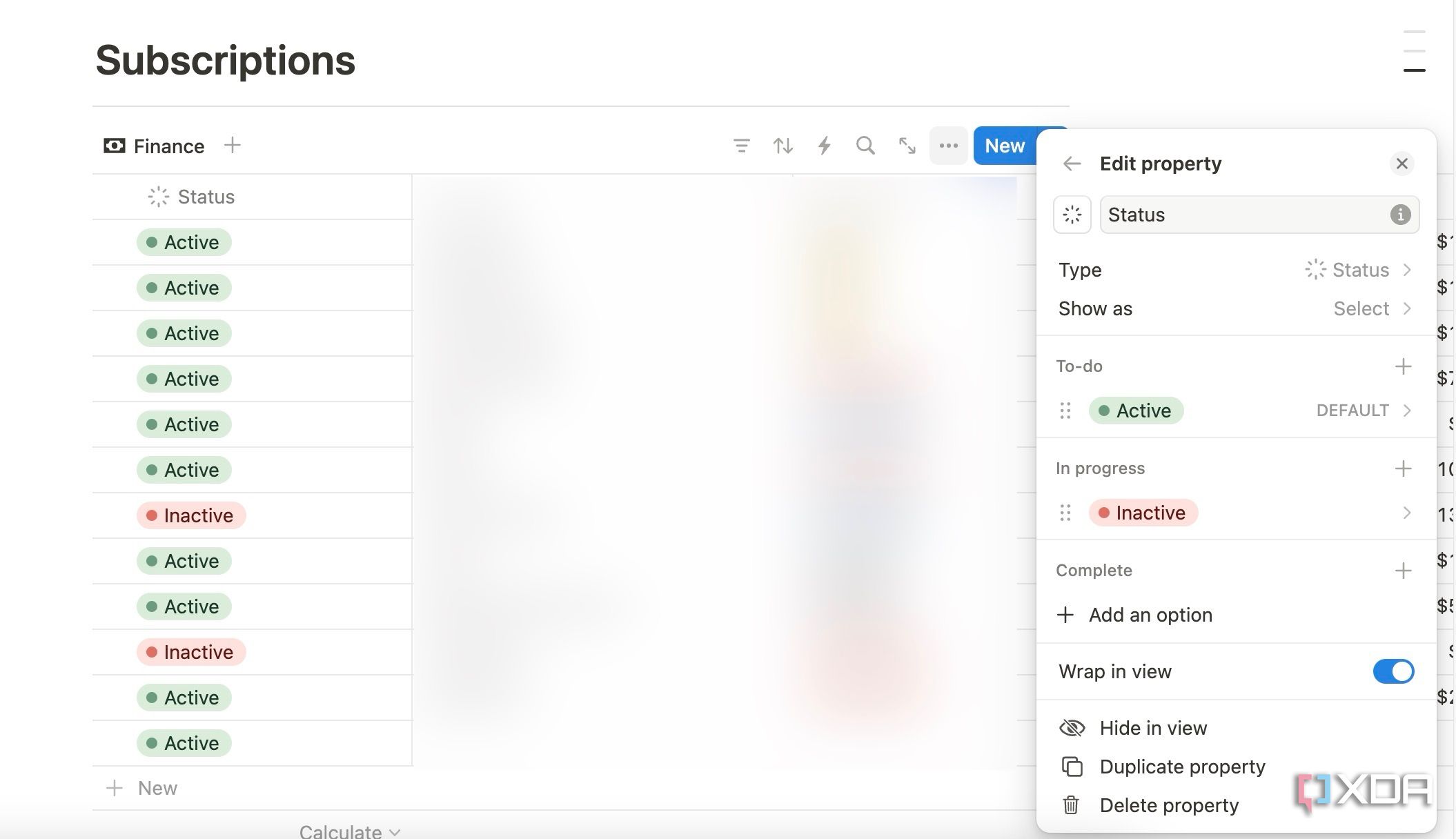
- Create first column with Status type. You can add a couple of options, like Active and Inactive, from the Edit property menu.
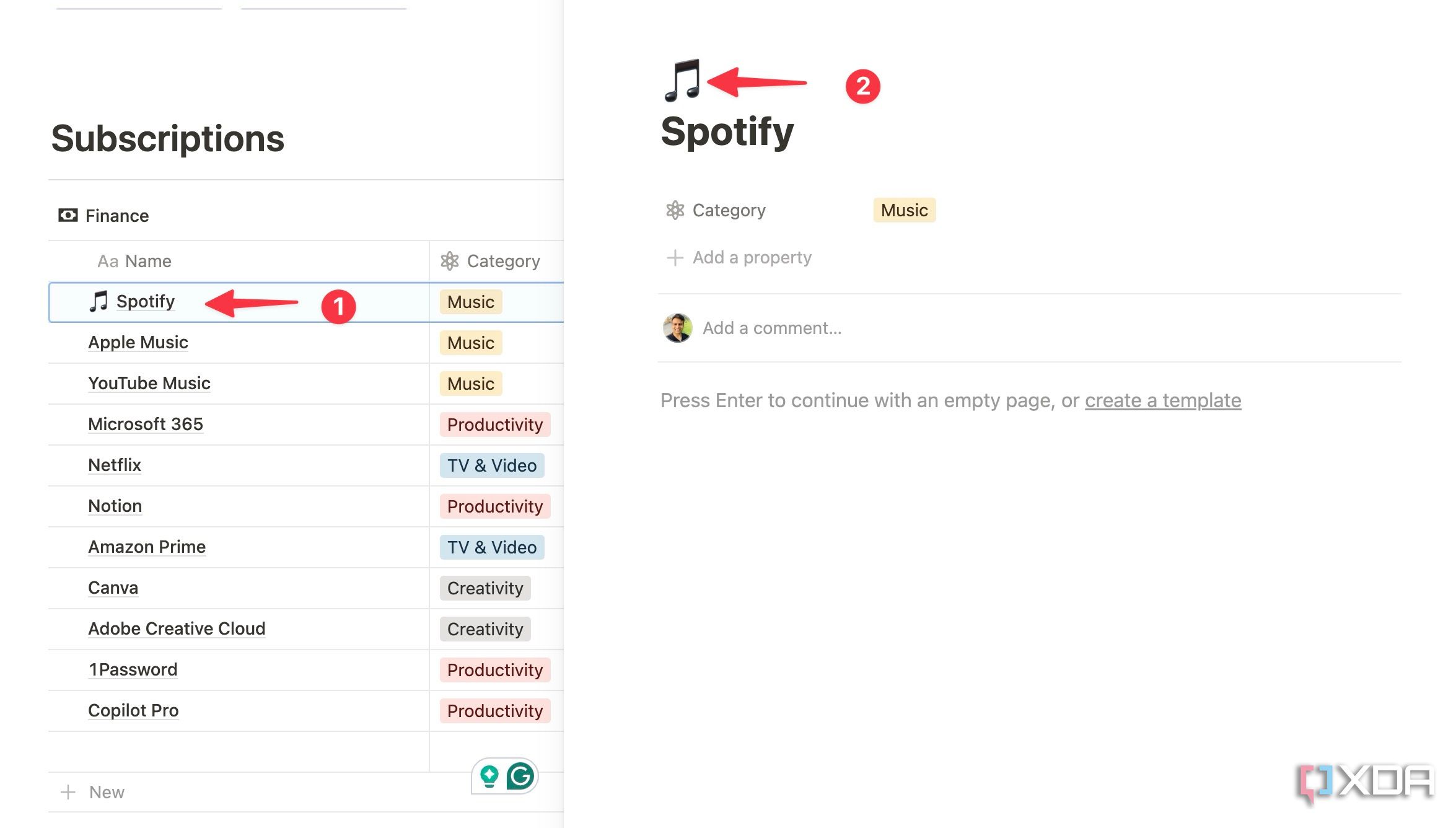
- Enter all your subscriptions under the second column. If you want to get creative, you can even open each subscription in the side page and assign a relevant icon. Check the screenshot below for Spotify.
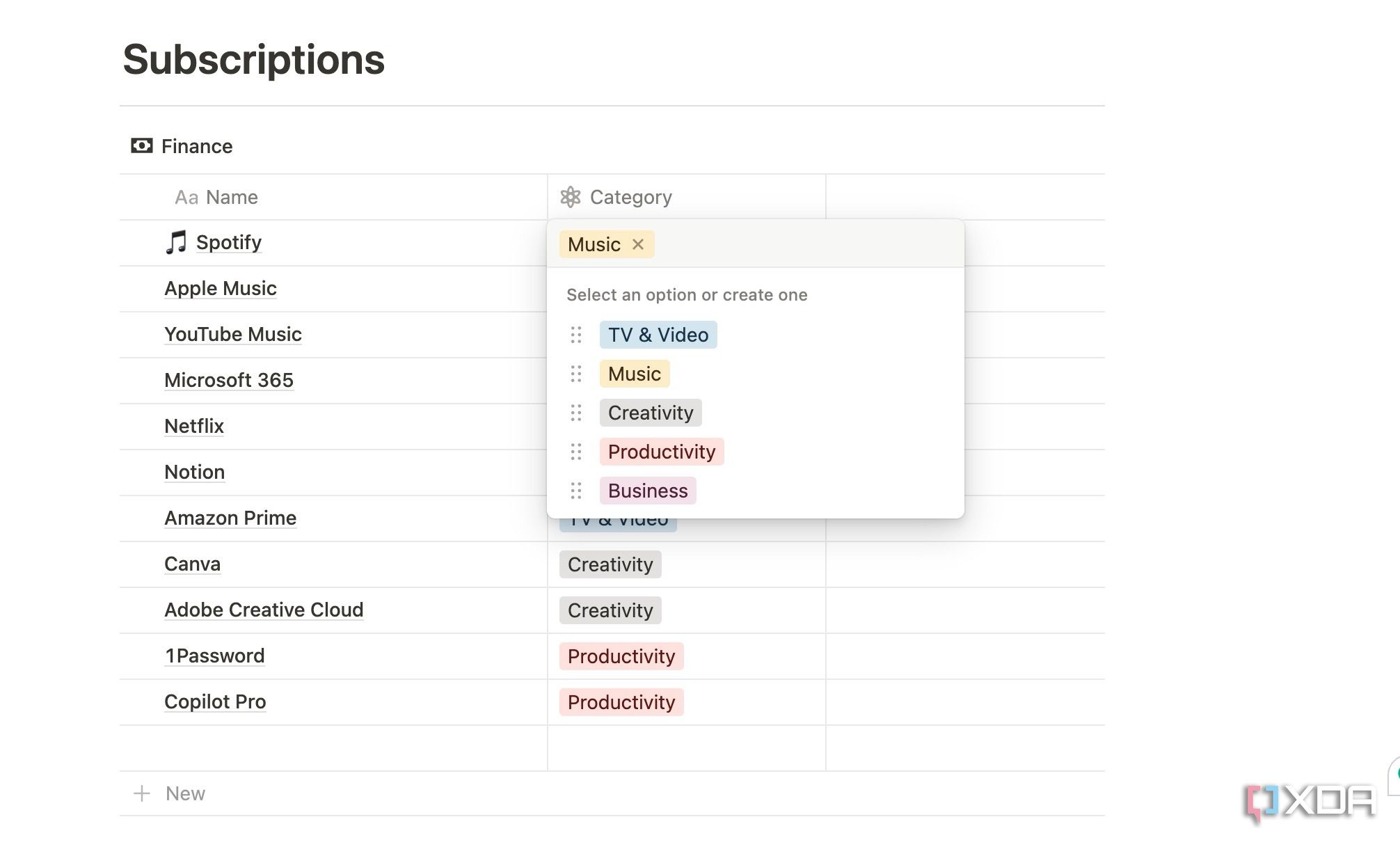
- Create another Category column with Multi-select type.
- Select a cell and start adding all the categories like TV & Video, Creativity, Productivity, Music, Business, and more.
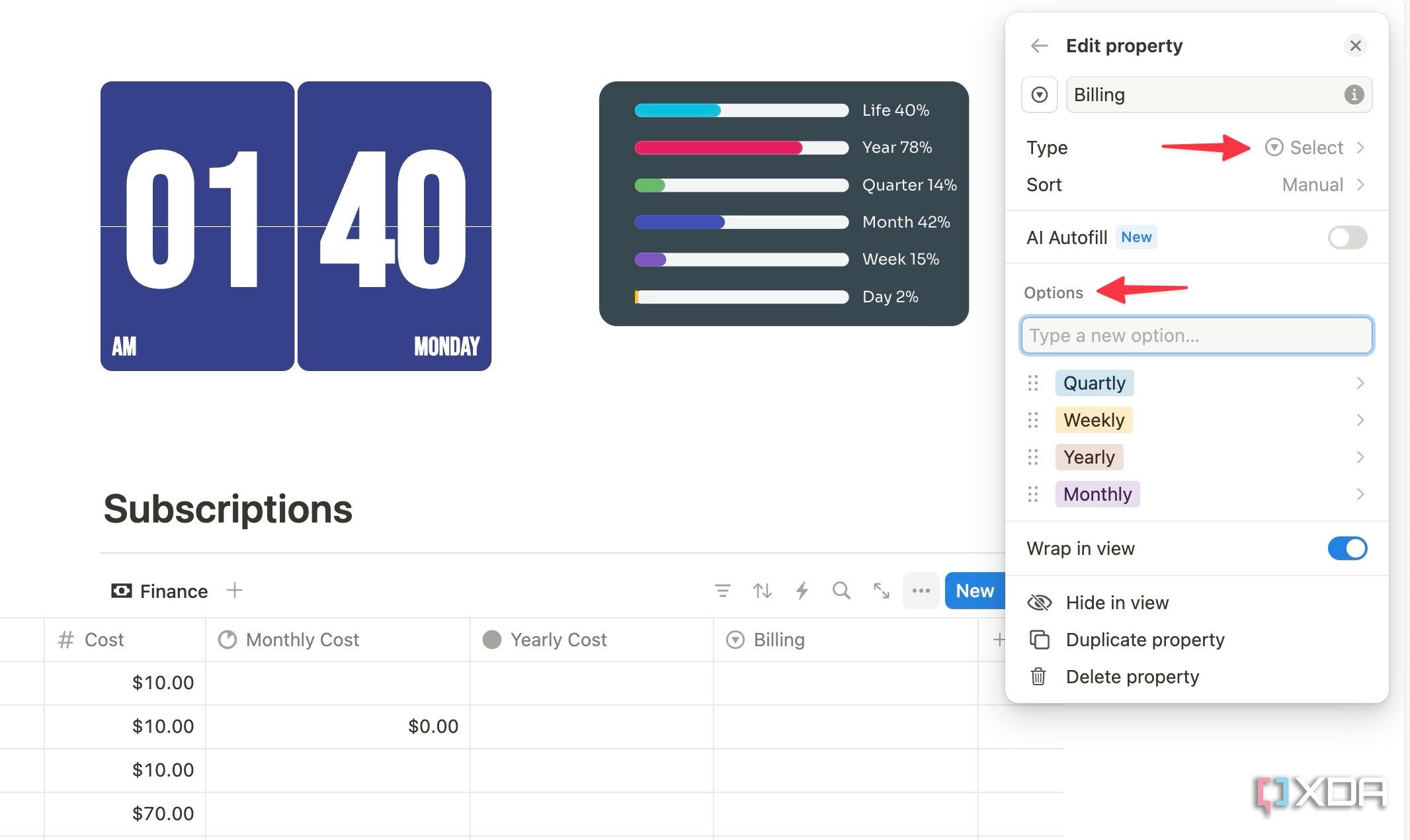
- Similarly, create Billing with Select type and add options like Weekly, Monthly, Quarterly, and Yearly. Assign the same to all relevant apps and services.
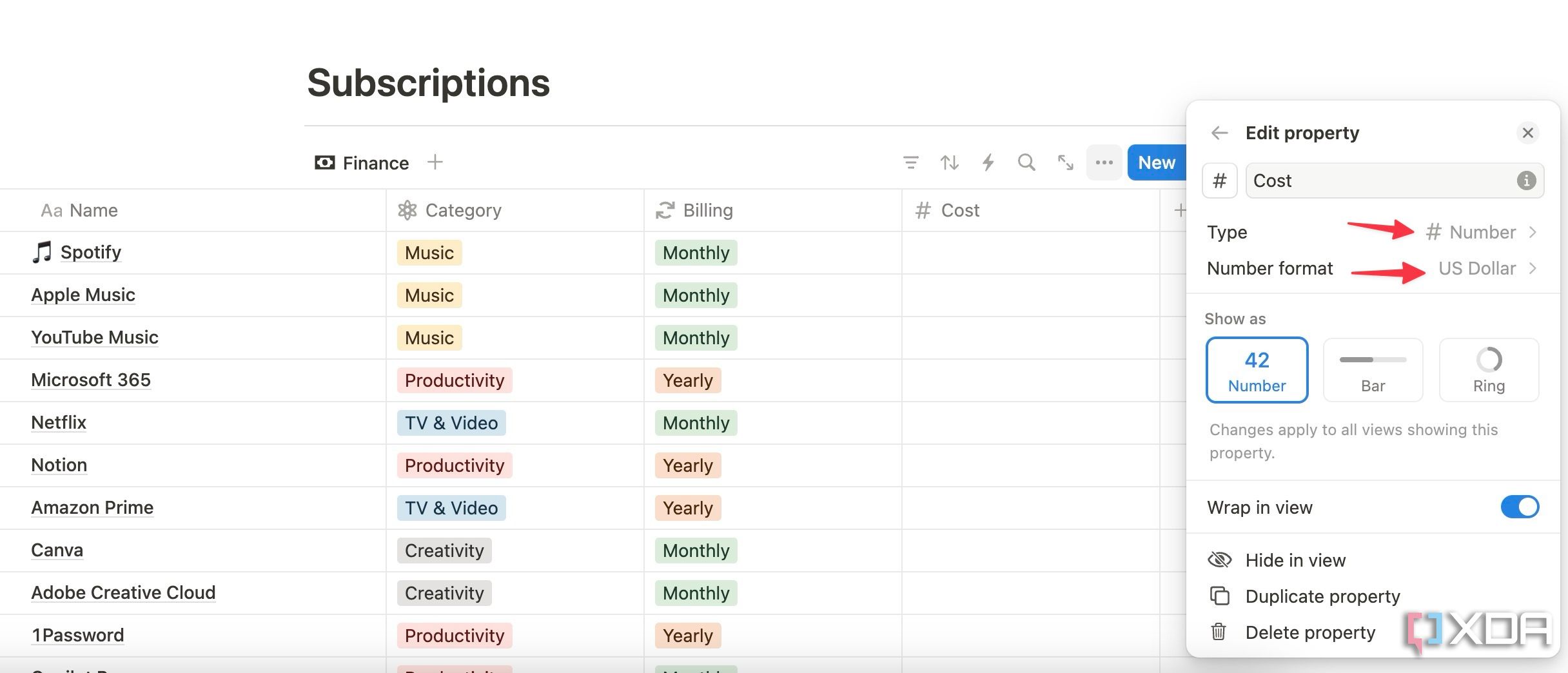
- Create a Cost column with Number type. For example, you could set the number format to US Dollar from the Edit property menu.
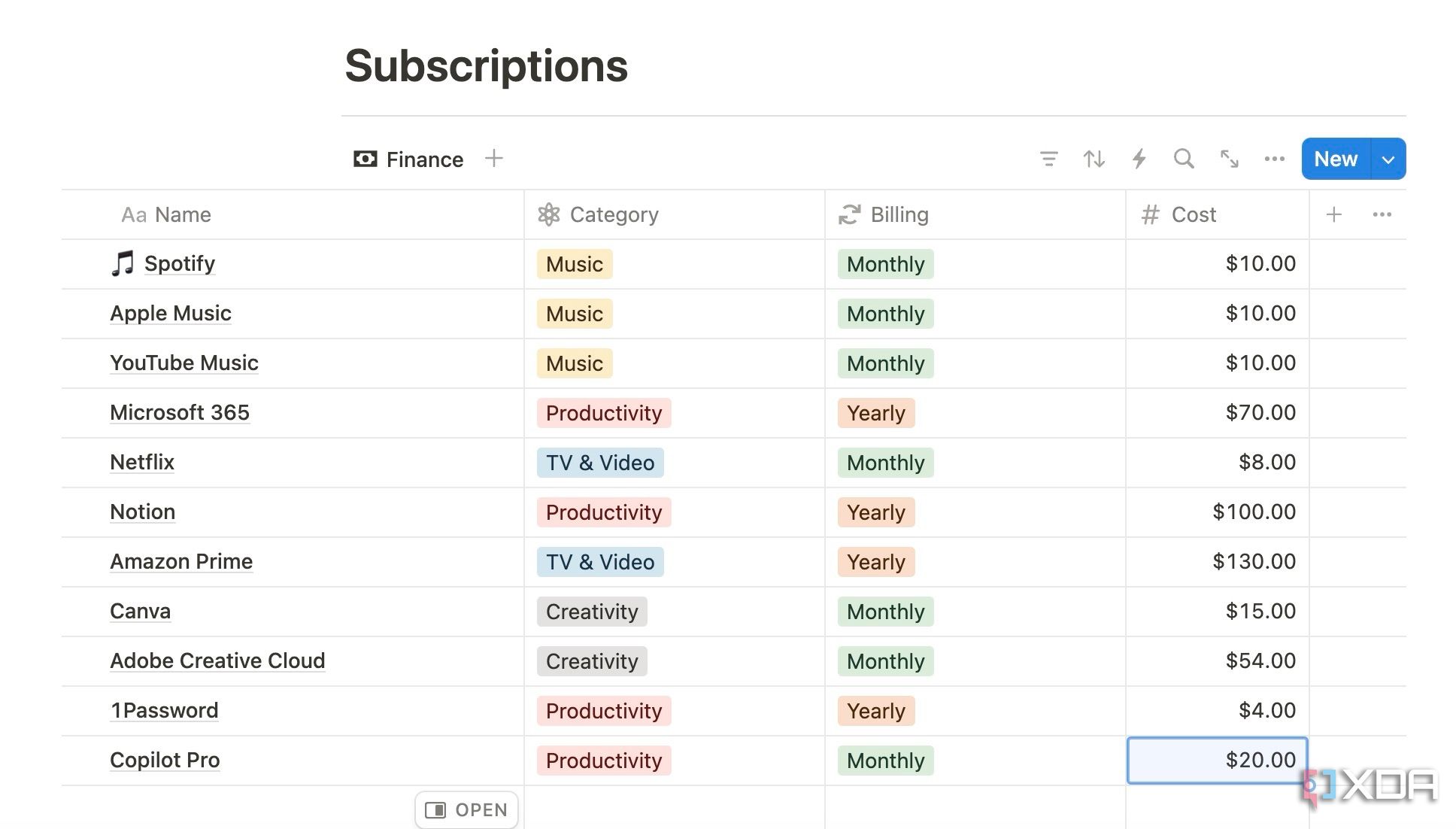
- Enter the cost for each service.
- Create a Monthly Cost column with Formula type. Set number format to US Dollar and edit formula. Add the formula below.
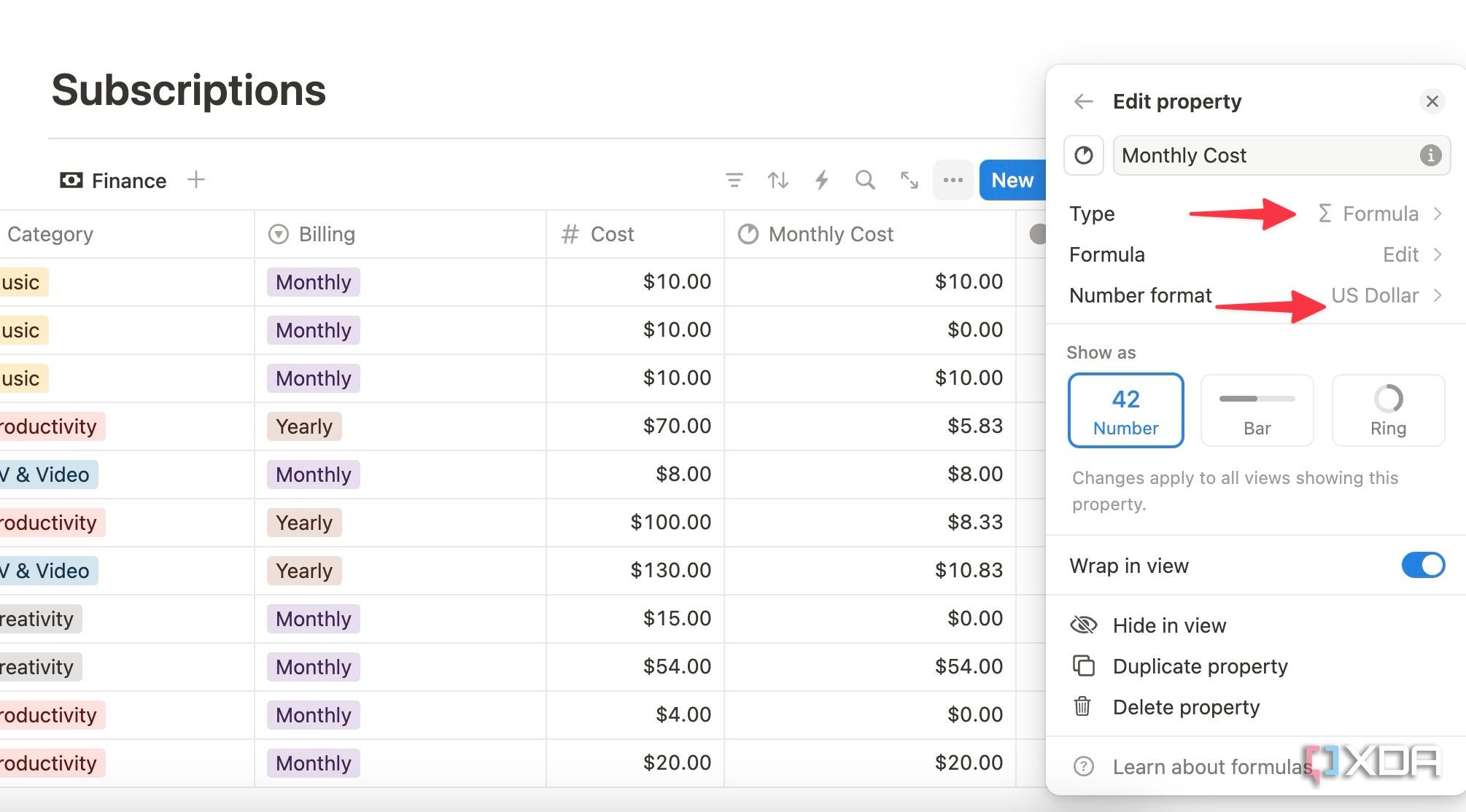


if(contains(Status, "Inactive"), 0, if(Billing == "Yearly", Cost / 12, Cost))

It automatically calculates your monthly costs for each subscription. Similarly, create Yearly Cost column with Formula type, and open the Edit property menu. Enter the formula below.
if(contains(Status, "Inactive"), 0, if(Billing == "Monthly", Cost * 12, Cost))

Here is what your final database should look like. We have added conditions in both the formulas so that it can automatically ignore monthly and yearly costs for inactive subscriptions.

Now, create a new column with the Date type. Start adding a due date to each subscription service with a reminder.

You can then move to the bottom of the Monthly and Yearly cost columns and calculate the total. Select Calculate > More options > Sum.


Related
You’re missing out if you haven’t tried these Notion templates
Setting up a Notion page from scratch is counterproductive. Instead, try these templates to get started.
Generate statistics from your subscription data
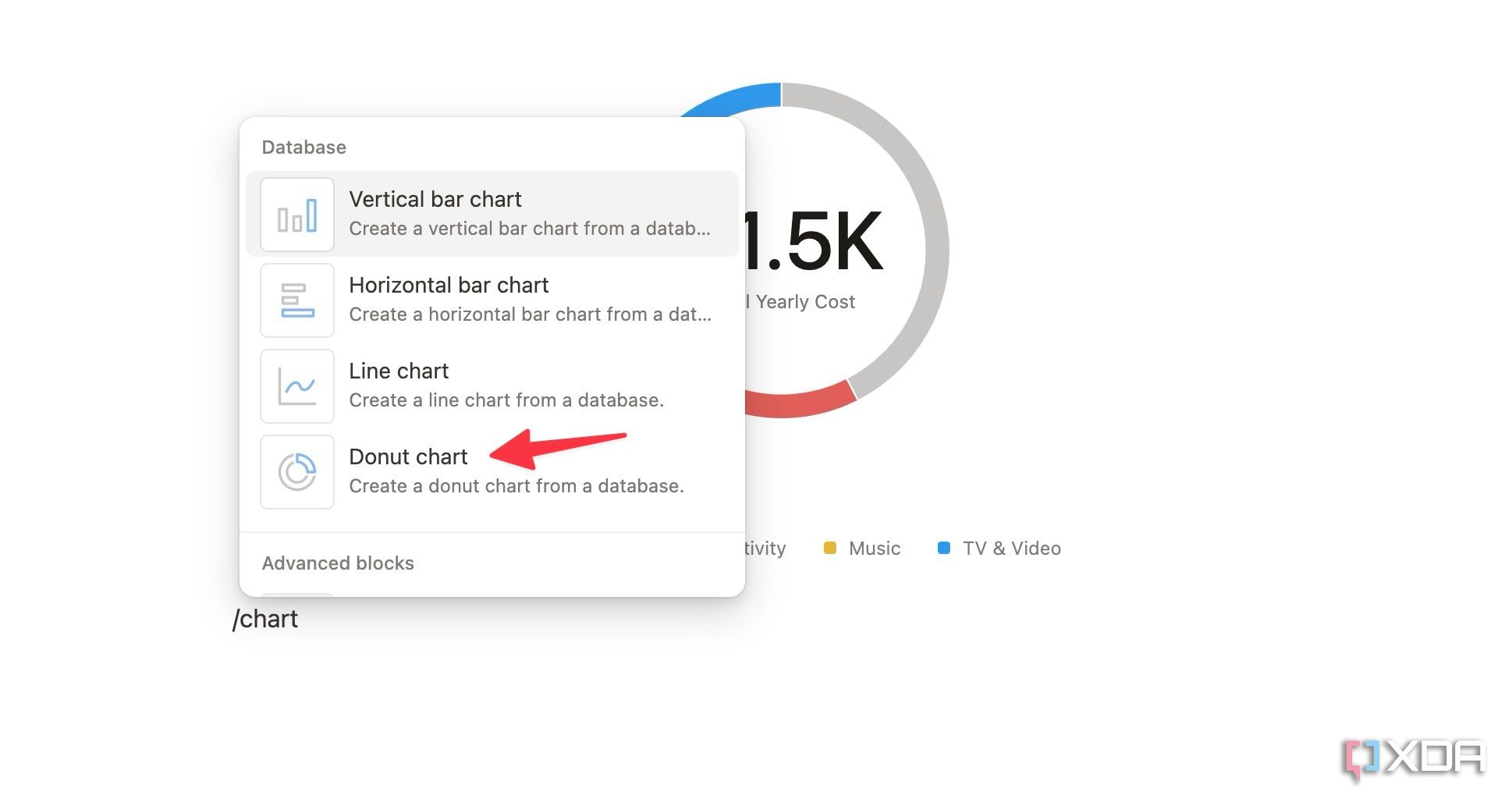
With a recent update, Notion has added support for different types of charts. Basically, you can generate and insert horizontal, vertical, line, and donut charts based on your existing database. In the example below, I will create a donut chart based on my yearly subscription spending in different categories. Follow the steps below.
- Type /Chart and select Donut chart from the suggestions menu.
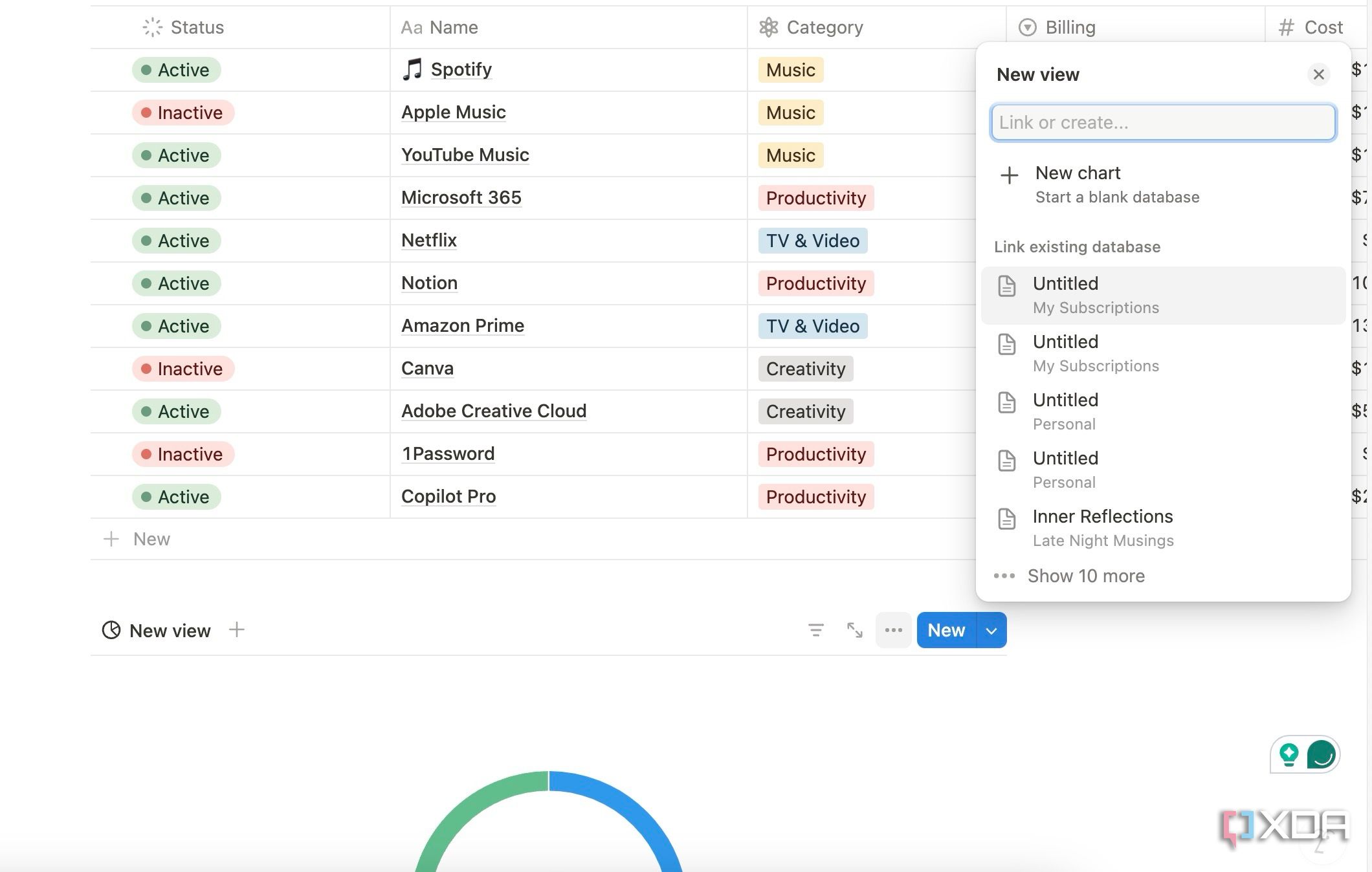
- Pick your database from the current Notion page.
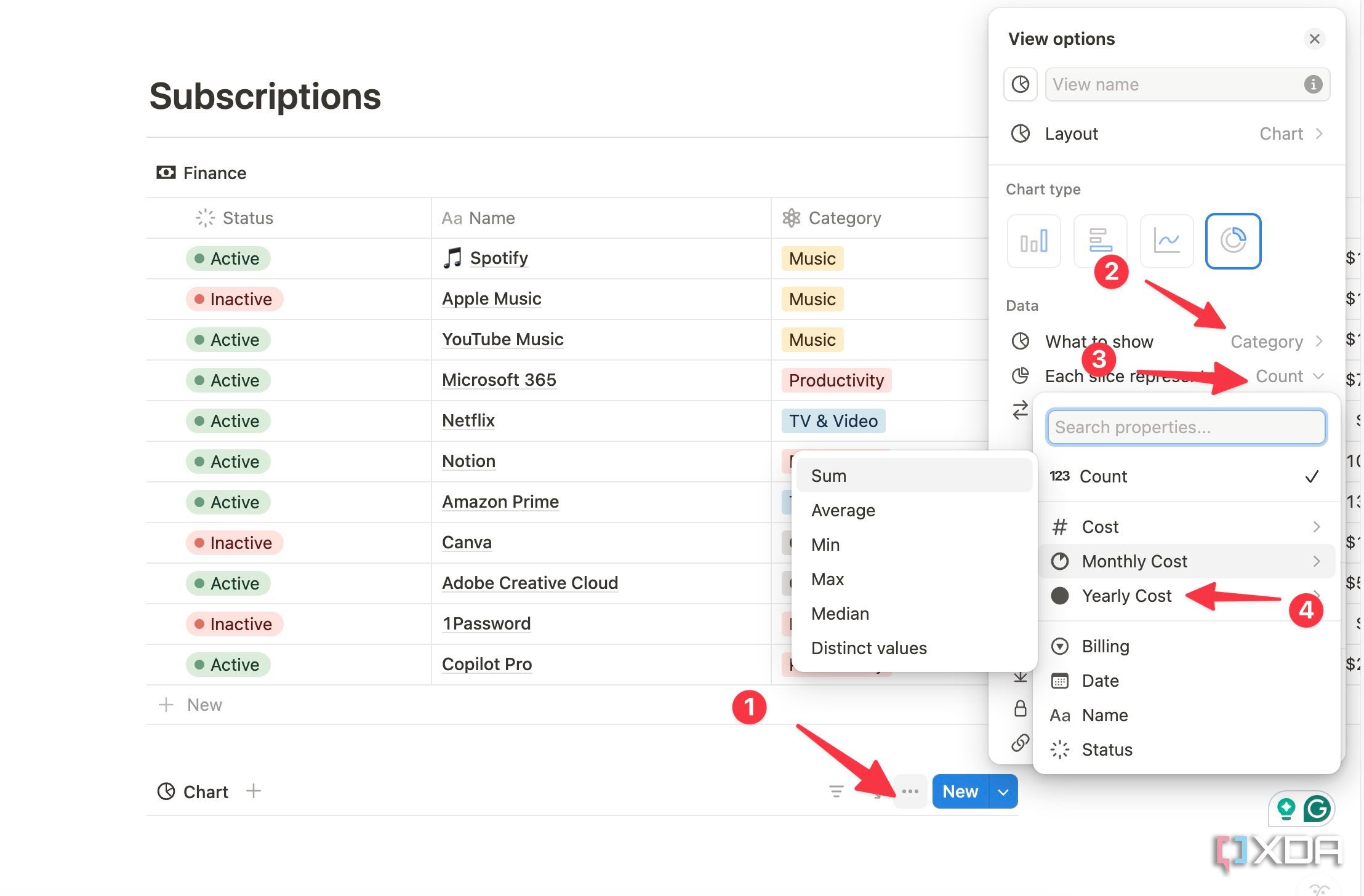
- Expand View options and select Category under What to show. Expand Each slice represents and select Yearly costs.
- By default, it uses a colorful theme. You can expand Color and pick another shade.
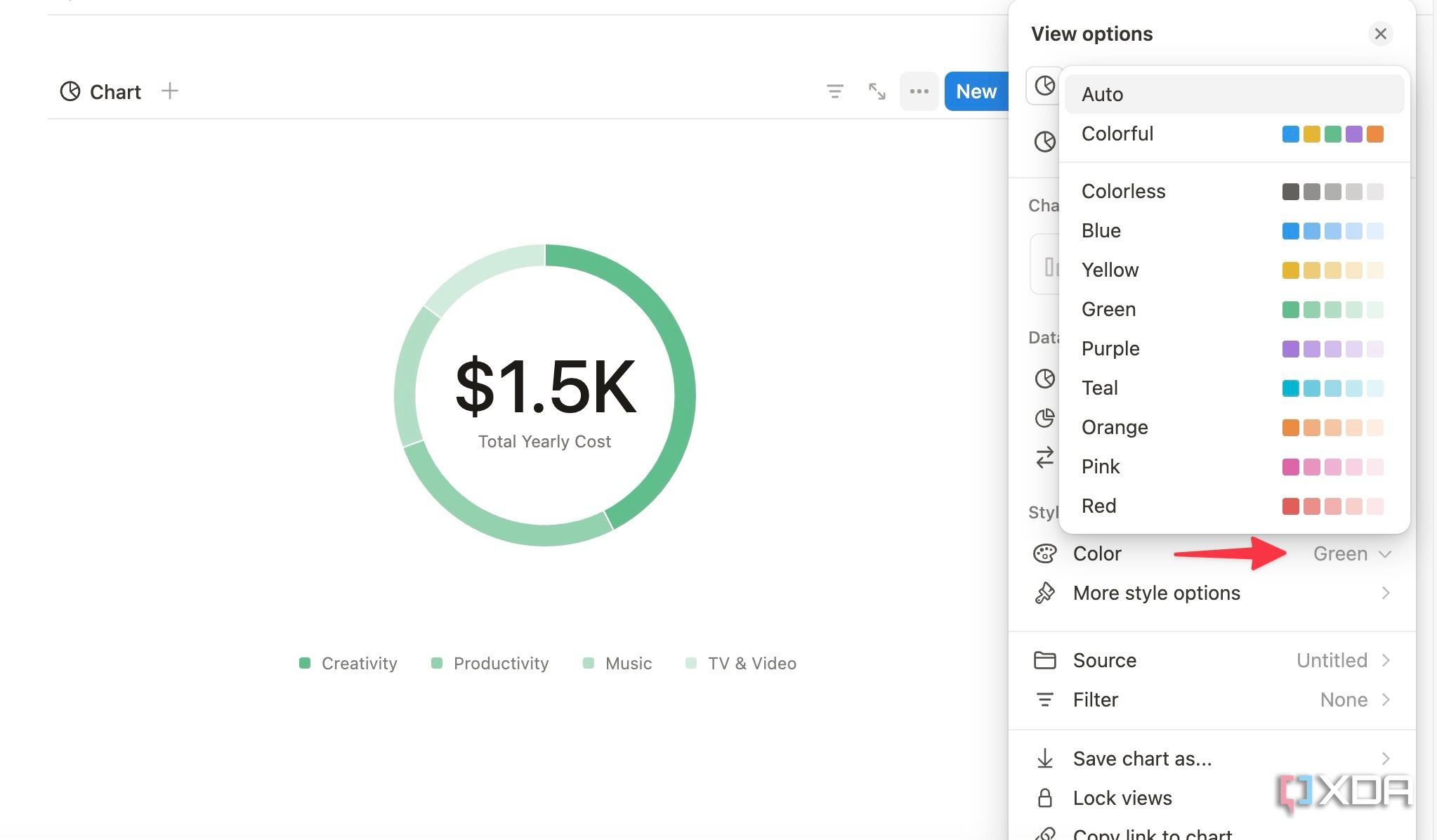


You have multiple options to change the look of your donut chart. With a free Notion plan, you can only insert one chart to your workspace. If you want to add more charts, upgrade to a paid plan.

Related
10 power tricks every Notion user should know
Complete your ideal Notion setup by following these tips
Easy setup, big impact
Creating a subscription tracker in Notion is a game-changer for anyone looking to take control of their recurring expenses. What are you waiting for? Follow the steps above, visualize spending, glance over renewals, and make informed decisions about your subscriptions.
Notion is quite flexible and versatile. Aside from a subscription tracker, you can create a digital journal in Notion, too. Check out our dedicated guide to learn how.
#Heres #created #powerful #subscription #tracker #Notion
source: https://www.xda-developers.com/heres-how-i-created-a-subscription-tracker-in-notion/


