

While Excel boasts over 450+ functions, sometimes they just don’t cut it. These built-in functions fall short when you want to automate specific tasks or perform unique calculations in your databases. Here is where the magic of VBA (Virtual Basic for Applications) comes in. It’s an undiscovered Excel feature for creating custom functions, which has entirely changed how I handle my spreadsheets.
In this guide, I will start with VBA basics and give you practical examples of utilizing custom functions to unlock a whole new level of Excel mastery.
User-defined functions (UDF) in Excel
Before I go over the step-by-step instructions for creating custom functions in Excel, let’s talk about user-defined functions. As the name suggests, it’s a custom function that you create using VBA to extend Excel’s capabilities beyond the built-in options. Let’s say you want to extract numerical information from specific cells in your Excel sheet. Instead of completing the task manually for hundreds of cells, you can simply create your own function and execute it with a single click.
The possibilities are endless here. It’s entirely up to your use case, working style, and skills to come up with custom functions in Excel. Whether you are looking for tailor-made solutions, streamlined efficiency, or want to build your own functions to expand your Excel skillset, VBA empowers you to tackle complex challenges without breaking a sweat.
Create and use a custom function in Excel
VBA is built directly into Excel, and already lives there right under our noses. But before you start creating your first custom function, make sure to follow several rules to avoid confusion and annoying errors.
Rules for creating custom functions in Excel
- A user-defined function begins with Function and ends with End function. You need to write logic between Function and End Function statements.
- Function statement is followed by the name of the function. You need to give it a unique name so that you can identify it and use it easily anytime.
- The name cannot match standard Excel function names, as the standard function will always run if it does.
- The name of the user-defined function must not be the same as any cell address in the worksheet. For instance, using the name CDE567 is not allowed.
- You can’t use space in your Excel functions. That said, you can use an underscore like average_count in your function.
Use custom functions in Excel
Now that you know the basics about Excel custom functions, let’s create one. In the example below, I will create an Excel function to calculate all odd numbers from a specific cell range.
- Open an Excel workbook on your PC.
- Press the Alt + F11 (or Option + F11 for Mac) keys to open VBA. Alternatively, you can head to the Developer tab and select Visual Basic.
- Select Insert at the top and click Module.
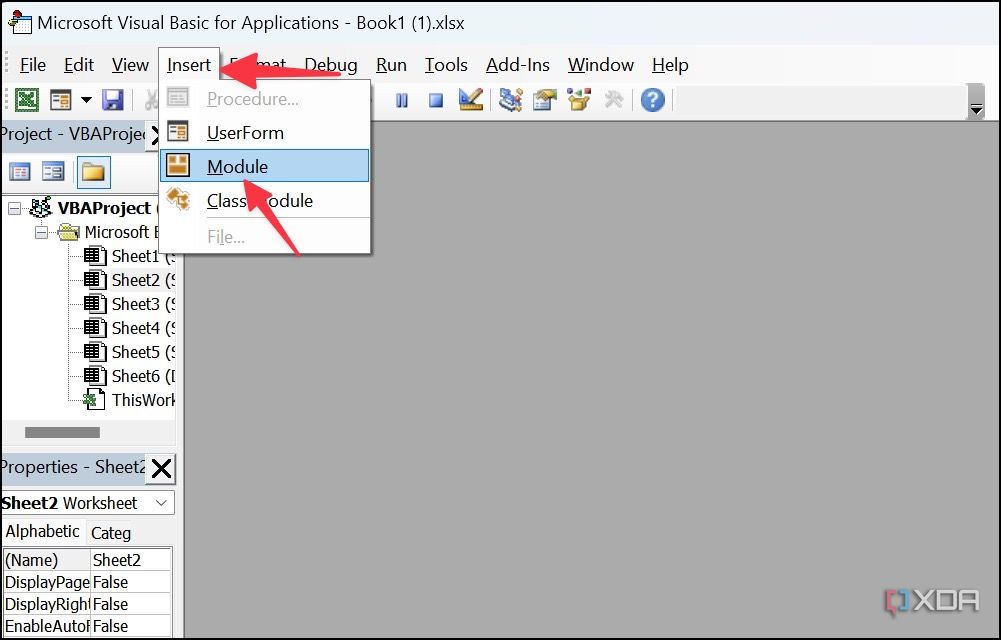
- Write down the VBA code. As you can see from the example below, I have given it AddOdd name for better familiarity. Press the Ctrl + S (or Command + S on Mac) keys to save it.
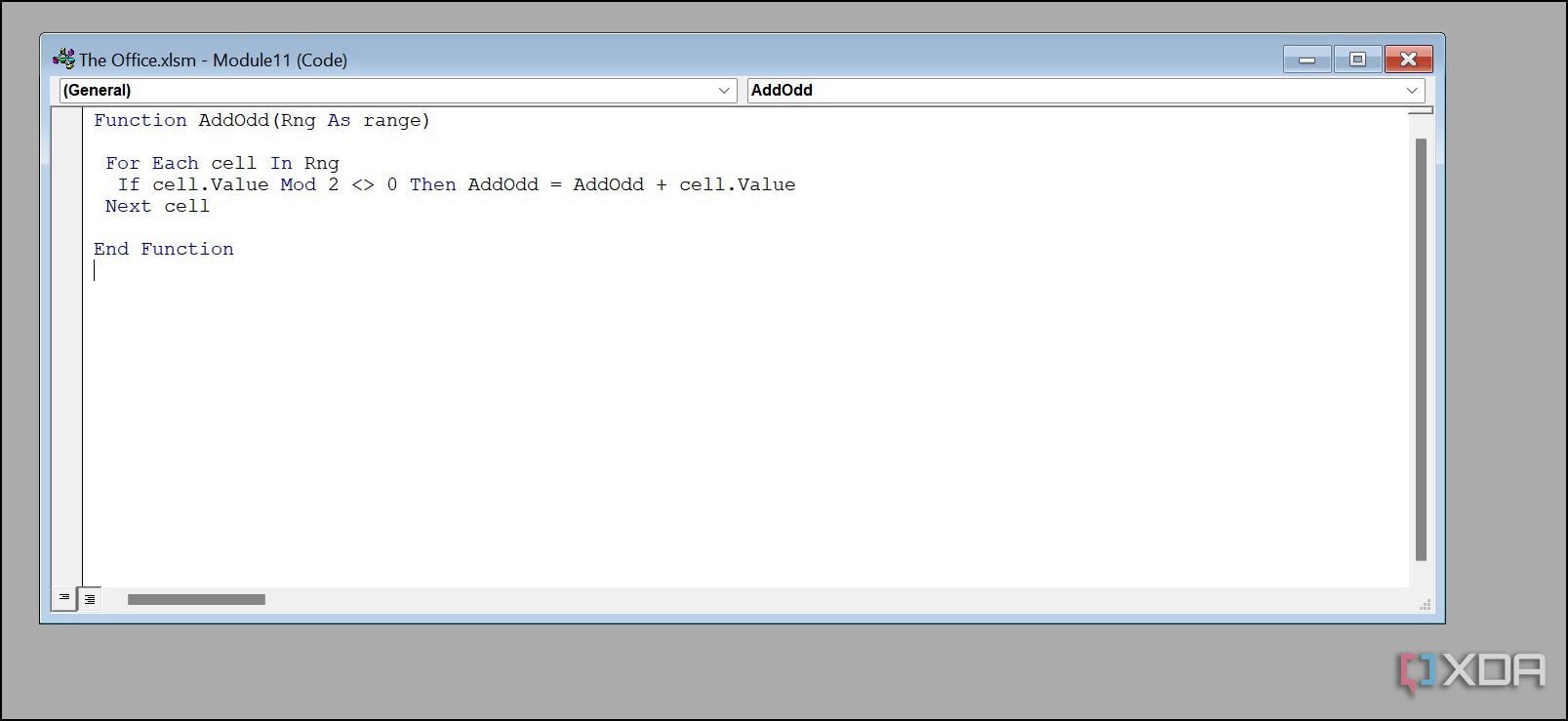


You can now close the VBA window and go back to your Excel sheet. Pick a cell, type =AddOdd(B4:B14) and hit Enter to calculate the total odd numbers in a given range.

Now, let’s create another function where you need to calculate the age of your customer based on the date of birth included in the database. This function can be valuable for targeted campaigns, analyzing customer demographics, and other various purposes.
- Open the VBA editor in Microsoft Excel (refer to the steps above).
- Create a new module. Enter the function below.
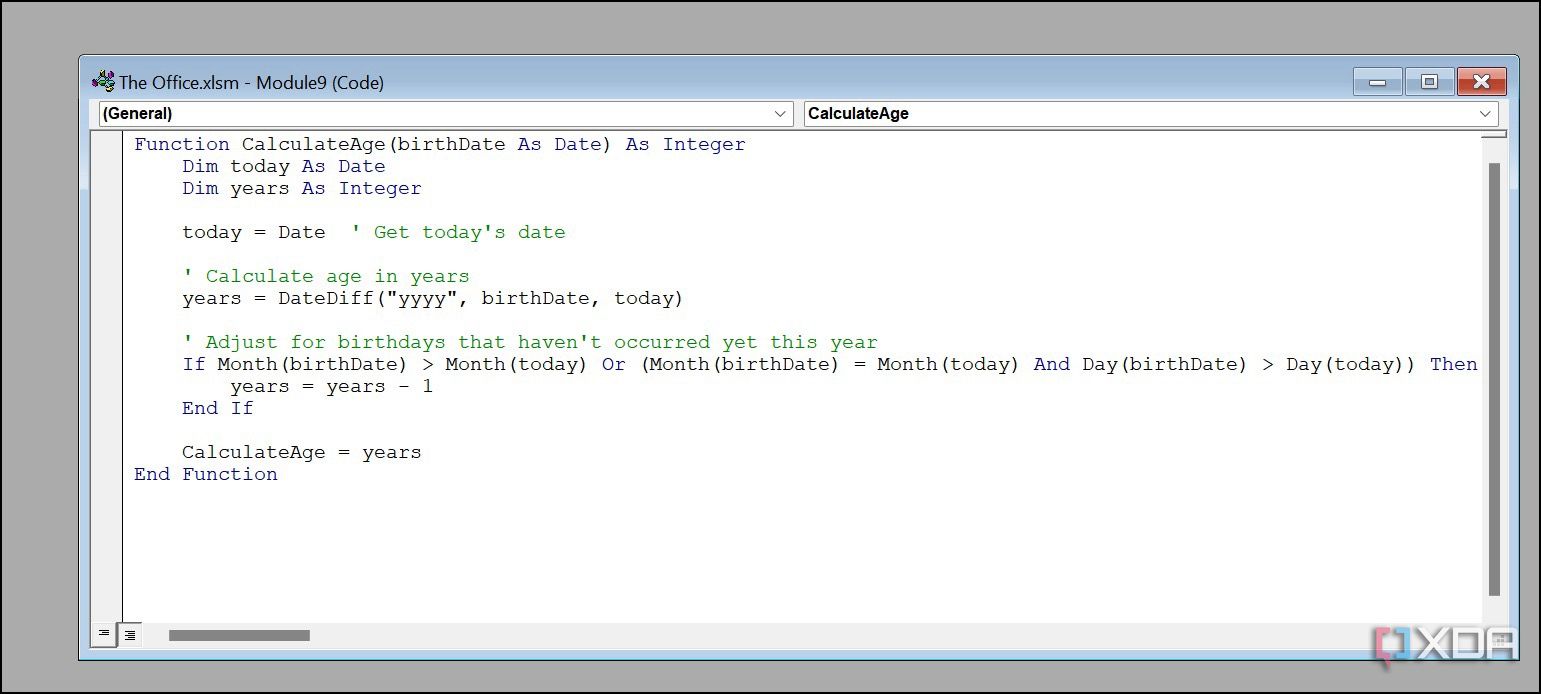

Close the window and head to your Excel workbook. Head to any cell and type =CalculateAge(A22) to calculate the final result. When you make changes to the specific cell range, the function updates the final value automatically.

You can always calculate the same using the built-in functions, but for this one a custom function just speeds up the process.
Consider another scenario: you are employed in a sales department and often have to determine the commission for sales representatives based on their total sales figures. Now, the commission is set at 5% for sales up to $5000, 7% for sales between $5001 to $10000, and 10% if the sales exceed $10000. You can create a custom function with relevant conditions and get desired results in no time.
- Open a VBA editor in Microsoft Excel (check the steps above).
- Create a new module from the Insert menu. Write a custom function below.
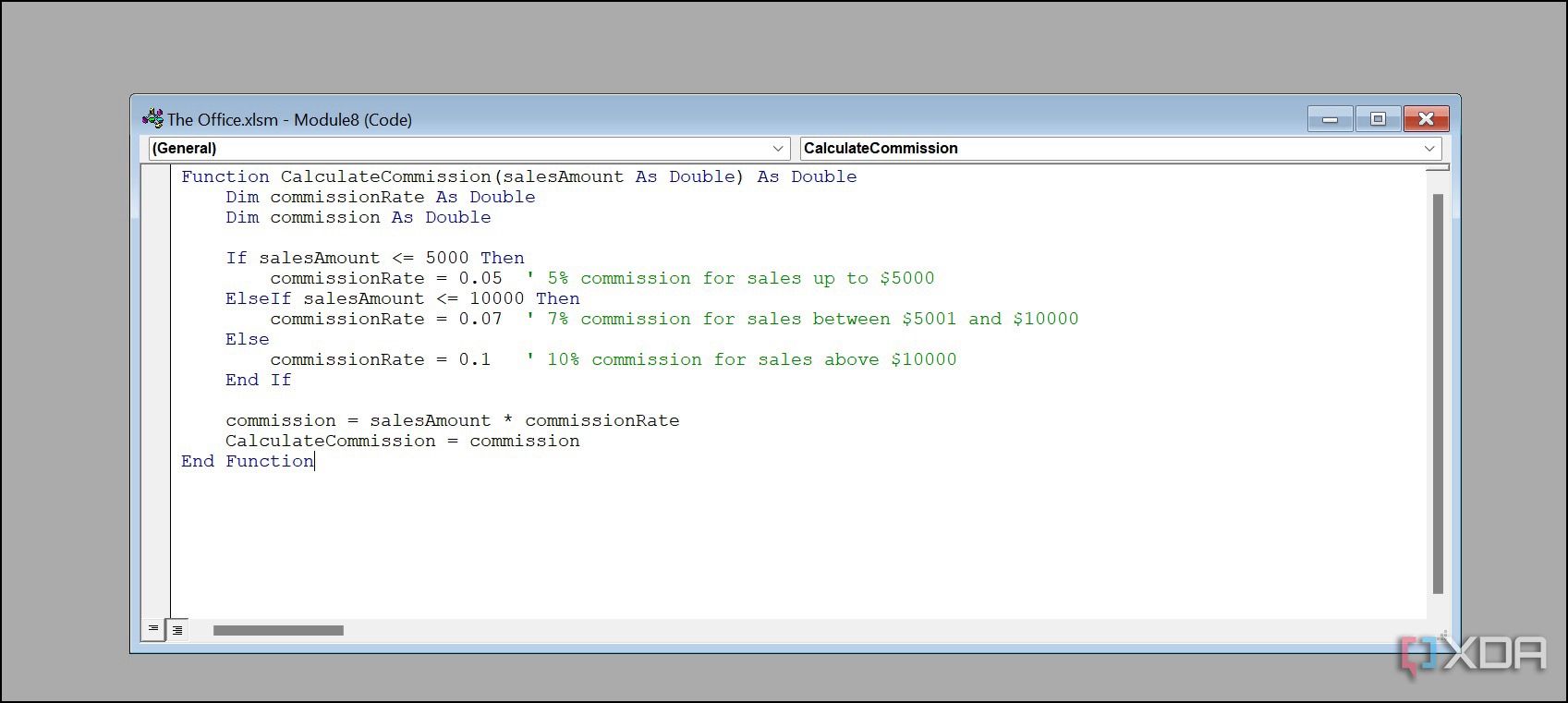

Head back to your Excel worksheet and type =CalculateCommission(G11) and calculate commission in no time.

As you can see, VBA offers a number of opportunities to tailor Excel functions to your needs. Once you master it, you’ll find it extremely powerful and productive.
Use Excel on steroids
VBA has completely transformed the way I interact with Excel. It does require a learning curve, though, and at times you may even encounter errors while executing your custom functions. As a beginner, you can start with the basics, experiment, and gradually move to complex functions. With a bit of practice, you will be amazed at what you can achieve. Such flexibility is one of the reasons Excel is better than new-age database solutions like Notion.
#functions #Excel #VBA
source: https://www.xda-developers.com/how-i-made-my-own-functions-in-excel-using-vba/


