

Over the years, Android has become a robust operating system for emulation lover. With improvements in Snapdragon’s uber-powerful chipsets and a wave of optimizations on the software side, it’s possible to emulate PlayStation 2 titles and even select Switch games on high-end Android devices.
Thanks to Winlator, you can even emulate PC games on your pocket-sized companion. As long as you have a high-end Snapdragon chip, you can experience some of the newer 3D titles at playable FPS. Although Winlator itself is easy to set up, you’ll have to deal with a lot of trial and error to make full use of the emulator. So, we’ve put together a detailed guide on how to configure Winlator on your Android phone.
What you’ll need
Like most emulators, your smartphone needs to meet certain performance criteria if you wish to run Winlator at decent frame rates. Winlator favors Snapdragon processors, and thanks to the swift Turnip drivers, you’re bound to see much better performance on an SD chip than on an equivalent Mediatek Dimensity or Samsung Exynos CPU. That said, owners of Snapdragon 8 Gen 3 chips won’t be able to run Winlator because the app isn’t optimized for the latest and greatest SD processor yet.
On the RAM front, the old adage that more is always better holds true. I’d say you should have at least 6GB of memory if you want to run 3D games, though older titles and certain 2D games may run at tolerable FPS.
Finally, you should keep an eye on the storage: since we’re emulating full-fledged PC games, you may find yourself quickly running out of space if you try to install your entire GOG library on Winlator. For reference, I use a Poco F5 to run WInlator, and I’ve had decent FPS on most titles (though crashes are pretty common). As for the storage, well, even though I haven’t installed any additional apps besides the factory software, I found myself running out of the 256GB storage after installing ten games.
Installing Winlator
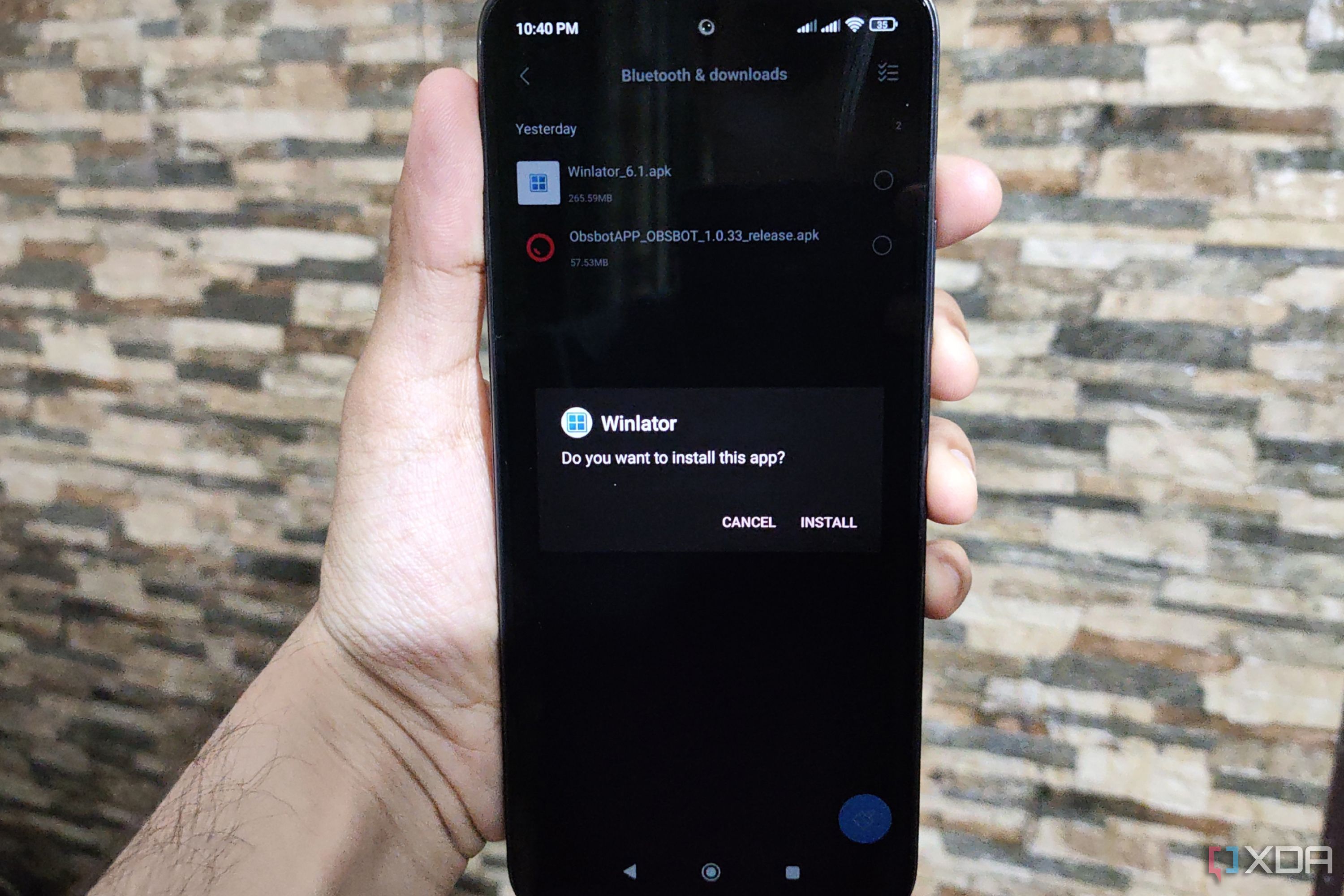
I’ve already gone over the procedure to install Winlator in my hands-on article for the emulator, but here’s a quick rundown of all the steps:
- Grab the latest version of the Winlator.apk file from brunodev86’s GitHub repository.
- If you haven’t already granted File Manager the privilege to Install unknown apps, you’ll have to do so via the Settings app.
- Open the File Manager and navigate to the Downloads directory before installing Winlator.

Creating containers
And choosing the ideal settings
The Winlator containers are similar to those you’d find on Proxmox or other platforms, except Winlator’s offerings are specifically designed to run Windows games. You can follow these steps to set up containers on the emulator:
- Launch Winlator and click on the + button.
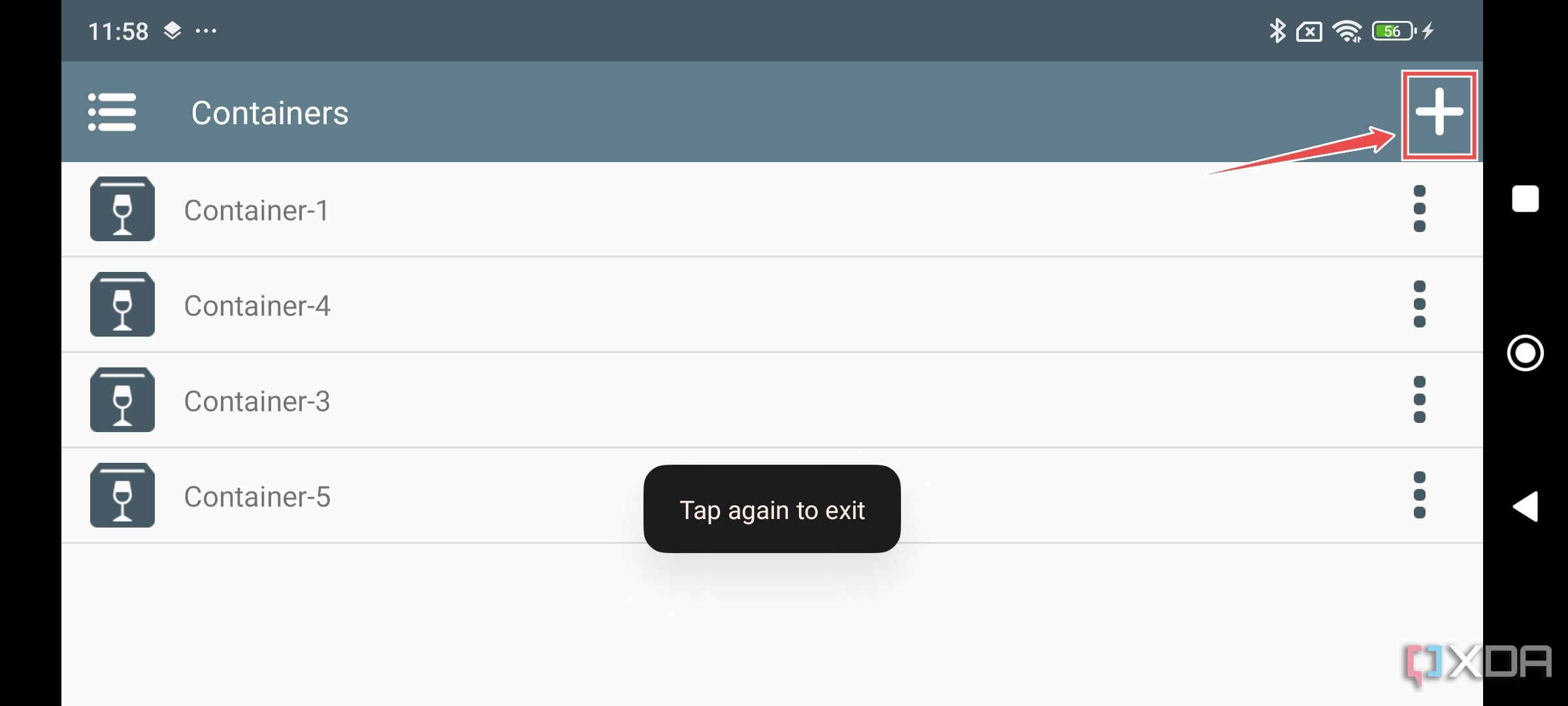
- By default, the container resolution is set to 800×600.

As usual, the lower the resolution, the better the performance, though I’ve found the 16:9 aspect ratio of the 960×544 resolution to work better on my Poco F5.
- If you’re on an Adreno GPU, switch the Graphics Driver to Turnip (Adreno).
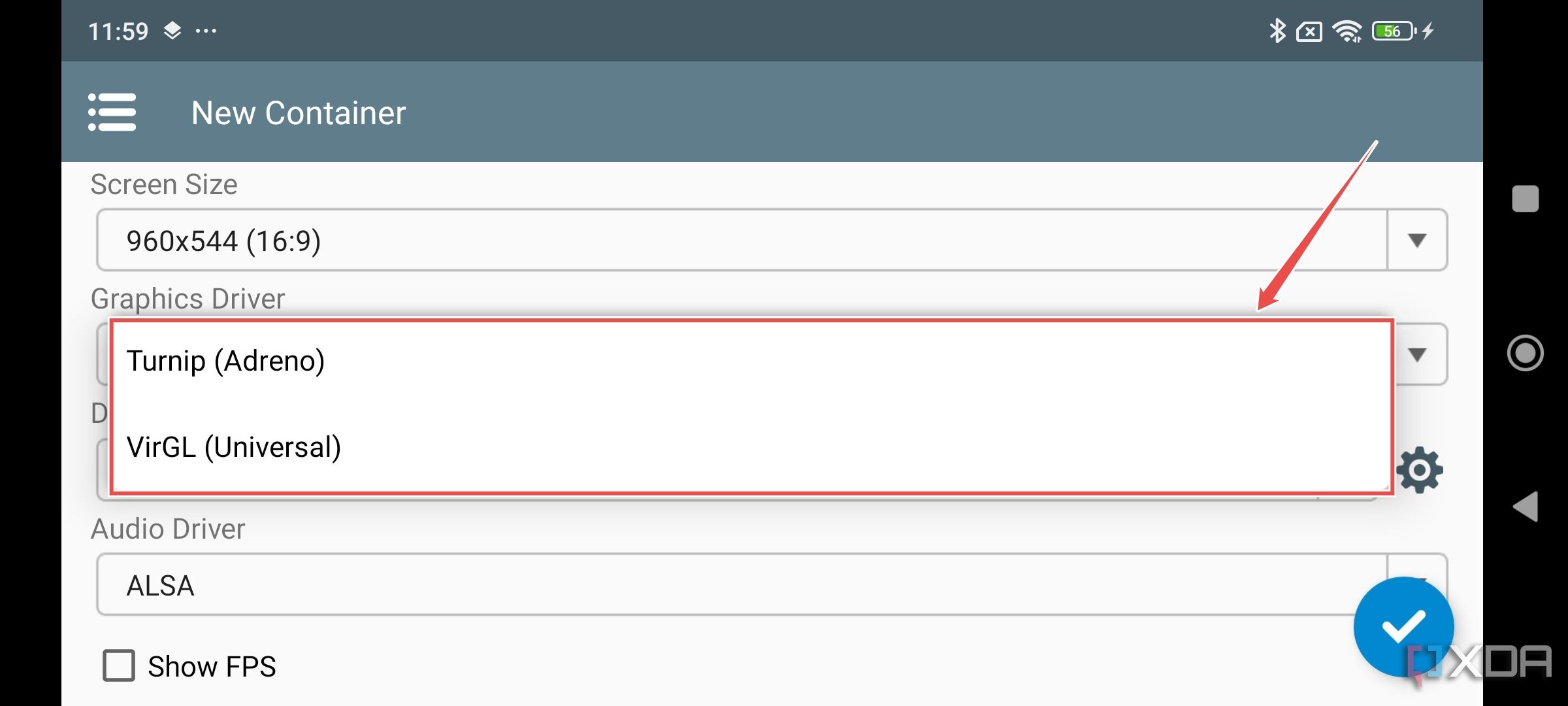
For any other GPU, set it to VirGL (Universal).
- The DX Wrapper is where things get complicated. For the best compatibility, you should go with WineD3D.

For superior performance in Direct3D 9-11 games, you can go with the DXVK layer (version 1.10.3), while VKD3D provides better FPS when translating Direct3D 12 games to Vulkan. On the other hand, CNC DDraw is only useful when playing Command and Conquer titles.
- Under the Wine Configuration tab, set the Video Memory Size according to the RAM available on your smartphone.
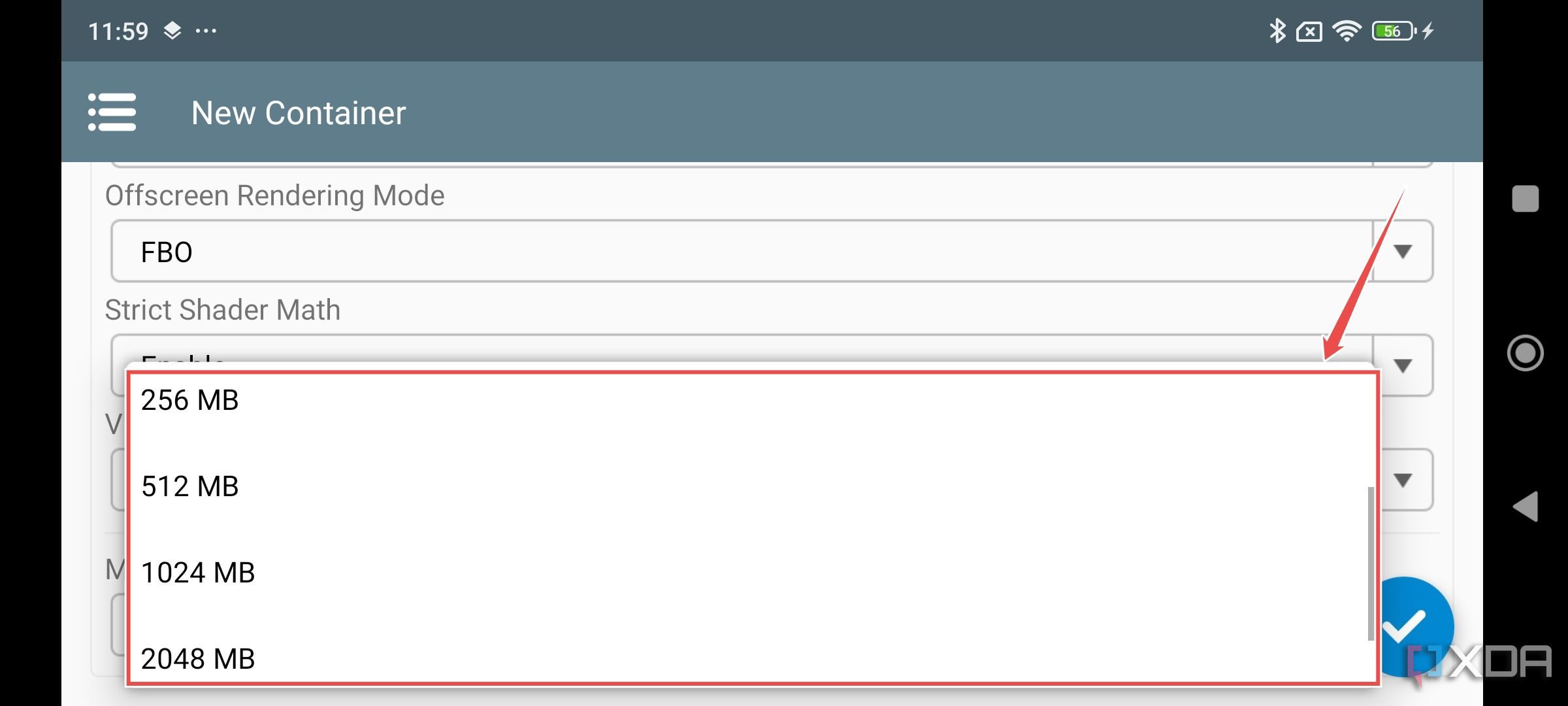
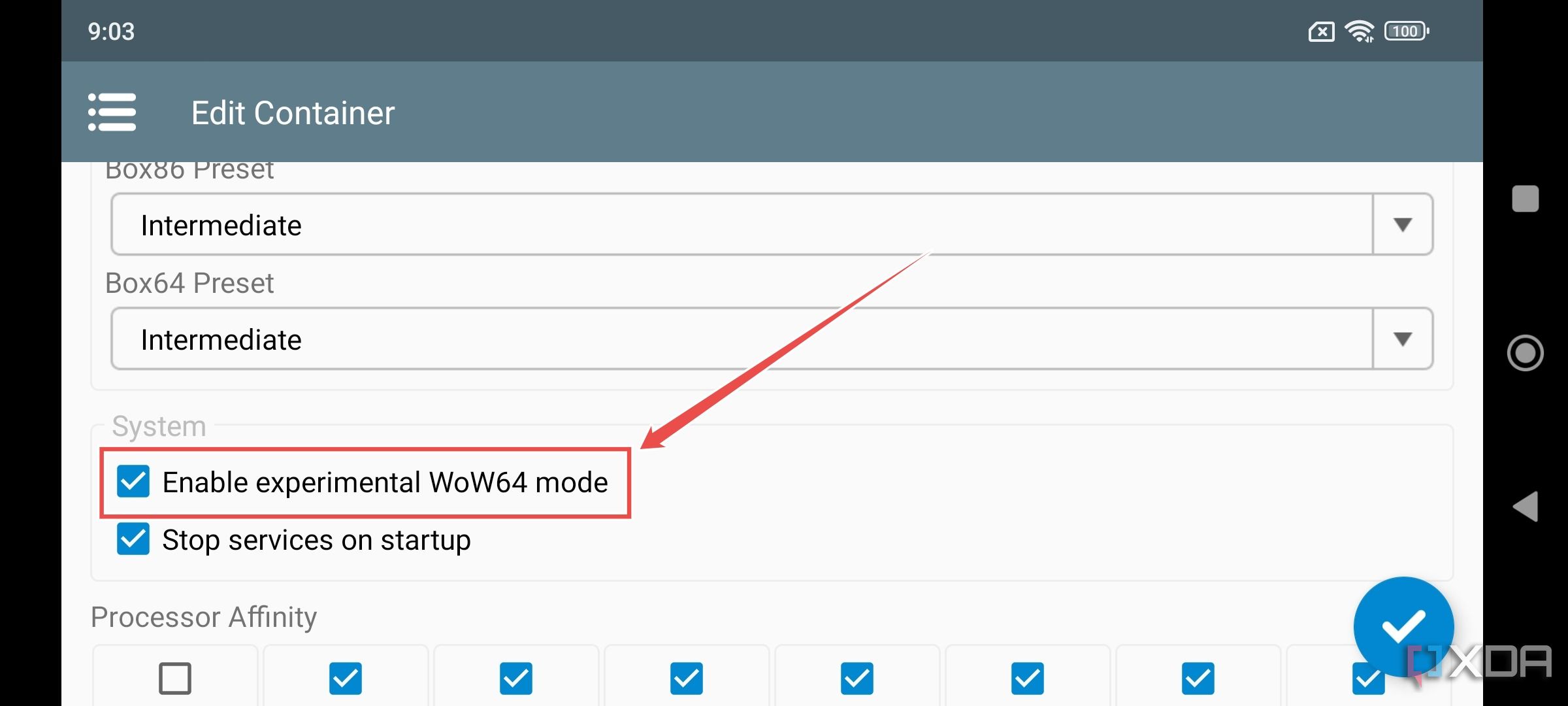
- Head to the Advanced section and check the Enable experimental WoW64 mode option.
- Be sure to experiment with the Box86 and Box64 presets.
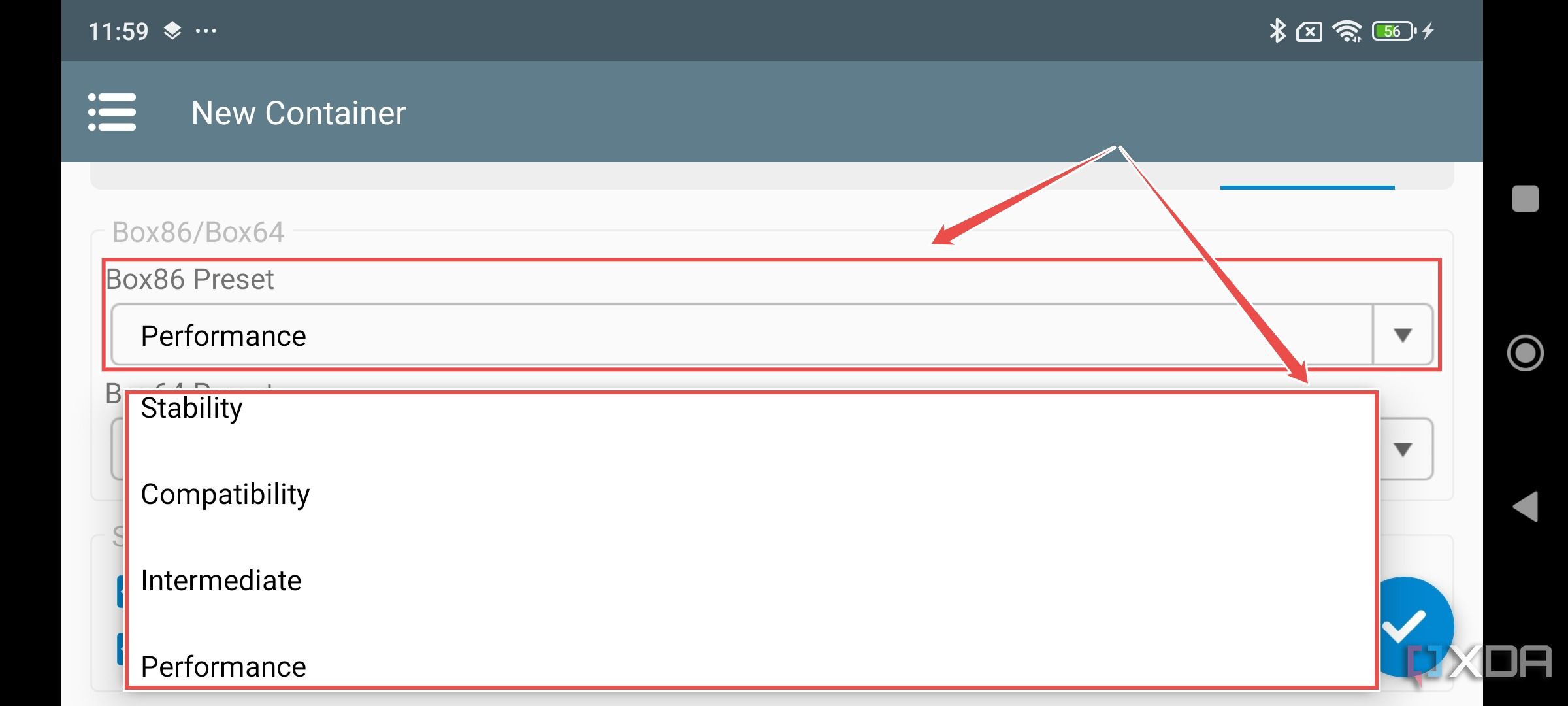
For games such as Hollow Knight, Slay The Princess, and Dragon’s Dogma: Dark Arisen, I’ve seen significantly better performance when setting both Box86 and Box64 to the Performance presets. Meanwhile, Crysis, Dead Space, Cuphead, Signalis, and other titles have outright refused to boot for any preset besides Compatibility.
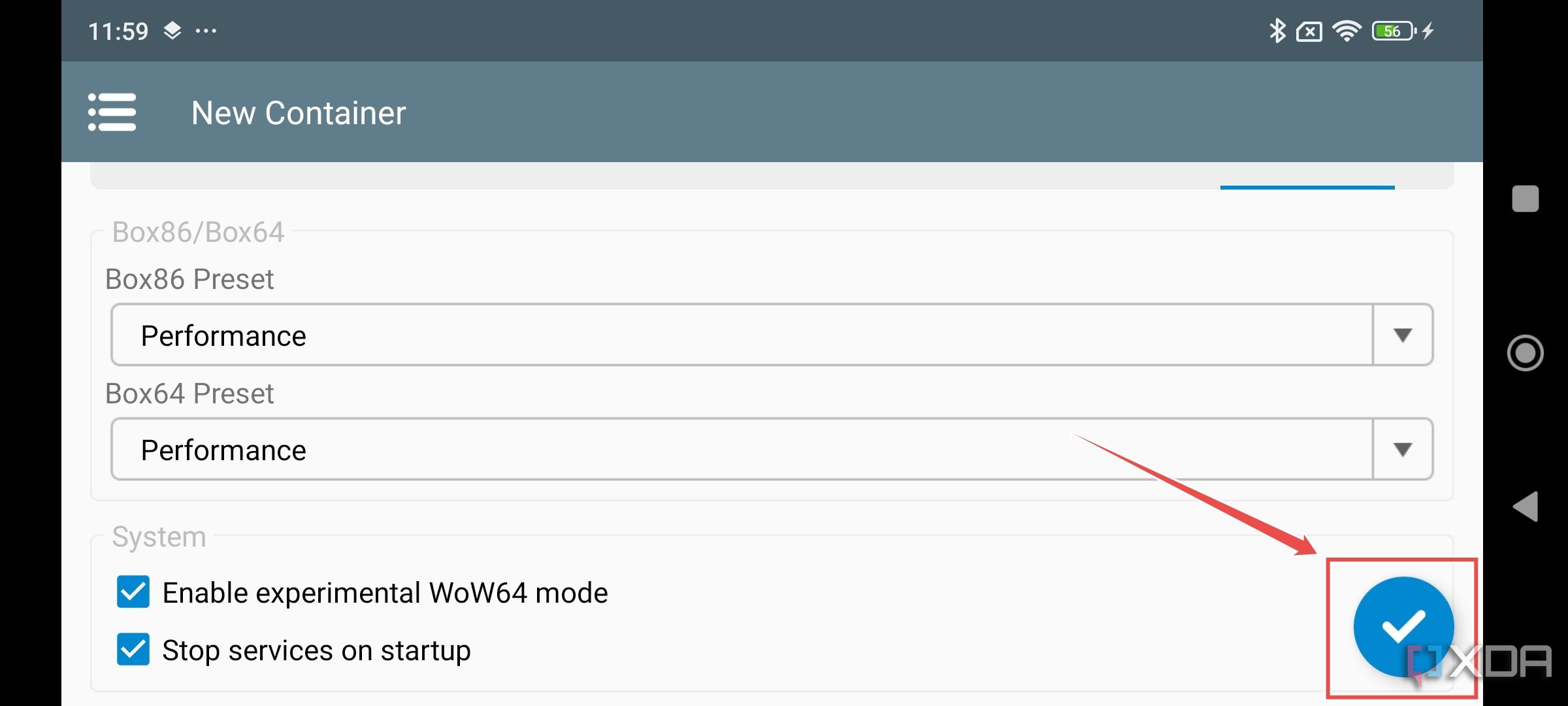
- Click on the Check mark to save the modified settings.


Adding games to Winlator
One of my biggest gripes with Winlator is that it’s nigh-impossible to run the Steam client, let alone boot your entire game library. So, your only option is to grab DRM-free game files from the GOG Galaxy app.
- Download the setup wizard for GOG Galaxy from this link and use it to install the app on your system.
- Launch GOG Galaxy as an administrator and sign in to your GOG account.
- Inside your Library, choose the game you plan to run on your Android device and click on the Extra tab.
- Download all the files listed under the Offline Backup Installers tab.
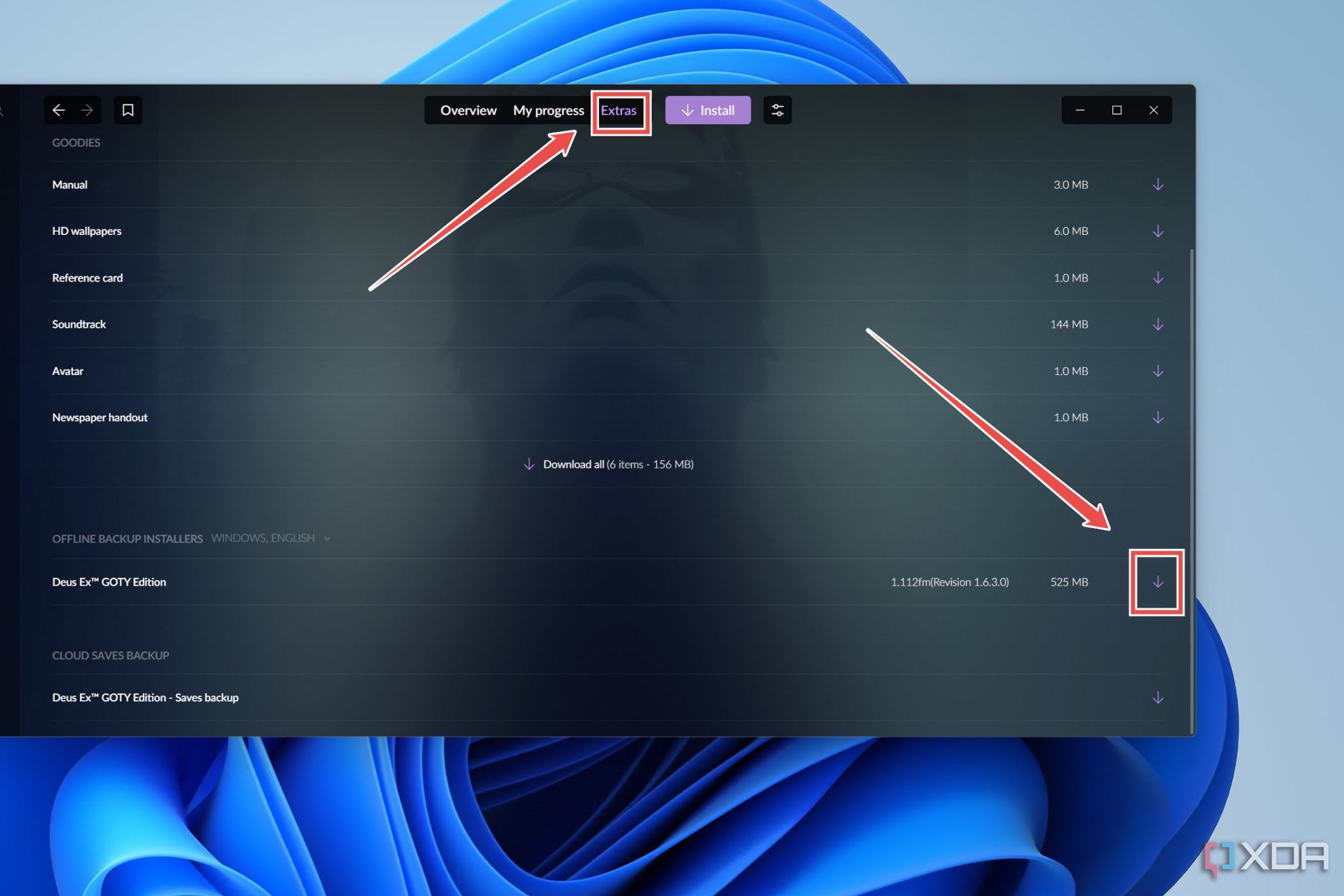
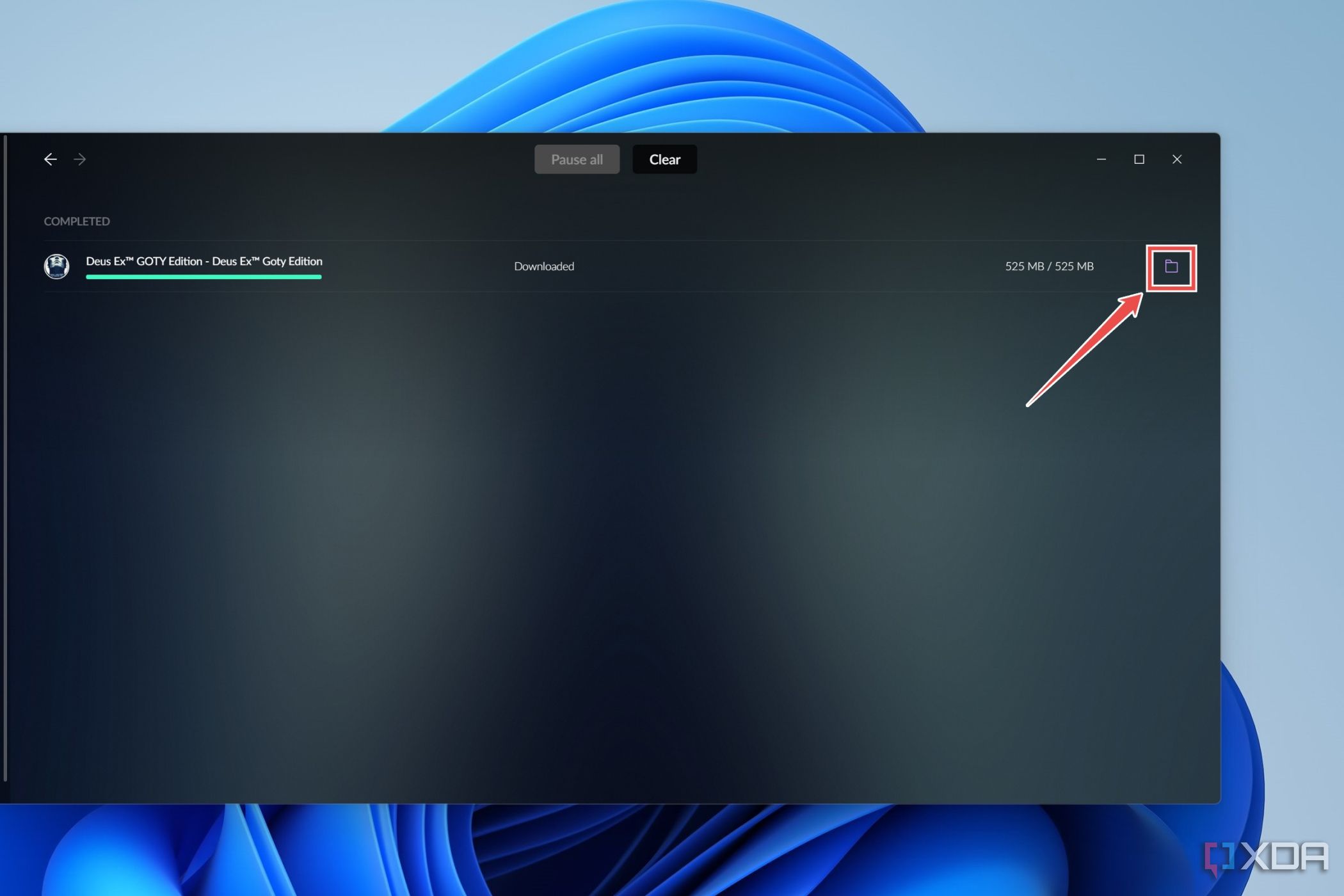
- Once the files have finished downloading, click on the Folder icon and transfer them to your smartphone’s Downloads folder.
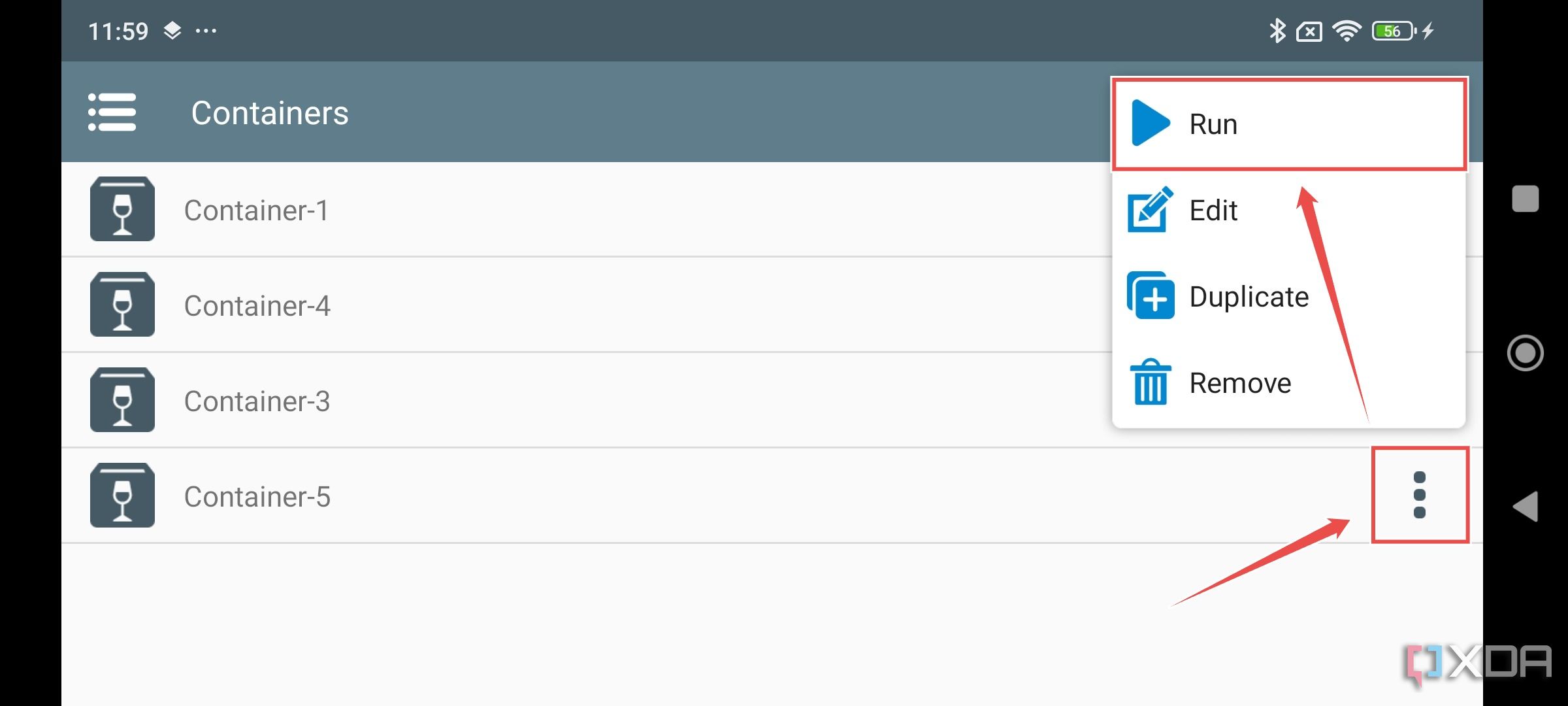
- Switch to your Android device and launch a container in Winlator by tapping on the Three Dots and selecting Run.
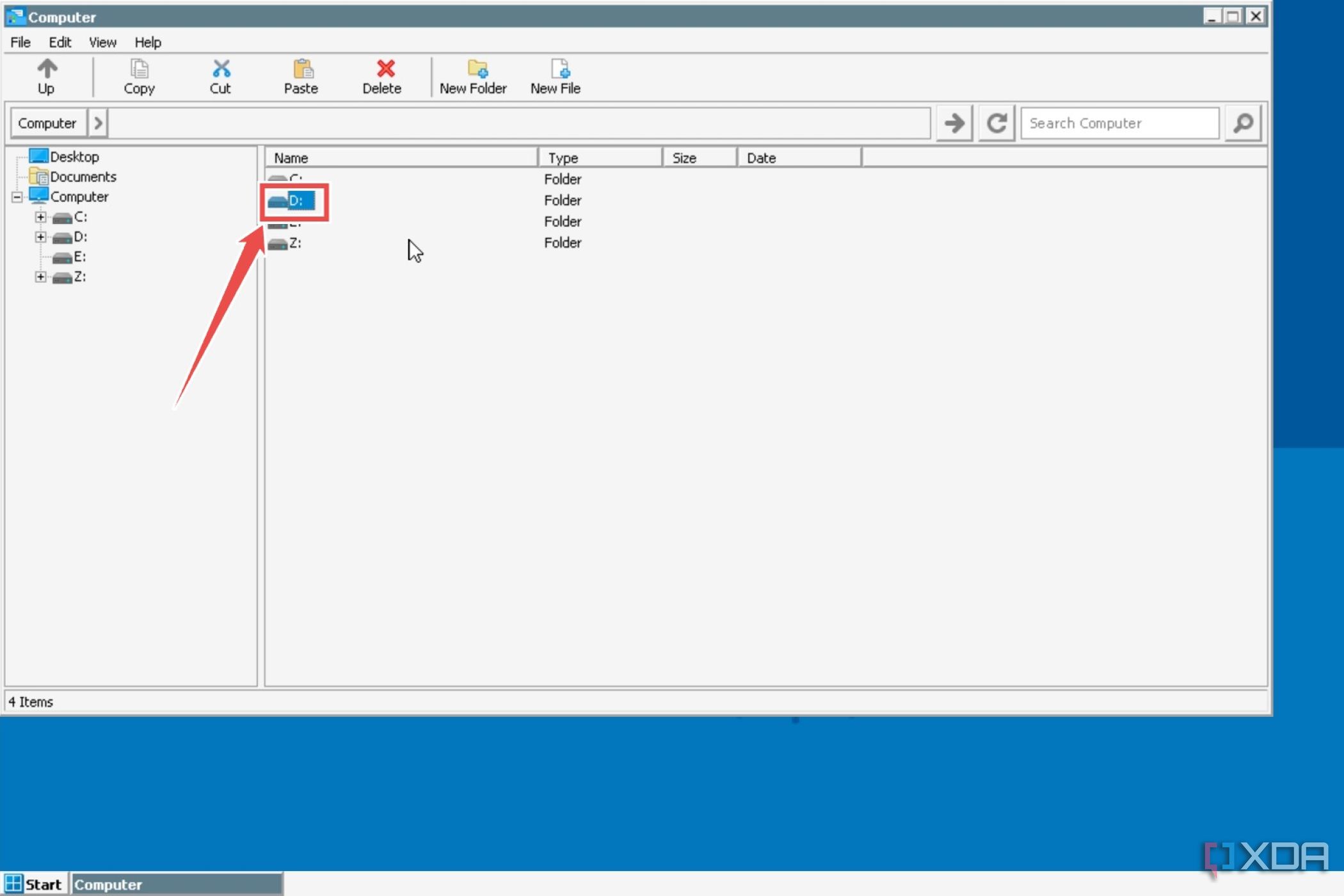
- Head to the D: drive, and install the setup.exe file for the game.


Creating shortcuts for games

Winlator shortcuts provide a quick way to launch your favorite games without going through the hassle of launching them from their directories. Plus, certain games, including Ys VIII: Lacrimosa of Dana and Cuphead, tend to crash if you launch them via the usual method, and will only boot if you create a separate shortcut for them. To do so,
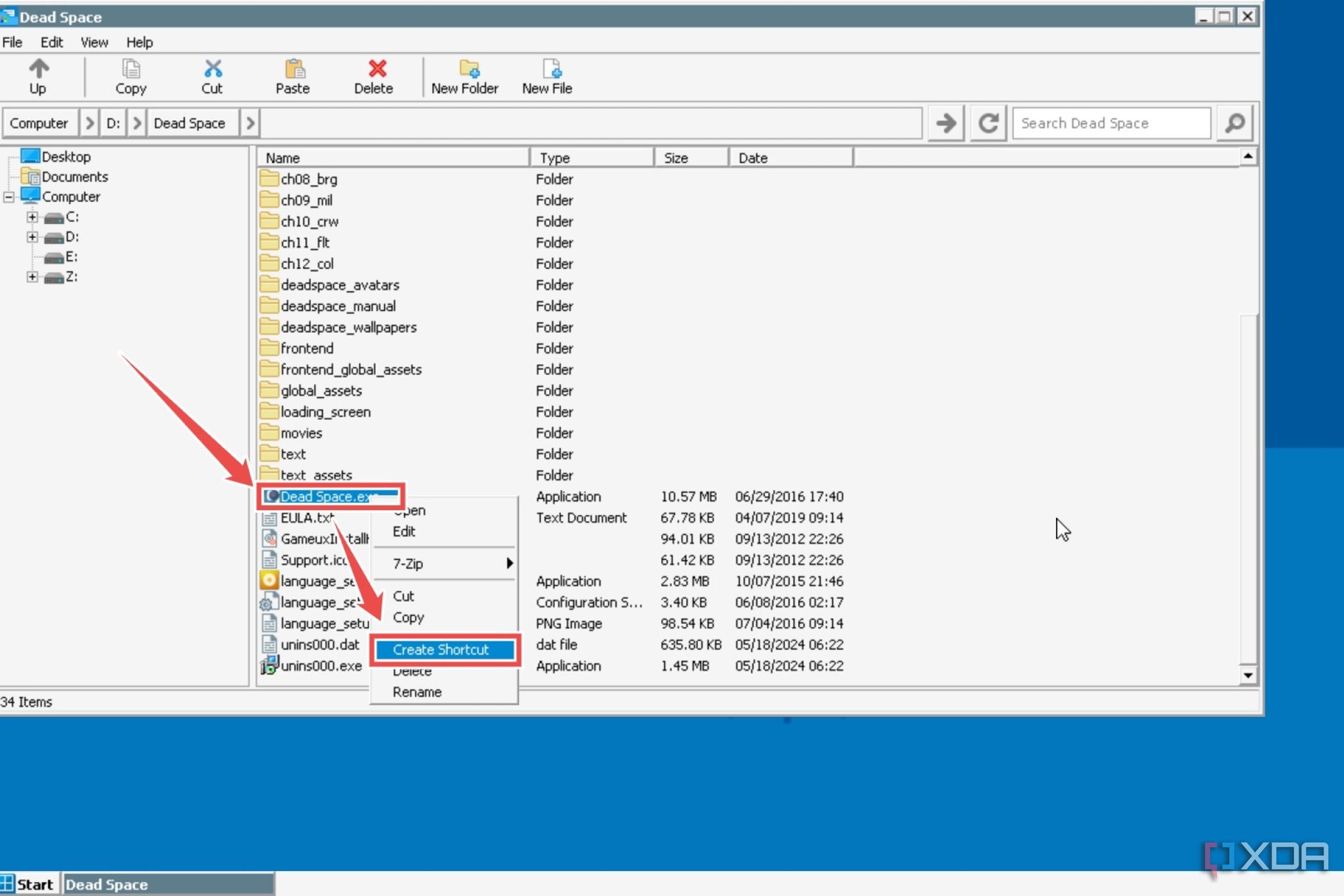
- Launch a Winlator container and navigate to the location of the game’s .exe file.
- Right-click on the executable file and choose Create Shortcut.
- Exit the container, tap the Menu icon, and select the Shortcuts.
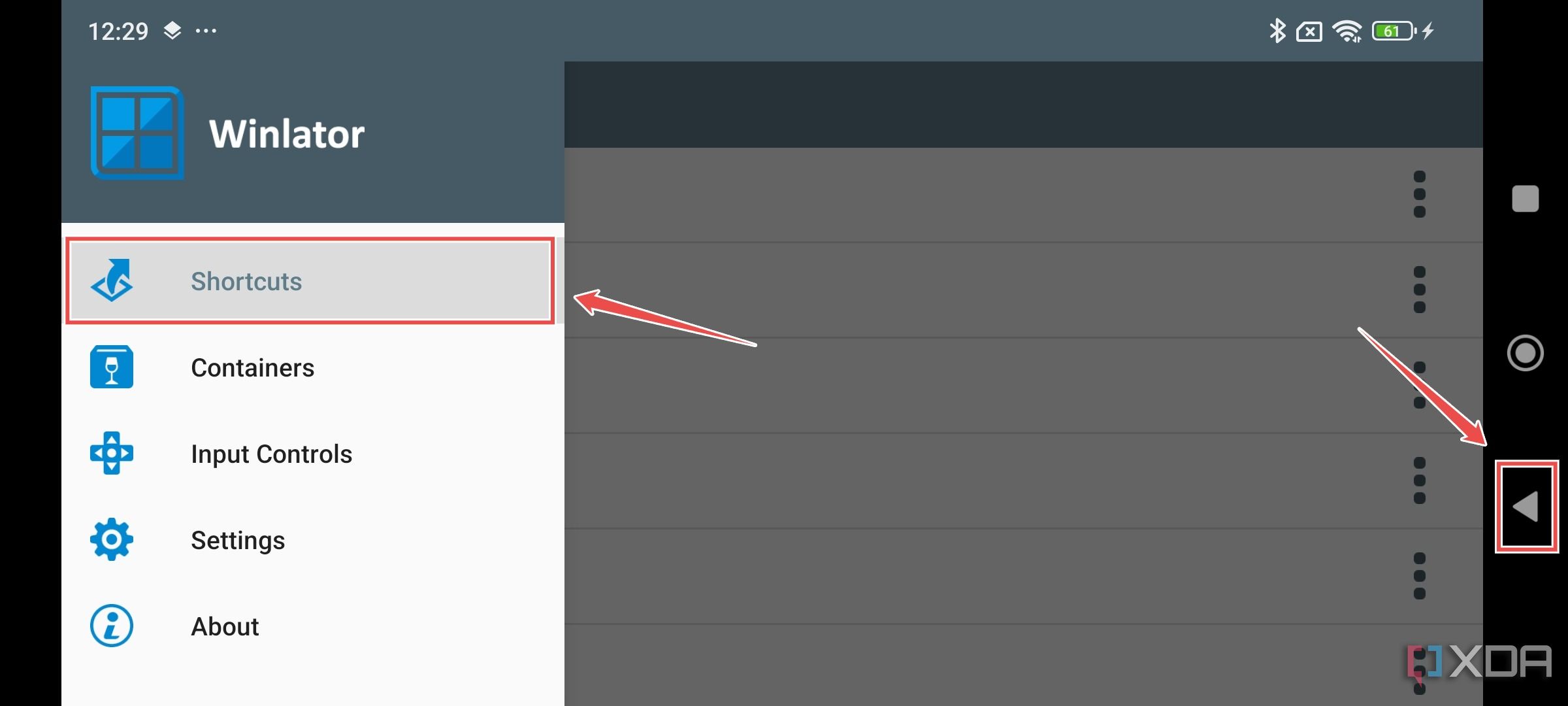
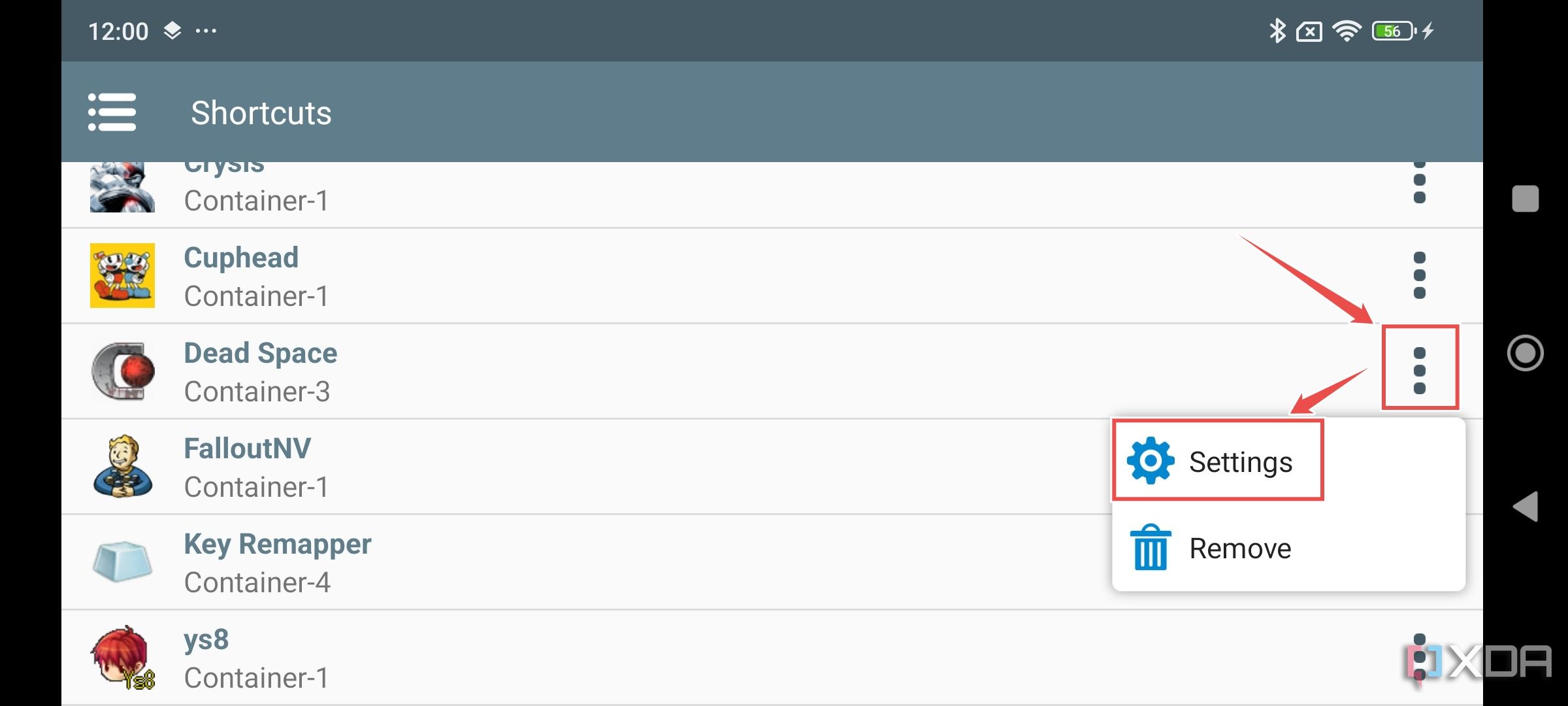
- You’ll find all the game Shortcuts inside this tab.
- You can click on the Settings option to fine-tune the container’s settings to your liking.


Using a controller in Winlator

Although Winlator has a built-in virtual controller and RTS-style keys, I can’t stress how incredible it feels to play Windows games using a gamepad, like the GameSir X4 Aileron or the GameSir G8+. However, most controllers require some calibration before you can use them, and depending on your games, you may need to set up multiple profiles with different key mappings.
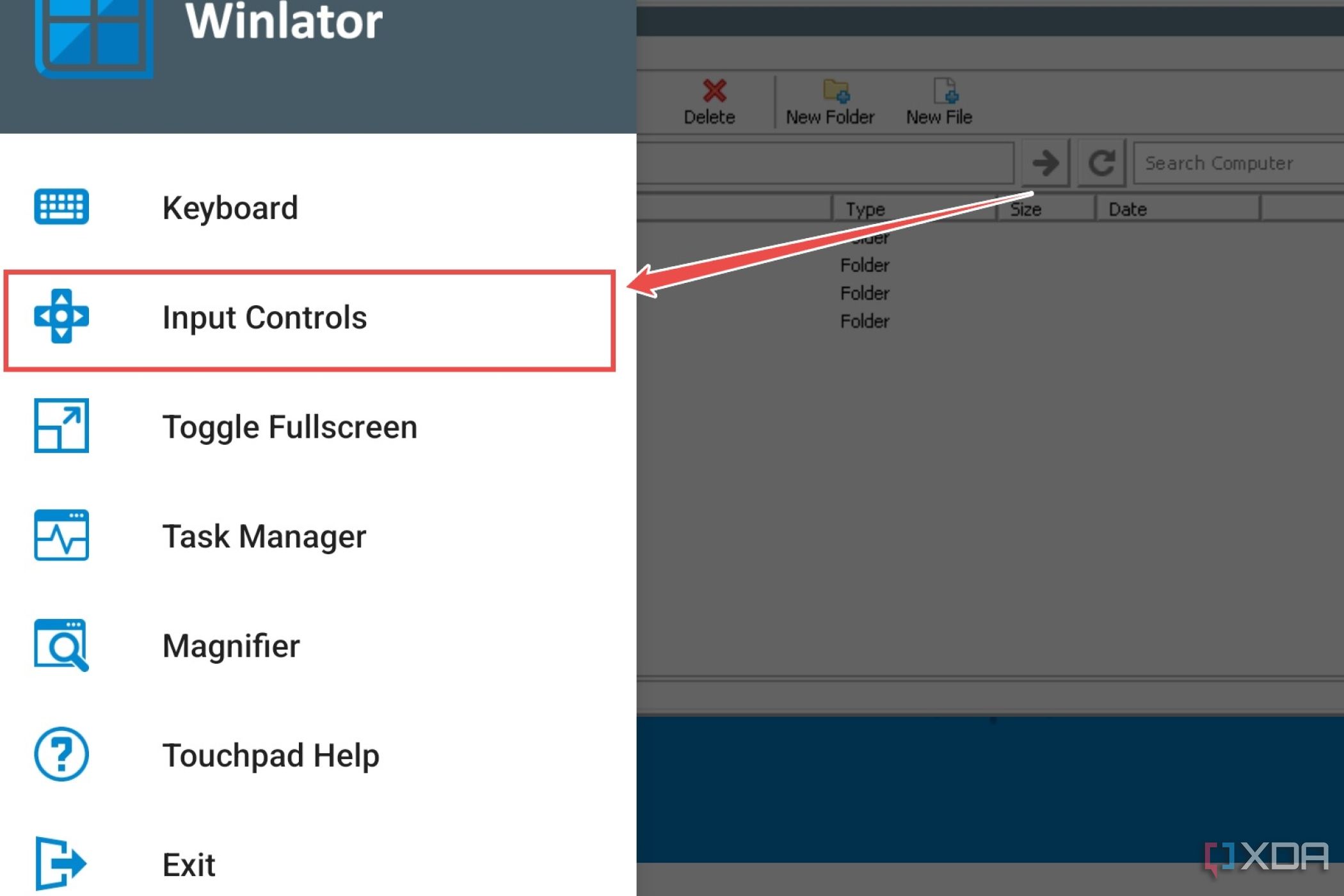
- While you’re inside a Winlator container, tap the Back button and click on Controls.
- Select Input Controls.
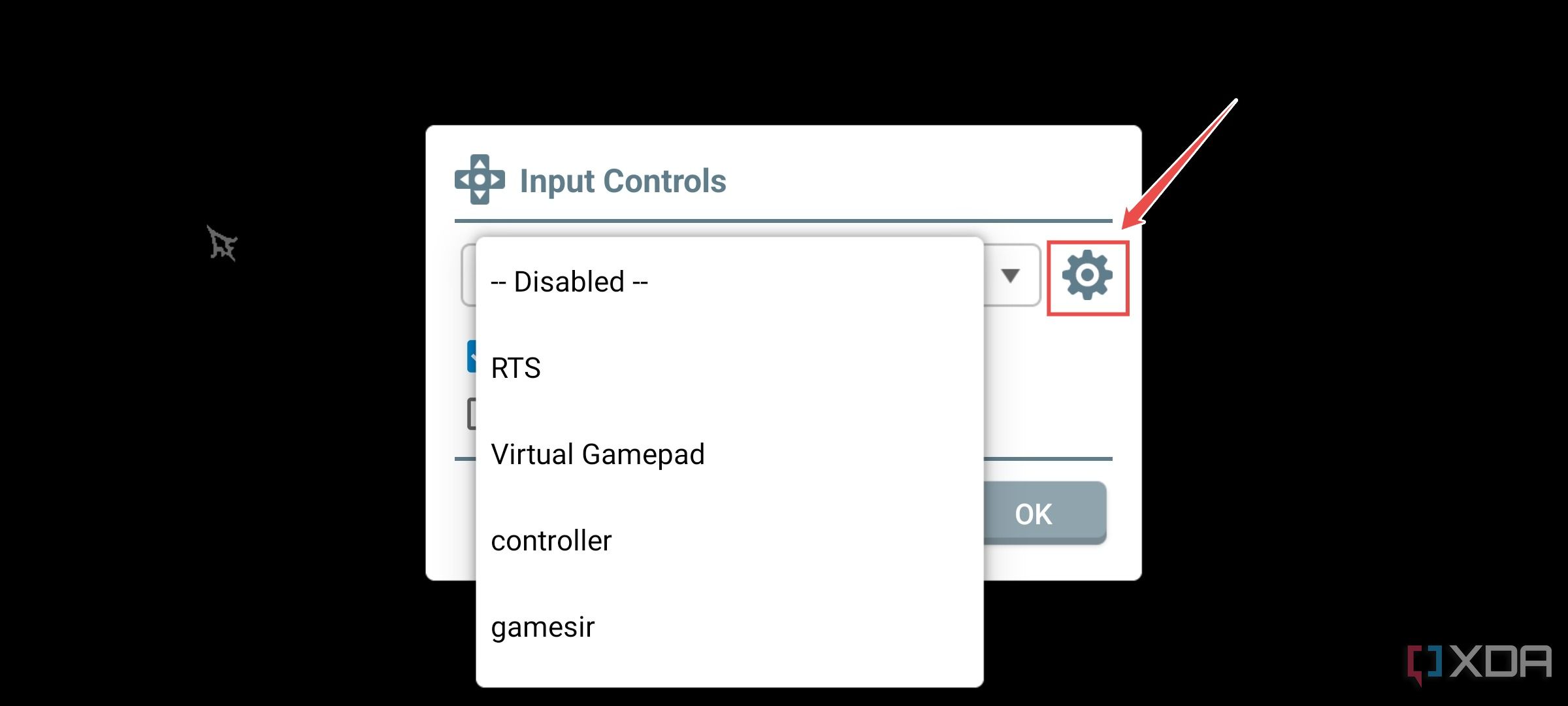
- Click on the drop-down menu and choose between RTS, Virtual Gamepad, or a custom Controller Profile.
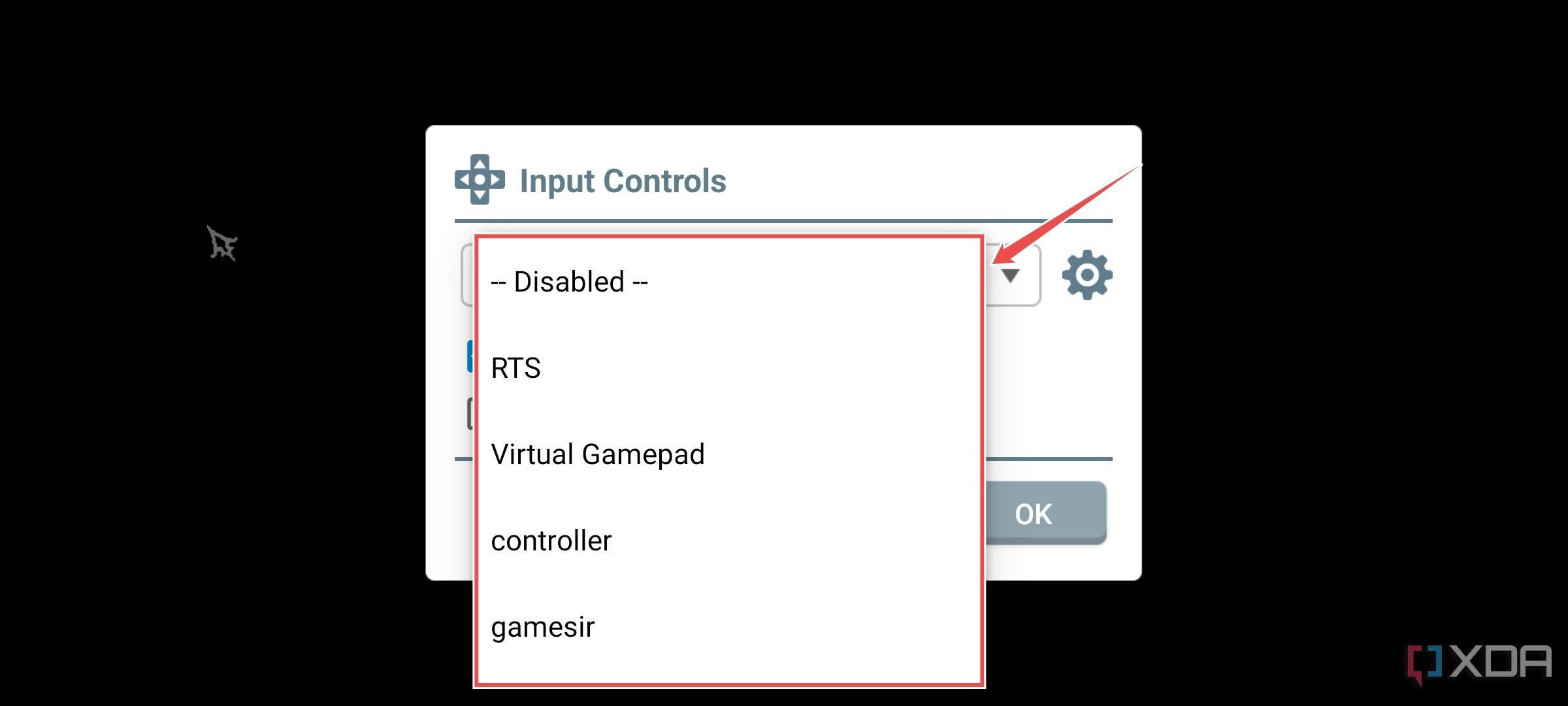
- If you wish to modify the custom profile, click on the Settings icon.
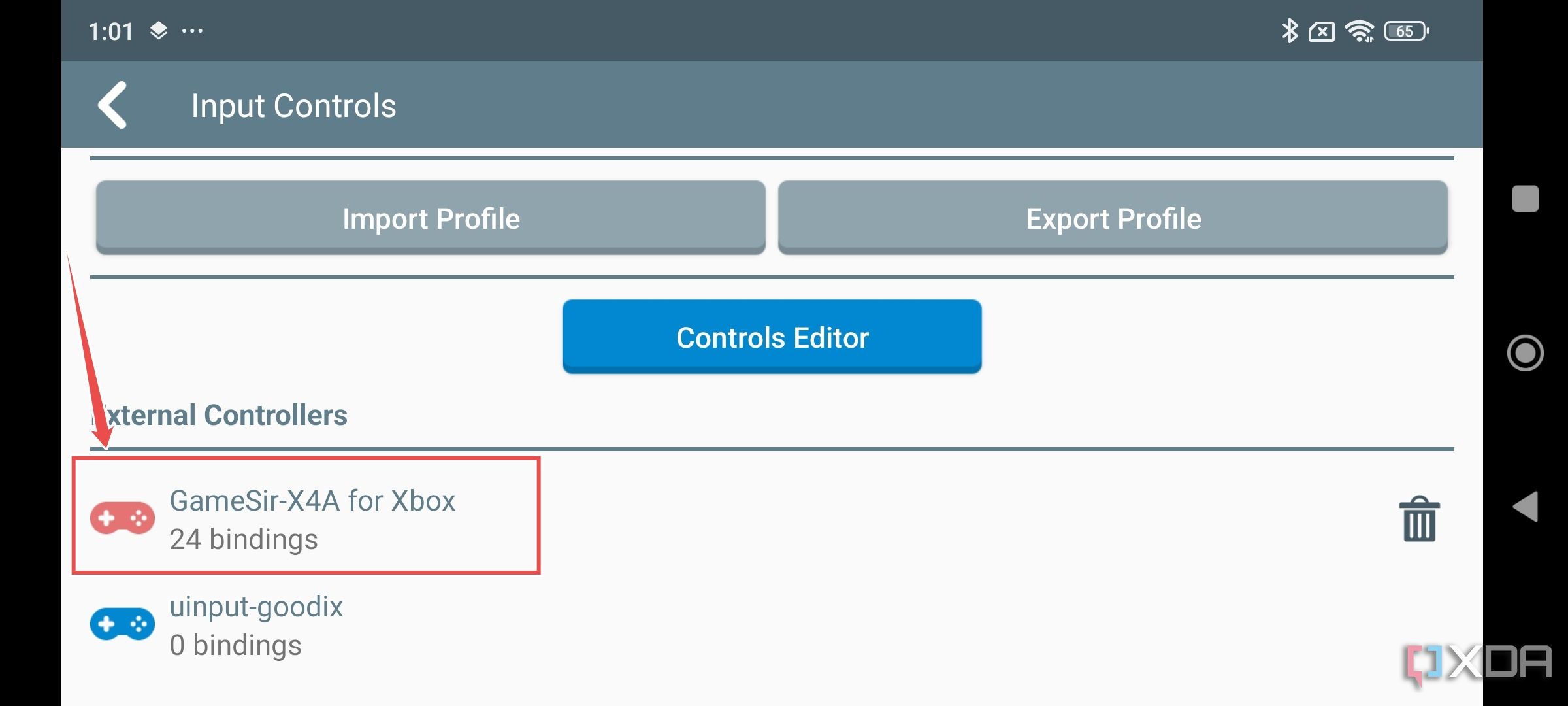
- Tap on the External controllers to change the button mappings for your gamepad.


Using keyboard and mouse in Winlator

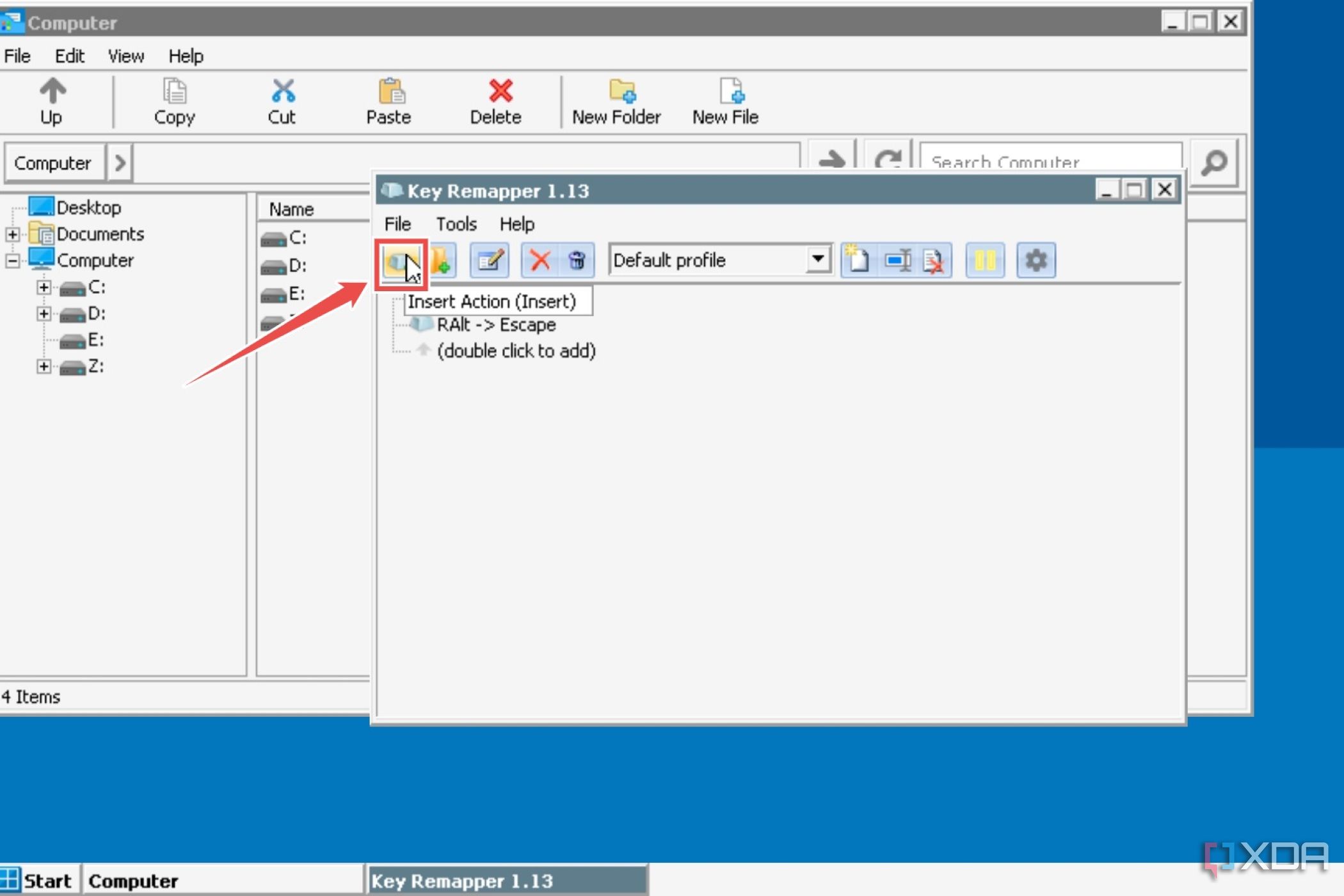
As if controllers weren’t enough, Winlator also detects Bluetooth (and even wired) keyboards and mice, and adding KB+M support to your Winlator container is as simple as pairing the peripherals with your smartphone. However, you may have noticed that certain keys, like Enter and Esc, aren’t detected in the app. Luckily, we can remedy this issue with the help of a third-party app called Key Remapper.
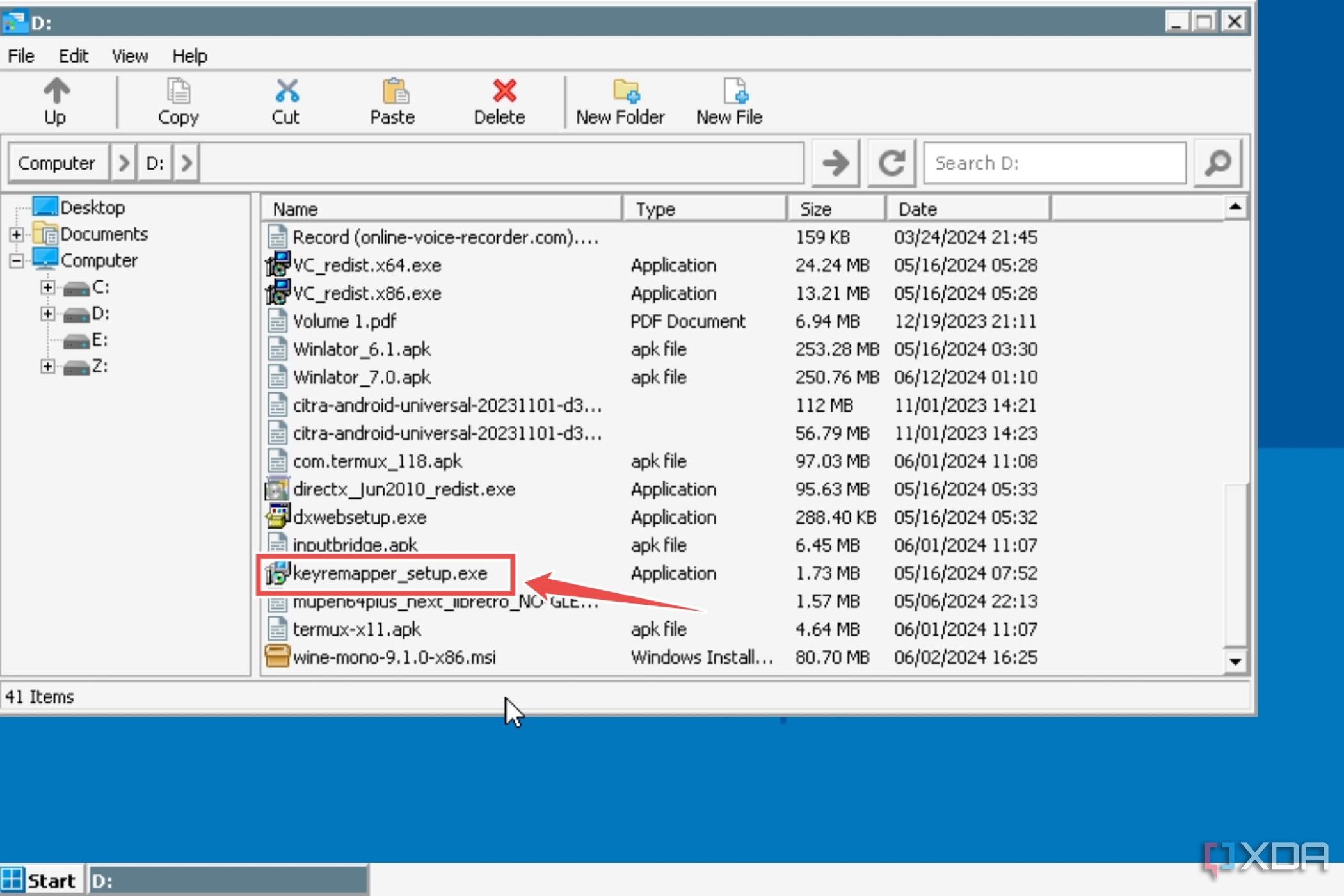
- Exit Winlator and grab the setup.exe file for KeyRemapper using this link.
- Launch a Winlator container, head to the D: drive, and install Key Mapper using the .exe file you downloaded earlier.
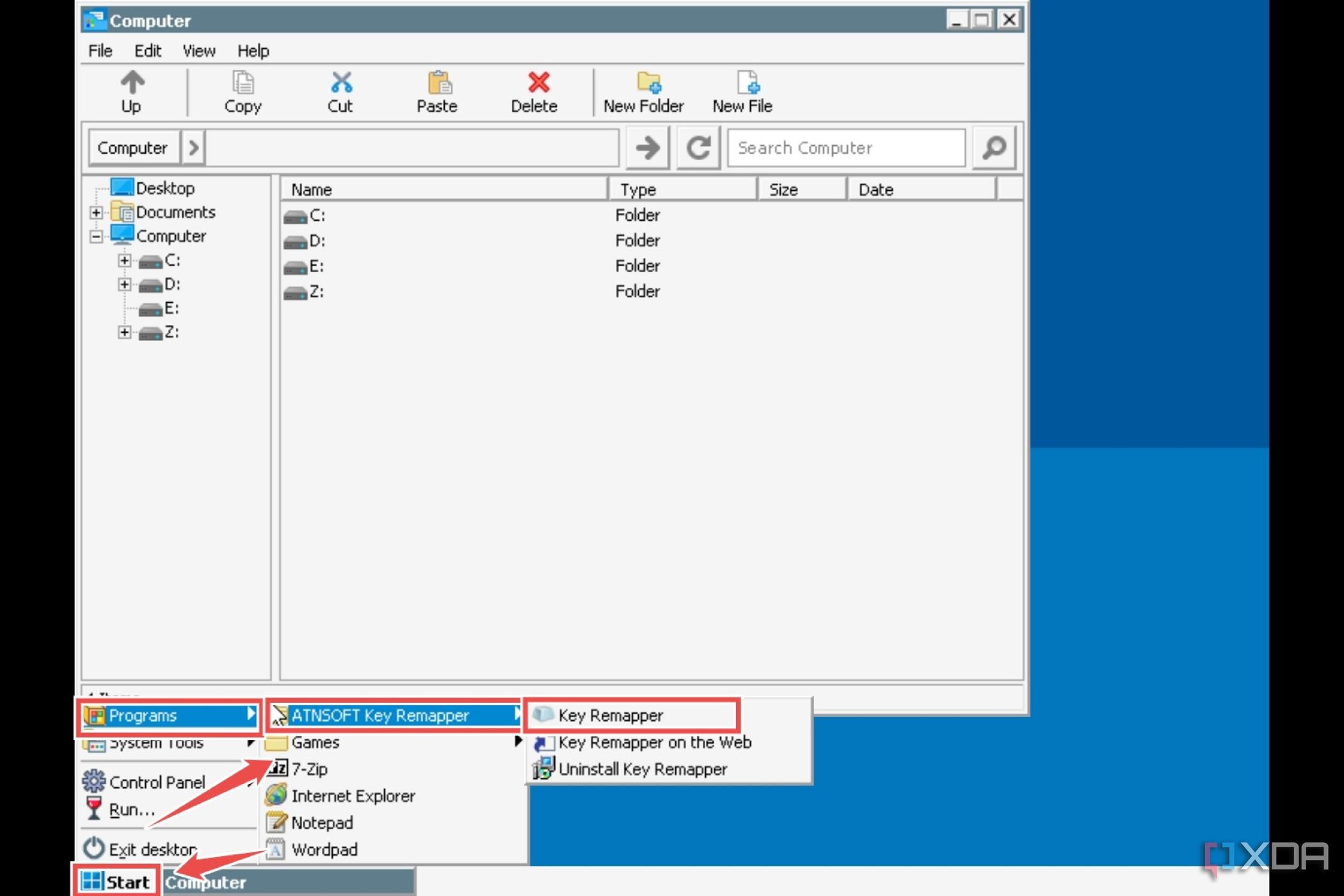
- Click on the Start button, hover over the Programs and ATNSOFT Key Remapper folder, and select Key Remapper.
- Select Insert Action and manually map the faulty inputs to their proper key bindings.


Squeezing every last drop of performance out of your Windows emulation machine
Besides the methods I’ve highlighted above, there are still a bunch of tweaks you can use to maximize the performance in Winlator. If you’re on a Xiaomi phone that runs on HyperOS, or as I like to call it, the performance-hogging operating system, I suggest disabling Joyos to get some extra frames in your emulated titles. Lowering the in-game settings will also lead to significant FPS gains, and for those with a rooted device, overclocking the CPU could technically improve performance (though I wouldn’t recommend doing that unless you don’t mind decreasing the device’s lifespan).
That said, Winlator isn’t the only X64_86 emulation software on the block; Mobox is another application that lets you run Windows games on an Android machine – and that, too, at higher frame rates. However, Mobox trades the convenience of Winlator for better performance, and it’s an absolute nightmare to fine-tune controls on the former app.

Winlator
Winlator is a free x86_64 emulator that lets you run Windows games on your smartphone. While it requires a beefy smartphone with a powerful processor for the best performance, you can still use Winlator to emulate Windows games on most high-end Snapdragon mobile chips.
#beginners #guide #emulating #Windows #games #smartphone #Winlator
source: https://www.xda-developers.com/winlator-guide/

/cdn.vox-cdn.com/uploads/chorus_asset/file/25629479/decoder__3_.png?w=1068&resize=1068,0&ssl=1 "Did Google monopolize the ad market?")
