

Readers help support Windows Report. We may get a commission if you buy through our links.
Read our disclosure page to find out how can you help Windows Report sustain the editorial team Read more
The MSI boot menu is the startup interface of your computer with an MSI motherboard. It offers basic and advanced boot options. Generally, a normal user doesn’t need to access it; however, if you want to upgrade your hardware, install a new operating system, or explore advanced features on your MSI motherboard, you must enter the Boot menu.
1. Using the F11 key
- Press the Power button to boot up your computer.
- Then, press & hold the MSI boot menu key, F11, until you enter the boot device selection screen.
2. Using the Del key
- Press the Power button to boot up your PC.
- Press the Del key to enter the BIOS menu.
- Next, navigate to Boot, then click Boot mode select.
- Choose LEGACY + UEFI & UEFI.
- Select Boot Option 1 to choose UEFI hard disk or Hard Disk.
- Choose UEFI Hard disk Driver BBS Priority or Hard disk driver BBS Priority.
- Set Boot Option 1 as the boot device.
1. Use the Advanced options
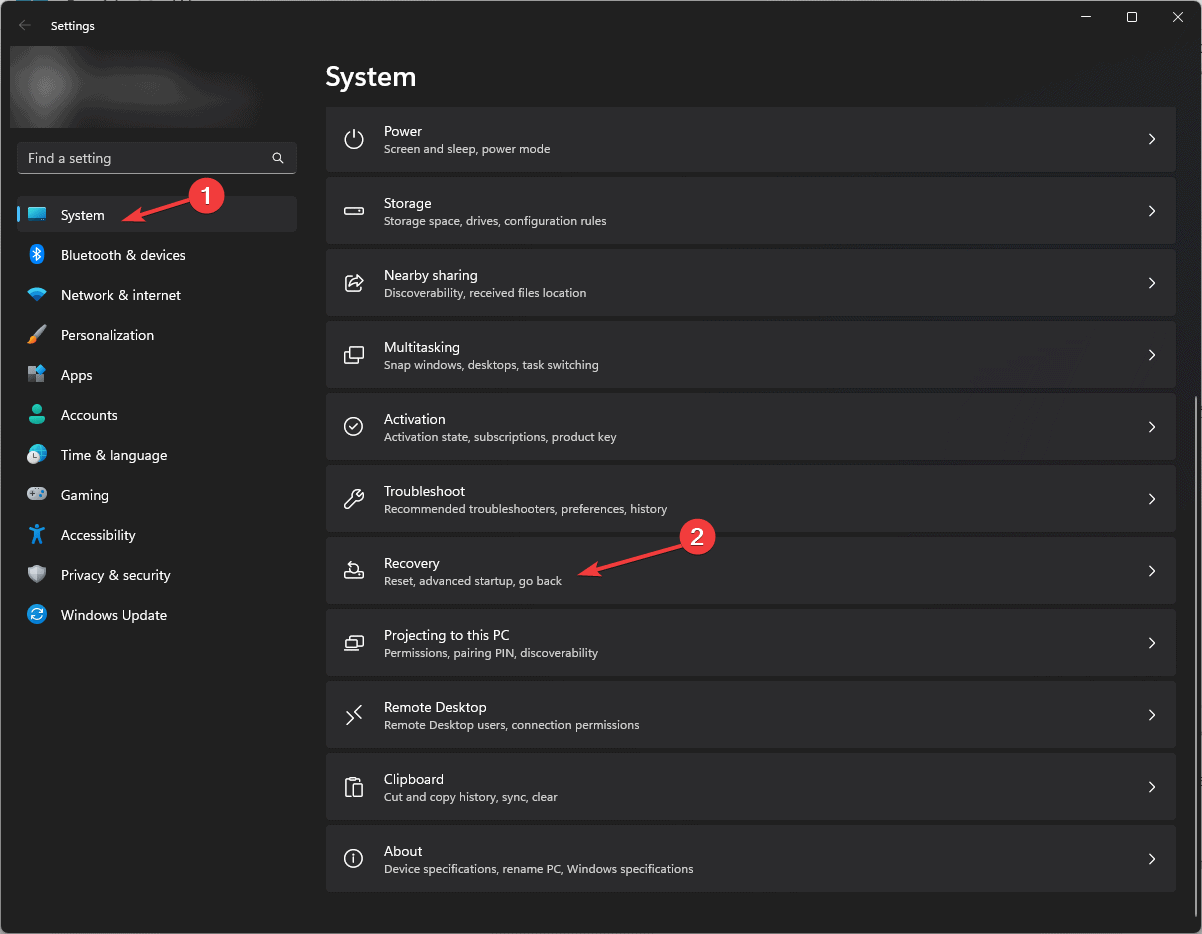
- Press Windows + I to open the Settings app.
- Go to System, then select Recovery.

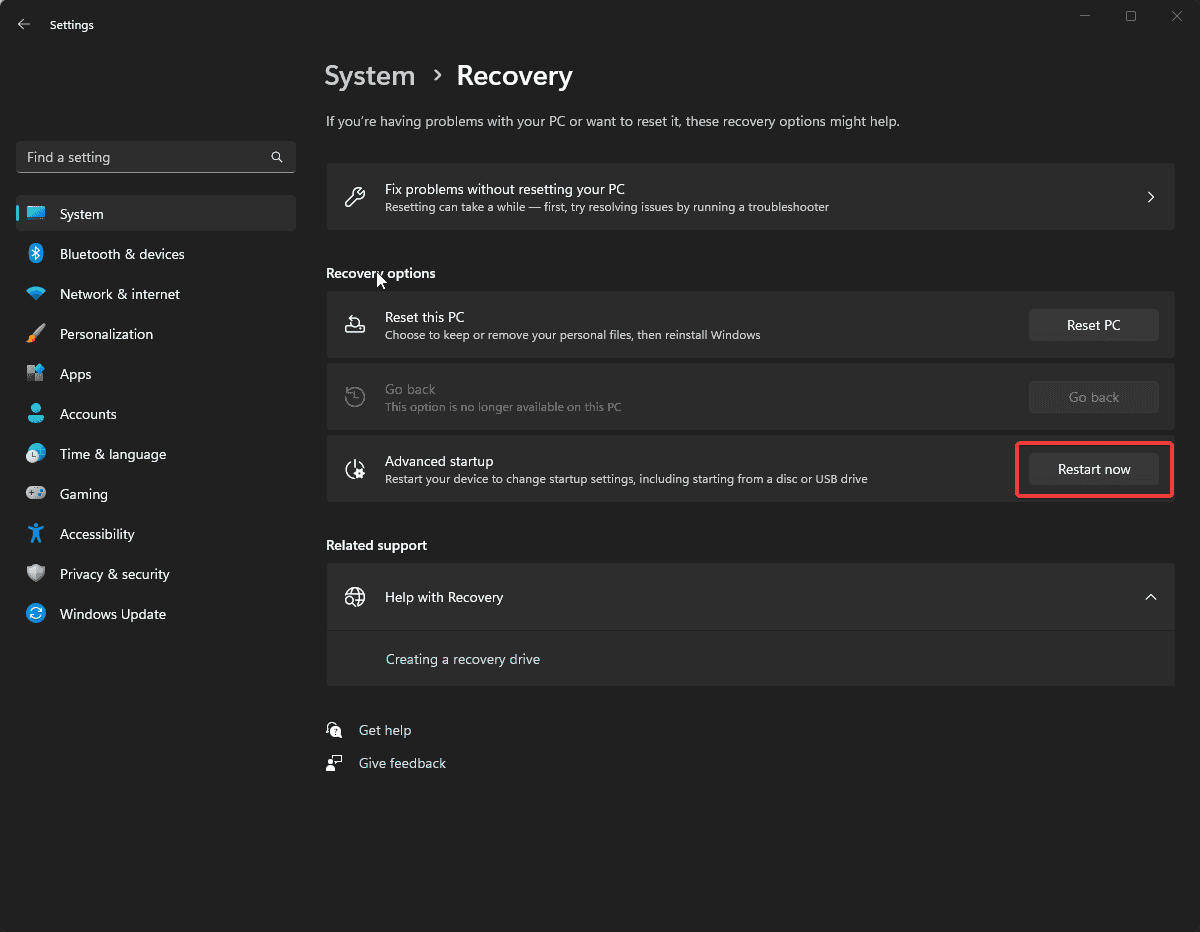
- Locate Advanced startup, and click the Restart now button next to it.

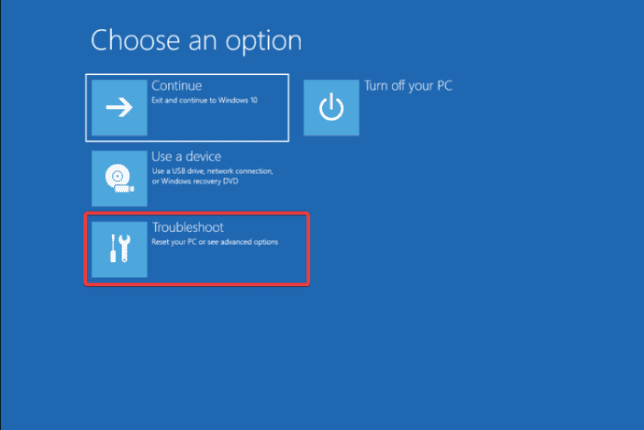
- Your computer will reboot and show a Bluescreen with options; select Troubleshoot.

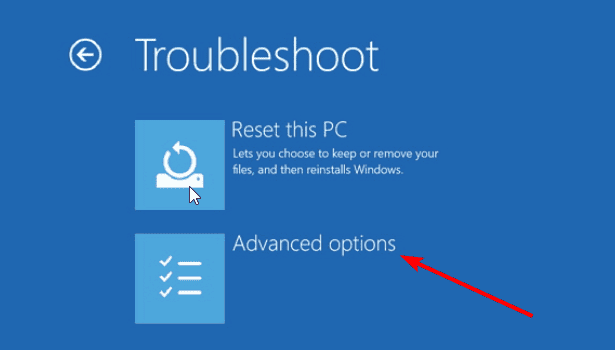
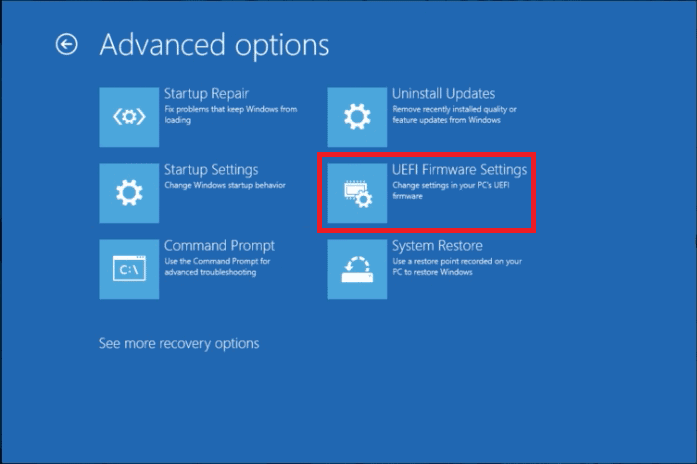
- On the following page, choose Advanced Options.

- Next, select UEFI Firmware Settings.

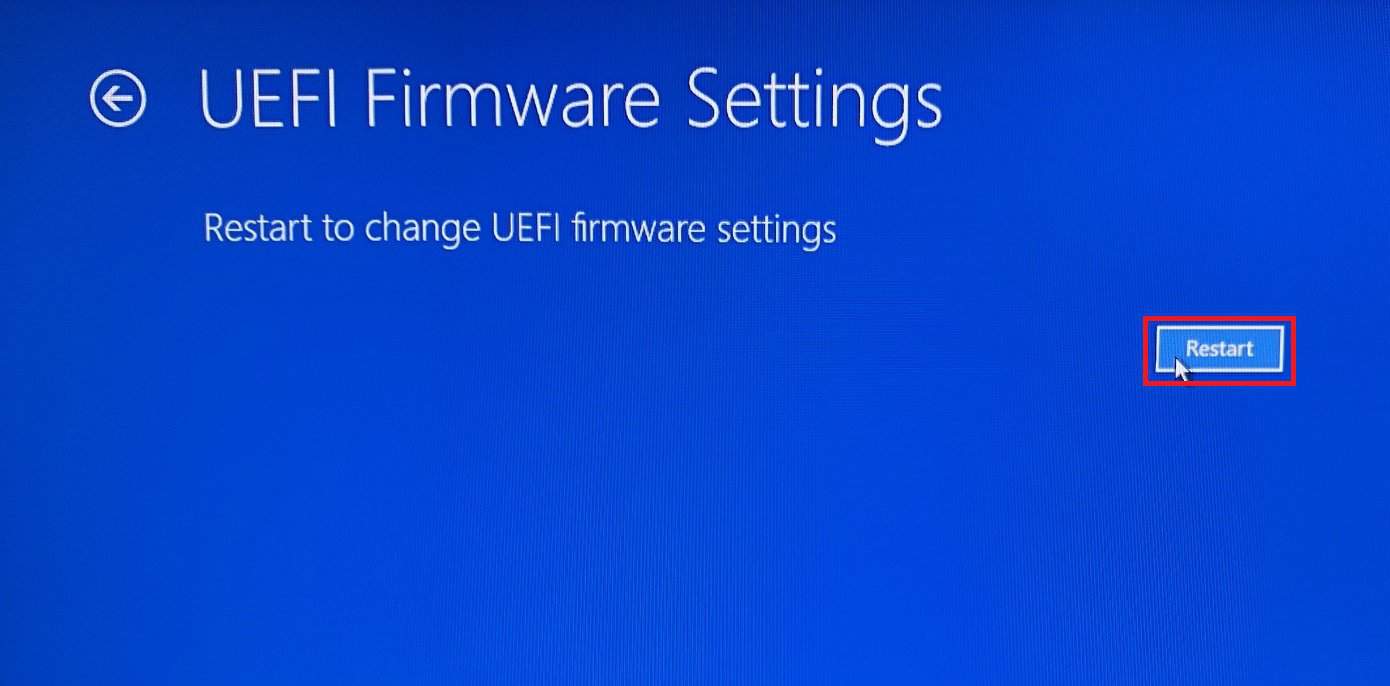
- Click Restart to open the MSI button menu. Your computer will restart, and you will be redirected to the boot menu.

2. Disable Fast Startup
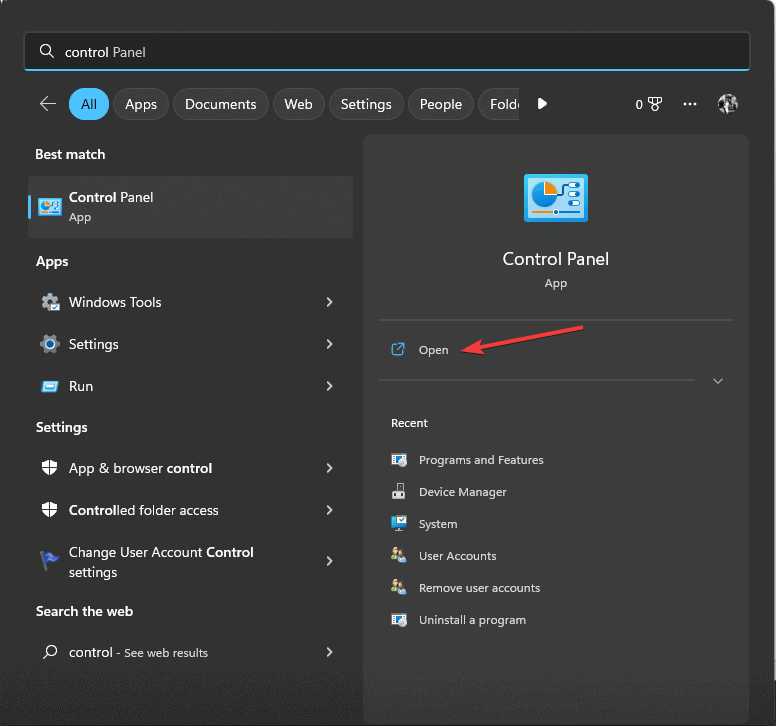
- Press the Windows key, type control panel in the search box, and click Open.

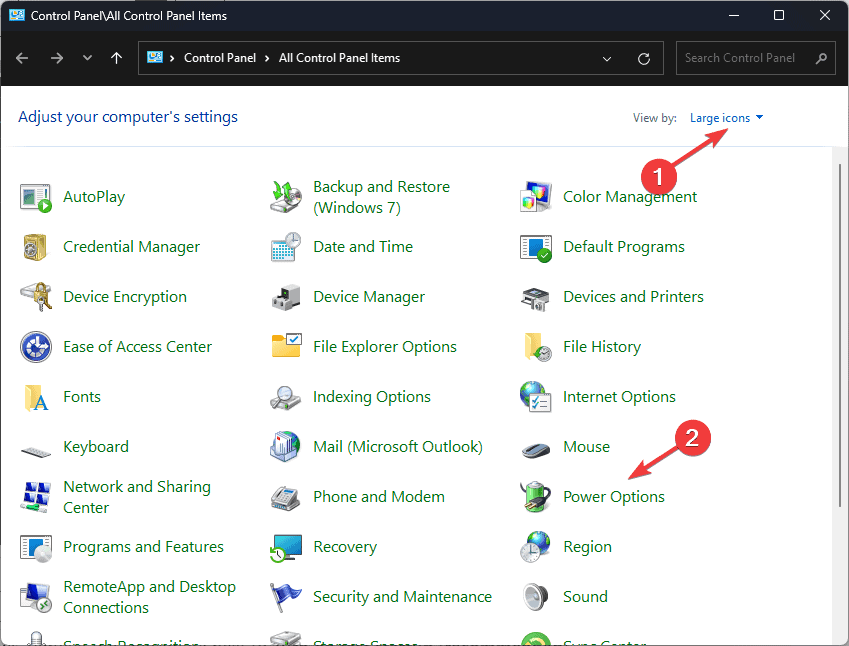
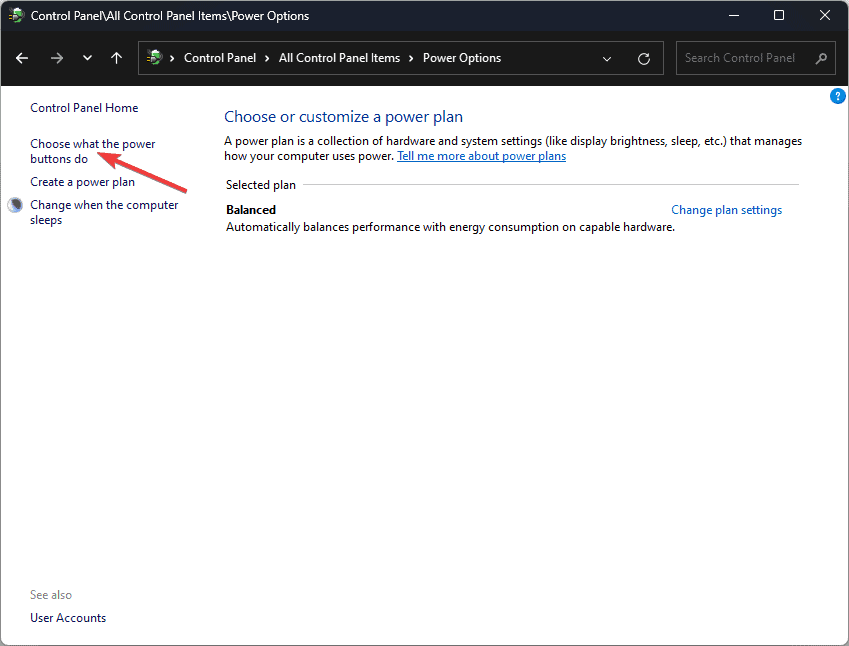
- Go to View by, click Large icons, and select Power options from the list.

- From the left side of the following window, click Choose what the power button does.
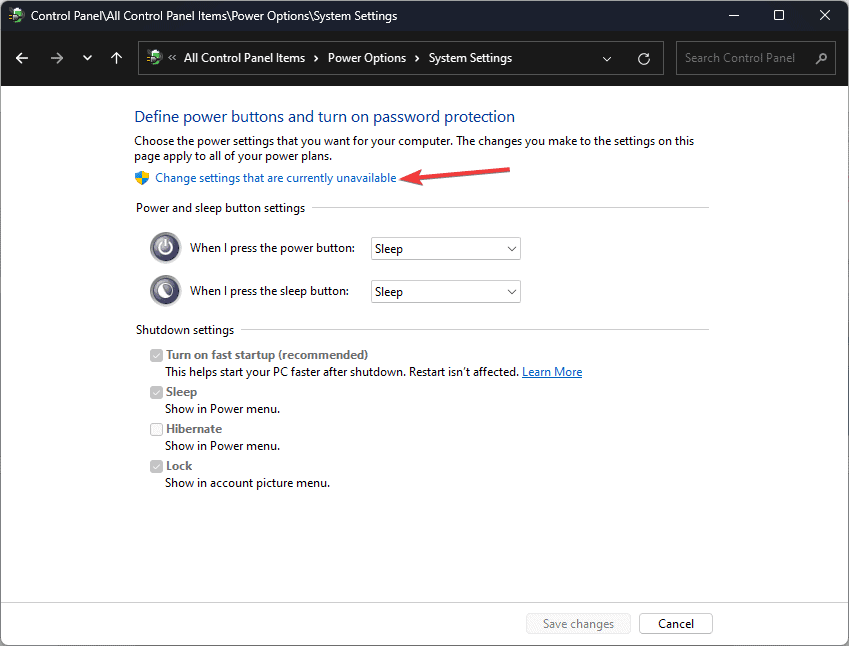
- Click Change settings that are currently unavailable.
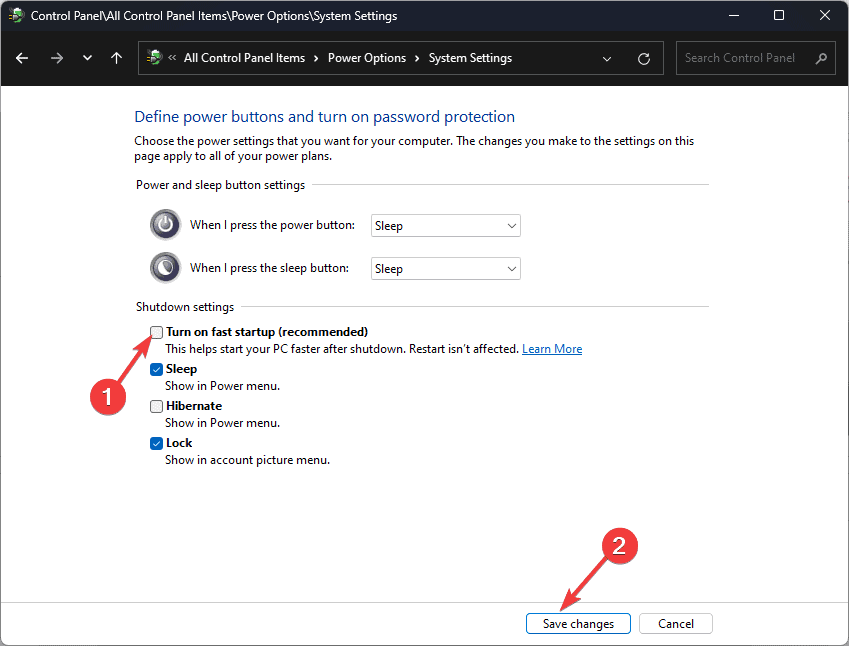
- Remove the checkmark next to Turn on fast startup(recommended), then click Save changes.
Once you have disabled Fast Startup, use any of the above methods to access the Boot menu on your computer with an MSI motherboard.
The Boot menu allows you to change your device’s boot order, which is especially useful for performing a clean installation of Windows OS or switching between multiple operating systems installed.
You can also access safe mode from BIOS on Windows 11 in 8 steps; check out this guide to learn the step-by-step instructions.
If you want to boot straight to the command prompt to execute commands on Windows 11, we have a separate guide for you.
If you have any questions or suggestions about the topic, feel free to mention them in the comments section below.


#Enter #MSI #Boot #Menu
source: https://windowsreport.com/how-to-enter-msi-boot-menu/


