

You’ll find several third-party apps which allow you to customize UI elements within Windows 11, including the Start menu, taskbar, and more. While apps like StartAllBack and Start11 are great, you won’t need to install them for every kind of change, such as making the Start menu and taskbar completely black.
In many cases, instead of installing a third-party app, you’re better off simply tweaking the registry for a more personalized Windows experience. To make the Start menu and taskbar black, you simply need to know which registry values to change.
How to make the Start menu and taskbar completely black
Doing it the easy way
You can tweak the Windows Registry using the Registry Editor or by writing scripts in Notepad, and then saving and running them. Tweaking Windows Registry by running scripts is the easiest solution, saves time and effort, and has several other advantages.
In the context of making the Start menu and taskbar black, you’ll first need to open the Settings app and then navigate to Personalization > Colors, and then toggle Show accent color on Start and taskbar and Show accent color on title bars and window borders. The next step is to copy and paste the following script and save the file in File Explorer as black.reg.
Windows Registry Editor Version 5.00
[HKEY_CURRENT_USER\Software\Microsoft\Windows\CurrentVersion\Explorer\Accent]
“AccentPalette”=hex:00,00,00,00,00,00,00,00,00,00,00,00,00,00,00,00,00,00,00,\
00,00,00,00,00,00,00,00,00,00,00,00,00
“StartColorMenu”=dword:00000000
“AccentColorMenu”=dword:00000000
After saving the file as black.reg, you’ll need to double click the file that you just saved and click Yes on Windows User Account Control (UAC) prompt. Next, click Yes to continue and then click OK to complete the process. You should see the Start menu and taskbar turning black immediately after successfully running the script.
Apart from simplicity, another major advantage of doing it this way is that you can share the “black.reg” file with anyone looking to turn the Start menu and taskbar completely black. All that’s required of them is to run the file in the File Explorer.
Doing it the hard way
If you aren’t familiar with using the Registry editor, you might find it a bit on the harder side. But if you love tinkering with the Windows Registry, these steps are super simple. As a reminder, though, you should follow the instructions precisely, because even a small misstep can cause system failure.
You should always back up the Windows Registry values before making any changes to them.
- Press the Windows key + R on your keyboard.

- Type regedit and click OK.
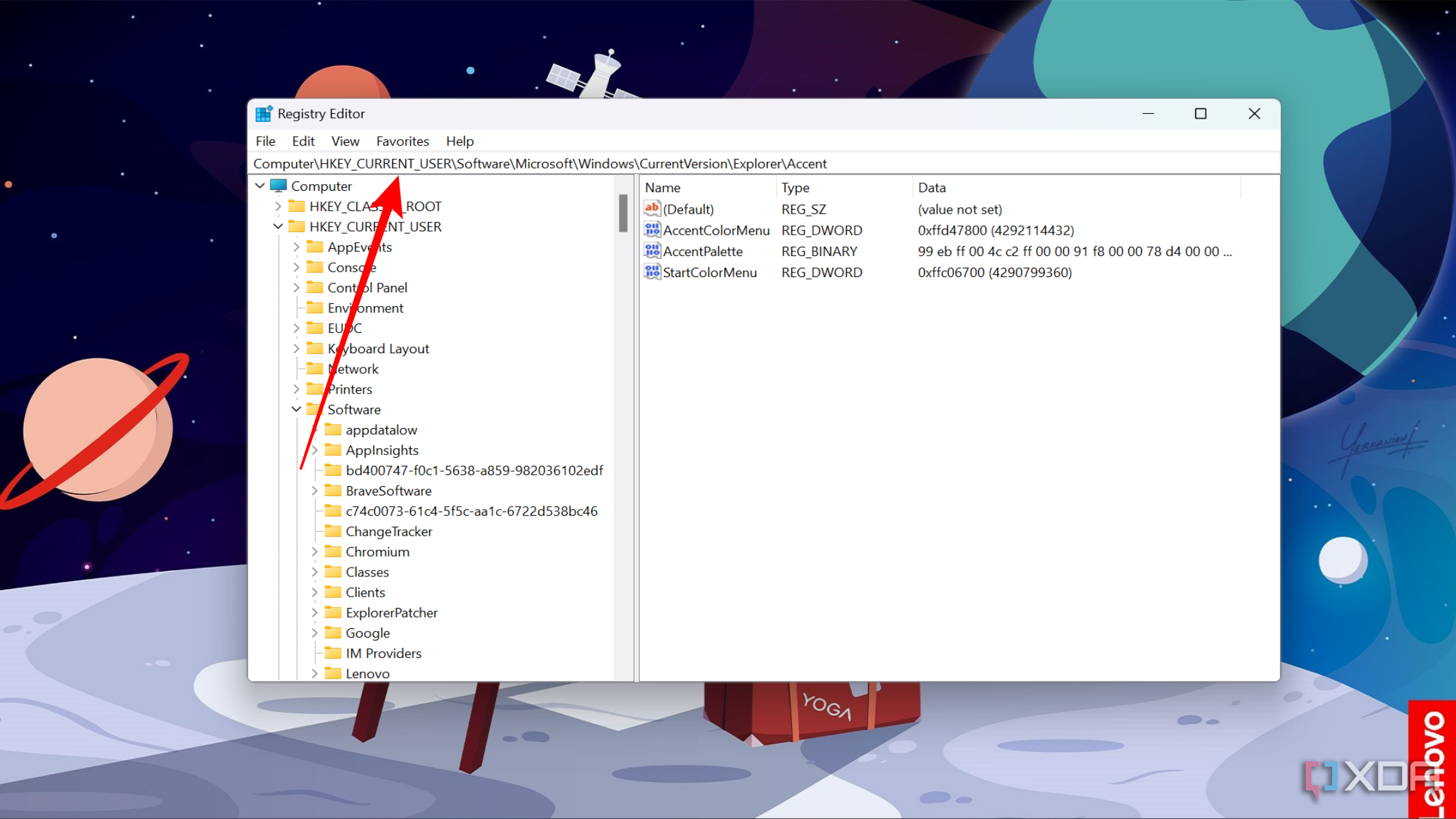
- In the Registry Editor search bar, paste the directory below.
Computer\HKEY_CURRENT_USER\Software\Microsoft\Windows\CurrentVersion\Explorer\Accent
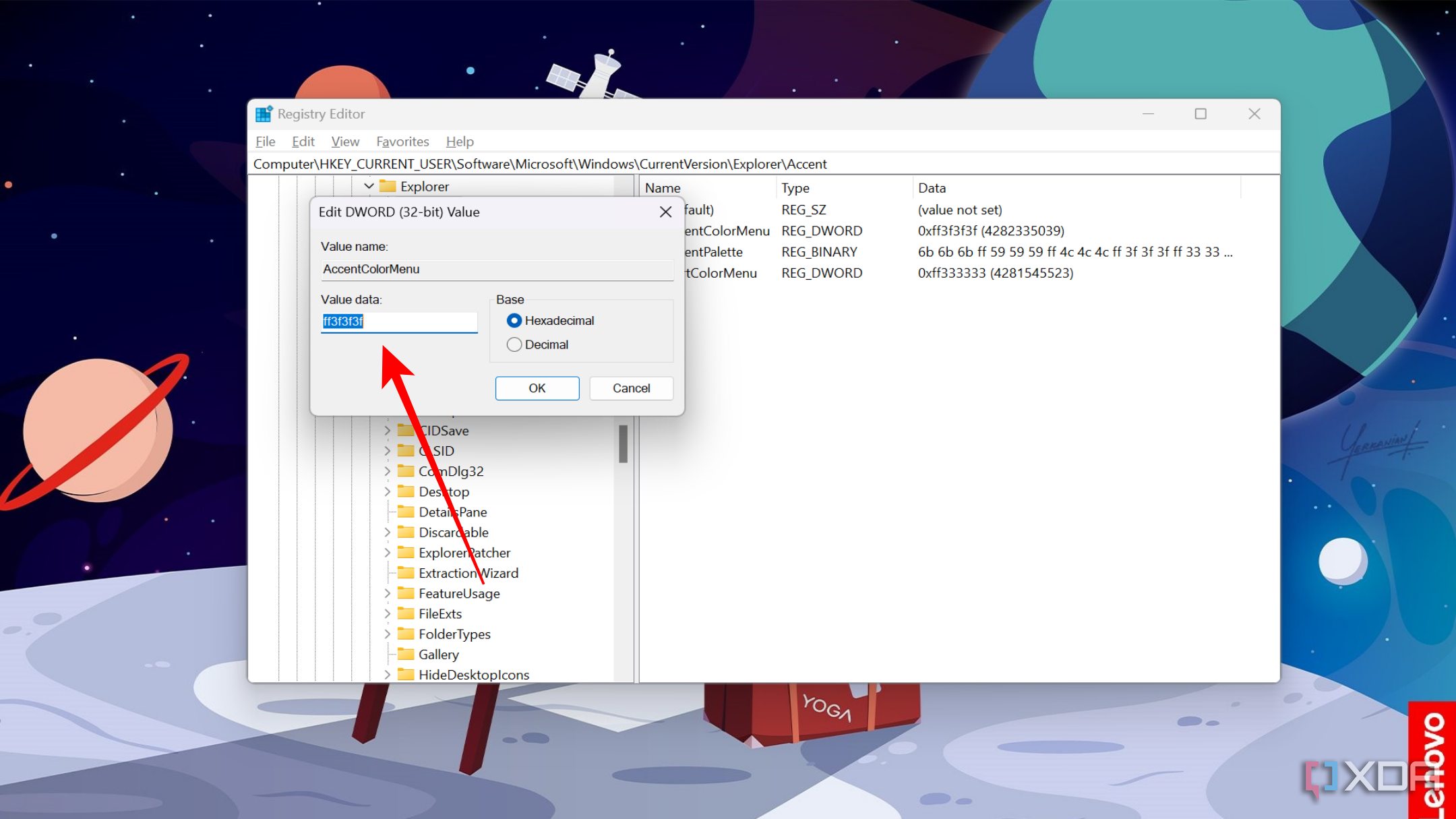
- Change AccentColorMenu and StartColorMenu values to “0”.
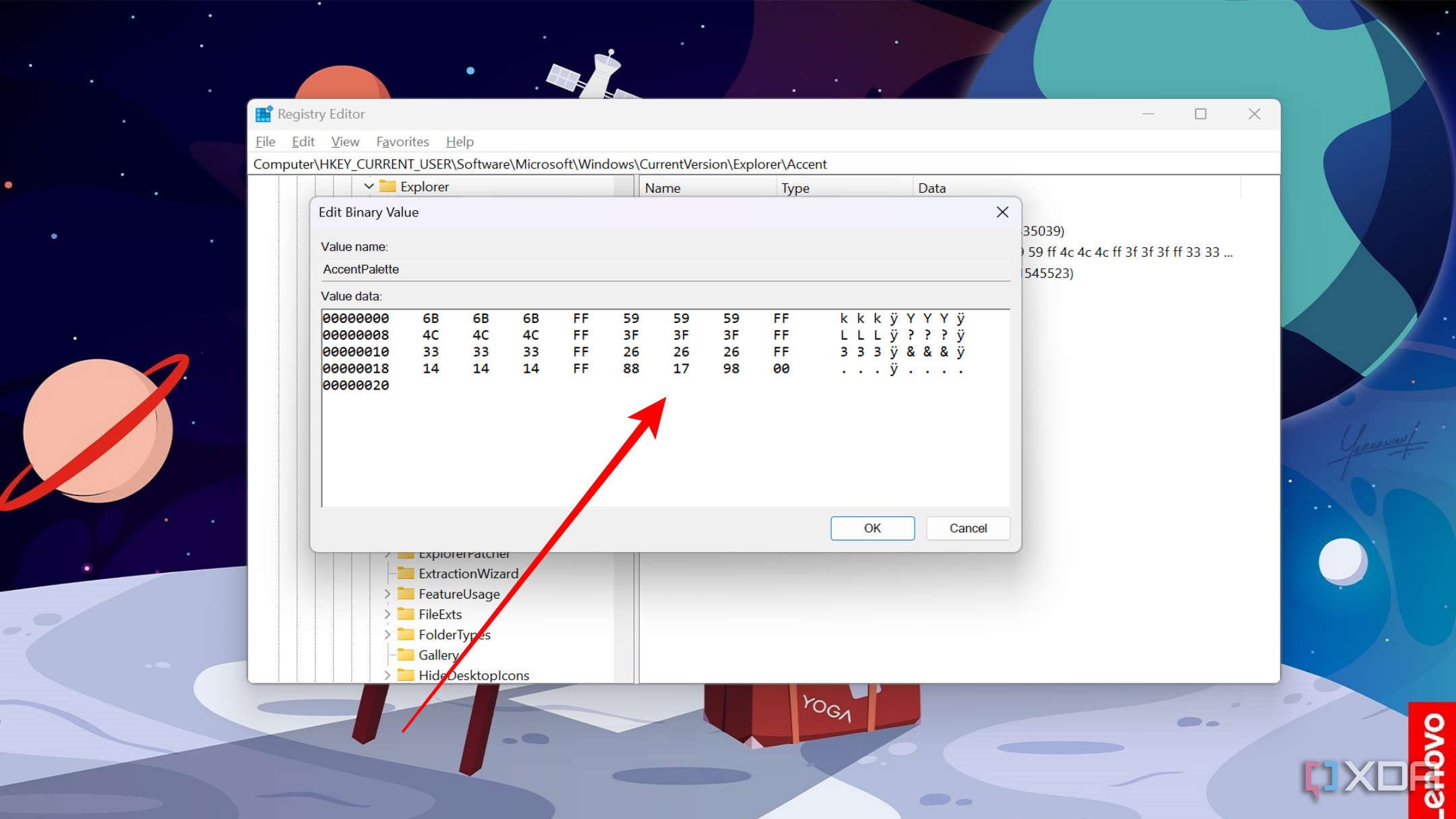
- Change AccentPalette binary data to 32 pairs of 0s.
- Restart your PC.


You should now see the Start menu and taskbar turning completely black. This result will be no different from the one achieved by using the previous method of creating and running the “black.reg” file. That’s because when you run the file, you’re essentially changing the registry values without navigating to the registry editor.
How to undo changes you made to the Windows Registry
This is where backing up Windows Registry values comes into the picture. If you back up the registry values, you can quickly restore them and revert to the original state. In this case, if you change your mind and want to go back to the original theme, you can quickly restore the backup and undo all the changes you made to the registry values.
Making Windows 11 Start menu and taskbar completely black has consequences
Not everyone is in favor of tweaking something as important as the Start menu and taskbar using the Registry Editor, as doing so comes with some risks. If you’re proceeding with the steps above, keep your expectations in check. That’s because manually making the Start and taskbar completely black won’t adjust various other components in the Start menu and taskbar UI to match, resulting in inconsistencies. For example, instead of highlighting the current date in the Calendar view in the Notifications panel, Windows will show you a black dot. But the potential downsides fade away if you love to make your PC look unique or you demand full darkness. So, do it if you love experimenting with hidden Windows features, but keep precautions in mind.

Related
11 Registry Editor tweaks every Windows 11 user needs to know
Despite the risks associated with using it, the Registry Editor has many options that you can modify to improve your Windows 11 experience
#Dark #mode #Heres #Windows #Start #menu #completely #black
source: https://www.xda-developers.com/make-the-windows-11-start-menu-completely-black/
/cdn.vox-cdn.com/uploads/chorus_asset/file/25557722/ss_78428c6b6802bcd6f23e699c037987a872416645.jpg?w=1068&resize=1068,0&ssl=1 "Dragon Age: The Veilguard launches this fall")

