

Key Takeaways
- Customizing your Windows 11 desktop can boost comfort and productivity when working on your PC or laptop.
- Add frequently used applications to your taskbar and consider installing widgets to optimize your workflow.
- Widgets, like Outlook Calendar, Phone Link, To Do, and Focus Session, can enhance task management and focus for peak productivity.
Nothing feels better than customizing your Windows 11 desktop to fit your personality and work style. If you work a lot on your PC or laptop, you can customize it so that it is more comfortable to look at and work on.
In addition to customizing your desktop in the traditional ways, you’ll also want to add all your frequently used applications to your taskbar. If you work with many different programs, you may want to install some widgets on your PC that can improve or optimize the work you do.
How to download and use widgets on Windows 11
Source: mockup.photos
Widgets are easy to install on Windows 11 PCs. Some widgets will be installed by default on your device due to certain applications you use on your PC, but others will need to be downloaded from the Microsoft Store or will become available via third-party applications.
If you want to choose one of the default widgets or find a widget from one of your applications, then you will need to go to the widget board by clicking on the widget icon on the left end of the taskbar or by using the shortcut Win + W.
Once you are on the widget board, you can remove widgets on the left by clicking on the three dots and then clicking on Hide this widget. If you’d like to add a new widget, then you can click the + icon and choose a widget from the list. The widget will then be added to the left side of the widget board.
With that all being said, now that you know how to add widgets to your PC, it’s time to find you some widgets that will truly help optimize and organize the way you work on your PC.
Anything but default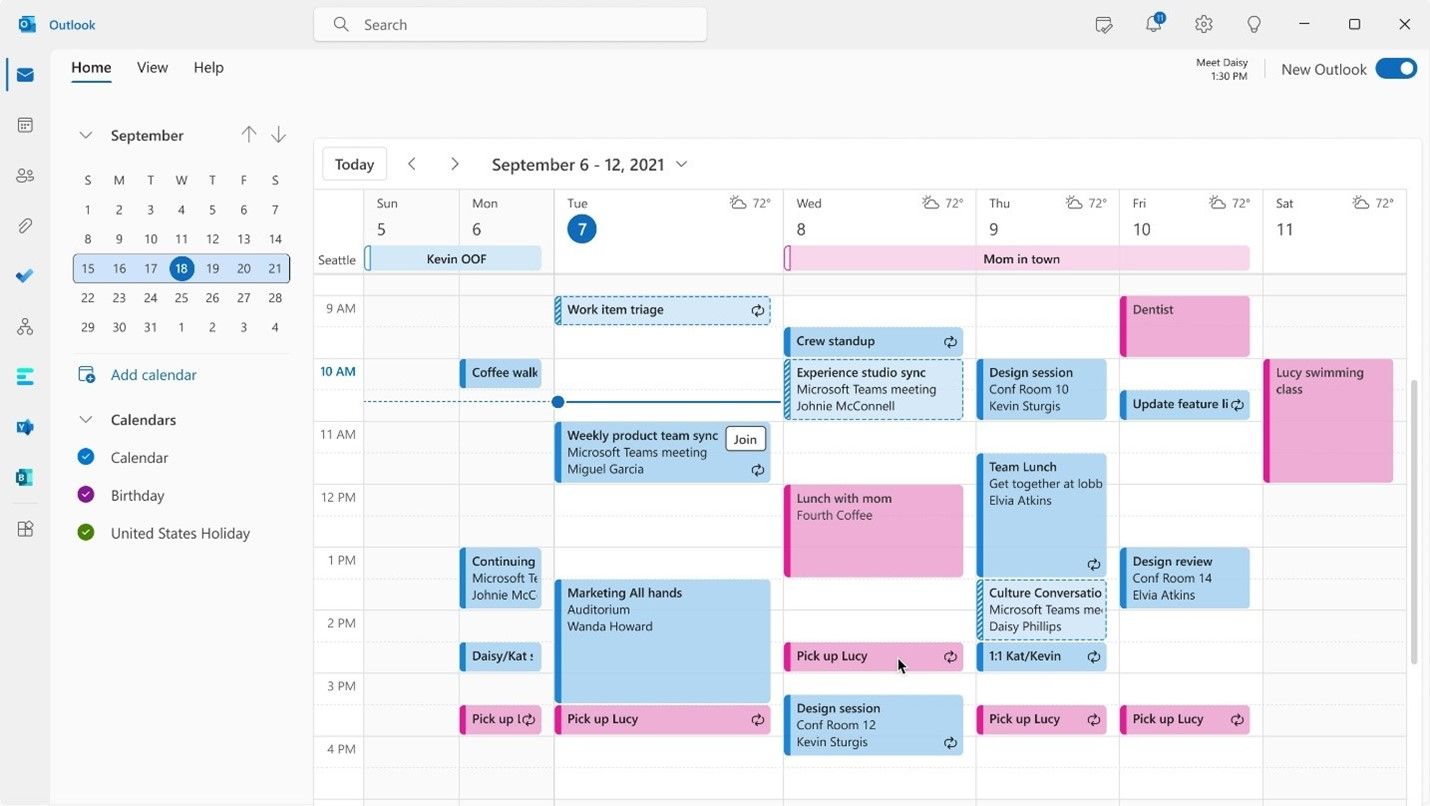
This is a bit of an obvious one, but if you are looking for widgets that help optimize your workflow, then you can’t go wrong by ditching the default calendar system and adding an Outlook Calendar widget to your PC.
The Outlook Calendar widget connects to your Microsoft account and can help you view your work or school schedule at-a-glance on the desktop of your PC. This recommendation is completely based on whether you use Microsoft’s other related programs. If you use Google Calendar instead of Outlook Calendar, then you can add your Google account to the default Windows Calendar.

Related
Microsoft is retiring Windows Mail, Calendar, and Outlook’s light web version in 2024
Microsoft has announced concrete dates for the retirement of several versions of Outlook, in a bid for better security of its customers.
So that you don’t have to constantly switch between devices
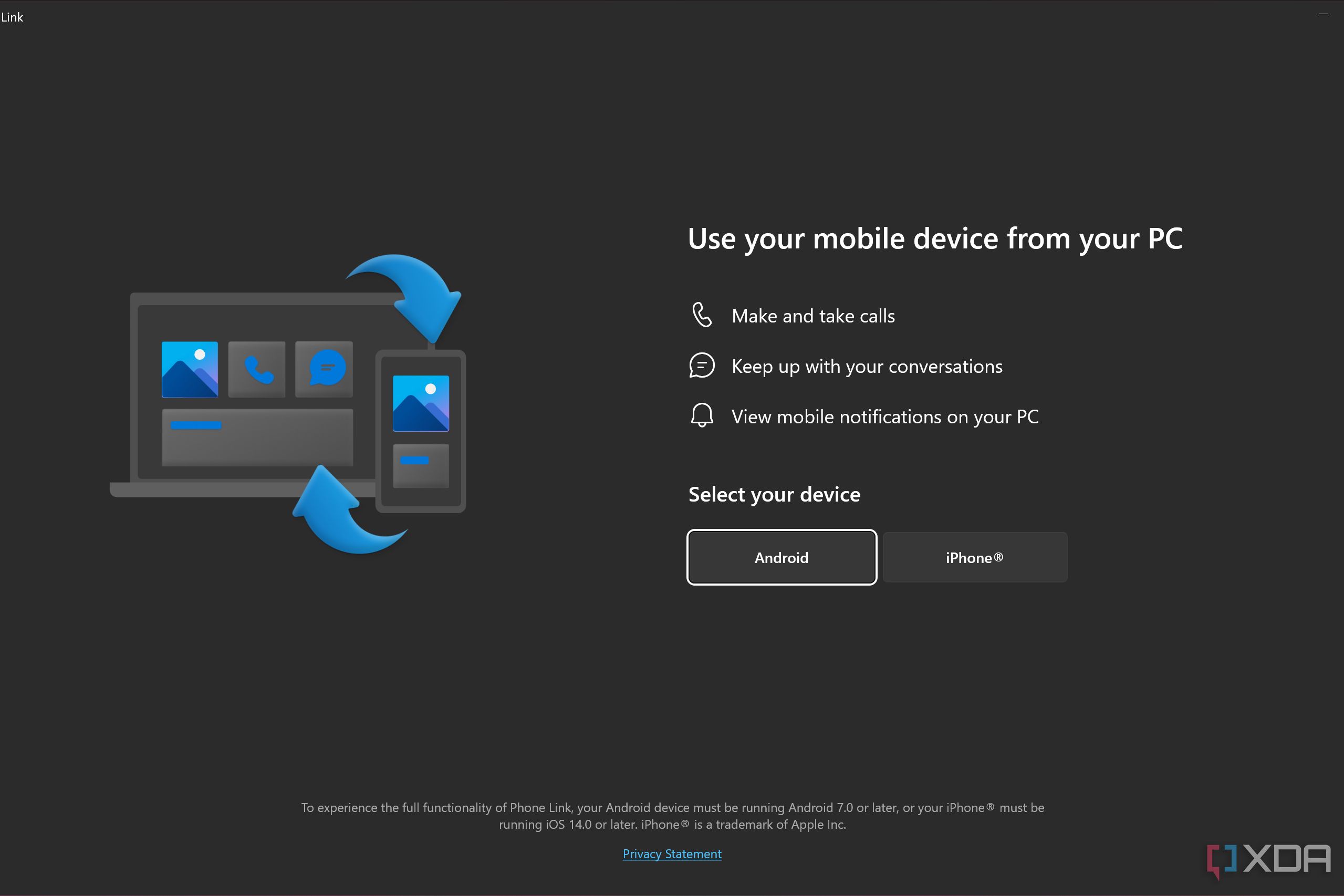
The Phone Link widget is another handy widget that you should install and set up on your Windows 11 PC. This widget works by connecting your phone (Android or iOS) to your Windows computer.
The Phone Link widget is available on all Windows 11 devices by default, although you may have to enable and update the application. To use the widget effectively, you will need to download the mobile application “Link to Windows” on your mobile device and then pair your phone and PC together.
The Phone Link application is useful in many different ways, from workflow improvements to information sharing or viewing. You can monitor your phone’s battery life, signal strength, and internet speed. In addition to this, you can send and receive text messages from your laptop as well as make calls and sync your contacts.
Android users can count themselves lucky, as they can view and manage the images from the phone on their PC. There are other more advanced features available to use with Phone Link, but many of these features are limited to compatible devices, which usually only include the Samsung flagship phones.

Related
Windows 11’s Phone Link now detects and extracts usable text from Android photos
Windows 11’s Phone Link app gets more useful with the new text extraction feature, but it’s not available for everyone yet.
For easy task management
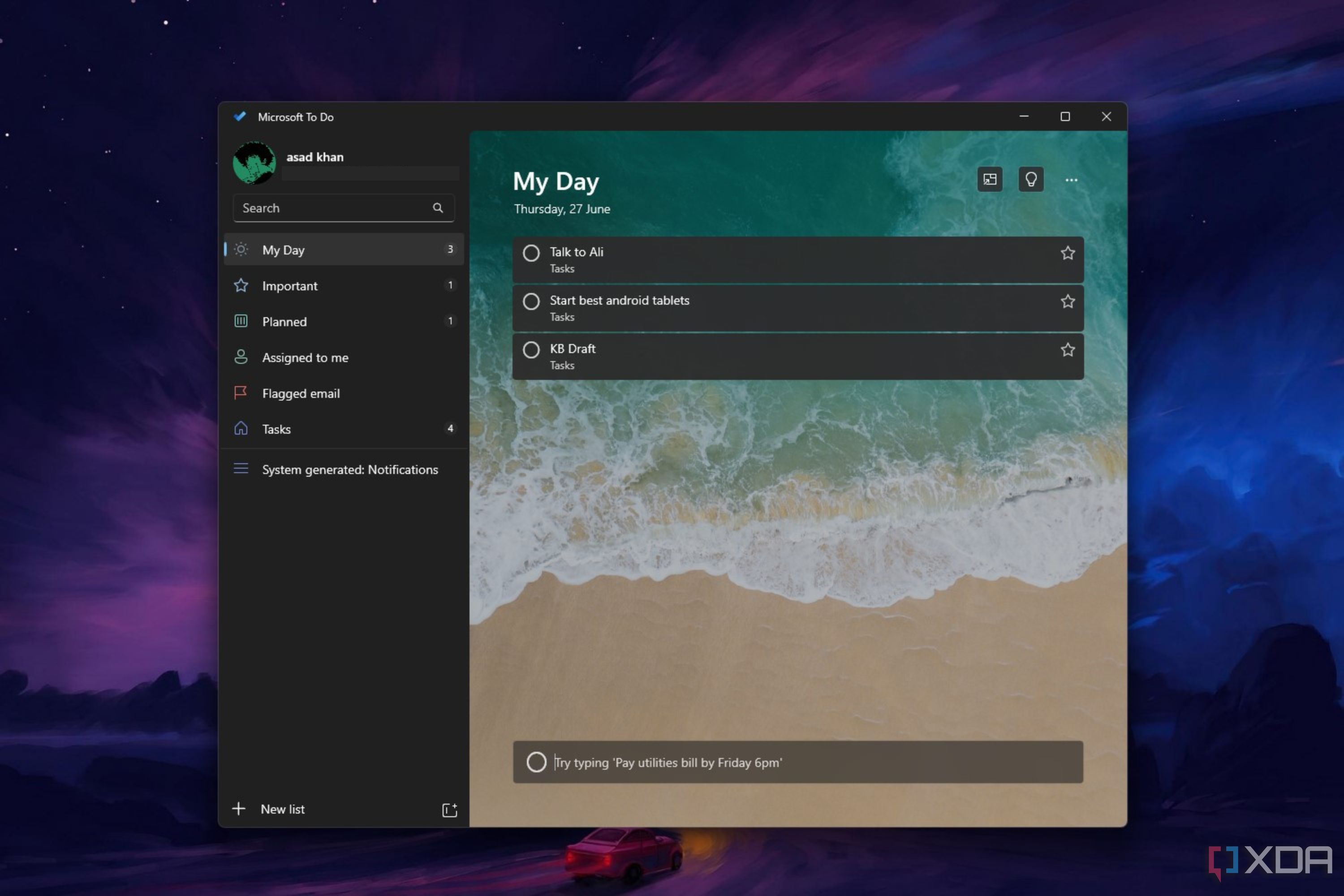
This widget is incredibly useful for people who use their PC or laptop for work. The To Do widget, as the name suggests, is a to-do list that you can put on your desktop to keep track of your daily tasks. The To Do widget, a first-party widget developed by Microsoft, is a cloud-based task management system that links to your Microsoft account and can be used on your PC, phone, or tablet.
Using Microsoft’s To Do widget can help improve your workflow by always reminding you of the task at hand and giving you an overview of tasks that you still have to complete. Your Microsoft To Do lists can also be synced with both the Outlook Calendar and the next widget in the list, the Focus Session widget.

Related
5 Microsoft To Do alternatives that will boost your productivity
Microsoft To-Do is basic at best. Instead, check out these alternatives to power through a productive day.
For when you want to get work done without being interrupted

This widget is great for both work or study, and can really improve a person’s work speed by keeping distractions at bay and enabling focus on the task at hand. The Focus Session widget is a built-in timer that will disable distracting features, and turn on Do Not Disturb mode in Windows 11 for a set period of time.
This feature is based on a time-management technique called the Pomodoro Technique. The method involves someone setting a goal, and then creating a 25-minute to 60-minute timer where the person works “all out” for a set time period, and then takes a short break. After 4 sessions of using this method, you should take a 30-minute to 1-hour break for peak productivity. Adding this productivity widget to the widget board on your PC may give you the performance boost you need to get all your work done early.

Related
How to use Focus sessions in the Windows 11 Clock app
The Clock app on Windows 11 comes with a new feature called Focus sessions, plus it has a fresh design. Here’s how to use it.
#widgets #boost #productivity #Windows
source: https://www.xda-developers.com/here-are-4-useful-widgets-that-will-boost-your-productivity-in-windows-11/


