

One of the wonderful features about the Apple ecosystem is that apps work across platforms, including Messages. Having the Messages app appear on your MacBook can be really handy. You can keep on top of both personal and professional conversations without having to shift your gaze constantly over to your iPhone, or bother to pick it up to type replies on the much smaller keyboard. You can reply, compose, and yes, even delete messages right from your Mac.
Related
MacBook Pro 16 (M3 Max) review: Apple’s just flexing
The 10-month old M2 Max MacBook Pro is still more powerful than 99% of laptops out there, then Apple released an upgrade with more graphical prowess
How to delete a message conversation thread on your Mac
Deleting iMessages or SMS messages is simple on an iPhone with a quick left swipe and a tap on the trashcan. But it works differently on a MacBook since there isn’t a touchscreen, of course.
- Open the Messages window on your MacBook.
- Find the message thread you want to delete and right-click it (two-finger click the touchpad, or hit Ctrl + click).
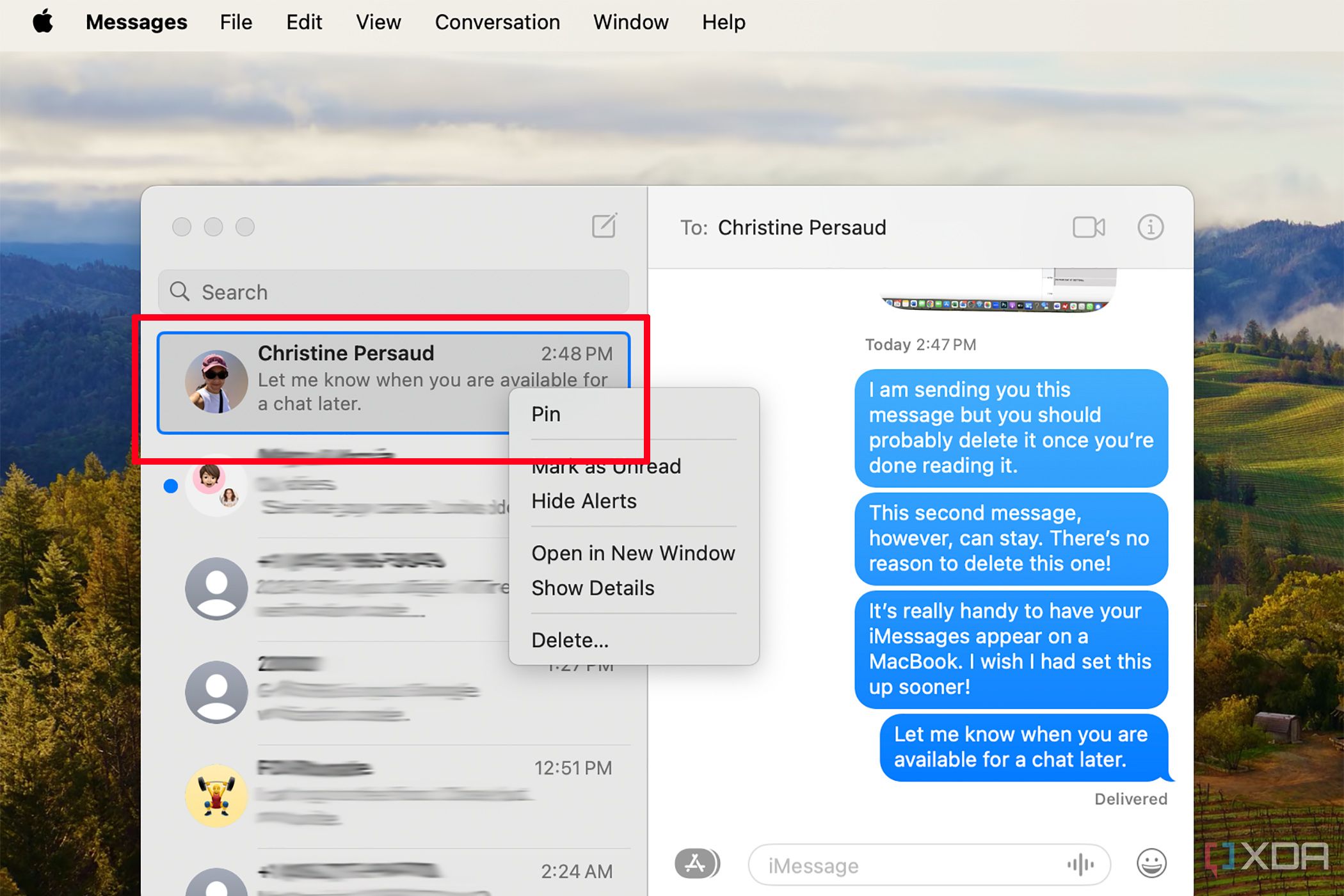
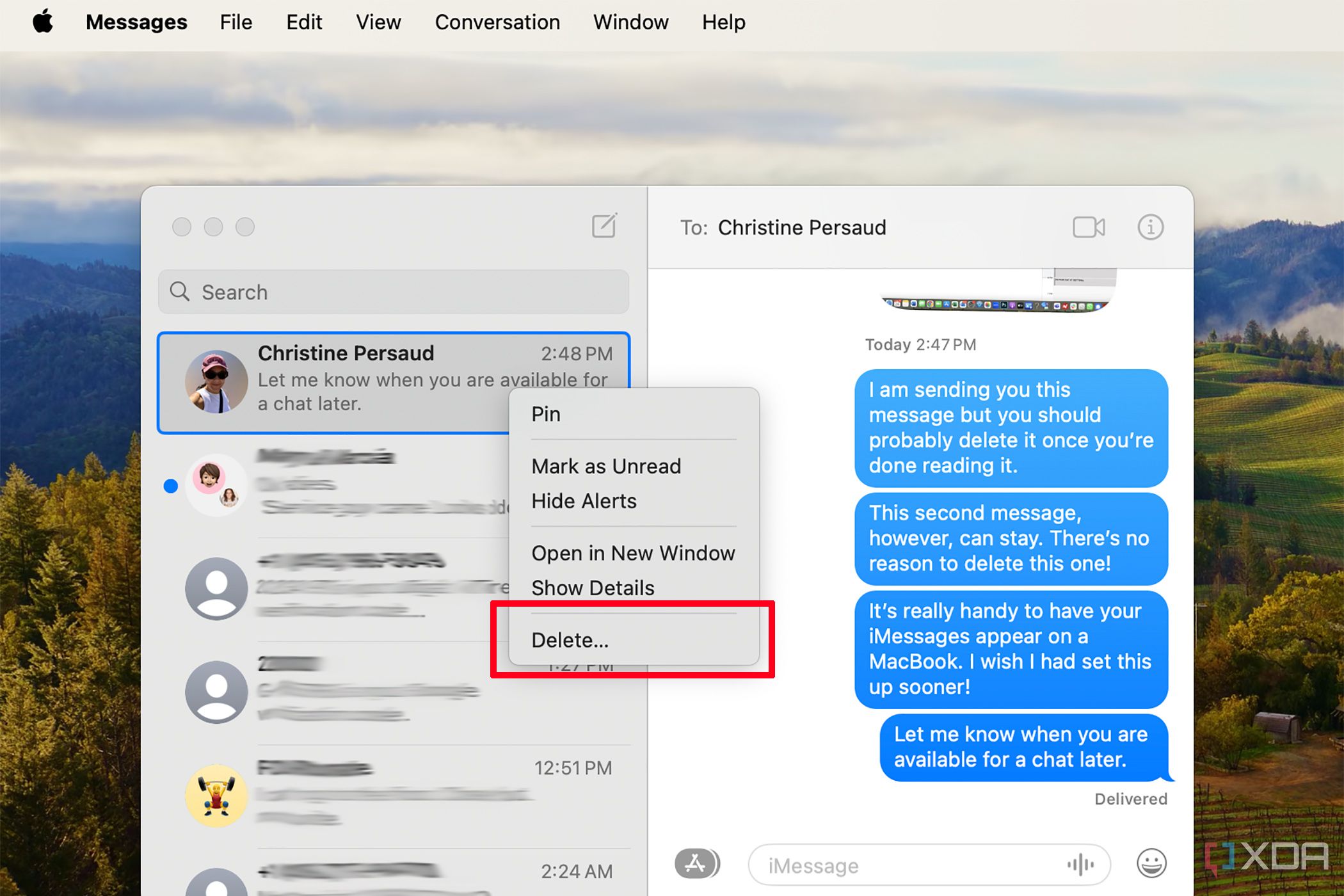
- In the pop-up menu that appears, select Delete. The entire message thread will be deleted.
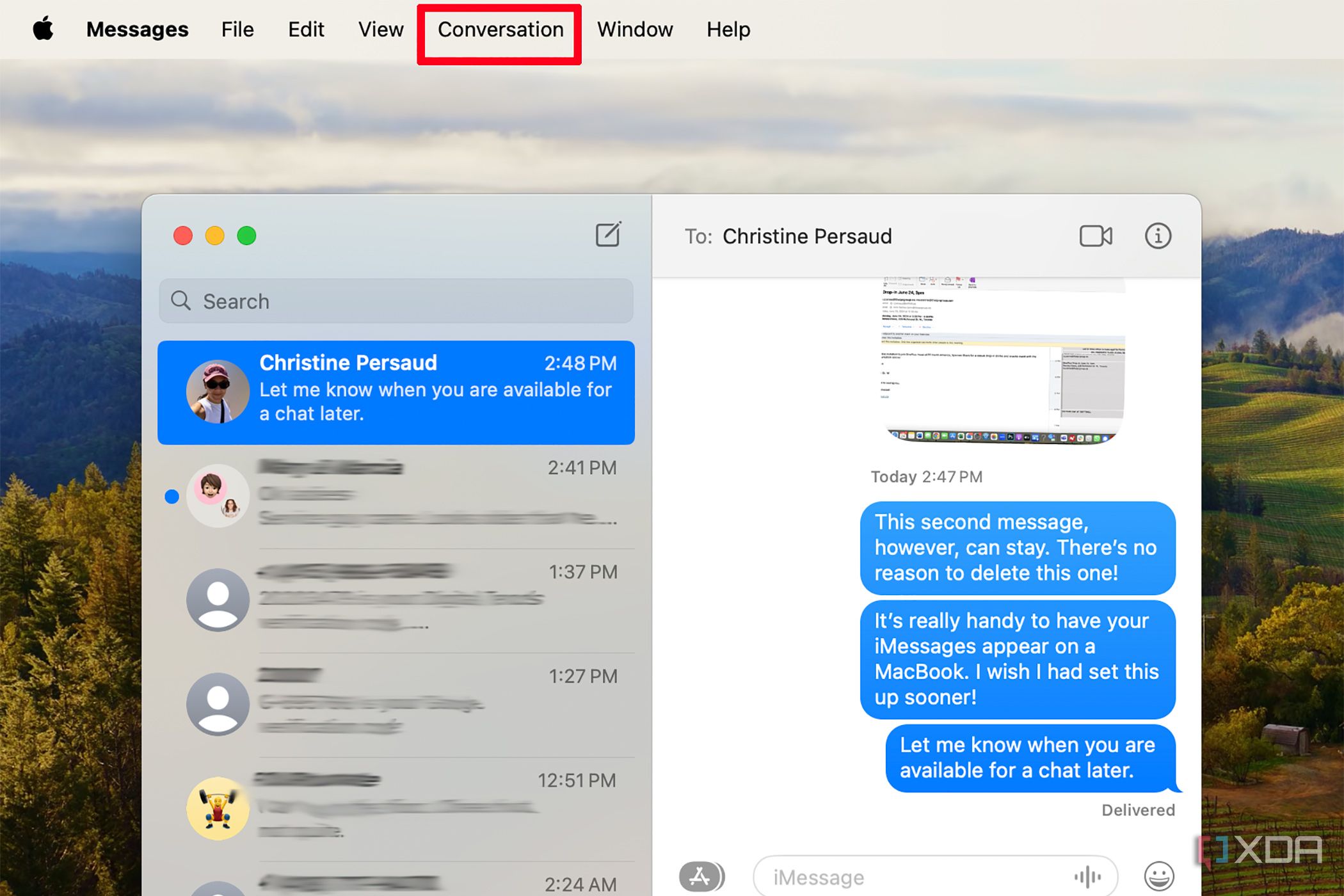
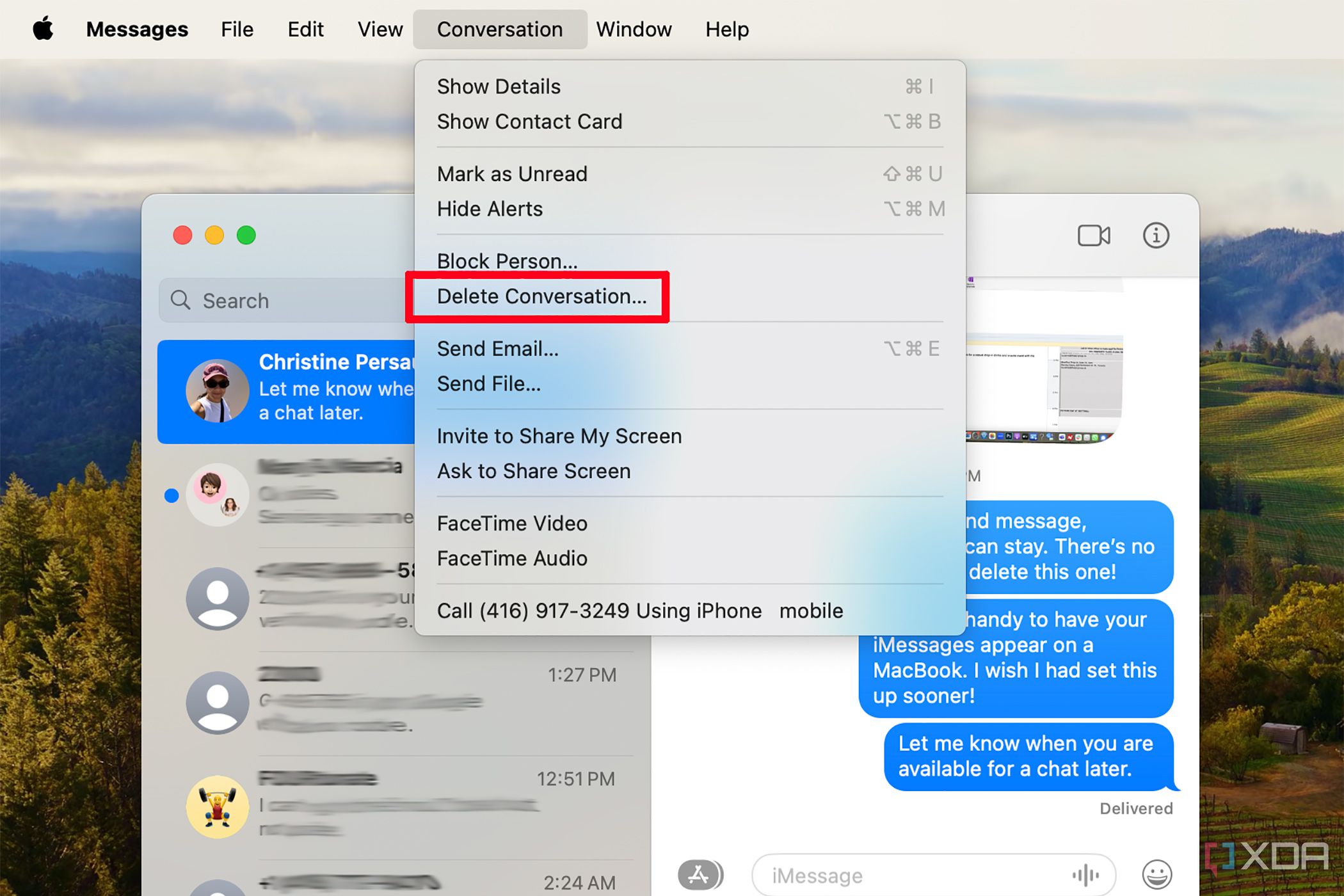
- Alternatively, while the message thread is selected, you could also select Conversation from the top menu bar.
- Then select Delete Conversation. The entire message thread will be deleted.


How to delete a single iMessage or SMS on your Mac
- To delete just a single message within a thread, select the message thread.
- In the right conversation window, place your cursor over the one message you want to delete and right-click it using the same method options noted above.
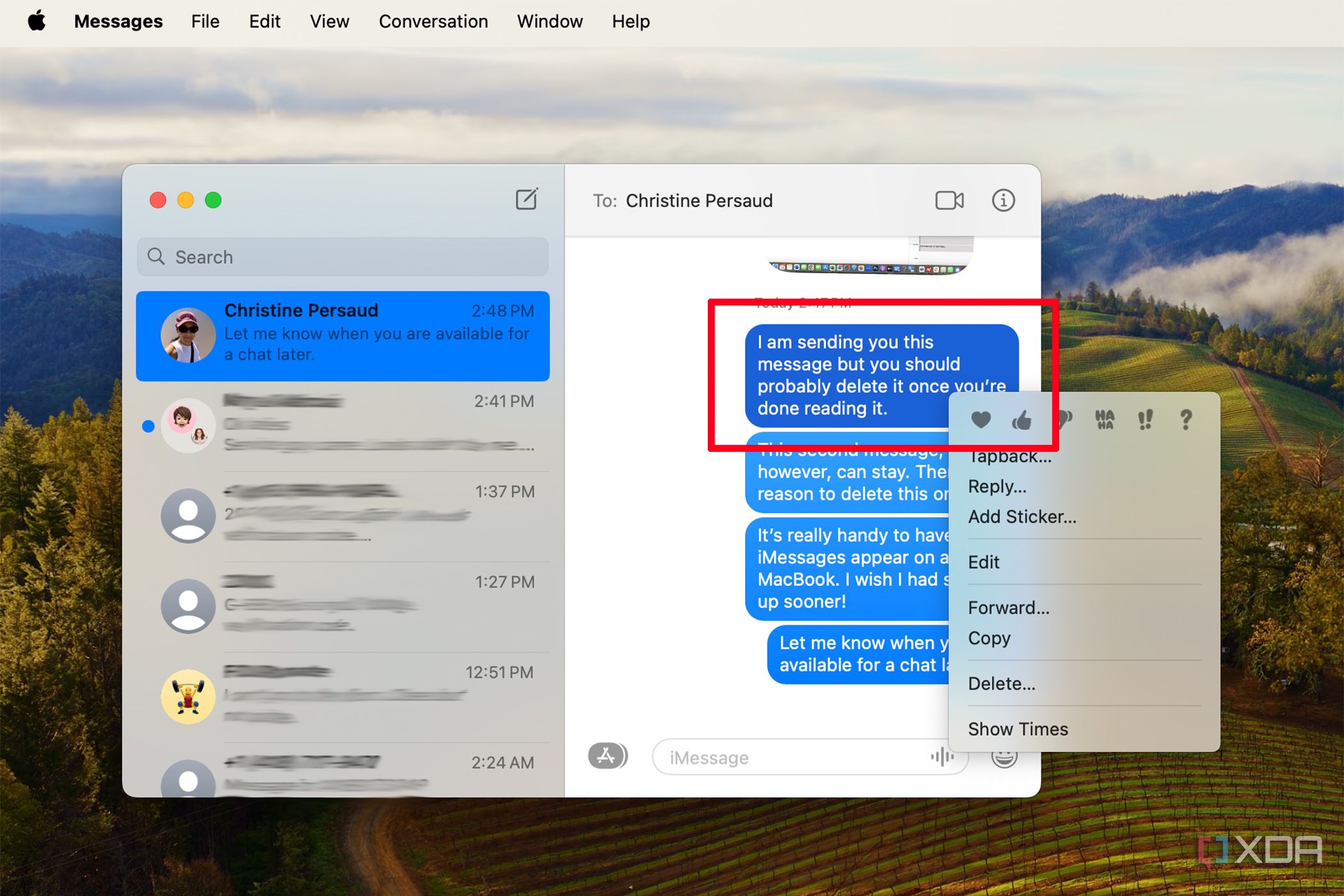
- Select Delete.
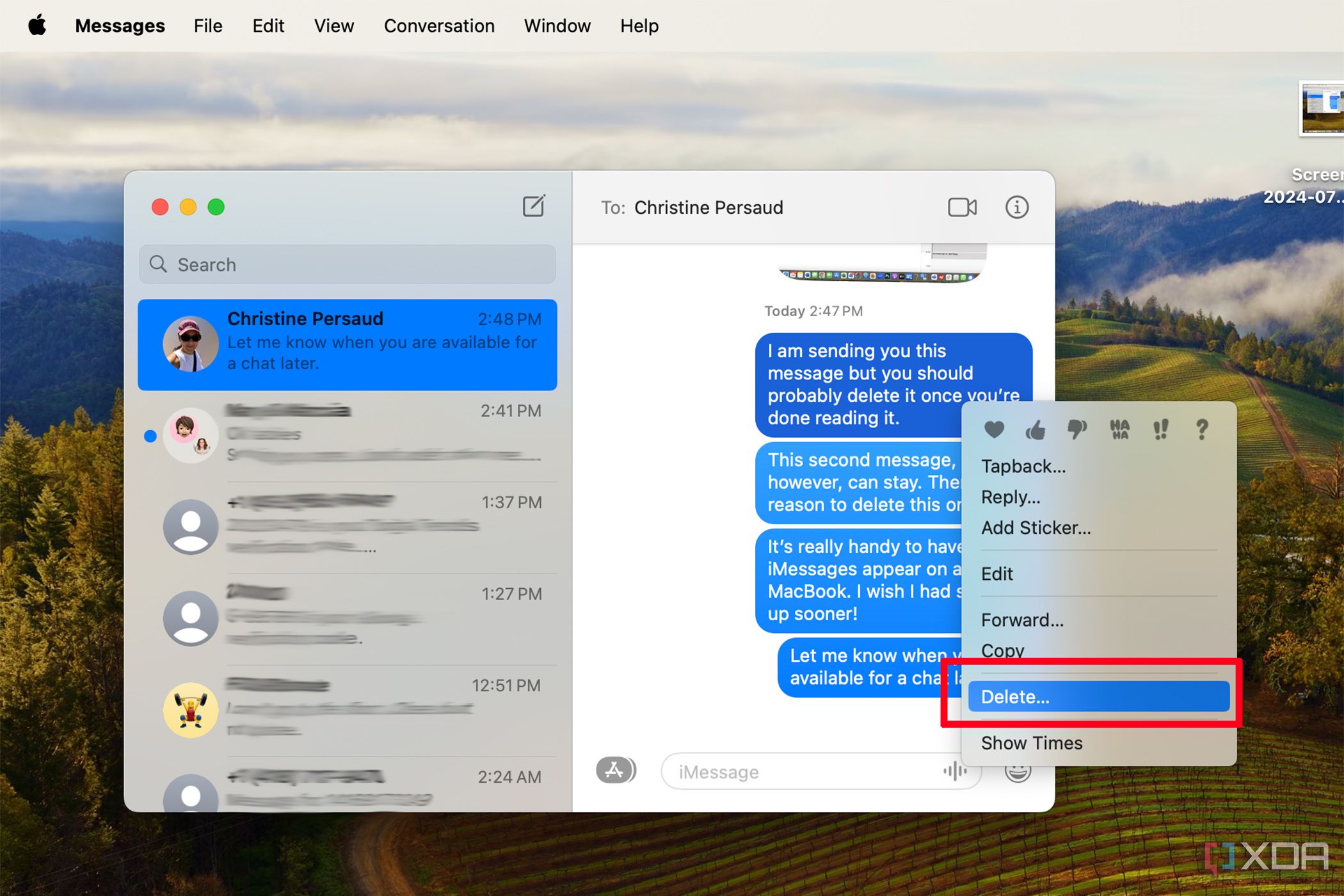
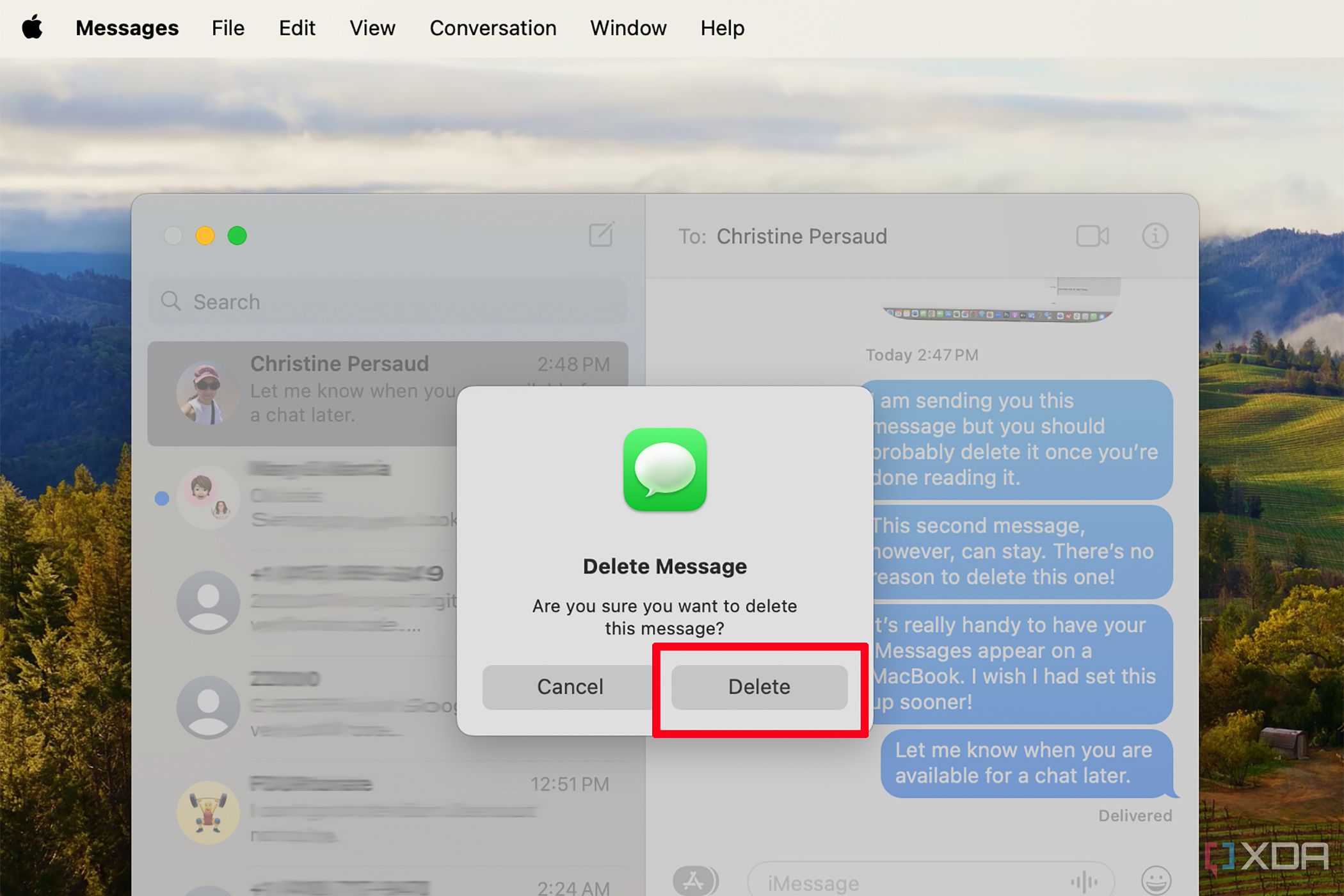
- A pop-up will ask if you’re sure you want to delete this message. Select Delete again.
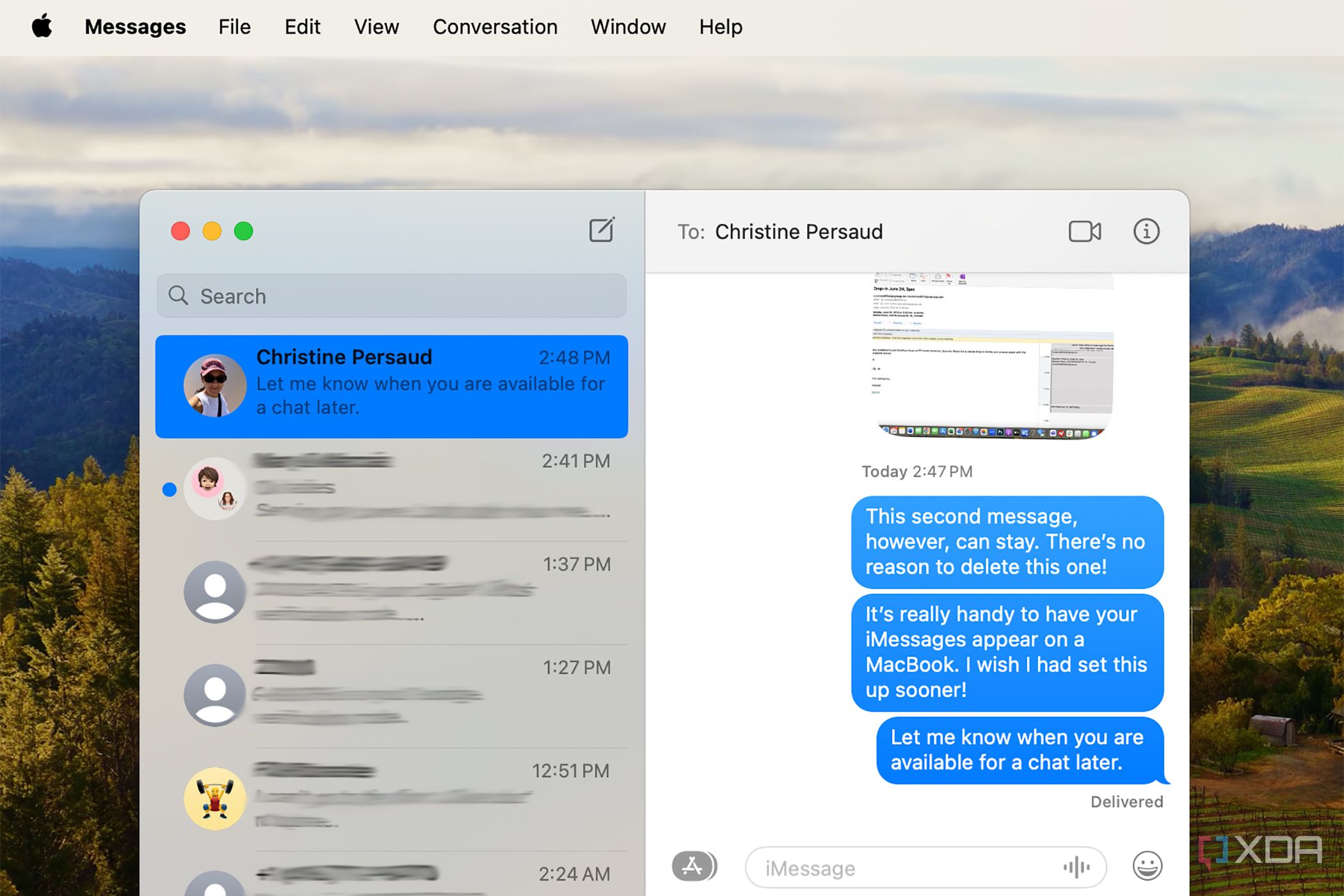
- The message is now gone from the thread.


What else to know about deleting messages on a MacBook
Did you know you can sync SMS messages from your iPhone to your MacBook? It’s a game-changer, especially with things like one-time security log-in codes. But these are just the sort of private messages that you’ll want to be able to delete as well. The process outlined above works the same for iMessage and SMS once you have the latter set up for text message forwarding.
Note that once you delete a message from one of the latest MacBooks, whether it’s an iMessage or an SMS, it will be deleted across all your connected Apple devices that are signed in with the same Apple ID, including your iPhone and iPad, not just locally on your Mac.
#delete #messages #MacBook
source: https://www.xda-developers.com/how-to-delete-messages-on-a-macbook/

/cdn.vox-cdn.com/uploads/chorus_asset/file/24016887/STK093_Google_02.jpg?w=1068&resize=1068,0&ssl=1 "Google will now generate disclosures for political ads that use AI")
